
Profile
Creating a New Profile
Before creating a profile, it's important to understand its purpose. Profiles are where you configure key device settings such as:
- WAN interface configurations
- Custom WiFi network names (e.g., "ISP-Provider-2.4GHz" for 2.4GHz networks)
- 5.0GHz network configurations
- Other device-specific parameters
This is where the magic happens when you want to create new interfaces or set up custom configurations for your devices.
Steps to Create a Profile
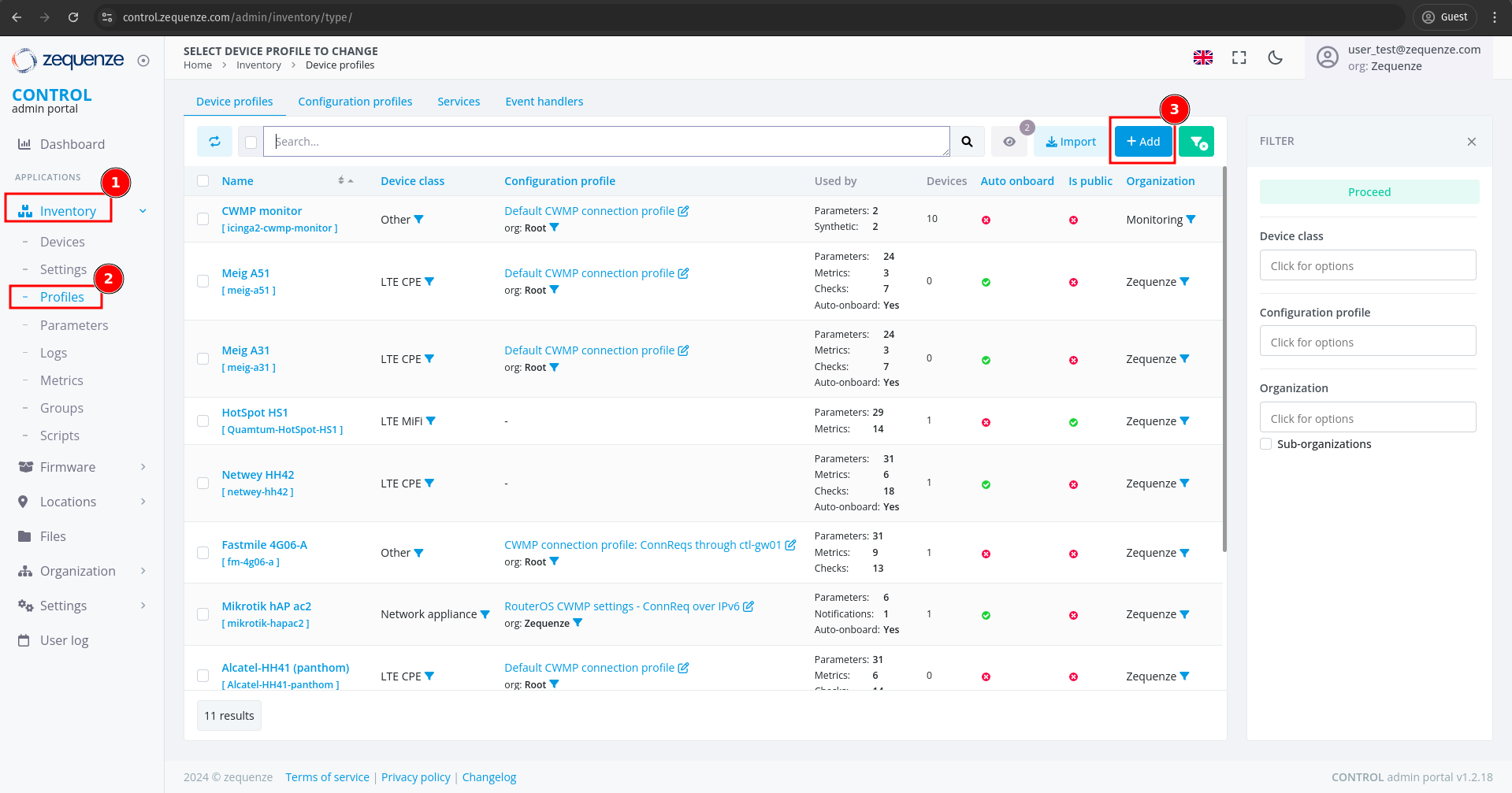
Configuring Profile Settings
You will see the profile creation page with the following fields:
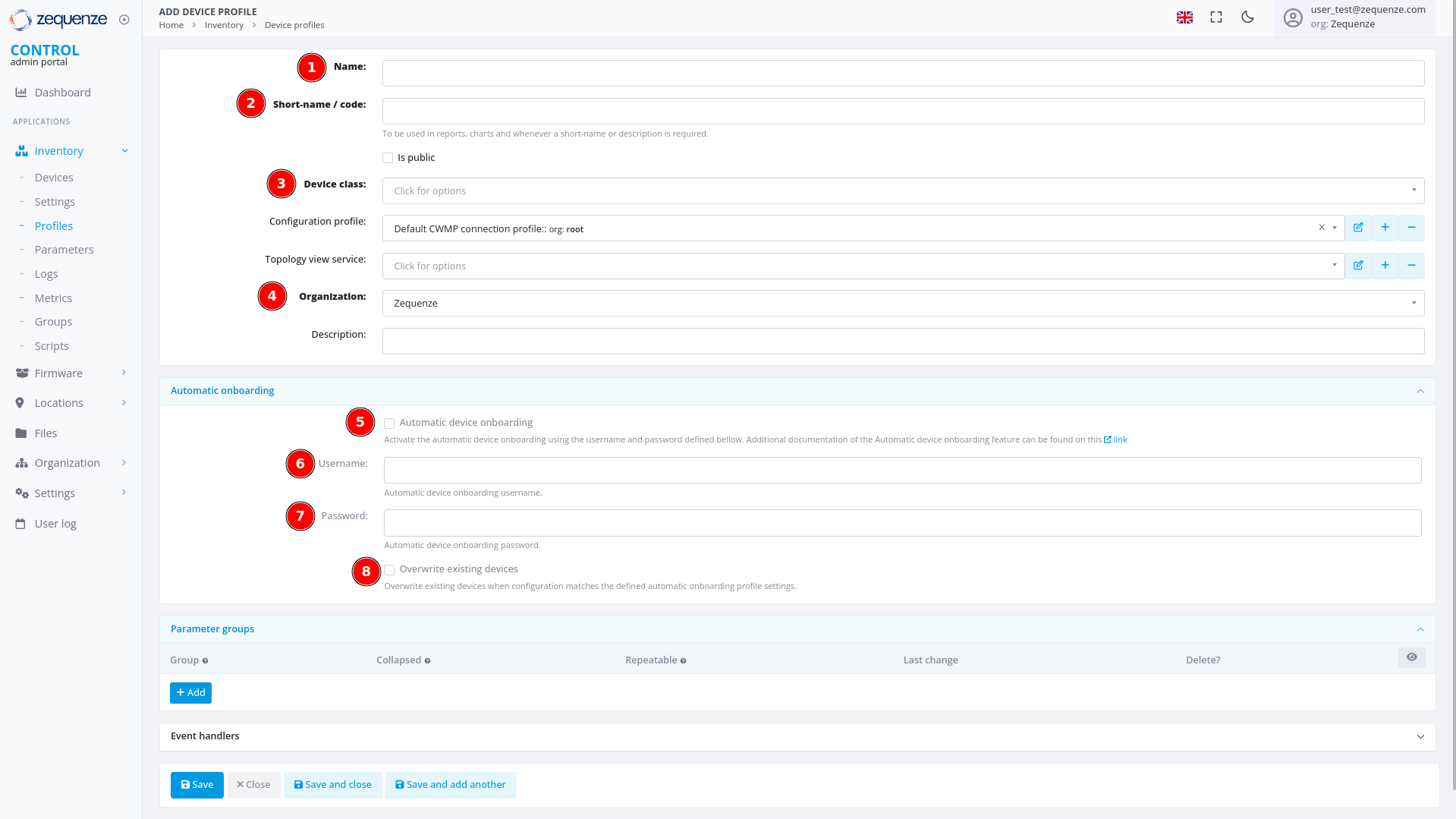
Required Fields
-
Name
Enter a descriptive identifier for this profile. Best practice is to use the format: "Vendor Model [Base]"
Example: "Nokia G-1425G-B [Base]" -
Short-name / code
Provide an abbreviated version of the profile name.
Example: "Nokia-G-1425G" -
Device class
Select the appropriate device type from the following options:- eMTA
- ONT
- DSL CPE
- Fixed Wireless Access CPE
- LTE CPE
- LTE MiFI
- STB
- WiFi eXtender
- WiFi Mesh AP
- WiFi Mesh (master)
- WiFi Mesh (slave)
- WiFi AP
- VoIP phone
- VoIP ATA
- LAN Switch
- Router
- Network appliance
- SONDA probe
- Transport gateway
- Other
-
Organization
If applicable, select which organization this profile belongs to.
Automatic Device Onboarding Settings
-
Automatic device onboarding
Enable this option to allow the CONTROL platform to automatically assign new credentials to devices. This ensures each device receives unique username and password combinations for enhanced security. -
User
Enter the default username that matches the factory credentials on the device. This username must match what is configured on devices connecting to the CONTROL platform. -
Password
Enter the default password that matches the factory credentials on the device. Both username and password must match for automatic profile assignment to work correctly. -
Overwrite existing devices
Enable this option to allow devices that have been reset to factory credentials to reconnect to the CONTROL platform. This prevents connection rejection when a device already exists in the system and ensures that devices returning to factory settings can still connect without issues.
Example Configuration
Below is an example of a completed profile configuration:
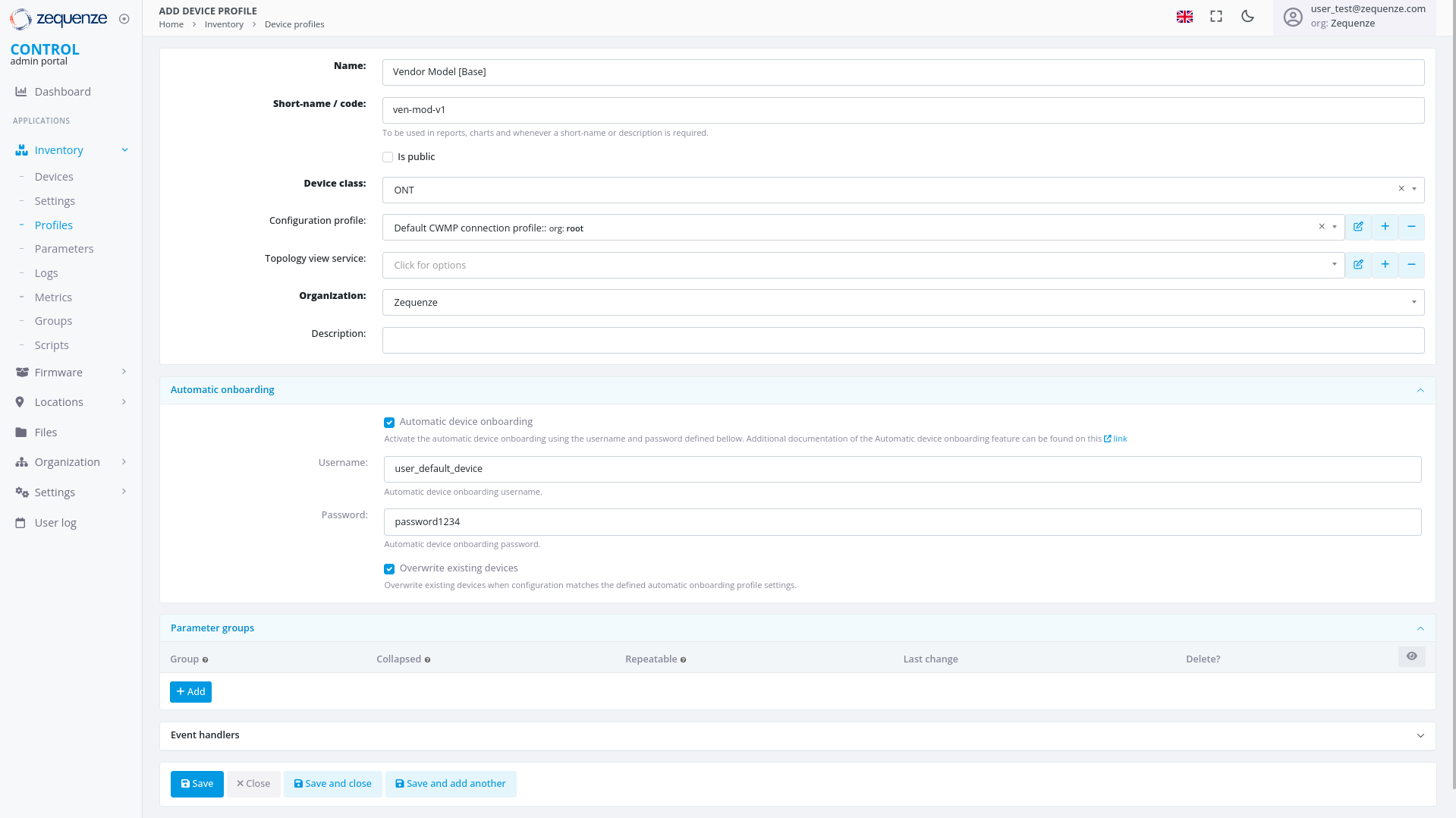
Once all fields are configured, click "Save and close" to create the profile.
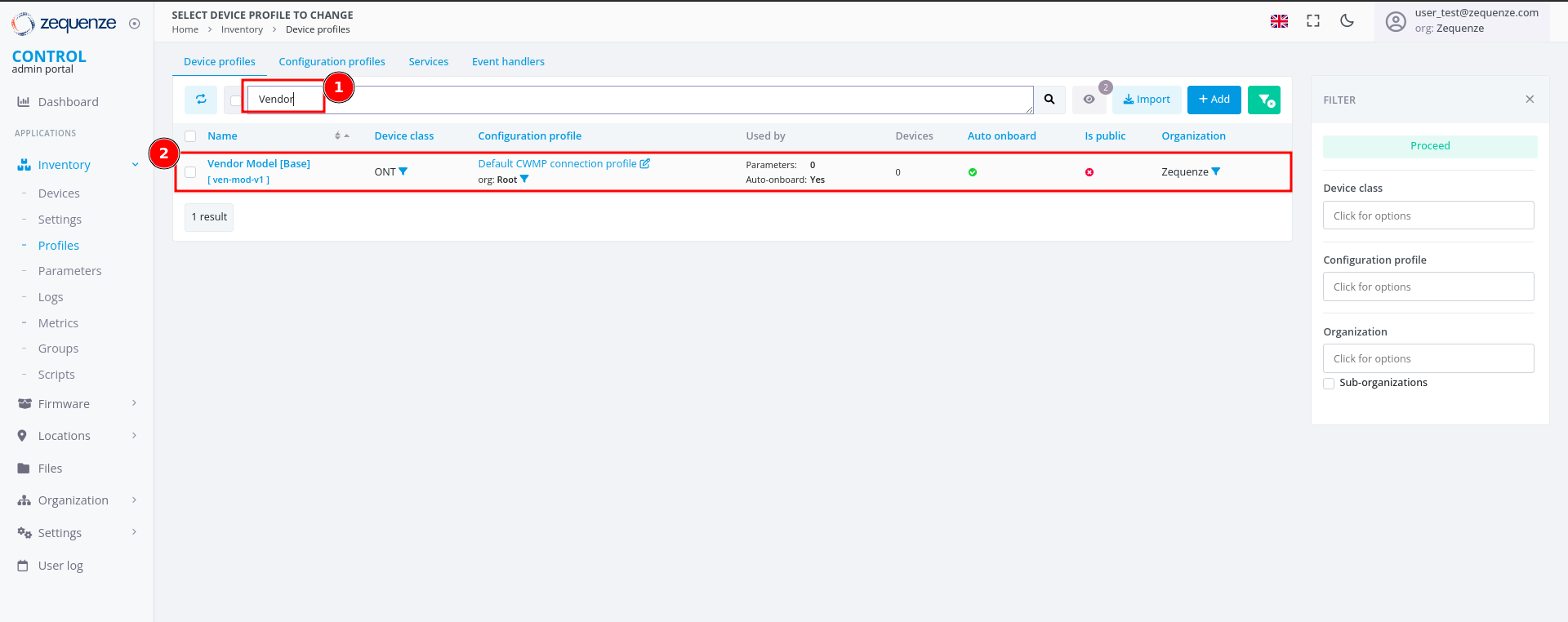
Profile Created
After successfully creating the profile, you can:
- Filter by Name - Use the search filter to locate your profile by its name
- View the Profile - The newly created profile will appear in the profile list
Next Steps
The next step is to configure a device with the credentials and URL settings.
No comments to display
No comments to display