
Add Device to CONTROL
Overview
This guide walks you through configuring a device to connect to the CONTROL platform. In this example, we'll configure an ONT from an oriental vendor with TR069 credentials created in a previous step.
Prerequisites
Before beginning, ensure you have:
- Valid TR069 credentials created in CONTROL (see the Profile chapter)
- Network access from the device to the CONTROL platform URL
- Administrative access to your device
Step 1: Access Device Configuration
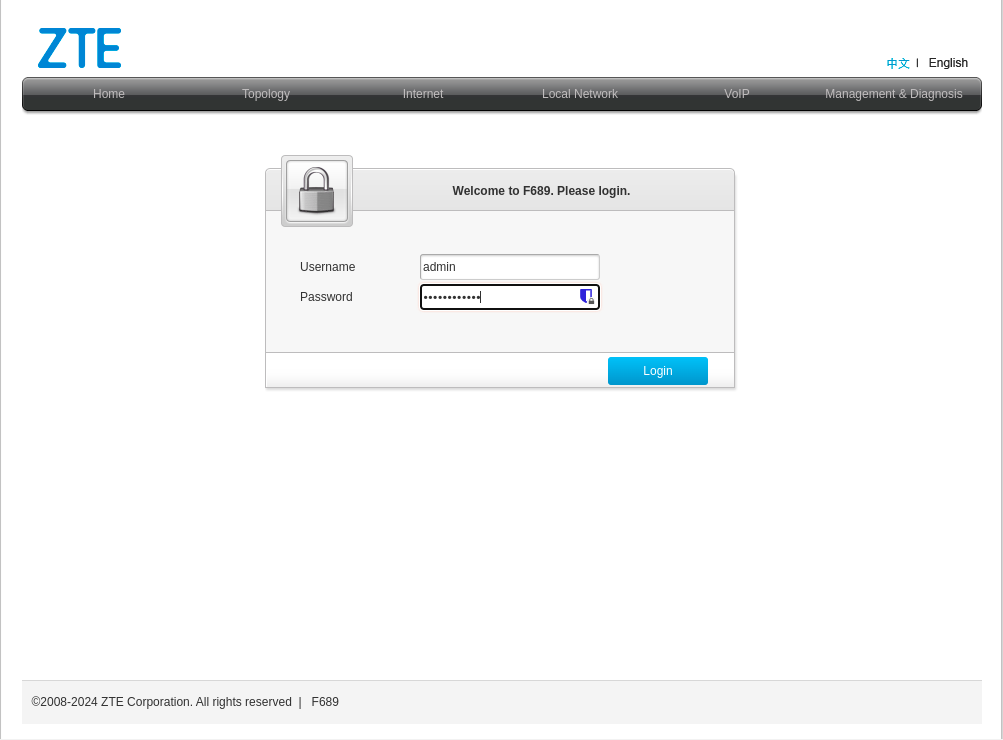
Log in to your device's web interface.
Step 2: Review Existing WAN Interfaces
After logging in, verify the existing WAN interfaces. This device has a pre-configured interface, but we'll examine the configuration and create a new one for demonstration purposes.
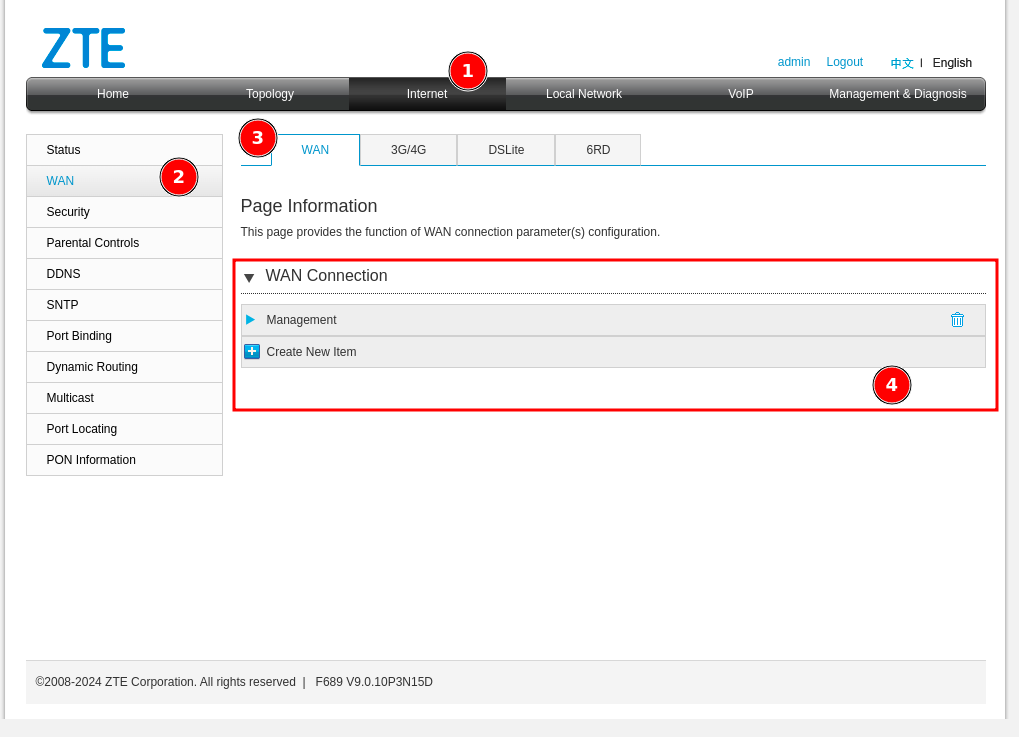
- Click "Internet"
- Click "WAN"
- Click "WAN" again
- In the displayed list, you'll see existing WAN interfaces (in this example, an interface named "Management")
Step 3: Create a New WAN Interface
Create a new WAN interface for TR069 connectivity:
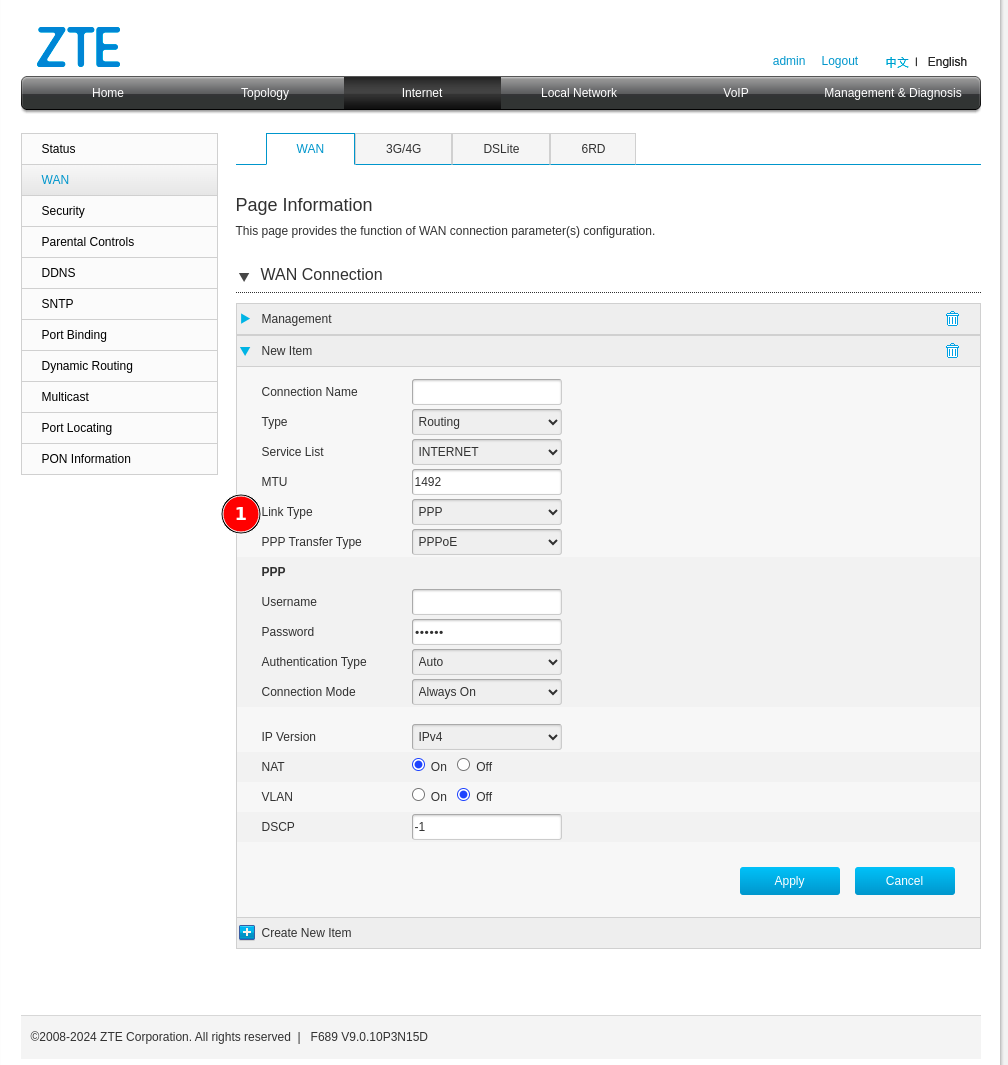
- Change the connection type from "PPP" to "IP":
Step 4: Configure Service List Options
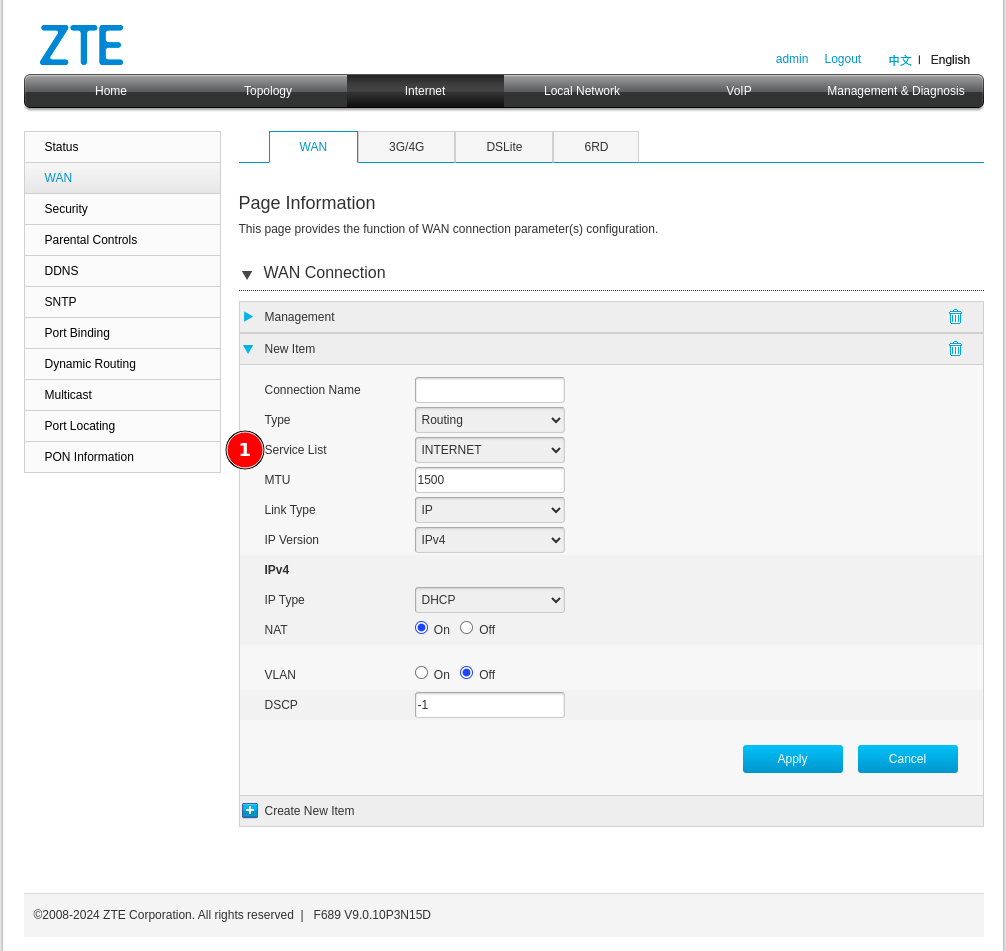
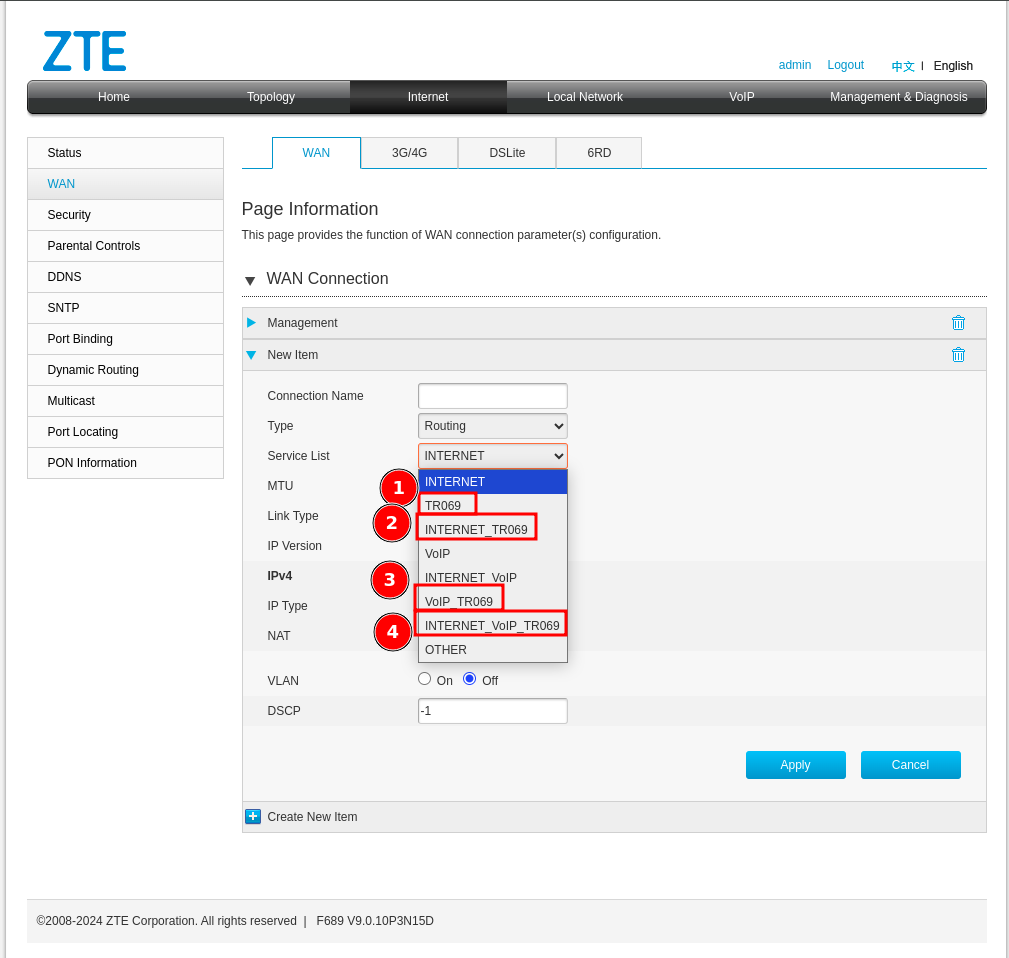
Next, configure the "Service List" type. Change it from Internet to one that includes TR069.
Understanding Service List Combinations
You may encounter several service list options in this device and possibly others. Here's what each means:
-
TR069 — This option is alone, it is because there would be a separate WAN interface solely to manage the device through the CONTROL platform, which would be ideal but is often not possible due to network design issues that already exist.
-
INTERNET_TR069 — With this option we will be sharing the Internet service for the user or client along with the administration of the device. Not recommended since when the service is suspended, access to the CONTROL platform is sometimes lost and communication would be limited until the service is reactivated.
-
VOIP_TR069 — Sharing the TR069 service with VoIP may possibly be a good option since it would not affect the existing Internet services you already have.
-
INTERNET_VoIP_TR069 — This last option would be to manage all the services in a single VLAN or WAN interface, which is rare for clients with this configuration, but it works.
Step 5: Configure WAN Interface Parameters
Configure your WAN interface with the following settings:
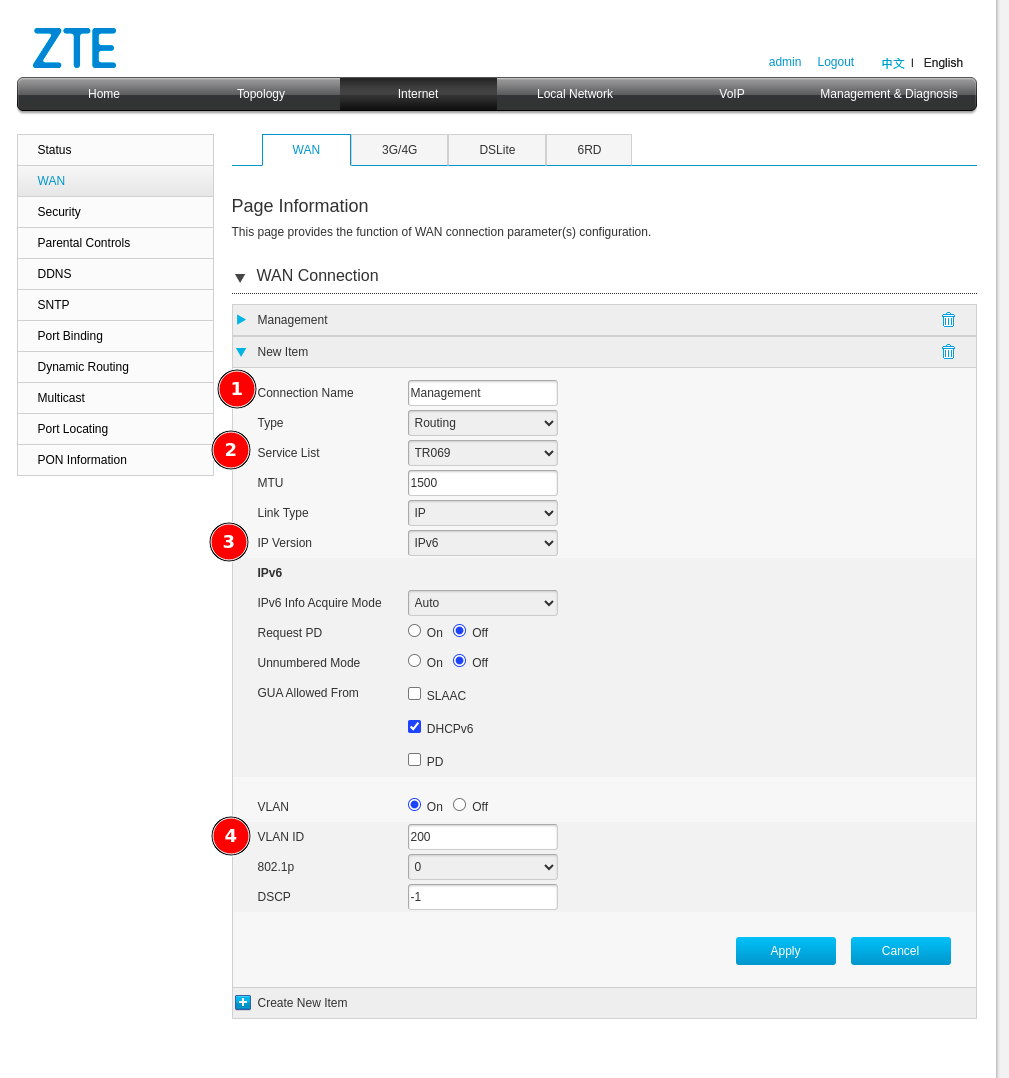
- Connection name — Enter a descriptive name to identify this connection
- Service List — Select TR069
- IP Version — Select the appropriate IP version (IPv4 or IPv6)
- VLAN ID — Enter the VLAN ID for this service
Important: Please make the necessary changes in your network configuration to ensure the device can reach the CONTROL platform URL through this WAN interface with the TR069 service enabled.
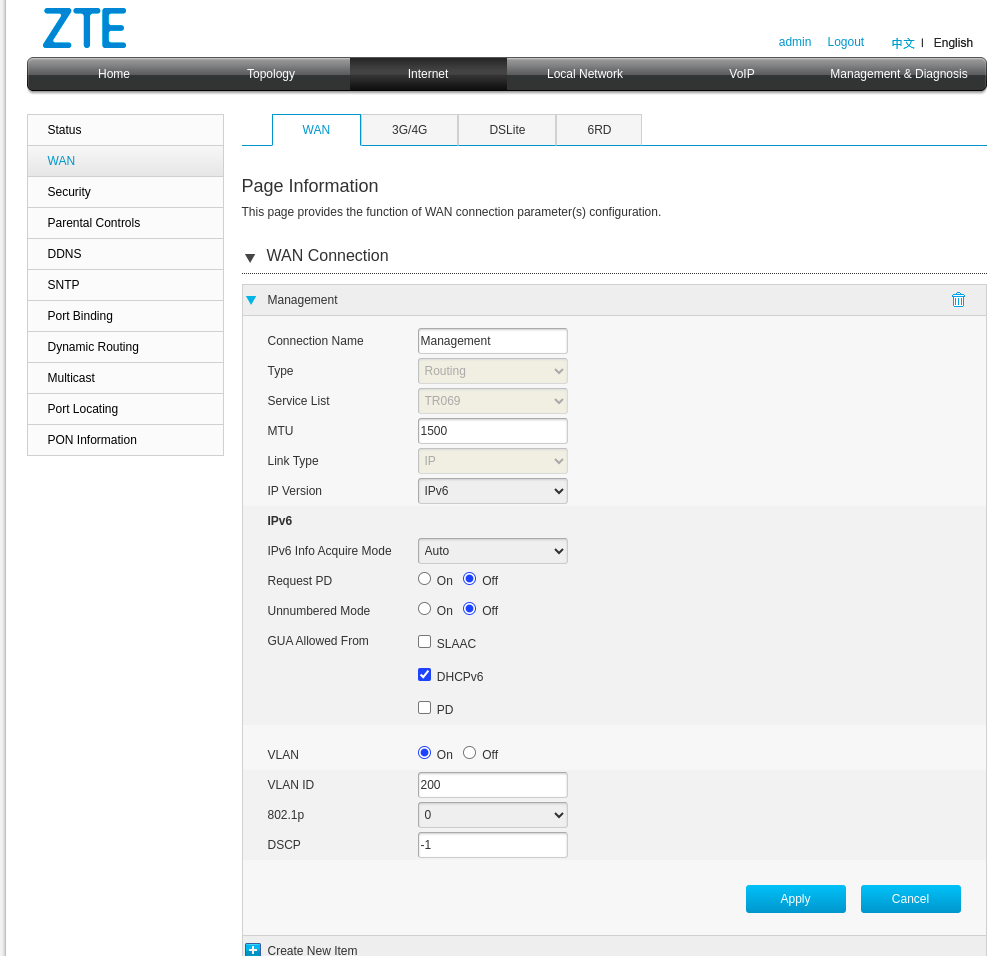
After clicking Apply, verify your configuration:
Step 6: Verify Network Connectivity
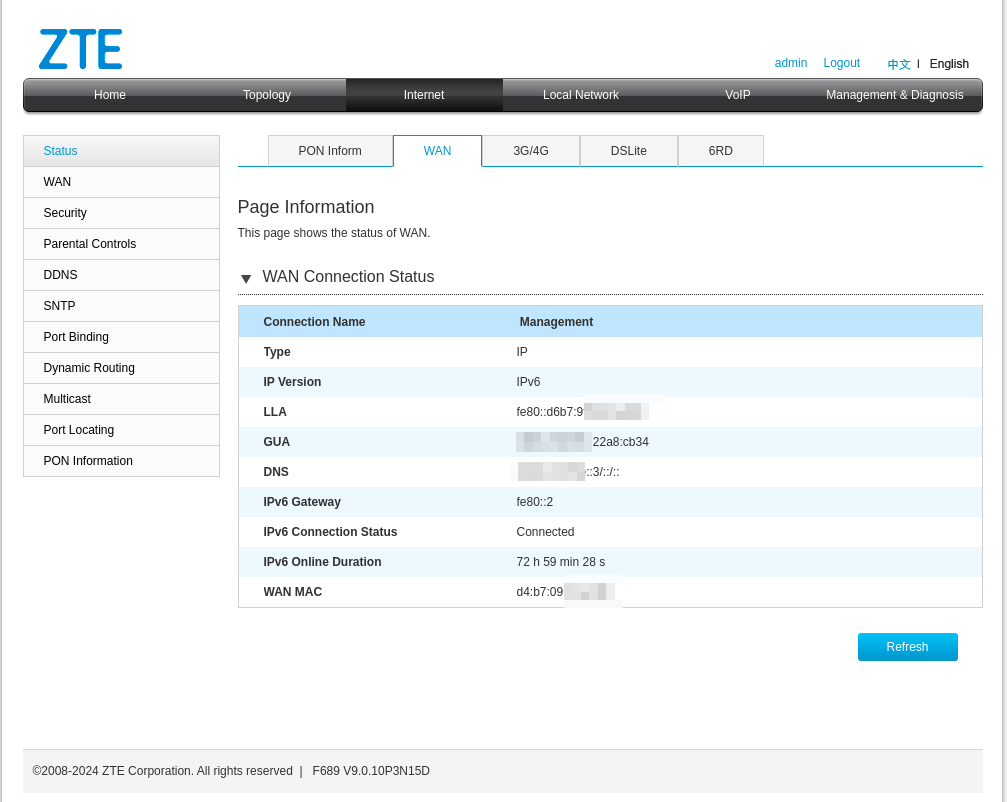
Confirm that the WAN interface has a valid IP address and can reach the CONTROL platform:
Optional: Test CONTROL Platform Connectivity
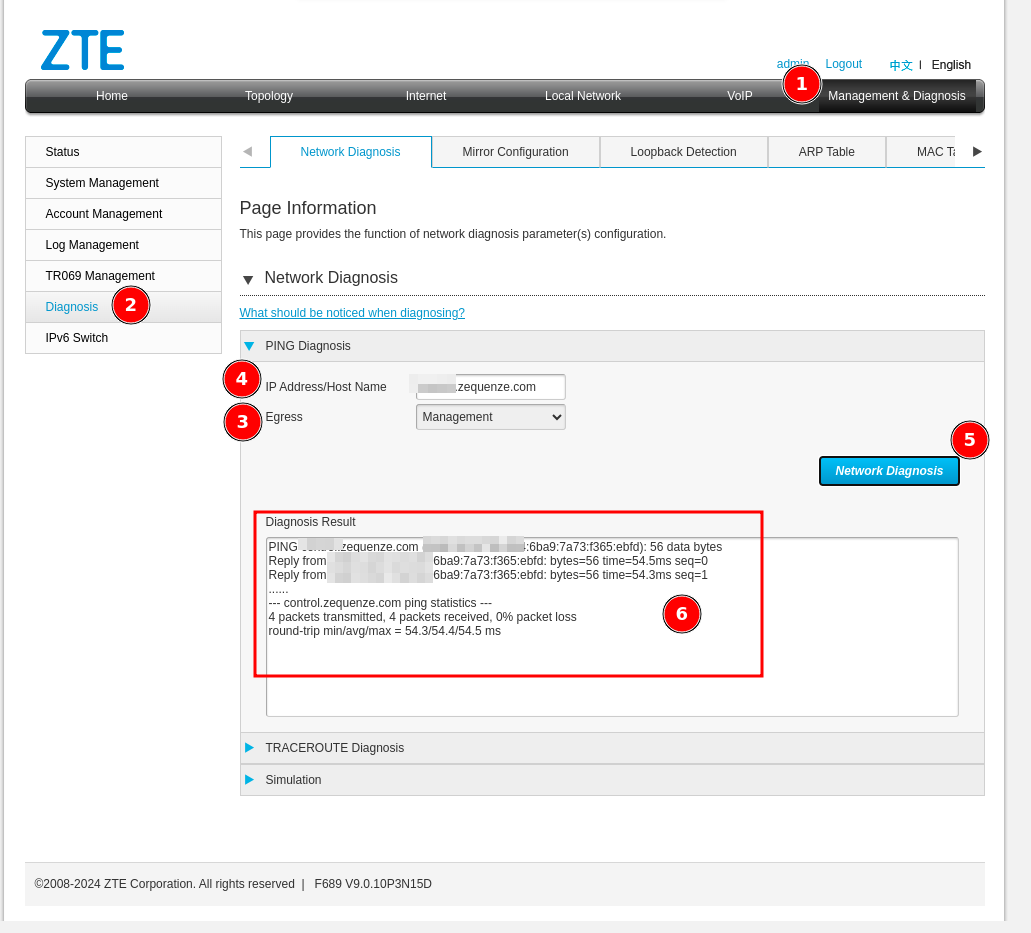
This step is optional, but you can confirm with a ping that the CONTROL URL can be reached using the device's built-in ping utility:
Step 7: Configure TR069 Settings
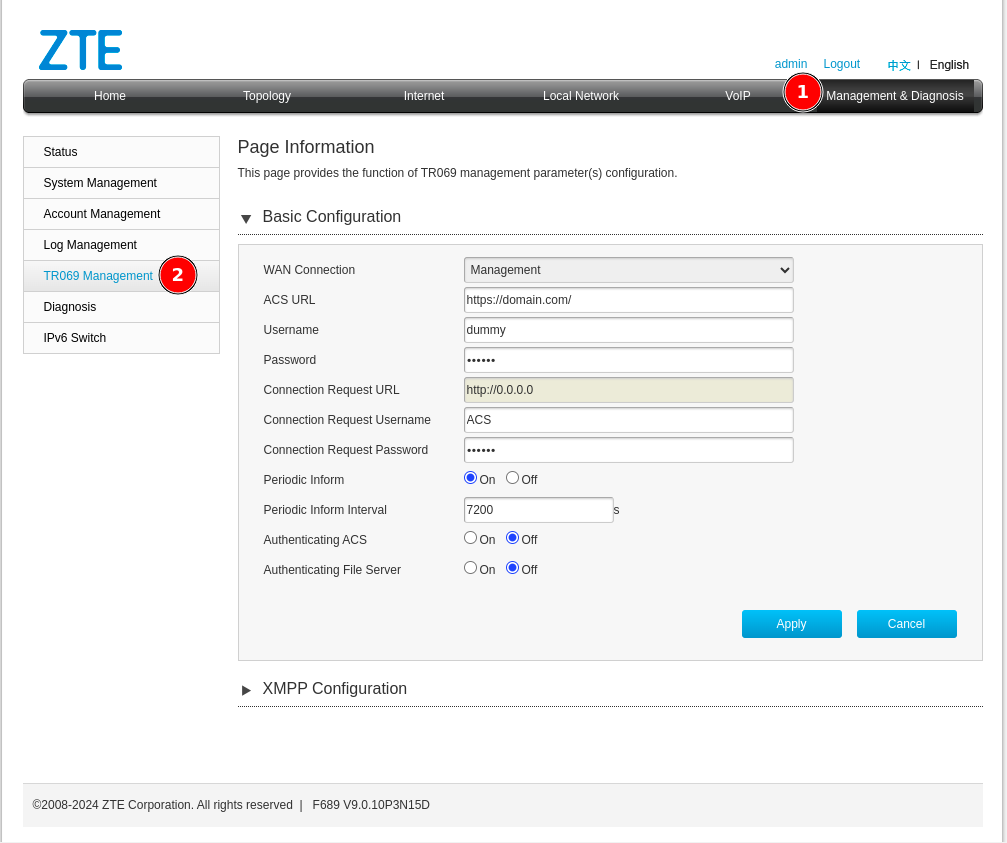
- Click "Management & Diagnosis"
- Click "TR069 Management"
Step 8: Connect Device to CONTROL
Configure the TR069 parameters to establish connection with CONTROL:
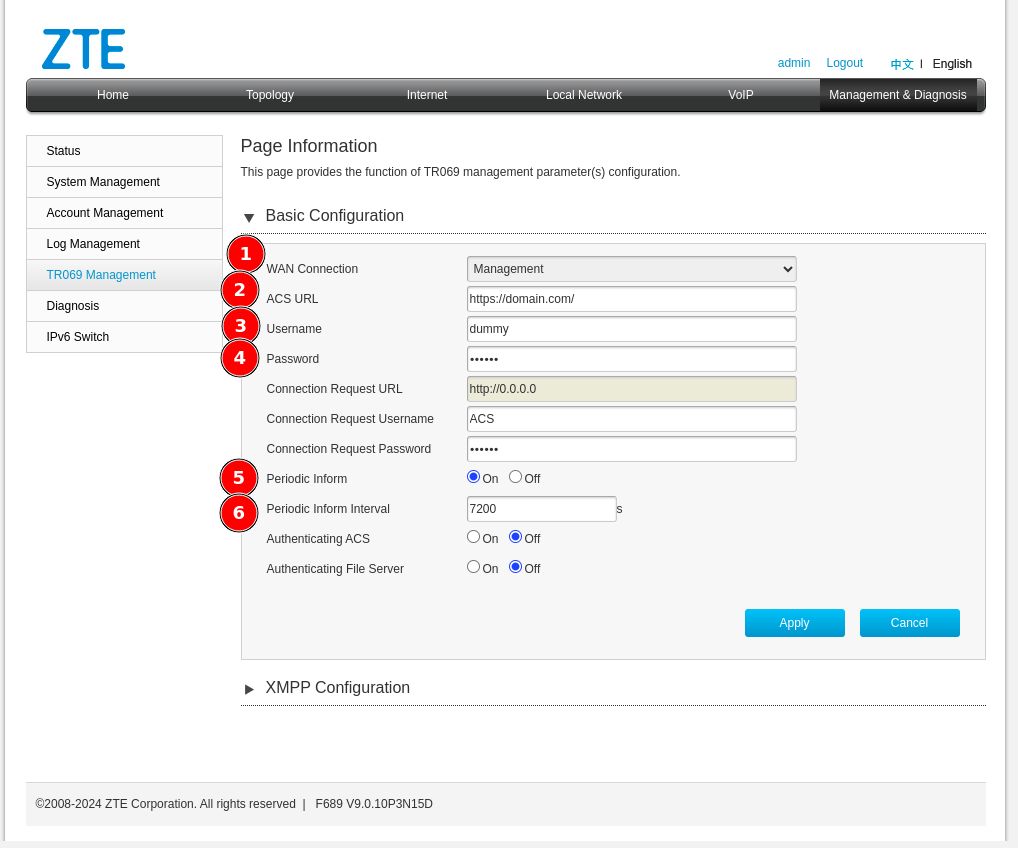
Configure the following parameters:
-
WAN Connection — Select the interface created for TR069 (e.g., Management)
-
ACS URL — Enter:
https://control.zequenze.com/cwmp/
Note: Please confirm the correct URL with Zequenze staff before proceeding. -
Username — Enter the username created in the Profile chapter
-
Password — Enter the password created in the Profile chapter
-
Periodic Inform — Enable this option to allow the device to report periodically to CONTROL
-
Periodic Inform Interval — For initial setup, set this to 180 seconds
Step 9: Apply Configuration
Review your final configuration:
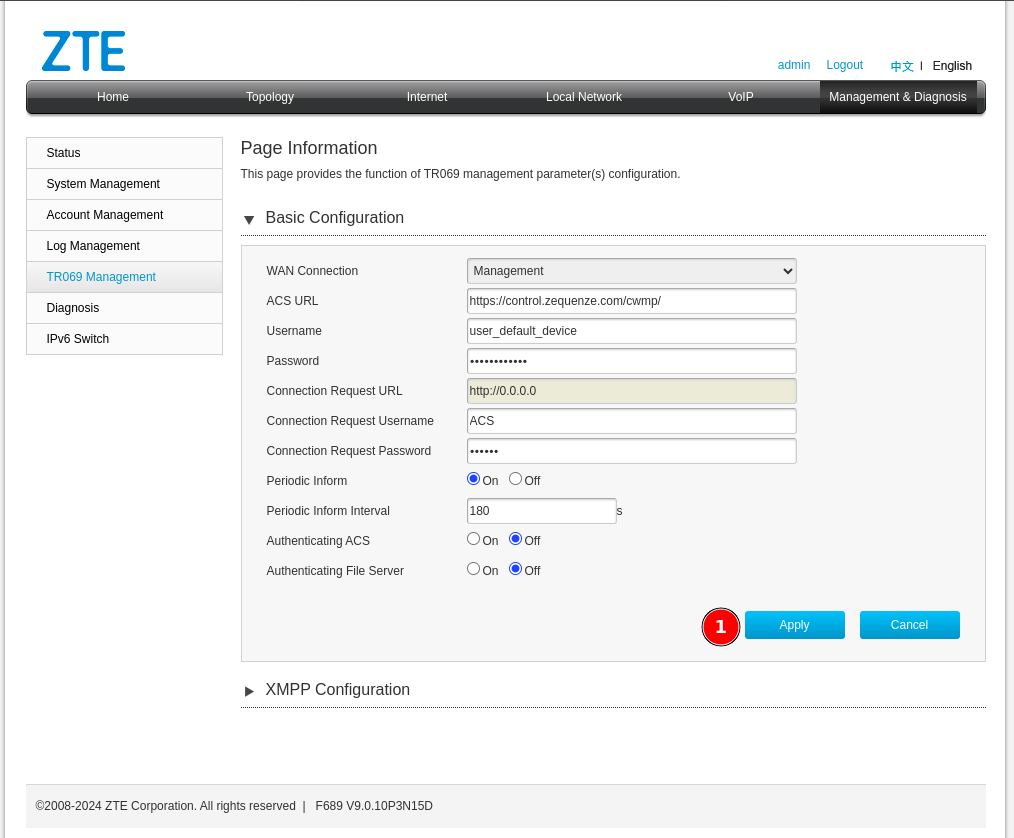
Click the Apply button to save your changes.
Next Steps
Device configuration is now complete. The device should appear in the CONTROL platform within the configured periodic inform interval. You can now proceed to manage and monitor your device through CONTROL.
No comments to display
No comments to display