
Inventory scripts
Overview
Inventory scripts are Python-based automation tools that execute operations on managed Devices in CONTROL. These scripts can target devices through user-configured filters or process data from CSV files. Use inventory scripts to gather device information or perform batch operations across multiple devices.
Scripts can be executed:
- Manually by users through the CONTROL interface
- Automatically via triggers configured in Device Profiles
Accessing Inventory Scripts
Inventory → Scripts
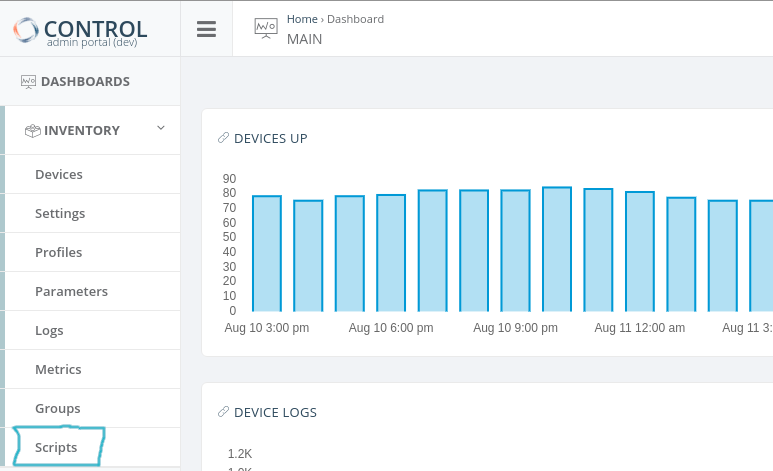
Configuration Methods
There are two ways to configure inventory scripts:
Method 1: Script with Device Filter
This method executes a script across multiple devices based on filter criteria.
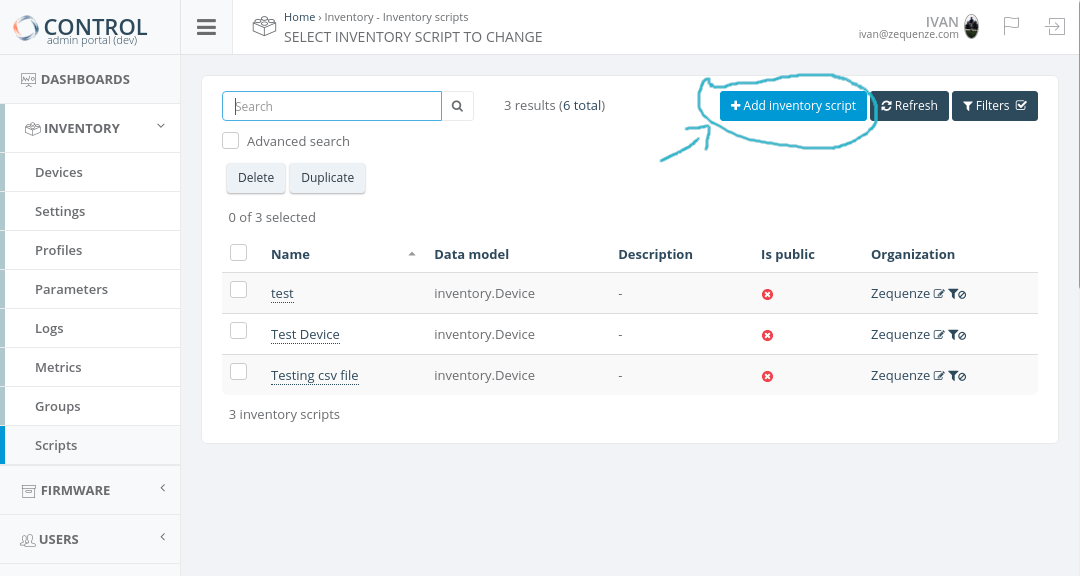
Step 1: Create a New Script
Click Add New in the Inventory scripts configuration screen:
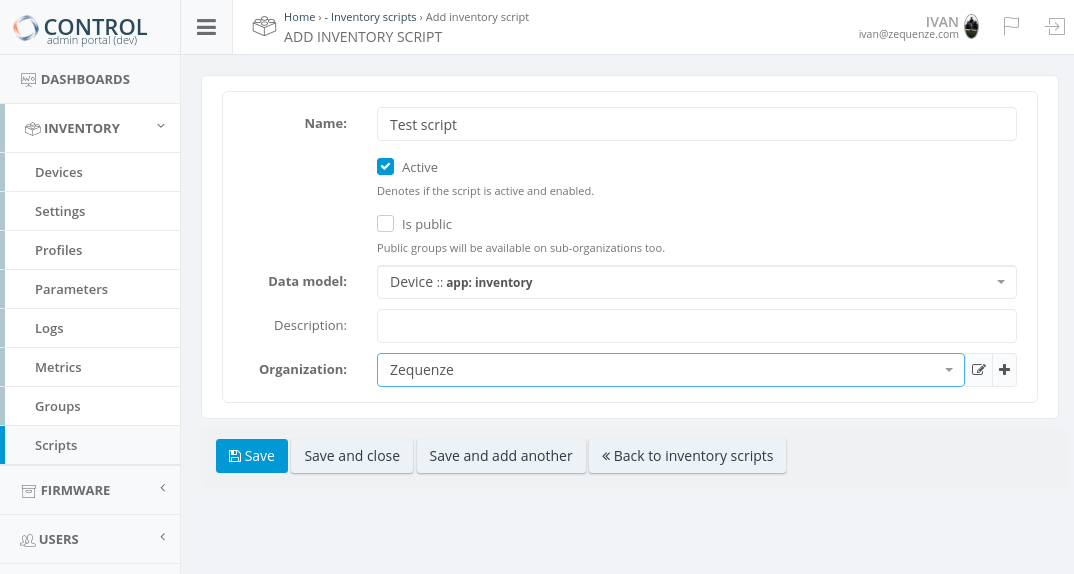
Step 2: Configure Required Fields
Complete the following required fields:
- Name: Unique identifier for the script
- Data model: Select "Device"
- Organization: Select the organization (devices will be filtered by this organization)
Click Save to continue.
Step 3: Define Script Logic and Filters
The script editor will appear:
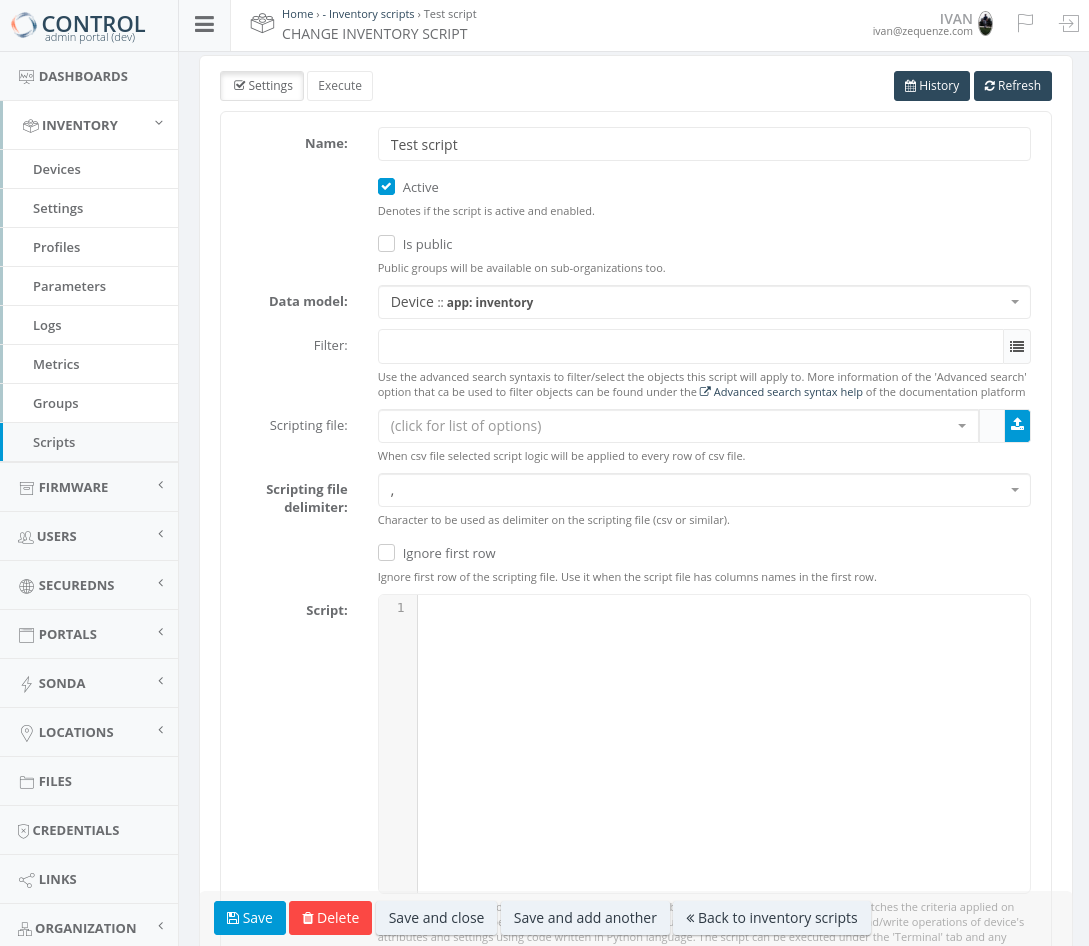
- Script field: Define your Python code. See Special Objects for Scripts for examples and available objects.
- Filter field: Apply device filters using advanced search syntax. See Advanced Search Syntax Help for filter configuration details.
Method 2: Script with CSV File
This method processes devices using data from a CSV file.
Step 1: Upload or Select CSV File
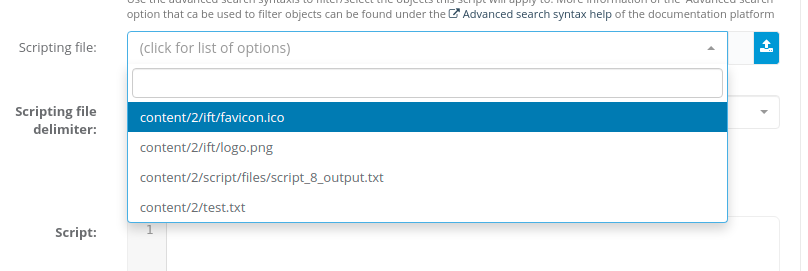
In the script configuration screen, locate the Scripting file field. Click the blue icon to upload a new CSV file or select an existing one:
Step 2: Configure CSV Settings
- Scripting file delimiter: Specify the delimiter used in your CSV file (comma, semicolon, tab, etc.):
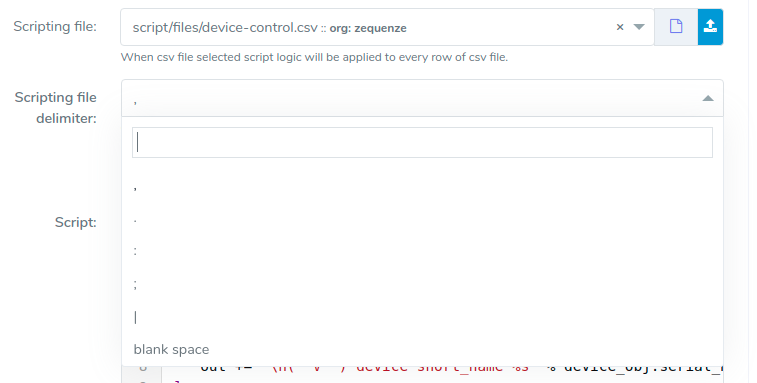
- Ignore first row: Enable this option if your CSV file contains column headers in the first row:

Step 3: Write CSV Processing Code
For information on coding scripts with CSV files, refer to the csv_row objects section in Special Objects for Scripts.
Selecting Devices to Process
TBC
Script Execution
Step 1: Access Execution Screen
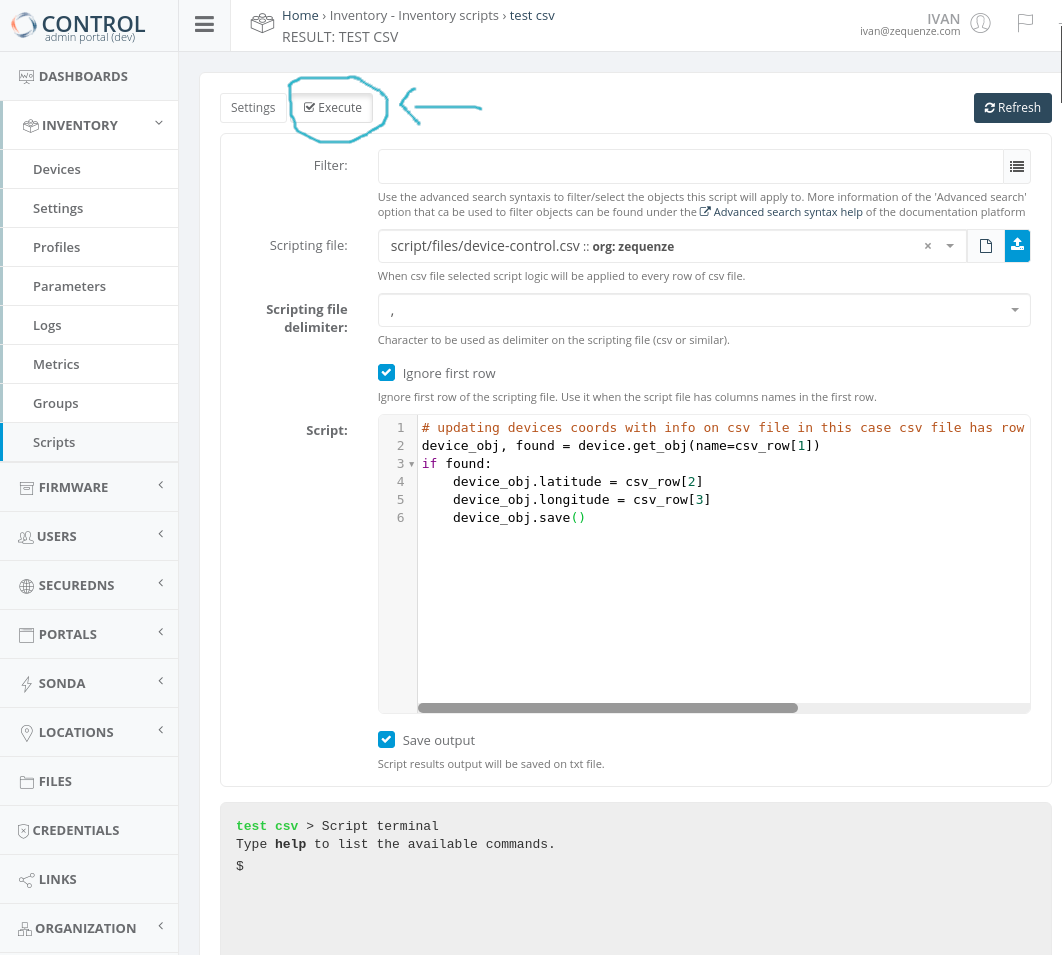
Open or create a script, then navigate to the Execution screen:
Step 2: Execute or Manage Script
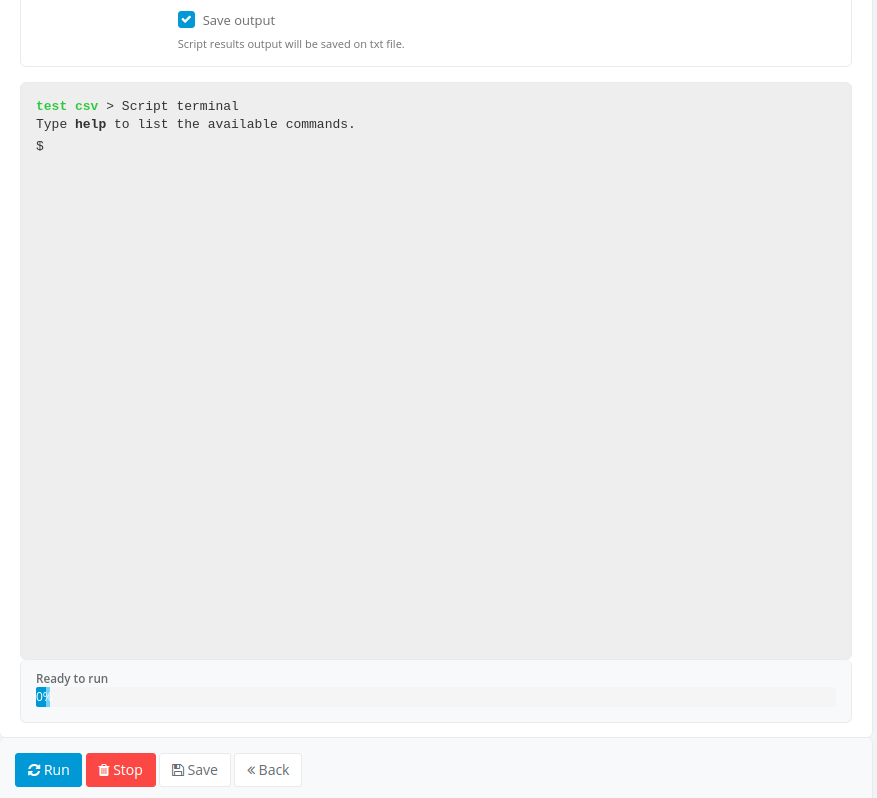
At the bottom of the execution screen, use the available buttons:
- Run: Execute the script
- Stop: Halt script execution
- Save: Save changes to the script code
- Back: Return to the previous screen
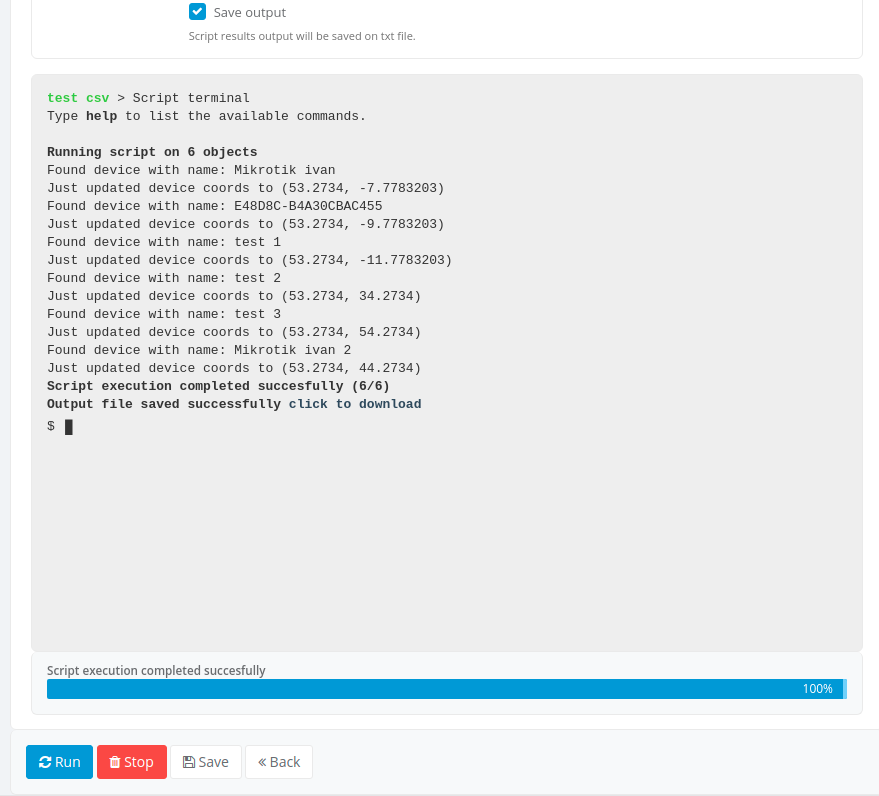
Step 3: Save Output (Optional)
Enable the Save output option to download execution results as a .txt file after the script completes:
Python Modules Included
The script execution environment includes the following Python modules by default:
math
Mathematical functions for advanced calculations.
result = math.log10(value)  # Calculate base-10 logarithm of 'value'
result = math.sqrt(value)   # Calculate the square root of 'value'
result = math.acos(value)   # Calculate the arc cosine of 'value', in radians
result = value * math.pi    # Multiply 'value' by the mathematical pi constant
More information: https://docs.python.org/3/library/math.html
random
Pseudo-random number generation.
result = value + random.randint(1, 10) # Add a random number between 1 and 10 to 'value'
More information: https://docs.python.org/3/library/random.html
json
JSON encoder and decoder for working with JSON data structures.
result = json.loads(value)['bytes'] # Convert a JSON string to a dictionary and extract the 'bytes' element
More information: https://docs.python.org/3/library/json.html
version_parser
Software version comparison and validation utilities.
old_version = version_parser('v10.0.0p2')
new_version = version_parser('v10.0.1p1')
if new_version > old_version:
    print('Firmware upgrade is necessary')
Special Objects and Actions
The script execution context includes special objects that allow you to:
- Modify Device attributes and Settings
- Perform device-related operations and actions
For detailed information about available special objects, usage examples, and script processing capabilities, see Special Objects for Scripts.
Visual Workflow Designer
In some environments, a visual workflow designer is available to build scripts using a graphical interface.
Disabling Visual Workflow Designer Transformation
To prevent the visual workflow designer from transforming a script, add the following comment on the first line:
# _NO_VWD_
Available Functions and Methods
The following table lists special functions and methods available within inventory scripts:
| Name | Parameters | Description | Example |
|---|---|---|---|
| detect_network_entity_info | extend (bool)device_headers (dict)current_val (dict)old_val (dict)recreate (bool)assistant_id (int) |
Retrieves network entity information for a device and extends or returns the current parameter value. In device_headers, specify keys: "mac_address", "dhcp_vendor_class", and "hostname". Defaults to 'MACAddress', 'HostName', and 'VendorClass' if not specified. |
python<br>previous_table_value, found = device.get(variable_name='beauty_hosts_table')<br>headers = {"mac_address": "MACAddress", "hostname": "HostName", "dhcp_vendor_class": "VendorClassID"}<br>beautify_table = detect_network_entity_info(extend=False, device_headers=headers, current_val=value, old_val=previous_table_value)<br>device.set(variable_name='beauty_hosts_table', value=beautify_table)<br> |
| device.activate_logs | None | Enables logging for the device. | device.activate_logs() |
| create_log | title (string)message (string) |
Creates a script log entry with the specified title and message. | create_log("Title", "Long description") |
| set_result | value (any) |
Sets the context parameter value. Equivalent to result = value. |
set_result("testvalue") |
| set_output_message | value (string) |
Sets the output message of the script. | set_output_message("testvalue") |
| extend_output_message | value (string) |
Appends the given string to the end of the current output message. | extend_output_message("testvalue") |
No comments to display
No comments to display