
Formatting the Parameters
This guide demonstrates how to format and organize parameters exported from CONTROL using a spreadsheet application. This example uses LibreOffice Calc, but you can apply the same process in Microsoft Excel or similar tools.
Opening the Exported File
When you open the exported parameters file in LibreOffice, a Text Import dialog will appear:
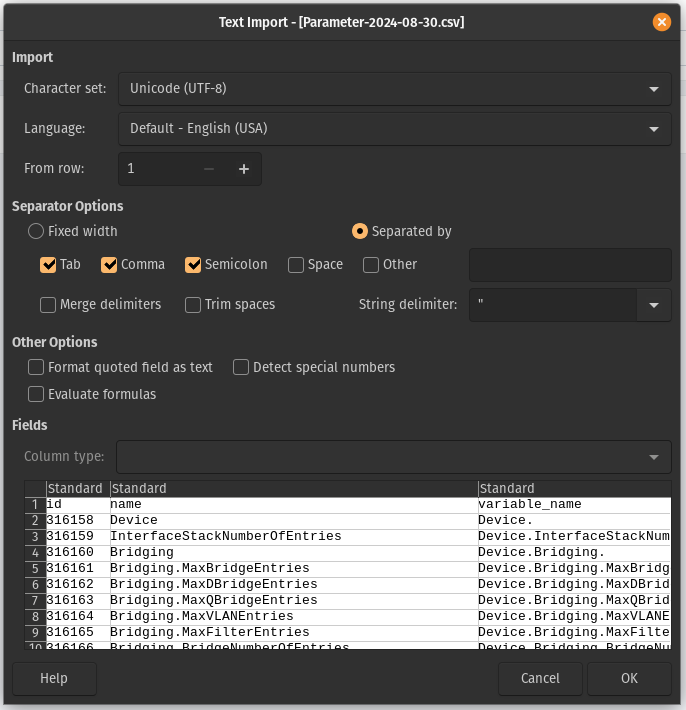
For most cases, you can simply click OK to accept the default import settings. If you're using Excel, you may need to use the "Import Data" function to load the file properly.
Understanding the Parameter Sheet
After importing, you'll see a spreadsheet with many columns and parameters:
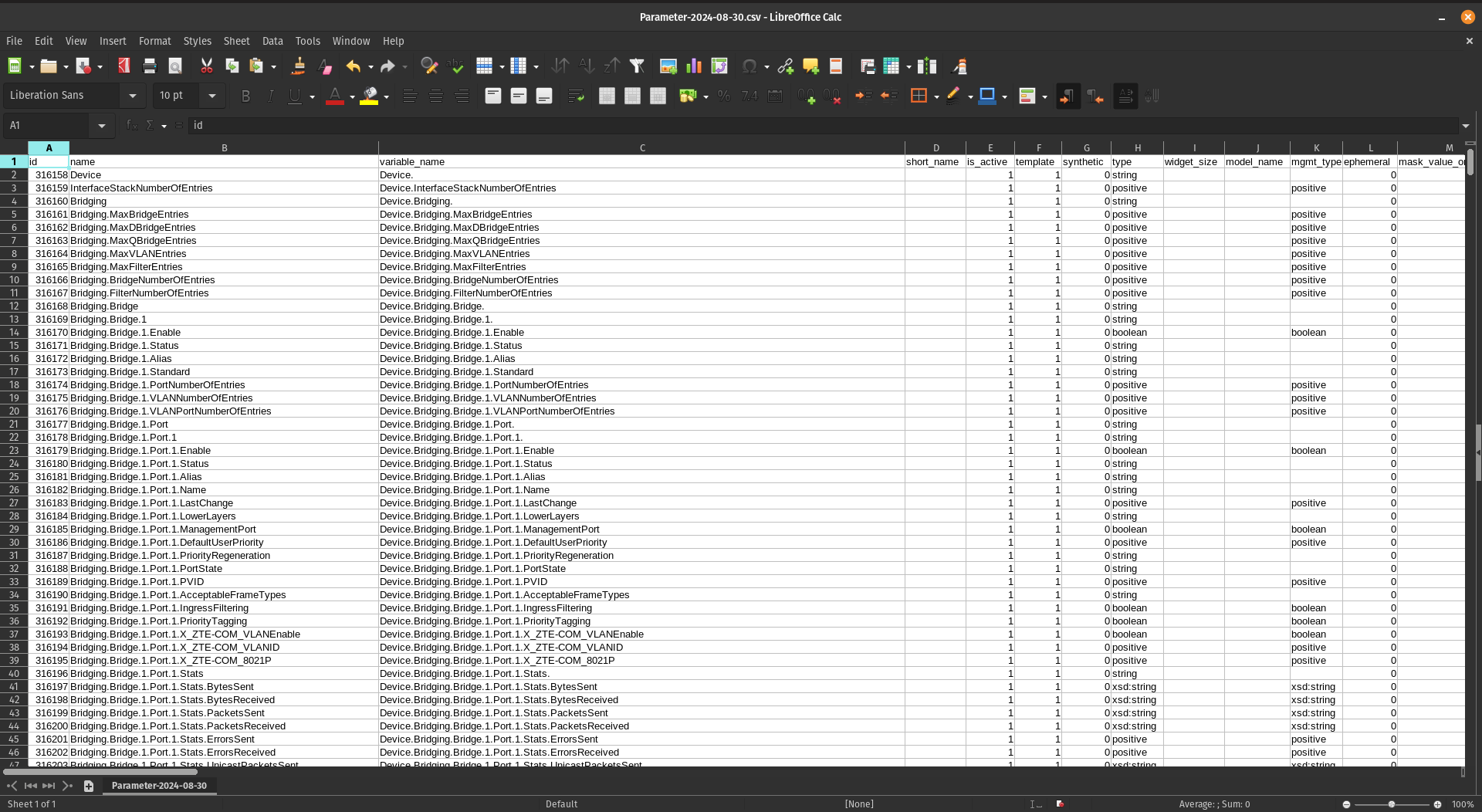
Don't be intimidated by the number of parameters—once you understand the structure, working with them becomes straightforward.
Extracting Key Columns
For this workflow, you'll need to create a new sheet and copy only four specific columns from the original data.
Step 1: Create a New Sheet
Create a second sheet (Sheet2) in your workbook to organize the filtered data:
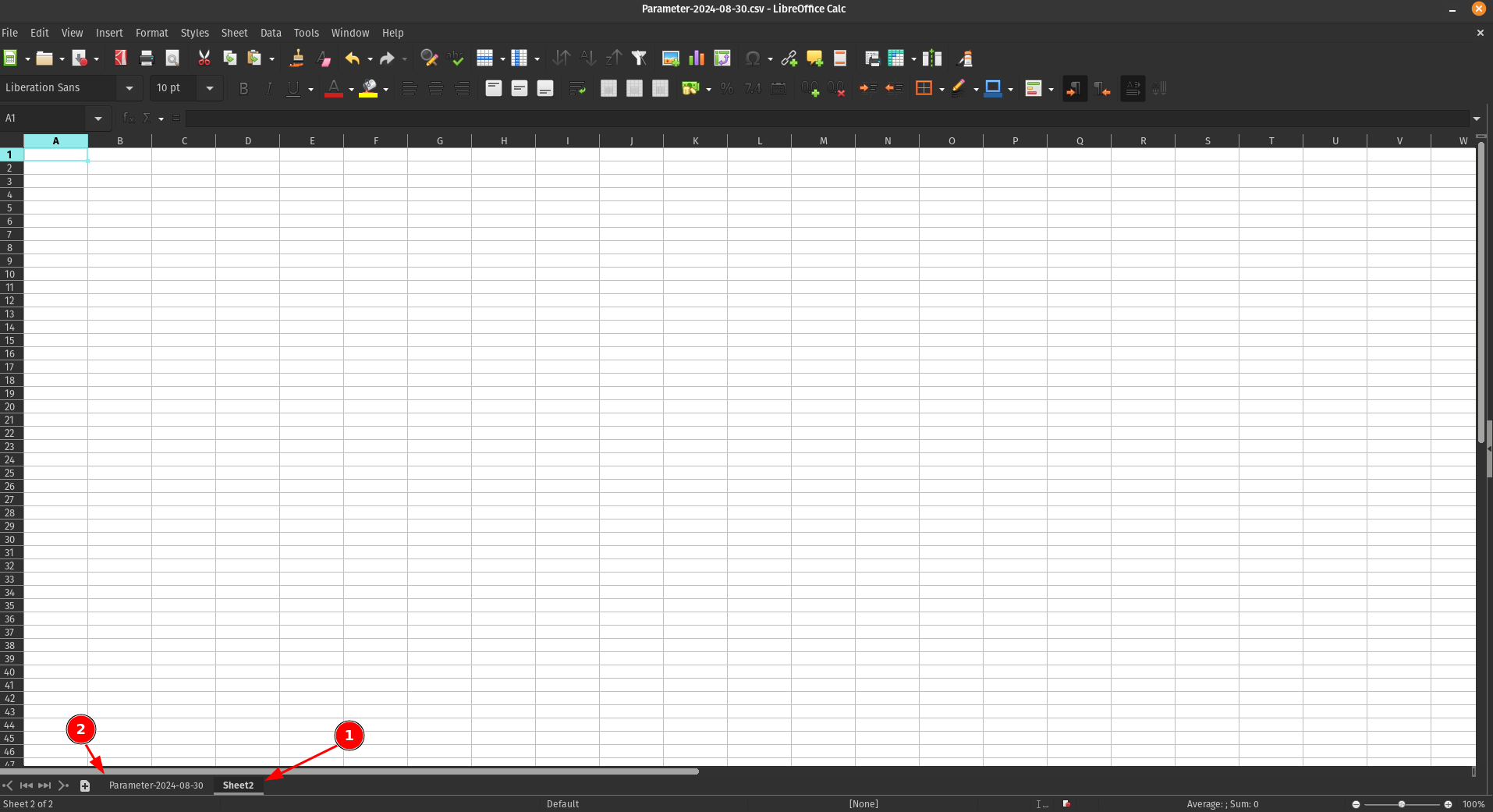
- Sheet2 - Your new working sheet
- Sheet1 - The original sheet with all parameters
Step 2: Identify the Required Columns
From the original sheet, locate and copy the following four columns:
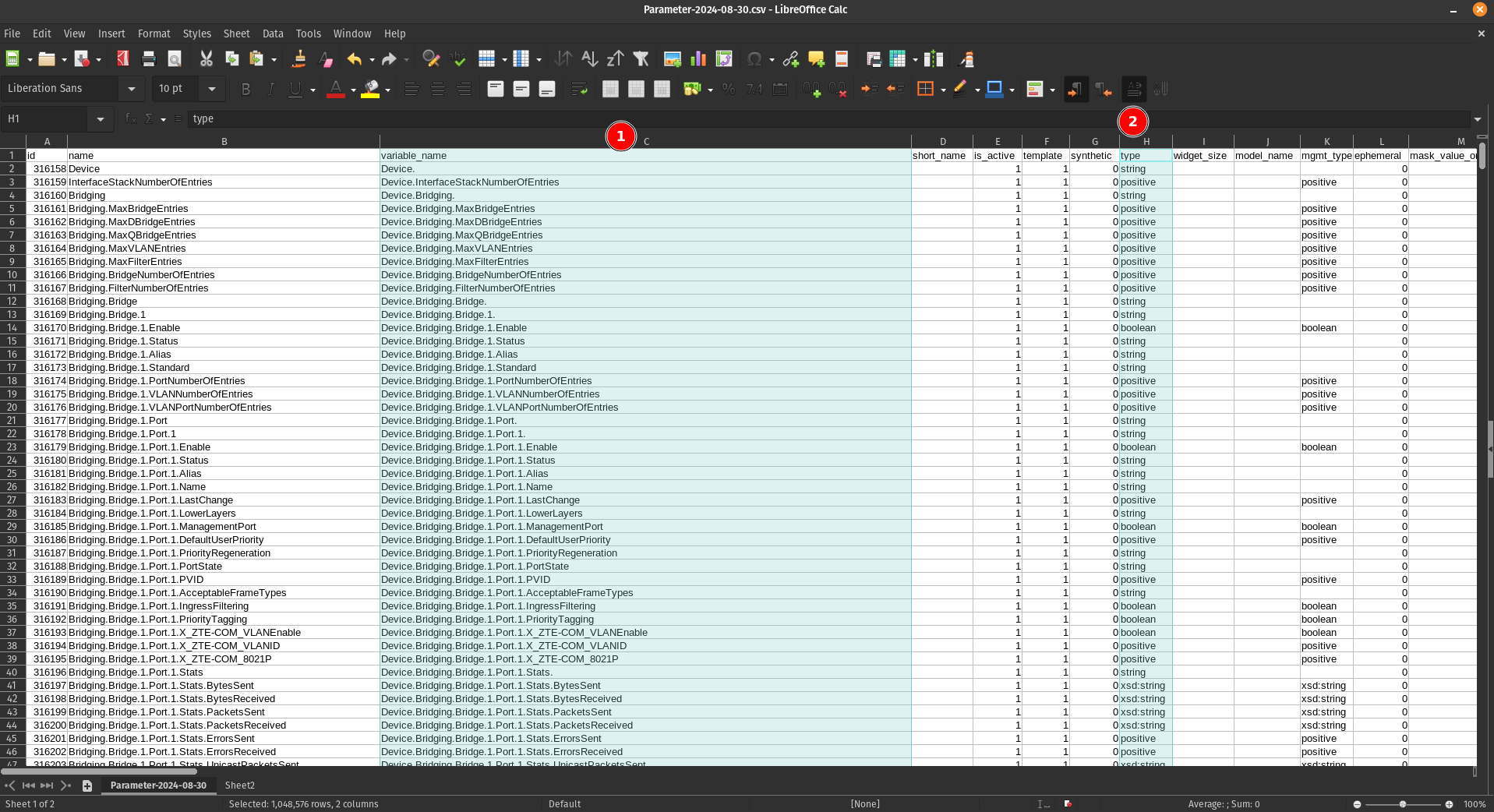
- Column C
- Column H
- Column R
- Column AY
Step 3: Paste into Sheet2
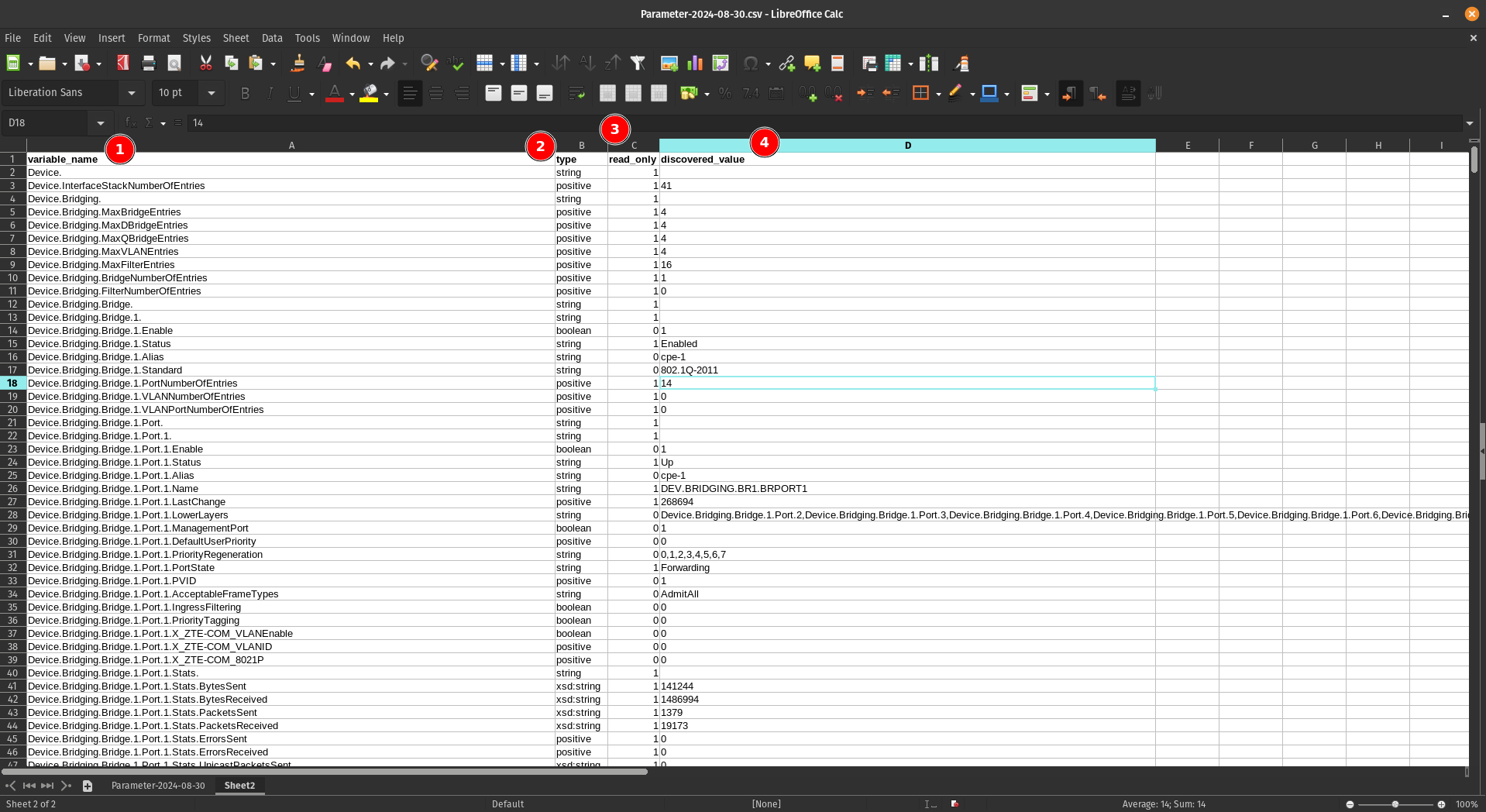
Copy these four columns and paste them into Sheet2:
Understanding the Column Structure
Your new sheet now contains four essential columns:
- variable_name - Lists all parameters available for devices using this software version
- type - Indicates the data type of each parameter (string, integer, boolean, etc.) and tells us what kind of parameter it is
- read_only - Shows whether the parameter is read-only or can be modified. Some parameters are only read-only and you can't write to them
- discovered_value - Displays the current value of each parameter (for example, the name of one SSID for a WiFi 2.4GHz network)
Sorting the Parameters
To make the parameters easier to work with, sort them alphabetically by the first column (variable_name):
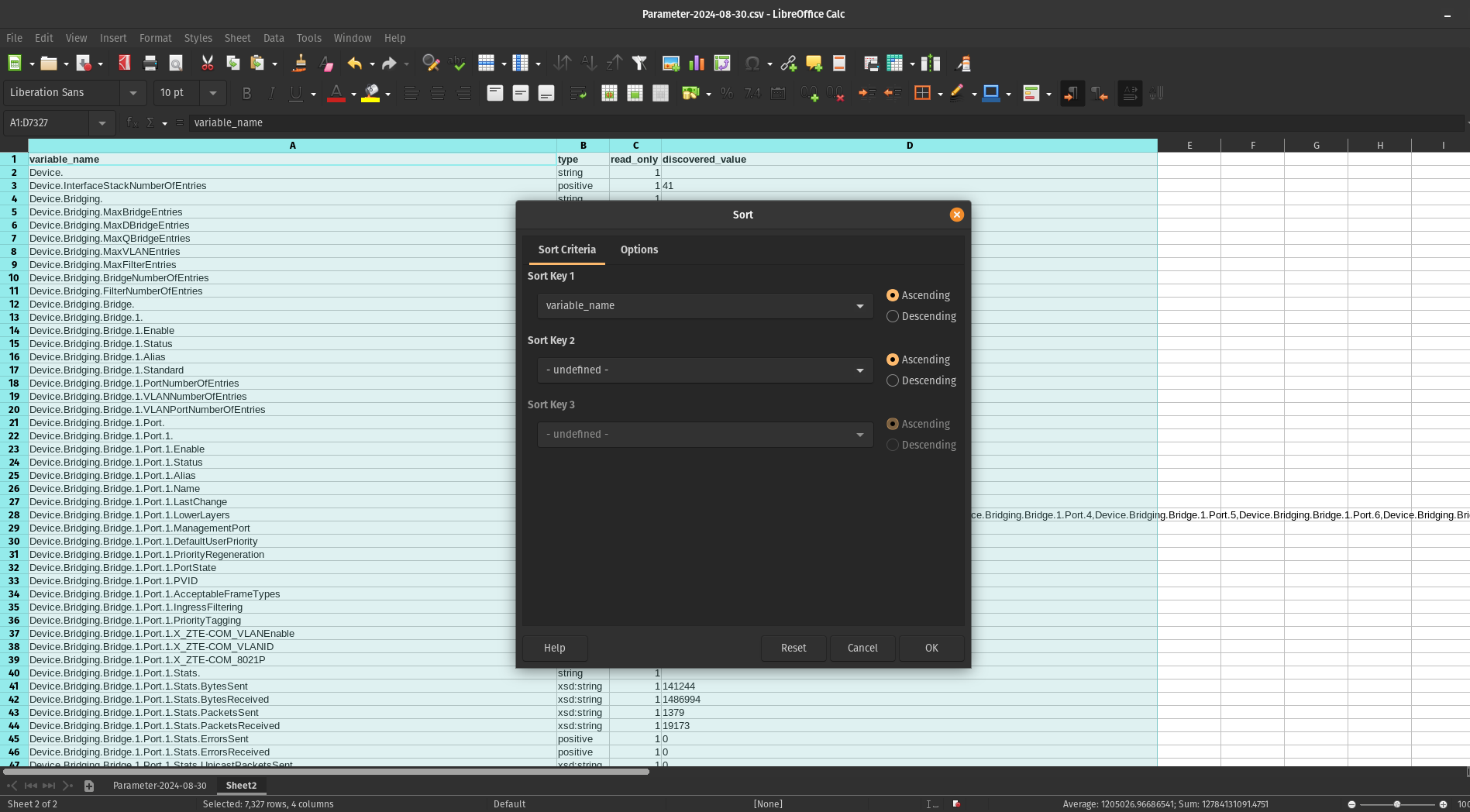
Note: Make sure to include the header row when sorting so the column titles remain in place.
Result
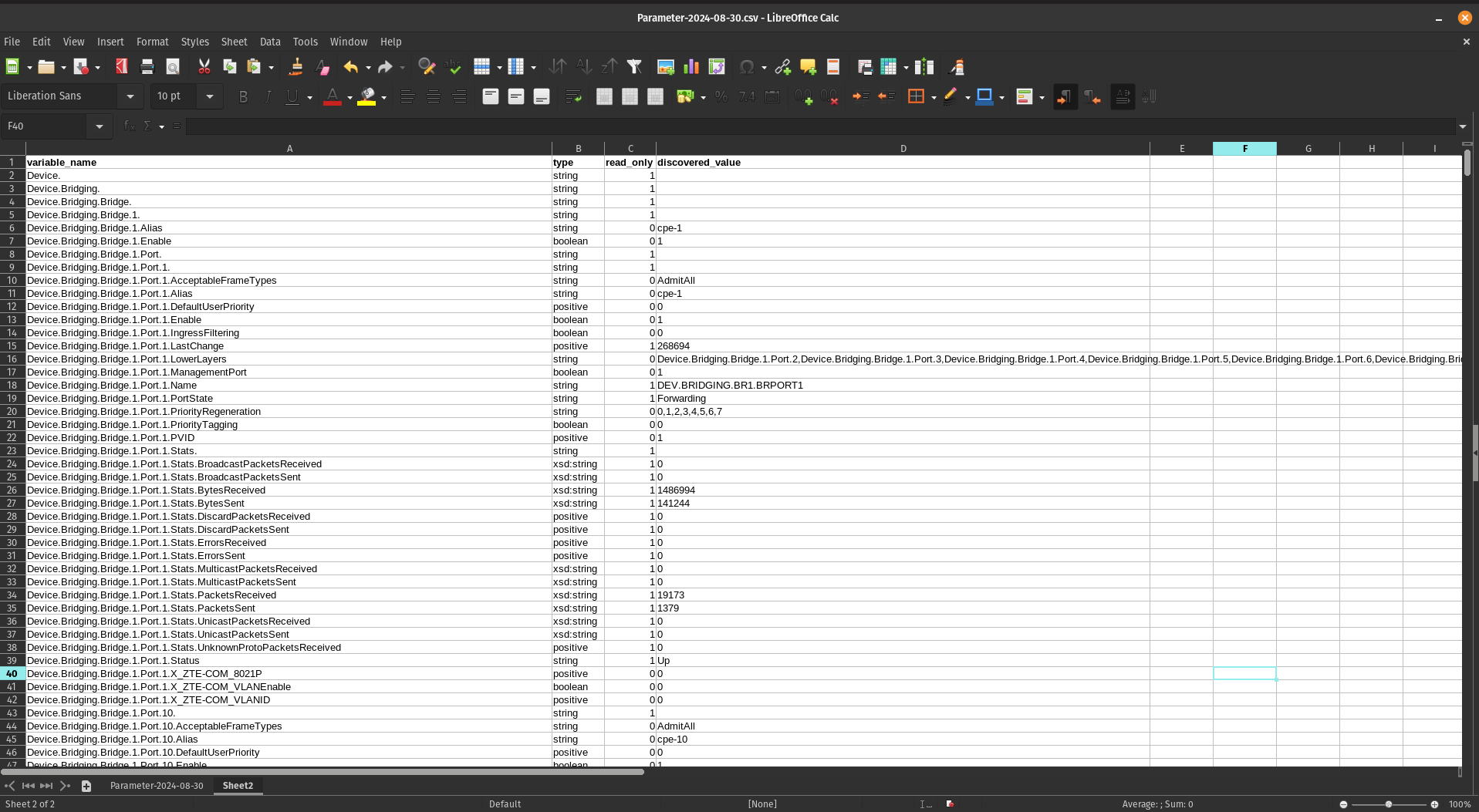
After sorting, your parameters will be organized alphabetically:
Next Steps
With your parameters now organized and easy to navigate, you can begin creating configuration profiles by selecting the specific parameters that meet your requirements.
No comments to display
No comments to display