
Knowledge Basic
Logging into the Platform
The first step to access CONTROL is to receive an invitation email. This email contains a link that allows you to set your password for future access to the platform.
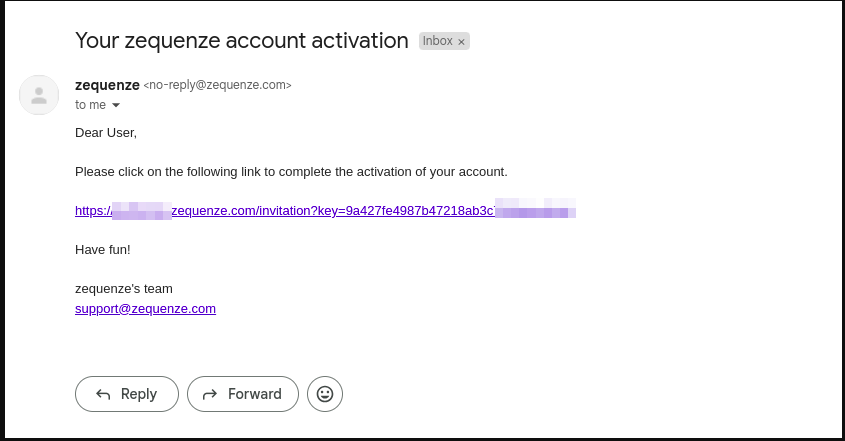
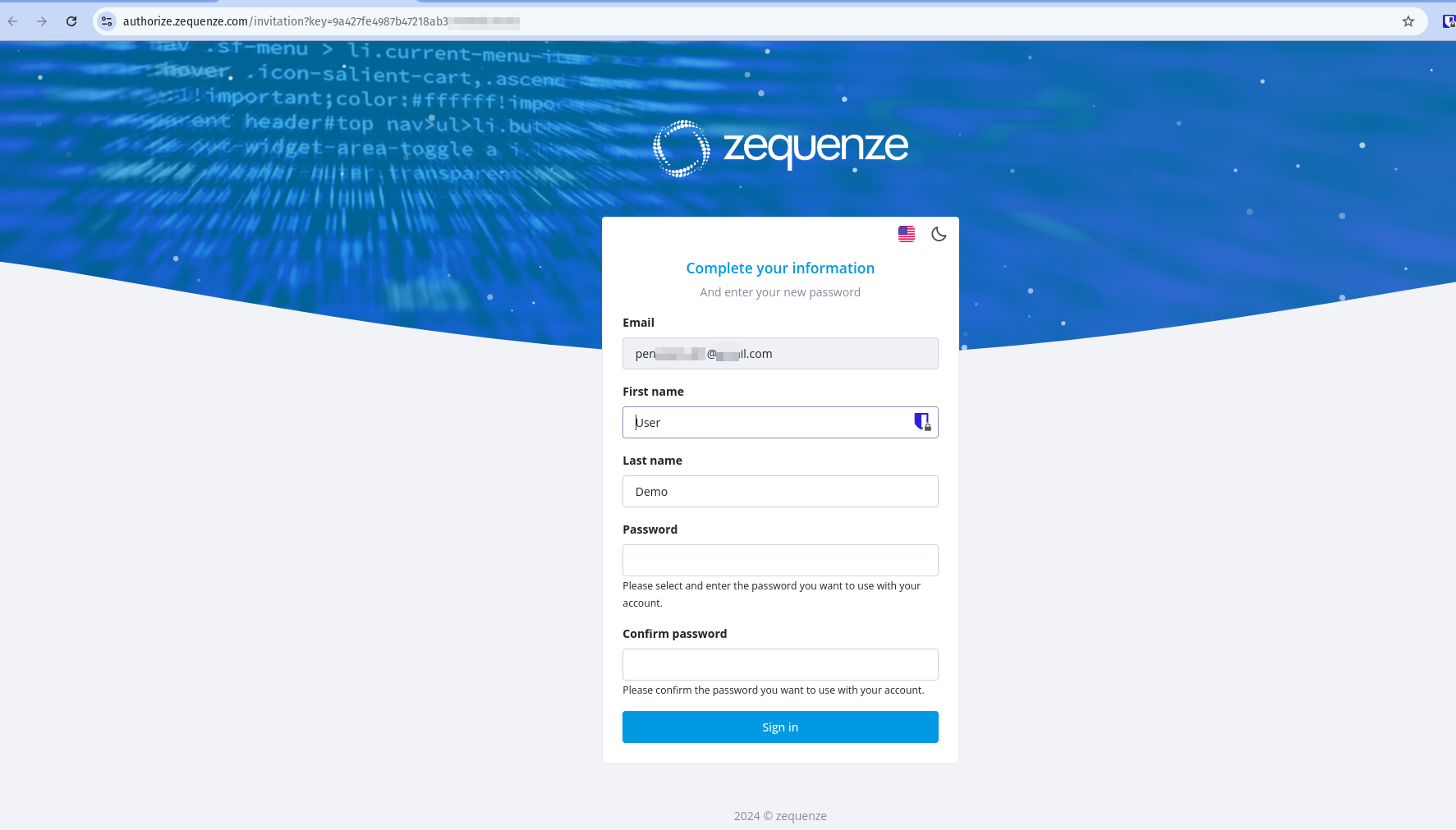
After receiving the invitation, click the link to set up your password. You will see a page similar to this example:
Once the process is complete, you will be redirected to the CONTROL platform:
Understanding the CONTROL Interface
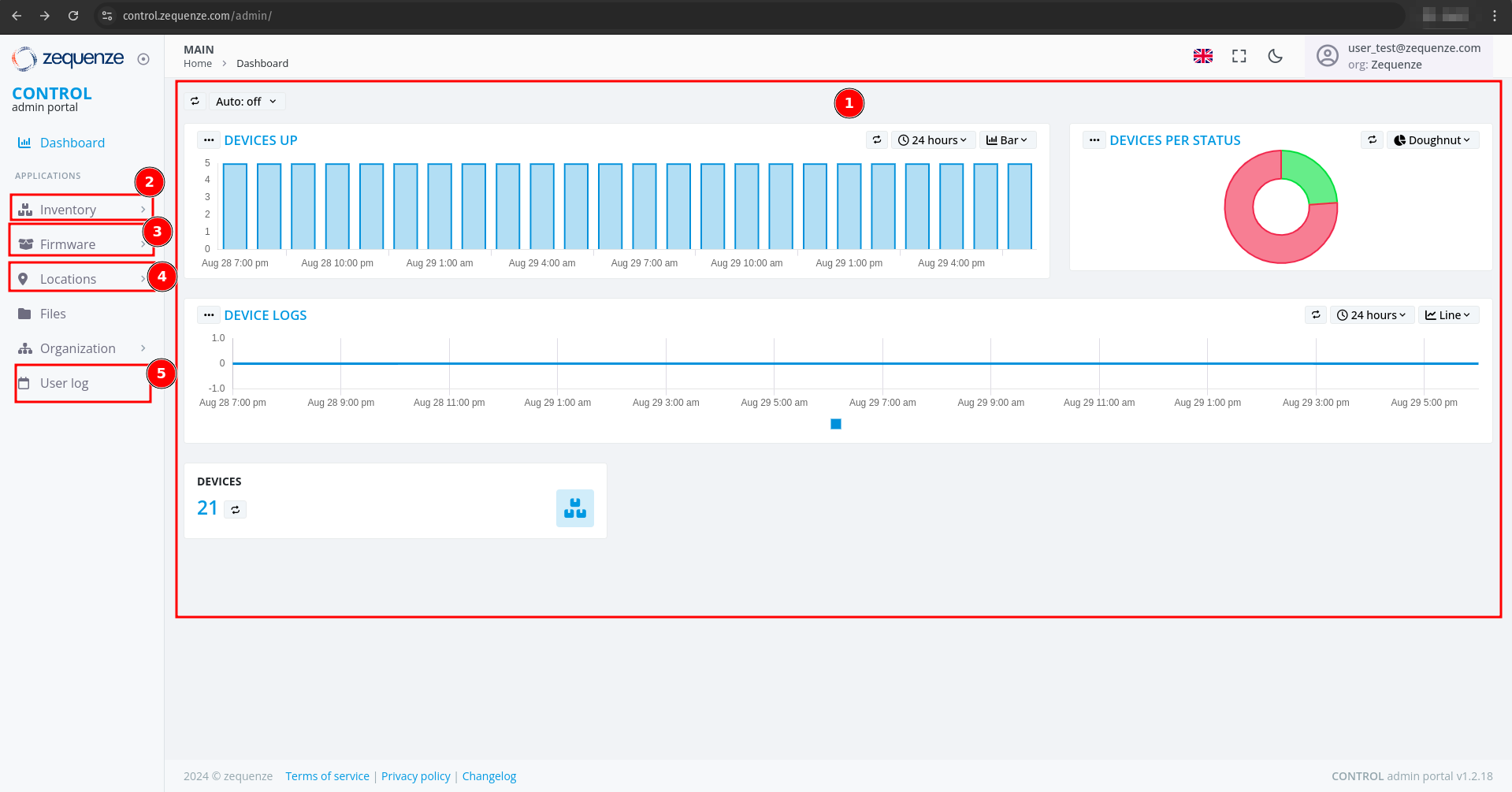
Now that you're logged into the CONTROL platform, let's explore the available options:
Main Dashboard
In the center of the screen, you'll find a series of customizable reports in the Main Dashboard. These reports include:
- Devices UP - Shows currently active devices
- Devices Per Status - Displays device status distribution
- Devices Logs - Provides access to device log information
All of these reports are customizable if needed to suit your monitoring requirements.
Navigation Menu
-
Inventory - View devices, create configurations, and add parameters for each profile. In this section you can view the devices, create configurations, and add the parameters you need for each profile.
-
Firmware - Upload different firmware versions for upgrades or downgrades, and customize firmware update workflows. You can upload different versions of firmware for upgrade or downgrade, and customize the workflow for firmware upgrades as needed.
-
Locations - Create and manage physical locations using:
- Geo-localization with coordinates
- Custom labels to identify device groups
- Organization by OLT or DOCSIS CMTS connections
This section is very useful when you need to create different physical locations, geo-localization with coordinates, or custom labels to identify groups of devices connected to the same OLT or DOCSIS CMTS.
-
User Log - View all transactions and changes made within the platform. This section allows you to view all transactions or changes that have been made in the platform.
Enabling Expert Mode
To access advanced features, you need to activate Expert Mode:
- Check the Expert mode checkbox
- Refresh the webpage by pressing F5 or using your browser's refresh button
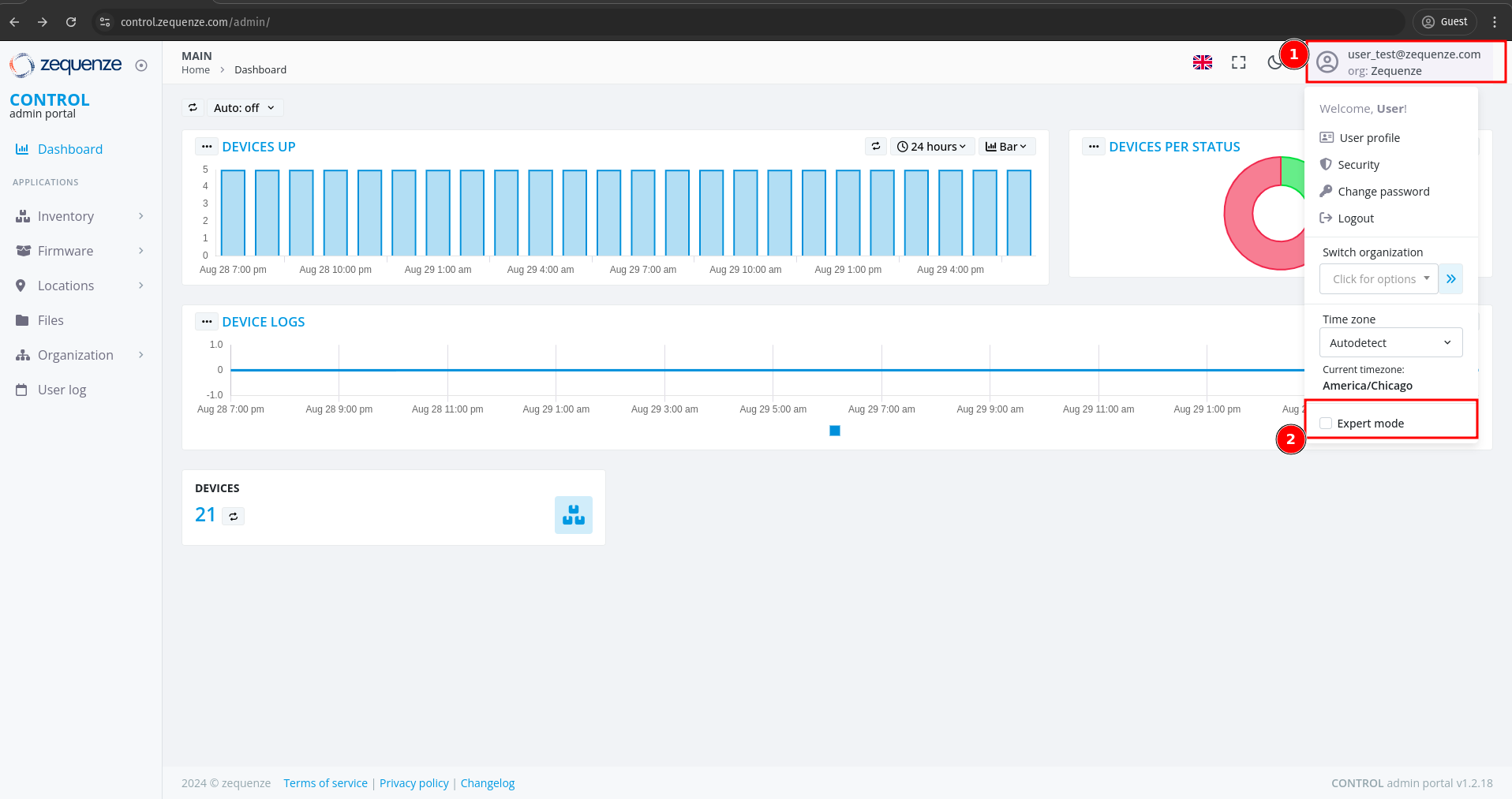
This activates additional options and advanced functionality within the CONTROL platform.
This completes the basic overview of the CONTROL platform. The next step is to create a Profile.
No comments to display
No comments to display