
Parameter configuration
Overview
The Parameter configuration screen allows you to define and manage all parameters associated with a specific Device Profile/Type or template in CONTROL.
Accessing the Parameter Configuration Screen
There are two ways to access the Parameter configuration screen:
Method 1: Via the Inventory Menu
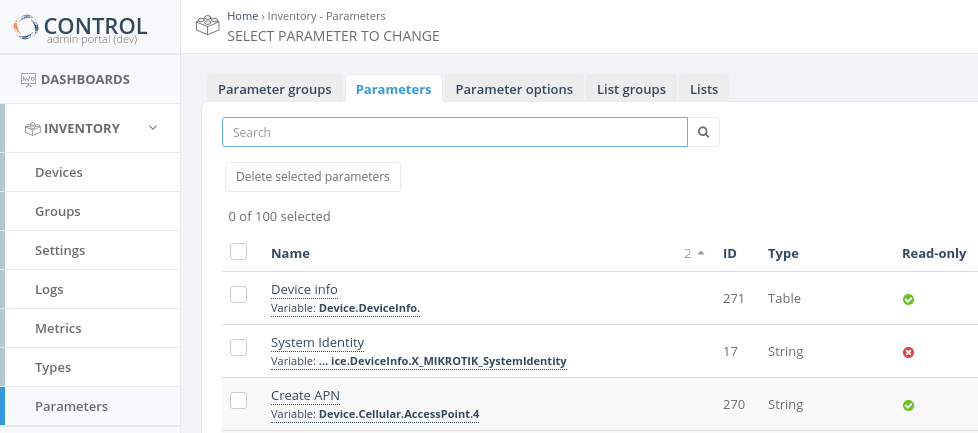
Note: Click on the parameter name in the first column to access the Parameter configuration screen.
Method 2: Via Device Profile/Type
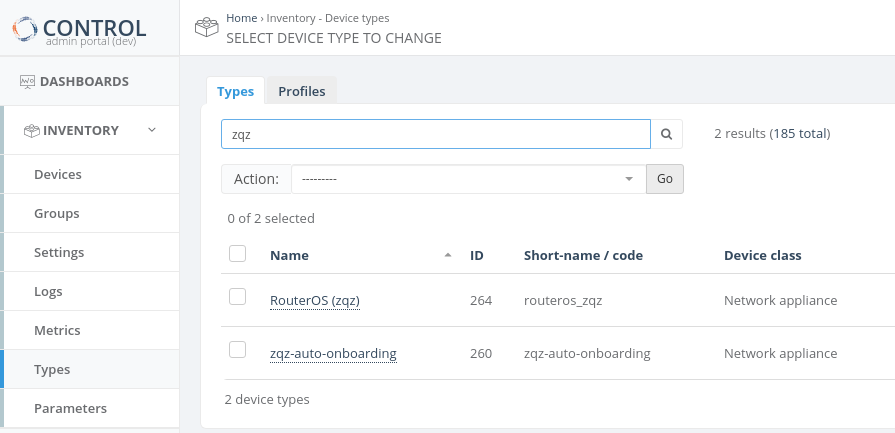
- Click the edit button (
 ) for the group you want to configure


- A popup window will display the Parameter list for the selected group
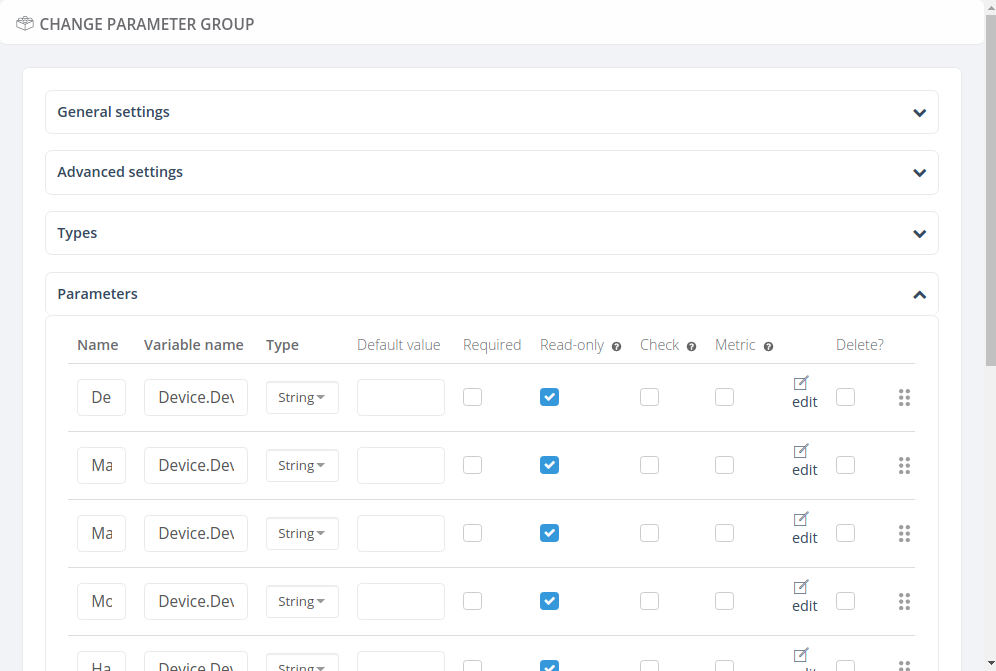
- Click the edit link on the left side of the Parameter table to access the configuration screen
Configuration Screen Structure
The Parameter configuration screen is organized into two main sections:
General Settings
Contains the basic configuration options required to define the fundamental characteristics of the Parameter that will be managed by the platform.
Advanced Settings
Provides optional configuration options for advanced Parameter management features.
Required and Important Settings
To be completed.
No comments to display
No comments to display