
Firmware Images
Overview
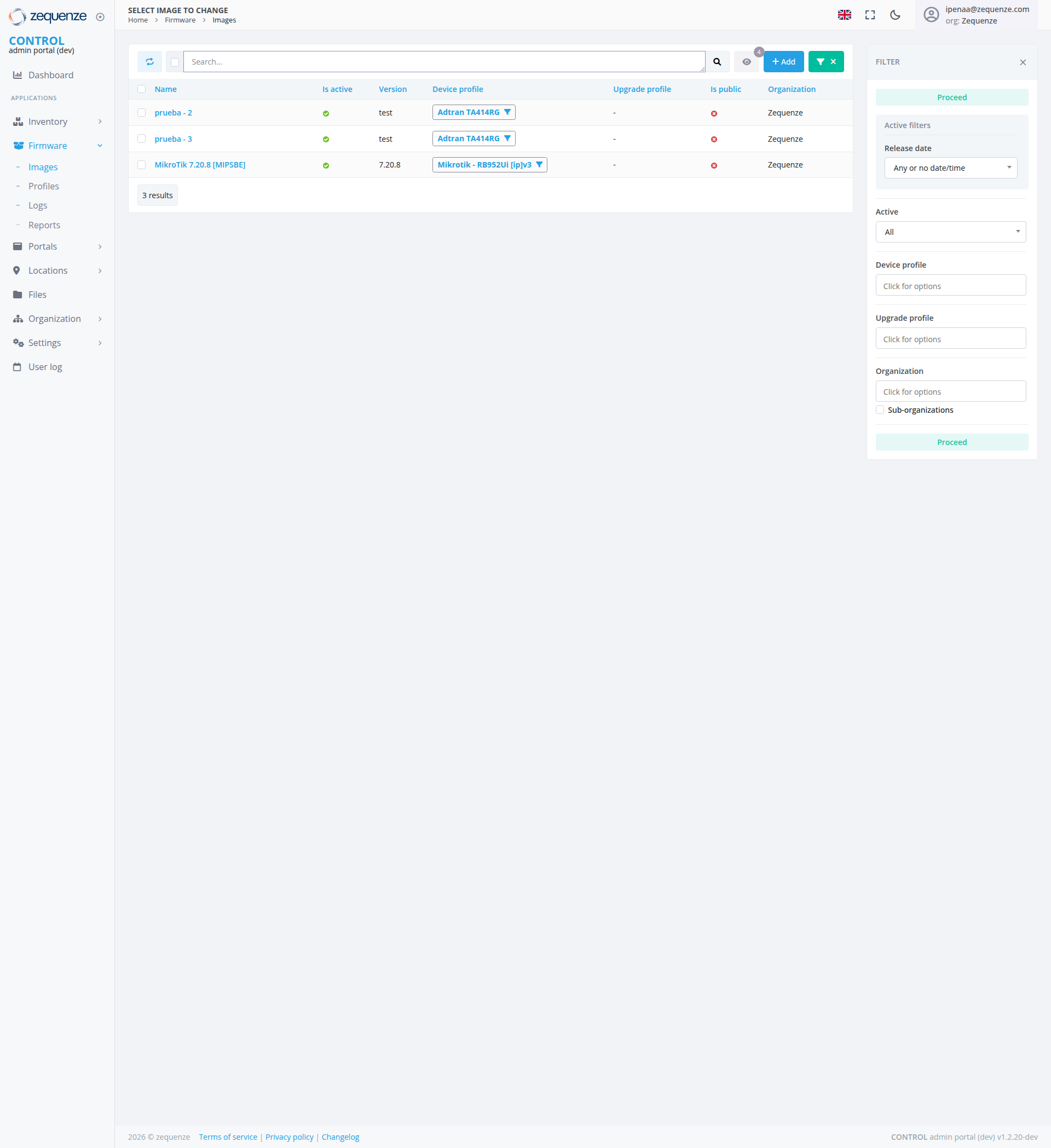
The Images page within the CONTROL admin portal provides a centralized interface for managing firmware images across the Zequenze ecosystem. This page allows administrators to view, search, filter, and manage firmware images that can be deployed to devices. The interface displays key metadata about each firmware image including version information, device compatibility, and deployment status.
Key Features
- Firmware Image Repository: Displays all available firmware images in a structured table format
- Advanced Filtering: Comprehensive filter panel for narrowing down images by multiple criteria
- Status Tracking: Visual indicators showing active status and public availability
- Device Profile Association: Clear display of compatible device profiles for each image
- Version Management: Track different versions and releases of firmware images
- Organization Assignment: Images can be assigned to specific organizations within the system
- Quick Actions: Toolbar with options to add new images and perform bulk operations
UI Elements
Main Navigation
Data Table Columns
- Name: Firmware image identifier
- Is active: Status indicator (green checkmark = active)
- Version: Version number or identifier (e.g., "test", "7.20.8")
- Device profile: Compatible device types with dropdown indicators
- Upgrade profile: Associated upgrade configuration
- Is public: Public availability status (red indicator = not public)
- Organization: Assigned organization (displays "Zequenze")
Filter Panel (Right Side)
Located in the right sidebar under "Active filters":
- Release date: Dropdown showing "Any or no datetime"
- Active: Dropdown set to "All"
- Device profile: "Click for options" dropdown
- Upgrade profile: "Click for options" dropdown
- Organization: "Click for options" with "Sub-organizations" checkbox
- Proceed: Button to apply selected filters
Action Toolbar
- Search bar: Full-width search field for quick filtering
- Refresh button: Circular arrow icon to reload data
- Settings icon: Configuration options
- + Add button: Blue button to create new firmware image
- Dropdown menu: Green button with "x" for bulk actions
- FILTER toggle: Opens/closes the filter panel
User Interactions
Viewing Images
-
The table displays 3 results by default showing:
- prueba - 2: test version with Adrian TA414BG device profile
- prueba - 3: test version with Adrian TA414BG device profile
- Mikrotik 7.20.8 [MIPSBE]: Version 7.20.8 with Mikrotik - RB952Ui (ppv4) device profile
-
Each row provides comprehensive information about the firmware image at a glance
Searching Images
- Use the search bar at the top to quickly find specific images by name or other attributes
- Real-time filtering as you type
Filtering Images
- Click the "FILTER" button in the top right to open the filter panel
- Select criteria from available dropdowns:
- Filter by release date range
- Filter by active/inactive status
- Filter by specific device profile
- Filter by upgrade profile
- Filter by organization (with option to include sub-organizations)
- Click "Proceed" to apply filters
Adding New Images
- Click the blue "+ Add" button in the toolbar
- Opens a form to upload and configure a new firmware image
Navigation
Getting to This Page
- From Dashboard → Firmware → Images (left sidebar)
- Breadcrumb navigation shows: Home > Firmware > Images
- Direct URL:
/admin/firmware/image/
Related Pages
- Profiles: Manage device profiles associated with images
- Logs: View firmware deployment and update logs
- Reports: Generate reports on firmware usage and status
Data Displayed
Status Indicators
- Green checkmark (✓): Image is active and available for deployment
- Red dot (●): Image is not public/restricted access
- Version numbers: Display firmware version (test, 7.20.8, etc.)
Device Profile Information
Each device profile is shown as a clickable dropdown button (indicated by "▼" symbol):
- Adrian TA414BG: Custom device profile
- Mikrotik - RB952Ui (ppv4): Mikrotik router profile with architecture specification
Result Count
- "3 results" displayed at the bottom left of the table
- Updates dynamically based on active filters
Actions Available
Primary Actions
- Add New Image: Create and upload new firmware images
- Edit Image: Click on any row to modify image details
- Filter/Search: Narrow down visible images using search or filters
- Refresh Data: Reload the table to see latest changes
- Bulk Operations: Use the green dropdown menu for actions on multiple images
Row-Level Actions
- Click device profile dropdowns to view or change associations
- Toggle active status
- Modify public availability settings
- Change organization assignments
Notes/Tips
Best Practices
- Image Naming: Use clear, descriptive names for firmware images (e.g., "Mikrotik 7.20.8 [MIPSBE]")
- Version Control: Maintain consistent versioning schemes (test, production versions)
- Device Profile Assignment: Always associate images with appropriate device profiles before deployment
- Active Status: Only active images are available for deployment to devices
- Public vs Private: Use the "Is public" flag to control image visibility across organizations
Important Considerations
- Architecture Compatibility: Note architecture specifications (e.g., [MIPSBE]) to ensure compatibility
- Organization Scope: Filter by organization when managing multi-tenant environments
- Sub-organizations: Enable "Sub-organizations" checkbox to include child organization images
- Status Monitoring: Red indicators for "Is public" show restricted images requiring attention
User Information
- Logged in as: tpena@zequenze.com (displayed in top right)
- Current role: Zequenze organization admin
- Portal version: CONTROL admin portal (dev) v1.2.26-dev (shown in footer)
No comments to display
No comments to display