
Conversion and units for parameters
Overview
Units of measurement and value conversions can be configured for any parameter in CONTROL. This allows you to standardize how data is displayed and automatically convert values between compatible units (e.g., Bytes to Megabytes).
Configuring Parameter Units
You can assign a unit of measurement to any parameter (such as Bits, Bytes, Megabytes, etc.) through the Parameter configuration screen.
How to Set a Unit
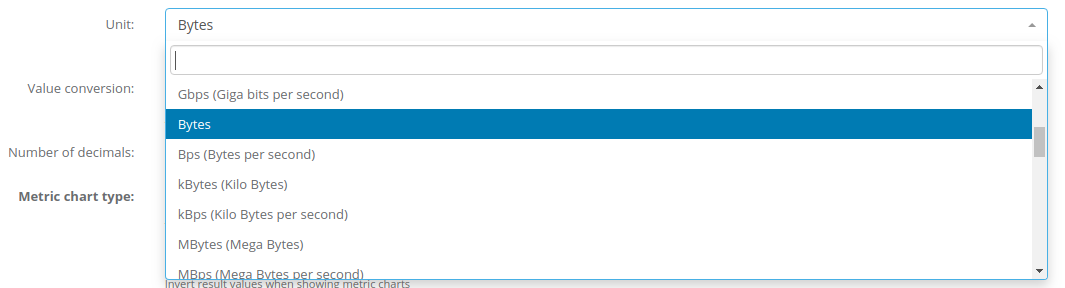
Display Location
Once a unit is configured, it will be displayed on the device's main screen at the beginning of the corresponding parameter value.

Value Conversions
In addition to displaying units, CONTROL can automatically convert values from one unit to another. This is useful when the device reports data in one unit but you need to display it in another.
How to Configure Conversions
To enable automatic conversion between compatible units:
- Set the source unit in the
Unitfield - Set the target unit in the
Value conversionfield
Example: Converting Bytes to Megabytes
The following configuration will convert values received from the device in Bytes to Megabytes:

Important Notes
-
Compatible units required: The
UnitandValue conversionfields must contain compatible unit types for automatic conversion to work (e.g., both must be data size units like Bytes, Kilobytes, Megabytes). -
Custom conversions: For custom conversion logic or conversions between incompatible unit types, use the processing script option instead.
No comments to display
No comments to display