
Hotspot using MikroTik
This guide walks you through configuring a MikroTik router to work with GATE as an external captive portal. Users register by entering their email and name through the web portal, with information stored in GATE's database (AAA server) and sent back to the MikroTik device. The MikroTik then sends an Access-Request to the server, which responds with an Access-Accept, granting internet access.
Hardware & Software Requirements
- Model: RB952Ui-5ac2nD
- Architecture: mipsbe
- Firmware: 7.18.2
Configuration Overview
This configuration involves several key components:
- Bridge Setup - Creates a unified network interface
- Network Configuration - IP addressing, DHCP, and firewall rules
- RADIUS Integration - Connects to GATE's authentication server
- Hotspot Configuration - Portal pages, user profiles, and server setup
Bridge for Hotspot
The first step is creating a bridge interface to connect WiFi and Ethernet interfaces into a single network.
Creating a Bridge Interface
-
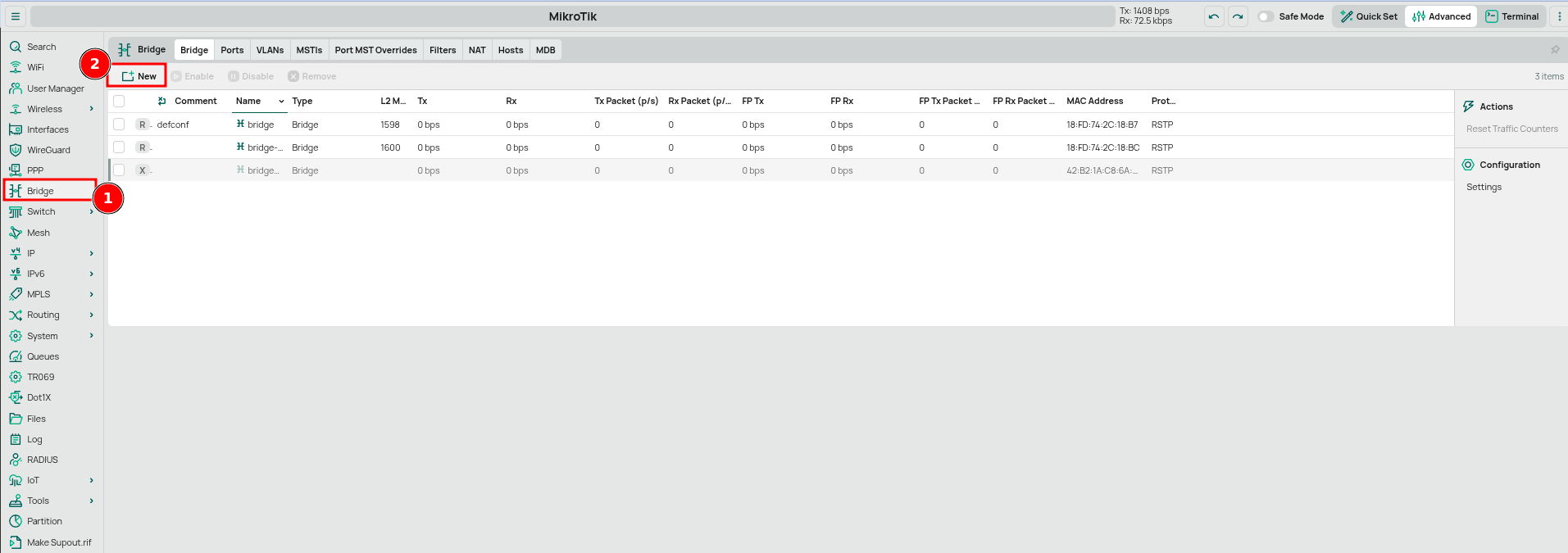
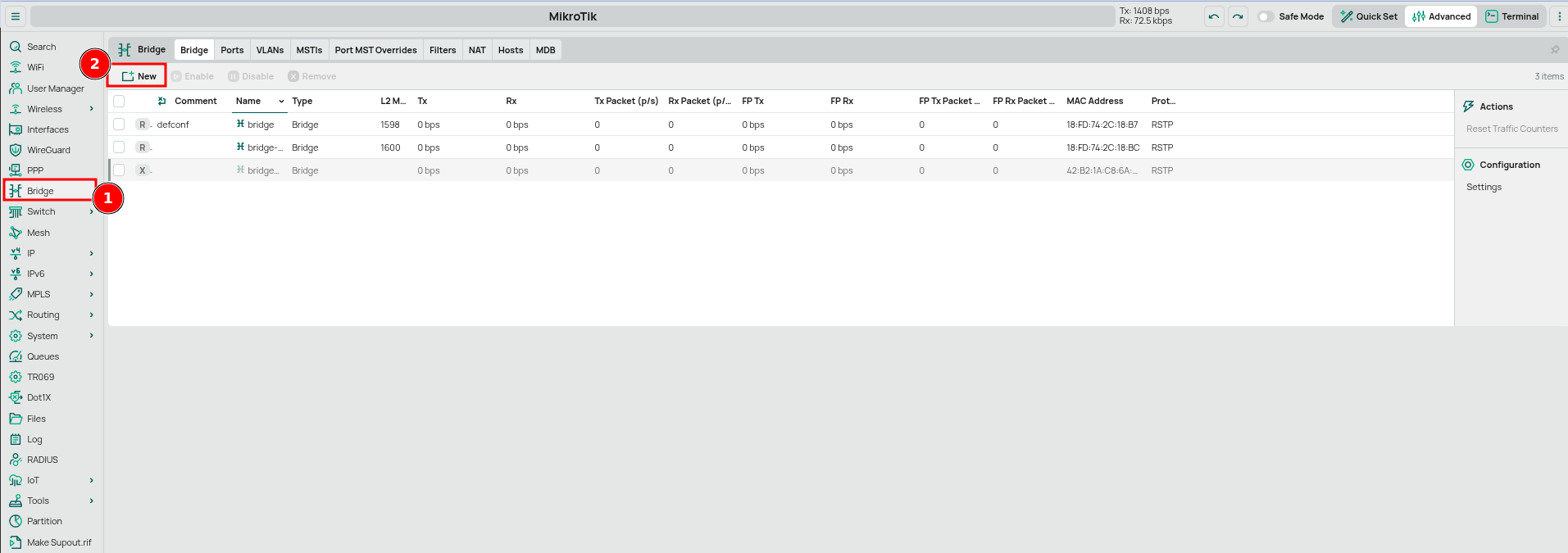
Navigate to Bridge in the left menu and click New
-
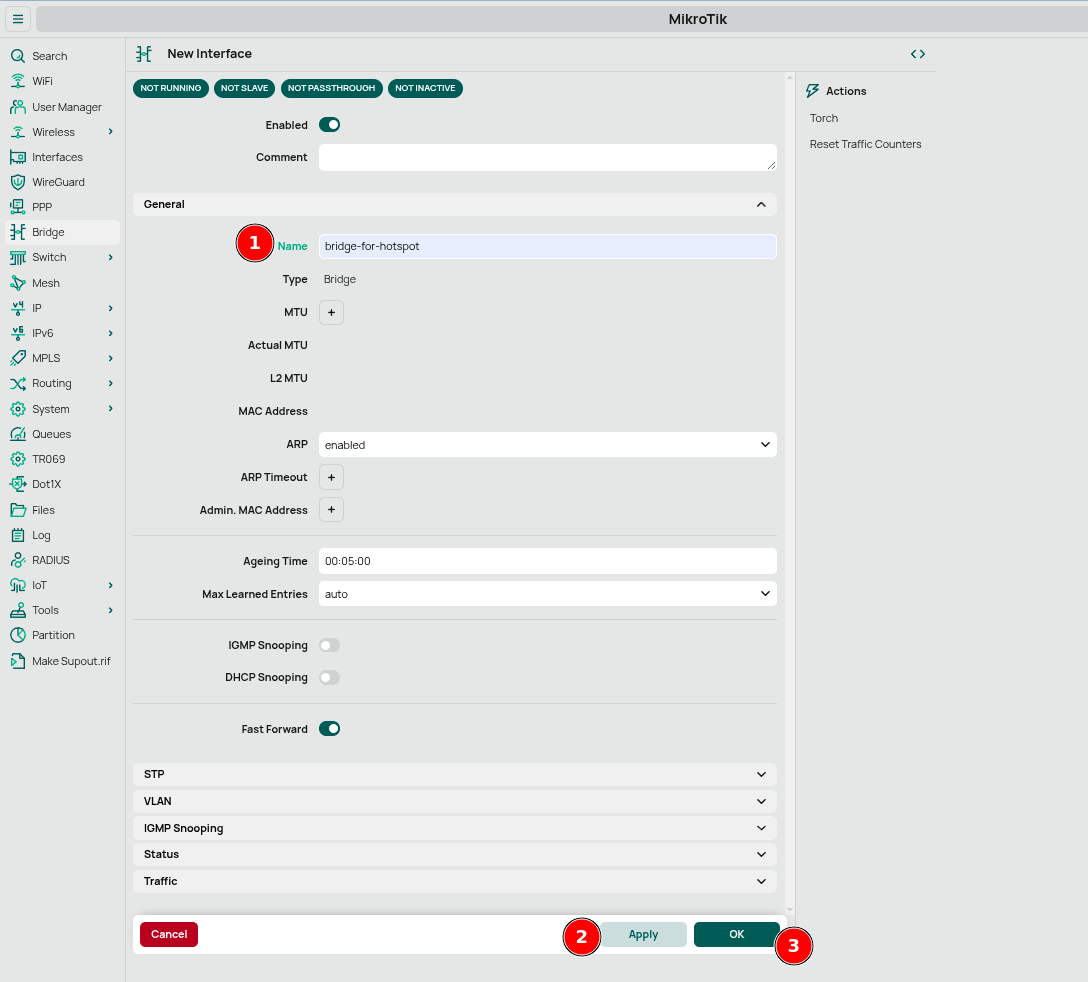
In the new interface form:
- Set Name to "bridge-for-hotspot"
- Leave other settings at default values
- Click Apply then OK
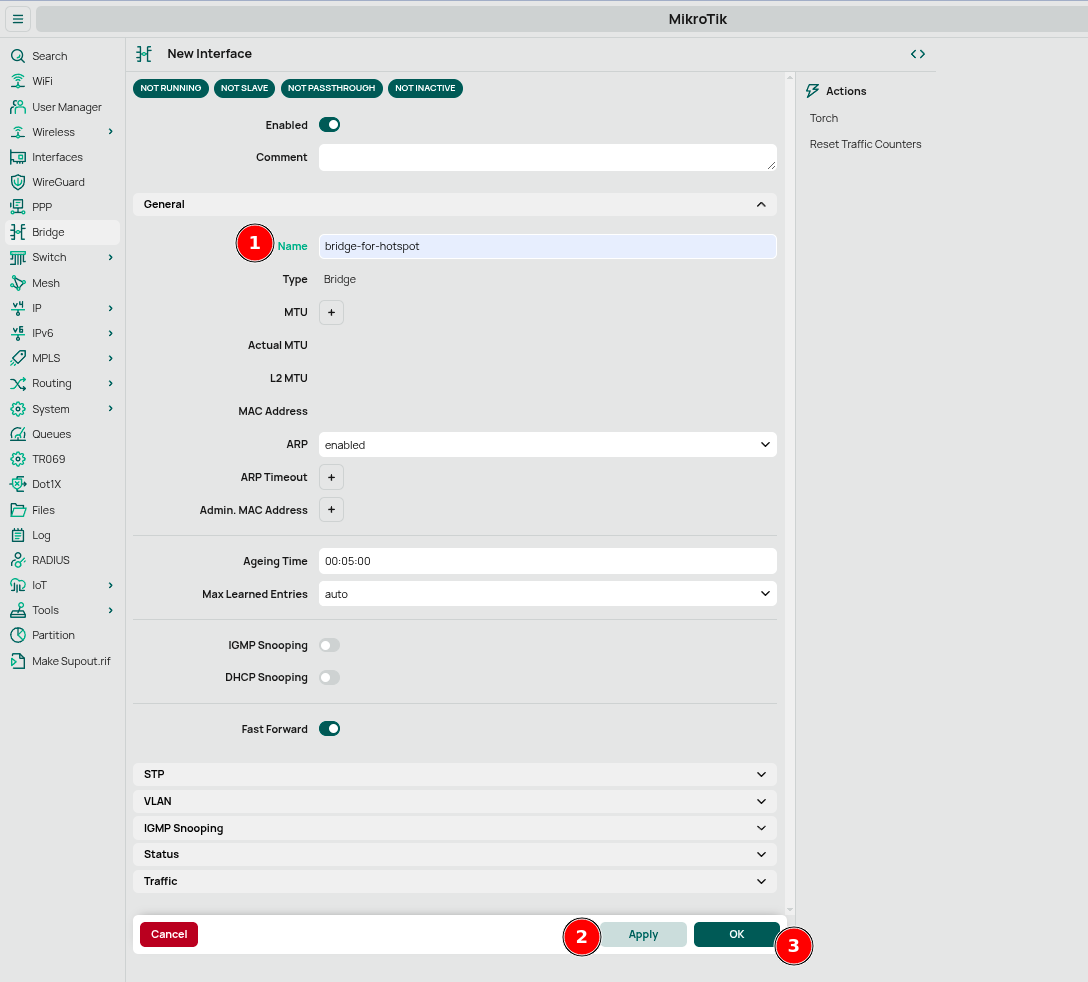
The bridge will connect your interfaces for hotspot functionality, allowing traffic to flow between interfaces and creating a unified network.
Assign WiFi Interfaces
Next, assign WiFi interfaces to the bridge to allow wireless clients to connect.
Adding WiFi Interfaces to the Bridge
-
Go to Bridge then click the Ports tab
-
For each wireless interface (wlan2GHz and wlan5GHz):
- Click on the interface
- From the Bridge dropdown, select "bridge-for-hotspot"
- Click Apply then OK
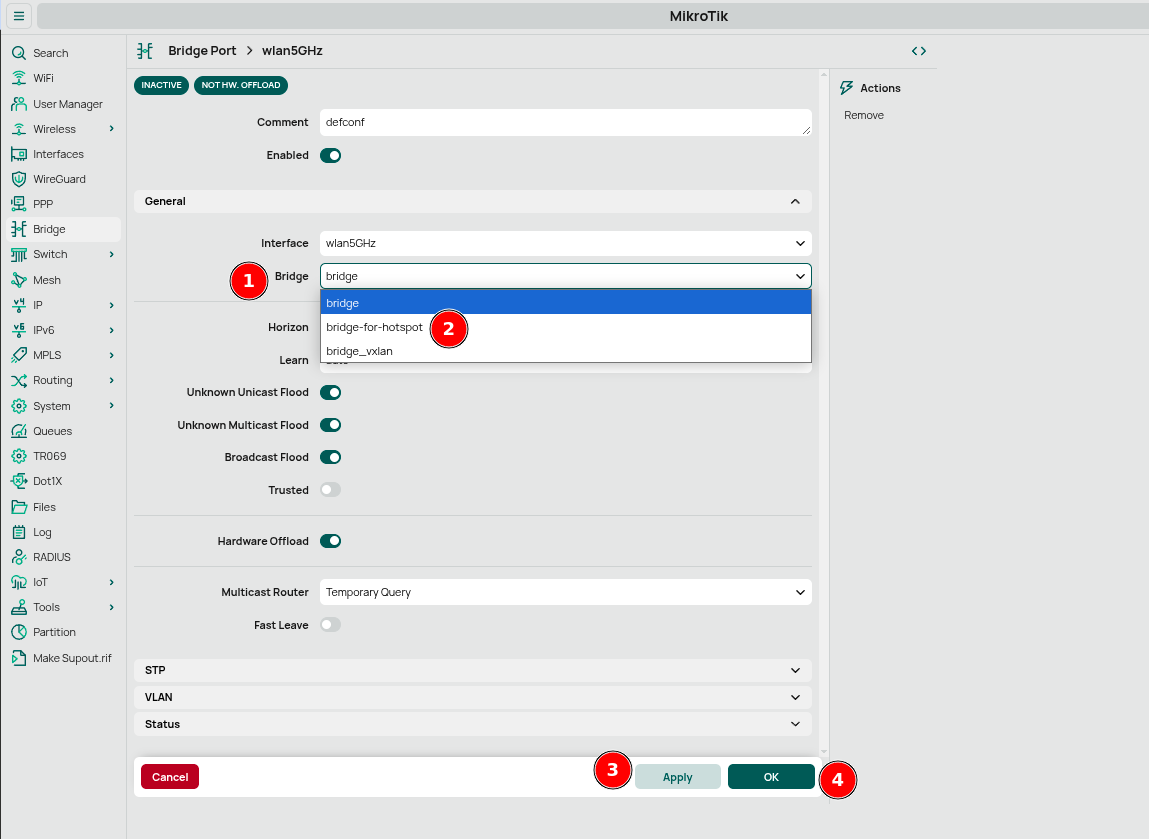
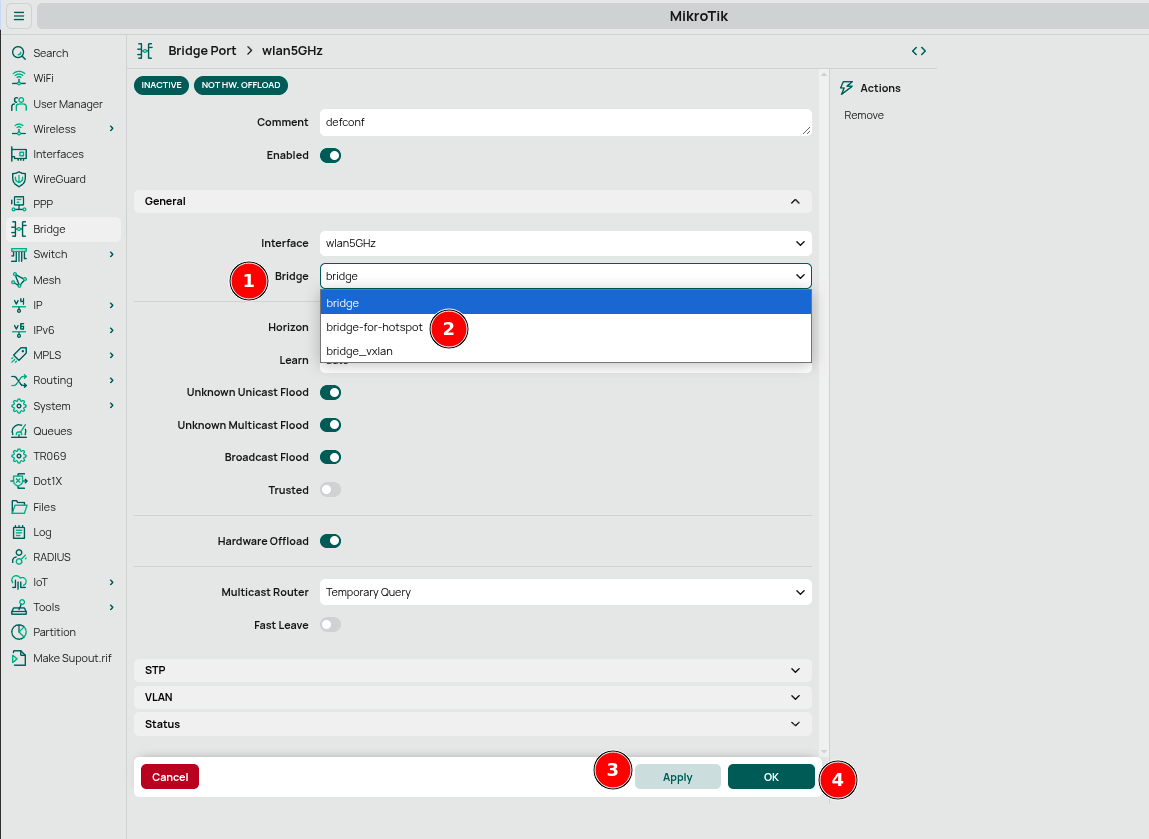
This creates a unified network for hotspot traffic, with all wireless clients connecting through these interfaces.
Network Configuration
Configure network settings to establish the foundation for your hotspot and ensure proper communication.
IP Address Assignment
First, assign an IP address to the bridge interface:
-
Go to IP → Addresses
-
Click New
-
Configure the following:
-
Address:
10.5.50.1/24 -
Network:
10.5.50.0 - Interface: "bridge-for-hotspot"
- Click Apply then OK
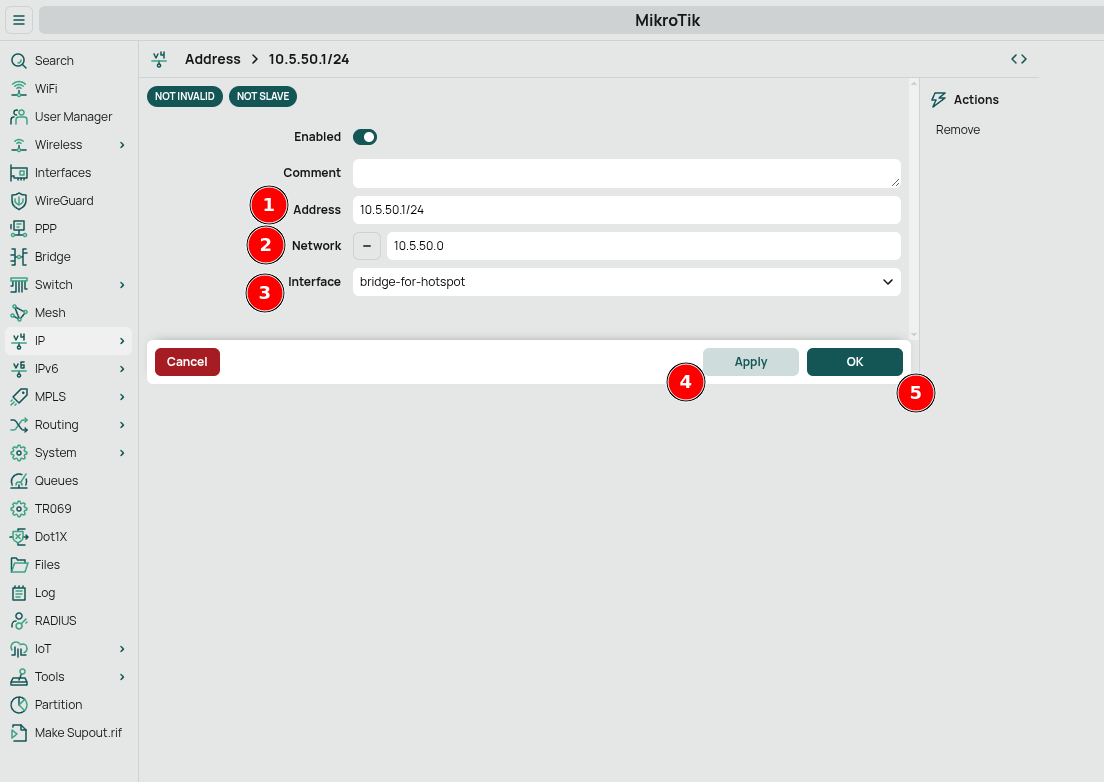
-
Address:
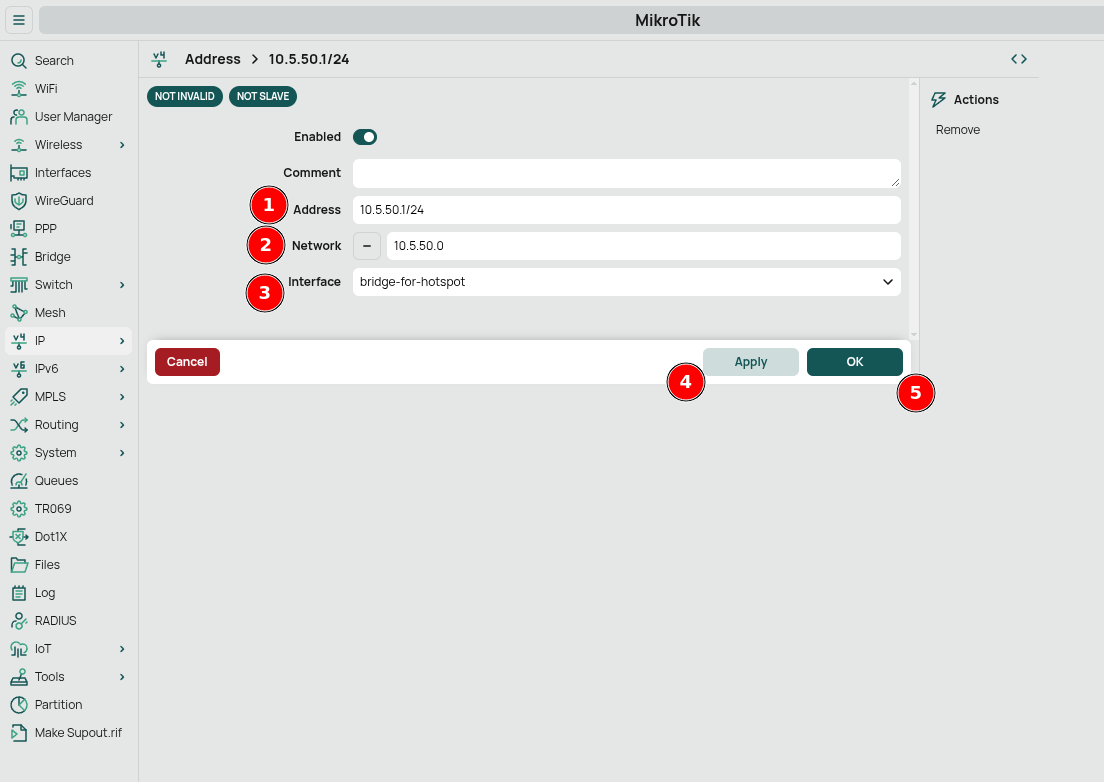
This IP address (10.5.50.1) will serve as the gateway for all devices connecting to your hotspot.
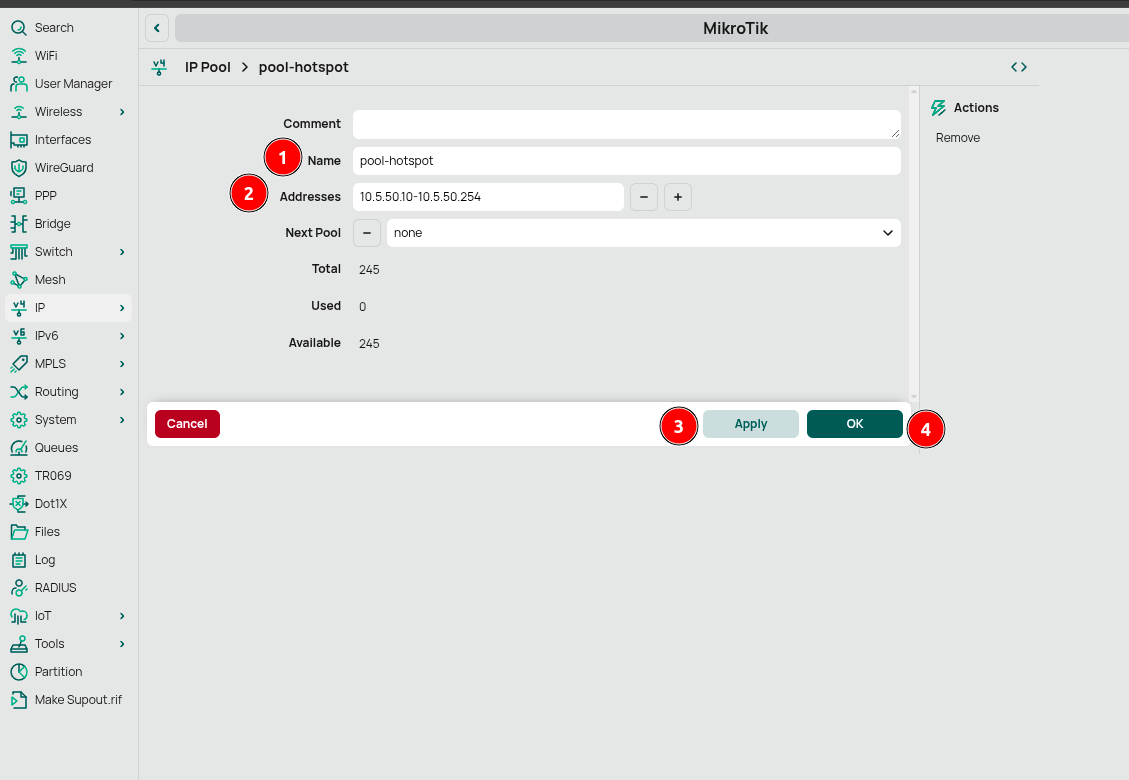
IP Pool Configuration
Create an address pool for the hotspot:
- Go to IP → Pool
- Click New
- Configure:
-
Name:
pool-hotspot -
Addresses:
10.5.50.10-10.5.50.254 - Click Apply then OK
-
Name:
DHCP Server Setup
Configure the DHCP server to automatically assign IP addresses to clients.
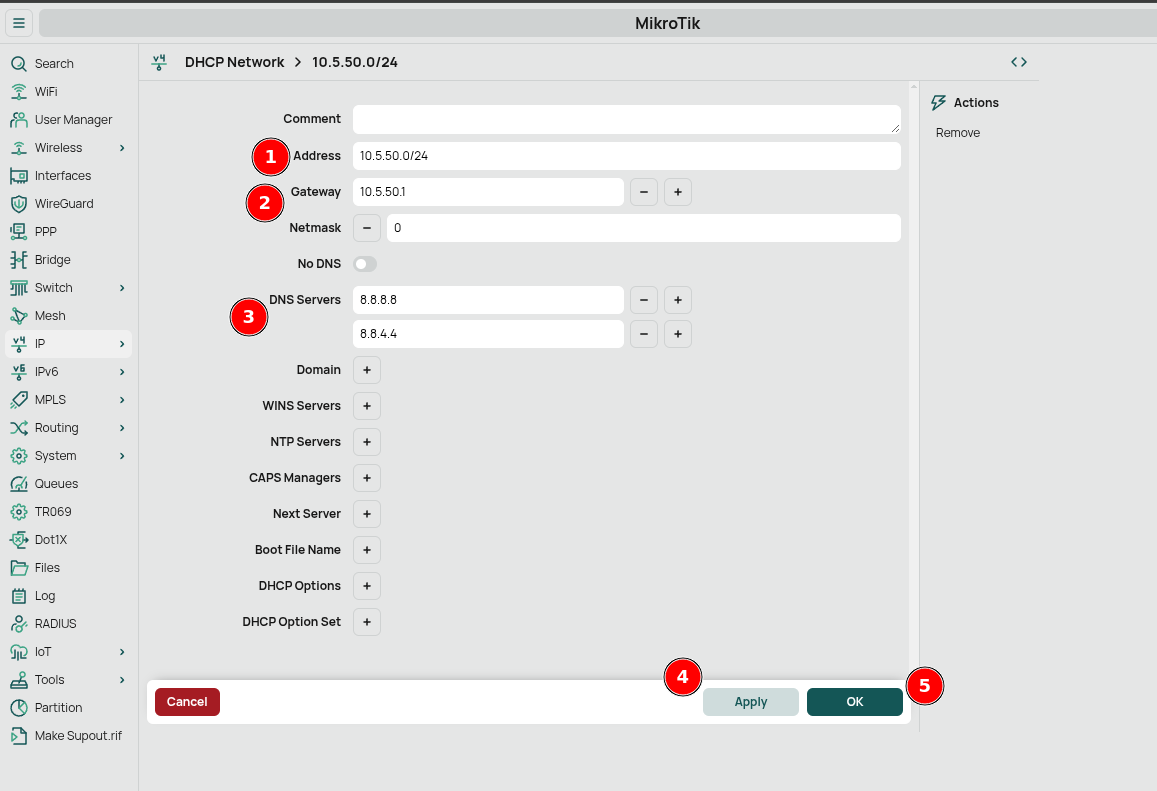
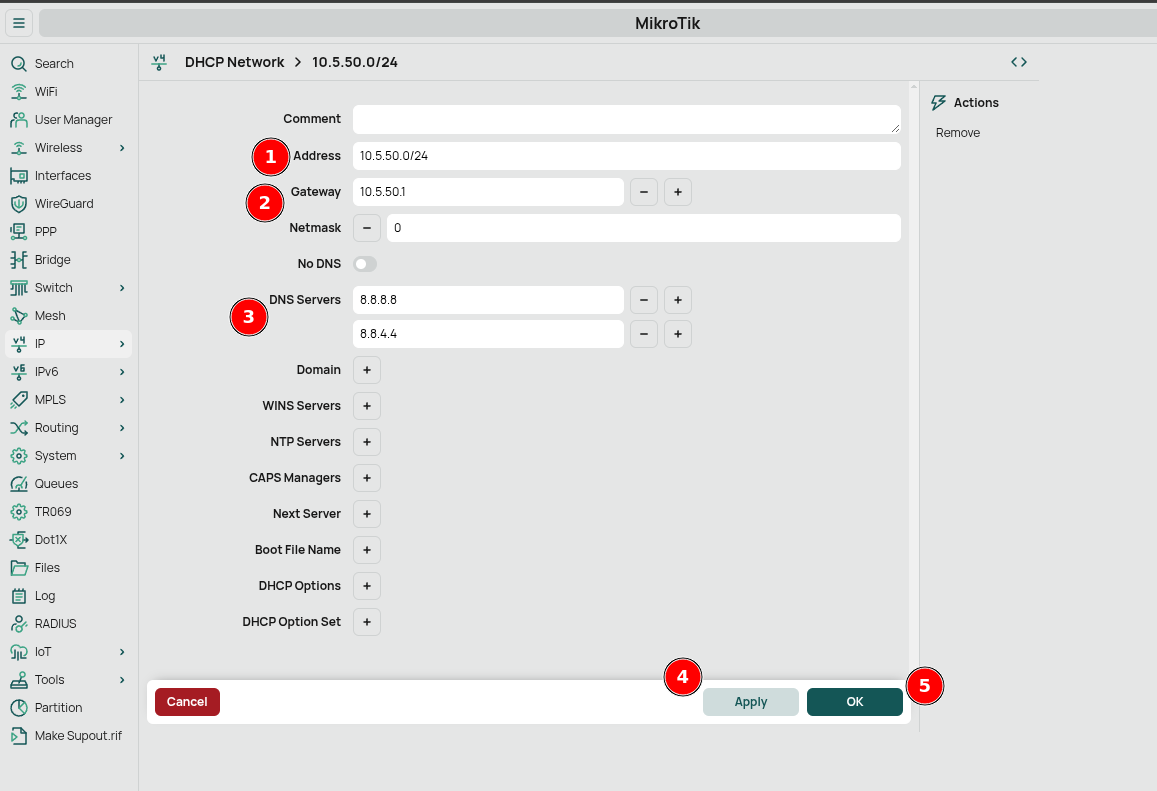
DHCP Networks
-
Go to IP → DHCP Server → Networks tab
-
Click New
-
Configure the network:
-
Address:
10.5.50.0/24 -
Gateway:
10.5.50.1 -
DNS Servers:
8.8.8.8,8.8.4.4(Google DNS) - Click Apply then OK
-
Address:
DHCP Server
-
Go to IP → DHCP Server → DHCP tab
-
Click New
-
Configure:
- Name: "hotspot-dhcp"
- Interface: "bridge-for-hotspot"
- Address Pool: "pool-hotspot"
- Leave other settings at defaults
- Click Apply then OK
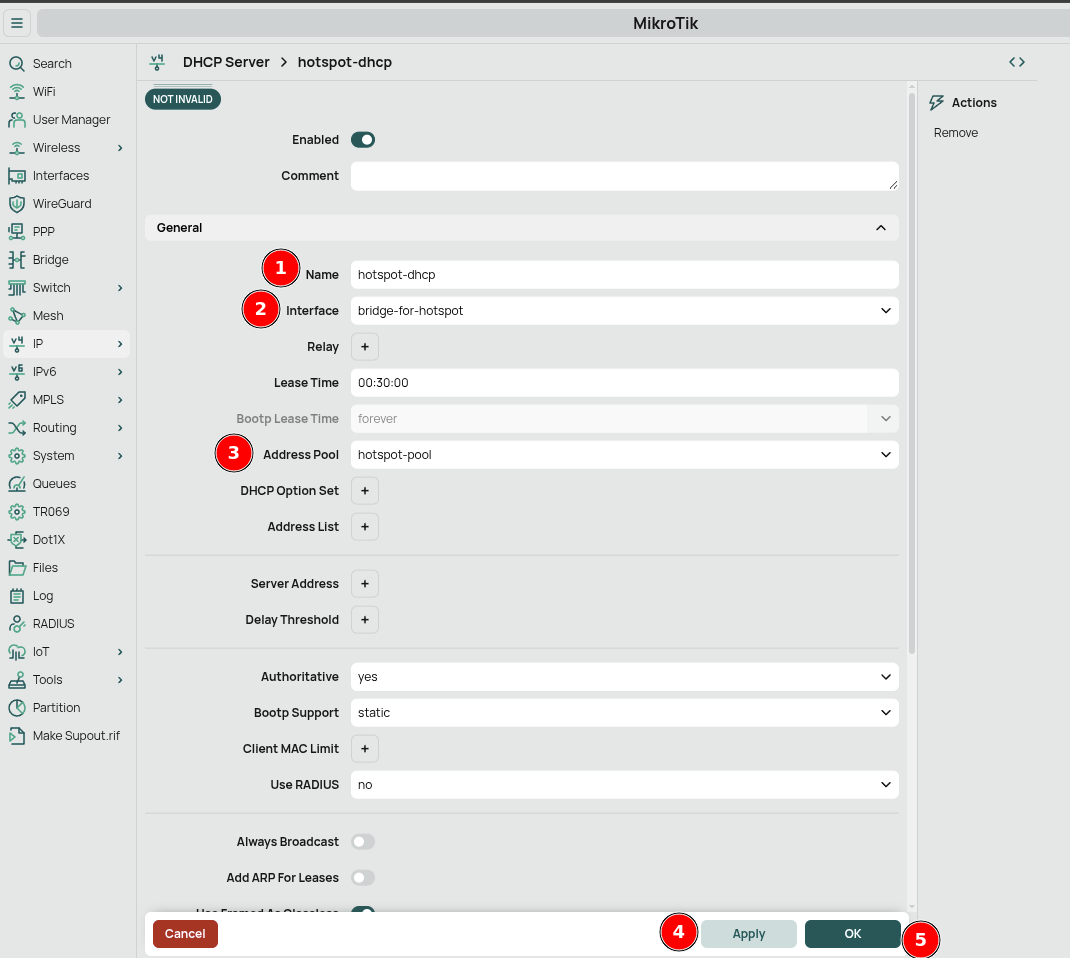
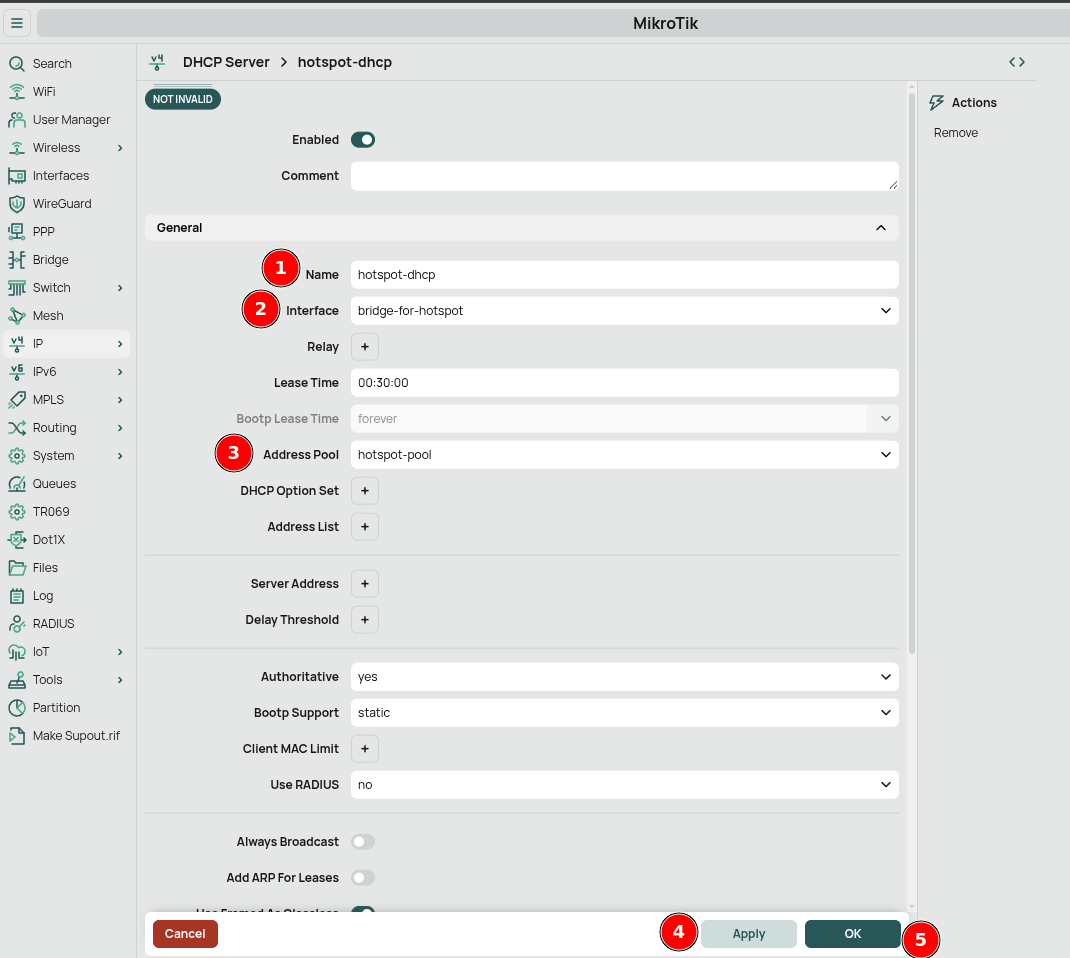
The DHCP server will now assign IP addresses to clients from the specified pool.
Firewall Configuration
Create a firewall rule to allow RADIUS authentication traffic:
-
Go to IP → Firewall → Filter Rules tab
-
Click New
-
Under General tab:
-
Chain:
input -
Protocol:
udp -
Dst. Port:
1812,1813,3799
-
Chain:
-
Under Action tab:
-
Action:
accept
-
Action:
-
Click Apply then OK
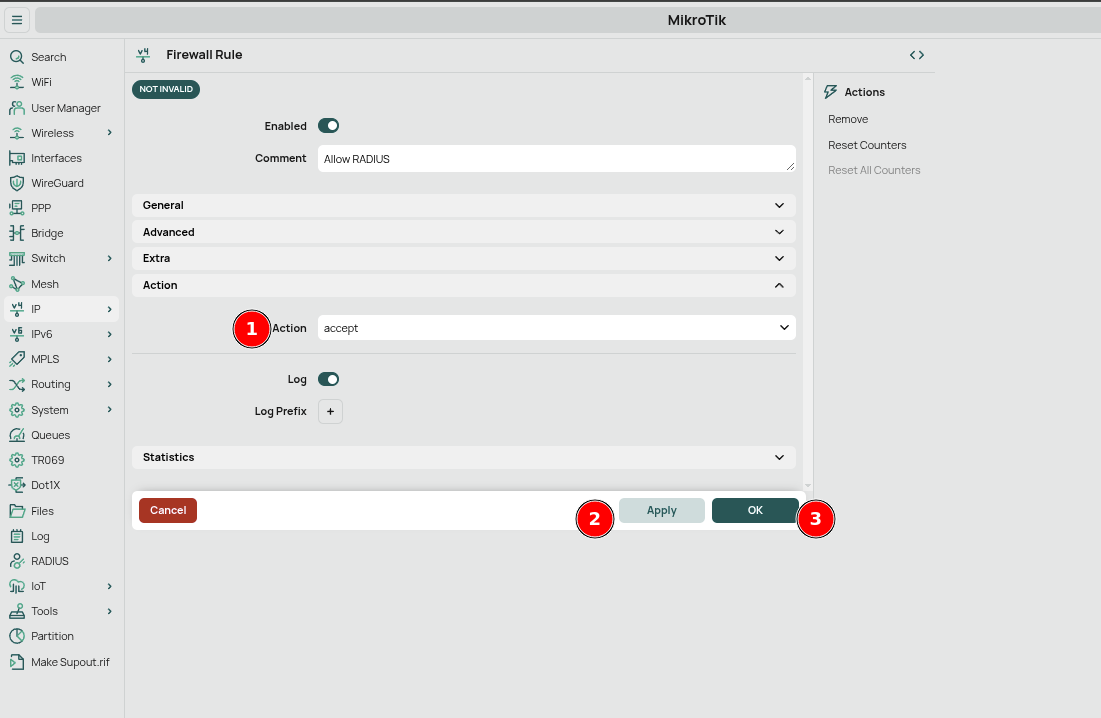
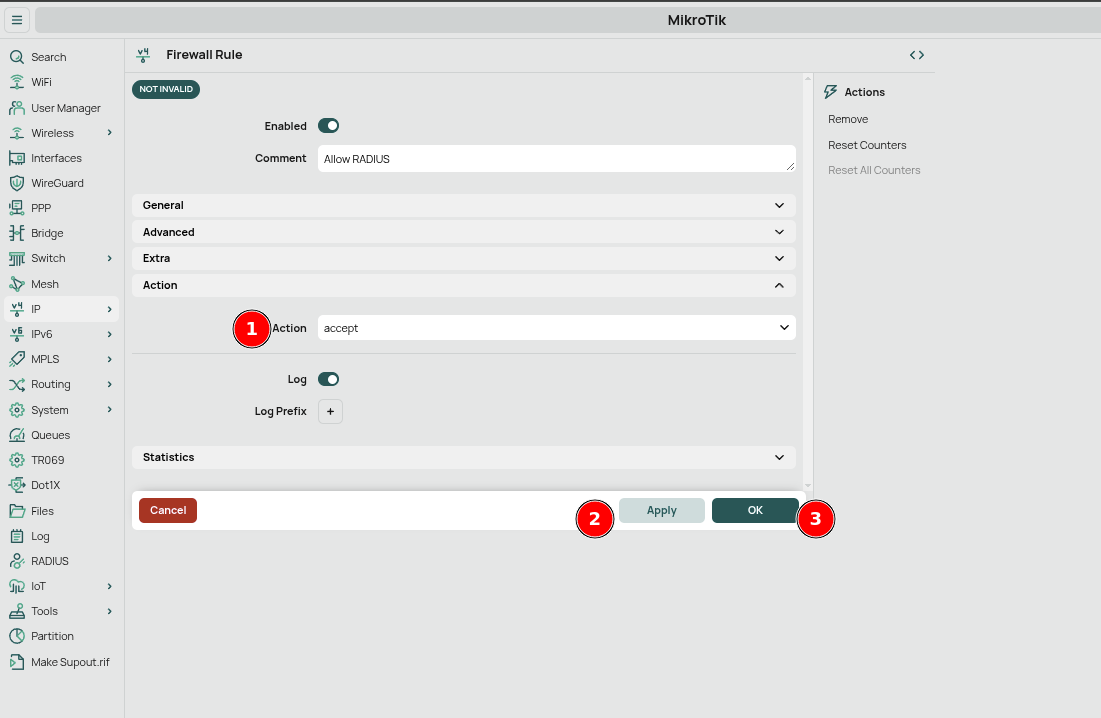
This rule allows communication between your MikroTik router and GATE's RADIUS server.
RADIUS Configuration
Configure RADIUS settings to connect to GATE's authentication server.
RADIUS Server Setup
-
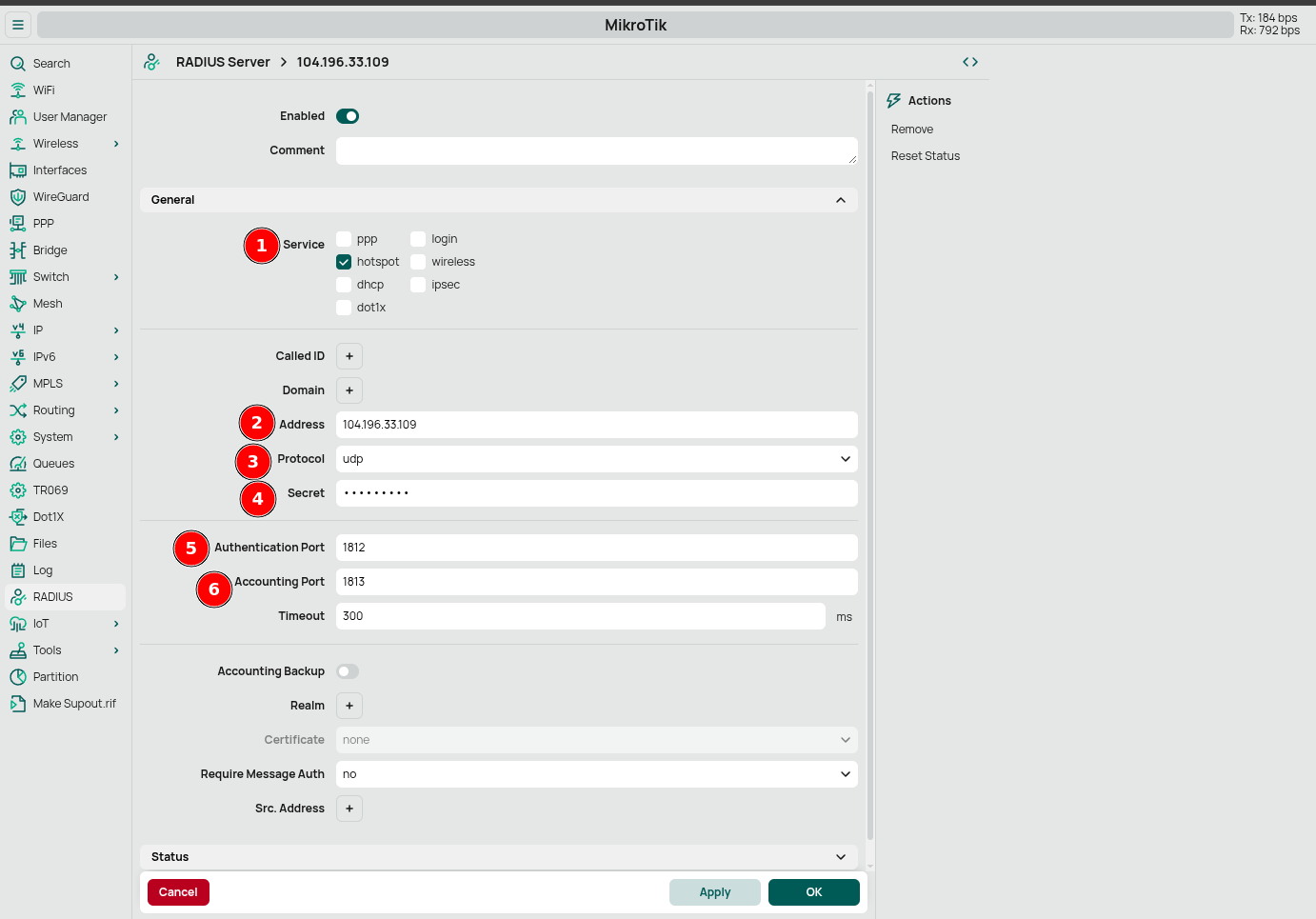
Go to RADIUS and click New
-
Configure:
- Under Service, enable only hotspot
- Address: Enter your GATE server IP address
- Secret: Enter the shared secret password
-
Authentication Port:
1812 -
Accounting Port:
1813 - Click Apply then OK
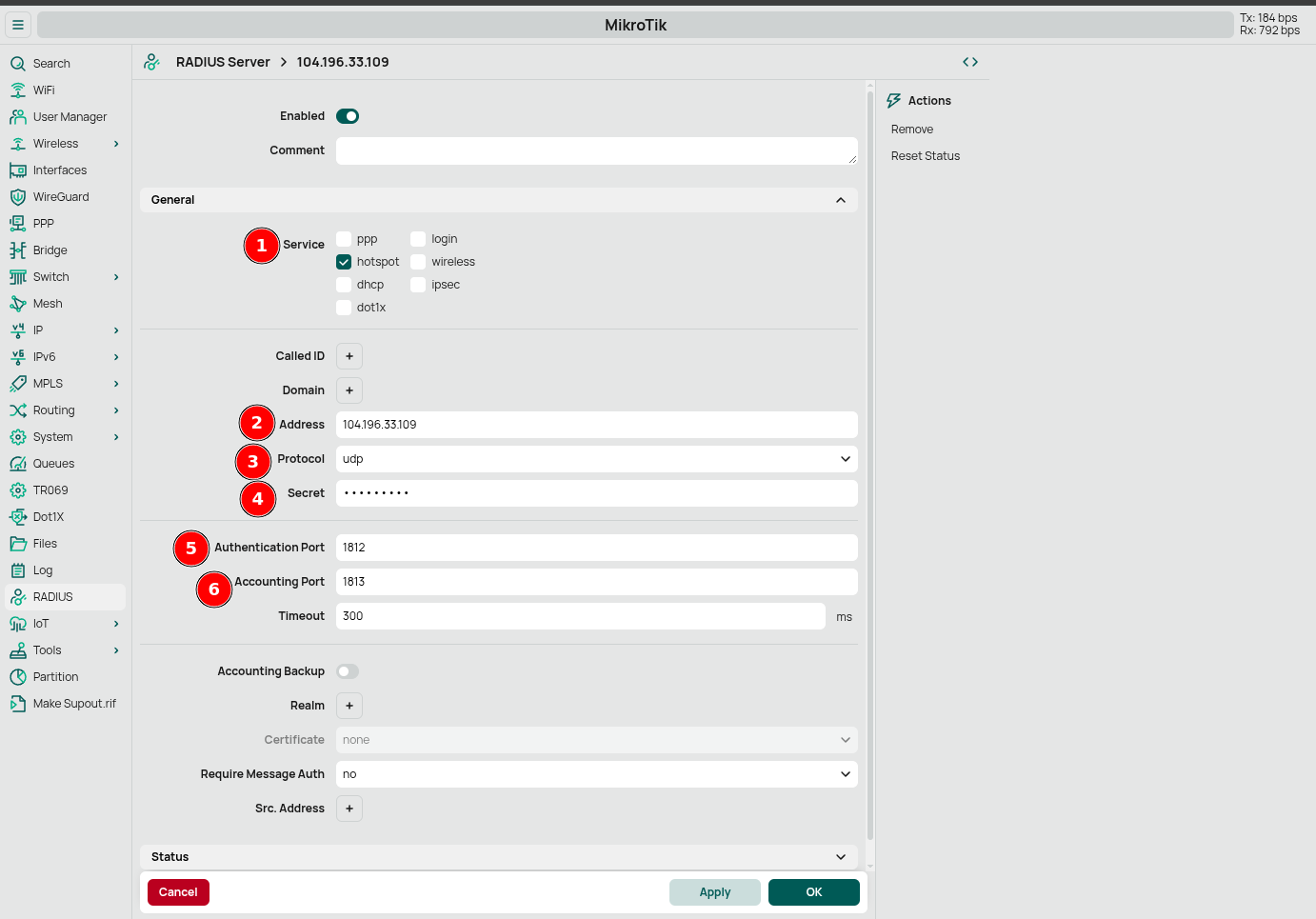
RADIUS Incoming Configuration
-
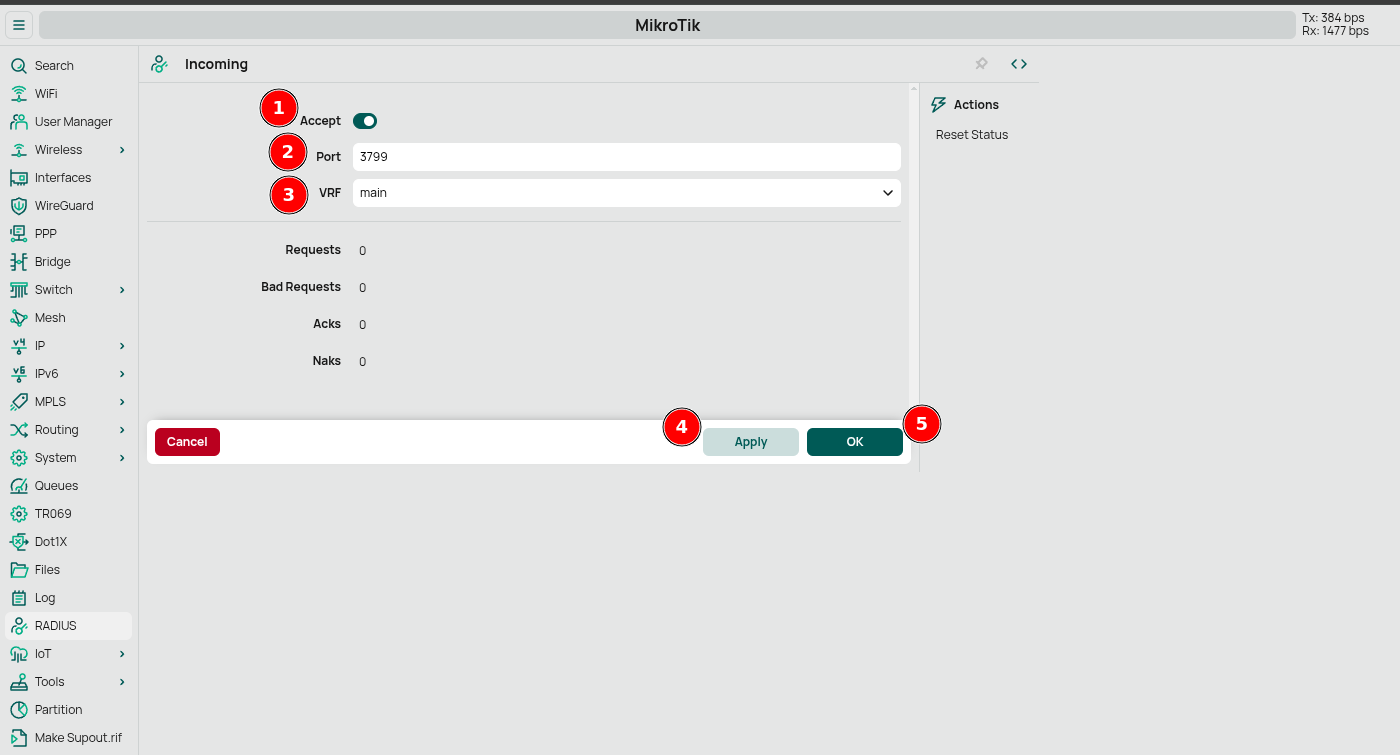
Go to RADIUS and click Incoming
-
Configure:
- Enable Accept toggle
-
Port:
3799 - VRF: Select "main"
- Click Apply then OK
Understanding RADIUS Ports
- Port 1812 (Authentication): Validates user credentials
- Port 1813 (Accounting): Sends session data (connection time, data usage)
- Port 3799 (CoA): Allows dynamic session modification
Hotspot Configuration
The Hotspot feature provides controlled internet access through a captive portal system integrated with GATE.
Custom Portal Files
Create custom HTML files for the external captive portal integration:
Required Files
Create these three files locally with the content below:
login.html
<!DOCTYPE html>
<html>
<head>
  <title>Redirecting to Registration Portal</title>
  <meta http-equiv="refresh" content="0;url=https://gate-dev.zequenze.com/page/demo-mikrotik/?mac=$(mac)&ip=$(ip)">
  <meta charset="utf-8">
  <meta name="viewport" content="width=device-width, initial-scale=1">
</head>
<body>
  <div style="text-align: center; margin-top: 100px; font-family: Arial, sans-serif;">
    <h2>Redirecting to registration portal...</h2>
    <p>If you are not redirected automatically, please click <a href="https://gate-dev.zequenze.com/page/demo-mikrotik/?mac=$(mac)&ip=$(ip)">here</a>.</p>
  </div>
</body>
</html>
logout.html
<!DOCTYPE html>
<html>
<head>
  <title>Logged Out</title>
  <meta charset="utf-8">
  <meta name="viewport" content="width=device-width, initial-scale=1">
  <style>
    body { font-family: Arial, sans-serif; margin: 0; padding: 20px; }
    .container { max-width: 600px; margin: 0 auto; background-color: #f9f9f9; padding: 20px; border-radius: 5px; text-align: center; }
    .btn { display: inline-block; padding: 10px 20px; background-color: #0078d4; color: white; text-decoration: none; border-radius: 4px; margin-top: 20px; }
  </style>
</head>
<body>
  <div class="container">
    <h2>You have been logged out</h2>
    <p>Thank you for using our service.</p>
    <p>Session duration: $(uptime)</p>
    <p>Downloaded: $(bytes-in-nice) / Uploaded: $(bytes-out-nice)</p>
    <a href="$(link-login)" class="btn">Login Again</a>
  </div>
</body>
</html>
redirect.html
<!DOCTYPE html>
<html>
<head>
  <title>Redirecting</title>
  <meta http-equiv="refresh" content="0;url=https://gate-dev.zequenze.com/page/demo-mikrotik/?mac=$(mac)&ip=$(ip)">
  <meta charset="utf-8">
  <meta name="viewport" content="width=device-width, initial-scale=1">
</head>
<body>
  <div style="text-align: center; margin-top: 100px; font-family: Arial, sans-serif;">
    <h2>Redirecting to registration portal...</h2>
    <p>If you are not redirected automatically, please click <a href="https://gate-dev.zequenze.com/page/demo-mikrotik/?mac=$(mac)&ip=$(ip)">here</a>.</p>
  </div>
</body>
</html>
File Upload Process
- Connect to your MikroTik router using an FTP client
- Navigate to the
/flashdirectory - Create a new folder (e.g.,
myhotspot) - Upload all three HTML files to this folder
Important: Use FTP to preserve MikroTik variables like
$(mac)and$(ip). These variables are automatically replaced with actual values when users access the portal.
Walled Garden Configuration
Configure the Walled Garden to allow access to GATE's servers without authentication:
-
Go to IP → Hotspot → Walled Garden tab
-
Click New
-
Configure:
- Comment: "Wildcard zequenze"
-
Action:
allow -
Dst. Host:
*.zequenze.com - Click Apply then OK
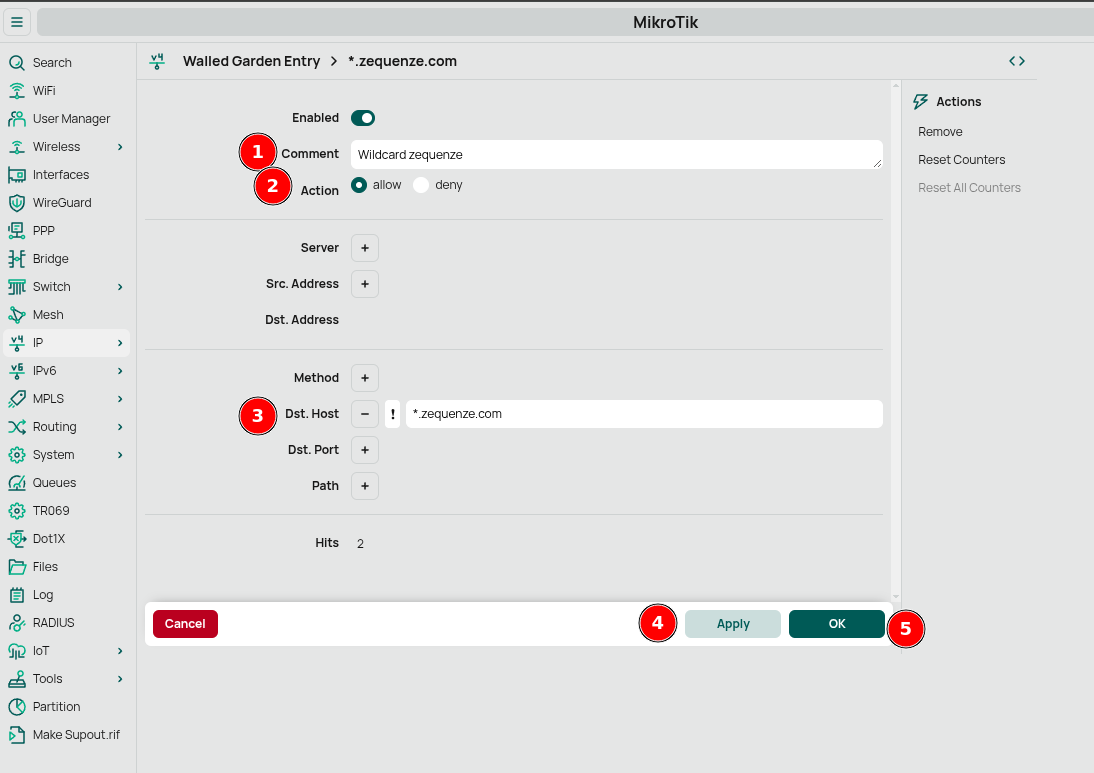
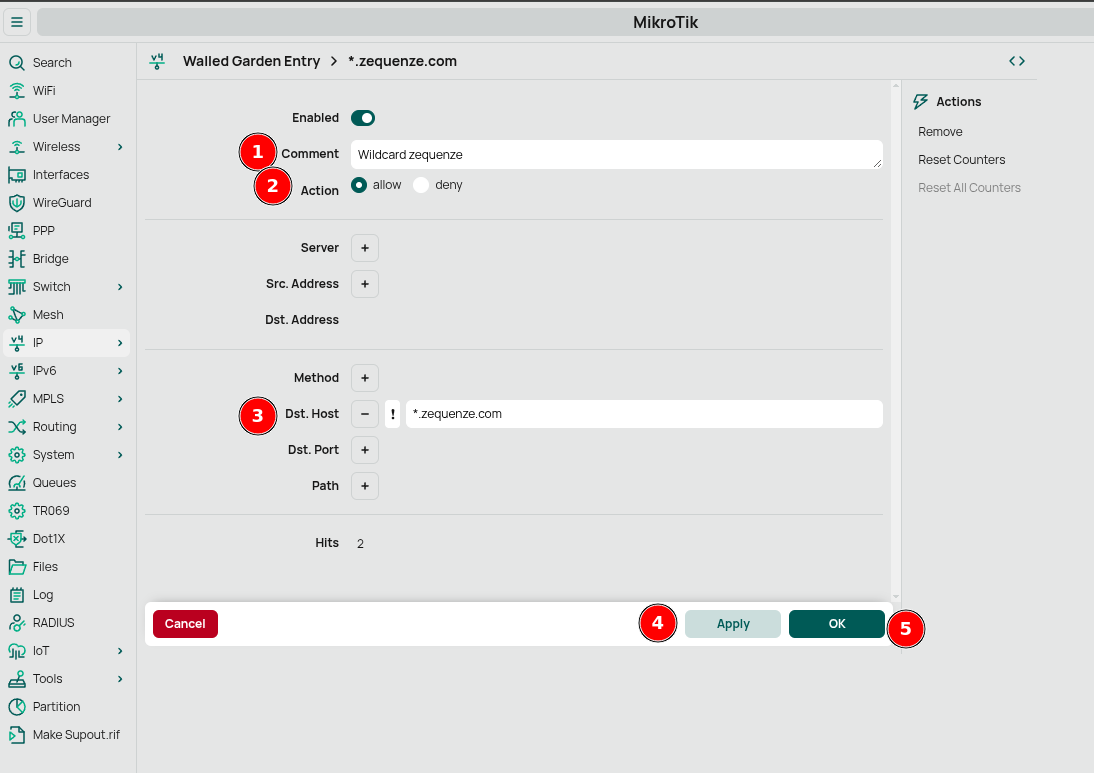
This ensures users can reach GATE's registration page before authentication.
User Profiles
Create a user profile to define connection parameters:
-
Go to IP → Hotspot → User Profiles tab
-
Click New
-
Configure:
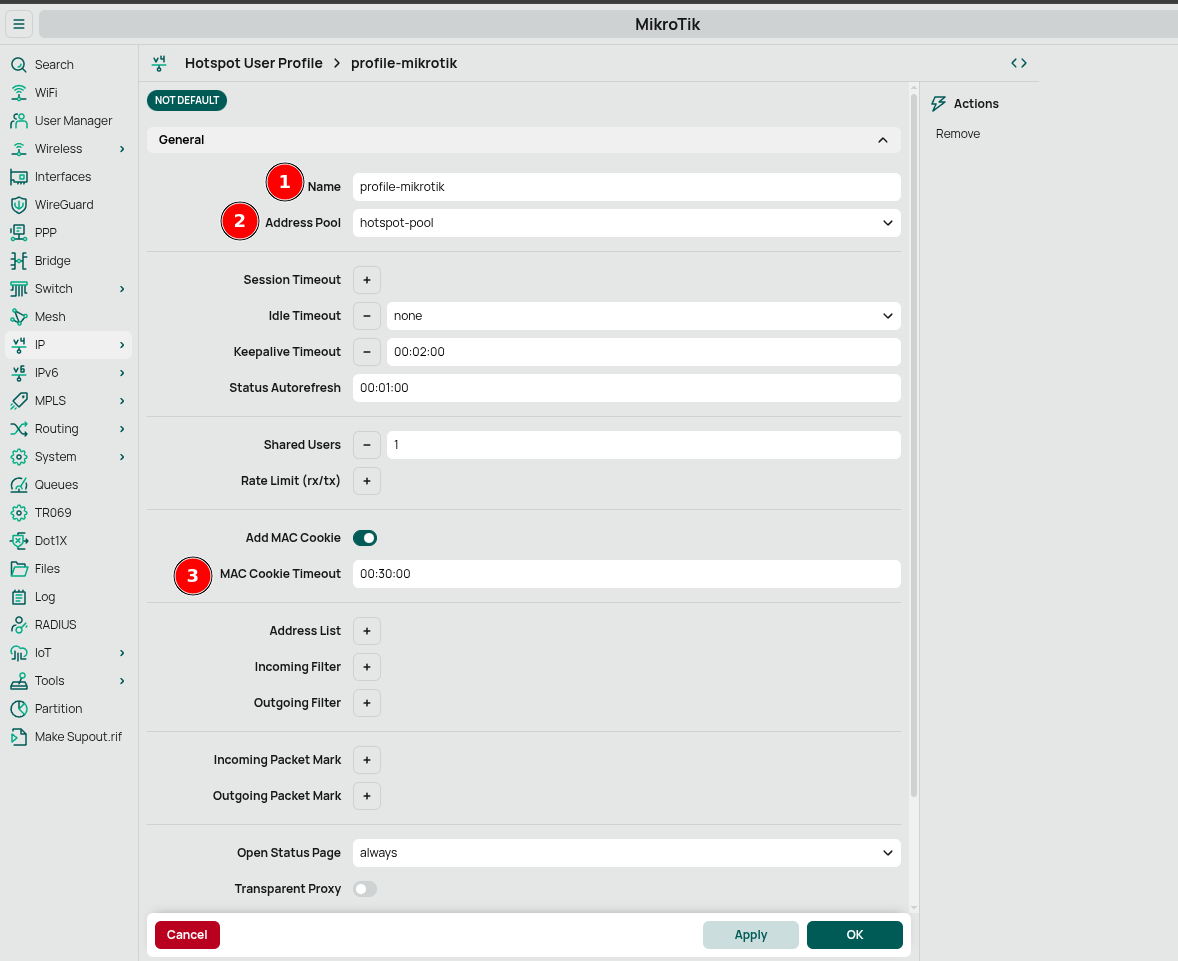
- Name: "profile-mikrotik"
- Address Pool: "pool-hotspot"
- MAC Cookie Timeout: "00:30:00" (30 minutes)
- Click Apply then OK
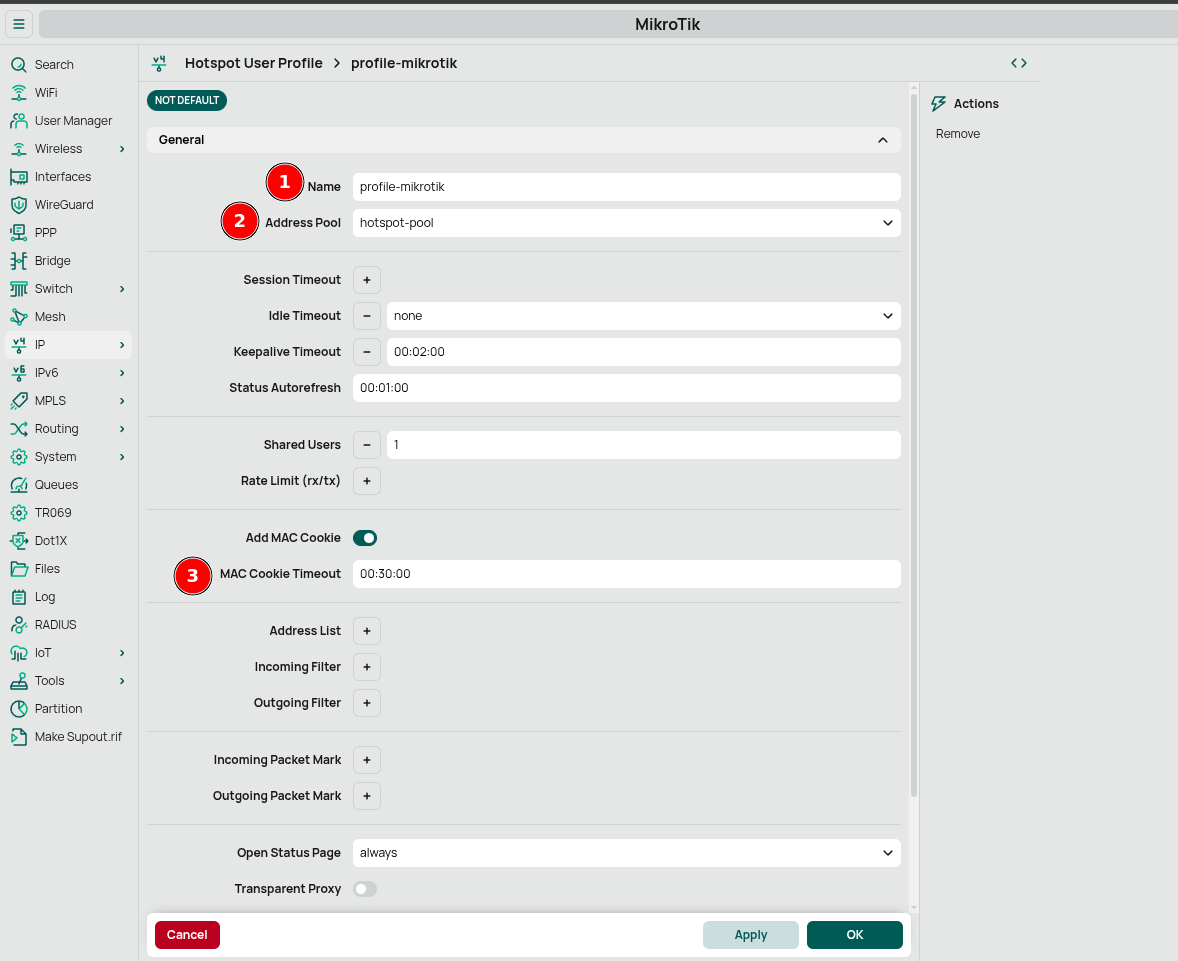
Server Profiles
Configure how the hotspot server operates:
-
Go to IP → Hotspot → Server Profiles tab
-
Click New
-
Configure the following sections:
General Settings:
- Name: "Gate-html"
- DNS Name: "hotspot.gateway"
- HTML Directory: "flash/myhotspot" (path to your uploaded files)
Login Settings:
- Enable HTTP CHAP
- Enable HTTP PAP
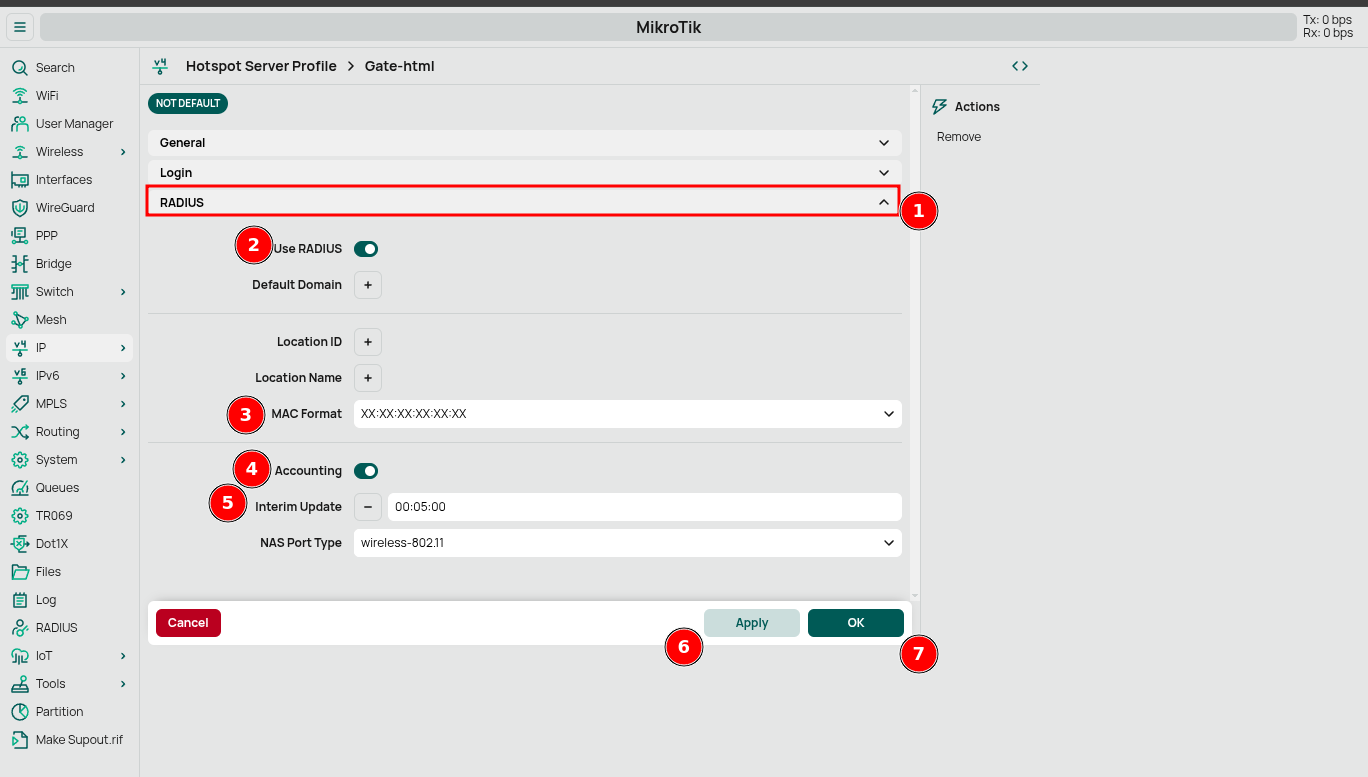
RADIUS Settings:
- Enable Use RADIUS
- MAC Format: "XX:XX:XX:XX:XX:XX"
- Enable Accounting
- Interim Update: "00:05:00" (5 minutes)
-
Click Apply then OK
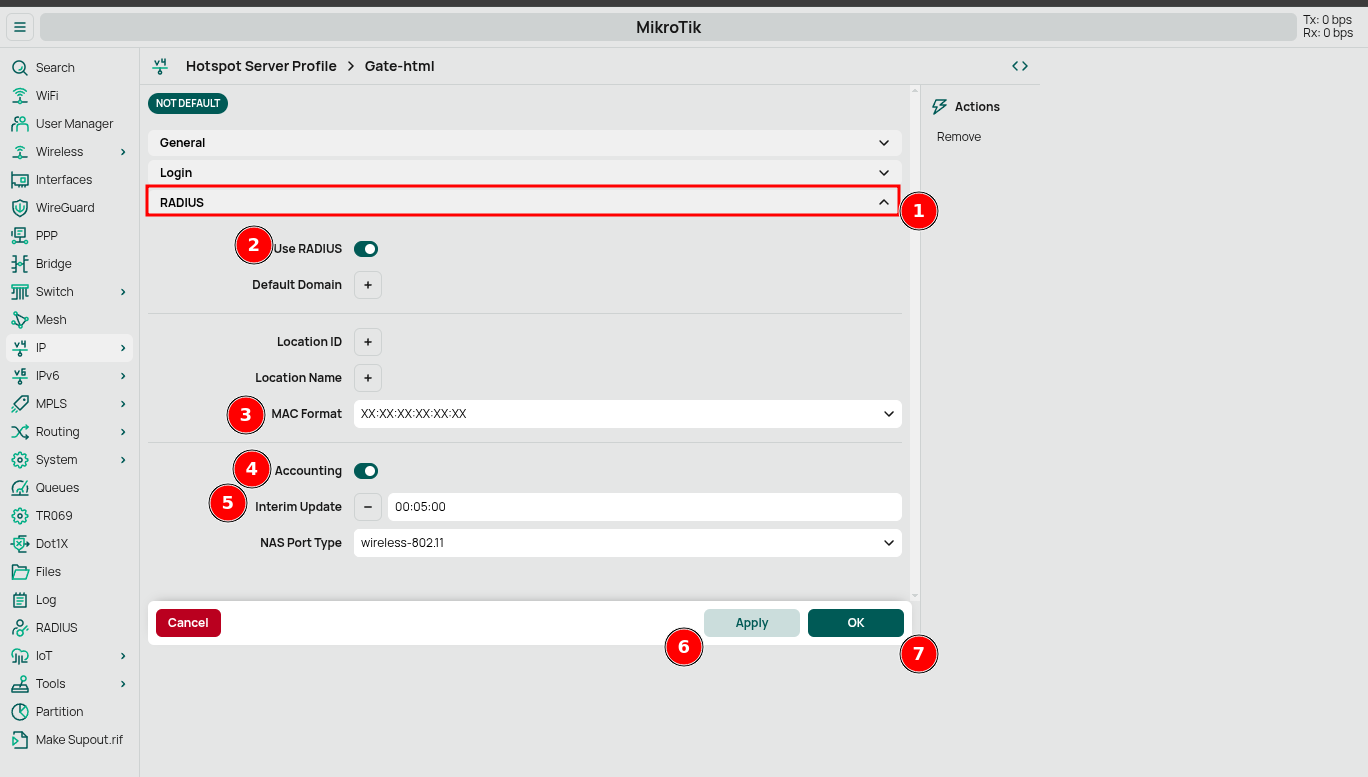
Hotspot Server Creation
Create the actual hotspot server:
- Go to IP → Hotspot → Servers tab
- Click New
- Configure:
- Enable the Enabled toggle
- Name: "hotspot1"
No comments to display
No comments to display