
Alta de Cliente AAA
This guide walks you through the process of adding a new AAA client in the GATE portal (BNG, WAG, etc.).
Step 1: Access AAA Services
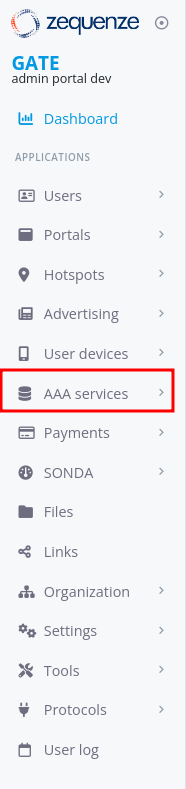
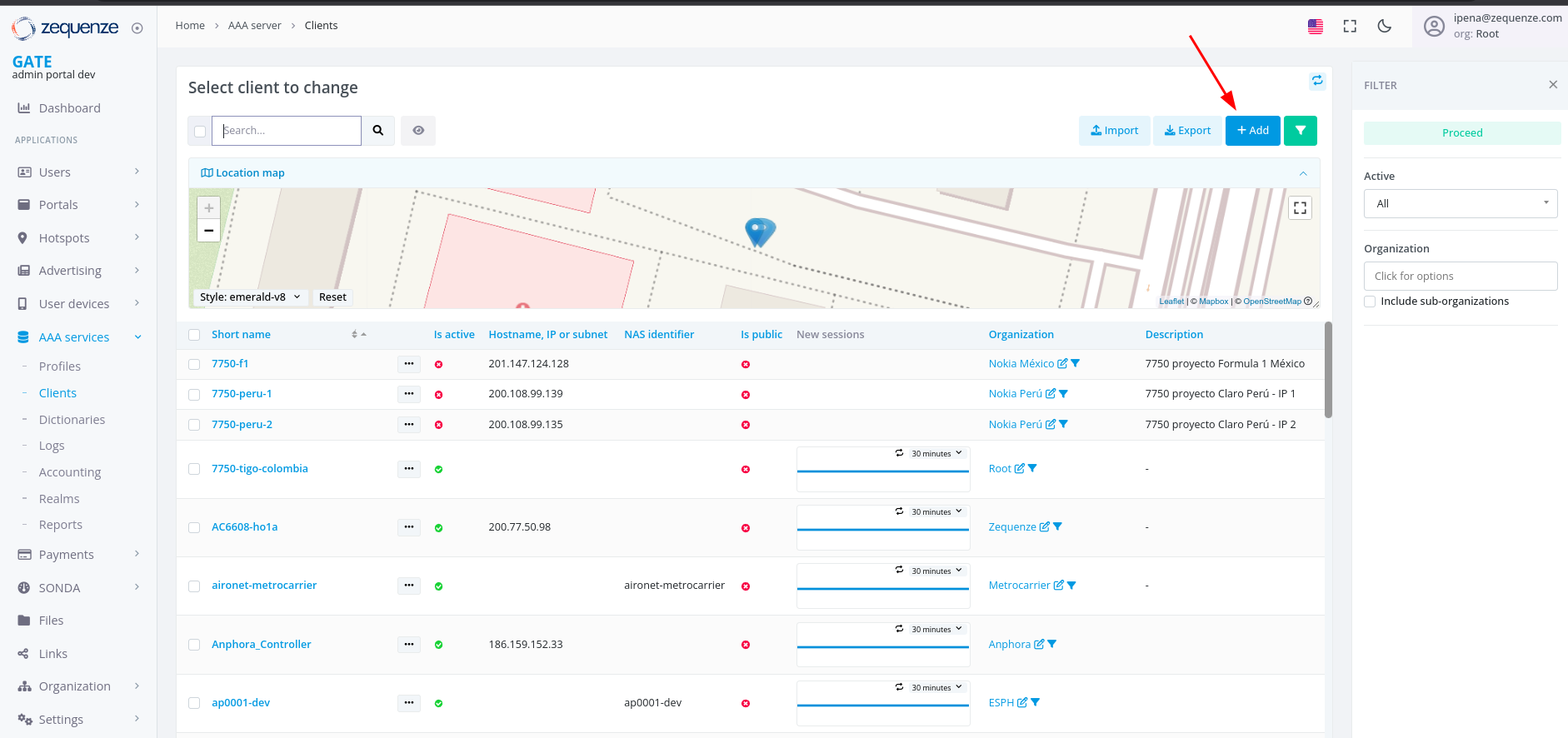
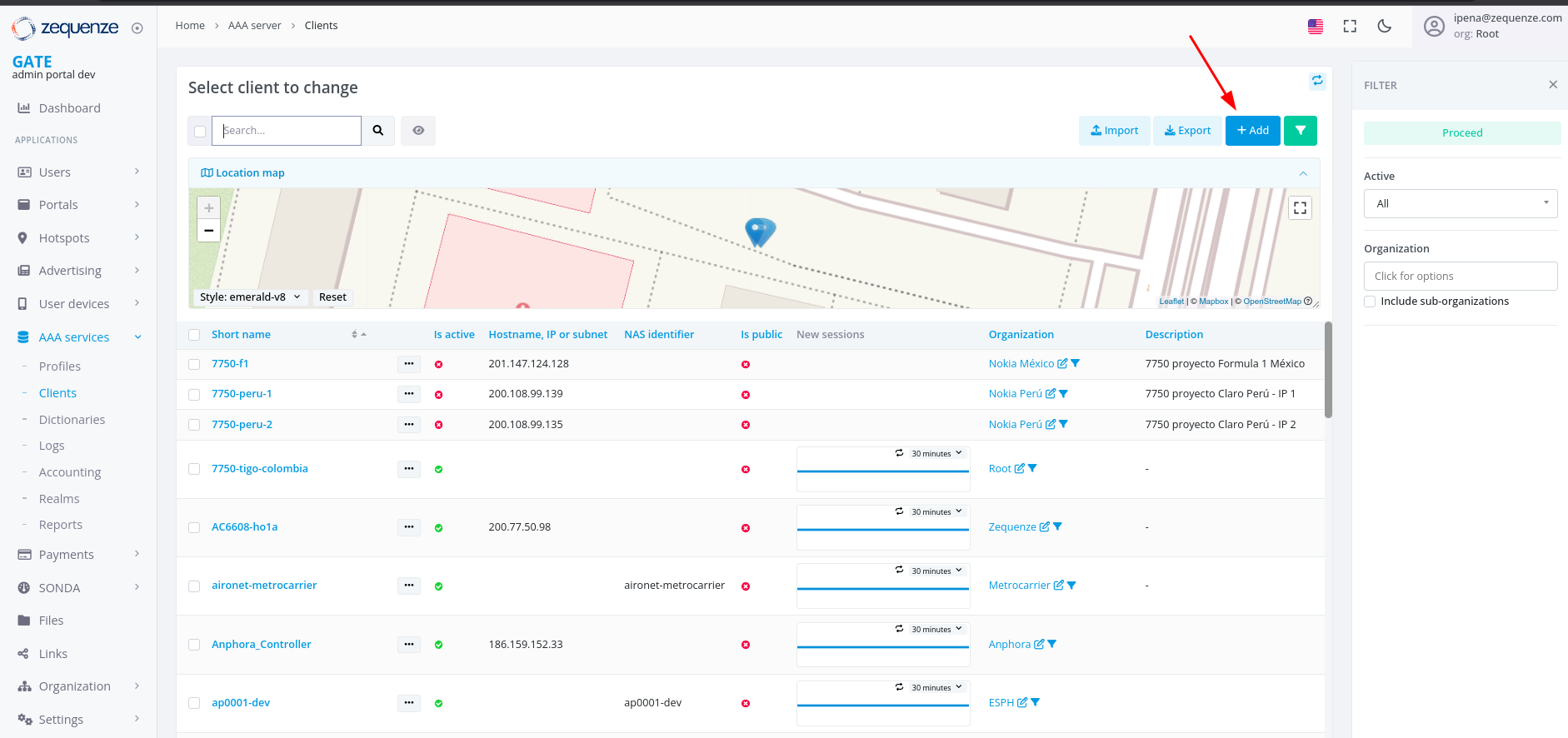
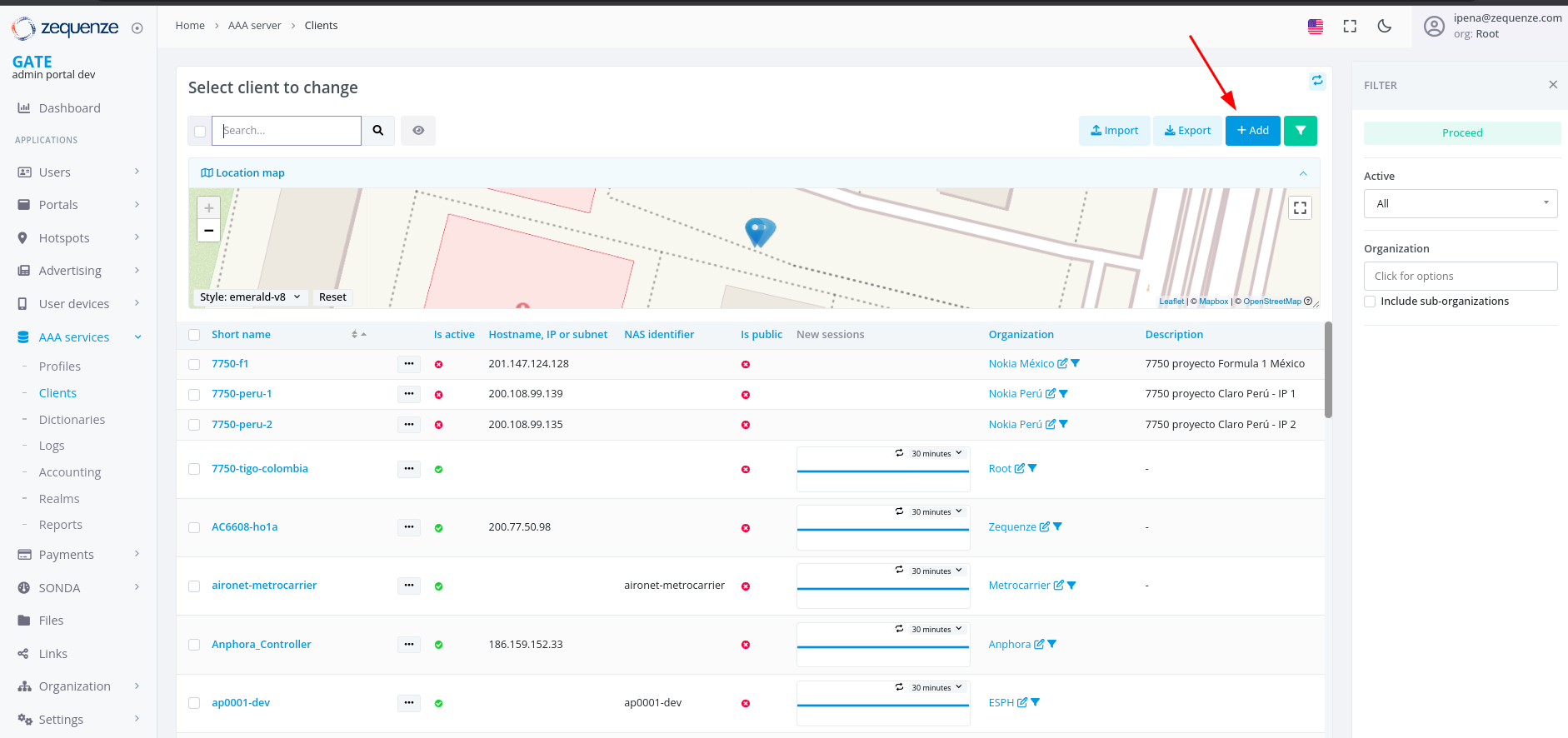
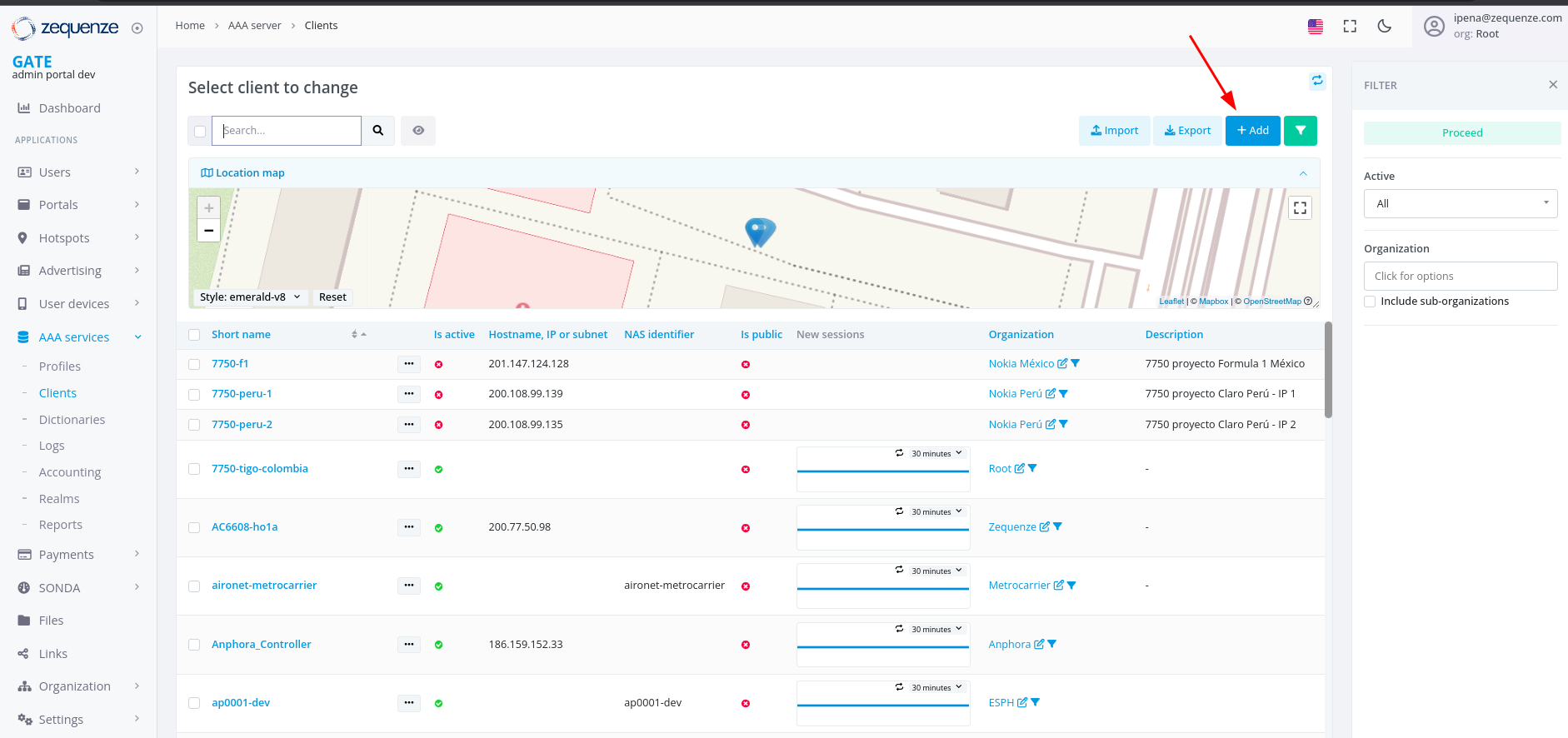
Step 2: Navigate to Clients
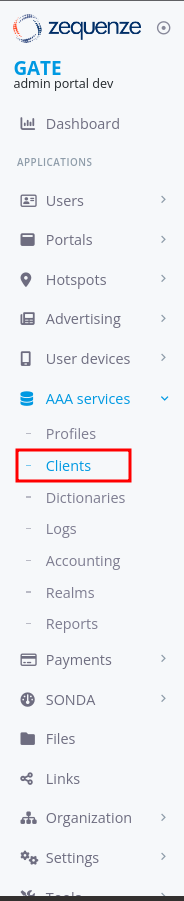
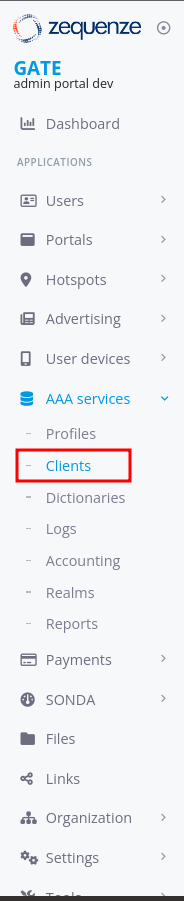
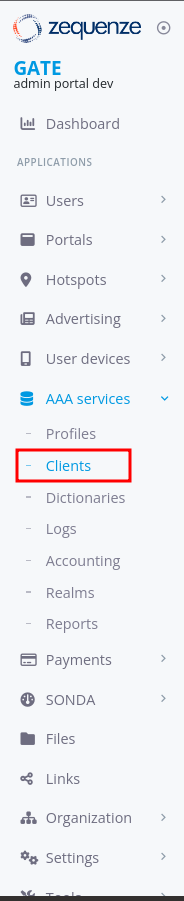
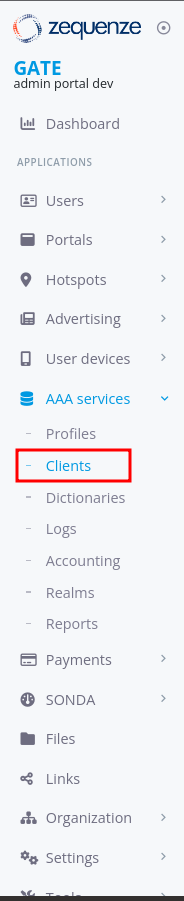
When the AAA Services menu expands, select "Clients" from the dropdown options.
Step 3: Add New Client
On the main screen, click the "+Add" button located in the upper section.
Step 4: Configure Client Information
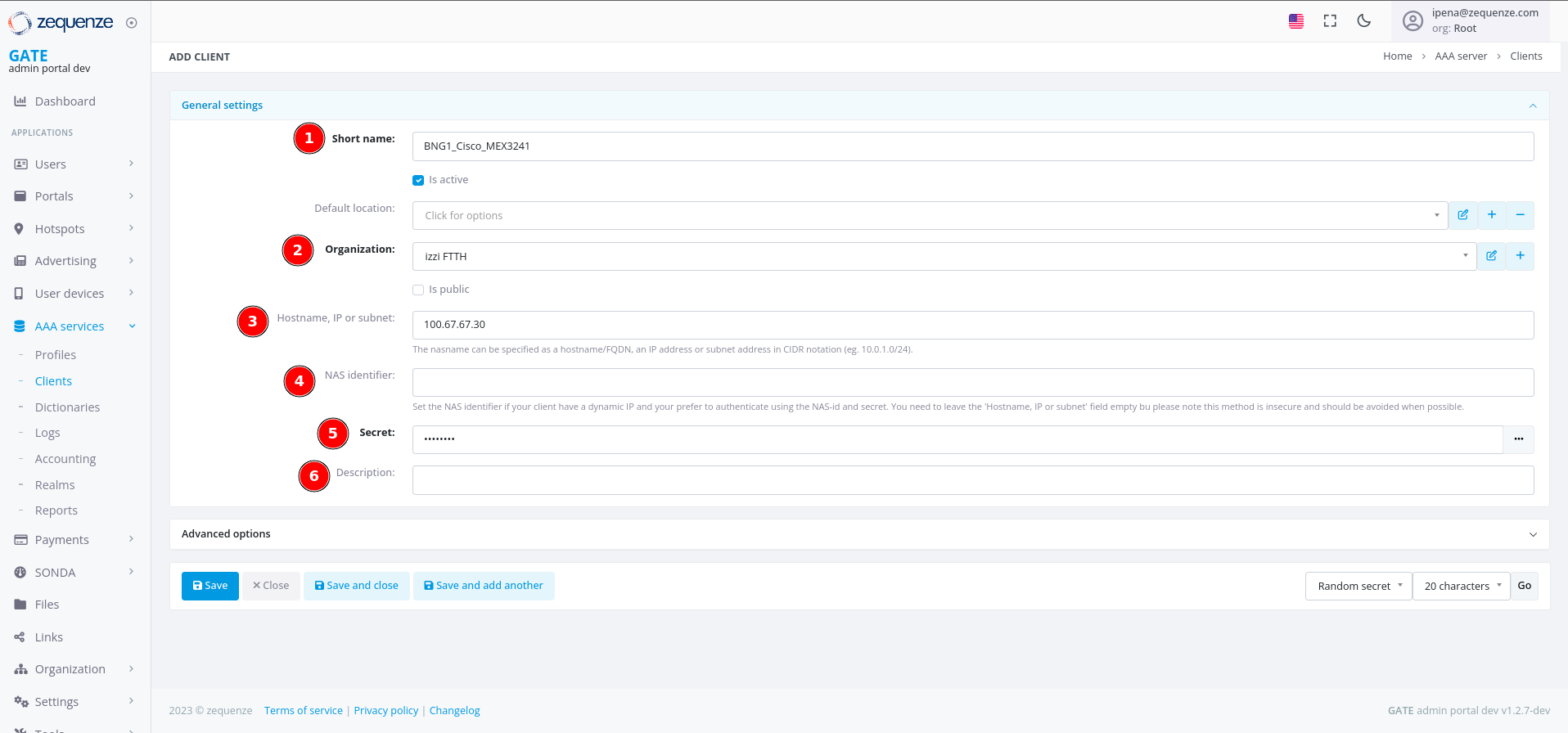
Complete the client connection information using the form fields shown below:
Field Descriptions
| ID | Field | Description |
|---|---|---|
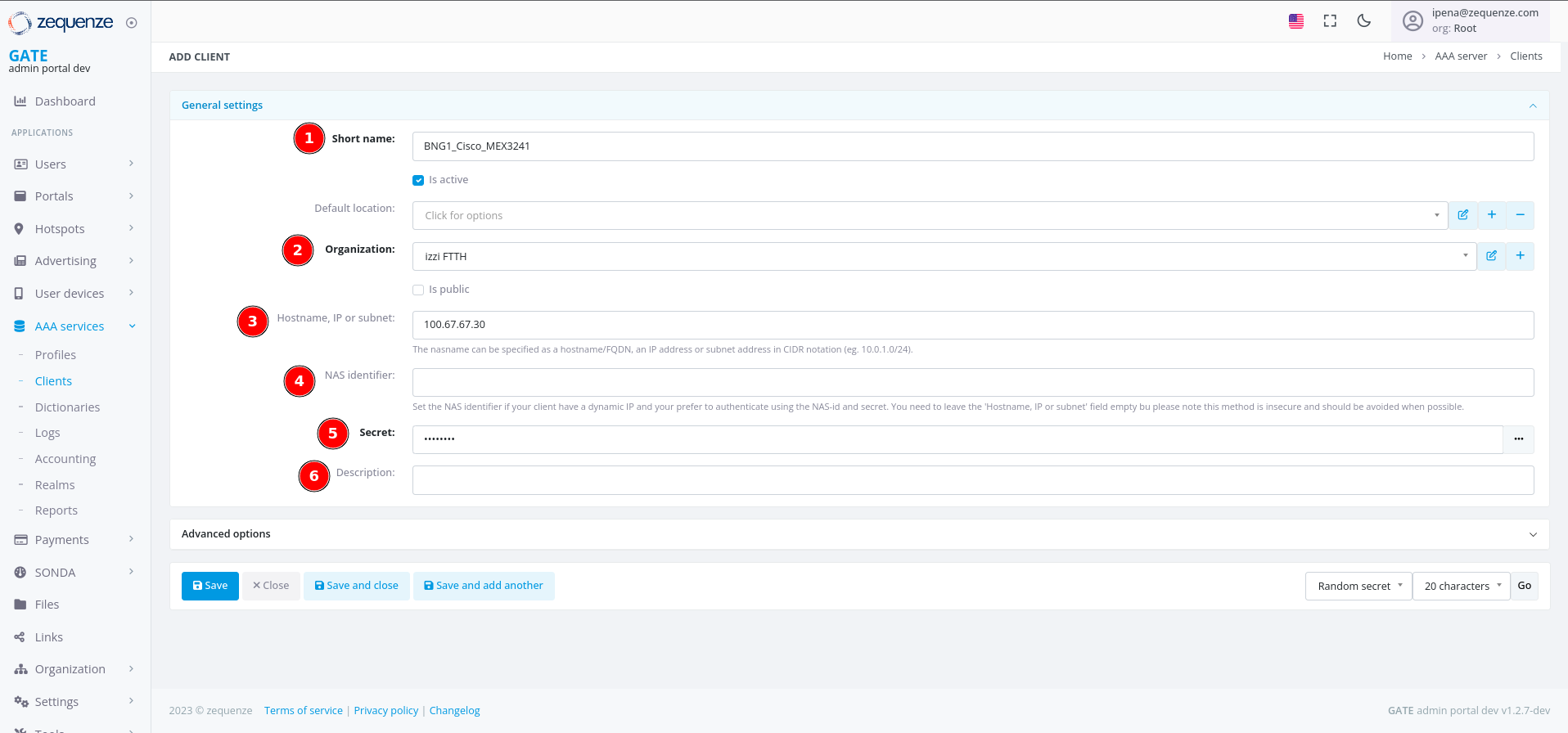
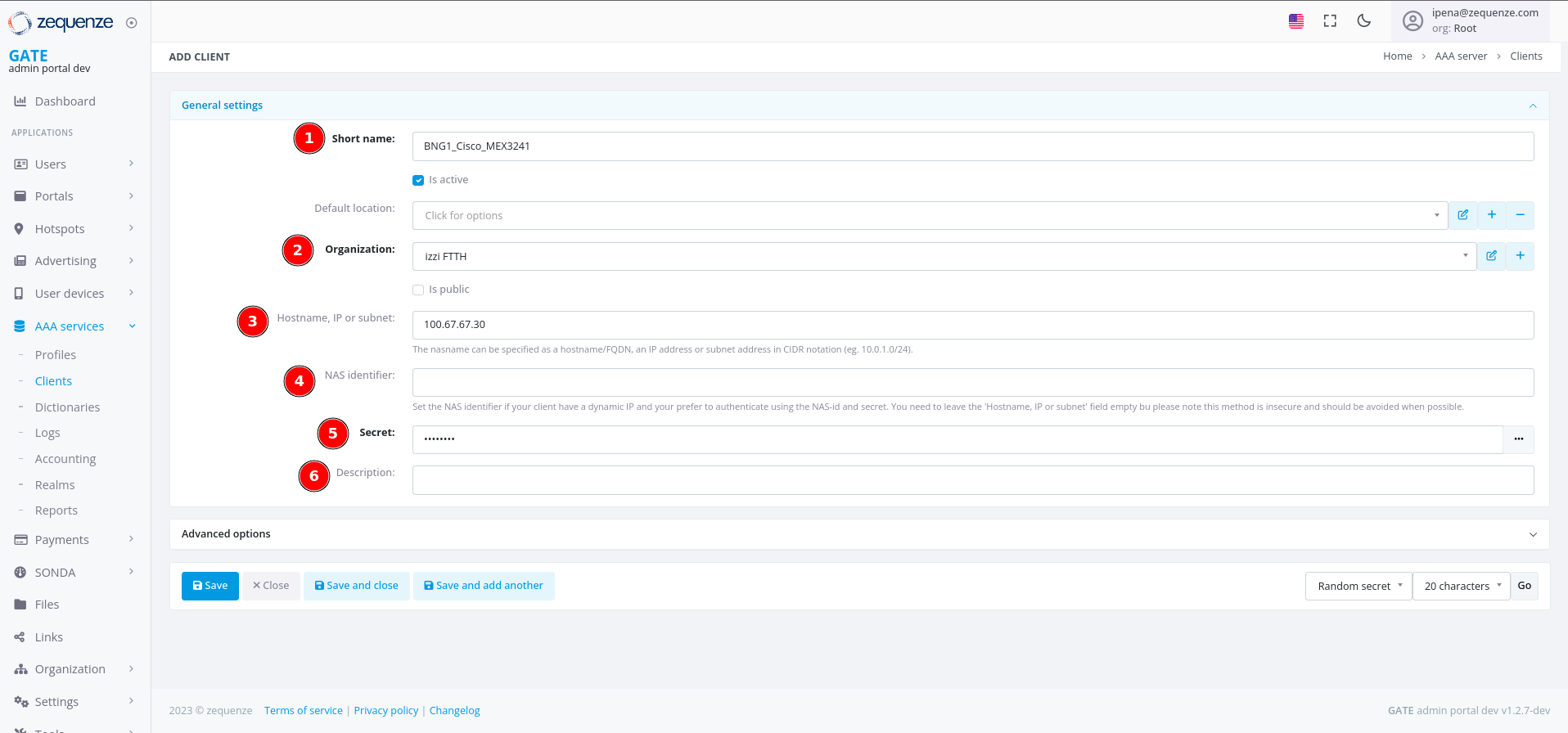
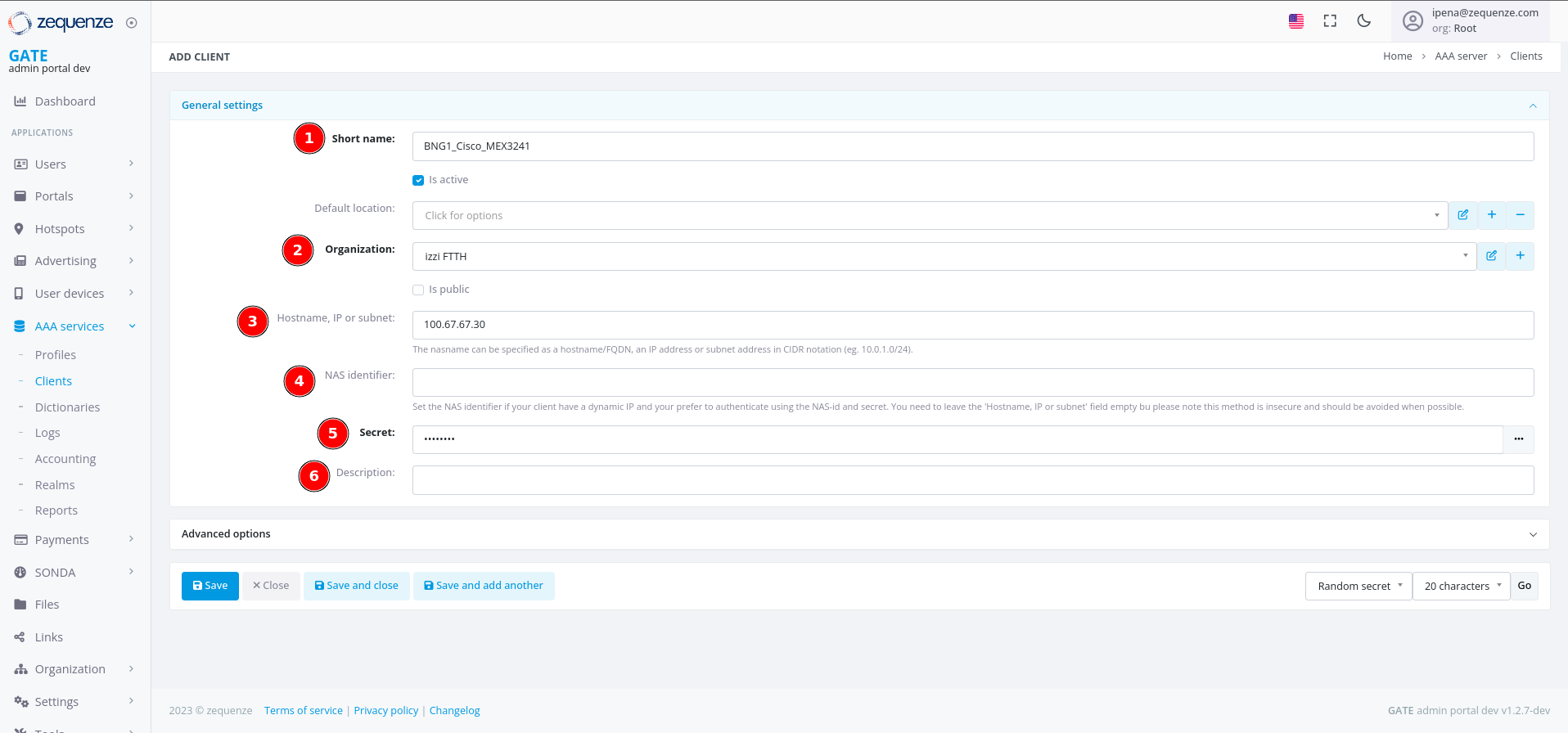
| 1 | Short name | Descriptive field to quickly identify the client. |
| 2 | Organization | Select the organization to assign the equipment to (BNG, WAG, etc.). |
| 3 | Hostname, IP or subnet | The IP address that will be used to establish the connection to GATE. |
| 4 | NAS Identifier | (Optional) Identifier for the configured client. |
| 5 | Secret | Key used to decode the communication between both systems. |
| 6 | Description | (Optional) Additional information to help identify the client. |
Required vs Optional Fields
- Required fields: Short name, Organization, Hostname/IP/subnet, Secret
- Optional fields: NAS Identifier, Description
Note: Ensure all required fields are completed before saving the client configuration.
No comments to display
No comments to display