
Element Configurations
Overview
This guide explains how to use FLUX to create task flows that extract device configurations and perform automated audits. You'll learn how to configure audit parameters, set up automated extraction tasks, and review audit results.
Prerequisites
Before beginning, ensure you have:
- Access to FLUX with appropriate permissions
- Device profiles configured in your system
- Understanding of automation and processing models in FLUX
Step 1: Configure Element Parameters
Create a Parameter Group
First, add a parameter group to your element's profile to store configuration audit settings.

Define Audit Parameters
Create individual parameters for each configuration aspect you want to evaluate during the audit process.
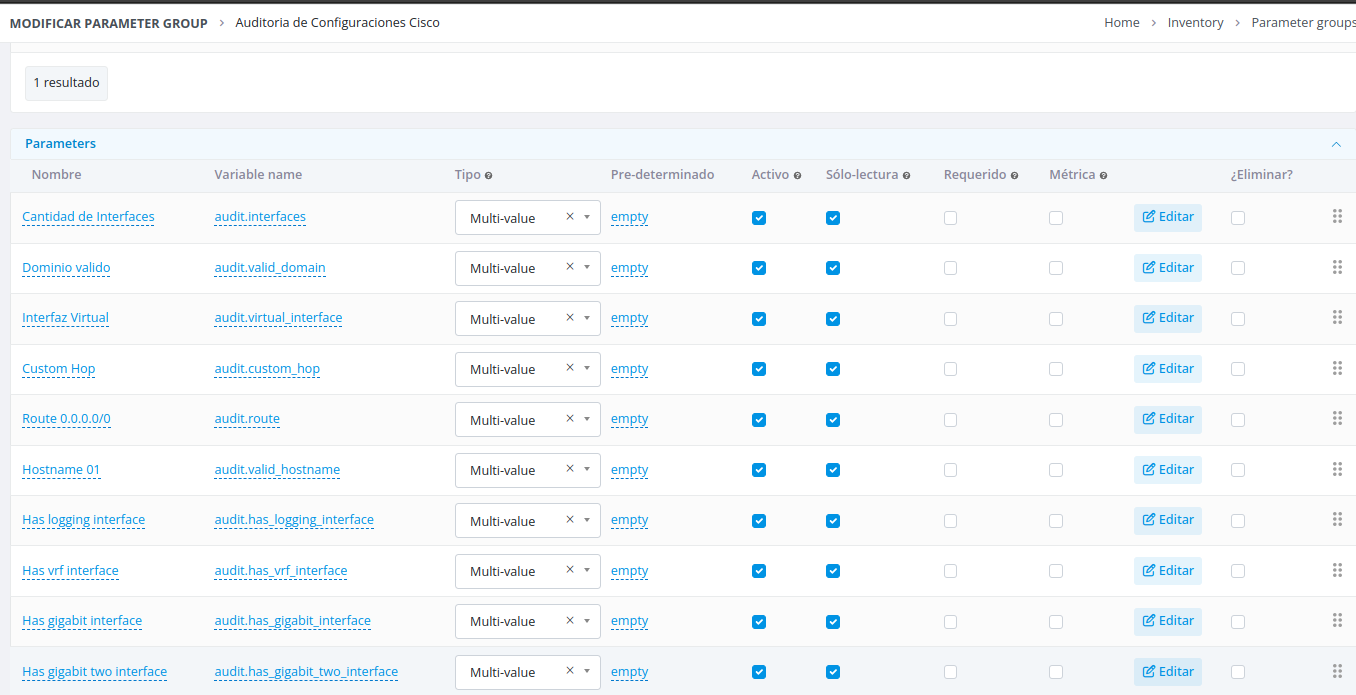
Step 2: Create the Audit Task
Your audit task must perform three key functions:
- Extract the device configuration
- Parse the configuration into a manageable format
- Apply audit conditions using the parameters defined in Step 1
Extract Device Configuration
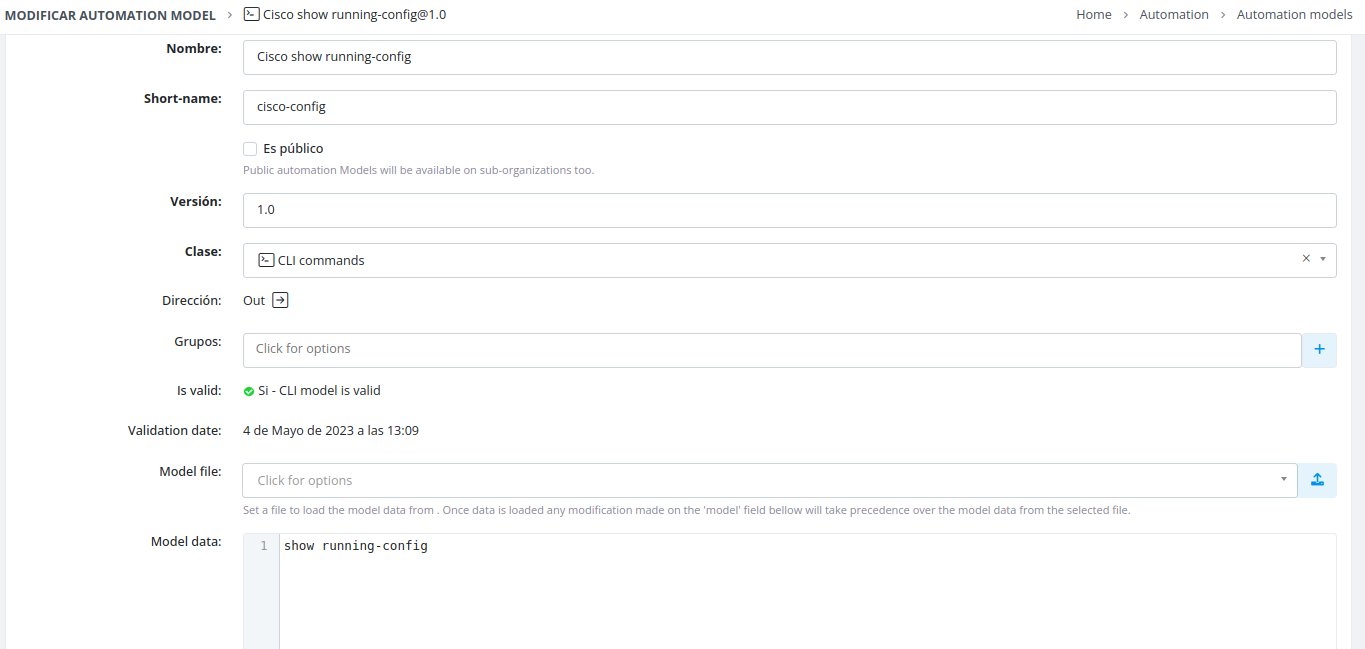
Create an automation model that executes a command on the target device to retrieve its configuration output.
Example: The following automation model extracts device configuration data.
Parse the Configuration
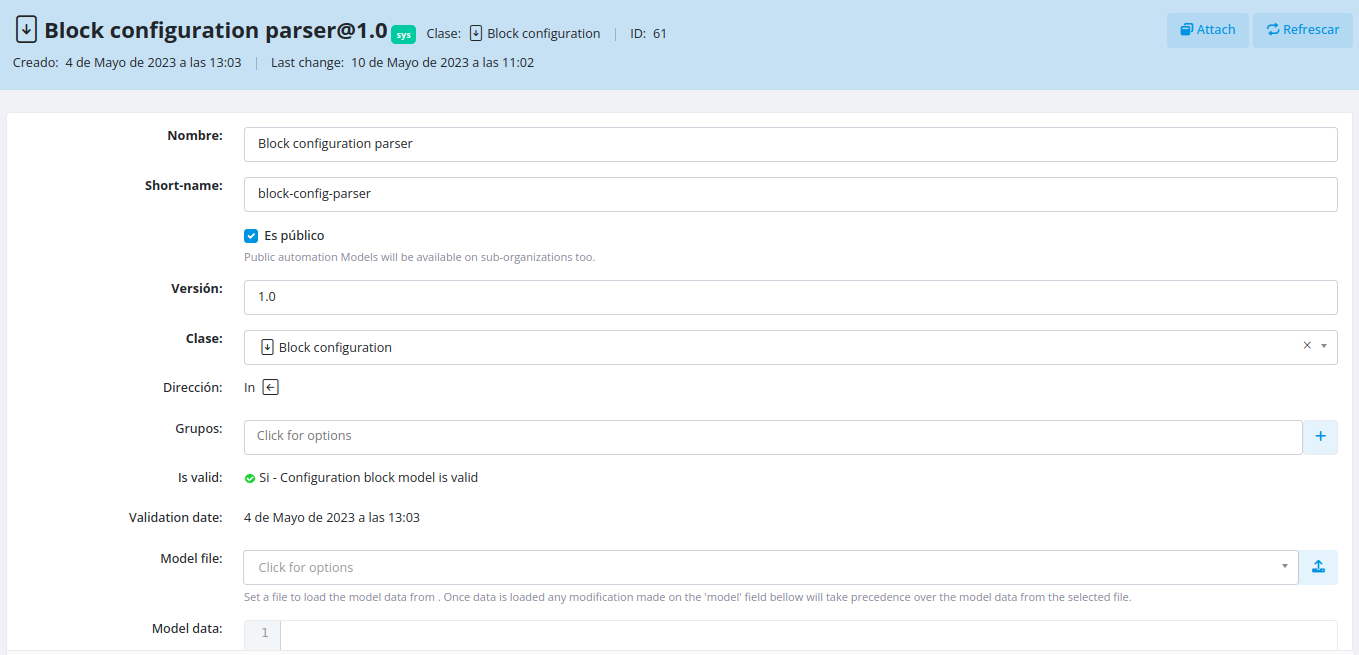
Create a processing model to parse the extracted configuration data into a structured format.
Example: The following processing model is configured to parse block text files (such as YAML files).
For more information about processing models, see the Models documentation.
Configure Audit Conditions
In your task processing script, define the configuration data and audit conditions using the element's parameters.
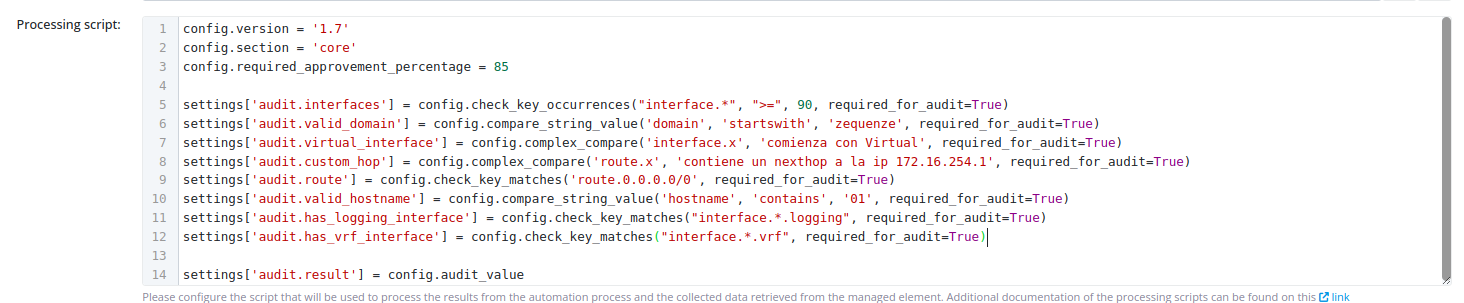
For detailed implementation guidance, refer to the PublicElementConfig documentation.
Step 3: Review Audit Results
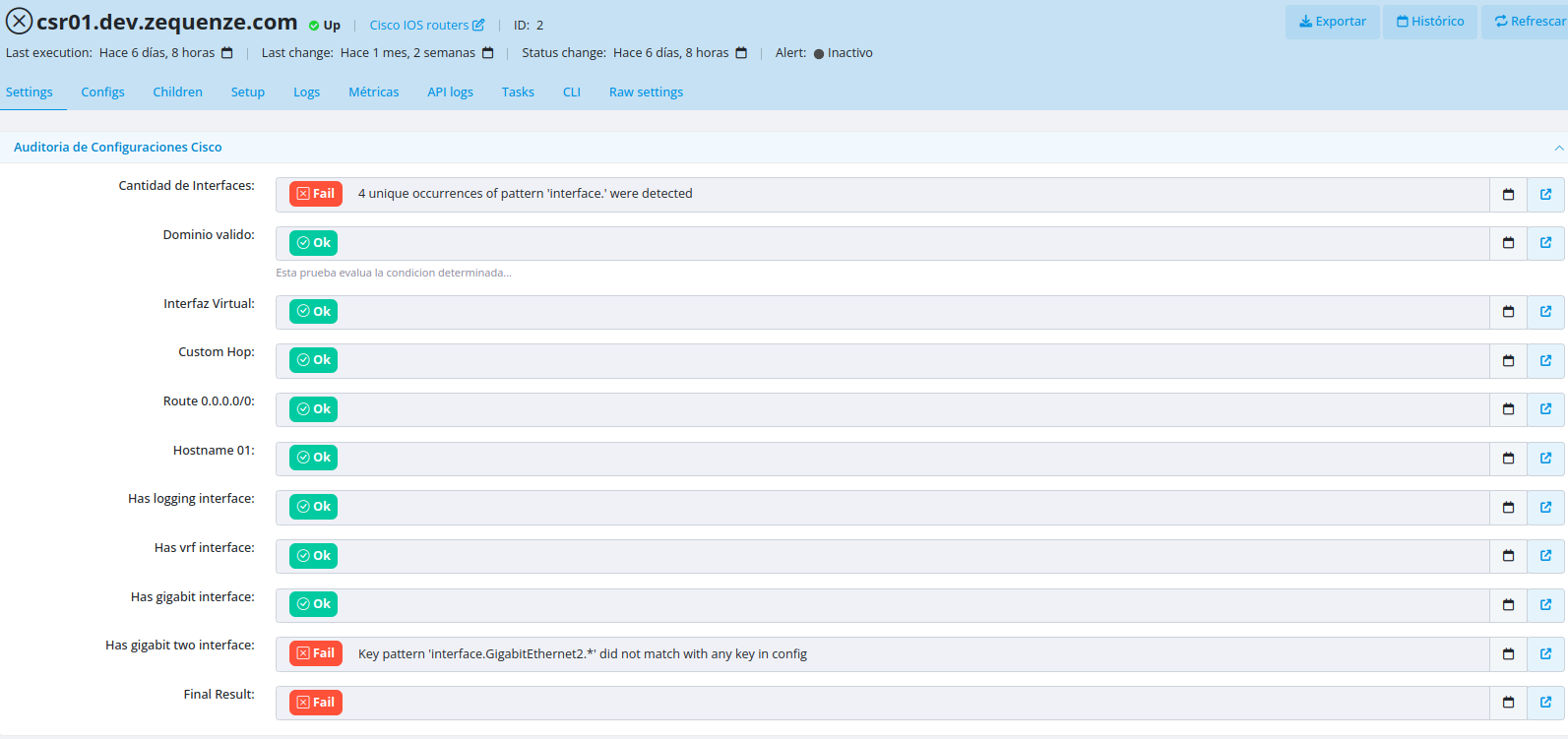
Once the audit task has executed, you can view the results in the Element settings interface.
Running Audits on Historical Configurations
You can configure tasks to run audits against previously stored device configurations instead of extracting a new configuration each time.
Implementation
To audit a historical configuration:
- In the task's management script, set the
automation_custom_outputvariable - Populate this variable with the stored configuration data using the
last_configmethod from the PublicElementConfig class
This approach simulates the output of the automation model using previously extracted data.
Example: Configuration for auditing historical data.

Related Documentation
- Models - Comprehensive guide to automation and processing models
- PublicElementConfig - API reference for configuration management
No comments to display
No comments to display