
Results: Traffic per AP (GBytes)
Overview
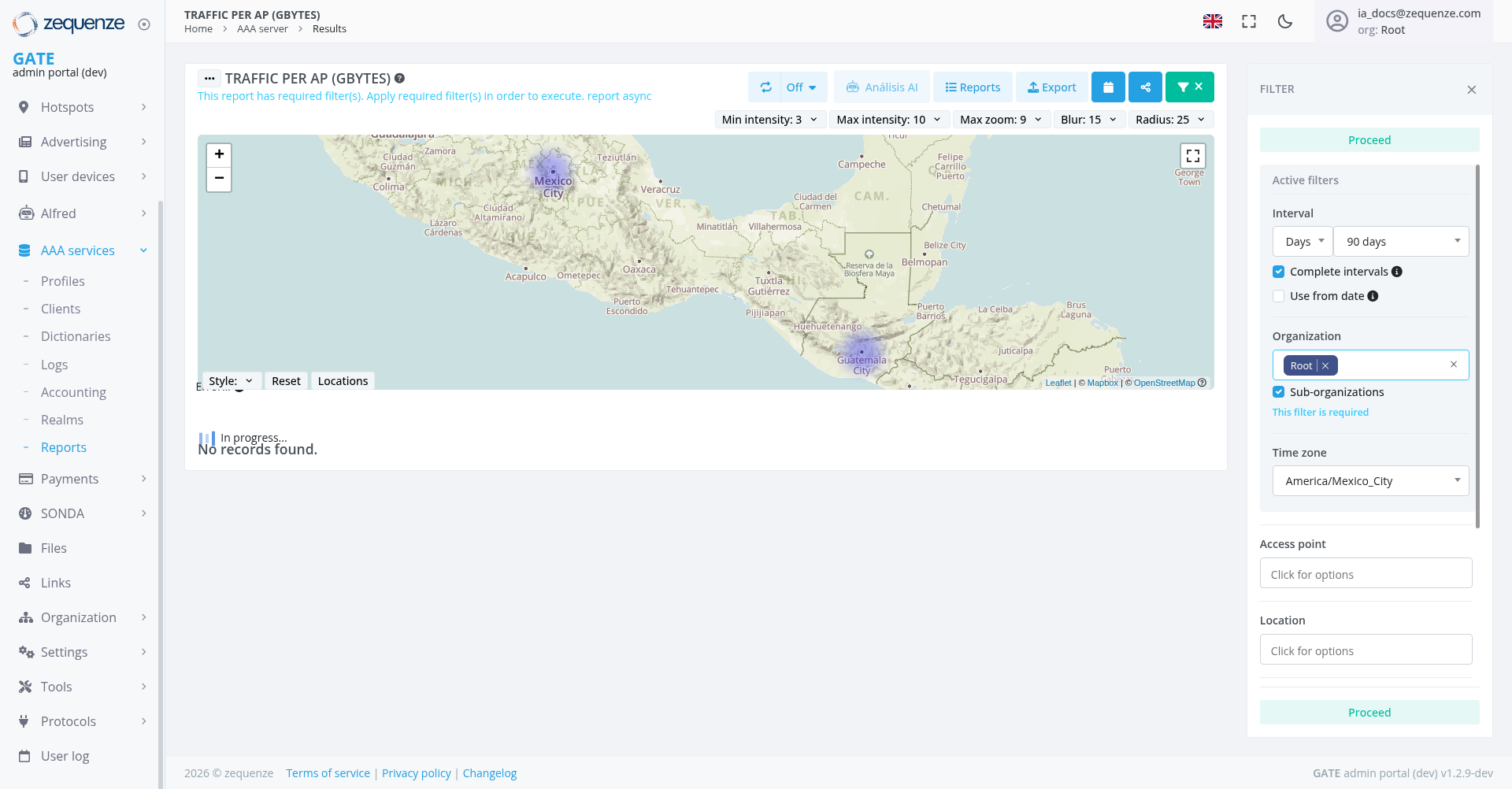
The Traffic per AP (GBytes) report provides a comprehensive view of data traffic usage across Access Points (APs) in your network infrastructure. This report displays both incoming and outgoing traffic data measured in gigabytes, with an interactive map visualization and detailed tabular data for network traffic analysis.
Key Features
- Interactive Map Visualization: Geographic representation of access points with traffic intensity overlays
- Real-time Traffic Monitoring: Displays current traffic data with configurable refresh intervals
- Customizable Time Periods: Filter data by specific date ranges (currently set to 90 days)
- Traffic Analysis: Separate columns for incoming, outgoing, and total traffic measurements
- Export Capabilities: Options to export data and generate reports
- Advanced Filtering: Multiple filter options for detailed data analysis
UI Elements
Map Controls
- Zoom Controls: Plus (+) and minus (-) buttons for map navigation
- Fullscreen Toggle: Expand map to full screen view
- Style Selector: Change map visualization styles
- Reset Button: Return to default map view
- Locations Toggle: Show/hide location markers
Top Control Bar
-
Min intensity: Adjustable setting (currently set to 3)
Filter Panel (Right Side)
- Filter Header: "FILTER" heading with X close button in top-right corner
- Proceed Button: Blue "Proceed" button located at the top of the filter panel for applying changes
- Active Filters Section: Shows currently active filters with "Active filters" heading
- Interval Selector: Currently set to "Days" with 90-day period
- Complete Intervals: Checkbox option for complete data intervals (currently enabled)
- Use from date: Additional date filtering option (currently enabled)
-
Organization
FilterSection:Currently showsShows "Root"Clickasforaoptions"blueplaceholderremovable tag with X buttontext - Sub-organizations: Checkbox option for including sub-organizations (currently enabled)
- Time Zone: Set to America/Mexico_City
-
Access Point Field:
Dropdown selector for filtering specific access points withShows "Click for options" placeholder text -
Location Field:
Dropdown selector for filtering specific locations withShows "Click for options" placeholder text
Data Status
-
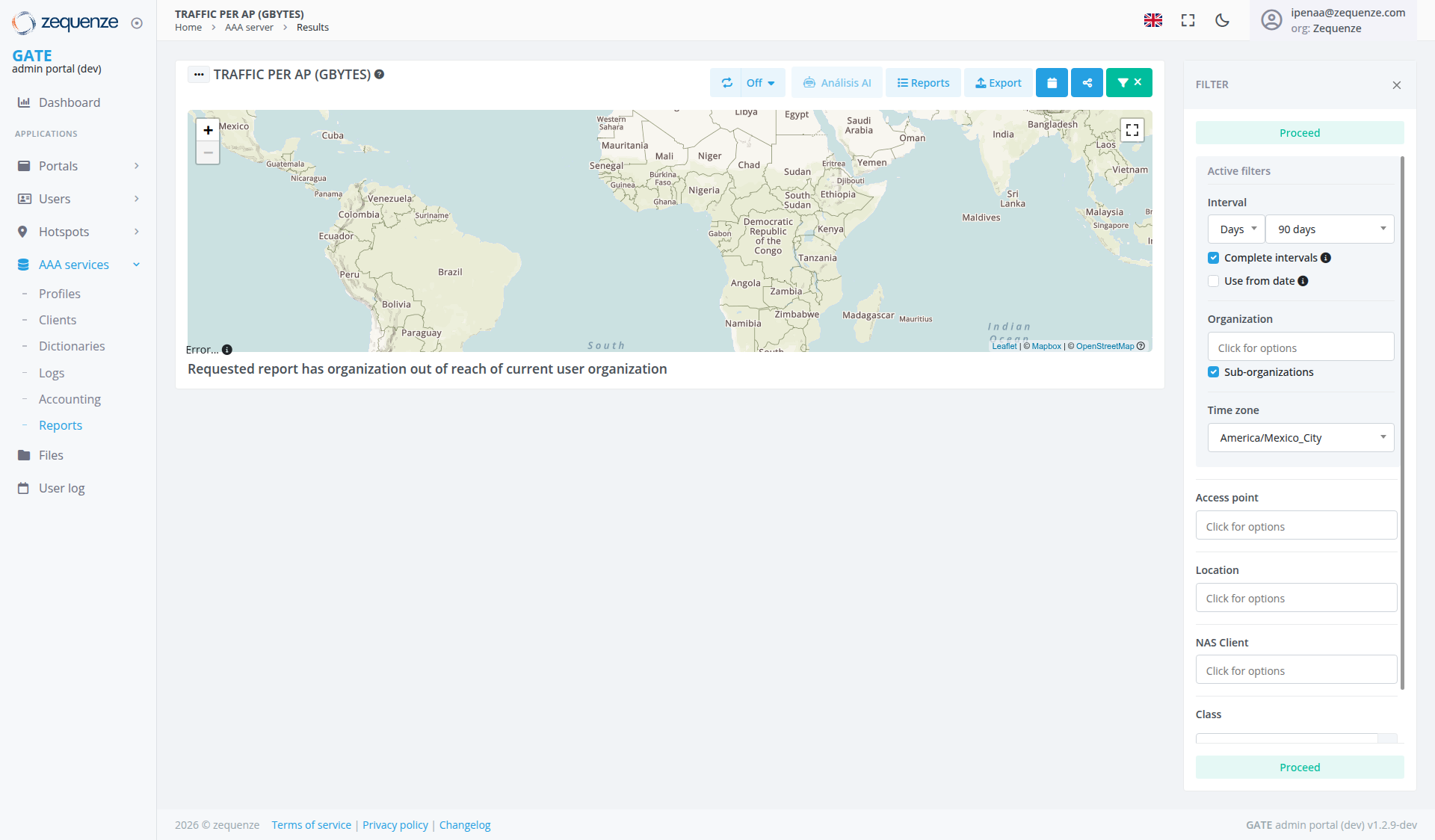
NoErrorRecords FoundMessage: The system displays "NoRequestedrecordsreportfound."has organization out of reach of current user organization" indicatingthatanopermissionstrafficordataaccessisissuecurrently available based onwith theappliedselectedfilters
User Interactions
Map Visualization Controls
Filtering Data
- Click either Proceed button (top or bottom of filter panel) to apply filter changes
- Use the X close button in the filter panel header to close the filter panel
- Use the green filter toggle
buttonsbutton(green button with white downward arrow or "X" button)in the top control bar to open or close the filter panel - View Active filters section to see currently applied filters
- Use the Interval dropdown to select time periods (Days, Weeks, Months)
- Adjust the date range using the period selector (currently 90 days)
- Toggle Complete intervals checkbox for comprehensive data sets (currently enabled)
- Enable Use from date for specific start date filtering (currently enabled)
SelectClick Organization field to select specific organizationsand usefrom theXdropdownbuttonon the blue Root tag to remove the organization filter selectionoptions- Toggle Sub-organizations checkbox to include or exclude sub-organization data (currently enabled)
- Click Access point field to select specific access points from the dropdown options
- Click Location field to filter by specific location from the dropdown options
Map Navigation
- Use zoom controls to focus on specific geographic areas
- Click locations on the map to view detailed AP information
- Toggle between different map styles for better visualization
- Use fullscreen mode for detailed geographic analysis
Data Export and Sharing
- Click the Export button in the top control bar to download current data set
- Use the Share button (blue) to share reports or data views with team members
- Use Reports option to generate formatted reports
- Use Analysis AI for automated insights and pattern recognition
- Use the green filter toggle
buttonsbutton to manage filter panel visibility
Navigation
Current Data Status
The report currently shows an "NoError" recordswith found.the message "Requested report has organization out of reach of current user organization" indicating that nothere is a permissions or access issue preventing the display of traffic data is available based onfor the currentselected filterorganizational settings. The system also displays "In progress..." status suggesting that data processing may still be ongoing.scope.
Data LoadingAccess Status
TheAnsystemaccessshowspermission"Inerrorprogress..."isindicating thatpreventing dataloadingretrieval
Actions Available
Data Management
- Filter Results: Apply various filters to refine data display using either Proceed button (top or bottom of filter panel)
-
Toggle Filter Panel: Use the green filter toggle
buttonsbutton(green button with white downward arrow or "X" button)in the top control bar to open or close the filter panel - Export Data: Download traffic data using the Export button in top control bar
- Share Data: Use the Share button (blue) to collaborate and share report views
- Generate Reports: Create formatted reports using the Reports button
- AI Analysis: Leverage artificial intelligence for traffic pattern analysis using the Analysis AI button
- Refresh Data: Update display with latest traffic information
-
Manage Filters: Close filter panel using the X button in the filter header, use the green filter toggle
buttonsbutton in the top control bar to open or close thepanel,panel
Visualization Options
-
MapDisplayCustomizationControls:AdjustUseintensityOff(3-10),togglezoomto(9),disableblurspecific(15),visualand radius (25) settings via top controlselements - Style Changes: Modify map appearance and data representation
- Time Range Adjustment: Change reporting periods for trend analysis
Display Controls: Use Off toggle to disable specific visual elements
Notes/Tips
Best Practices
- Use either Proceed button to ensure filter changes are properly applied
- Leverage the Analysis AI functionality for automated insights and anomaly detection
- Use the Share functionality to collaborate with team members on traffic analysis
- Use the green filter toggle
buttonsbutton for efficient filter panel management while preserving workspace - If
noencounteringrecordspermissionareerrors,found,verifytryorganizationadjustingselectionfiltersmatchesincludingyourAccessuserpointaccessandlevel