/login/
Generating documentation...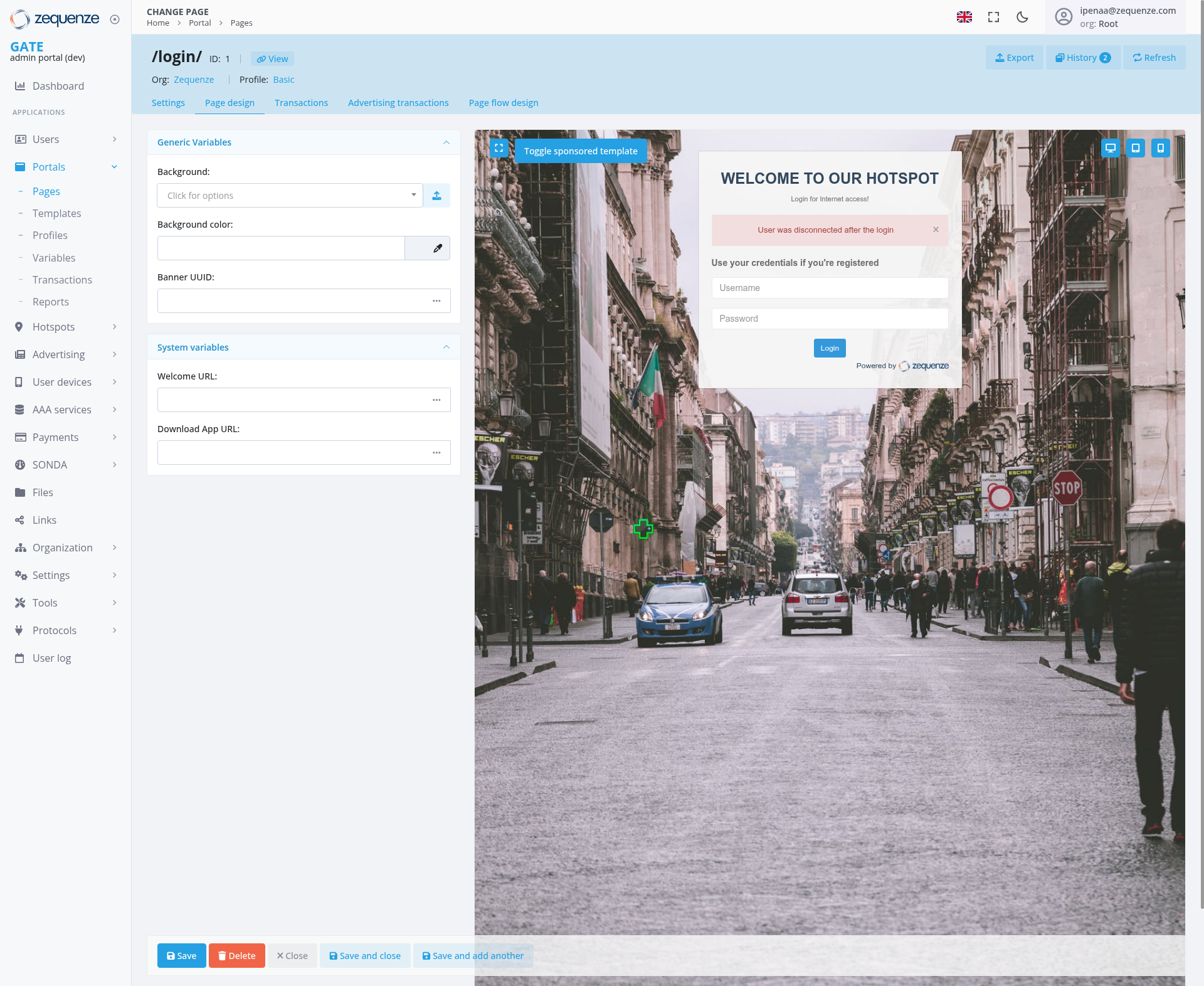
Overview
The Page Design interface in the Zequenze Control Portal allows administrators to customize the visual appearance and functionality of portal pages. This specific view shows the configuration page for a login page (/login/) where administrators can modify design elements, system variables, and page behavior through an intuitive interface with real-time preview capabilities.
Key Features
Real-time Preview: Live preview of page changes displayed on the right side of the interface
Variable Management: Configure both generic and system variables that control page behavior
Visual Customization: Modify background images, colors, and other visual elements
Responsive Design: Preview shows how the page appears to end users
Template Integration: Support for sponsored templates and custom branding
UI Elements
Left Panel - Configuration Area
Generic Variables Section:
Background image selector with dropdown menu
Background color picker with color palette
Banner UUID field for custom banner configuration
System Variables Section:
Welcome URL configuration field
Download App URL specification field
Right Panel - Live Preview
Page Preview: Real-time display of the configured login page
Hotspot Interface: Shows "WELCOME TO OUR HOTSPOT" header
Login Form: Username and password fields with login button
Background: Urban street scene with Italian flag and European architecture
Branding: "Powered by Zequenze" footer attribution
Navigation Tabs
Settings: Current active tab for page configuration
Page Design: Visual customization options
Transactions: Transaction-related settings
Advertising Transactions: Advertisement configuration
Page Flow Design: User journey configuration
User Interactions
Customize Background: Click the background dropdown to select from available images or upload custom backgrounds
Color Selection: Use the color picker to modify background colors and theme elements
URL Configuration: Enter custom URLs for welcome pages and app downloads in the system variables section
Real-time Preview: Changes made in the left panel immediately reflect in the right preview panel
Template Toggle: Use the "Toggle sponsored template" button to switch between template modes
Navigation
Breadcrumb Path: Home → Portal → Pages → /login/
Tab Navigation: Switch between different configuration aspects using the horizontal tab menu
Portal Structure: Access through GATE admin portal → Portals → Pages → Templates/Profiles
Organization Level: Configure at the Zequenze organization level
Data Displayed
Page Information: Shows page ID (1) and current view mode
Profile: Displays "Basic" profile configuration
URL Structure: Shows the page path (/login/)
Variable Values: Current settings for background, colors, and system URLs
Preview State: Live representation of how the page appears to end users
Actions Available
Primary Actions (Bottom Bar)
Save: Apply changes without closing the editor
Delete: Remove the current page configuration
Close: Exit the editor without saving changes
Save and Close: Apply changes and return to the previous view
Save and Add Another: Save current changes and create a new page
Secondary Actions (Top Bar)
Export: Download page configuration
History: View change history and version control
Refresh: Reload the current configuration
View: Preview the page in a new window/tab
Notes/Tips
Background Images: Ensure uploaded images are web-optimized for faster loading times
Color Contrast: Maintain sufficient contrast between background colors and text for accessibility
URL Validation: System validates URLs entered in the Welcome URL and Download App URL fields
Auto-save: The system may automatically save changes, but manual saving is recommended
Preview Accuracy: The preview panel provides an accurate representation of the end-user experience
Template Compatibility: Some customizations may be limited when using sponsored templates
Mobile Responsiveness: Consider how design changes will appear on different device sizes
