
Metric logs
Overview
The Metric Logs page in the Zequenze Control Portal provides a comprehensive view of all metric data collected from various devices and sensors in your fleet. This centralized logging system displays real-time and historical metric information, allowing administrators to monitor system performance, track data collection activities, and troubleshoot connectivity issues across their IoT infrastructure.
Key Features
- Real-time Metric Monitoring: View live data streams from connected devices and sensors
- Historical Data Access: Browse through timestamped metric logs with detailed filtering options
- Multi-parameter Tracking: Monitor various data types including network metrics, upgrade operations, and data transfer measurements
- Advanced Filtering: Filter logs by date/time, element, location, profile, and other parameters
- Data Export Capabilities: Export metric data for external analysis and reporting
- Pagination Support: Navigate through large datasets efficiently with pagination controls
UI Elements
Main Data Table
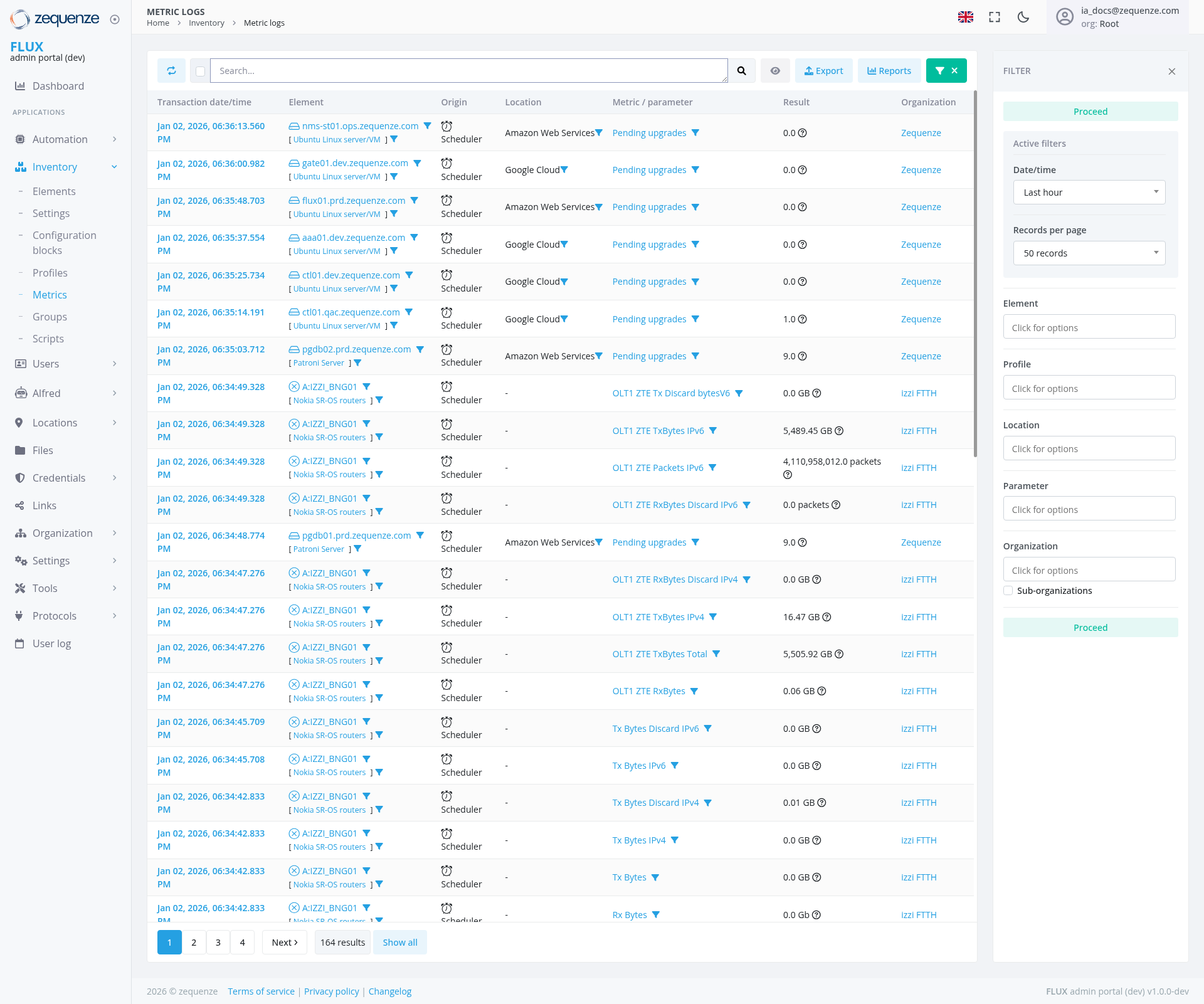
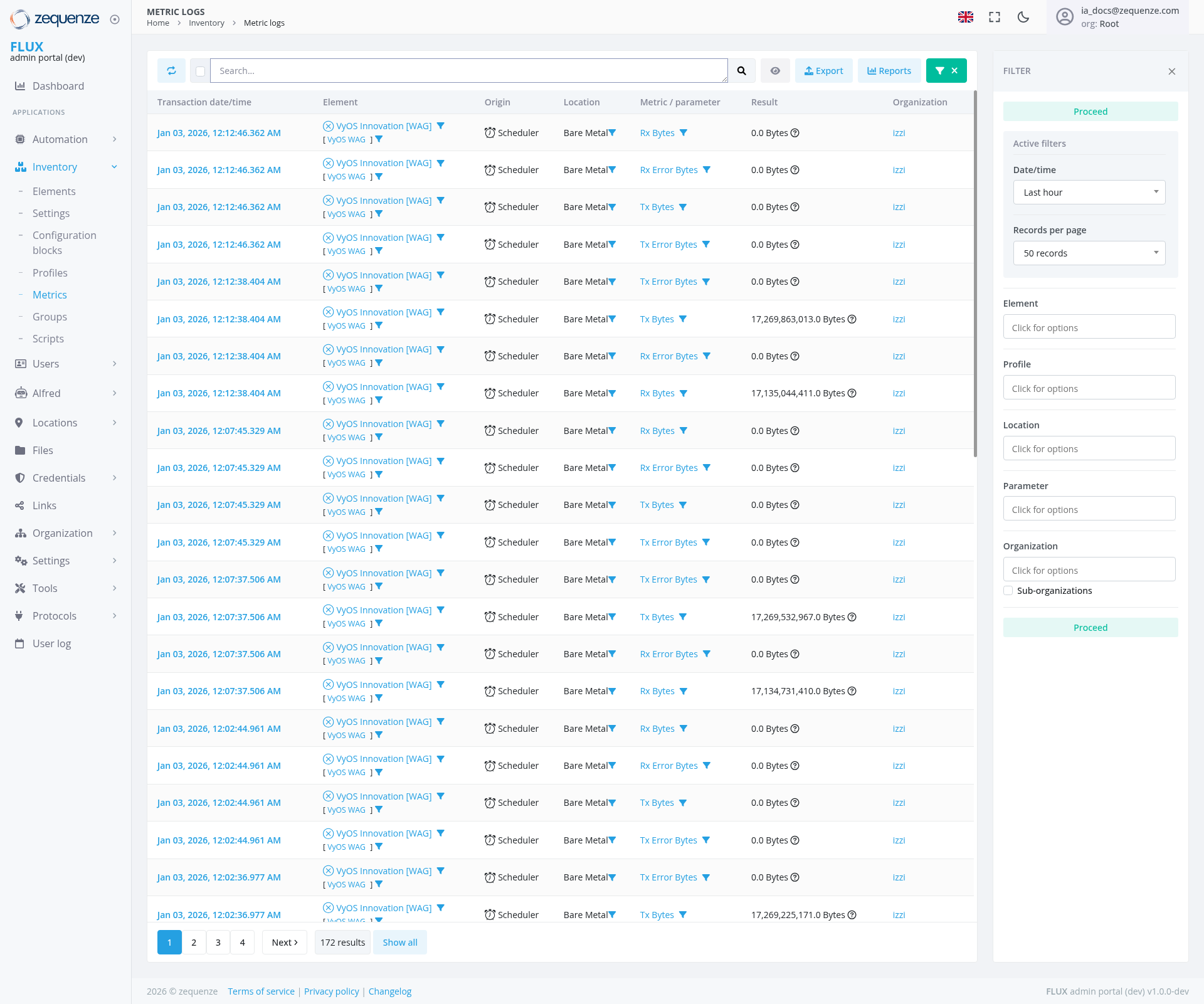
The central table displays metric logs with the following columns:
-
Transaction date/time: Timestamp of when the metric was recorded (Jan
02,03, 2026 format) -
Element: Device or sensor identifier (shows
variousWG Innovation [WAG] elementsincludingwithrms-n101.ops.zequenze.com,VyOSpatch1-dev.zequenze.com, and Nokia routers)configurations) - Origin: Source of the data collection (Scheduler)
-
Location: Physical or logical location of the device (
AmazonBareWeb Services, Google Cloud)Metal) -
Metric/Parameter: Type of data being measured (includes
"PendingRxupgrades",Bytes,"QLTTTxZTEBytes,TxBytesRxTotal",Error"QLTTBytes,ZTEandRxBytes",TxnetworkErrortraffic metrics)Bytes) -
Result: Actual metric values showing
upgrade counts,bytemeasurements,measurements including 0.0 Bytes andpacketlargerstatisticsvalues like 17,269,863,013.0 Bytes -
Organization: Associated organization (
Zequenze, izzi FTTH)zzi)
Filter Panel (Right Sidebar)
The filter panel is positioned on the right side with the following elements:
- Active Filters: Shows currently applied filters with "Proceed" status indicator at the top
- Date/Time Filter: "Last hour" dropdown selection
- Records Per Page: Set to "50 records" with dropdown options
- Element Filter: "Click for options" dropdown
- Profile Filter: "Click for options" dropdown
- Location Filter: "Click for options" dropdown
- Parameter Filter: "Click for options" dropdown
- Organization Filter: "Click for options" dropdown
- Sub-organizations: Additional organizational filtering with "Proceed" status indicator at the bottom
Top Navigation Bar
- Search Field: Global search functionality across metric logs with magnifying glass search icon
- Export Button: Blue export button for downloading filtered data to external formats
- Reports Button: Blue reports button for generating custom reports from metric data
- Filter Toggle: Show/hide the filter panel (located in top-right corner with "FILTER" label and close 'X' button)
User Interactions
Viewing Metrics
- Users can scroll through the paginated list of metric entries
- Click on column headers to sort data by specific criteria
- Use the pagination controls at the bottom (1, 2, 3, 4, ... Next) to navigate through results showing
164172 total results
Filtering Data
- Access the filter panel on the right side of the screen
- Select specific time ranges using the Date/Time dropdown
- Choose specific elements, profiles, locations, or parameters from their respective dropdowns
- Apply multiple filters simultaneously for refined results
- Clear filters as needed to expand the data view
- Use the 'X' button in the top-right corner to close the filter panel
Data Export
- Click the blue "Export" button to download filtered metric data
- Select from available export formats for external analysis
Navigation
Accessing the Page
Related Pages
- Dashboard: Return to main overview
- Inventory: Access other inventory management features
- Elements: Manage individual device configurations
- Settings: Configure metric collection parameters
Data Displayed
Metric Types
-
PendingRxupgradesBytes:SystemReceivedupgradedatatrackingvolumefor various devicesmeasurements -
QLTTTxZTE TxBytesBytes: Transmitted data volume measurementsfor ZTE devices -
QLTTRxZTEErrorRxBytesBytes: Receiveddataerrorvolumebytesmeasurements for ZTE devicestracking -
QLTTTxZTEErrorPacketsBytes:PacketTransmittedtransmissionerrorstatisticsbytesfor ZTE devices
Device Integration
The system tracks metrics from various infrastructure elements including:
UbuntuWGLinuxInnovationservers[WAG]ondevicesdifferentwithcloudVyOSplatformsconfigurationsNokiaBareSF-05Metalrouters
Data Volumes
The system tracks data ranging from:
-
0.0
valuesBytes: Minimal or no datatransfer/upgradestransfer -
Large byte measurements: Including entries like
5,505.92 GB, 4,110,558,012.17,269,863,013.0packets,Bytes,5,483.4517,135,044,411.0GBBytes, 17,268,332,967.0 Bytes -
UpgradeErrorcountstracking:NumericalMonitoringvalueserrorindicatingbytespendingacrosssystemtransmissionupgradestypes
Temporal Data
- All entries are timestamped with precise date and time information
- Data spans multiple time periods for historical analysis
- Recent entries from January
2,3, 2026 are displayed with timesinrangingthefrom06:34-06:3612:02timeframeto 12:38
Actions Available
Primary Actions
- Filter Metrics: Apply various filters to narrow down displayed data
- Export Data: Download metric information for external use using the blue export button
- Generate Reports: Create formatted reports from selected metrics using the blue reports button
- Search Records: Use the search function with magnifying glass icon to find specific entries
- Paginate Results: Navigate through large datasets using page controls
Administrative Actions
- Monitor Real-time Data: View live metric updates as they occur
- Analyze Trends: Compare historical data across different time periods
- Troubleshoot Issues: Identify anomalies or errors in data transmission
-
Track
SystemNetworkUpgradesPerformance: Monitorpendingbyteupgradestransfer and error rates acrossinfrastructuredevices
Notes/Tips
Performance Optimization
- Use specific filters to reduce large dataset load times
- Consider exporting data for complex analysis rather than processing in-browser
- The default "Last hour" filter helps focus on recent activity
Data Interpretation
-
0.0 Results: May indicate device connectivity issues, scheduled downtime, or no
pendingdataupgradestransfer activity - Large Data Volumes: High byte counts may suggest heavy usage or potential data anomalies
-
PendingErrorUpgradesBytes: Non-zeroupgradeerrorcountsbyte values may indicatesystemsnetwork issues requiring attention
Best Practices
- Regularly monitor
upgradebyte transfer metrics to maintainsystemoptimalcurrencynetwork performance - Use the organization filter when managing multi-tenant environments
(Zequenze, izzi FTTH) - Export historical data periodically for long-term trend analysis and compliance reporting
- Monitor both
ZTERxdeviceand Tx metricsandtogeneralunderstandnetworkbidirectionalperformancedata flow - Track
clouderrorinfrastructurebytesmetricstoacross Amazon Web Servicesidentify andGoogleresolveCloudnetworkplatformstransmission issues - Monitor
NokiaWGrouterInnovation [WAG] device performancetoforensureVyOSoptimal network infrastructure operationconfigurations