
Automation tasks
Overview
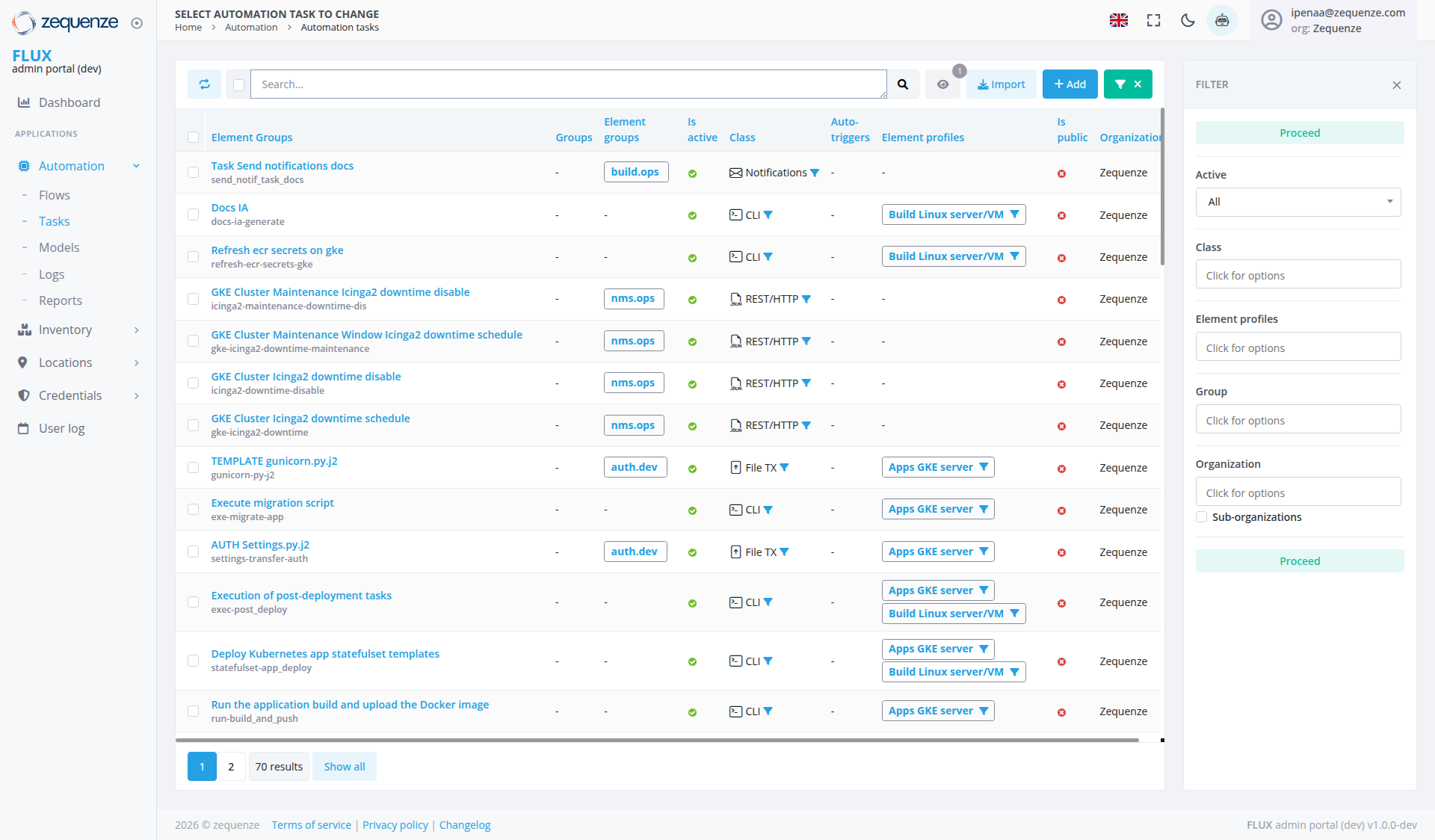
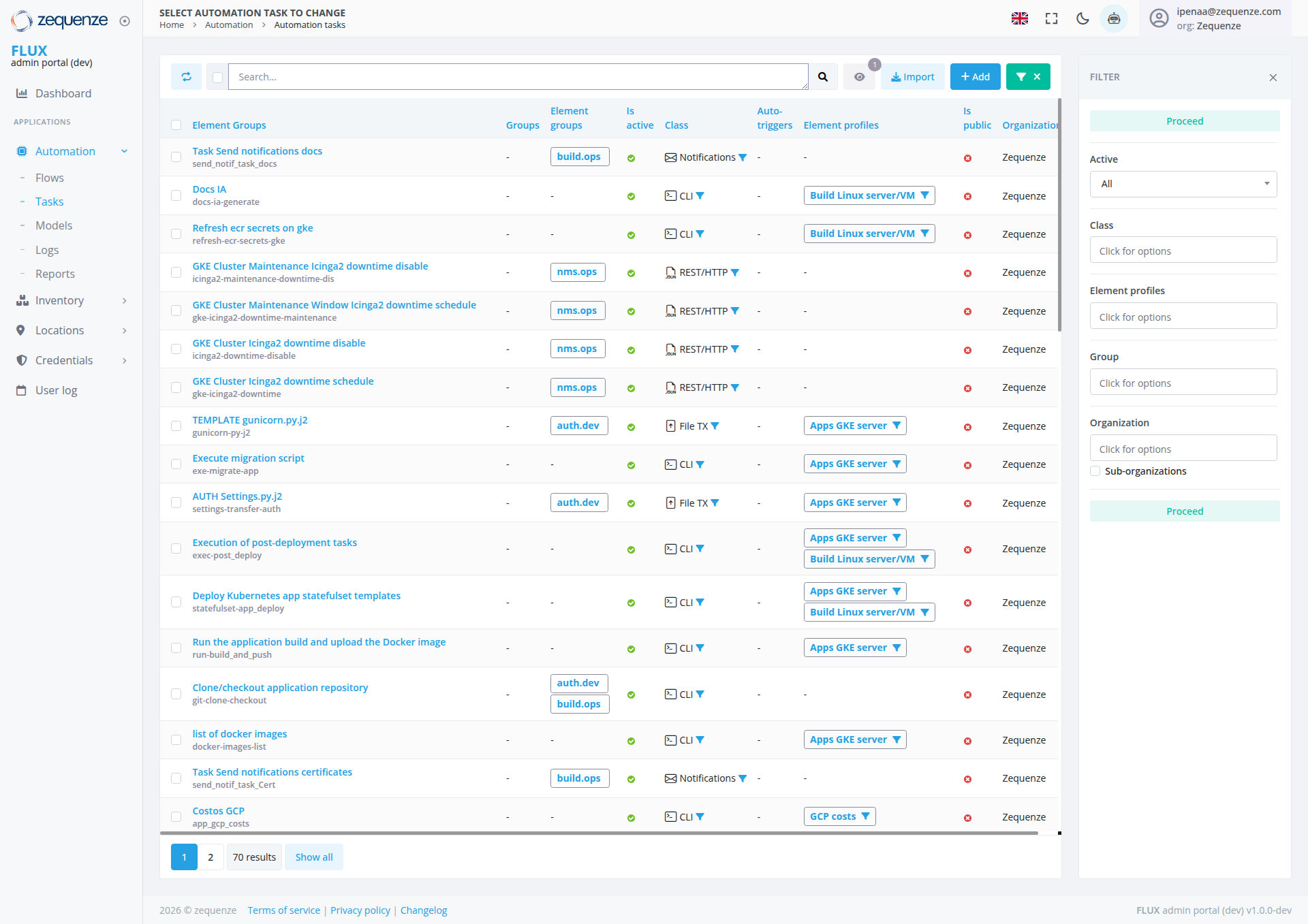
The Automation Tasks page in the Zequenze CONTROL Portal provides a comprehensive interface for managing and monitoring automated tasks across your network infrastructure. This page displays a detailed list of all automation tasks including documentation management, GKE cluster maintenance, Kubernetes deployments, and Docker image builds.
Key Features
- Task Management Dashboard: Centralized view of all automation tasks with real-time status monitoring
- Multi-Device Support: Handles various device types and infrastructure components
- Profile-Based Configuration: Tasks are organized by element profiles for efficient management
- Bulk Operations: Import and add multiple tasks simultaneously
- Advanced Filtering: Filter tasks by status, organization, class, and element profiles
- Real-time Status Tracking: Visual indicators show task execution status and health
UI Elements
Header Section
- Search Bar: Located at the top for quick task filtering and discovery
-
Action Buttons:
- Refresh Icon: Circular refresh button on the far left for reloading the task list
- Visibility Icon: Eye icon with notification badge showing "0" for toggling task visibility options
-
Import: Blue button with
downloaduser icon for importing task configurations - Add: Green "+" button for creating new automation tasks
- Filter Toggle: Green dropdown button with "X" icon to show/hide filter panel
Main Task Table
The table displays the following columns:
- Checkbox Column: Select individual tasks for bulk operations
Filter Panel (Right Side)
The filter panel shows the following filtering options:
- Proceed: Filter section at the top with "Active" status display
User Interactions
Task Management
Task Configuration
- Profile Selection: Tasks can be assigned to specific element profiles (Build Linux server/VM, Apps GKE server, etc.)
- Organization Assignment: Tasks can be assigned to specific organizations
- Access Control: Configure public/private visibility for tasks
Navigation
Current Location
Related Sections
- Flows: Automation workflow management
- Tasks: Current section for task management
- Models: Device and configuration models
- Logs: Task execution history
- Reports: Automation reporting and analytics
Data Displayed
Task Categories Visible
-
Documentation Tasks:
- Task Send notifications docs (send_notif_task_docs) - build.ops group
- Docs IA (docs-ia-generate)
-
GKE Cluster Maintenance:
- Refresh ecr secrets on gke (refresh-ecr-
secret-secrets-gke) - GKE Cluster Maintenance icinga2 downtime disable (icinga2-maintenance-downtime-dis) - nms.ops group
- GKE Cluster Maintenance Window icinga2 downtime schedule (gke-icinga2-downtime-maintenance) - nms.ops group
- GKE Cluster icinga2 downtime disable (icinga2-downtime-disable) - nms.ops group
- GKE Cluster icinga2 downtime schedule (gke-icinga2-downtime) - nms.ops group
- Refresh ecr secrets on gke (refresh-ecr-
-
Template Management:
- TEMPLATE gunicorn.py.j2 (gunicorn-py-j2) - auth.dev group
-
Deployment & Migration:
- Execute migration script (exe-migrate-app)
- AUTH Settings.py.j2 (settings-transfer-auth) - auth.dev group
- Execution of post-deployment tasks (exec-post_deploy)
-
Kubernetes Operations:
- Deploy Kubernetes app statefulset templates (statefulset-app_deploy)
- Run the application build and upload the Docker image (run-build_and_push)
Additional Tasks:
Status Indicators
- Green Checkmarks: Indicate active/healthy tasks in the "Is active" column
-
Class Icons: Show different task types:
- Notifications icon (envelope) for notification tasks
- CLI icon (terminal) for command-line interface tasks
- REST/HTTP icon for API-based tasks
- File TX icon for file transfer tasks
- Profile Dropdowns: Display assigned element profiles with dropdown arrows including "Build Linux server/VM", "Apps GKE server", "GCP costs", and "CLI" configurations
- Organization Labels: Show task ownership (all tasks assigned to Zequenze)
- Red Icons: Indicate private tasks in the "Is public" column
- Proceed Status: All visible tasks show "Active" status
Actions Available
Primary Actions
- Select Tasks: Use checkboxes in the leftmost column to select individual tasks for bulk operations
Secondary Actions
-
Profile Management: Assign and modify element profiles including GKE
server andserver, Linux server/VMVM, and GCP costs profiles - Organization Assignment: Change task ownership
- Status Management: Monitor and control task execution
- Pagination: Navigate through multiple pages of results (currently showing page 1 with 70 total results and "Show all" option available)
Notes/Tips
- Task Selection: Use the checkboxes to select multiple tasks for bulk operations