Automation tasks
Generating documentation...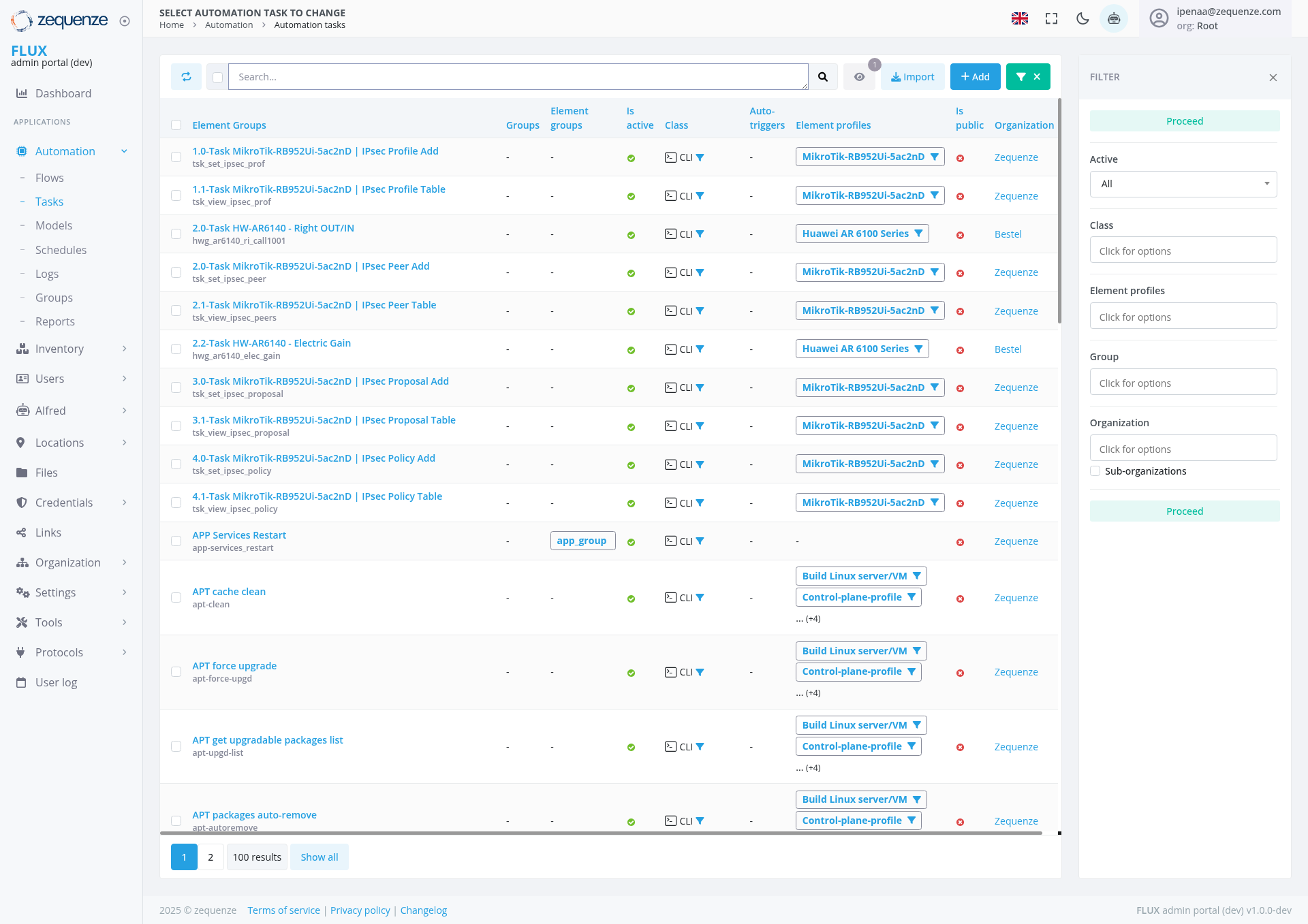
Overview
The Automation Tasks page in the Zequenze Control Portal provides a comprehensive interface for managing and monitoring automated tasks across your network infrastructure. This page displays a detailed list of all automation tasks including MikroTik router configurations, Huawei device management, and APT package operations.
Key Features
Task Management Dashboard: Centralized view of all automation tasks with real-time status monitoring
Multi-Device Support: Handles various device types including MikroTik routers and Huawei equipment
Profile-Based Configuration: Tasks are organized by device profiles for efficient management
Bulk Operations: Import and add multiple tasks simultaneously
Advanced Filtering: Filter tasks by status, organization, class, and element profiles
Real-time Status Tracking: Visual indicators show task execution status and health
UI Elements
Search Bar: Located at the top for quick task filtering and discovery
Action Buttons:
Import: Blue button for importing task configurations
Add: Green "+" button for creating new automation tasks
Filter Toggle: Green "X" button to show/hide filter panel
Main Task Table
The table displays the following columns:
Element Groups: Shows task categorization and grouping
Groups: Organizational grouping of related tasks
Element groups: Secondary grouping level
Is Device: Indicates if the task targets a specific device
Class: Task classification (CLI, etc.)
Auto. Filters: Automated filtering rules applied
Element profiles: Associated device profiles (MikroTik, Huawei, etc.)
Is public: Visibility status of the task
Organization: Organization assignment (Zequenze, Bestel, etc.)
Proceed: Task execution status
Filter Panel (Right Side)
Status Filter: "Active" dropdown with "All" option
Class Filter: "Click for options" dropdown
Element profiles: Profile-specific filtering
Group: Task group filtering
Organization: Organization-based filtering
Sub-organizations: Hierarchical organization filtering
User Interactions
Task Management
View Tasks: Browse through paginated list of automation tasks
Search Tasks: Use the search bar to find specific tasks by name or description
Filter Tasks: Apply multiple filters to narrow down task visibility
Import Tasks: Bulk import automation tasks from external sources
Add New Tasks: Create individual automation tasks using the Add button
Task Configuration
Profile Selection: Tasks can be assigned to specific device profiles (MikroTik-RB952Ui-5ac2nD, Huawei AR 6100 Series, etc.)
Organization Assignment: Tasks can be assigned to specific organizations
Access Control: Configure public/private visibility for tasks
Navigation
Current Location
Breadcrumb Path: Home > Automation > Automation tasks
Side Menu: Located in left panel under "Automation" > "Tasks"
From the left navigation menu, users can access:
Flows: Automation workflow management
Models: Device and configuration models
Schedules: Task scheduling interface
Logs: Task execution history
Groups: Task group management
Reports: Automation reporting and analytics
Data Displayed
Task Categories Visible
MikroTik Router Tasks:
IPsec Profile operations (Add, Table view)
IPsec Peer management (Add, Table view)
IPsec Proposal configuration (Add, Table view)
IPsec Policy management (Add, Table view)
Huawei Device Tasks:
Right OUT/IN configuration
Electric Gain settings
System Maintenance Tasks:
APP Services Restart
APT cache clean
APT force upgrade
APT packages auto-remove
APT get upgradable packages list
Status Indicators
Green Checkmarks: Indicate active/healthy tasks
CLI Icons: Show command-line interface tasks
Profile Dropdowns: Display assigned device profiles
Organization Labels: Show task ownership and assignment
Actions Available
Primary Actions
Import Tasks: Bulk import automation configurations
Add Task: Create new automation task
Edit Task: Modify existing task configurations (implied by dropdown menus)
Filter Tasks: Apply various filtering criteria
Search Tasks: Quick search functionality
Secondary Actions
Profile Management: Assign and modify device profiles
Organization Assignment: Change task ownership
Status Management: Monitor and control task execution
Pagination: Navigate through multiple pages of results (currently showing page 1 of 2, with 100 results total)
Notes/Tips
Device Profile Matching: Ensure tasks are assigned to appropriate device profiles for successful execution
Organization Permissions: Task visibility and execution may be restricted based on organization membership
Status Monitoring: Green indicators generally represent healthy/active tasks - monitor for any status changes
Pagination: Use "Show all" link or page navigation to view all 100+ automation tasks
Filter Combinations: Multiple filters can be applied simultaneously for precise task management
Task Naming: Tasks follow a structured naming convention (e.g., "1.0-Task MikroTik-RB952Ui-5ac2nD | IPsec Profile Add") for easy identification
