
Automation models
Overview
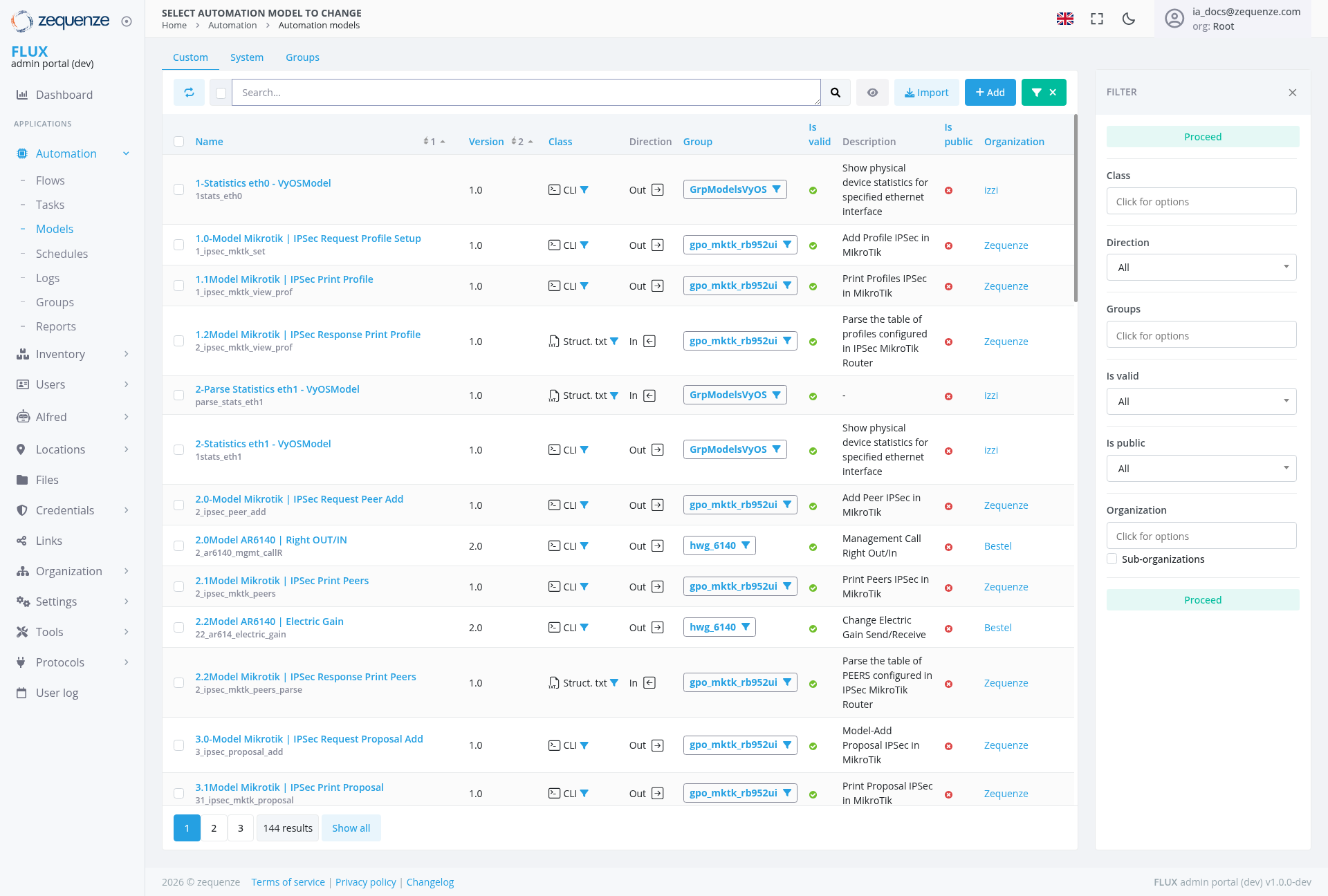
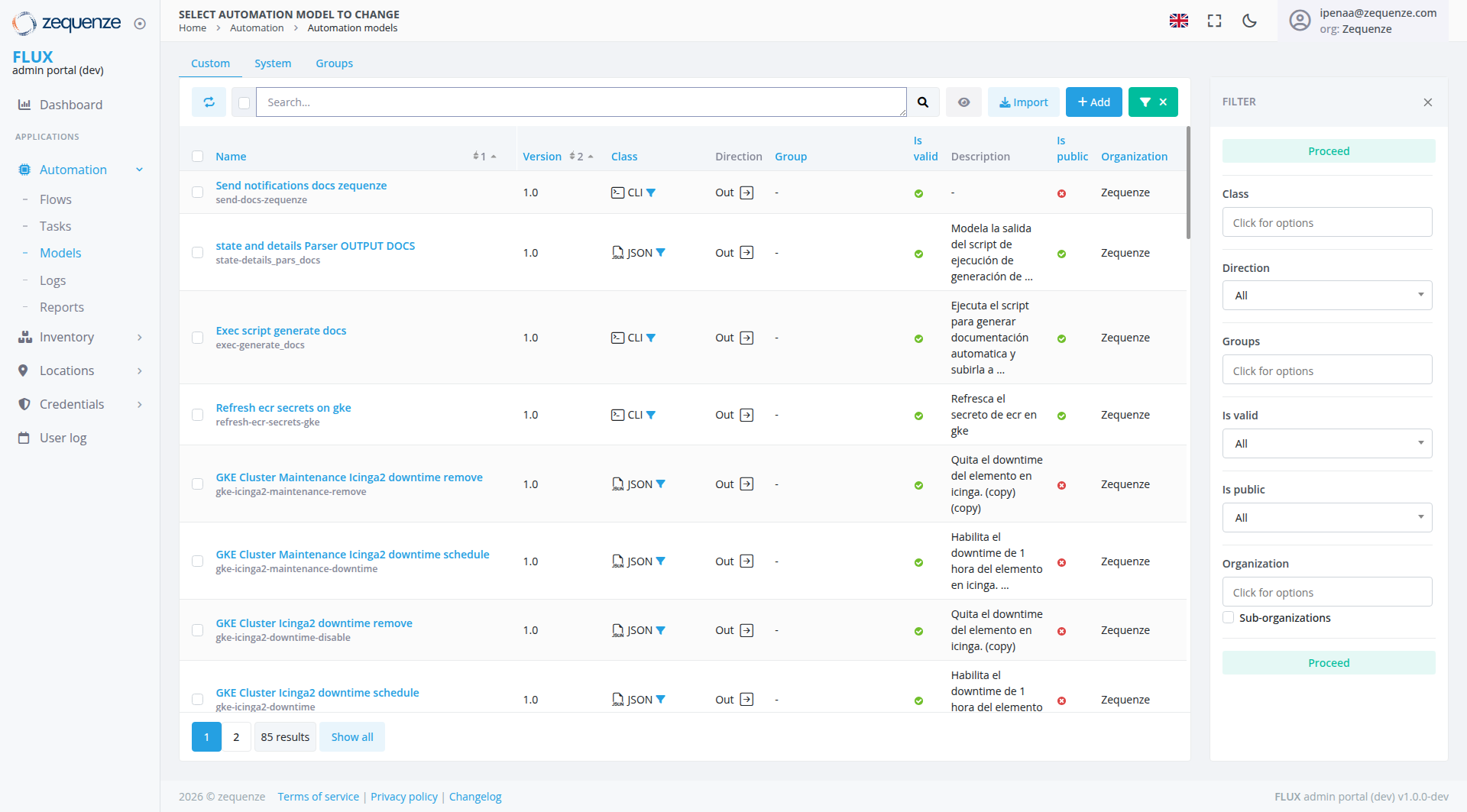
The Automation Models page in the Zequenze Control Portal provides a comprehensive interface for managing automation models within the FLUX admin portal. This page displays a detailed table of automation models with their configurations, versions, and operational status, allowing administrators to monitor and manage their automation infrastructure.
Key Features
- Model Management: View and manage all automation models in a centralized table
- Version Control: Track different versions of automation models
- Status Monitoring: Real-time status indicators showing model validity and public accessibility
- Organization Management: Models are organized by groups and organizations
- Filtering and Search: Advanced filtering options and search functionality with expandable filter panel
- Bulk Operations: Import and add multiple models simultaneously
UI Elements
Navigation Bar
Tab Navigation
- Custom: Currently selected tab
- System: System-level automation models
- Groups: Group-based model organization
Action Buttons
Filter Panel
The expanded filter panel on the right side includes:
- Class: Dropdown selector with "Click for options" placeholder
- Direction: Dropdown with "All" selected
- Groups: Selection with "Click for options" placeholder
- Is valid: Dropdown with "All" selected
- Is public: Dropdown with "All" selected
- Organization: Dropdown with "Click for options" placeholder
- Sub-organizations: Additional organizational filtering option
- Proceed: Green "Proceed" button at the bottom of the filter panel
Main Data Table
The table contains the following columns:
- Name: Model names with descriptive identifiers
- # 1: Column indicator with sort functionality
Displayed Models
The table shows several automation models:
User Interactions
Search and Filter
- Search Bar: Located at the top with magnifying glass icon for quick model searches
- Expandable Filter Panel: "FILTER" button toggles the detailed filter panel on the right side, currently showing expanded state with multiple filter options
- Filter Options: Multiple dropdown selectors for Class, Direction, Groups, validation status, public status, and organization filtering
- Filter Application: Green "Proceed" button to apply selected filter criteria
Table Interactions
-
Sorting: Column headers are clickable for sorting (indicated by
arrows)arrows on # 1 and # 2 columns) - Row Selection: Checkboxes for selecting individual models
-
Pagination: Bottom navigation shows "1 2
3 14485 results" with "Show all" option
Navigation
Access Path
Users can reach this page through:
Related Sections
- Dashboard: Main dashboard access
Data Displayed
Model Types
The page displays various automation model types:
-
StatisticsDocumentation Models:VyOS-basedModelsstatisticsforcollectionsending(eth0,notificationseth1)and generating documentation -
MikroTikParser Models:IPSecOutputconfigurationdocument parsing modelsfor MikroTik devices -
AR6140Script Execution Models:Hardware-specificAutomatedmodelsscriptforgenerationAR6140anddevicesexecution -
Request/ResponseCloud Infrastructure Models:CommunicationGKEprotocolcluster management and ECR secret refresh models
Status Indicators
- Green Checkmarks: Valid models ready for use (shown in "Is valid" column)
-
RedRed/Green Circles: Models withissuesdifferentorpublicrestrictedaccessibilityaccessstatus (shown in "Is public" column) - Version Numbers: Track model evolution and updates
Actions Available
Primary Actions
- Import Models: Bulk import automation models from external sources
- Add New Model: Create new automation models
- Clear/Close: Green X button for clearing selections or closing panels
- Toggle Filters: Use the "FILTER" button to show/hide the detailed filtering panel
Filtering Actions
- Advanced Filtering: Use the expanded filter panel to filter by Class, Direction, Groups, validation status, public accessibility, and organization
- Multi-criteria Filtering: Apply multiple filters simultaneously using the dropdown selectors in the filter panel
- Apply Filters: Use the green "Proceed" button to execute the selected filter criteria
Model-Specific Actions
- View Details: Click on model names to view detailed configurations
- Version Management: Track and manage different model versions
- Status Updates: Monitor and update model validity status
Notes/Tips
Best Practices
- Regular Monitoring: Check the "Is valid" column regularly to ensure models are functioning correctly
- Version Control: Keep track of version numbers when updating models
- Organization: Use the expanded filter panel to efficiently manage large numbers of models
- Filter Management: Utilize the detailed filter options and click "Proceed" to apply multiple criteria for narrowing down results
Important Information
-
Pagination: With
14485 total results, use pagination or the advanced filtering options to manage large datasets effectively -
Model Validation:
Red indicatorsIndicators in the "Is public" columnmayshowindicatedifferentmodelsaccessibility statuses requiring attention - Search Optimization: Use the search functionality to quickly locate specific models by name or description
- Filter Workflow: Select desired filter criteria from the dropdowns and click the "Proceed" button to apply filters effectively
- Language Support: Model descriptions are displayed in Spanish, indicating multi-language support
Footer Information
-
Copyright:
20202026 © zequenze - Legal Links: Terms of service, Privacy policy, and Changelog available
- Version: FLUX admin portal (dev) v1.0.0-dev