
Automation flows
Overview
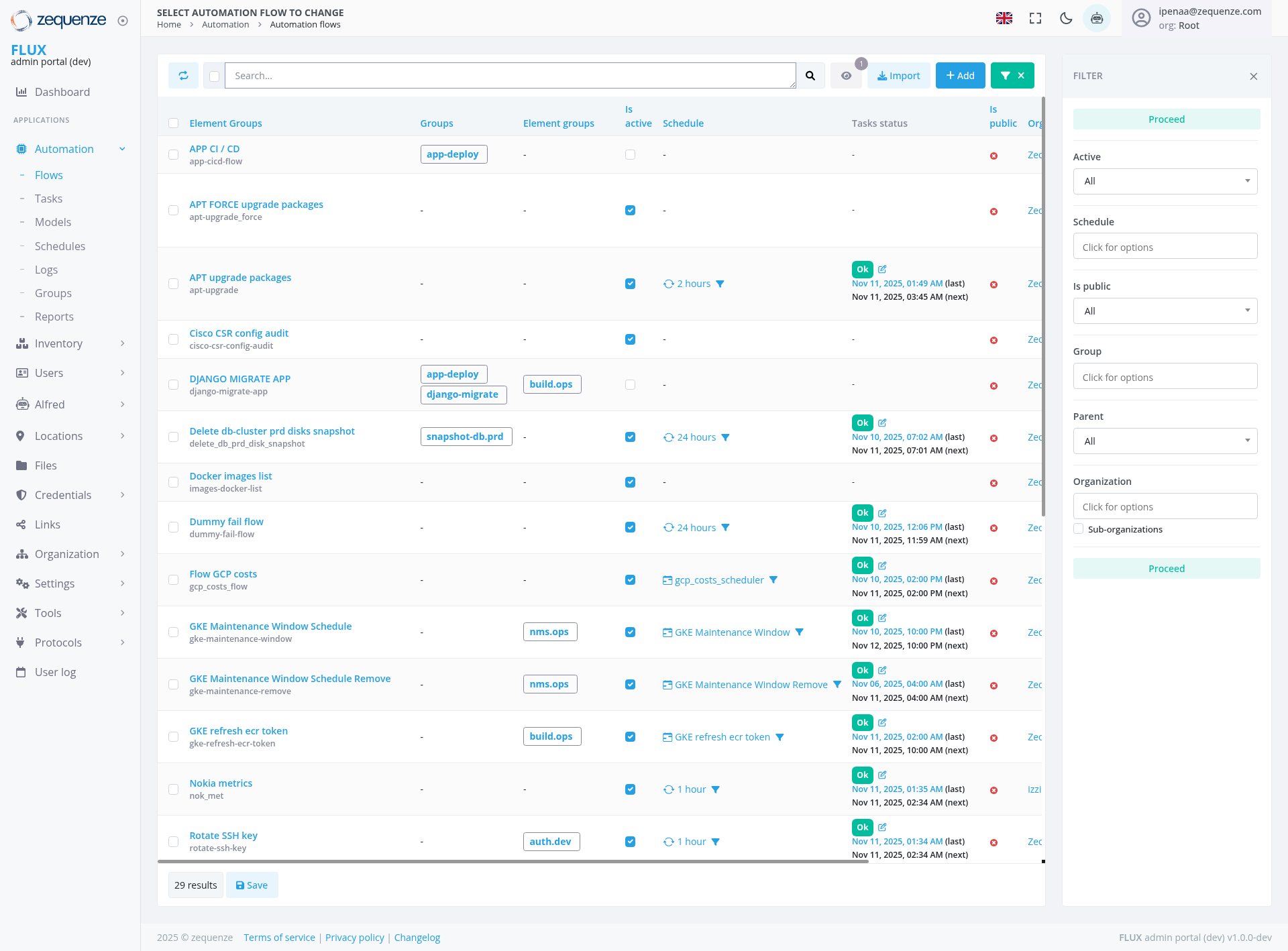
The Automation Flows page in the Zequenze Control Portal provides a comprehensive management interface for viewing, monitoring, and controlling automated workflows. This page displays all automation flows configured in the system with their current status, scheduling information, and execution details.
Key Features
- Flow Management Dashboard: Centralized view of all automation flows with real-time status monitoring
- Advanced Filtering: Multiple filter options including status, schedule, visibility, group, parent, and organization
- Bulk Operations: Import and add multiple flows with dedicated action buttons
- Status Tracking: Real-time status indicators (OK, Active, Failed) with timestamp information
- Scheduling Overview: Visual representation of flow schedules and execution times
- Group Organization: Flows organized by element groups and operational groups
UI Elements
Header Section
Action Bar
- Search Field: Global search functionality for filtering flows
- Import Button: Blue button for importing automation flows
- Add Button: Green button for creating new automation flows
- Filter Panel: Expandable right-side panel with multiple filter options
Main Data Table
The table displays the following columns:
- Element Groups: Shows the automation flow names and descriptions
- Groups: Associated group tags (app-deploy, django-migrate, etc.)
- Element groups: Related element groupings
- Is active: Checkbox indicators for active/inactive status
- Schedule: Time-based scheduling information with duration indicators
- Tasks status: Current execution status with OK/Failed indicators and timestamps
- Is public: Visibility settings
- Organization: Organizational assignment (Zec, tzzj, etc.)
User Interactions
Navigation
Search and Filter
- Global Search: Use the search bar to find specific flows by name or description
- Status Filter: Filter by Active/Inactive status
- Schedule Filter: View flows by their scheduling configuration
- Organization Filter: Filter flows by organizational assignment
- Group Filter: Filter by associated groups or parent relationships
Flow Management Actions
- View Details: Click on any flow name to view detailed configuration
- Status Monitoring: Monitor real-time status indicators and timestamps
- Import Flows: Use the Import button to bulk import automation configurations
- Add New Flow: Use the Add button to create new automation workflows
Data Displayed
Flow Information
- Flow Names: Descriptive names like "APT FORCE upgrade packages", "DJANGO MIGRATE APP"
- Descriptions: Technical identifiers (app-cicd-flow, apt-upgrade-force, etc.)
- Group Associations: Tags showing deployment groups, build operations, maintenance windows
Status Indicators
- Green "OK": Successful execution with timestamps
- Red Indicators: Failed or error states
- Blue Checkmarks: Active status indicators
- Clock Icons: Scheduled execution times (1 hour, 2 hours, 24 hours)
Execution Details
- Last Execution: Timestamps showing when flows last ran
- Next Execution: Scheduled next run times
- Duration: Expected or actual execution durations
Actions Available
Primary Actions
- Import: Bulk import automation flows from external sources
- Add: Create new automation flows with the flow builder
- Edit: Modify existing flow configurations (via flow name links)
- Filter: Apply multiple filter criteria to narrow down the view
Secondary Actions
- Save: Save current filter configurations (29 results Save button)
- Refresh: Update the display with latest flow status information
- Export: Export flow configurations (implied functionality)
Filter Panel Options
Status Filters
- Active: Filter by active/inactive flows
- Schedule: Filter by scheduling configuration
- Is public: Filter by visibility settings
Organizational Filters
- Group: Filter by operational groups
- Parent: Filter by parent-child relationships
- Organization: Filter by organizational boundaries
- Sub-organizations: Include or exclude sub-organizational flows
Notes/Tips
- Status Monitoring: Green "OK" indicators show successful recent executions, while red indicators require attention
- Scheduling: Clock icons indicate automated scheduling - hover for detailed timing information
- Group Tags: Colored tags help quickly identify flow purposes (deployment, migration, maintenance)
- Real-time Updates: The page shows live status updates with precise timestamps for monitoring active operations
- Bulk Management: Use filters to select multiple flows for bulk operations
- Organization Scope: Flows are scoped to your organizational access level (currently showing Root access)