
Profile
Creating a New Profile
Before creating a profile, it's important to understand its purpose. Profiles are where you configure key device settings such as:
- WAN interface configurations
- Custom WiFi network names (e.g., "ISP-Provider-2.4GHz" for 2.4GHz networks)
- 5.0GHz network configurations
- Other device-specific parameters
Steps to Create a Profile
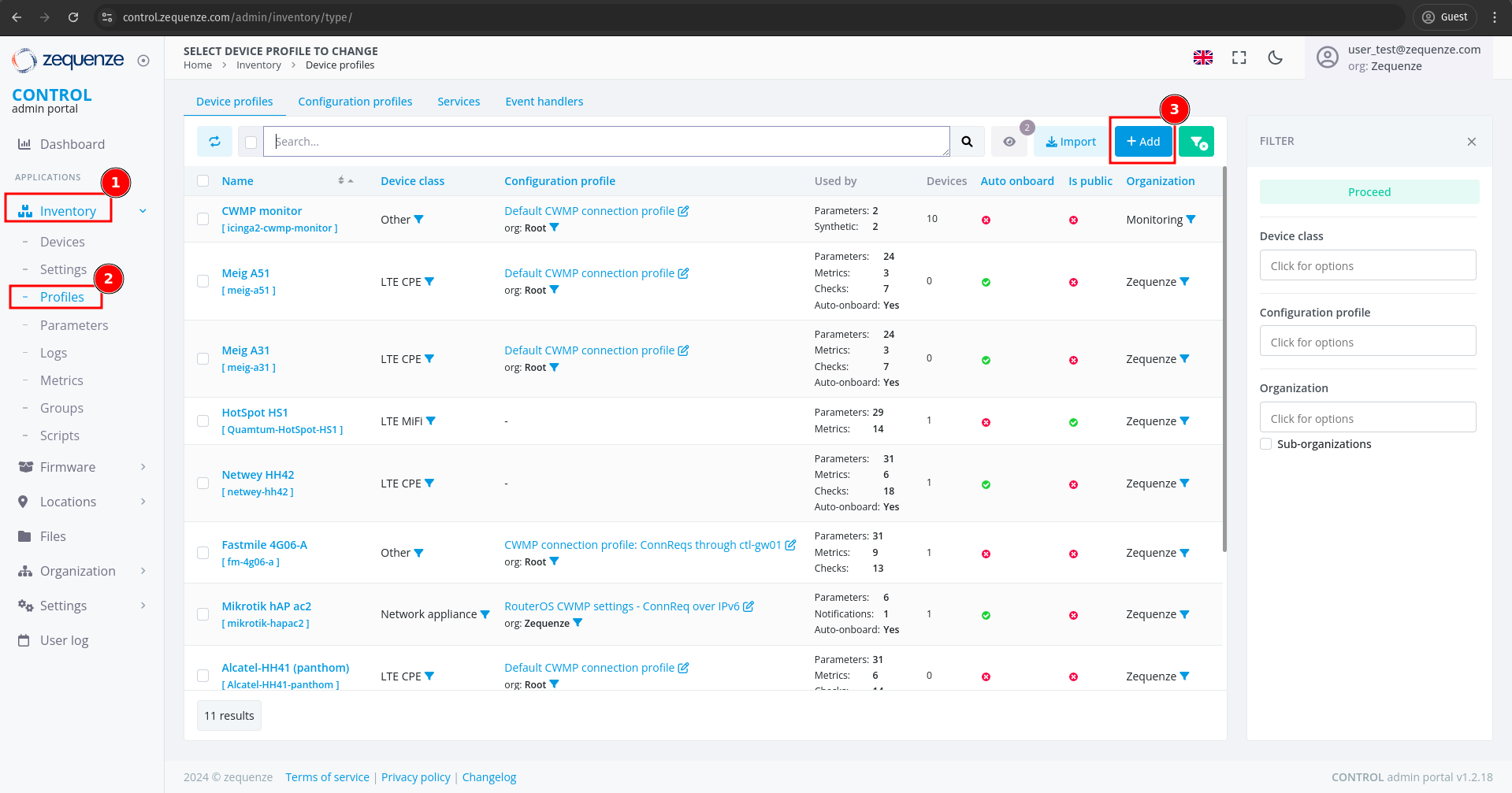
Configuring Profile Settings
You will see the profile creation page with the following fields:
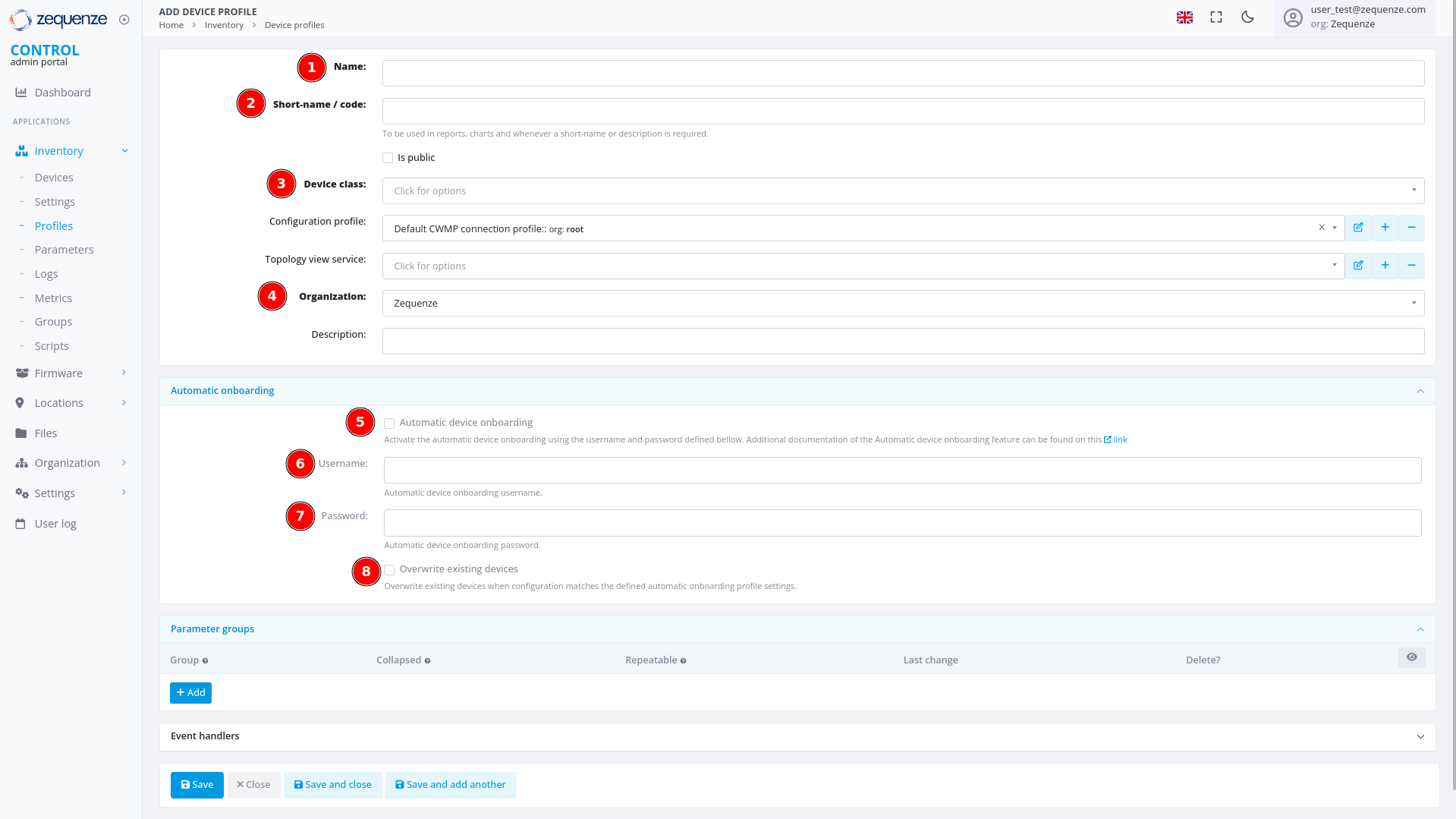
Required Fields
-
Name
Enter a descriptive identifier for this profile. Best practice is to use the format: "Vendor Model [Base]"
Example: "Nokia G-1425G-B [Base]" -
Short-name / code
Provide an abbreviated version of the profile name.
Example: "Nokia-G-1425G" -
Device class
Select the appropriate device type from the following options:- eMTA
- ONT
- DSL CPE
- Fixed Wireless Access CPE
- LTE CPE
- LTE MiFI
- STB
- WiFi eXtender
- WiFi Mesh AP
- WiFi Mesh (master)
- WiFi Mesh (slave)
- WiFi AP
- VoIP phone
- VoIP ATA
- LAN Switch
- Router
- Network appliance
- SONDA probe
- Transport gateway
- Other
-
Organization
If applicable, select which organization this profile belongs to.
Automatic Device Onboarding Settings
-
Automatic device onboarding
Enable this option to allow the CONTROL platform to automatically assign new credentials to devices. This ensures each device receives unique username and password combinations. -
User
Enter the default username that matches the factory credentials on the device. This username must match what is configured on devices connecting to the CONTROL platform. -
Password
Enter the default password that matches the factory credentials on the device. Both username and password must match for automatic profile assignment to work correctly. -
Overwrite existing devices
Enable this option to allow devices that have been reset to factory credentials to reconnect to the CONTROL platform. This prevents connection rejection when a device already exists in the system.
Example Configuration
Below is an example of a completed profile configuration:
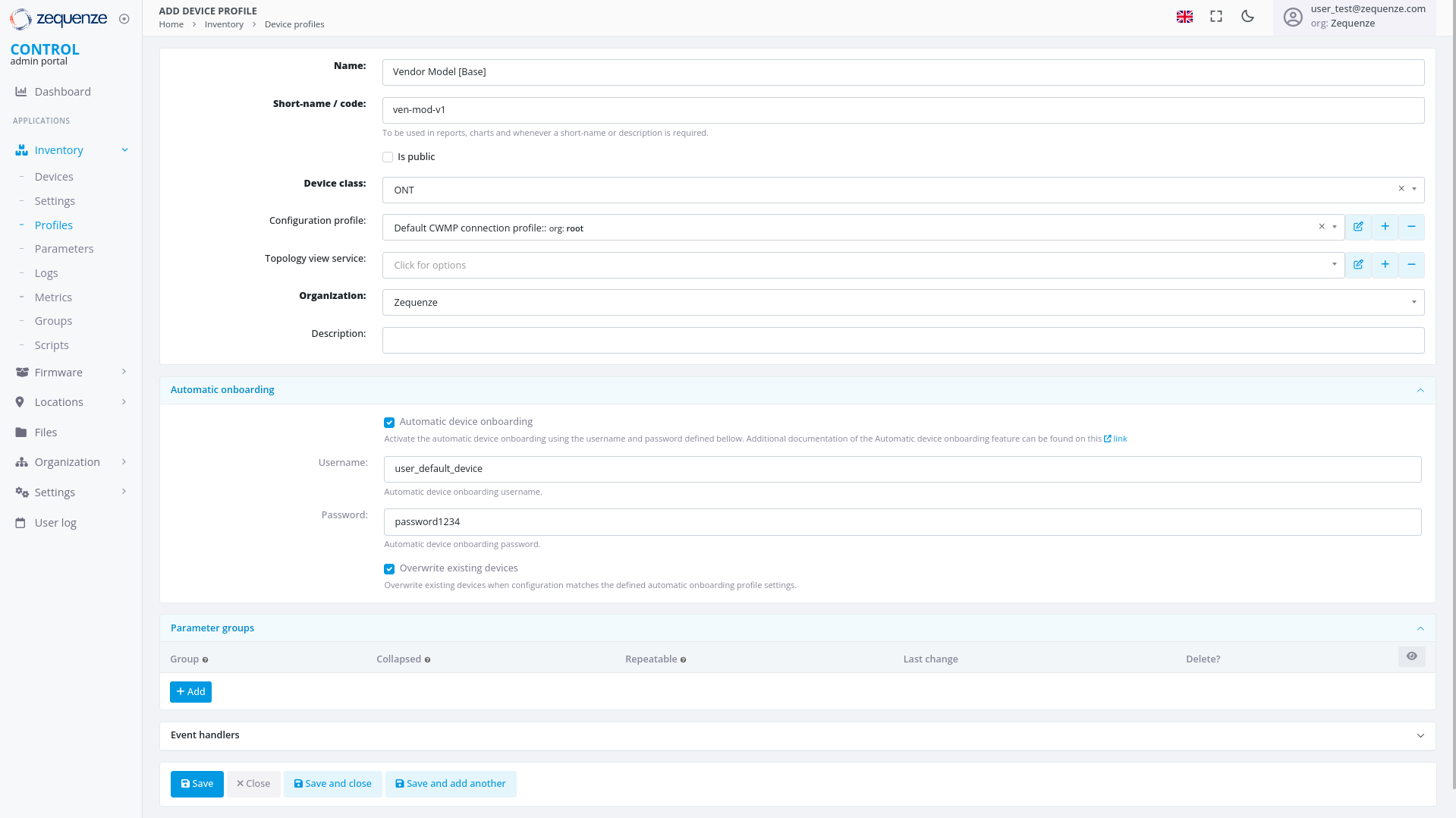
Once all fields are configured, click "Save and close" to create the profile.
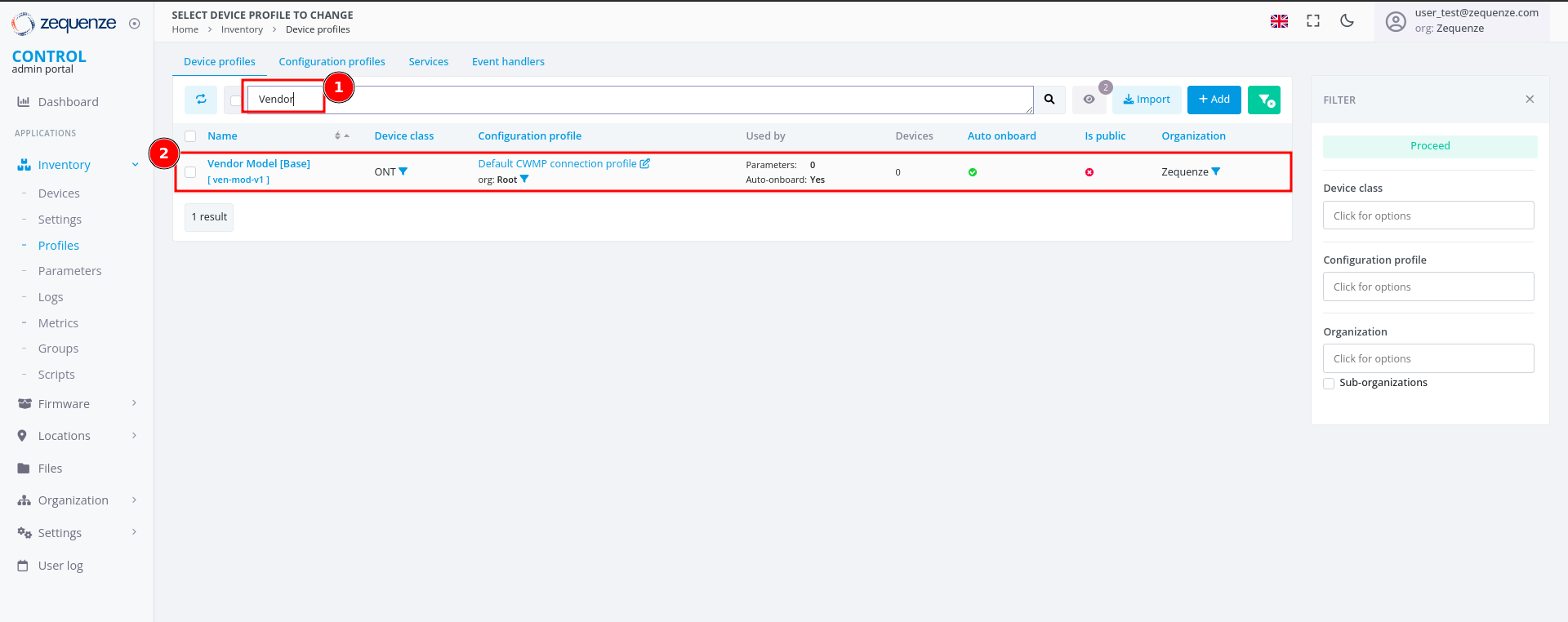
Profile Created
After successfully creating the profile, you can:
- Filter by Name - Use the search filter to locate your profile by its name
- View the Profile - The newly created profile will appear in the profile list
Next Steps
The next step is to configure a device with the credentials and URL settings.