
Device logs
Overview
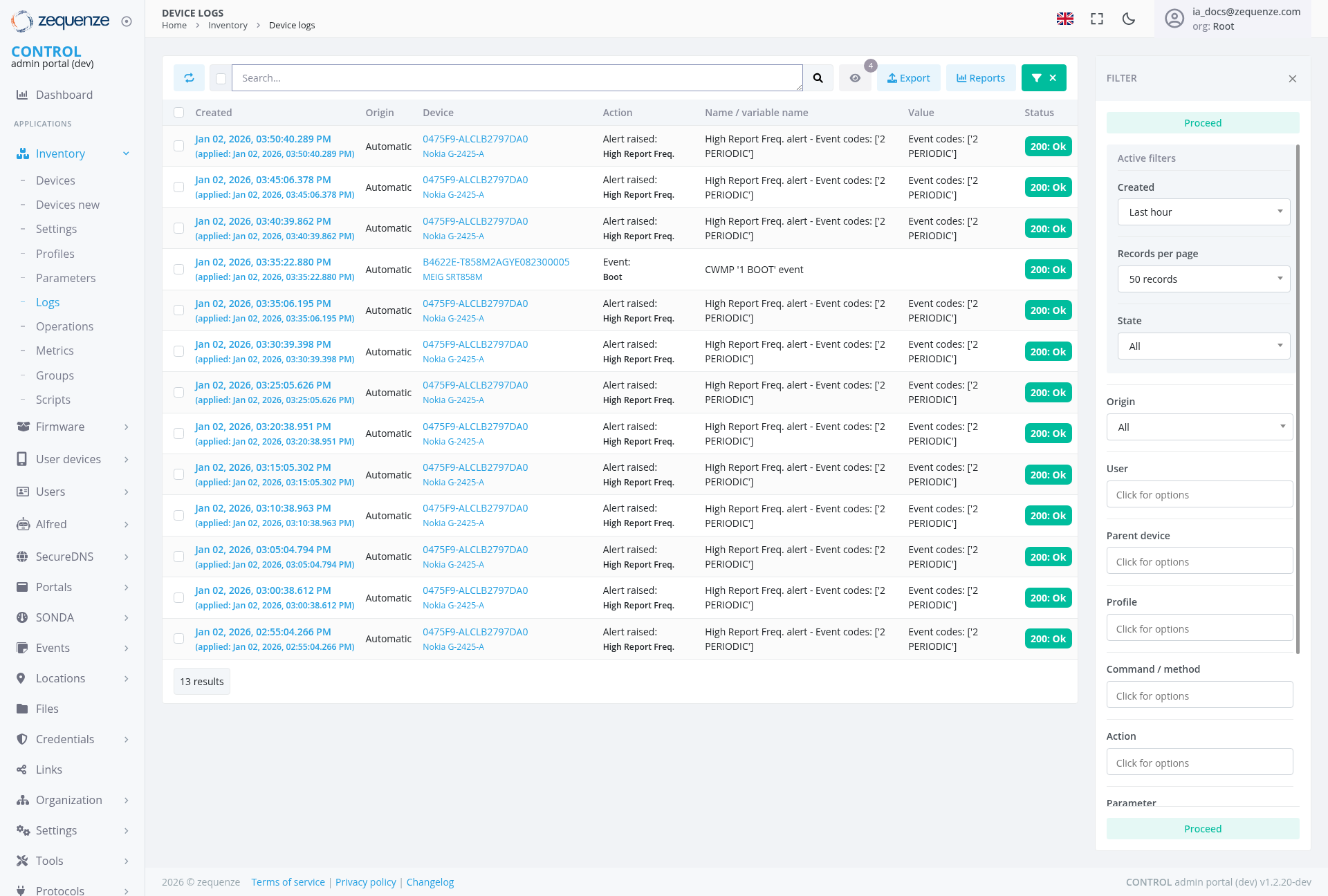
The Device Logs section of the Zequenze Control Portal provides a comprehensive view of all device activity and configuration changes. This page displays real-time and historical log entries for network devices, allowing administrators to monitor device events, track configuration modifications, and troubleshoot network issues.
Key Features
- Real-time Log Monitoring: View live device events and configuration changes as they occur
- Comprehensive Search: Advanced search functionality to filter logs by various criteria
- Export Capabilities: Export log data for external analysis and reporting
- Reports Generation: Generate custom reports from filtered log data
- Detailed Event Information: Access to complete event details including timestamps, origins, and affected parameters
- Advanced Filtering System: Expandable filter panel with comprehensive filtering options for precise log analysis
UI Elements
Header Section
- Search Bar: Located at the top center for quick log entry searches
- Export Button: Blue "Export" button for exporting log data
- Reports Button: Light blue "Reports" button for generating custom reports
- Filter Toggle: Green "FILTER" button with close (X) option for toggling the filter panel
Main Data Table
The central table displays log entries with the following columns:
- Created: Timestamp of when the event occurred
- Origin: Source of the event (e.g., "Automatic")
- Device: Device identifier or name
- Action: Type of action performed (e.g., "Alert raised: High Report Freq", "Event: Boot")
- Name/Variable Name: Specific parameter or event name affected
- Value: Current or new value of the parameter
- Status: Overall status indicator with green "200: Ok" badges displayed
Current Data Display
The page currently shows multiple log entries with actual device data:
- Alert Events: Multiple "Alert raised: High Report Freq" alerts with event codes [2 PERIODIC] from Nokia G-2425-A devices
- Boot Events: CWMP '1 BOOT' events from MiCO devices (04623E-TS58M2AGVEG823004005)
- Device Identifiers: Various device IDs including "047SF9-ALCUB27970A0" Nokia G-2425-A devices and MiCO device models
- Timestamps: All entries from January 2, 2026, with precise timestamps including applied times
- Status Indicators: Consistent green "200: Ok" status badges across all entries
- Results Counter: "13 results" shown at the bottom left
Filter Panel (Right Side)
The expandable filter panel is currently open and displays comprehensive filtering options:
- Panel State: Currently expanded, showing all available filter options
- Toggle Control: Green filter button with X close option for showing/hiding the panel
- Active Filter Section: "Proceed" filter is currently active and highlighted in green
-
Filter Options (currently visible):
- Created: Time-based filtering with "Last hour" dropdown selection
- Records per page: Currently set to "50 records"
- State: Dropdown with "All" selected
- Origin: Dropdown with "All" selected
- User: Click for options field
- Parent device: Click for options field
- Profile: Click for options field
- Command / method: Click for options field
- Action: Click for options field
- Parameter: Section with green "Proceed" active filter button
User Interactions
Searching and Filtering
- Quick Search: Enter search terms in the top search bar and click the search icon
- Filter Panel Access: Click the green "FILTER" button to expand the advanced filtering options
- Advanced Filtering: Use the expandable filter panel on the right with multiple filtering options including time-based, state, origin, and parameter filters
- Panel Management: Use the X button to close the filter panel when not needed
- Active Filter Management: Use the green "Proceed" button to apply or manage active parameter filters
Data Management
- Export Data: Use the blue "Export" button to export current log data
- Generate Reports: Use the "Reports" button to create custom analytical reports
- Filter Toggle: Use the green "FILTER" button to show/hide the filtering interface
- Pagination Control: Adjust records per page display using the dropdown in the filter panel
Event Analysis
- Event Details: View detailed information in the table columns including device identifiers, timestamps, and actions
- Status Monitoring: Monitor status indicators with consistent green "200: Ok" badges
- Parameter Tracking: Follow specific parameter changes across time with complete status visibility
- Time-based Analysis: Use the "Last hour" filter and other time controls for temporal analysis
Navigation
Access Path
Related Sections
- Dashboard: Return to main dashboard for overview
- Inventory: Access device inventory and management
- Settings: Configure logging preferences and parameters
Data Displayed
Event Types
- Alert Events: High Report Frequency alerts with periodic event codes
- Boot Events: CWMP '1 BOOT' events indicating device startup and initialization
- Configuration Changes: Parameter modifications and updates
- Network Events: Connectivity and communication logs
- System Events: Operational status and health indicators
Information Categories
- Alert Notifications: Device-generated alerts for high frequency reporting
- Device Initialization: Boot events and startup notifications from CWMP protocol
- Device Configuration: Device-specific parameters and settings
- Security Settings: Password, SSID, and authentication configurations
- Network Parameters: Channel, frequency, and connectivity settings
Actions Available
Primary Actions
- Search: Filter and locate specific log entries
- Export Data: Export current log entries using the Export button
- Generate Reports: Create analytical reports from log data
- Toggle Filters: Use the green "FILTER" button to show/hide advanced filtering options
- Real-time Monitoring: View live device events and changes
Filtering Actions
- Panel Toggle: Click the green "FILTER" button to expand/collapse filtering options
- Time Filtering: Use "Created" dropdown to filter by time periods (Last hour, etc.)
- Records Control: Adjust "Records per page" to control data display (currently 50 records)
- State Filtering: Filter by device operational state using the State dropdown
- Origin Filtering: Filter by event source or origin using the Origin dropdown
- User-based Filtering: Filter events by specific users using the User field
- Parent Device Filtering: Filter by parent device relationships
- Profile Filtering: Filter by device profiles
- Command/Method Filtering: Filter by specific commands or methods
- Action Filtering: Filter by action types
- Parameter Filtering: Advanced parameter-based filtering with green "Proceed" button for active filters
- Active Filter Management: Use the green "Proceed" button to manage currently applied parameter filters
Administrative Functions
- Event Tracking: Monitor device behavior and performance
- Alert Management: Track and respond to device-generated alerts
- Boot Monitoring: Track device initialization and startup events through CWMP protocol
- Troubleshooting: Identify and diagnose network issues through system logs
- Compliance Monitoring: Track configuration compliance and changes
- Audit Trail: Maintain records of all device modifications
- Filter Optimization: Use expanded filter panel for detailed analysis and data refinement
Notes/Tips
- Real-time Updates: The log view updates automatically to show new events
- Data Availability: The interface displays actual device events when available, showing detailed device identifiers and timestamps from Nokia G-2425-A and MiCO device models
- Multi-vendor Support: The system tracks events from multiple device vendors including Nokia and MiCO devices
- Protocol Monitoring: CWMP '1 BOOT' events provide visibility into TR-069 device communication and initialization
- Expandable Interface: The filter panel is currently expanded showing all available filtering options for comprehensive log analysis
- Search Refinement: Use the search functionality combined with advanced filters for highly specific log queries
- Device Identification: Each log entry clearly identifies the source device with full device identifiers and model information
- Status Indicators: Consistent green "200: Ok" status badges provide clear operational status tracking
- Export Functionality: Use the Export button to extract log data for external analysis and record keeping
- Alert Monitoring: The system displays various alert types including high report frequency notifications for proactive monitoring
- Active Filter Tracking: The green "Proceed" button indicates active parameter filters for easy filter state management
- Time-based Filtering: Use the "Last hour" and other time-based filters for temporal log analysis
- Pagination Control: Adjust the records per page (currently 50) to optimize data viewing and performance
- Filter Visibility: When the filter panel is expanded, all filtering options are clearly visible for immediate access