
Device logs
Overview
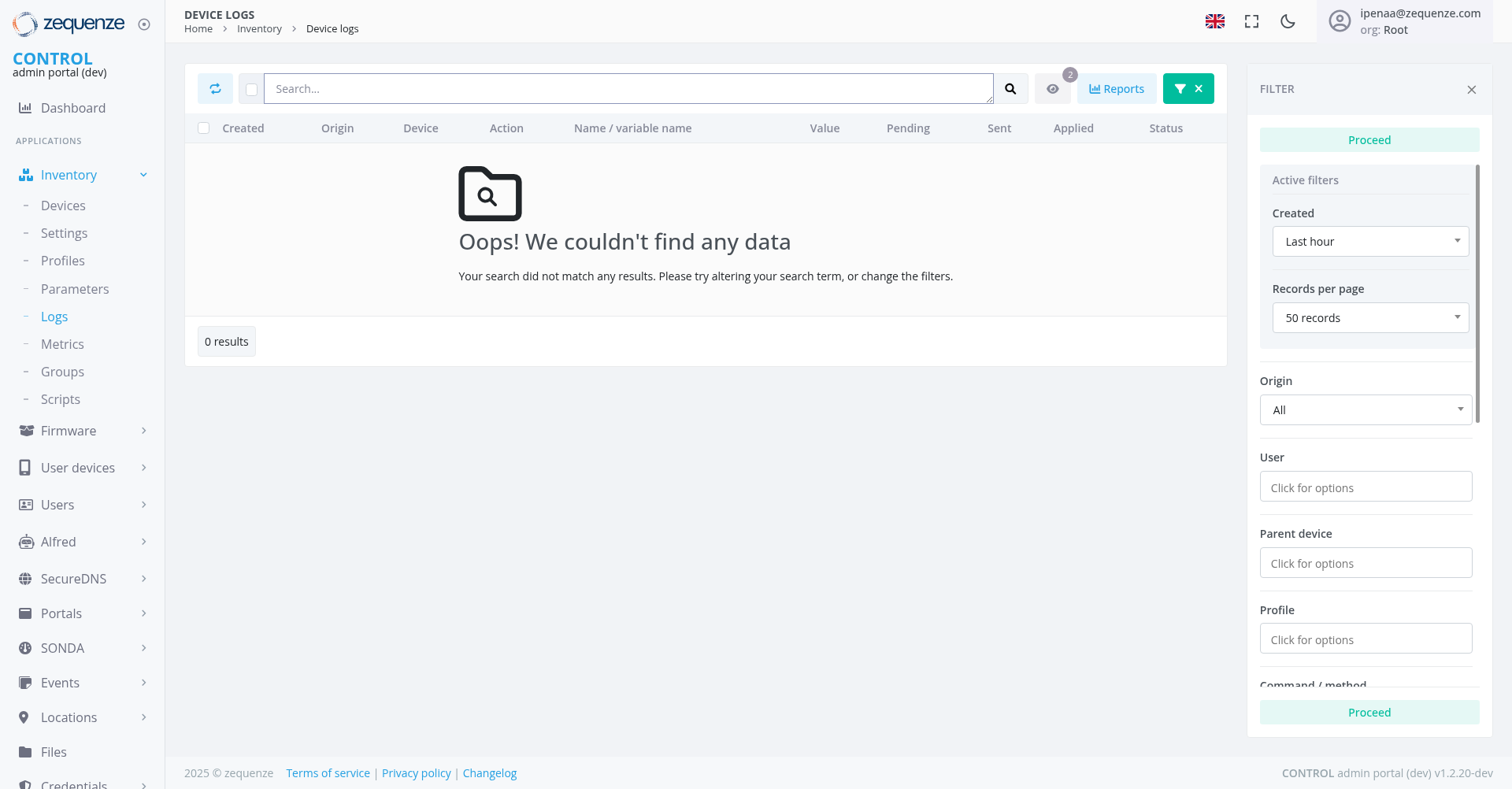
The Device Logs section of the Zequenze Control Portal provides a comprehensive view of all device activity and configuration changes. This page displays real-time and historical log entries for network devices, allowing administrators to monitor device events, track configuration modifications, and troubleshoot network issues.
Key Features
- Real-time Log Monitoring: View live device events and configuration changes as they occur
- Comprehensive Search: Advanced search functionality to filter logs by various criteria
- Export Capabilities: Export log data for external analysis and reporting
- Reports Generation: Generate custom reports from filtered log data
- Detailed Event Information: Access to complete event details including timestamps, origins, and affected parameters
- Filtering System: Multiple filter options to narrow down log entries based on specific criteria
UI Elements
Header Section
- Search Bar: Located at the top center for quick log entry searches
- Reports Button: Light blue "Reports" button for generating custom reports
- Close Filter Button: Green "X" button for closing the filter panel
- Filter Panel: Expanded right-side panel with advanced filtering options
Main Data Table
The central table displays log entries with the following columns:
- Created: Timestamp of when the event occurred
- Origin: Source of the event
- Device: Device identifier or name
- Action: Type of action performed
- Name/Variable Name: Specific parameter or event name affected
- Value: Current or new value of the parameter
- Pending: Status indicator for pending changes
- Sent: Status indicator for transmitted changes
- Applied: Status indicator for applied changes
- Status: Overall status indicator
No Data Display
When no log entries match the current search criteria or filters, the page displays:
- Search Icon: Large magnifying glass icon in the center
- "Oops! We couldn't find any data": Main message indicating no results
- Helpful Text: "Your search did not match any results. Please try altering your search term, or change the filters."
- Results Counter: "0 results" shown at the bottom left
Filter Panel (Right Side)
- Process Status: "Proceed" status indicator at the top
- Active filters: Display of currently applied filters
- Created: Time-based filtering with "Last hour" dropdown selection
- Records per page: "50 records" dropdown for pagination controls
- Origin: "All" dropdown for filtering by event source
- User: "Click for options" field for user-based filtering
- Parent device: "Click for options" field for device hierarchy filtering
- Profile: "Click for options" field for configuration profile filtering
- Command/method: "Proceed" status shown for filtering options
User Interactions
Searching and Filtering
- Quick Search: Enter search terms in the top search bar and click the search icon
- Advanced Filtering: The filter panel is expanded on the right showing active filtering options
- Time-based Filtering: Use the "Created" filter set to "Last hour" to specify time ranges for log entries
- Multi-criteria Filtering: Combine multiple filters for precise log entry selection
- Close Filters: Use the green "X" button to close the filter panel
Data Management
- Generate Reports: Use the "Reports" button to create custom analytical reports
- Pagination: Navigate through log entries using the "50 records" per page selector
Event Analysis
- Event Details: View detailed information in the expanded table columns when data is available
- Status Monitoring: Monitor Pending, Sent, and Applied status indicators for configuration changes
- Parameter Tracking: Follow specific parameter changes across time with complete status visibility
Navigation
Access Path
Related Sections
- Dashboard: Return to main dashboard for overview
- Inventory: Access device inventory and management
- Settings: Configure logging preferences and parameters
Data Displayed
Event Types
- Boot Events: Device startup and initialization logs
- Configuration Changes: Parameter modifications and updates
- Network Events: Connectivity and communication logs
- System Events: Operational status and health indicators
Information Categories
- CWMP Events: TR-069 protocol-related activities
- Device Configuration: Device-specific parameters and settings
- Security Settings: Password, SSID, and authentication configurations
- Network Parameters: Channel, frequency, and connectivity settings
Actions Available
Primary Actions
- Search: Filter and locate specific log entries
- Generate Reports: Create analytical reports from log data
- Close Filters: Hide the filter panel using the close button
- Real-time Monitoring: View live device events and changes when data is available
Administrative Functions
- Event Tracking: Monitor device behavior and performance
- Troubleshooting: Identify and diagnose network issues
- Compliance Monitoring: Track configuration compliance and changes
- Audit Trail: Maintain records of all device modifications
Notes/Tips
- Real-time Updates: The log view updates automatically to show new events
- No Data Handling: When no results are found, the interface provides clear feedback and suggestions for modifying search criteria
- Filter Persistence: Applied filters remain active during the session and are visible in the expanded filter panel
- Search Refinement: If no data is displayed, try adjusting search terms or modifying active filters
- Device Identification: Each log entry clearly identifies the source device and affected parameters when data is available
- Status Indicators: Multiple status columns provide comprehensive change tracking for displayed events
- Expandable Interface: The filter panel can be closed for more viewing space of the main data table