
Hidden Columns and Linked Filters
Customizing Your Data Table View with Hidden Columns
Accessing the Column Visibility Menu
 Near your data table, look for a this grey button with the eye icon. This button is your access point to customize the visible columns in your table. Clicking on this button reveals a dropdown menu with a list of options.
How to Show or Hide Columns
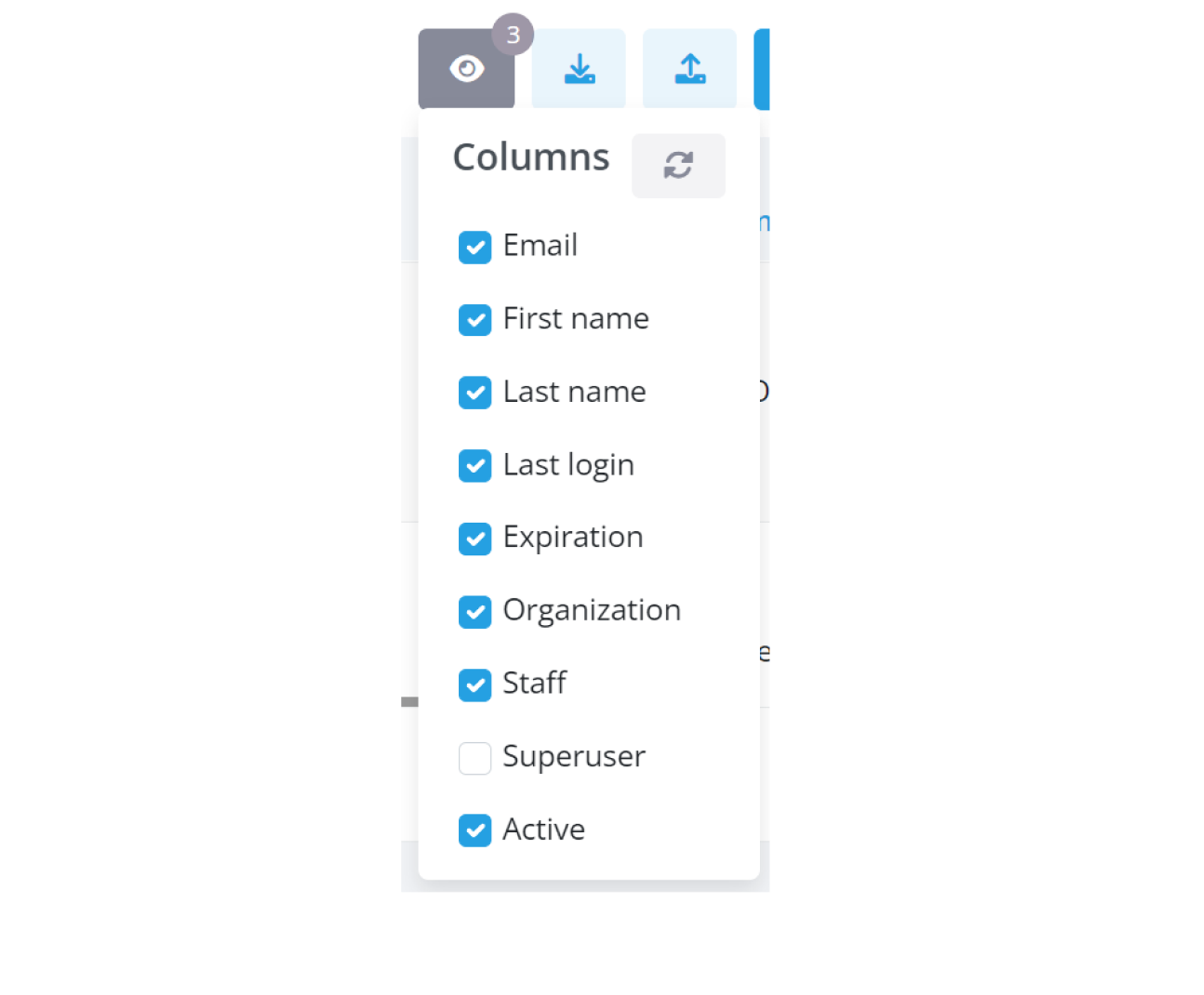
In the dropdown, you’ll find a list of column names, each with a corresponding checkbox. These checkboxes allow you to tailor your table view:
- To hide a column: Uncheck the box next to the column name, and watch it disappear from your table.
- To show a column: Check the box beside the column name you want to display, and it will reappear in the table.
Your adjustments are applied instantly, reshaping your table as per your choices.
Keeping Track with the Bubble Indicator
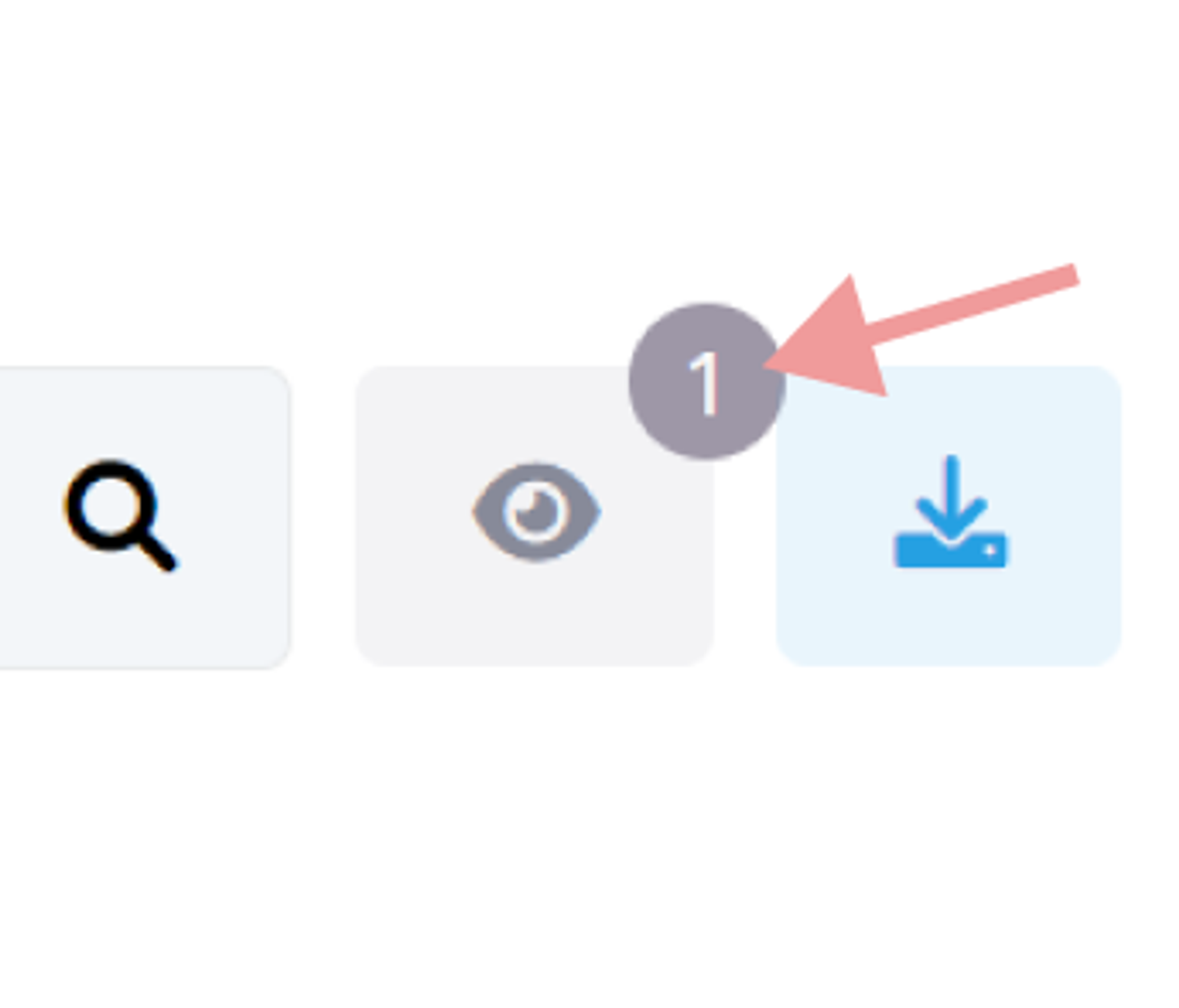
A small bubble indicator next to the visibility button helps you keep track of your customizations. It shows the number of columns you have chosen to hide, providing a quick reference at a glance.
Managing Data Effectively with Linked Filters
Understanding the Impact of Linked Filters
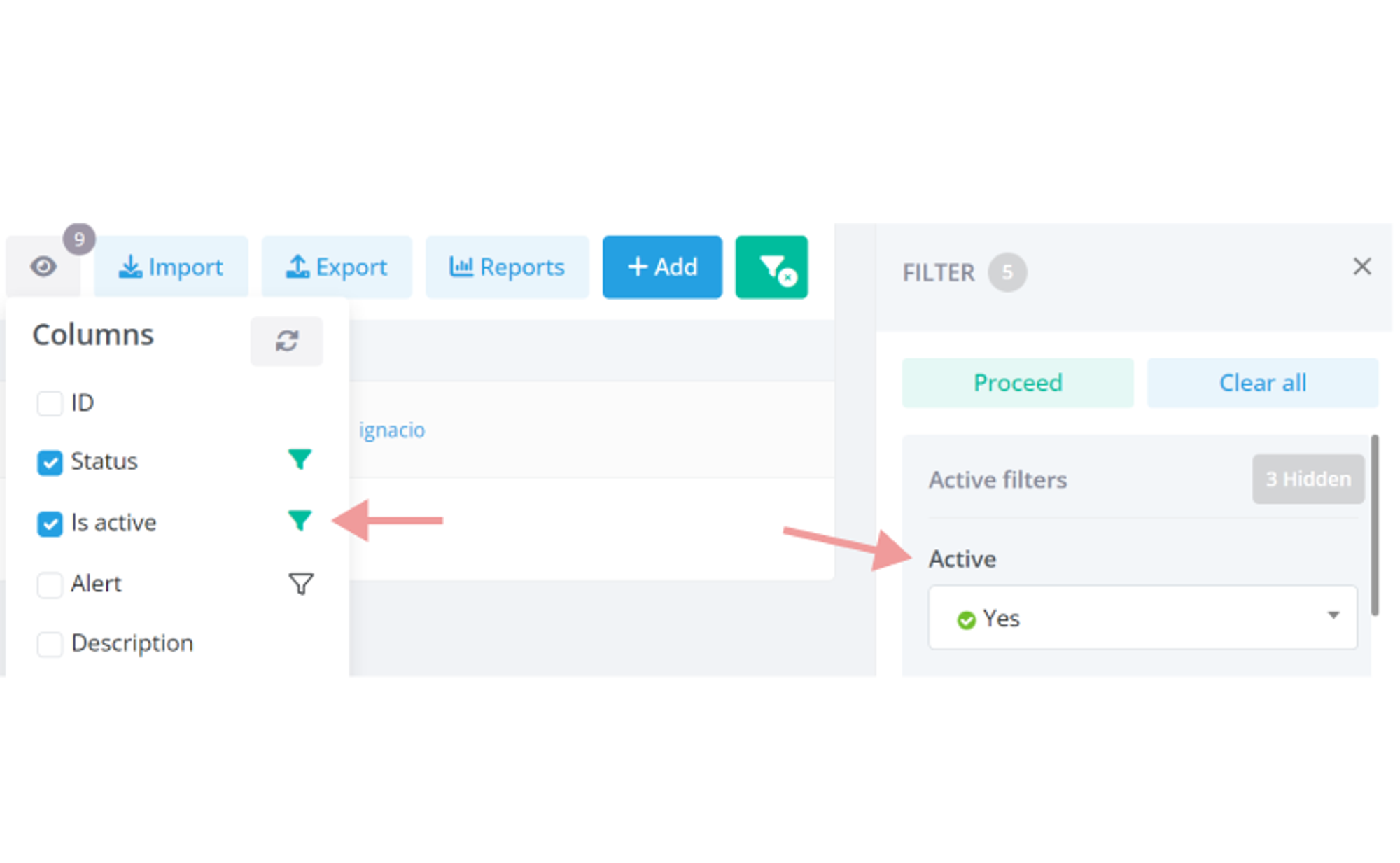
Some columns in your table are linked to specific filters. When you hide these columns, the corresponding filters are also hidden to maintain relevancy in your data view.
Spotting Active Linked Filters
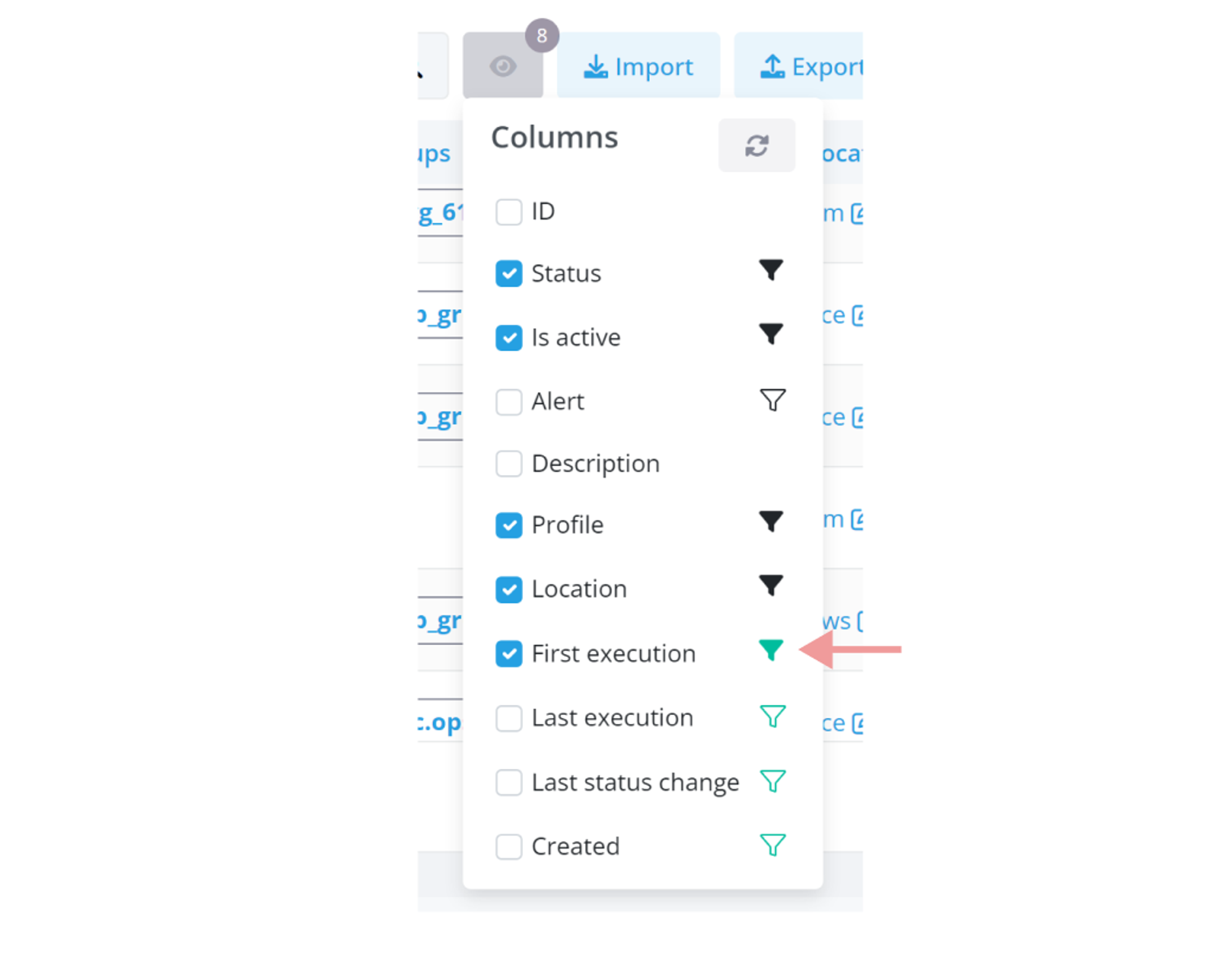
If you choose to hide a column linked to active filters, a special icon (often a filter icon) appears next to its name in the dropdown. This icon alerts you that hiding this column will also impact the active filters.
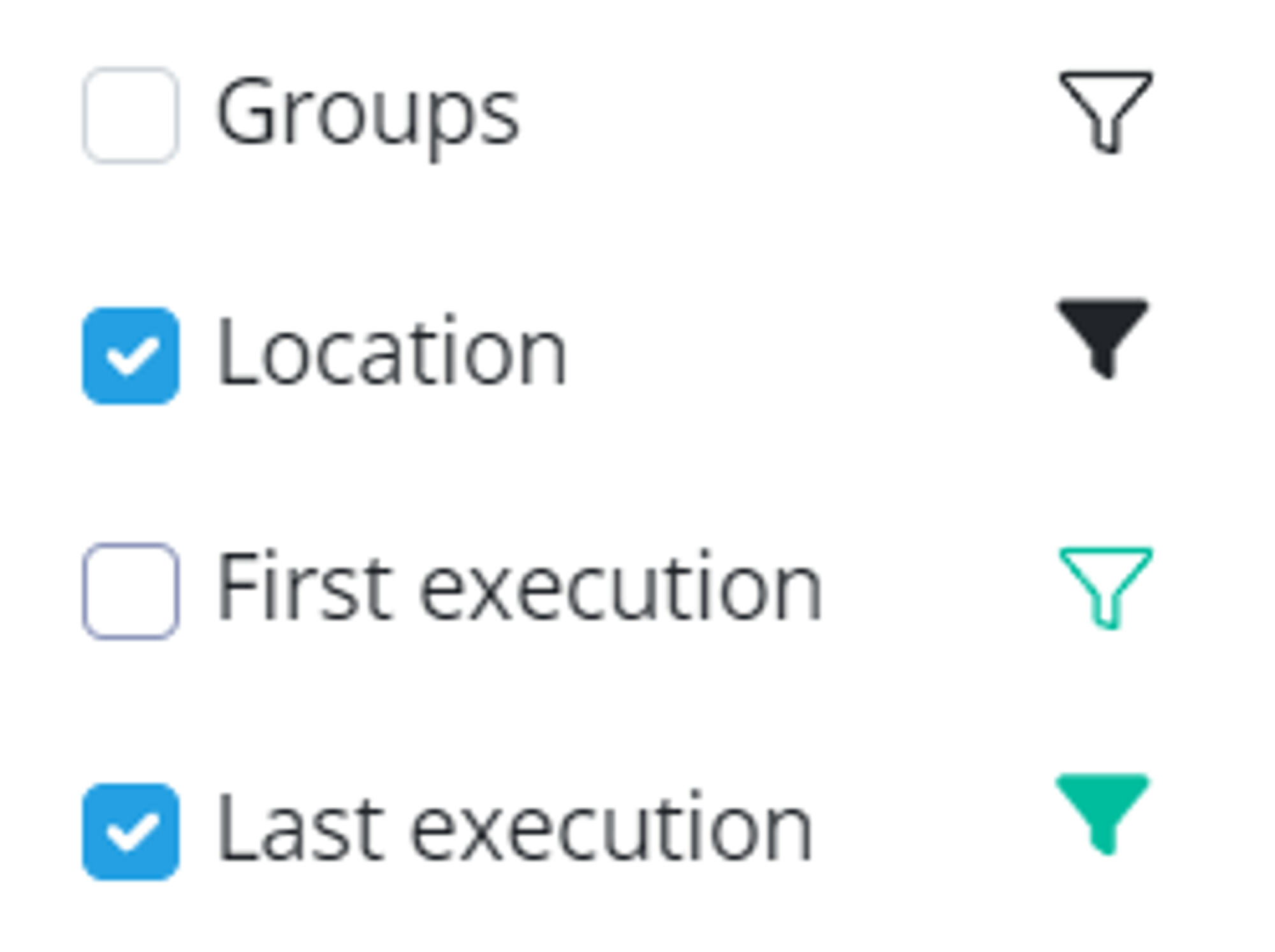
The solid icon denotes that the filter is currently displayed.
The empty icon signifies that the filter is concealed.
The green variations indicate that these filters, whether active or hidden, are currently affecting the data visible in your resulting table.
Your Preferences, Remembered
Your customized settings are saved in your browser, ensuring that you find the table just as you customized it during your last visit.
Resetting to the Default View
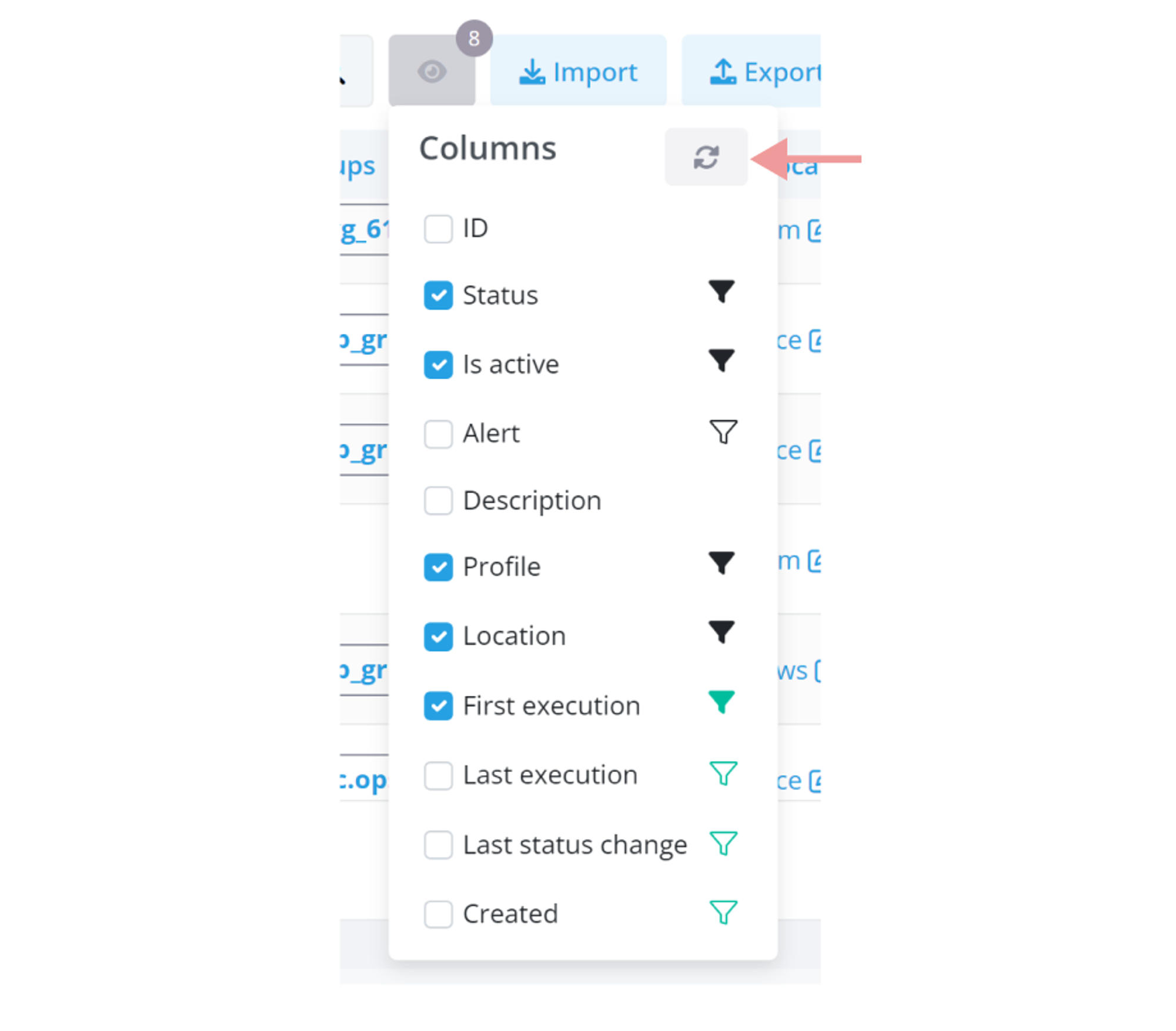
For returning to the standard table view, a 'Reset' button in the dropdown menu allows you to revert to the default column visibility settings.
No comments to display
No comments to display