
Pages

Overview
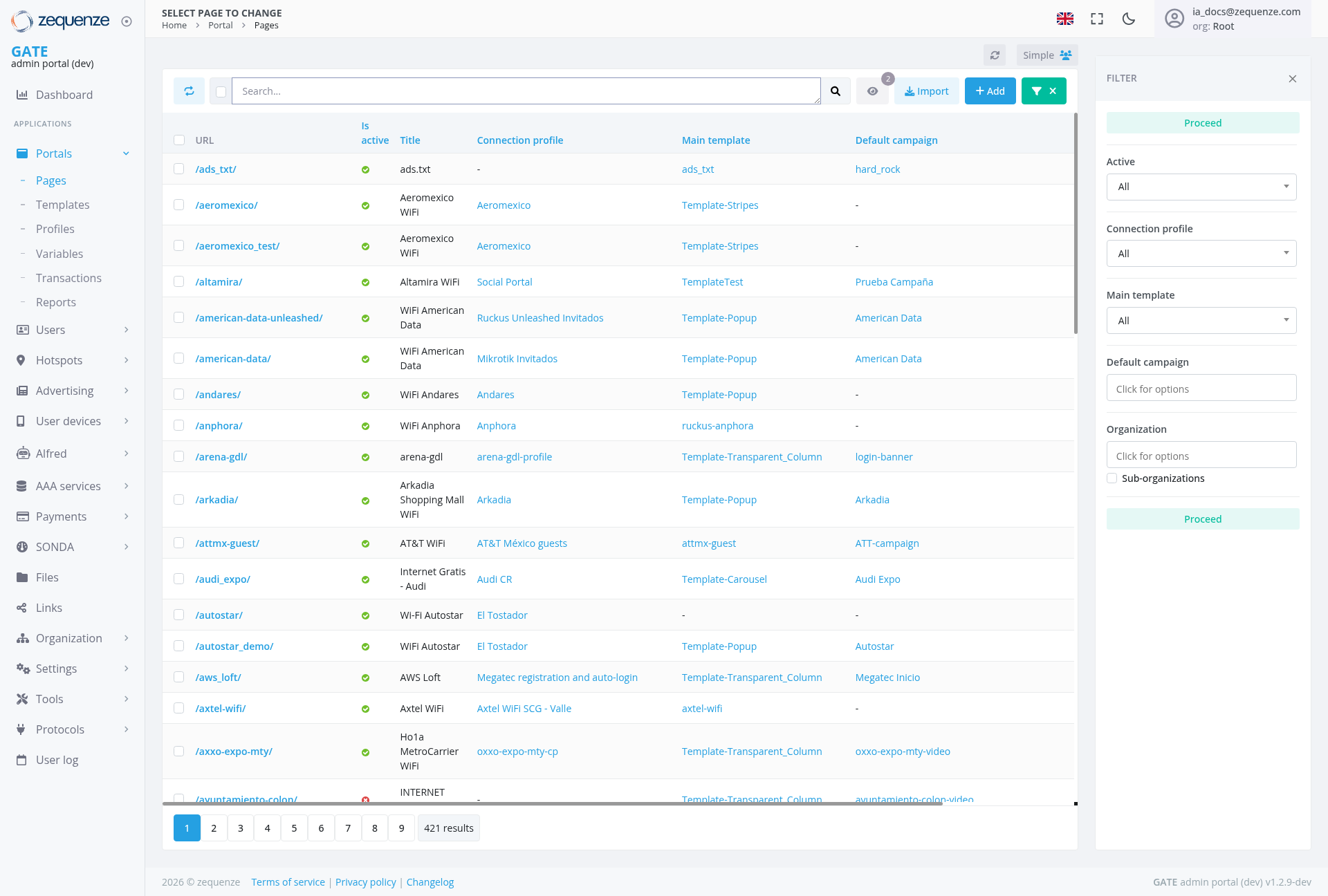
The Pages Management interface in the Zequenze Control Portal provides administrators with a comprehensive view and management system for all portal pages. This interface displays a detailed table of pages with their connection profiles, templates, campaigns, and operational status, allowing for efficient page administration and monitoring.
Key Features
- Real-time Page Status Monitoring: Visual indicators showing active/inactive status for each page
- Advanced Filtering System: Multi-criteria filtering by status, connection profile, template, and campaign
- Bulk Operations: Import and add functionality for managing multiple pages simultaneously
- Comprehensive Page Information: Detailed view of URLs, connection profiles, templates, and associated campaigns
- Pagination Controls: Navigate through large datasets with numbered page controls
- Search Functionality: Quick search across page entries
UI Elements
Header Section
Filter Panel (Right Side)
Main Data Table
The table displays the following columns:
- URL: Direct page URLs (e.g., /ads_txt/, /aeromexico/, /altamira/)
- Is Active: Green/red status indicators
- Title: Descriptive names for each page
- Connection Profile: Associated connection configurations
- Main Template: Template type assignments
- Default Campaign: Campaign associations
Data Displayed
The interface shows various types of pages including:
- WiFi Portal Pages: Aeromexico WiFi, Altamira WiFi, American Data WiFi, Andares WiFi, Anphora WiFi, Autostar WiFi, Axtel WiFi
- Social Portals: Various branded login pages
- Template Configurations: Stripes, Popup, Carousel, Transparent Column, and Test templates
- Campaign Associations: Hard Rock, American Data, Arkadia, ATT, Audi Expo, Autostar, and other branded campaigns
- Connection Profiles: Technical connection configurations including Aeromexico, Social Portal, Ruckus Unleashed, Miktrotik, AT&T México, and others
User Interactions
Filtering and Search
- Use the search bar to find specific pages by URL or title
- Access the filter panel using the FILTER section with clear header labeling
Page Management
- View Details: Click on any page entry to view detailed information
- Status Management: Monitor active/inactive status through visual indicators
- Bulk Operations: Use Import for adding multiple pages simultaneously
- Individual Actions: Add new pages using the + button
Navigation
- Pagination: Use numbered controls (1, 2, 3, etc.) at the bottom to navigate through pages
- Results Counter: View "421 results" indicator for total page count
- Page Size: Navigate through the complete dataset efficiently
Actions Available
- Import Pages: Bulk import functionality for multiple page configurations
- Add New Page: Create individual new pages with custom configurations
- Filter Management: Apply multiple filter criteria simultaneously with dropdown selectors
- Filter Panel Control: Open and close the filter panel using the header controls
Navigation
To Access: Home > Portal > Pages From This Page: Users can navigate to:
- Individual page detail views
- Template management sections
- Campaign configuration areas
- Connection profile settings
- Organization management
Notes/Tips
- Status Indicators: Green circles indicate active pages, red indicates inactive
- Environment: Currently viewing the development environment (dev)