
Dashboard: Main
Overview
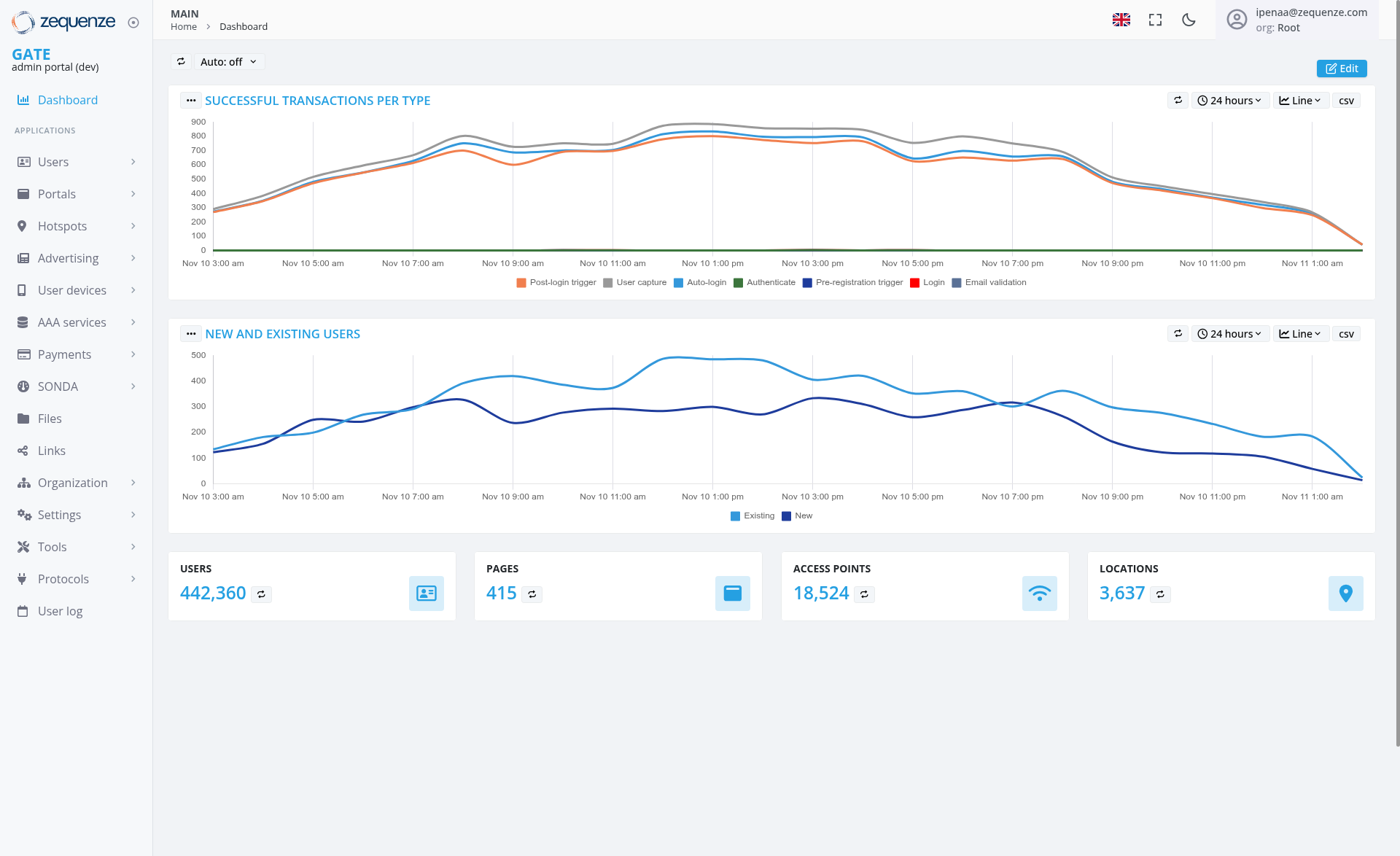
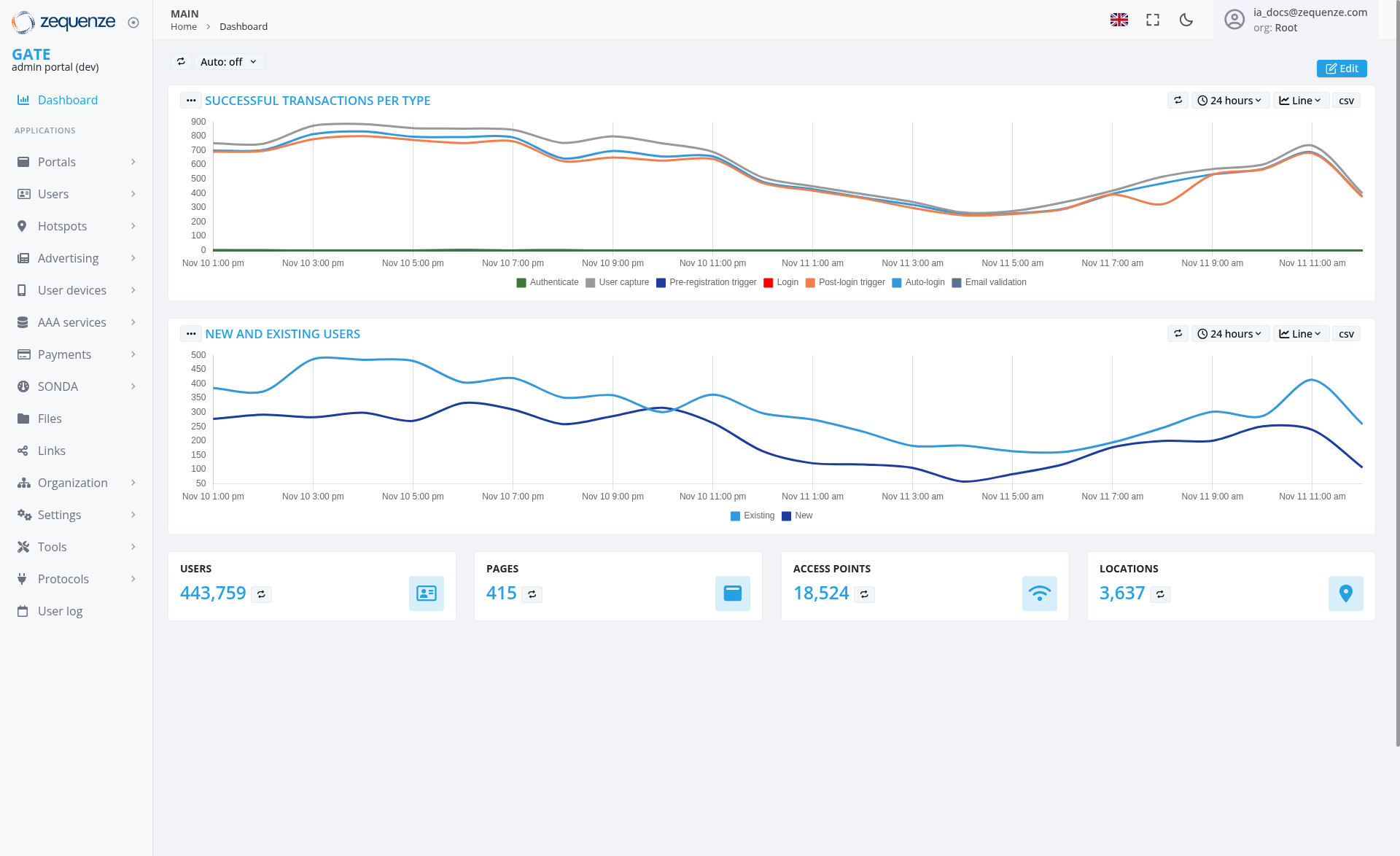
The Zequenze Control Portal Dashboard provides a comprehensive real-time analytics interface for monitoring user authentication and system activity. This main dashboard displays key performance metrics through interactive charts and summary statistics, enabling administrators to track successful transactions, user activity patterns, and system usage across different time periods.
Key Features
Real-time Analytics Charts
-
Successful Transactions Per Type: Multi-line chart showing various authentication methods including
Post-login trigger,Authenticate, User capture,Auto-login, Authenticate,Pre-registration trigger, Login, Post-login trigger, Auto-login, and Email validation - New and Existing Users: Dual-line chart tracking the volume of new versus existing user activity over time
Summary Statistics Cards
-
Users:
442,360443,759 total users with trend indicator - Pages: 415 total pages accessed
- Access Points: 18,524 total access points
- Locations: 3,637 unique locations
UI Elements
Navigation Sidebar
- GATE section with Dashboard link highlighted
-
APPLICATIONS menu including:
UsersPortalsPortalsUsers- Hotspots
- Advertising
- User devices
- AAA services
- Payments
- SONDA
- Files
- Links
- Organization
- Settings
- Tools
- Protocols
- User log
Chart Controls
- Time Range Selector: "24 hours" dropdown for filtering data periods
- View Options: Line chart and CSV export functionality
- Auto-refresh: "Auto: off" toggle for real-time updates
- Edit Mode: Available through the "Edit" button in the top-right corner
User Interactions
Chart Interaction
- Hover over chart lines to view specific data points and timestamps
- Toggle between different time ranges using the dropdown selectors
- Export data to CSV format for external analysis
- Switch between line and other chart view formats
Navigation
Navigation
Access Path
- Current Location: MAIN > Home > Dashboard
- Portal Environment: GATE admin portal (dev)
- User Context: Administrative access with Root organization privileges
Quick Actions
- Language toggle (EN flag icon)
- Full-screen mode toggle
- Dark/light theme switcher
- User profile and settings access
Data Displayed
Transaction Metrics
The "Successful Transactions Per Type" chart shows:
-
Peak Activity: Occurring around mid-day
(1:00periodsPMwith-values3:00rangingPM)600-900 transactions - Transaction Types: Color-coded lines representing different authentication flows
-
Time Range: 24-hour period from Nov 10
3:1:00AMPM to Nov 111:11:00 AM -
Volume Range: Approximately
100-200-900 transactions per time interval
User Activity Patterns
The "New and Existing Users" chart displays:
-
Existing Users (light blue line): Higher volume, ranging
100-150-500 users -
New Users (dark blue line): Lower but consistent
volumevolume, ranging 100-350 users -
Activity Trends:
DecliningVariablepatternpatternstowardwithendpeaksofarounddayNov 11 7:00 AM reaching approximately 400 users
Actions Available
Data Management
- Export Data: Download chart data in CSV format
- Refresh Controls: Toggle auto-refresh for real-time monitoring
- Time Range Adjustment: Modify viewing period to 24 hours or other intervals
Administrative Functions
- Edit Dashboard: Customize chart layouts and configurations
- Access Sub-modules: Navigate to detailed sections (Users, Portals, etc.)
- System Configuration: Access settings, tools, and protocols
Notes/Tips
Performance Monitoring
- Monitor transaction peaks to identify high-usage periods
- Track the ratio of new vs. existing users for growth analysis
- Use CSV exports for detailed offline analysis and reporting
Best Practices
- Enable auto-refresh during active monitoring sessions
- Regularly check different time ranges to identify trends
- Cross-reference summary statistics with chart data for validation
System Status
- The dashboard shows data for a development environment (gate-dev.zequenze.com)
- All metrics represent real-time or near-real-time data
- Color-coded legends help distinguish between different transaction types and user categories