
Access points
Overview
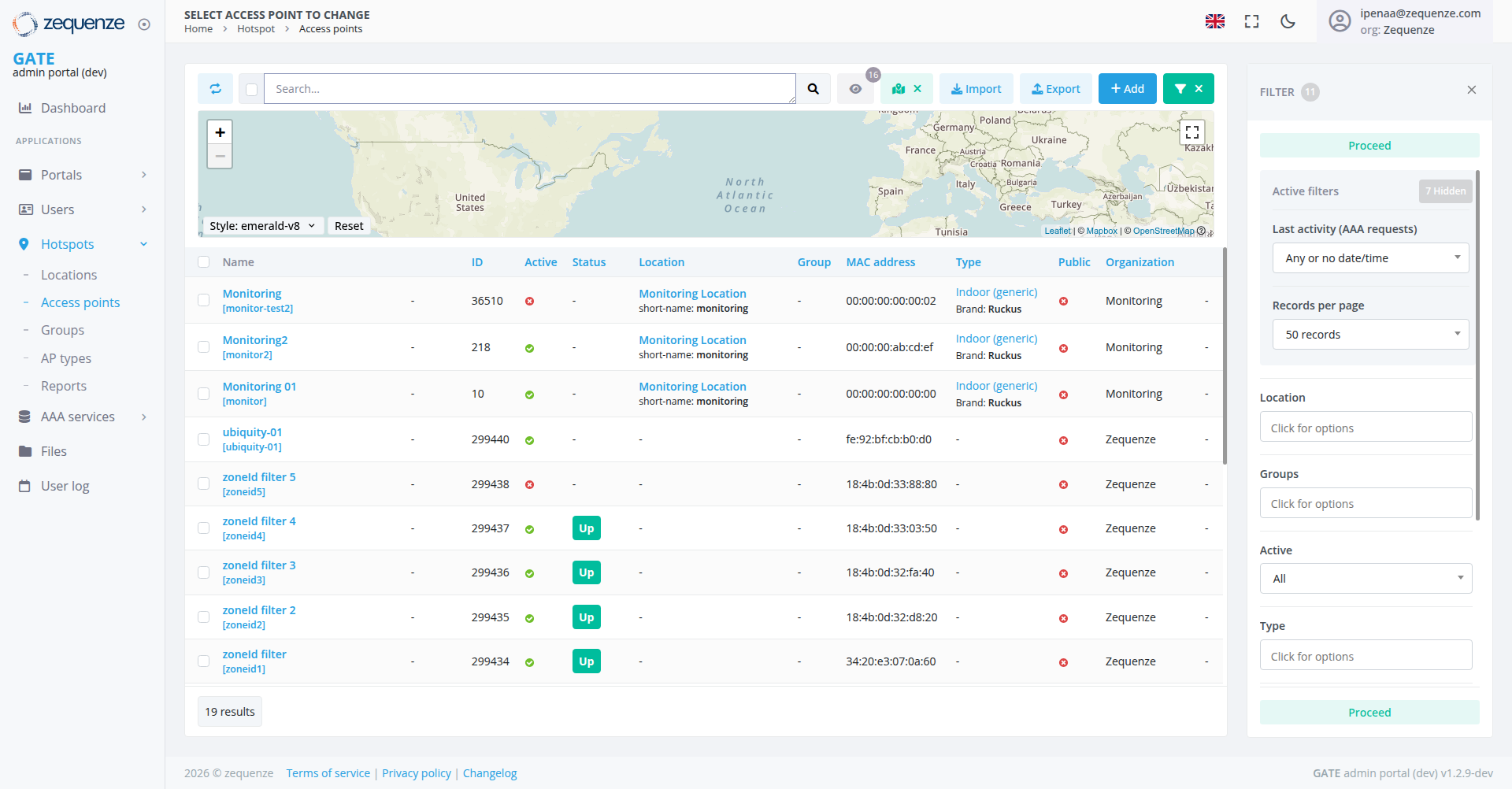
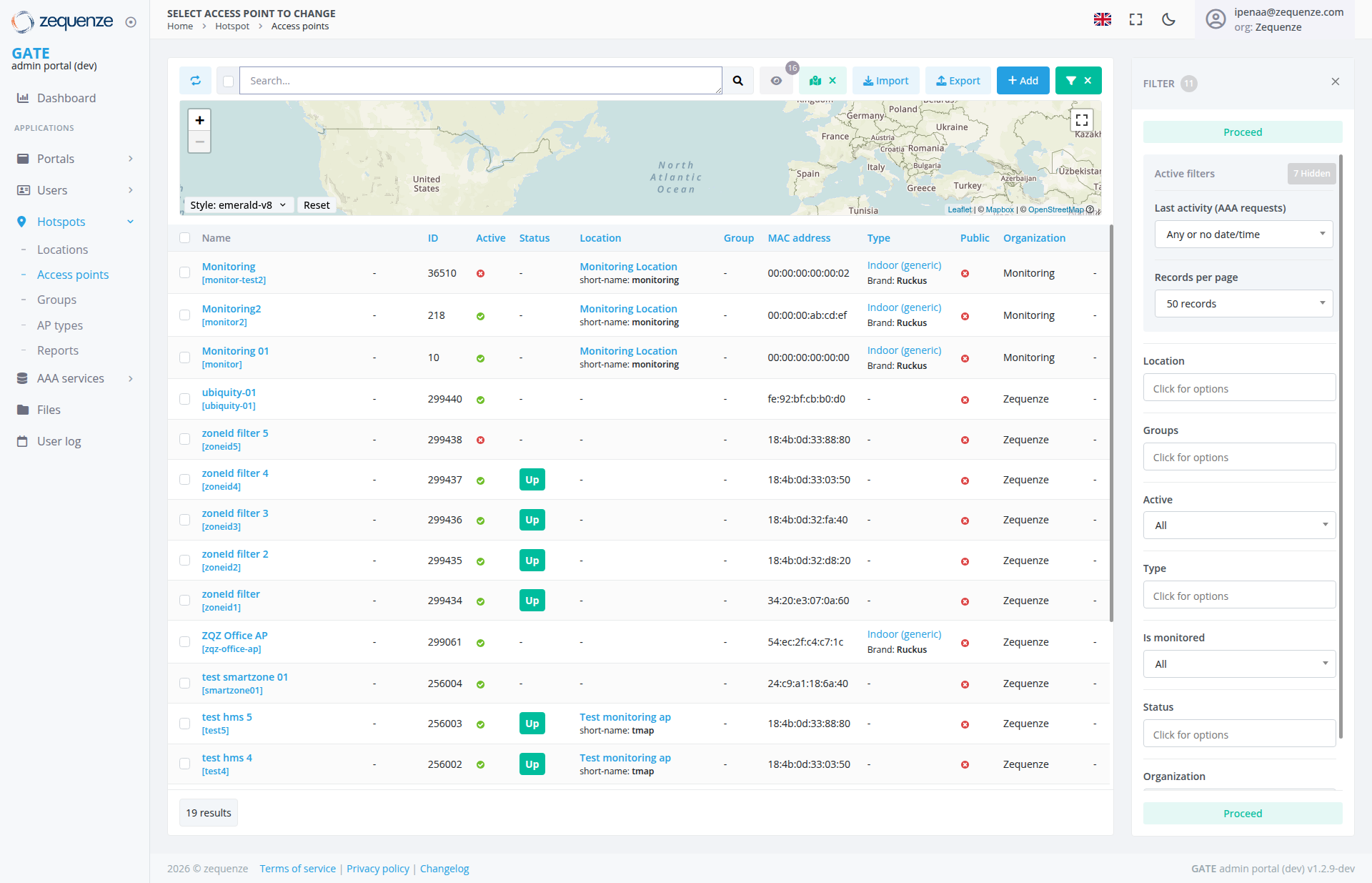
The Access Points page in the Zequenze GATE Portal provides a comprehensive view and management interface for all wireless access points in your network infrastructure. This page displays real-time information about access point status, locations, configurations, and performance metrics across multiple monitoring locations and organizations.
Key Features
- Real-time Access Point Monitoring: View live status of all access points with active/inactive indicators
- Geographic Visualization: Interactive map showing physical locations of access points
- Multi-site Management: Support for various monitoring locations and organizational setups
- Advanced Filtering: Comprehensive filter options for location, groups, activity status, and monitoring state
- Bulk Operations: Import/export functionality for access point configurations
- Detailed Device Information: MAC addresses, device types, and organizational assignments for each device
UI Elements
Navigation Bar
Main Interface
- Search Bar: Global search functionality across all access points
-
Action Buttons:
- Import: Upload access point configurations
- Export: Download current access point data
- Add: Create new access point entries
-
RedGreenDeleteFilter Button:DeleteFilterfunctiontoggle with dropdown functionality using "X" iconfor removing selected items
- Interactive Map: Geographic visualization with location markers showing style controls (emerald-v8) and reset option
- Data Table: Detailed listing of all access points with sortable columns
Filter Panel (Right Side)
-
Filter Toggle: "FILTER" button with counter
badge,badge showing "0", with "X" close button in top-right corner - Proceed Button: Green "Proceed" button at the top and bottom of the filter panel
-
Active filters section: Shows "
Active filters" and "217 Hidden" items - Last Activity (AAA requests): Filter by AAA request timestamps with "Any or no date/time" dropdown selection
- Records Per Page: Pagination controls with "50 records" dropdown selection
- Location Filter: Single location dropdown menu with "Click for options" functionality
- Groups: Filter by access point groups with "Click for options" functionality
- Active Status: Filter with "All" dropdown for active/inactive state filtering
- Type Filter: Device type selection with "Click for options" functionality
Data Displayed
The main table shows critical access point information:
- Name: Device identifier (including monitoring devices and test equipment)
- ID: Unique numerical identifier for each access point
- Active Status: Green dots indicate operational devices, red dots indicate inactive devices
- Status: Operational status with "Up" badges for active connections
- Location: Monitoring locations with standardized naming
- Group Assignment: Organizational categories (Monitoring, Zequenze)
- MAC Address: Hardware identification for network management
- Type: Device classification (Indoor generic, brand specifications like Ruckus)
- Public Access: Configuration status indicators
- Organization: Organizational assignment (Monitoring, Zequenze)
User Interactions
Primary Actions
- Search and Filter: Use the search bar and filter panel to locate specific access points
-
Filter Management:
- Click the "FILTER" button (showing "0" active filters) to show or hide the filter panel
- View
active filters and"217 Hidden" items in the filter summary - Click "Proceed" button to apply filter changes
- Use the green filter dropdown button in the main toolbar for quick filter access
- Map Navigation: Click map markers to view access points by geographic location with style customization (emerald-v8) and reset options
- Data Management: Import/export access point configurations using action buttons
-
Device Management: Add new access points or
use the red delete button to remove selectedmanage configurations - Status Monitoring: Monitor real-time operational status and performance
- Filter Application: Apply filter combinations using the available dropdown selections and confirm with "Proceed" button
Table Operations
- Sorting: Click column headers to sort data
- Pagination: Navigate through results using page controls (showing 19 results)
-
Selection: Choose specific access points for bulk operations
including deletion
Navigation
- Access Path: Dashboard → Hotspots → Access points
- Breadcrumb Navigation: Visible in left sidebar menu
- Related Sections: Quick access to Locations, Groups, Monitoring, and AP types
Actions Available
Management Actions
- Add New Access Point: Configure new devices for network deployment
- Import Configuration: Bulk upload access point settings from external files
- Export Data: Download current access point inventory and configurations
-
DeleteQuickSelectedFilterItemsAccess: Use theredgreendeletefilter dropdown buttonto remove selected access points fromin thesystemtoolbar for rapid filter application -
Filter Management:
- Apply and manage filters using the comprehensive filter panel
- View active filter status (currently "0") and hidden items count ("7 Hidden")
- Confirm filter changes with the "Proceed" button
- Status Monitoring: Track operational status and connectivity
Configuration Options
- Group Assignment: Organize access points by operational groups
- Location Mapping: Assign geographic and venue-specific locations using the location filter dropdown
- Monitoring Setup: Configure performance tracking and alerting with "Is monitored" filter option
- Network Settings: Manage IP addressing and MAC address assignments
Notes/Tips
- Performance Optimization: Use filters to reduce data load when managing networks
- Location Accuracy: The map view provides visual context for troubleshooting connectivity issues in specific areas with customizable map styles (emerald-v8)
- Status Indicators: Green dots in the Active column indicate properly functioning devices, red dots indicate devices requiring attention
- Group Organization: Access points are logically grouped by organization and monitoring requirements for easier management
- Real-time Updates: The interface provides live status information for immediate network health assessment
-
Filter Management:
- Monitor active filters (badge shows "0") and hidden items count ("7 Hidden") for better filter awareness
- Use the
redgreendeletefilter dropdown button in the toolbar forbulkquickremovalaccessoperationsto filtering options - Always click "Proceed" after making filter changes to apply them
- Filter Panel Control: Toggle the filter panel visibility using the "FILTER" button and use the "X" button to close it
- Map Customization: Utilize the map style selector (emerald-v8) and reset function for optimal geographic visualization
- Monitoring Status: Use the "Is monitored" filter to distinguish between monitored and unmonitored access points