Access points
Generating documentation...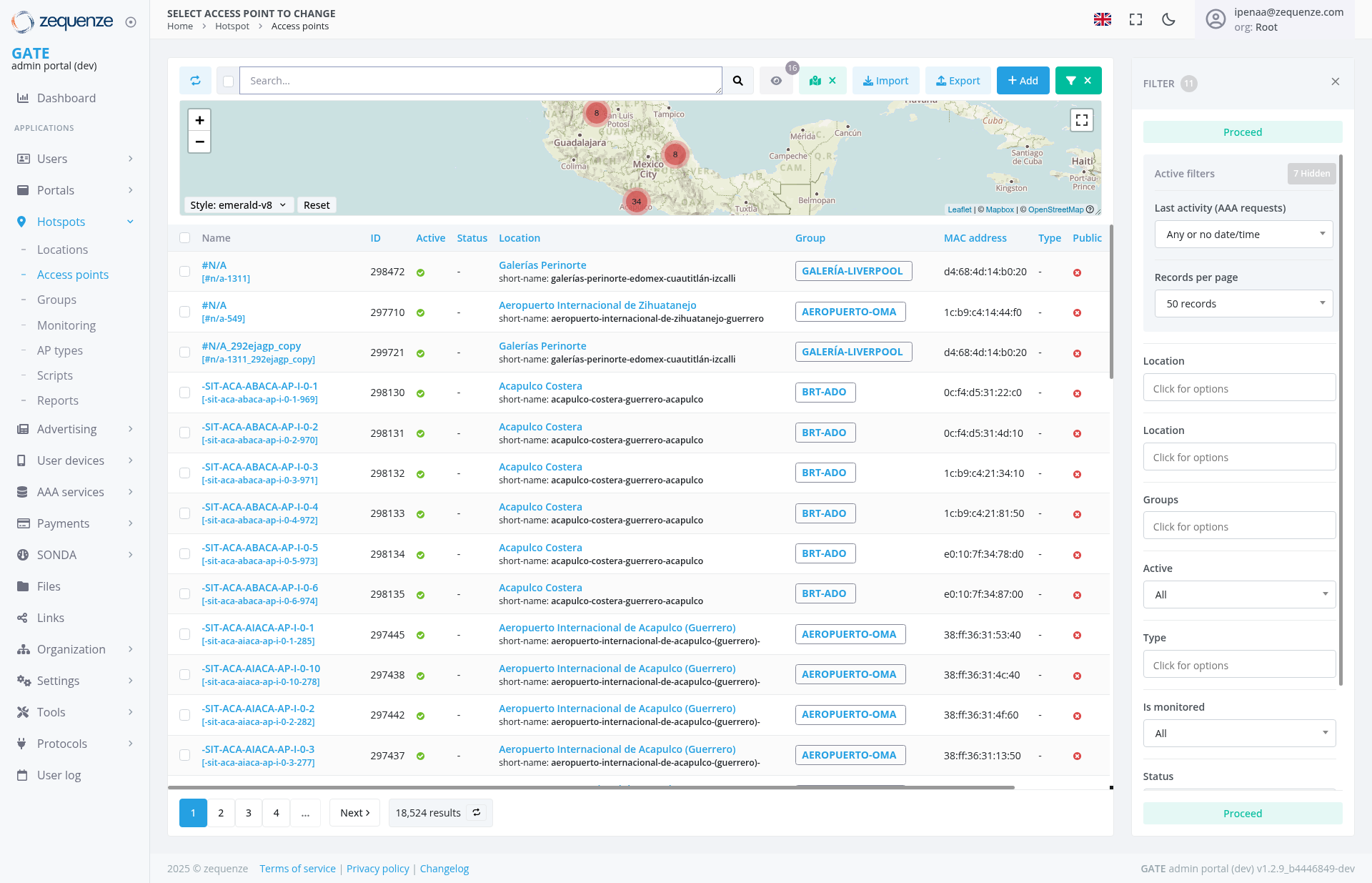
Overview
The Access Points page in the Zequenze Control Portal provides a comprehensive view and management interface for all wireless access points in your network infrastructure. This page displays real-time information about access point status, locations, configurations, and performance metrics across multiple sites including airports, shopping centers, and other venues.
Key Features
Real-time Access Point Monitoring: View live status of all access points with active/inactive indicators
Geographic Visualization: Interactive map showing physical locations of access points
Multi-site Management: Support for various location types including airports (Acapulco Costera, Aeropuerto Internacional) and shopping centers (Galerías Perinorte)
Advanced Filtering: Comprehensive filter options for location, groups, activity status, and monitoring state
Bulk Operations: Import/export functionality for access point configurations
Detailed Device Information: MAC addresses, IP addresses, and technical specifications for each device
UI Elements
Navigation Bar
Home button for returning to main dashboard
Hotspot section with Access points subsection currently selected
User account information (ipenaac@zequenze.com) in top right
Language selector and settings icons
Main Interface
Search Bar: Global search functionality across all access points
Action Buttons:
Import: Upload access point configurations
Export: Download current access point data
Add: Create new access point entries
Interactive Map: Geographic visualization with location markers
Data Table: Detailed listing of all access points with sortable columns
Filter Panel (Right Side)
Active Filters: Shows currently applied filters with count (7 Add-on)
Last Activity: Filter by AAA request timestamps
Records Per Page: Pagination controls
Location Filters: Multi-select location options
Group Filters: Organize by access point groups
Status Filters: Active/inactive state filtering
Monitoring Status: Filter by monitoring state
Data Displayed
The main table shows critical access point information:
Name: Device identifier with technical specifications
ID: Unique numerical identifier for each access point
Active Status: Green checkmarks indicate operational devices
Location: Detailed venue information including:
Galerías Perinorte (shopping center)
Aeropuerto Internacional de Zihuatanejo
Acapulco Costera (coastal area)
Aeropuerto Internacional de Acapulco (Guerrero)
Group Assignment: Organizational categories (GALERÍA-LIVERPOOL, AEROPUERTO-OMA, BRT-ADO)
MAC Address: Hardware identification for network management
Type: Device classification and capabilities
Public Access: Configuration status for guest networks
User Interactions
Primary Actions
Search and Filter: Use the search bar and filter panel to locate specific access points
Map Navigation: Click map markers to view access points by geographic location
Data Management: Import/export access point configurations using action buttons
Device Management: Add new access points or modify existing configurations
Status Monitoring: Monitor real-time operational status and performance
Table Operations
Sorting: Click column headers to sort data
Pagination: Navigate through results using page controls (showing 18,524 total results)
Selection: Choose specific access points for bulk operations
Navigation
Access Path: Dashboard → Hotspots → Access points
Breadcrumb Navigation: Visible in left sidebar menu
Related Sections: Quick access to Locations, Groups, Monitoring, and AP types
Actions Available
Management Actions
Add New Access Point: Configure new devices for network deployment
Import Configuration: Bulk upload access point settings from external files
Export Data: Download current access point inventory and configurations
Filter and Search: Locate specific devices using multiple criteria
Status Monitoring: Track operational status and connectivity
Configuration Options
Group Assignment: Organize access points by operational groups
Location Mapping: Assign geographic and venue-specific locations
Monitoring Setup: Configure performance tracking and alerting
Network Settings: Manage IP addressing and MAC address assignments
Notes/Tips
Performance Optimization: Use filters to reduce data load when managing large networks with 18,000+ access points
Location Accuracy: The map view provides visual context for troubleshooting connectivity issues in specific areas
Status Indicators: Green checkmarks in the Active column indicate properly functioning devices requiring no immediate attention
Group Organization: Access points are logically grouped by venue type (airports, shopping centers, transportation hubs) for easier management
Real-time Updates: The interface provides live status information for immediate network health assessment
