
Services
Overview
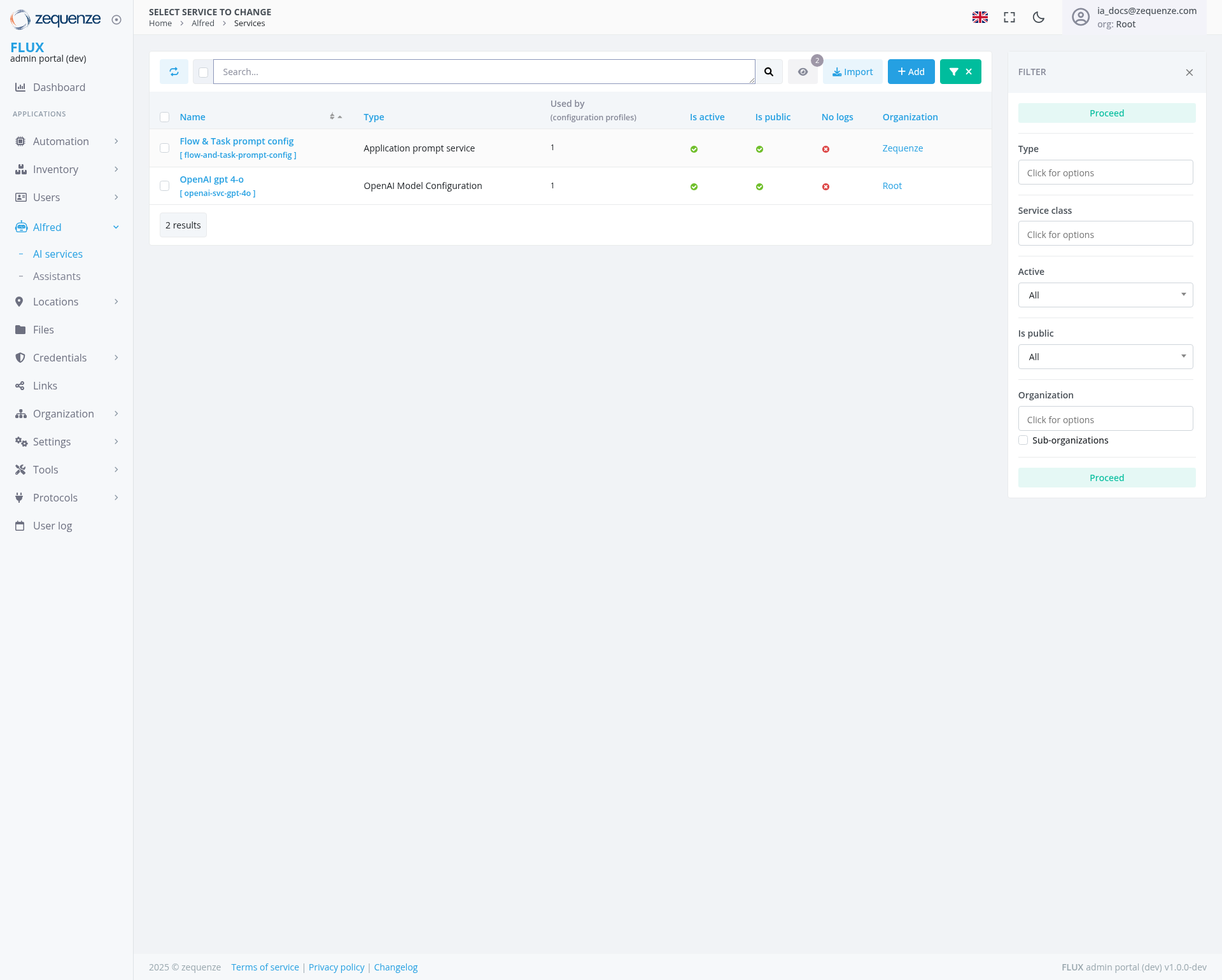
The AI Services management page in the Zequenze Control Portal provides administrators with a centralized interface to manage and monitor artificial intelligence services within the FLUX admin portal. This page displays all configured AI services, their current status, and provides tools for service management and organization.
Key Features
- Service Listing: View all AI services in a tabular format with comprehensive details
- Real-time Status Monitoring: Track active/inactive status and public accessibility of services
- Organization Management: Filter and organize services by organizational units
- Configuration Management: Access to service configurations and profiles
- Bulk Operations: Import and add multiple services efficiently
- Advanced Filtering: Multiple filter options to refine service views
UI Elements
Main Navigation
Service Management Table
The main table displays the following columns:
- Name: Service identifier with configuration details
- Type: Service classification (Application prompt service, OpenAI Model Configuration)
- Used by: Number of configuration profiles utilizing the service
- Is active: Green/red indicator showing service operational status
- Is public: Public accessibility status
- No logs: Log availability indicator
- Organization: Associated organizational unit
- Proceed: Action status column
Filter Panel (Right Side)
- Type: Service type selection dropdown
- Service class: Classification filter options
- Active: Status filter with "All" dropdown
- Is public: Public access filter with "All" dropdown
- Organization: Organizational unit filter with sub-organizations option
- Proceed: Action-based filtering
User Interactions
Primary Actions
- Search: Use the search bar to find specific services by name or identifier
- Add Service: Click the "Add" button to create new AI services
- Import Services: Use the "Import" function for bulk service addition
- Filter Services: Apply multiple filters simultaneously to refine the service list
Service Management
- Click on service names to access detailed configuration
- Monitor service status through visual indicators
- Access organization-specific services through the organization filter
Navigation
Access Path
Related Sections
- AI Services: Current location for service management
- Assistants: Access AI assistant configurations
- Dashboard: Return to main administrative overview
Data Displayed
The page currently shows 2 results with the following services:
- Flow & Task prompt config: Application prompt service used by 1 configuration profile
- OpenAI gpt-4-o: OpenAI Model Configuration used by 1 configuration profile
Each service displays:
- Configuration status and usage metrics
- Active/inactive operational status
- Public accessibility settings
- Organizational assignment (Zequenze, Root)
- Log availability status
Actions Available
Service Management Actions
- Create New Services: Add individual AI services through the interface
- Bulk Import: Import multiple services from external sources
- Status Monitoring: Track real-time service availability and performance
- Access Control: Manage public/private service accessibility
- Organization Assignment: Associate services with specific organizational units
Administrative Functions
- Filter and Sort: Organize services by multiple criteria
- Configuration Access: Direct access to service configuration details
- Usage Tracking: Monitor which configuration profiles utilize each service
Notes/Tips
Best Practices
- Use filters to manage large service inventories efficiently
- Monitor the "Used by" column to understand service dependencies
- Keep track of active/inactive status to ensure service availability
- Regularly review public accessibility settings for security compliance
Important Considerations
- Services marked as inactive may affect dependent applications
- Organization filters help manage multi-tenant environments
- The "No logs" indicator helps identify services requiring attention
- Configuration profiles show service utilization and dependencies
User Account Information
- Currently logged in as:
la.docs@zequenze.com - Role: Root administrator access
- Environment: FLUX admin portal (dev) v1.0.0 dev