
Dashboard: Main
Overview
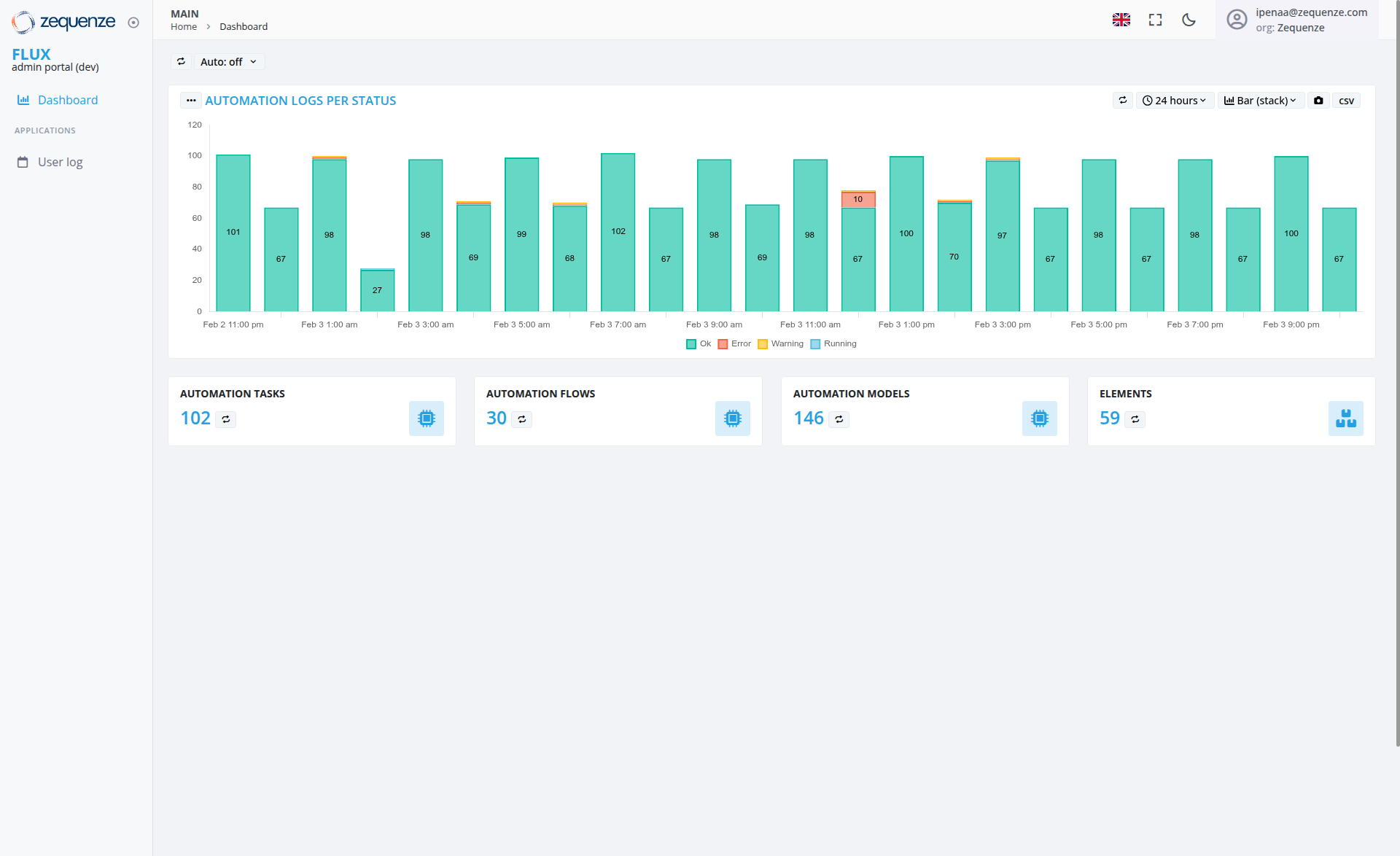
The Zequenze Control Portal Dashboard provides a comprehensive monitoring and management interface for automation systems. This main dashboard view displays real-time automation logs, performance metrics, and system statistics over a 24-hour period, enabling administrators to monitor system health and automation execution status.
Key Features
Real-Time Automation Monitoring
- Automation Logs Per Status Chart: Visual representation of automation execution logs displayed as stacked bar charts
- 24-Hour Time Period: Data visualization covering the last 24 hours with hourly breakdowns
- Status Color Coding: Teal/turquoise bars for "Ok" status, with legend showing Red for Error, Yellow for Warning, Blue for Running, and Teal for Ok states
- Numerical Data Labels: Each bar displays specific count values (ranging from 27 to 102 in the current view)
- Status Distribution: Chart shows predominantly "Ok" status executions with one notable dip and error instance during the monitoring period
System Metrics Dashboard
Four key metric cards displaying:
- Automation Tasks: 102 total tasks
- Automation Flows: 30 active flows
- Automation Models: 146 configured models
- Elements: 59 system elements
UI Elements
Navigation Sidebar
- FLUX admin portal (dev): Main system identifier
- Dashboard: Currently active section
-
Applications Section:
- User log
Top Navigation Bar
Chart Controls
- Auto-refresh Toggle: Set to "Auto: off" with dropdown options
- Time Period Selector: "24 hours" with dropdown for different time ranges
- Data Export Options: "Bar (stack)" view selector and CSV export functionality
User Interactions
Dashboard Monitoring
- Real-time Data Viewing: Monitor automation execution patterns throughout the day
- Status Analysis: Identify peak automation periods and potential issues including system anomalies
- Time-based Filtering: Adjust time periods to view different data ranges
Navigation Options
Navigation
Access Path
-
URL:
https://flux-dev.zequenze.com/admin/ - Direct Access: Main landing page after login to the admin portal
- Breadcrumb: Home > Dashboard
Related Sections
- User log functionality
- System configuration settings
- Automation management tools
Data Displayed
Automation Logs Chart
- Time Range: February 2, 11:00 PM through February 3, 9:00 PM (24-hour period)
- Data Points: Hourly snapshots of automation execution
- Status Values: Numerical counts ranging from 27 to 102 executions per hour
- Activity Pattern: Variable automation activity with most hours showing 67-102 executions, including one significant dip to 27 executions and one error instance
- Status Indicators: Bars primarily show teal "Ok" status with one red "Error" bar and one yellow "Warning" indicator during the monitoring period
- Status Legend: Shows Ok (teal), Error (red), Warning (yellow), and Running (blue) status indicators
System Statistics
- Current Counts: Real-time metrics for all major system components
- Resource Overview: Quick assessment of system configuration and capacity
Actions Available
Dashboard Management
- Export Data: Download chart data in CSV format for external analysis
- Refresh Controls: Toggle auto-refresh or manually update data
- View Selection: Change between different chart visualization modes
System Navigation
- Deep Dive Analysis: Click on metric cards to access detailed management interfaces
- User Log Access: Navigate to user activity logging through the sidebar
- Configuration Access: Navigate to settings and configuration sections
Notes/Tips
Best Practices
- Regular Monitoring: Check the automation logs chart regularly to identify patterns or anomalies
- Peak Hour Analysis: Use the hourly breakdown to optimize automation scheduling
- Status Monitoring: Watch for color changes in the chart bars that might indicate warnings or errors
- Volume Anomaly Detection: Pay attention to significant drops in execution volume that may indicate system issues
Performance Insights
- Activity Patterns: The chart shows variable automation execution with values between 27-102 per hour, including notable anomalies that require attention
- System Health: Mix of successful executions with some error and warning instances indicating areas needing investigation
- Resource Planning: Use the metrics to plan for system capacity and resource allocation
- Trend Analysis: Monitor changes in automation volume over time to identify growth patterns and potential issues
System Health Indicators
- Status Variation: Chart shows predominantly successful executions (teal) with some error (red) and warning (yellow) instances requiring attention
- Volume Fluctuation: Significant variation in execution volumes indicating potential system performance issues during specific time periods
- Error Detection: Clear visual indicators help identify when and where issues occurred during the monitoring period
- 24/7 Monitoring: Continuous data collection enables proactive system management and real-time issue identification