
Automation schedules
Overview
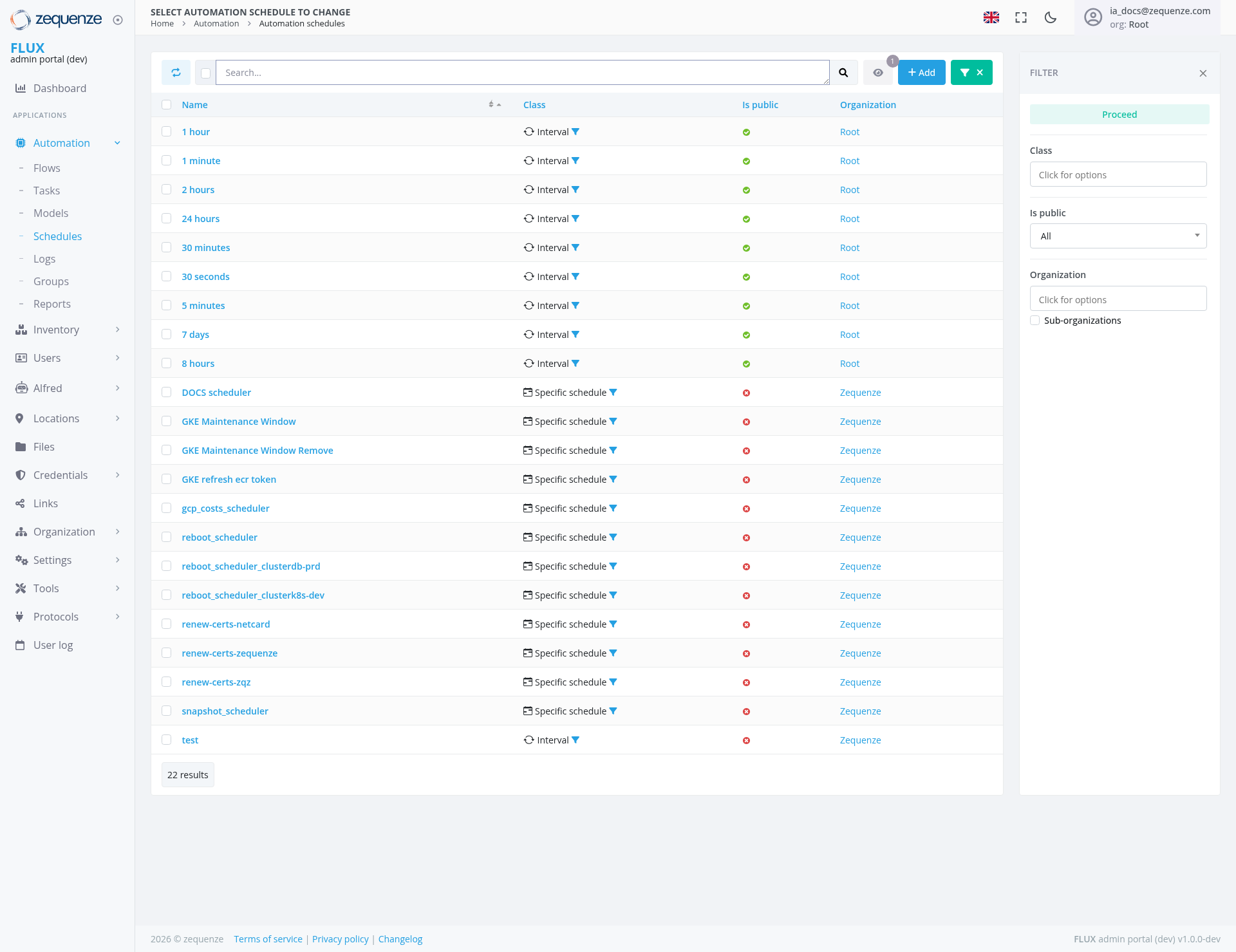
The Automation Schedules page in the Zequenze Control Portal provides a centralized view for managing all automation schedules within the system. This interface allows administrators to view, filter, and manage both interval-based and specific schedules that control various automated processes across the platform.
Key Features
Schedule Management Interface
- Comprehensive Schedule Listing: Displays all automation schedules in a structured table format
- Dual Schedule Types: Shows both Interval schedules (recurring time-based) and Specific schedules (targeted automation tasks)
- Public/Private Classification: Visual indicators showing whether schedules are publicly accessible
- Organization-based Grouping: Schedules are organized by their associated organizations (Root, Zequenze)
Advanced Filtering System
- Multi-criteria Filtering: Filter by Class, Public status, and Organization
- Real-time Search: Search functionality to quickly locate specific schedules
- Expandable Filter Panel: Dedicated filter sidebar with expandable sections for Class, Is public, and Organization
- Sub-organization Options: Organization filter includes sub-organization capabilities
UI Elements
Main Table Structure
- Name Column: Lists schedule names with time-based identifiers (1 hour, 5 minutes, etc.)
- Class Column: Shows schedule type with visual icons (Interval ⏱ or Specific schedule 📋)
- Is Public Column: Green checkmarks (✓) for public schedules, red X marks for private
- Organization Column: Displays the owning organization with clickable links
Control Panel
Filter Panel Interface
- Header Section: "FILTER" title with close button (✗) in the top-right corner
- Class Filter: "Class" section with "Click for options" placeholder text
- Public Status Filter: "Is public" section with "All" dropdown selector
- Organization Filter: "Organization" section with "Click for options" placeholder text and "Sub-organizations" label underneath
Header Section
- Page Title: "SELECT AUTOMATION SCHEDULE TO CHANGE" prominently displayed at the top
- Breadcrumb Navigation: Clear path showing: Home > Automation > Automation schedules
User Interactions
Viewing Schedules
- Browse through 22 available automation schedules
- Sort schedules by clicking column headers
- View schedule details by clicking on schedule names
Filtering and Search
- Text Search: Use the search bar to find schedules by name
- Class Filter: Select between Interval and Specific schedule types with "Click for options" dropdown
- Public Status Filter: Choose "All" or filter by public/private status with dropdown selection
- Organization Filter: Filter by Root, Zequenze, or other organizations with "Click for options" dropdown and sub-organization support
- Filter Panel Management: Open/close the filter panel using the "FILTER" button and close it with the ✗ button
Schedule Management
- Create New: Click the "+ Add" button to create new automation schedules
- Delete Existing: Use the red "✗" button to remove selected schedules
- Edit Existing: Click on schedule names to modify configurations
- Organization Links: Click organization names to view related resources
Navigation
Accessing This Page
- From the main dashboard: Navigate to Automation > Schedules
- Via the left sidebar: Click "Automation" then "Schedules"
- Direct URL:
/admin/automation/schedule/
Related Navigation
- Flows: Access automation workflows
- Tasks: View automation tasks
- Models: Manage automation models
- Logs: Review automation execution logs
Data Displayed
Schedule Types
-
Interval Schedules (Time-based recurring):
- 1 hour, 1 minute, 2 hours, 24 hours
- 30 minutes, 30 seconds, 5 minutes
- 7 days, 8 hours
- test (additional interval schedule)
- All marked as public and owned by Root organization
-
Specific Schedules (Task-specific):
- DOCS scheduler
- GKE Maintenance Windows and operations (including GKE Maintenance Window, GKE Maintenance Window Remove)
- Token refresh operations (GKE refresh ecr token)
- Cost management (gcp_costs_scheduler)
- Certificate renewal processes (renew-certs-netcard, renew-certs-zequenze, renew-certs-zqz)
- Reboot schedulers for different environments (reboot_scheduler, reboot_scheduler_clusterdb-prd, reboot_scheduler_clusterks-dev)
- Snapshot management (snapshot_scheduler)
- All marked as private and owned by Zequenze organization
Visual Indicators
- Green Checkmarks: Public schedules
- Red X Marks: Private schedules
- Blue Links: Clickable organization and schedule names
- Icons: Distinguish between Interval (⏱) and Specific (📋) schedules
Actions Available
Primary Actions
- Create Schedule: Add new automation schedules using the "+ Add" button
- Delete Schedule: Remove schedules using the red "✗" button in the control panel
- Edit Schedule: Modify existing schedules by clicking on their names
- Filter Results: Use the expandable filter panel with multiple criteria to narrow down the schedule list
- Search Schedules: Quickly locate specific schedules using the search function
- Toggle Filter Panel: Open and close the filter panel using the "FILTER" button and close (✗) button
Secondary Actions
Notes/Tips
Best Practices
- Naming Convention: Notice that interval schedules use time-based names for easy identification
- Organization Structure: Most interval schedules belong to "Root" while specific tasks belong to "Zequenze"
- Public vs Private: Consider security implications when setting schedule visibility
Important Considerations
- Schedule Dependencies: Some schedules may depend on others (like maintenance windows before reboots)
- Resource Impact: Be aware that frequent interval schedules can impact system resources
- Monitoring: Regularly check the Logs section to ensure schedules are executing properly
- Deletion Warning: Use the delete function carefully as it may permanently remove automation schedules
Filter Usage Tips
- Use the "All" option in filters to see the complete list
- Combine multiple filters for precise schedule location
- Utilize sub-organization filtering for more granular organization-based searches
- Close the filter panel to maximize viewing space for the schedule list