Automation schedules
Generating documentation...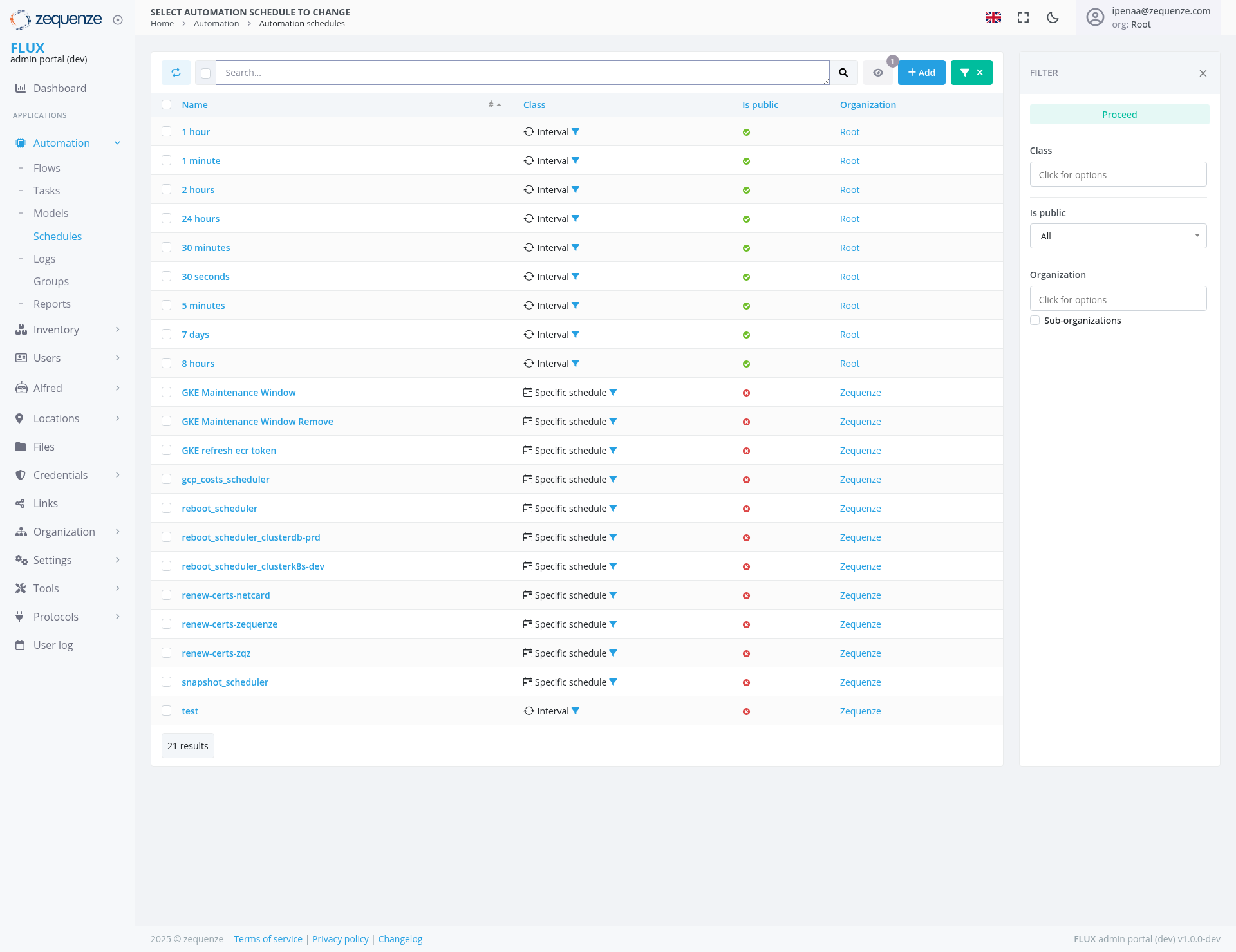
Overview
The Automation Schedules page in the Zequenze Control Portal provides a centralized view for managing all automation schedules within the system. This interface allows administrators to view, filter, and manage both interval-based and specific schedules that control various automated processes across the platform.
Key Features
Schedule Management Interface
Comprehensive Schedule Listing: Displays all automation schedules in a structured table format
Dual Schedule Types: Shows both Interval schedules (recurring time-based) and Specific schedules (targeted automation tasks)
Public/Private Classification: Visual indicators showing whether schedules are publicly accessible
Organization-based Grouping: Schedules are organized by their associated organizations (Root, Zequenze)
Advanced Filtering System
Multi-criteria Filtering: Filter by Class, Public status, and Organization
Real-time Search: Search functionality to quickly locate specific schedules
Dropdown Selectors: Easy-to-use filter controls with "Click for options" interface
UI Elements
Main Table Structure
Name Column: Lists schedule names with time-based identifiers (1 hour, 5 minutes, etc.)
Class Column: Shows schedule type with visual icons (Interval ⏰ or Specific schedule 📋)
Is Public Column: Green checkmarks (✓) for public schedules, red X marks for private
Organization Column: Displays the owning organization with clickable links
Control Panel
Add Button: Green "+ Add" button for creating new schedules
Filter Toggle: Collapsible filter panel on the right side
Search Bar: Located at the top for quick schedule lookup
Refresh Controls: Standard interface refresh and view options
Navigation Breadcrumbs
Clear path showing: Home > Automation > Automation schedules
User Interactions
Viewing Schedules
Browse through 21 available automation schedules
Sort schedules by clicking column headers
View schedule details by clicking on schedule names
Filtering and Search
Text Search: Use the search bar to find schedules by name
Class Filter: Select between Interval and Specific schedule types
Public Status Filter: Choose "All" or filter by public/private status
Organization Filter: Filter by Root, Zequenze, or other organizations
Schedule Management
Create New: Click the "+ Add" button to create new automation schedules
Edit Existing: Click on schedule names to modify configurations
Organization Links: Click organization names to view related resources
Navigation
Accessing This Page
From the main dashboard: Navigate to Automation > Schedules
Via the left sidebar: Click "Automation" then "Schedules"
Direct URL: /admin/automation/schedule/
Flows: Access automation workflows
Tasks: View automation tasks
Models: Manage automation models
Logs: Review automation execution logs
Data Displayed
Schedule Types
Interval Schedules (Time-based recurring):
1 hour, 1 minute, 2 hours, 24 hours
30 minutes, 30 seconds, 5 minutes
7 days, 8 hours
All marked as public and owned by Root organization
Specific Schedules (Task-specific):
GKE Maintenance Windows and operations
Certificate renewal processes (renew-certs-netcard, renew-certs-zequenze, renew-certs-zqz)
Reboot schedulers for different environments
Snapshot management
Token refresh operations
Visual Indicators
Green Checkmarks: Public schedules
Red X Marks: Private schedules
Blue Links: Clickable organization and schedule names
Icons: Distinguish between Interval (⏰) and Specific (📋) schedules
Actions Available
Primary Actions
Create Schedule: Add new automation schedules using the "+ Add" button
Edit Schedule: Modify existing schedules by clicking on their names
Filter Results: Use multiple filter criteria to narrow down the schedule list
Search Schedules: Quickly locate specific schedules using the search function
Secondary Actions
Navigate Organizations: Click organization links to view related resources
Refresh View: Update the schedule list with current data
Export/Print: Standard browser functions for documentation
Notes/Tips
Best Practices
Naming Convention: Notice that interval schedules use time-based names for easy identification
Organization Structure: Most interval schedules belong to "Root" while specific tasks belong to "Zequenze"
Public vs Private: Consider security implications when setting schedule visibility
Important Considerations
Schedule Dependencies: Some schedules may depend on others (like maintenance windows before reboots)
Resource Impact: Be aware that frequent interval schedules can impact system resources
Monitoring: Regularly check the Logs section to ensure schedules are executing properly
Filter Usage Tips
Use the "All" option in filters to see the complete list
Combine multiple filters for precise schedule location
Clear filters periodically to ensure you're seeing all relevant schedules
