IPsec Configuration
Overview
This guide explains how to configure an IPsec VPN tunnel between RouterOS and CONTROL. The configuration process involves setting up both endpoints to establish a secure site-to-site connection.
Part 1: RouterOS Configuration
Initial Access
- Log in to RouterOS using your default credentials
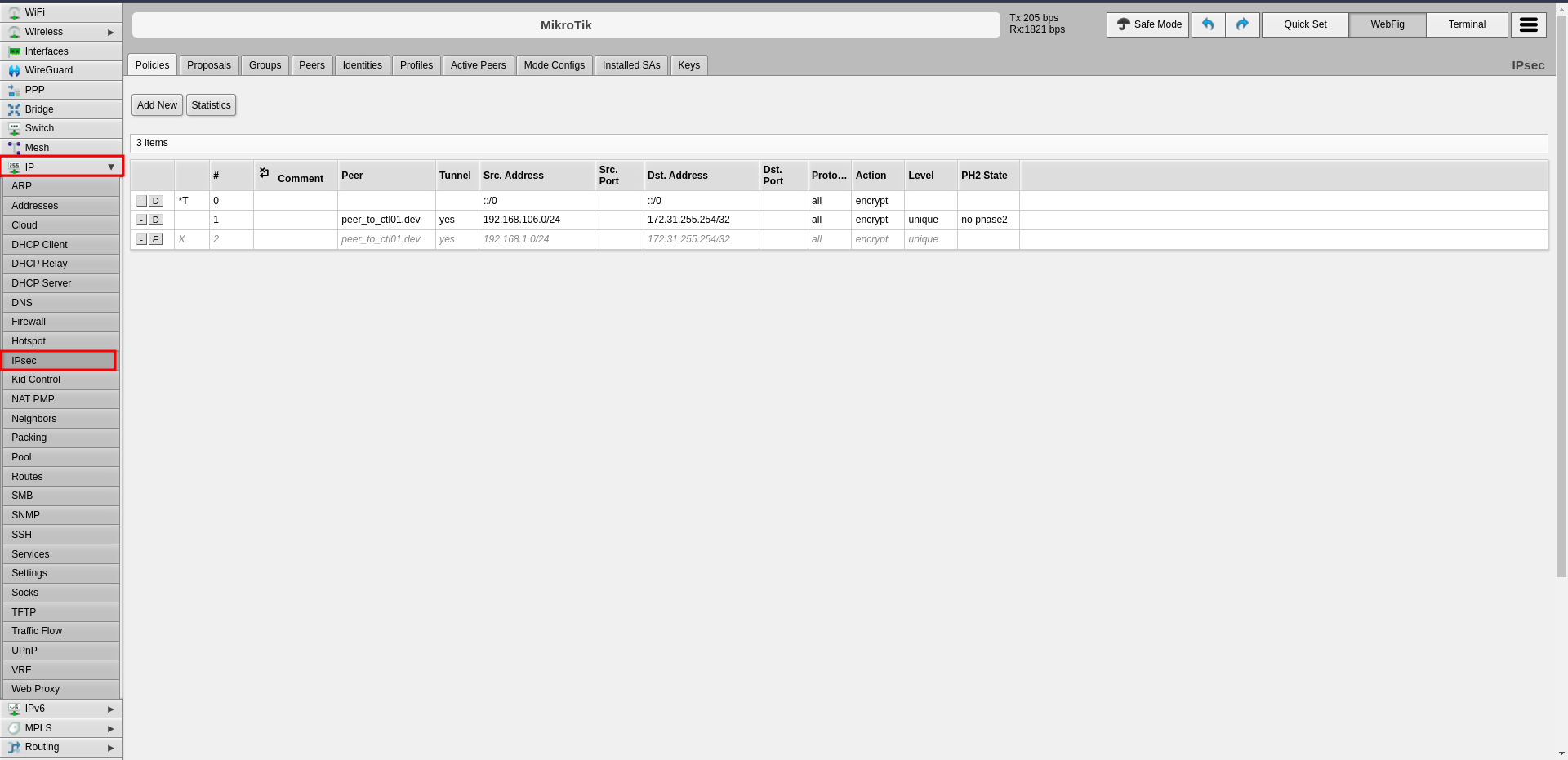
- Navigate to IP → IPsec in the left-side menu
Step 1: Configure Profiles (Phase 1)
The profile defines Phase 1 parameters for the IPsec connection.
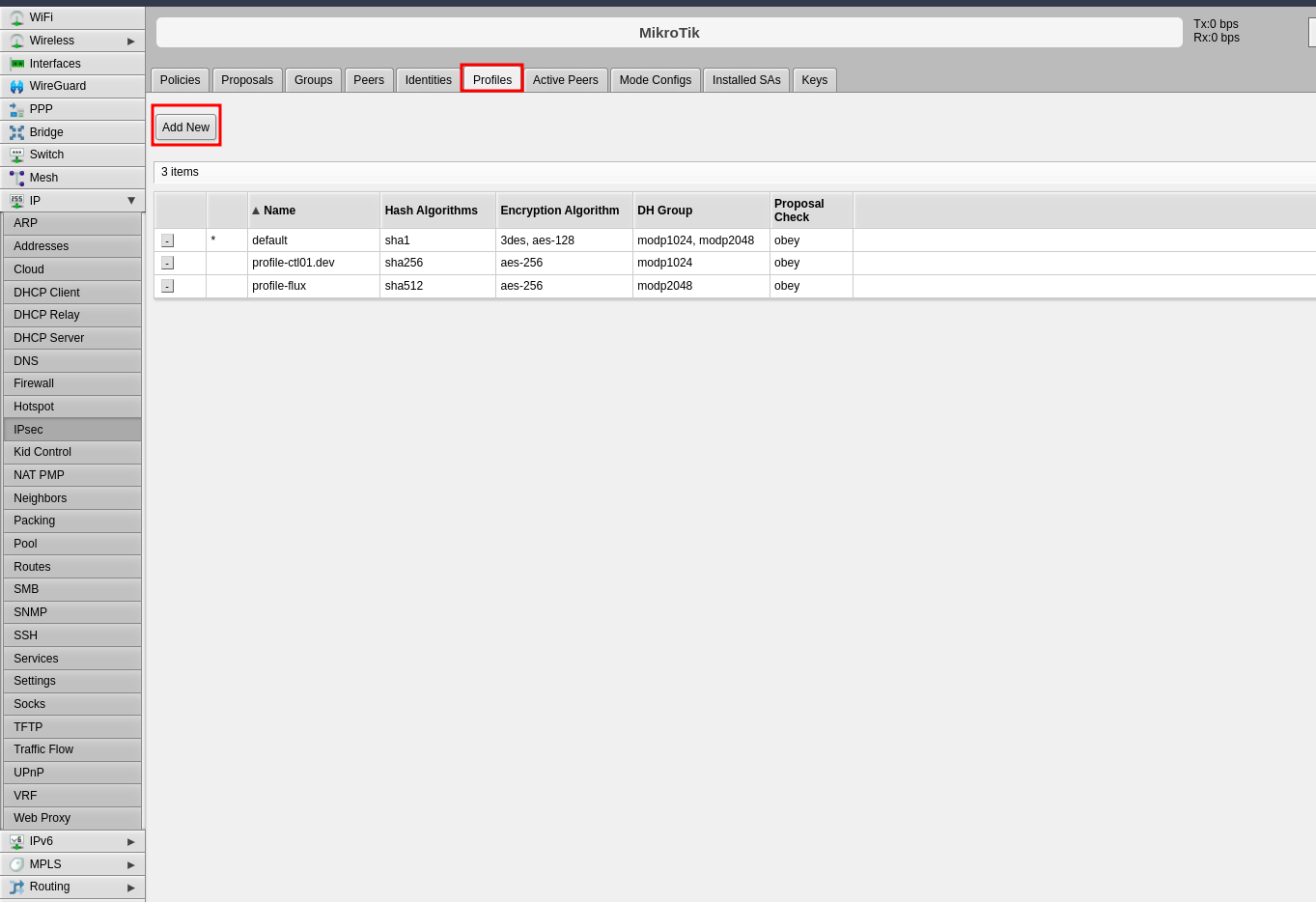
- Click the Profiles tab in the center panel
- Click Add New to create a new profile
-
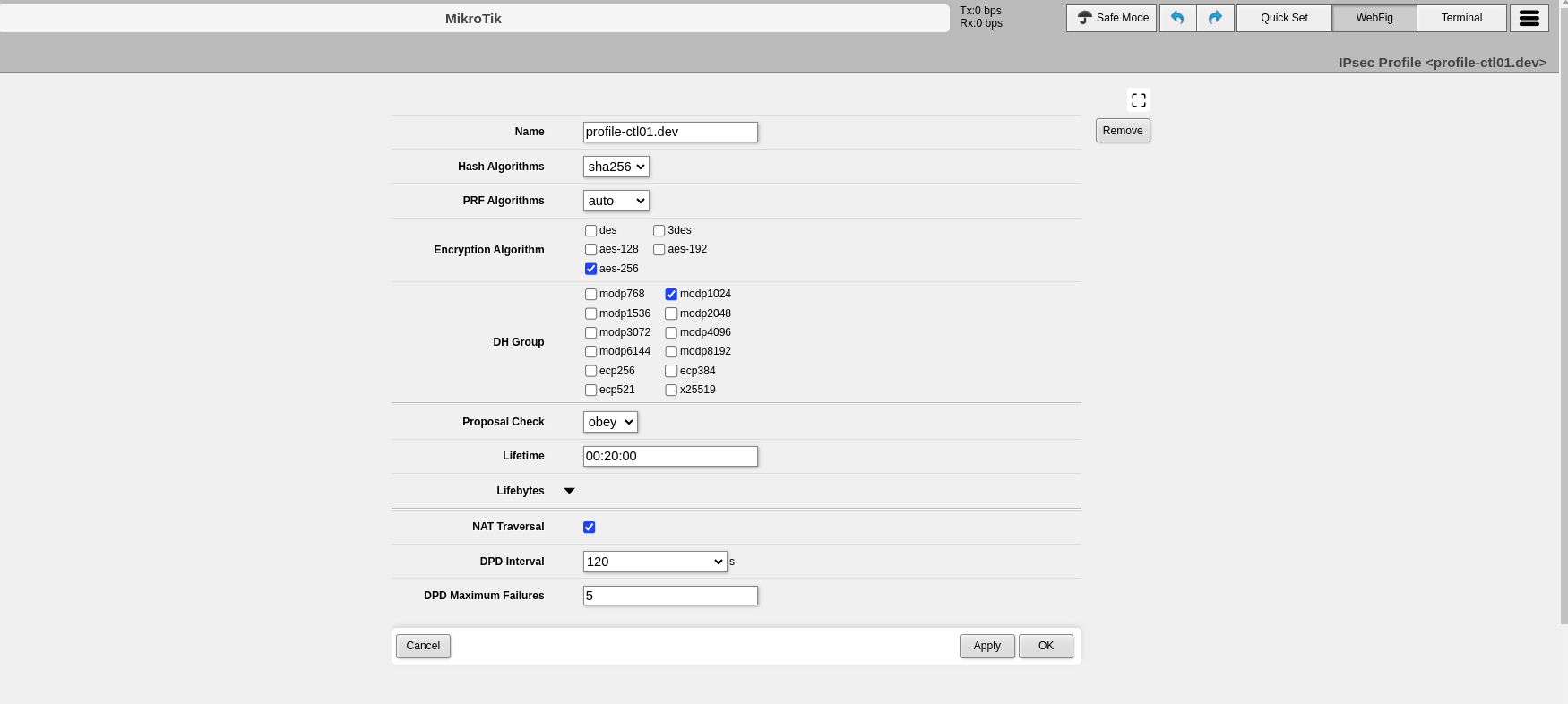
Configure the following Phase 1 parameters:
Name: Enter a descriptive name to identify the profile (e.g., "profile-to-ctl01.dev")Hash Algorithms: Select a hash algorithm that matches the configuration on the remote endpointEncryption Algorithm: Choose an encryption algorithm that matches the remote endpoint configurationLifetime: Leave the default value (measured in seconds)NAT Traversal: Enable this option if the router is behind NATDPD Interval: Leave the default value for Dead Peer Detection and note this numberDPD Maximum Failures: Leave the default value
-
Click Apply, then click OK
Step 2: Configure Peers
The peer configuration defines the remote VPN endpoint.
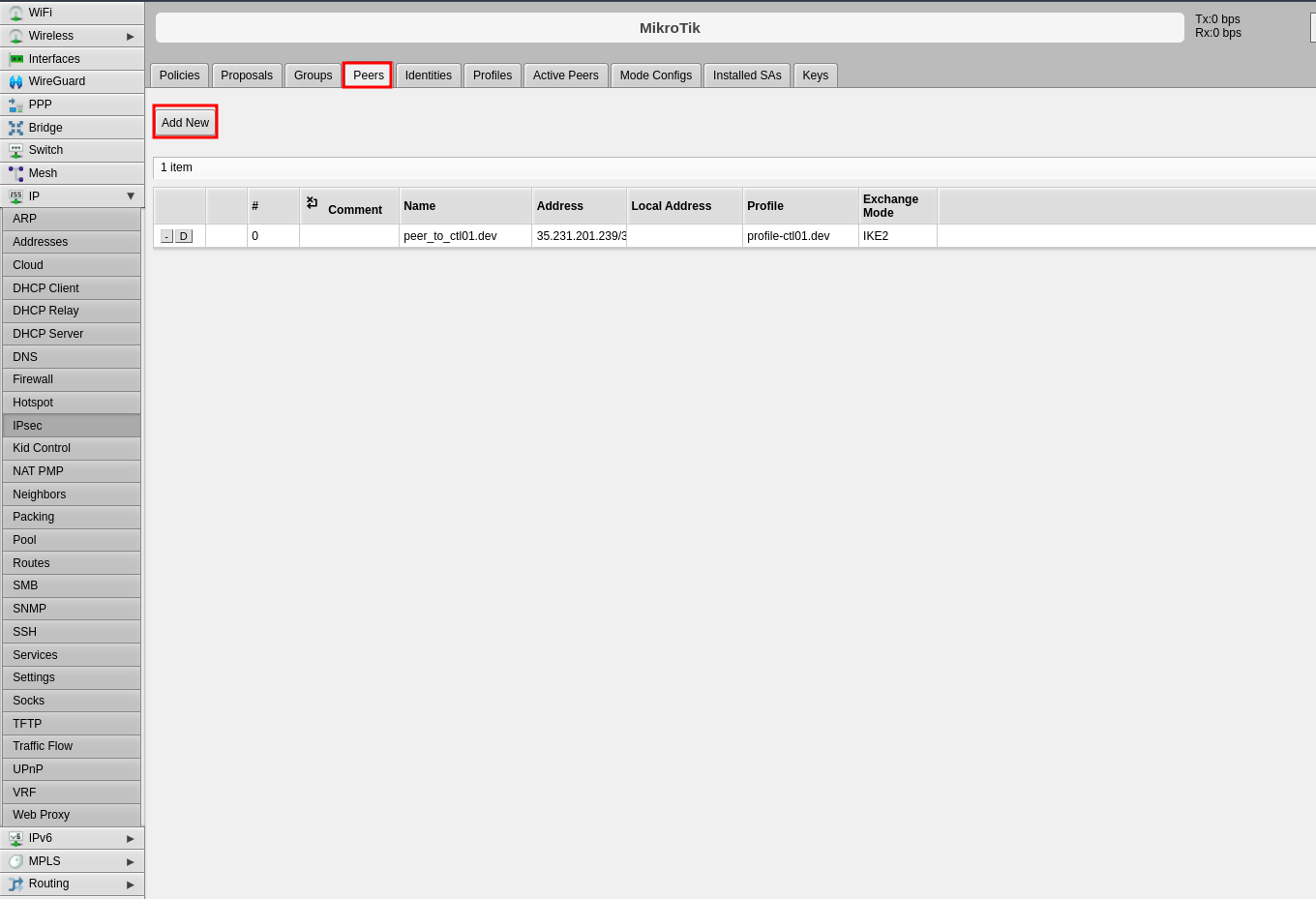
- Click the Peers tab
- Click Add New
-
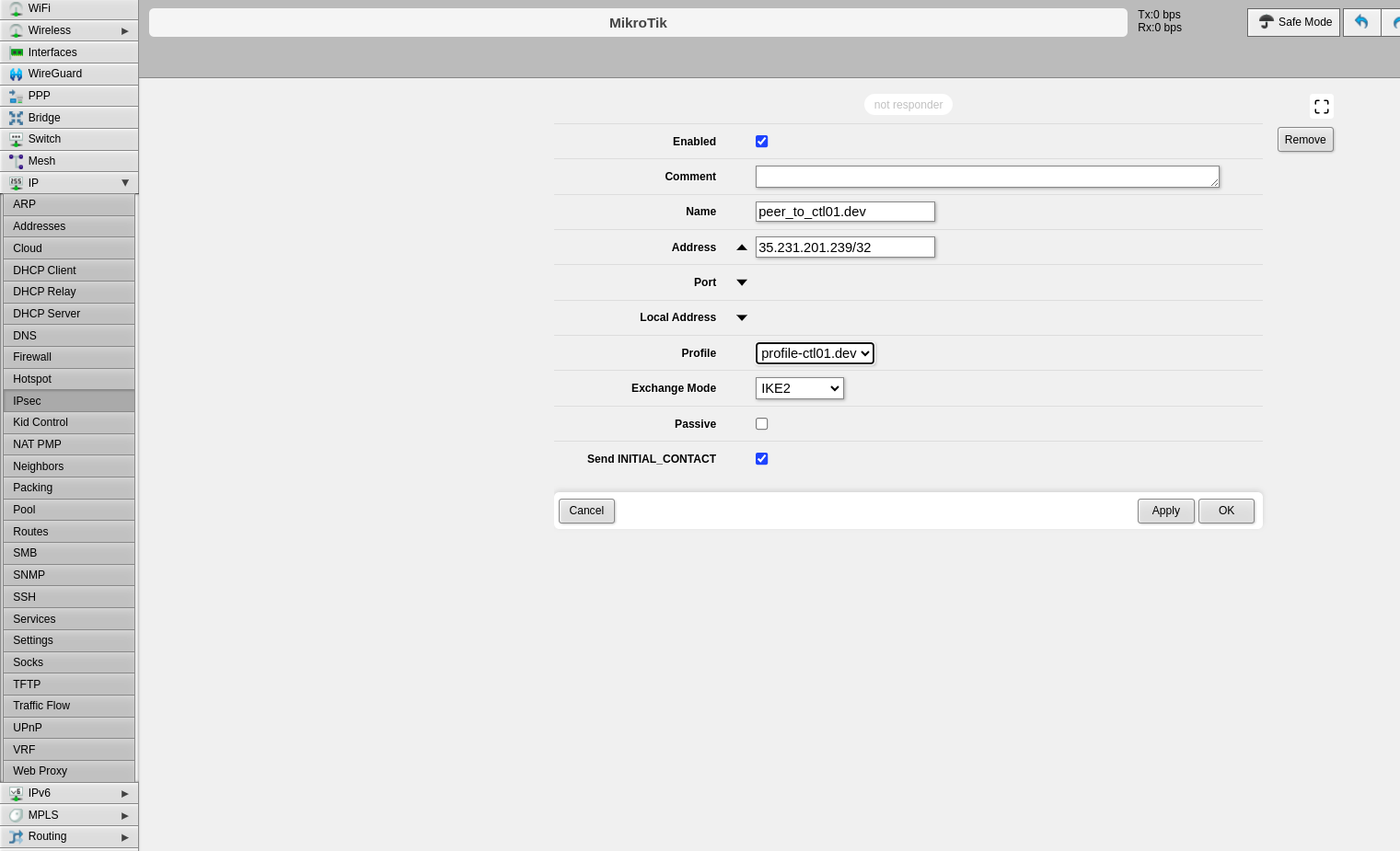
Configure the following fields:
Name: Enter a name to identify the remote peerAddress: Enter the remote public IP address (e.g., 35.35.35.22/32)Profile: Select the profile created in Step 1Exchange Mode: Select the exchange mode (IKE2 is recommended)
-
Click Apply, then click OK
Step 3: Configure Identities
The identities configuration defines authentication credentials.
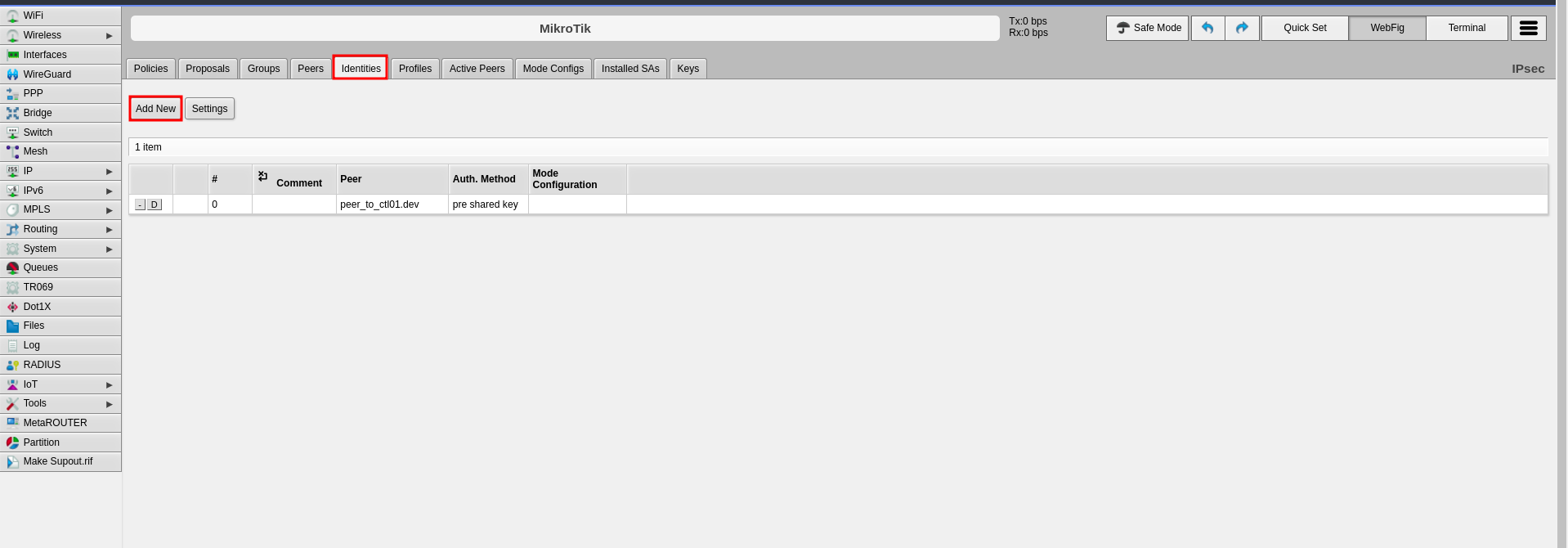
- Click the Identities tab
- Click Add New
-
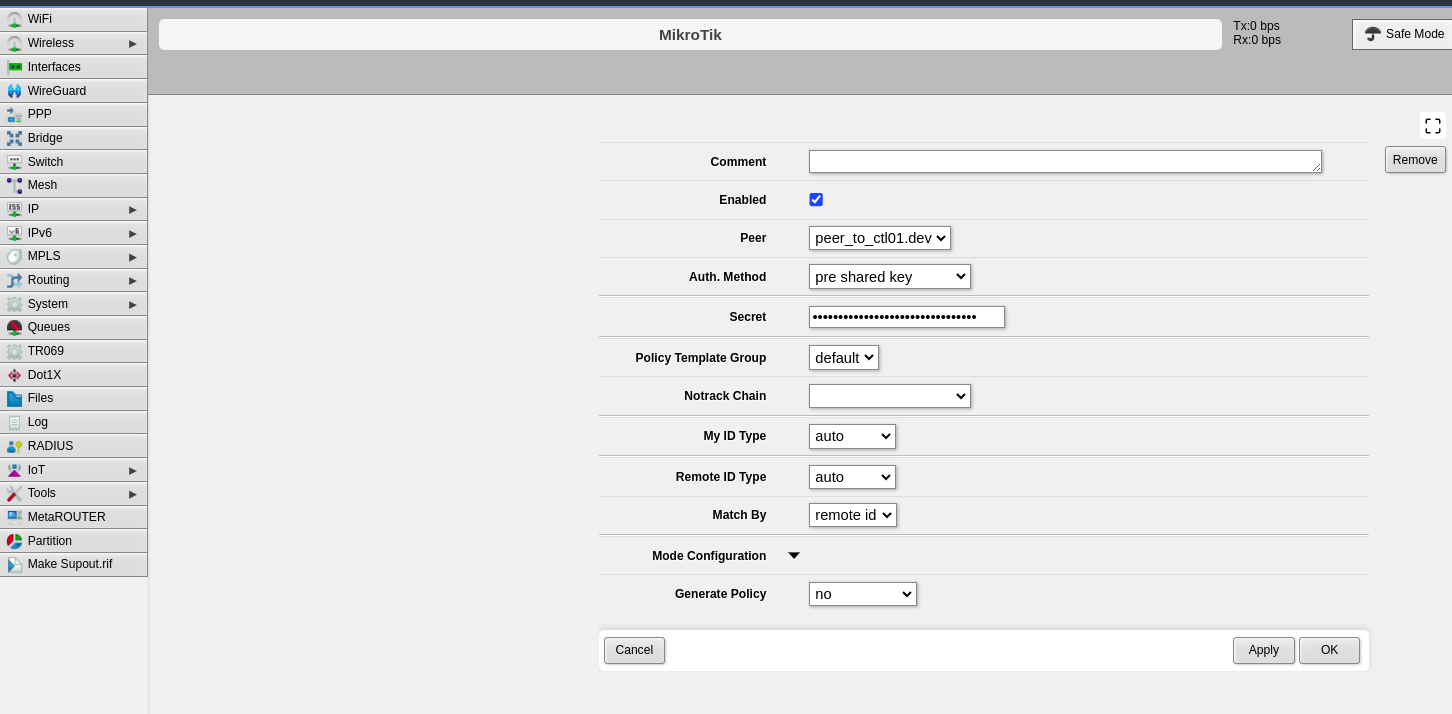
Configure the following fields:
Peer: Select the peer configured in Step 2Auth. Method: Select "pre shared key"Secret: Enter the pre-shared key that will be configured on both endpoints
-
Click Apply, then click OK
Step 4: Configure Proposals (Phase 2)
The proposal defines Phase 2 parameters for the IPsec connection.
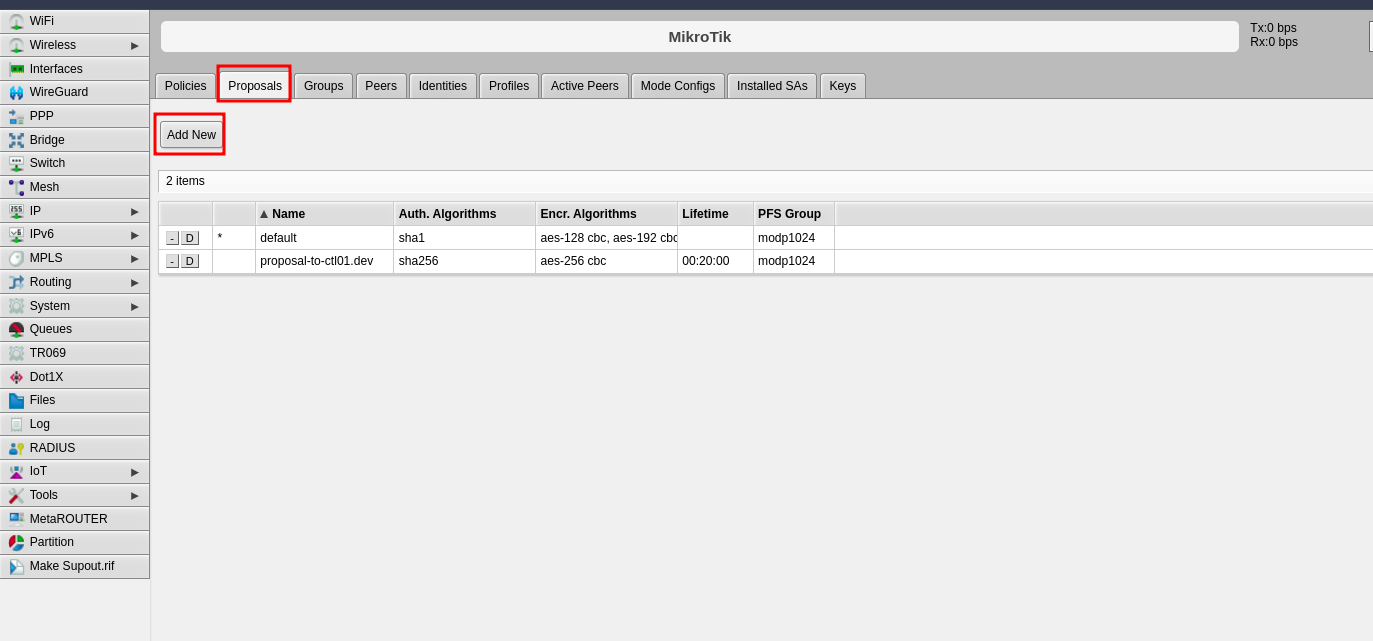
- Click the Proposals tab
- Click Add New
-
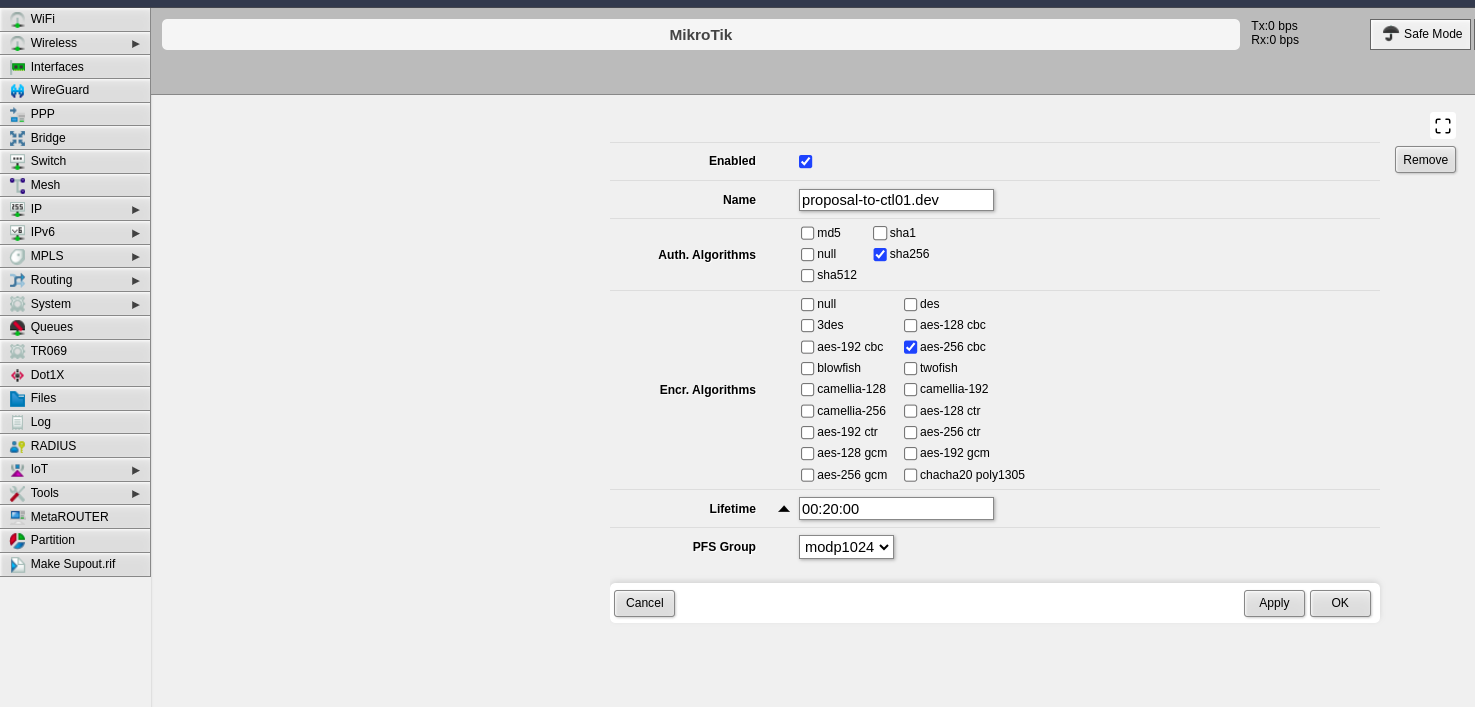
Configure the following Phase 2 parameters:
Name: Enter a name to identify this proposalAuth. Algorithms: Select the authentication algorithm to be used on both endpointsEncr. Algorithms: Select the encryption algorithm to be used on both endpointsLifetime: Set the lifetime for Phase 2PFS Group: Select the Diffie-Hellman group for Perfect Forward Secrecy (PFS). This determines the session key generation during key exchange
-
Click Apply, then click OK
Step 5: Configure Policies
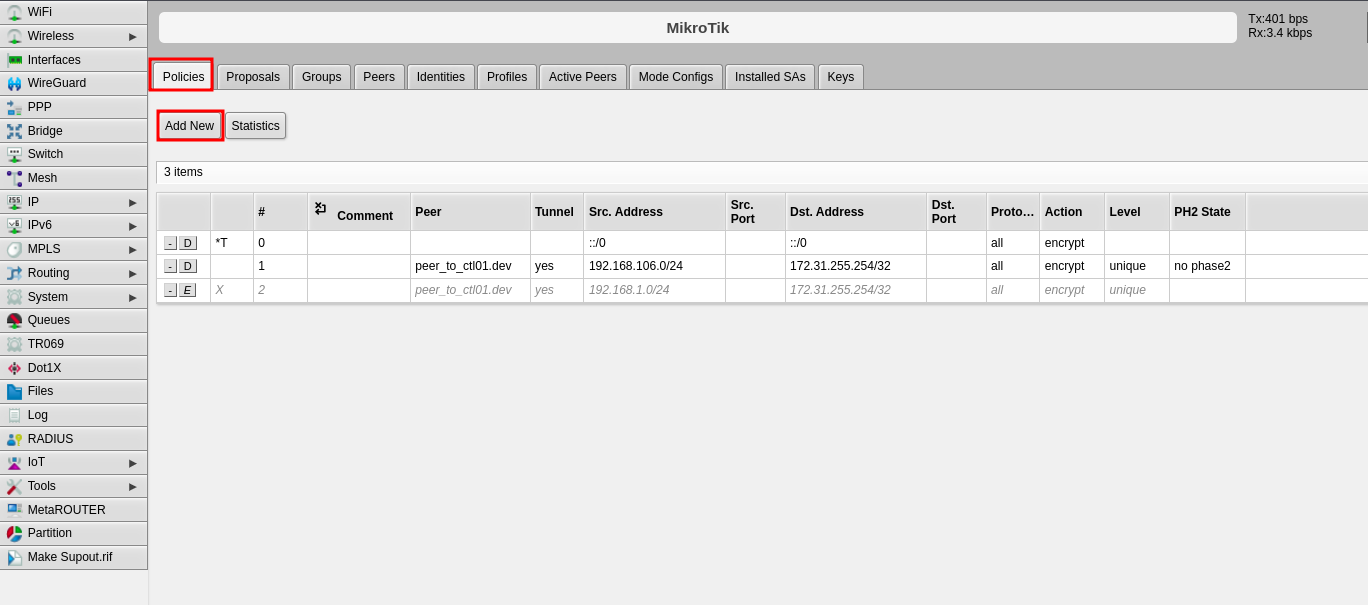
The policy defines which traffic should pass through the VPN tunnel.
- Click the Policies tab
- Click Add New
-
Configure the following fields:
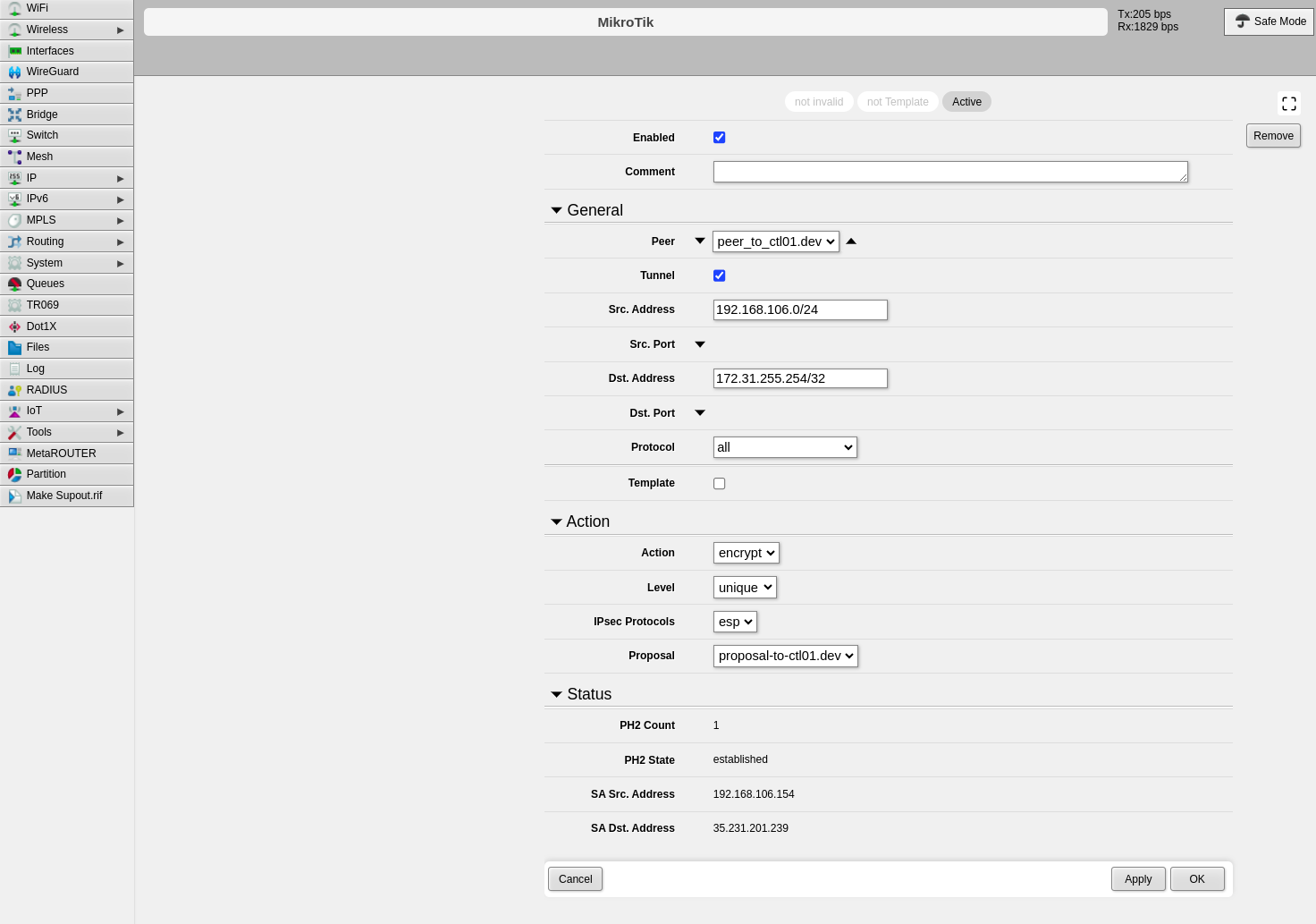
Peer: Select the peer configured in Step 2Tunnel: Enable this option to establish the tunnel between both sitesSrc. Address: Enter the local IP address or network that will pass through the tunnelDst. Address: Enter the remote IP address or network that will be received from the other endLevel: Select "unique"Proposal: Select the proposal created in Step 4
-
Click Apply, then click OK
Part 2: CONTROL Configuration
Initial Navigation
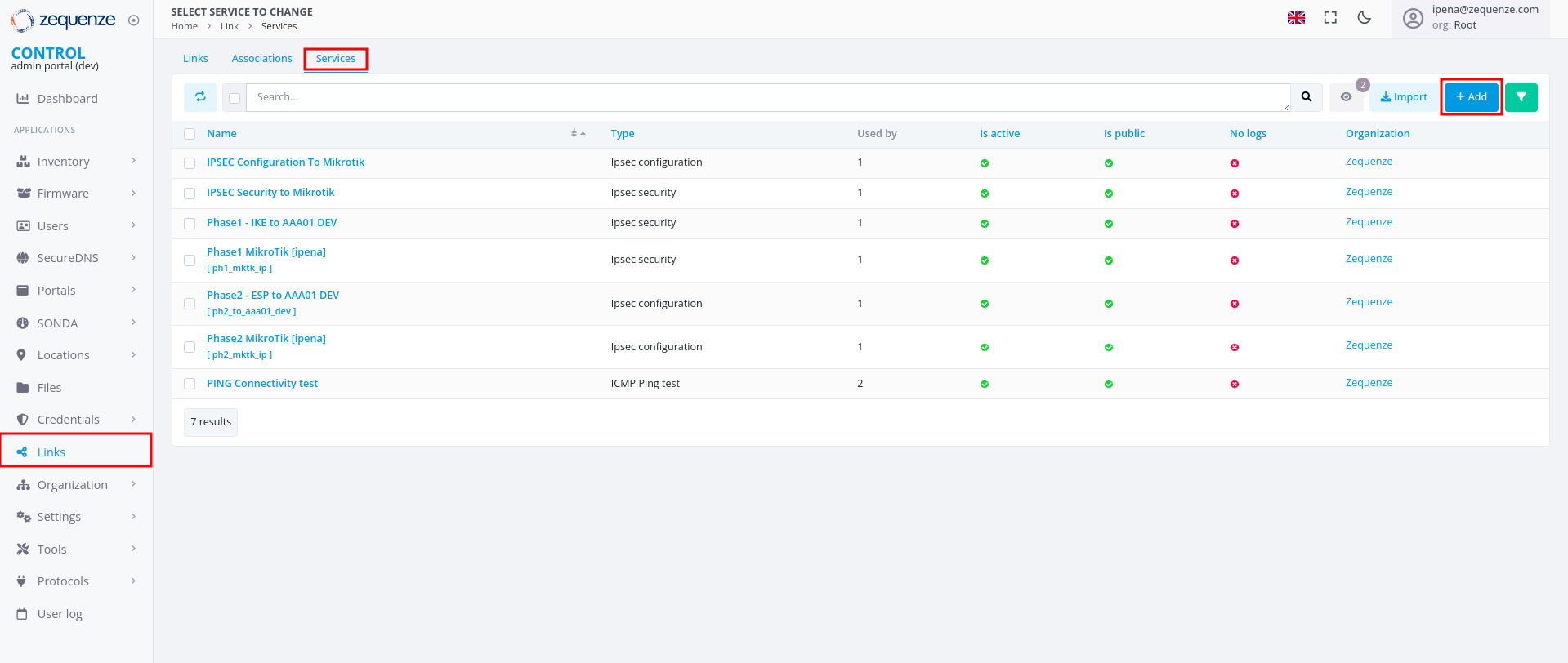
Step 1: Create IPsec Security Service (Phase 1)
-
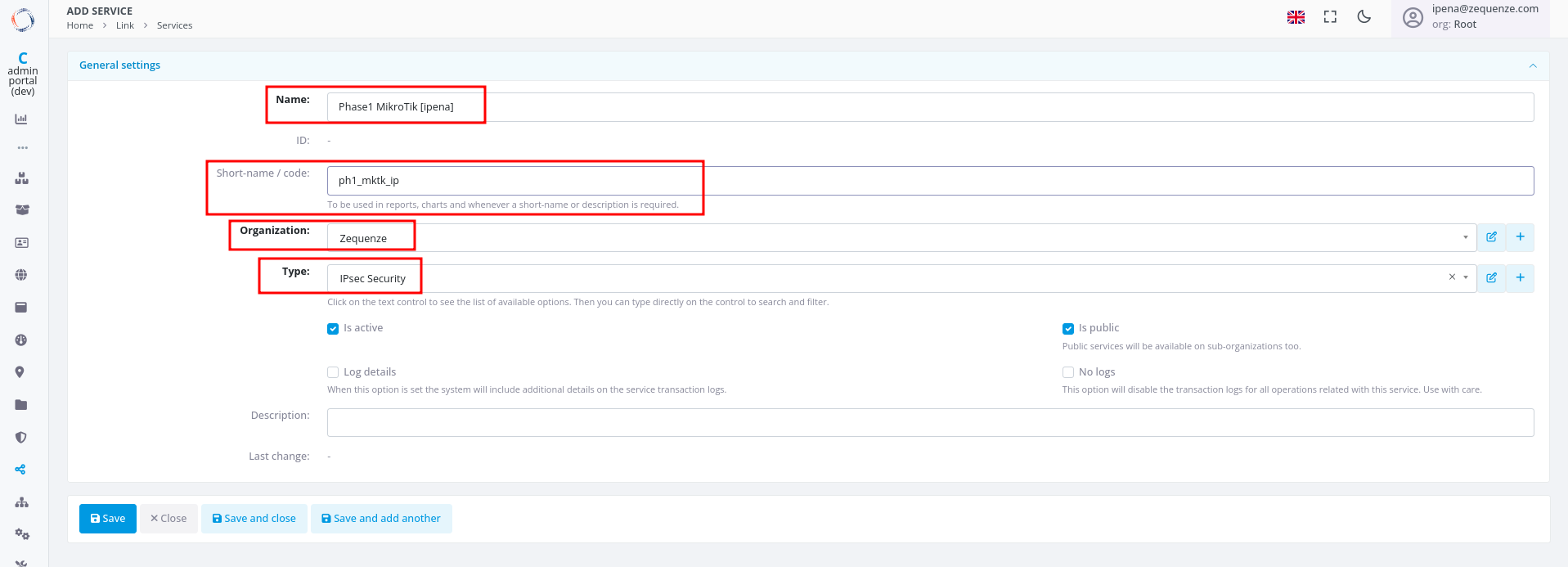
Configure the basic information:
Name: Enter a name to identify Phase 1Short-name/code: Enter a short identifier for quick referenceOrganization: Select the organization that will use this connectionType: Select "IPsec Security"
-
Click Save at the bottom
-
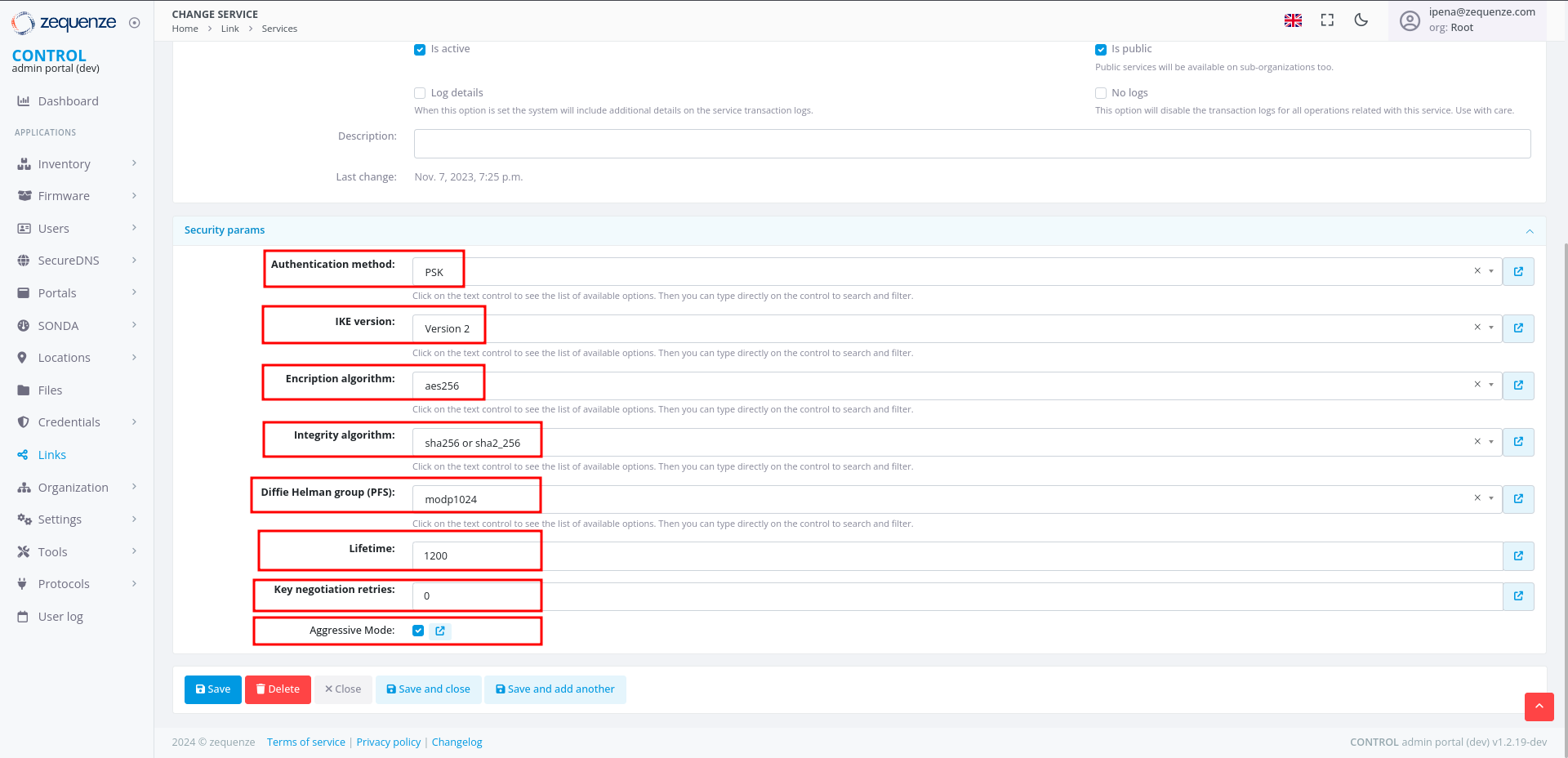
Configure the Phase 1 parameters to match your RouterOS configuration:
Authentication method: Select "PSK"IKE version: Select "Version 2"Encryption algorithm: Enter "aes256"Integrity algorithm: Enter "sha256" or "sha2_256"Diffie Hellman group (PFS): Enter "modp1024"Lifetime: Enter 1200 (equivalent to 20 minutes)Key negotiation retries: Enter "0"Aggressive Mode: Enable this option
-
Click Save and close at the bottom
Step 2: Create IPsec Configuration Service (Phase 2)
-
In the Services tab, click +Add again to create another service
-
Configure the basic information:
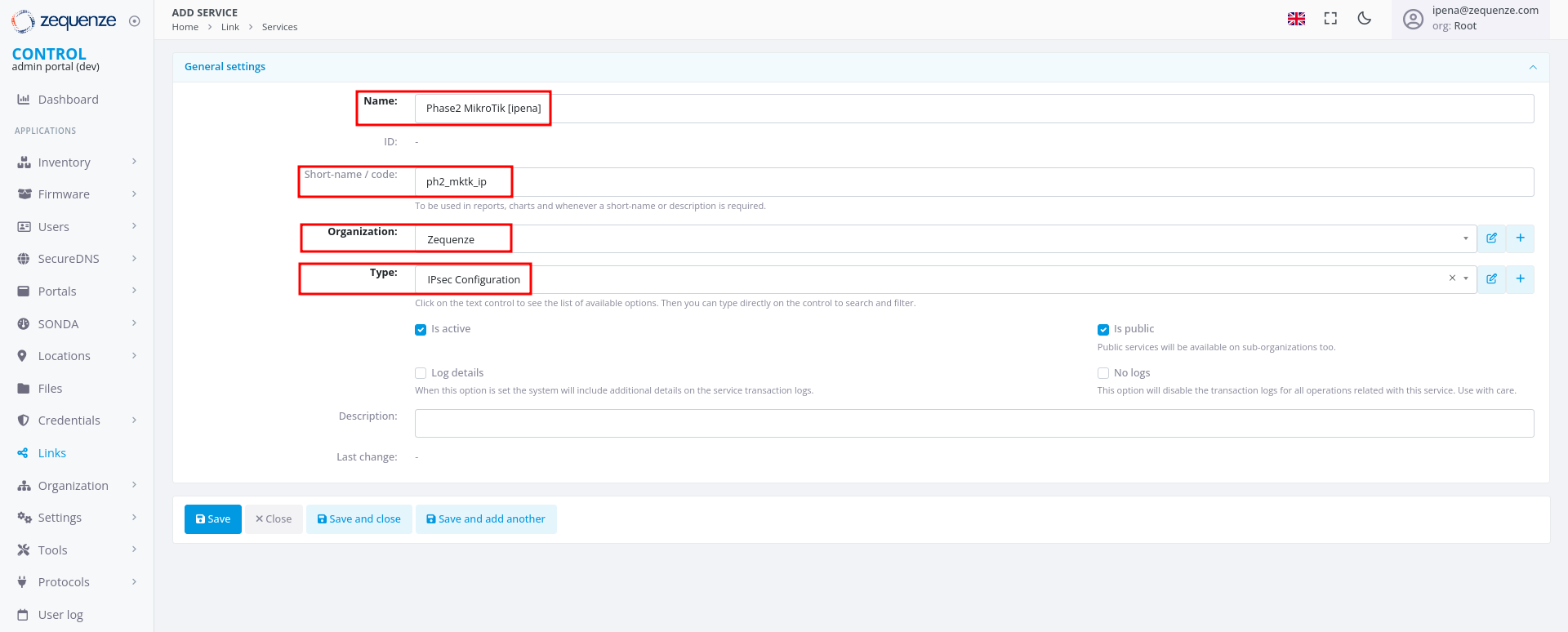
Name: Enter a name to identify Phase 2Short-name/code: Enter a short identifier for quick referenceOrganization: Select the organization that will use this connectionType: Select "IPsec Configuration"
-
Configure the Phase 2 parameters to match your RouterOS configuration:
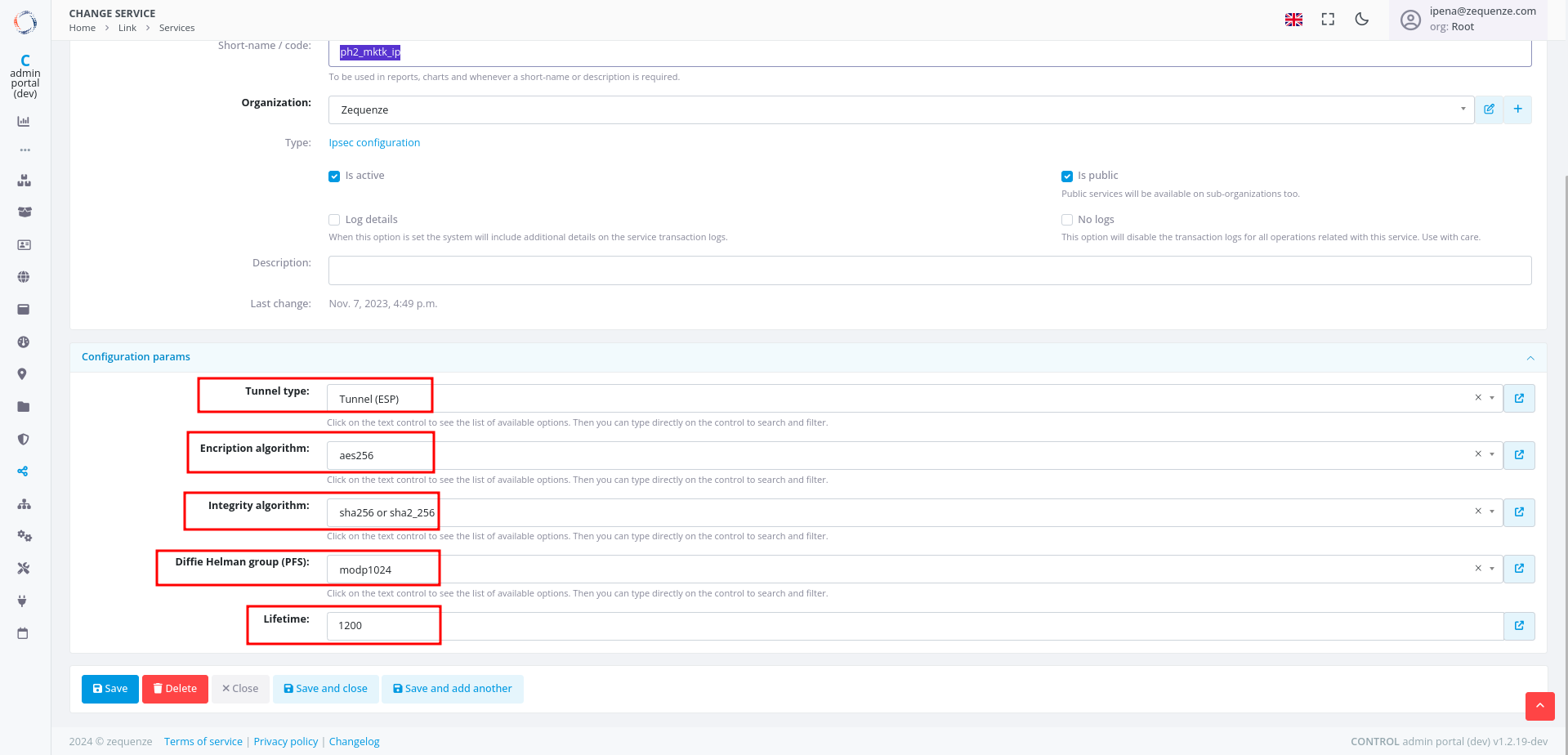
Tunnel type: Select "Tunnel (ESP)"Encryption algorithm: Enter "aes256"Integrity algorithm: Enter "sha256" or "sha2_256"Diffie Hellman group (PFS): Enter "modp1024"Lifetime: Enter 1200 (equivalent to 20 minutes)
Step 3: Create Association
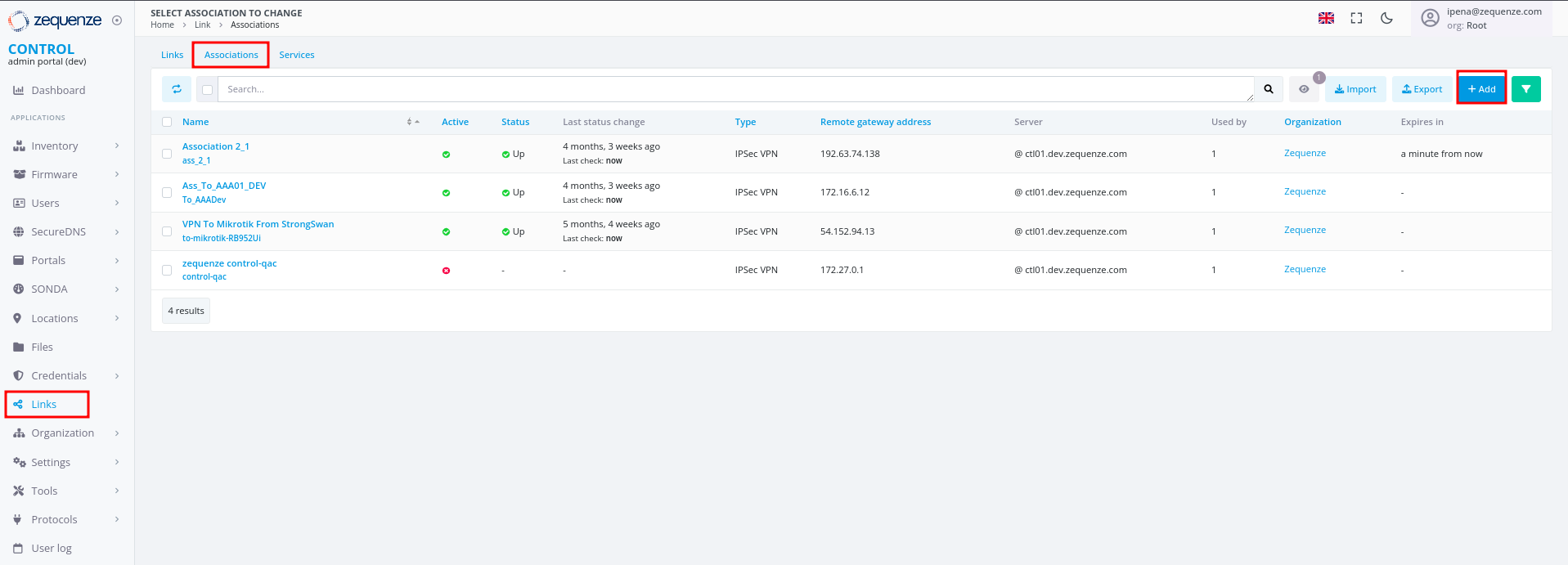
- In the Links section, select the Association tab
- Click the +Add button
-
Configure the following fields:
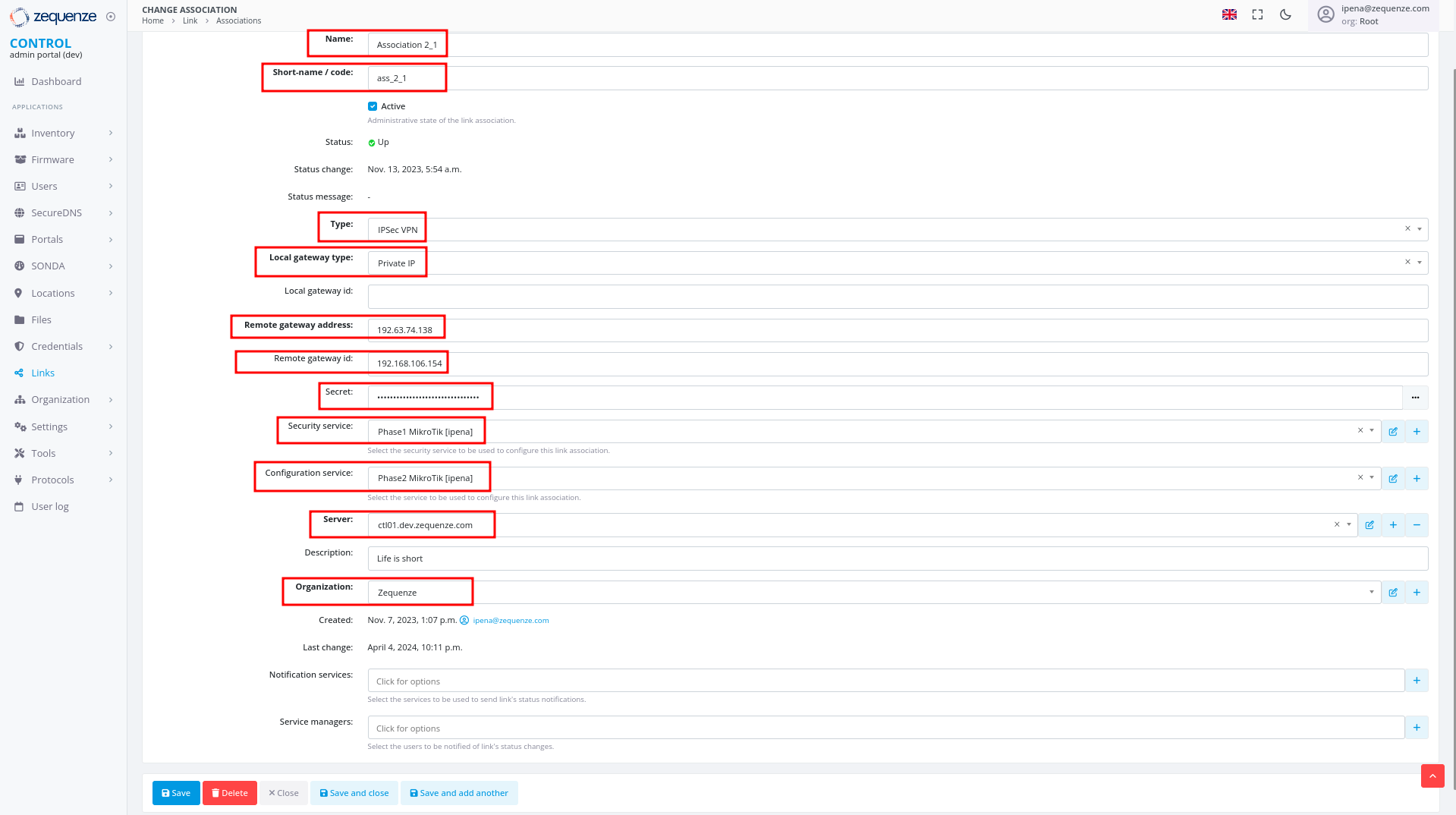
Name: Enter a name to identify this associationShort-name / code: Enter a short identifier for quick referenceType: Leave "IPSec VPN" selectedLocal gateway type: Leave "Private IP" selectedRemote gateway address: Enter the remote public IP address you are connecting toRemote gateway id: Enter the WAN interface IP of the RouterOS deviceSecret: Enter the pre-shared key (must match the secret configured in RouterOS)Security service: Select the IPsec Security service created in Step 1Configuration service: Select the IPsec Configuration service created in Step 2Server: Select the internal server to useOrganization: Select the organization that will use this connection
Step 4: Create Link
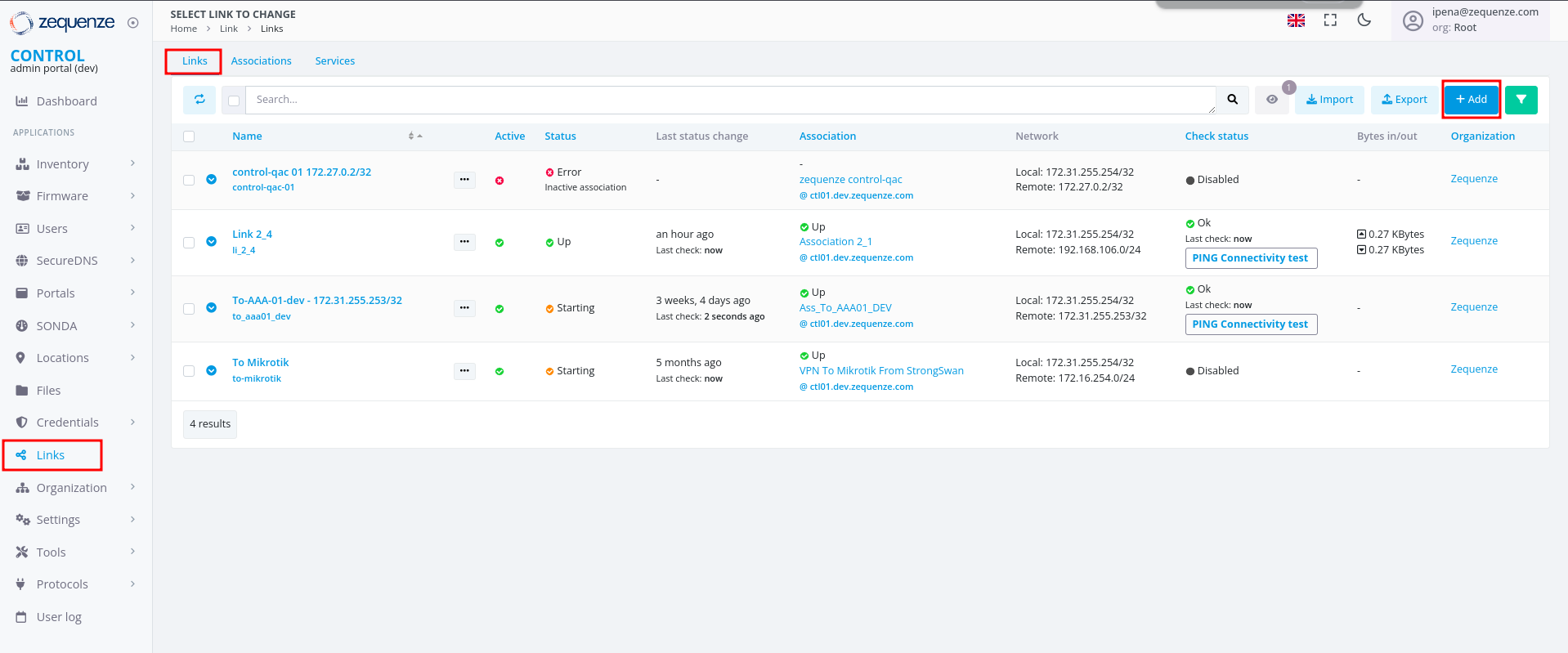
- In the Links section, ensure you are on the Links tab
- Click the +Add button
-
Configure the following fields:
Name: Enter a name to identify this linkShort-name / code: Enter a short identifierActive: Enable this option to activate the linkAssociation: Select the association created in Step 3Local network: Enter the local Zequenze IP address- For CONTROL: typically
172.31.255.254/32 - For GATE: typically
172.31.255.253/32 - (Verify the correct IP internally before configuring)
- For CONTROL: typically
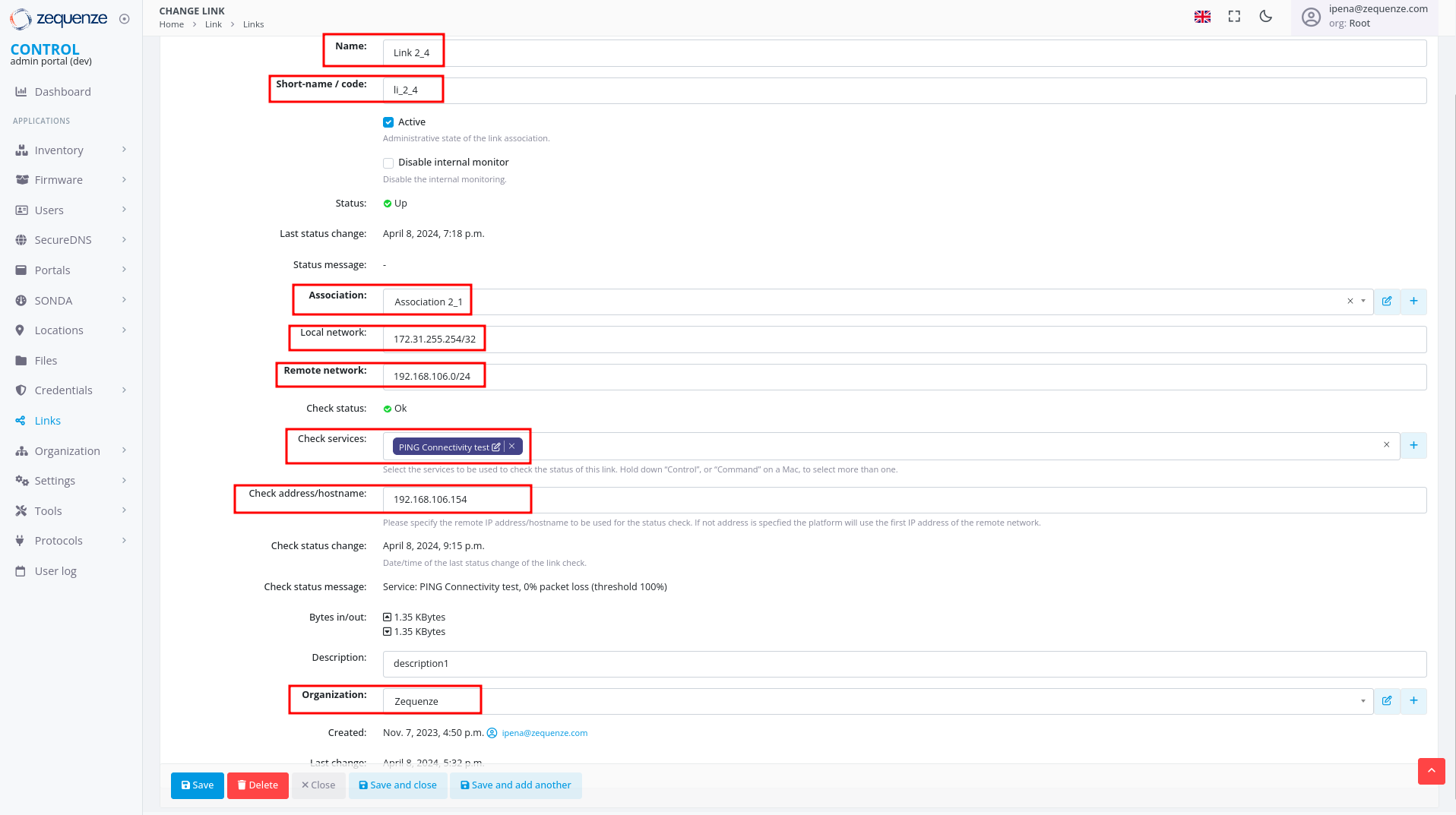
Remote network: Enter the remote network or IP address that will pass through the tunnel to ZequenzeCheck services: Select "PING Connectivity test" to validate tunnel communicationCheck address/hostname: Enter a remote IP address that is always active for connectivity testing (typically the remote gateway, e.g., 192.168.106.154)Organization: Select the organization that will use this VPN connectivity
Verification and Summary
RouterOS Connection Status
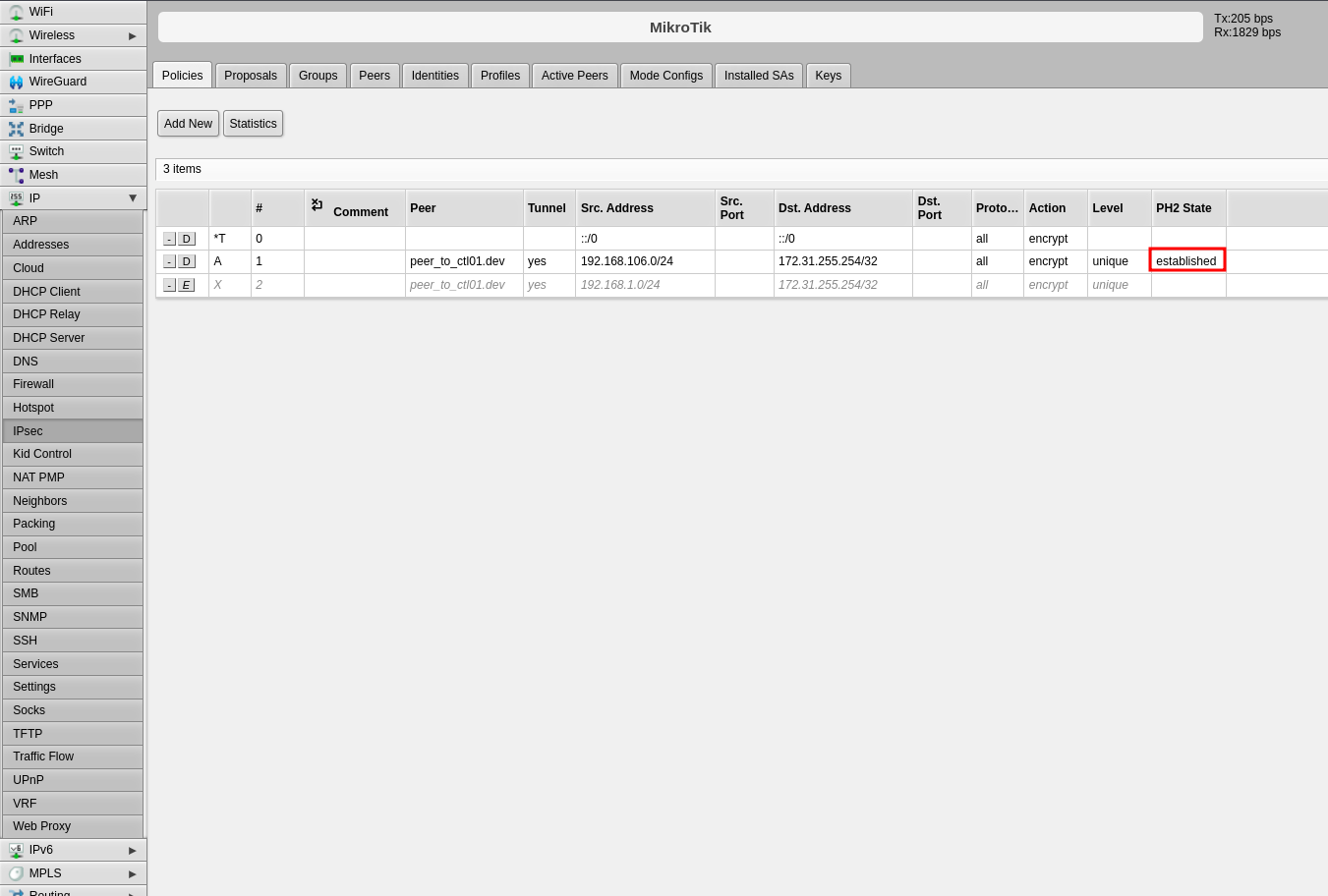
Once the configuration is complete, you should see the connection established in RouterOS as shown below:
CONTROL Connection Status
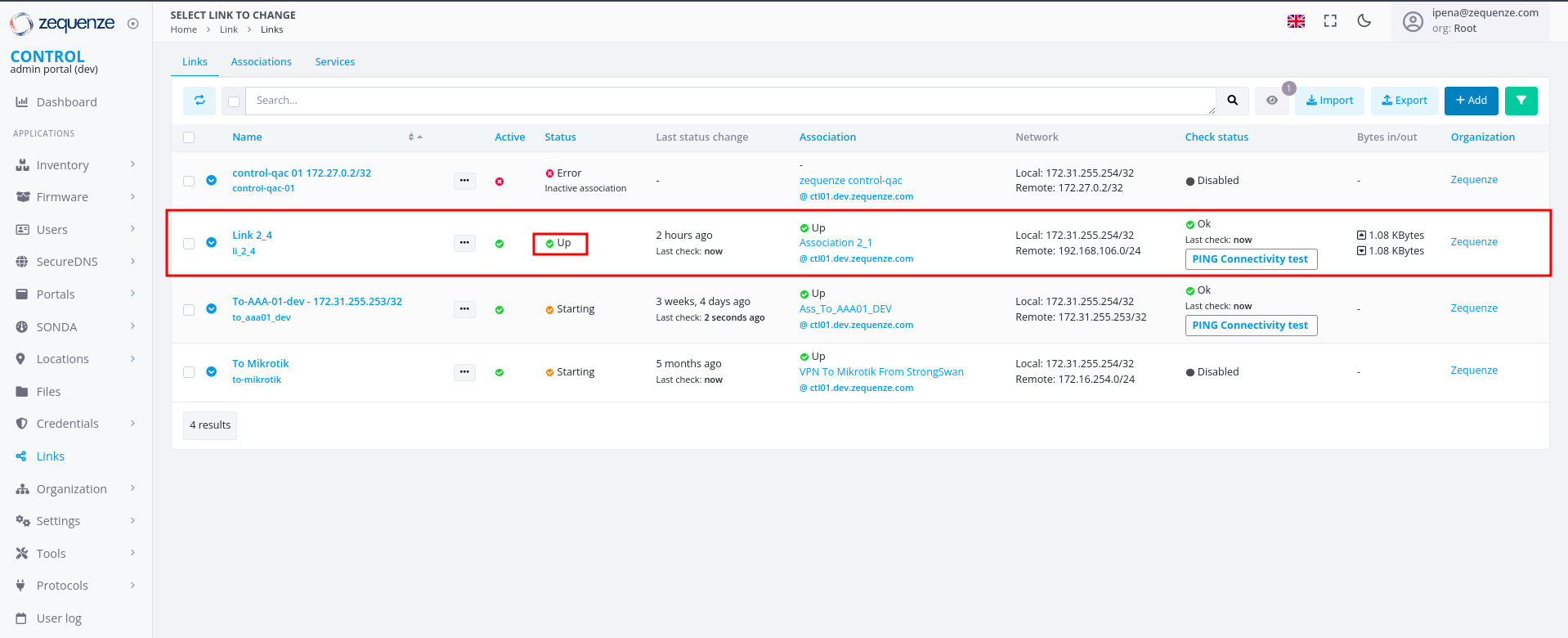
The Link within CONTROL should appear as follows when successfully established:
This completes the IPsec VPN tunnel configuration between RouterOS and CONTROL. The tunnel should now be active and passing traffic between the configured networks.