
IPsec Configuration
Overview
This guide explains how to configure an IPsec VPN tunnel between RouterOS and CONTROL. The configuration process involves setting up both endpoints to establish a secure site-to-site connection.
Part 1: RouterOS Configuration
Initial Access
- Log in to RouterOS using your default credentials
- Navigate to IP → IPsec in the left-side menu
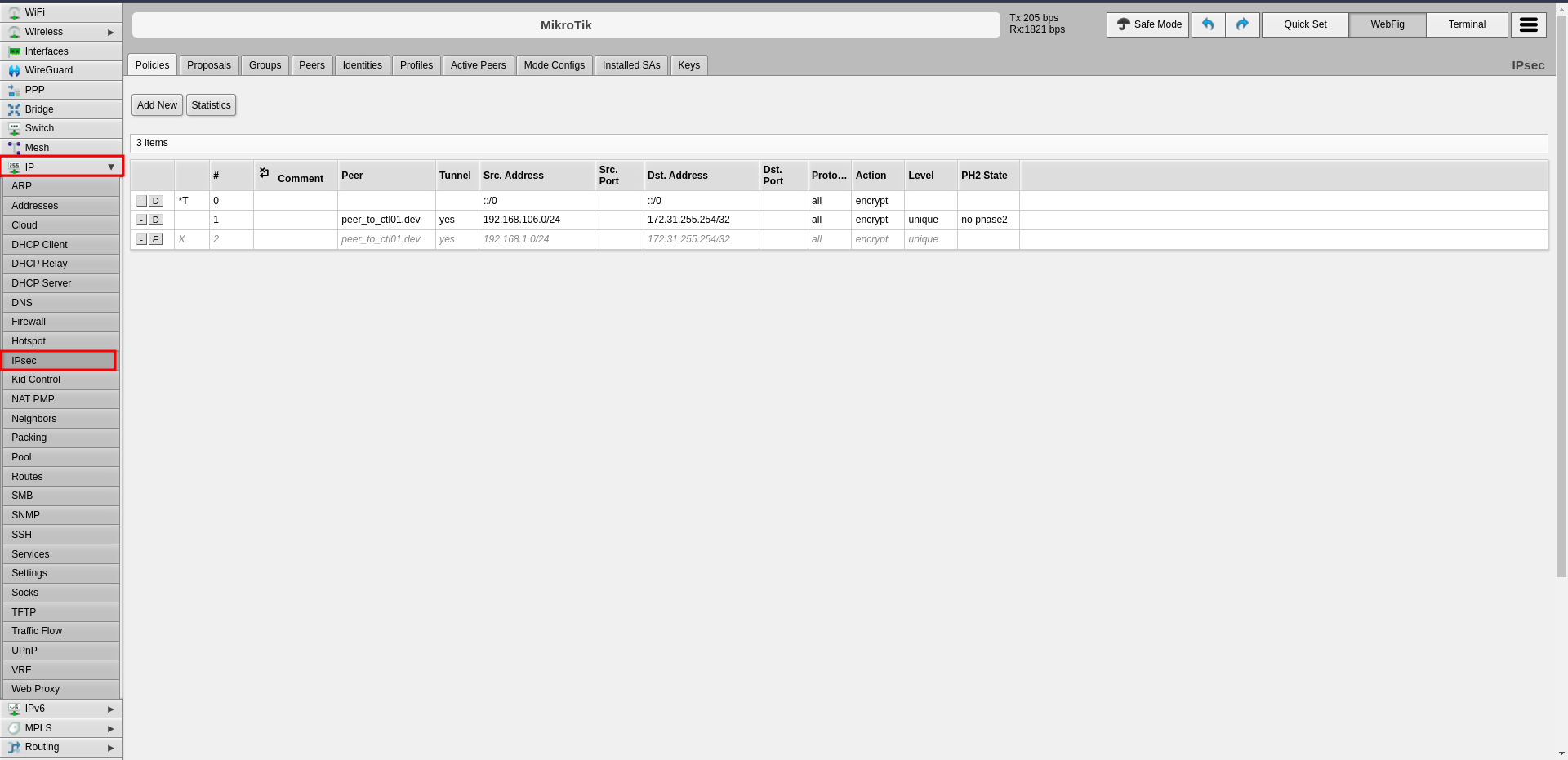
Step 1: Configure Profiles (Phase 1)
The profile defines Phase 1 parameters for the IPsec connection.
- Click the Profiles tab in the center panel
- Click Add New to create a new profile
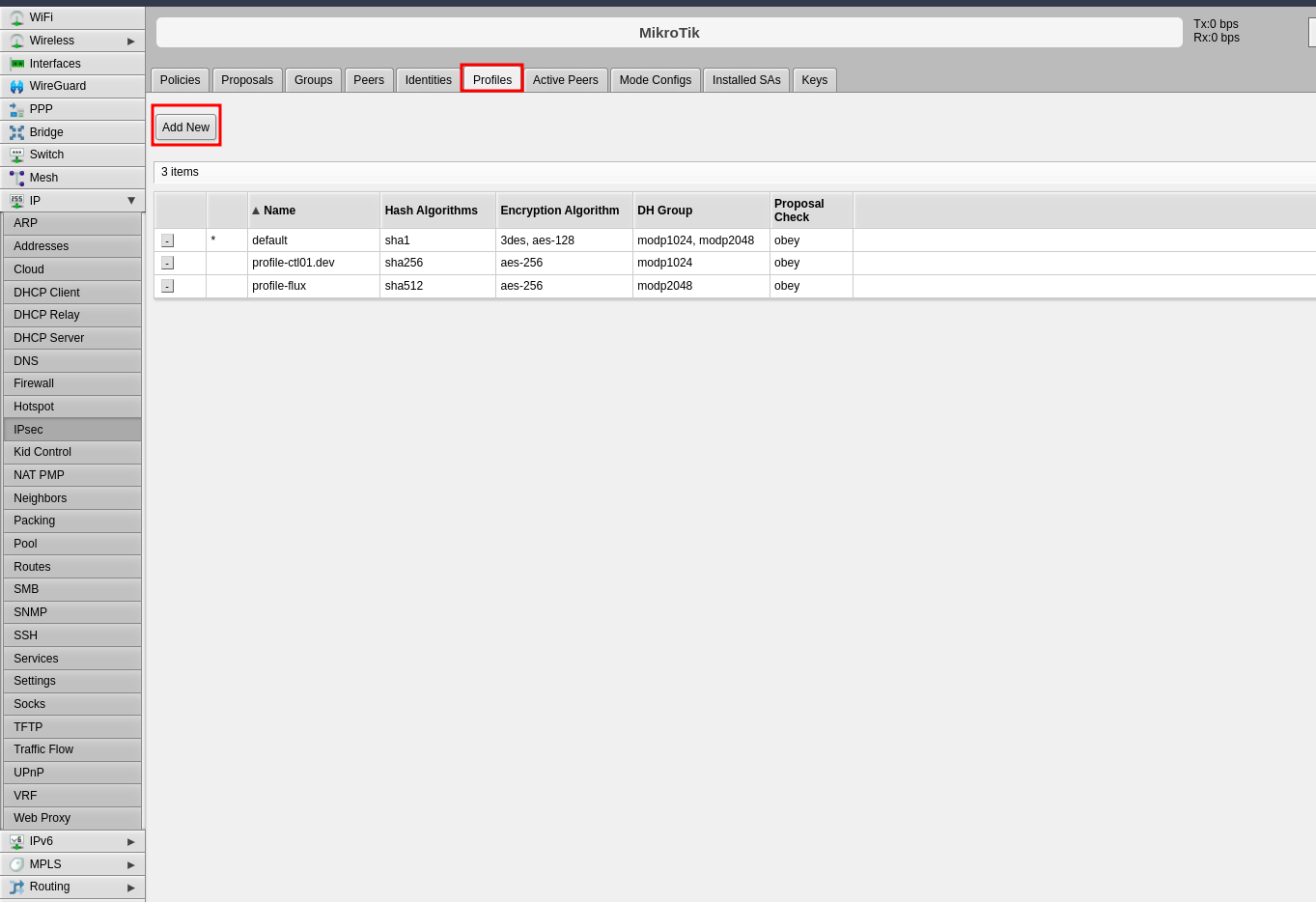
-
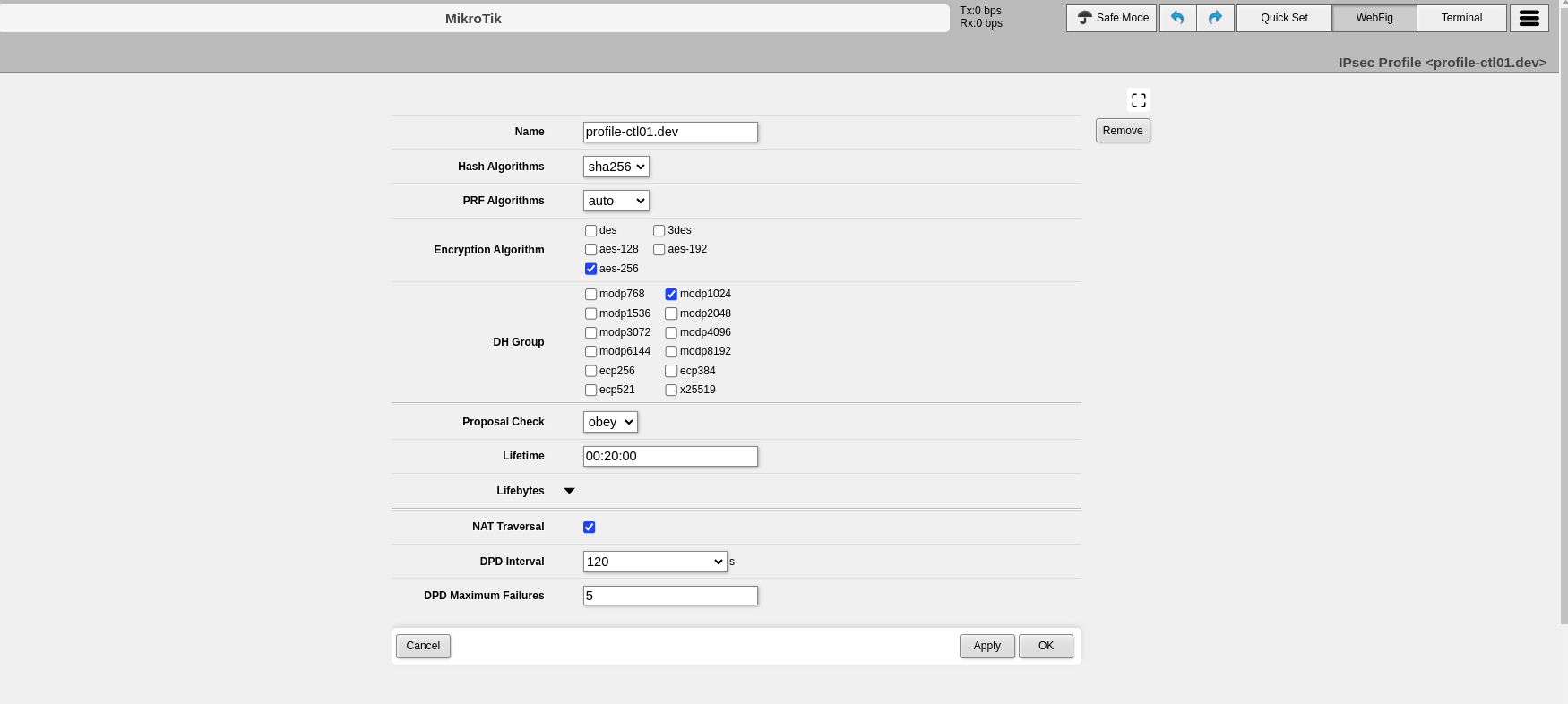
Configure the following Phase 1 parameters:
- Name: Enter a descriptive name to identify the profile (e.g., "profile-to-ctl01.dev")
- Hash Algorithms: Select a hash algorithm that matches the configuration on the remote endpoint
- Encryption Algorithm: Choose an encryption algorithm that matches the remote endpoint configuration
- Lifetime: Leave the default value (measured in seconds)
- NAT Traversal: Enable this option if the router is behind NAT
- DPD Interval: Leave the default value for Dead Peer Detection and note this number
- DPD Maximum Failures: Leave the default value
-
Click Apply, then click OK
Step 2: Configure Peers
The peer configuration defines the remote VPN endpoint.
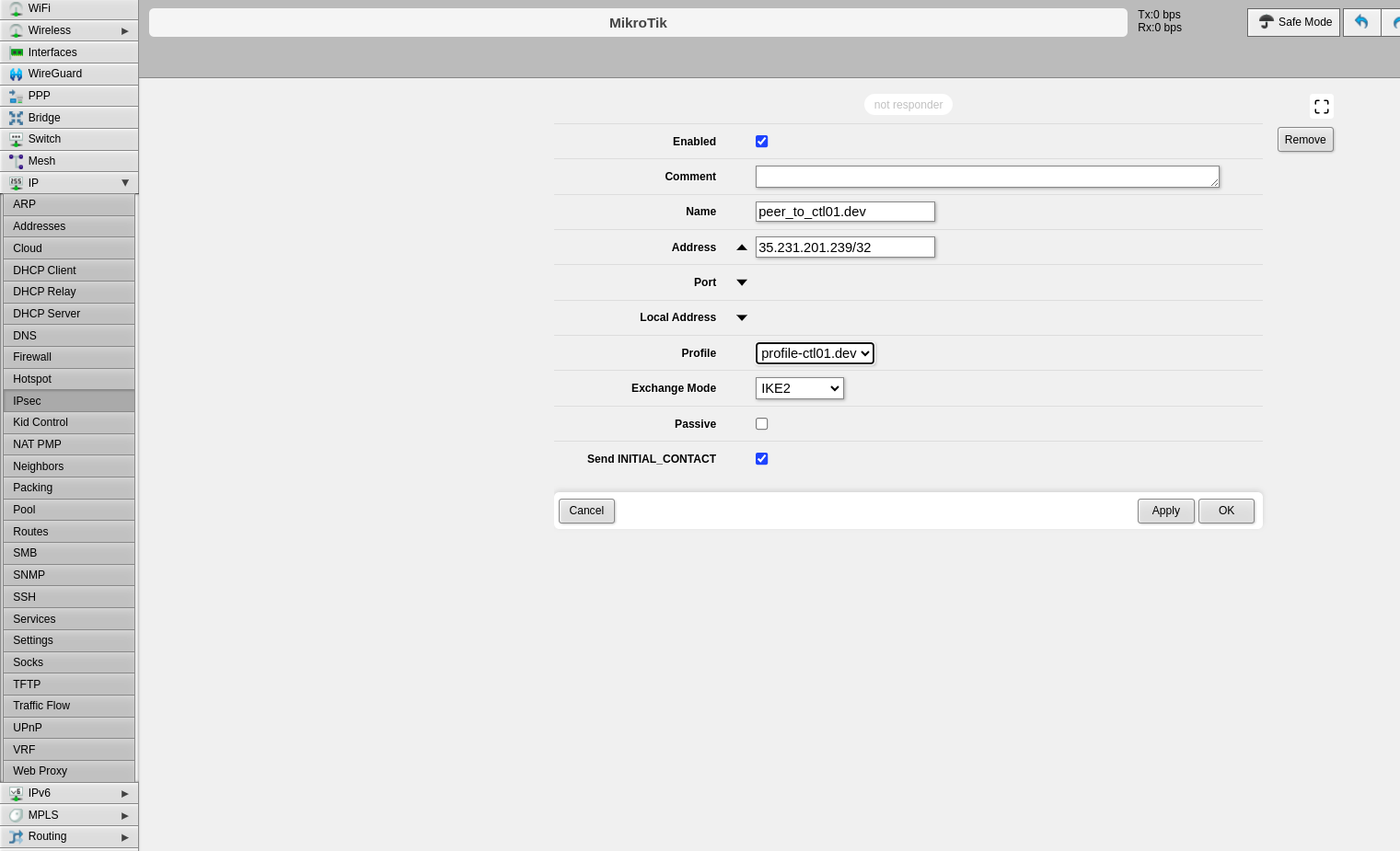
- Click the Peers tab
- Click Add New
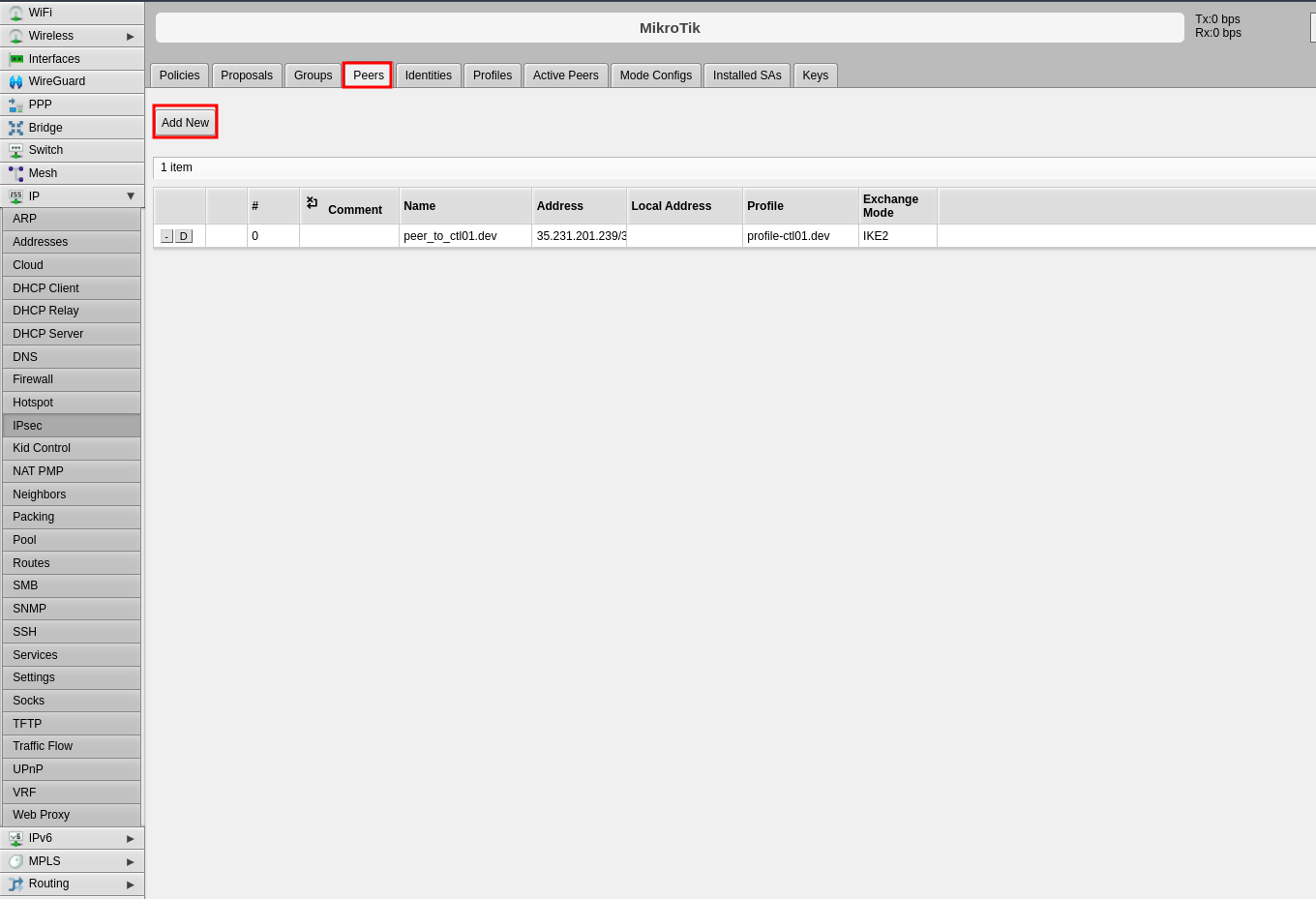
-
Configure the following fields:
- Name: Enter a name to identify the remote peer
- Address: Enter the remote public IP address (e.g., 35.35.35.22/32)
- Profile: Select the profile created in Step 1
- Exchange Mode: Select the exchange mode (IKE2 is recommended)
-
Click Apply, then click OK
Step 3: Configure Identities
The identities configuration defines authentication credentials.
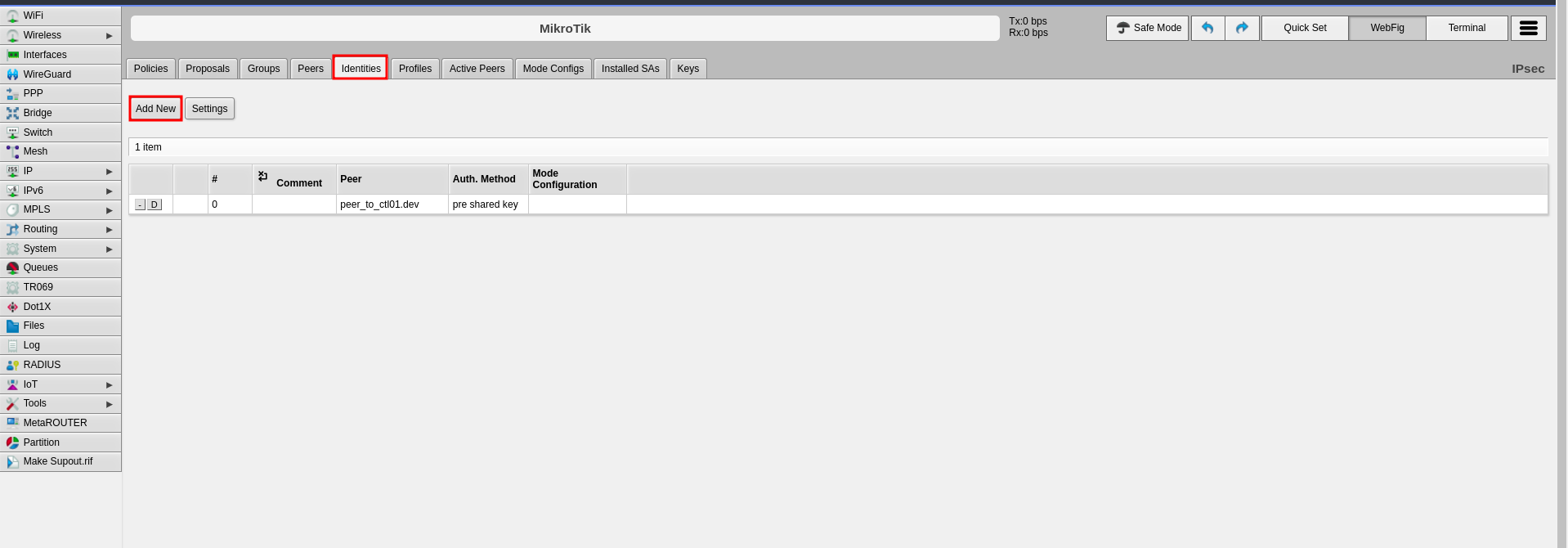
- Click the Identities tab
- Click Add New
-
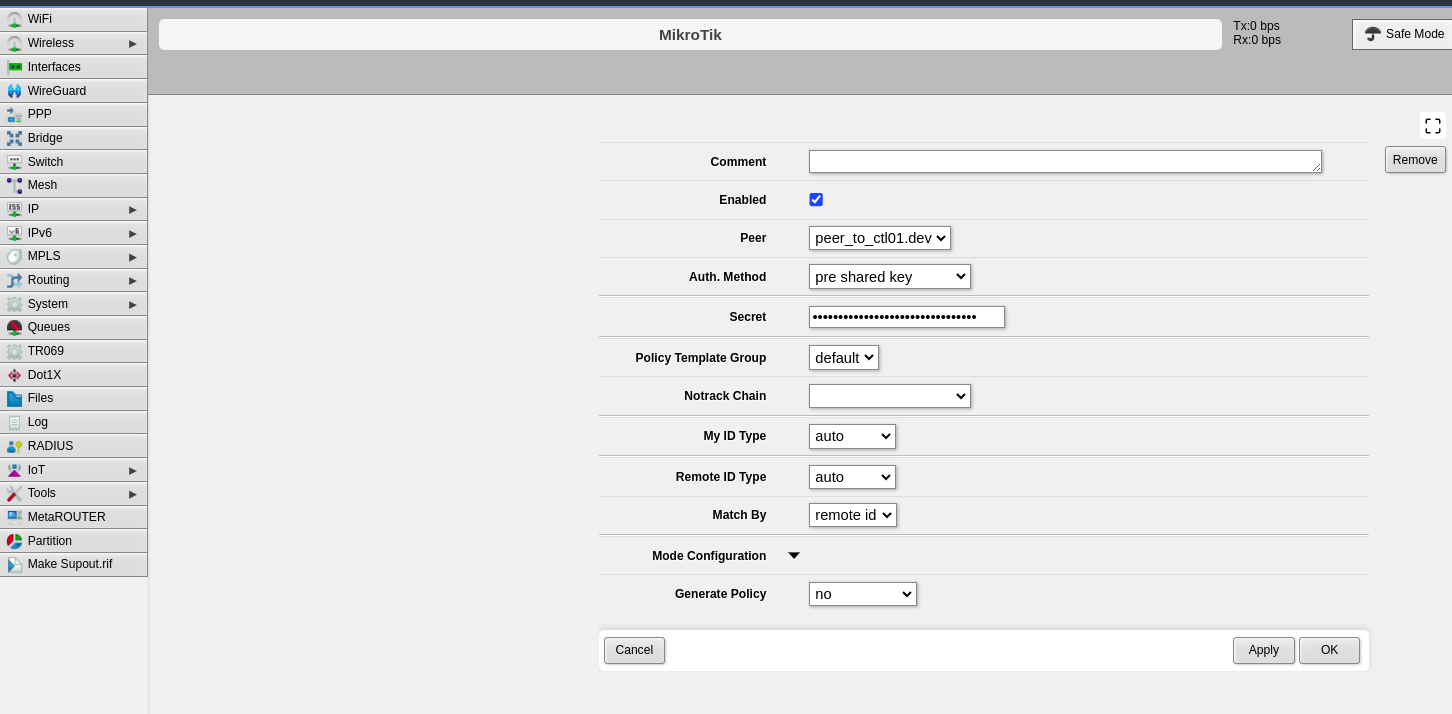
Configure the following fields:
- Peer: Select the peer configured in Step 2
- Auth. Method: Select "pre shared key"
- Secret: Enter the pre-shared key that will be configured on both endpoints
-
Click Apply, then click OK
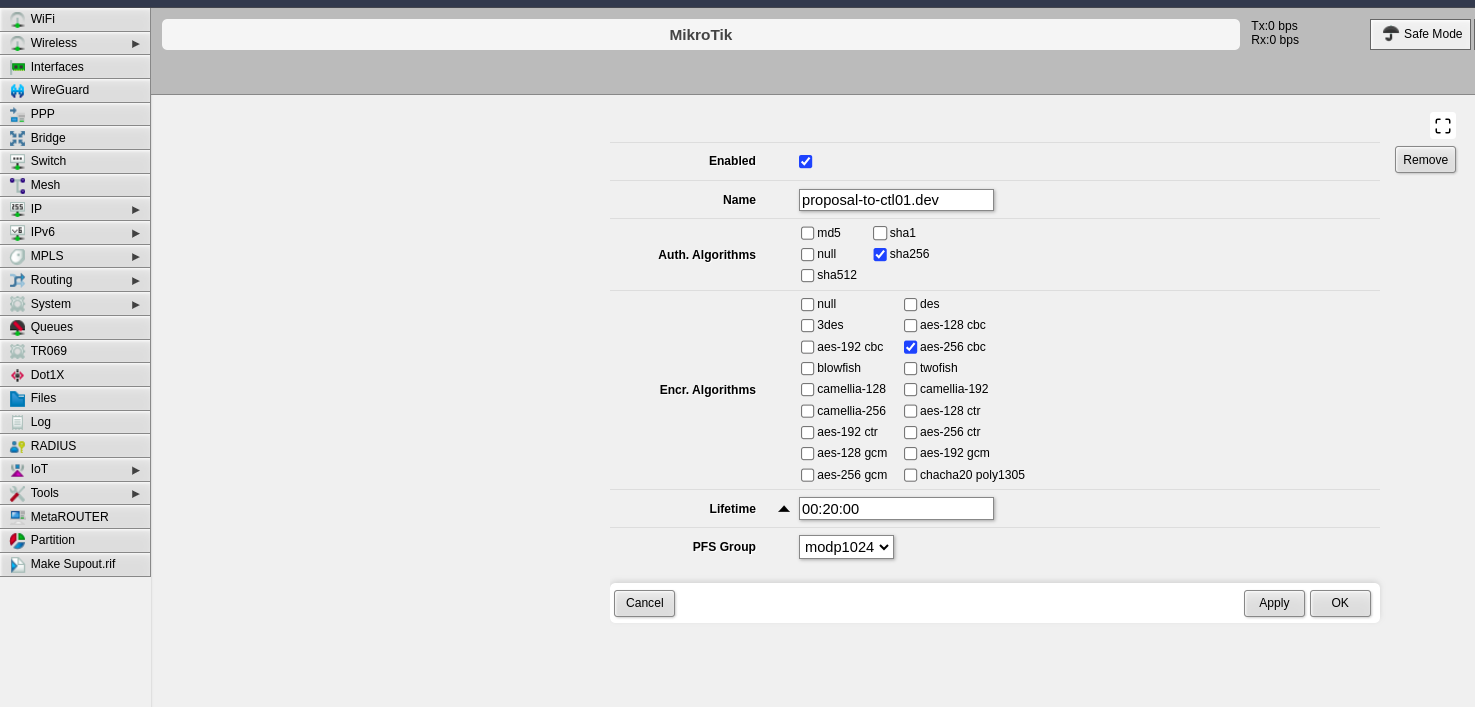
Step 4: Configure Proposals (Phase 2)
The proposal defines Phase 2 parameters for the IPsec connection.
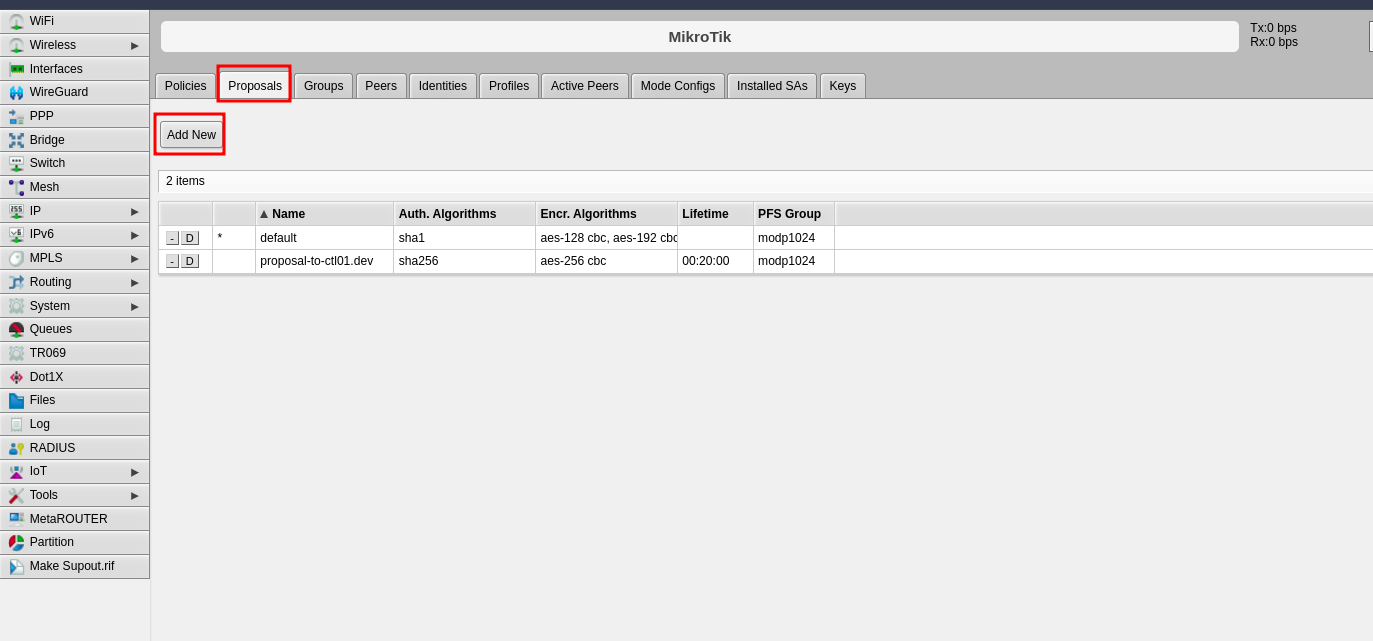
- Click the Proposals tab
- Click Add New
-
Configure the following Phase 2 parameters:
- Name: Enter a name to identify this proposal
- Auth. Algorithms: Select the authentication algorithm to be used on both endpoints
- Encr. Algorithms: Select the encryption algorithm to be used on both endpoints
- Lifetime: Set the lifetime for Phase 2
- PFS Group: Select the Diffie-Hellman group for Perfect Forward Secrecy (PFS). This determines the session key generation during key exchange
-
Click Apply, then click OK
Step 5: Configure Policies
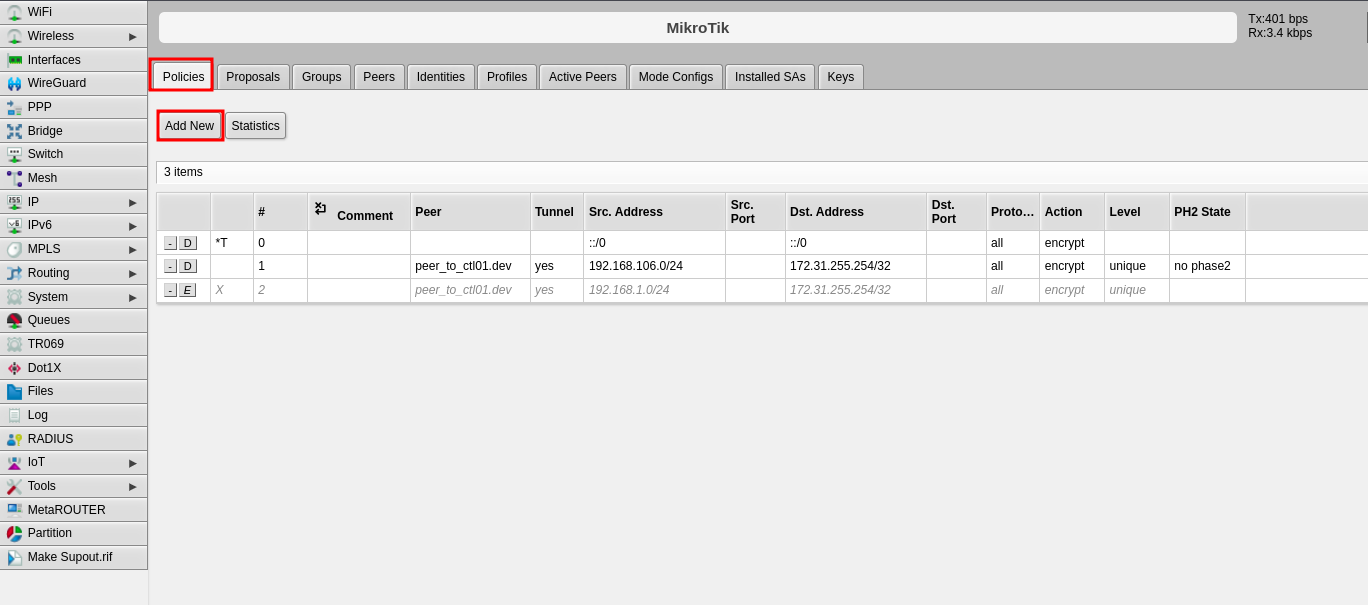
The policy defines which traffic should pass through the VPN tunnel.
- Click the Policies tab
- Click Add New
-
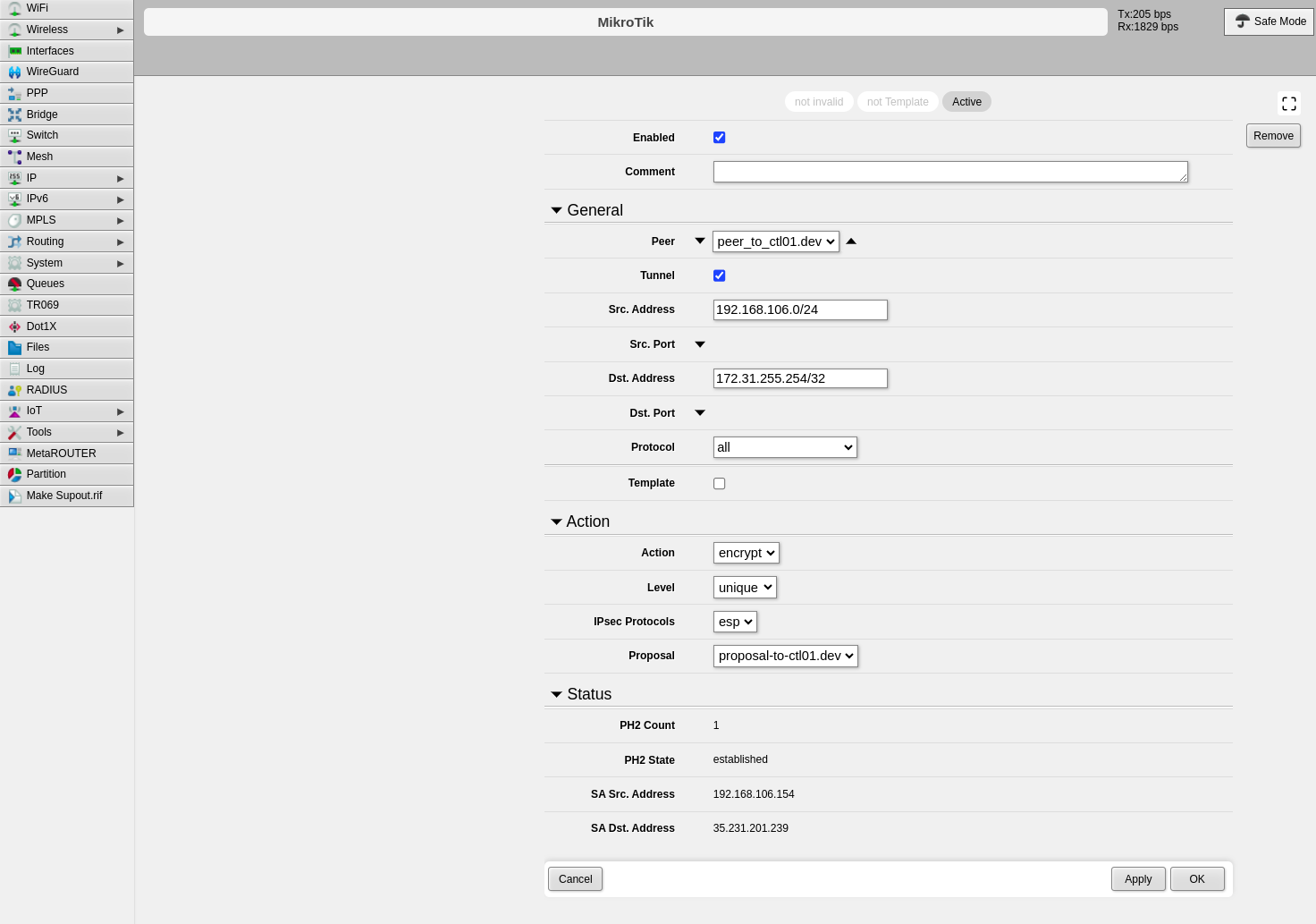
Configure the following fields:
- Peer: Select the peer configured in Step 2
- Tunnel: Enable this option to establish the tunnel between both sites
- Src. Address: Enter the local IP address or network that will pass through the tunnel
- Dst. Address: Enter the remote IP address or network that will be received from the other end
- Level: Select "unique"
- Proposal: Select the proposal created in Step 4
-
Click Apply, then click OK
Part 2: CONTROL Configuration
Initial Navigation
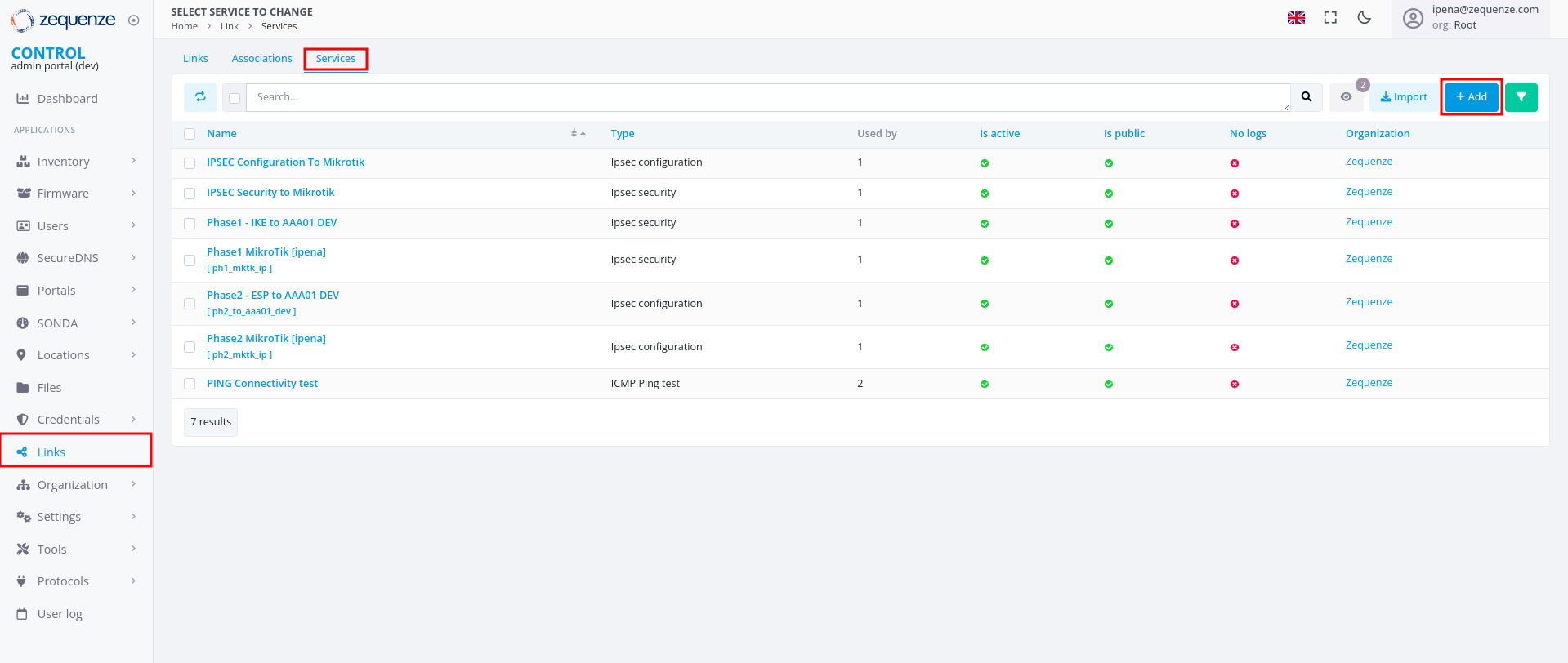
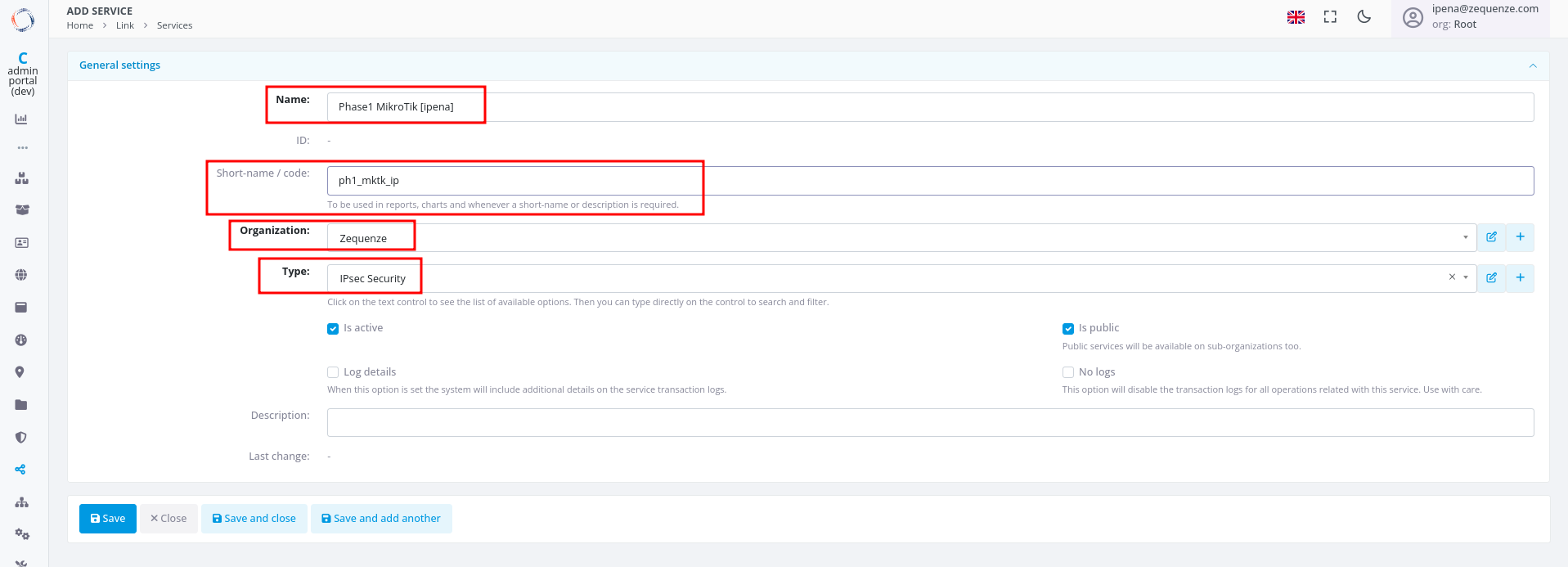
Step 1: Create IPsec Security Service (Phase 1)
-
Configure the basic information:
- Name: Enter a name to identify Phase 1
- Short-name/code: Enter a short identifier for quick reference
- Organization: Select the organization that will use this connection
- Type: Select "IPsec Security"
-
Click Save at the bottom
-
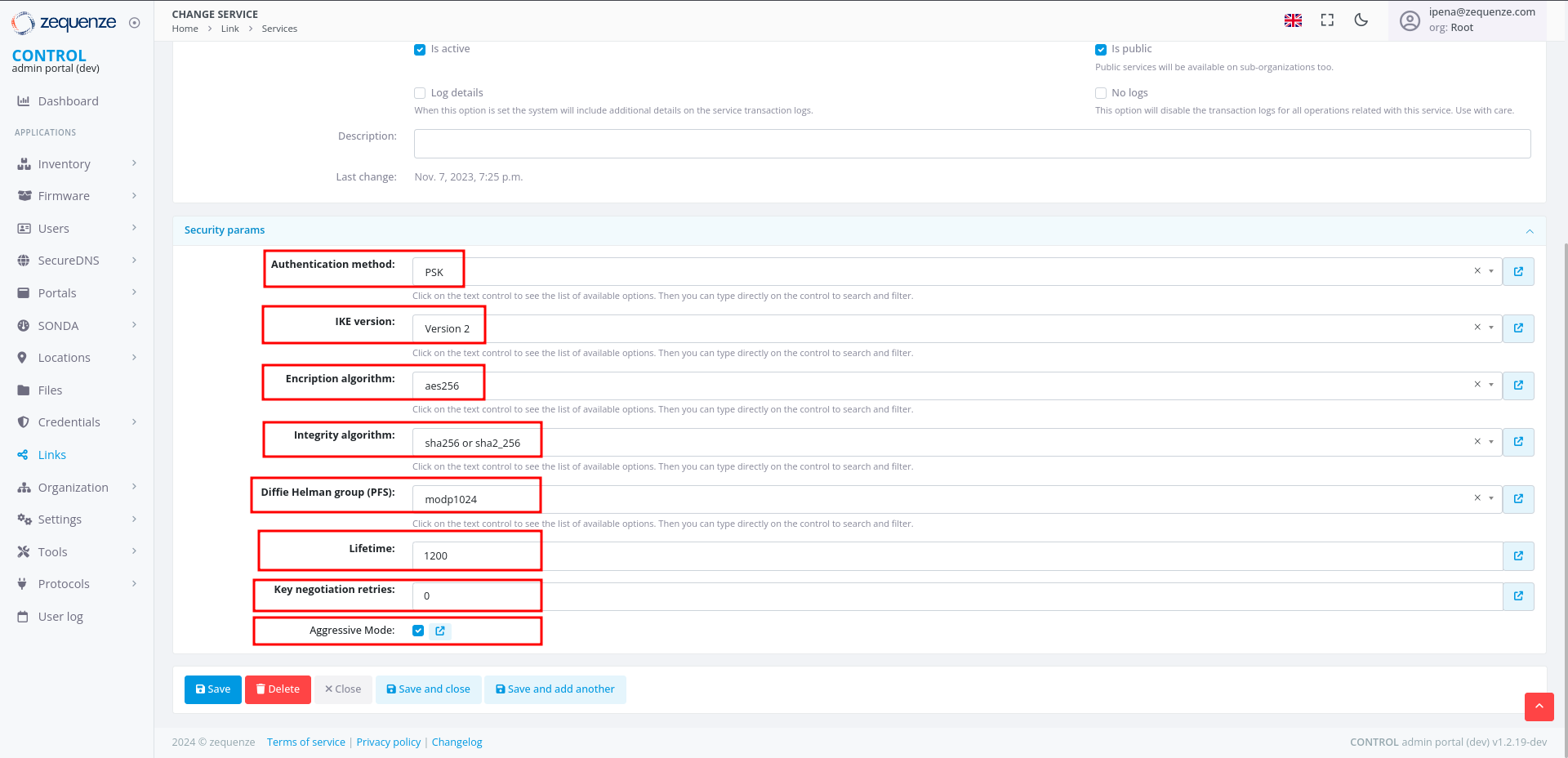
Configure the Phase 1 parameters to match your RouterOS configuration:
- Authentication method: Select "PSK"
- IKE version: Select "Version 2"
- Encryption algorithm: Enter "aes256"
- Integrity algorithm: Enter "sha256" or "sha2_256"
- Diffie Hellman group (PFS): Enter "modp1024"
- Lifetime: Enter 1200 (equivalent to 20 minutes)
- Key negotiation retries: Enter "0"
- Aggressive Mode: Enable this option
-
Click Save and close at the bottom
Step 2: Create IPsec Configuration Service (Phase 2)
-
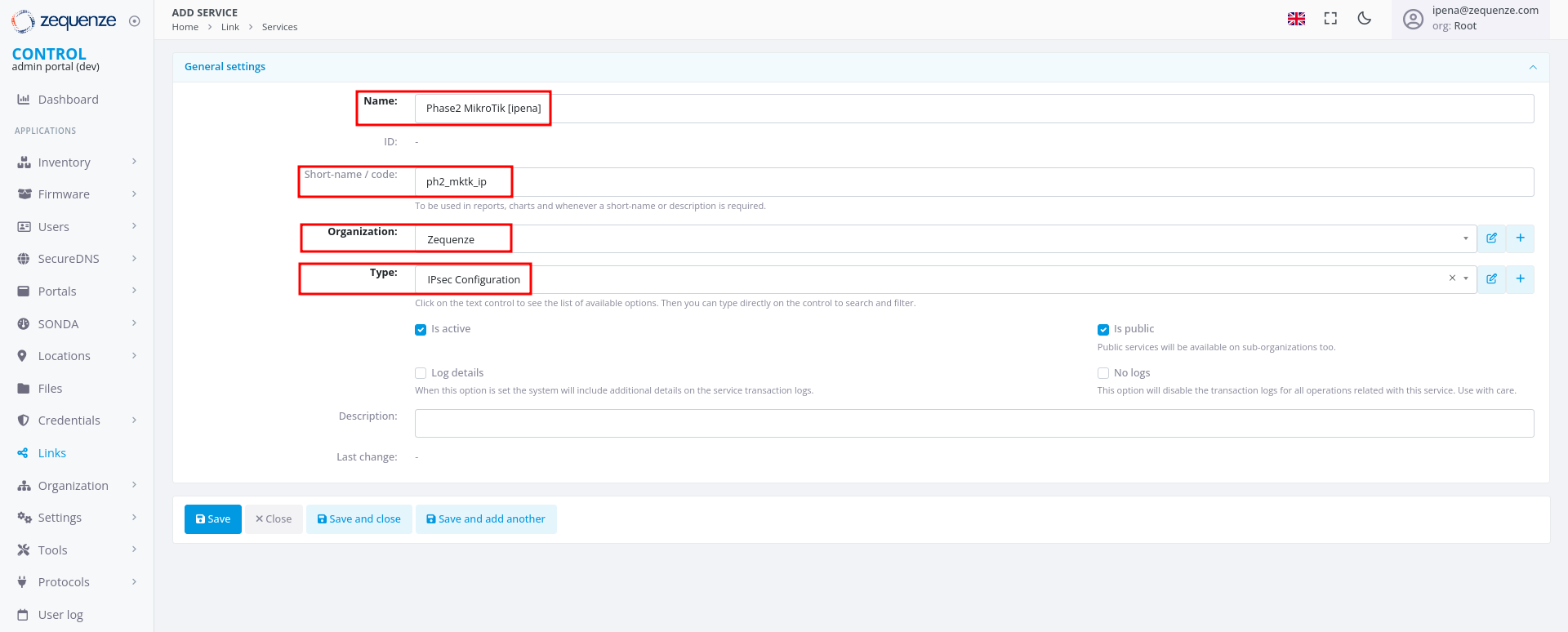
In the Services tab, click +Add again to create another service
-
Configure the basic information:
- Name: Enter a name to identify Phase 2
- Short-name/code: Enter a short identifier for quick reference
- Organization: Select the organization that will use this connection
- Type: Select "IPsec Configuration"
-
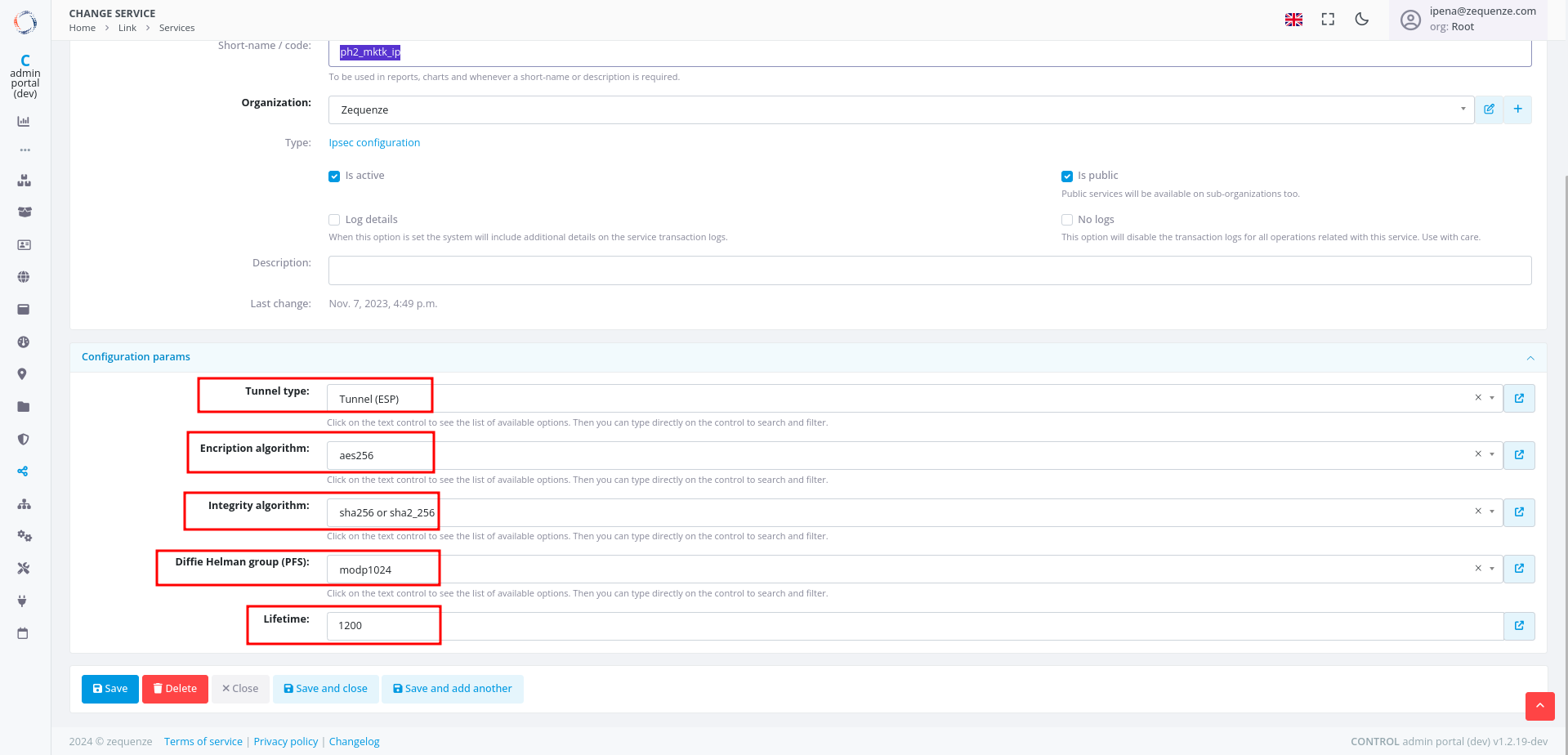
Configure the Phase 2 parameters to match your RouterOS configuration:
- Tunnel type: Select "Tunnel (ESP)"
- Encryption algorithm: Enter "aes256"
- Integrity algorithm: Enter "sha256" or "sha2_256"
- Diffie Hellman group (PFS): Enter "modp1024"
- Lifetime: Enter 1200 (equivalent to 20 minutes)
Step 3: Create Association
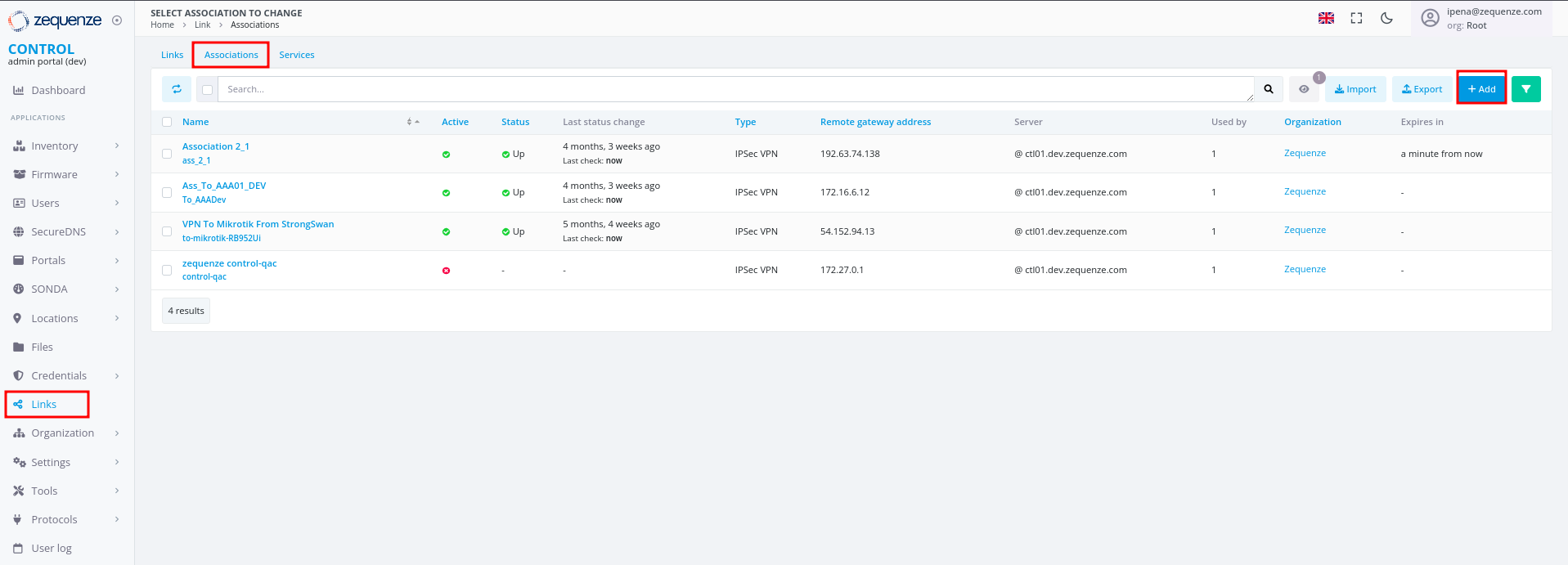
- In the Links section, select the Association tab
- Click the +Add button
-
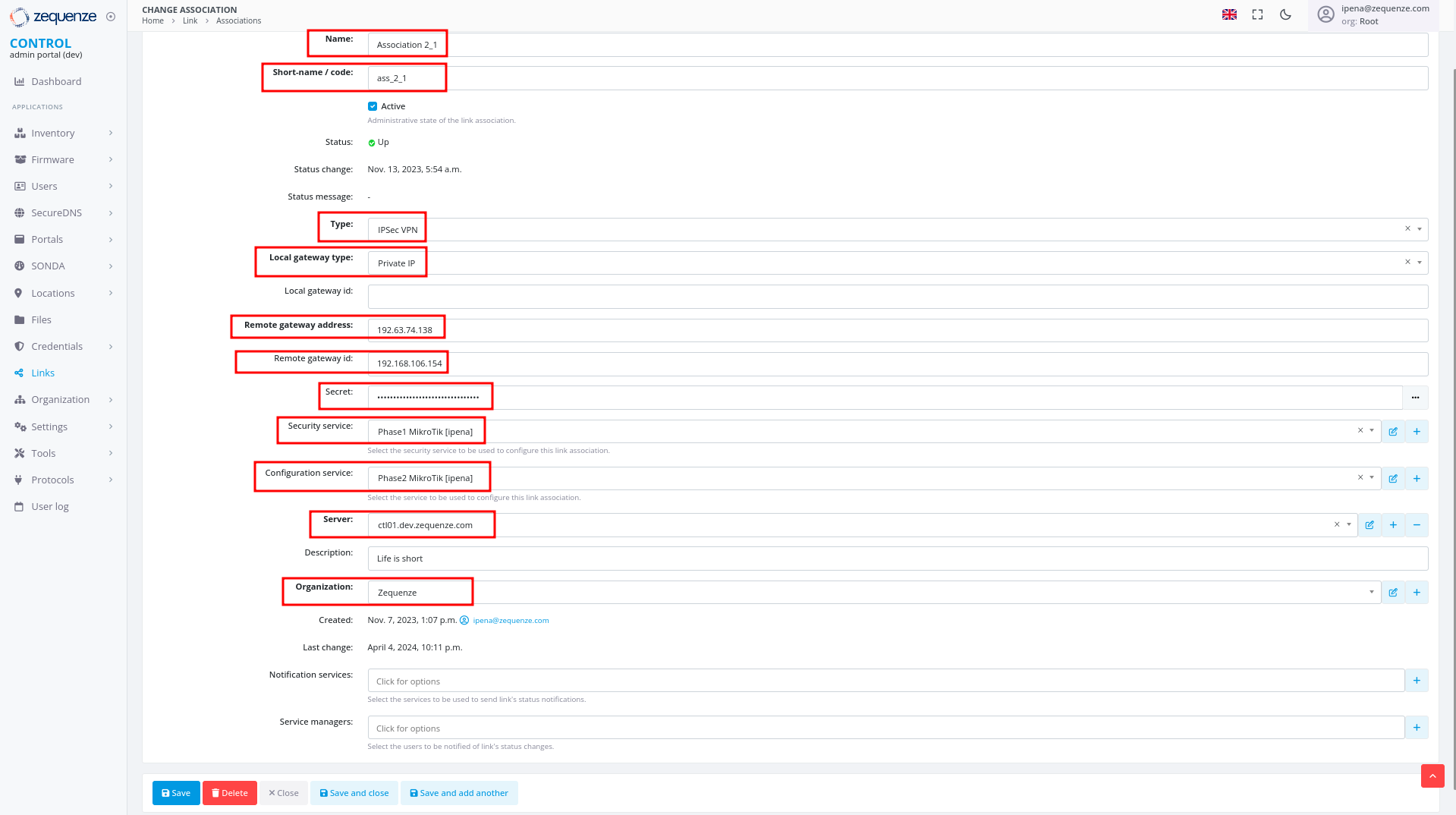
Configure the following fields:
- Name: Enter a name to identify this association
- Short-name / code: Enter a short identifier for quick reference
- Type: Leave "IPSec VPN" selected
- Local gateway type: Leave "Private IP" selected
- Remote gateway address: Enter the remote public IP address you are connecting to
- Remote gateway id: Enter the WAN interface IP of the RouterOS device
- Secret: Enter the pre-shared key (must match the secret configured in RouterOS)
- Security service: Select the IPsec Security service created in Step 1
- Configuration service: Select the IPsec Configuration service created in Step 2
- Server: Select the internal server to use
- Organization: Select the organization that will use this connection
Step 4: Create Link
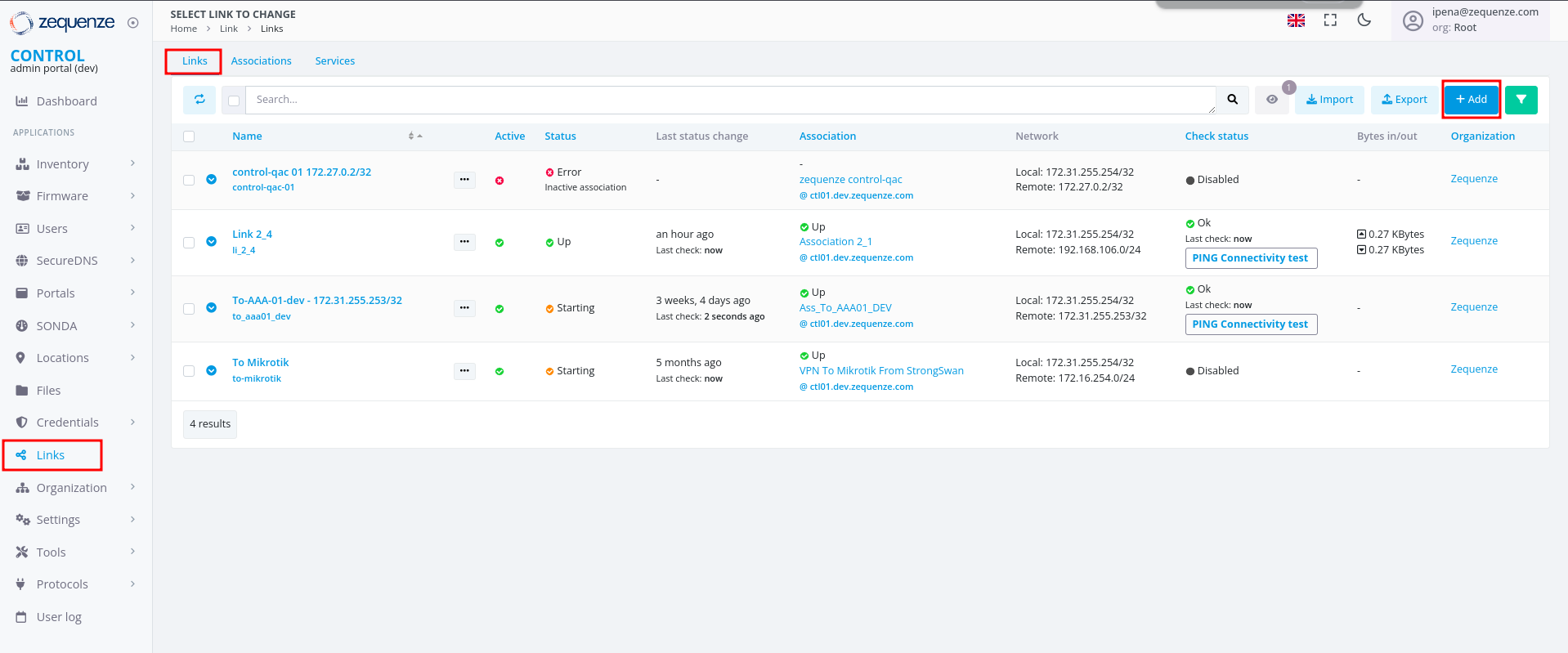
- In the Links section, ensure you are on the Links tab
- Click the +Add button
-
Configure the following fields:
- Name: Enter a name to identify this link
- Short-name / code: Enter a short identifier
- Active: Enable this option to activate the link
- Association: Select the association created in Step 3
-
Local network: Enter the local Zequenze IP address
- For CONTROL: typically
172.31.255.254/32 - For GATE: typically
172.31.255.253/32 - (Verify the correct IP internally before configuring)
- For CONTROL: typically
- Remote network: Enter the remote network or IP address that will pass through the tunnel to Zequenze
- Check services: Select "PING Connectivity test" to validate tunnel communication
- Check address/hostname: Enter a remote IP address that is always active for connectivity testing (typically the remote gateway, e.g., 192.168.106.154)
- Organization: Select the organization that will use this VPN connectivity