
Firmware Management
Overview
CONTROL ACS provides comprehensive Firmware Management functionality to automate firmware updates across your device fleet. The system is configured through two main areas:
-
Device Profile / Types (
Inventory > Profile / types) -
Firmware Library (
Firmware > Images)
This page explains how to configure and use these features to manage firmware versions automatically.
Device Profiles / Types
Enabling Automatic Firmware Upgrades
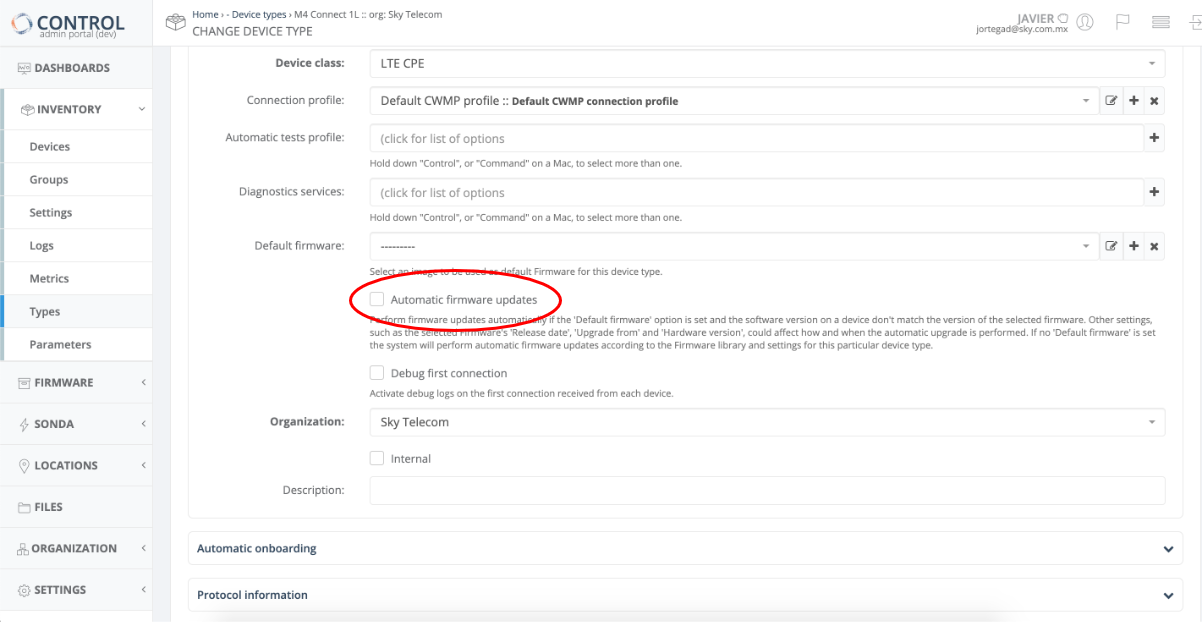
Within any Device Profile / Type definition, you can activate automatic firmware upgrades by enabling the Automatic Firmware Upgrades checkbox:
How It Works
Once the Automatic Firmware Upgrades checkbox is enabled, CONTROL ACS will automatically manage firmware updates based on your configuration:
With Default Firmware Image specified:
- CONTROL ACS checks if a device matches the criteria and selection parameters of the configured Default firmware image
- If matched, the system initiates a firmware upgrade (or downgrade) automatically
Without Default Firmware Image:
- CONTROL ACS searches the Firmware Library (
Firmware > Images) for applicable firmware images - Advanced rules and policies configured in the library determine which firmware to apply
Firmware Library
The Firmware Library (Firmware > Images) allows you to manage firmware images with granular control over distribution and applicability.
Firmware Image Configuration
Each firmware image in the library can be configured with the following settings:
- Image mnemonic — Friendly name and description for the image
-
Image location — Storage location options:
- ACS platform (suitable for smaller deployments)
- Local HTTP/FTP server (recommended for large-scale distributions)
-
Firmware applicability rules — Control when firmware applies based on:
- Device hardware version
- Current device firmware version
- Release date
- Additional criteria
Adding a Firmware Image
- Click the Add Image button at the top right of the interface:

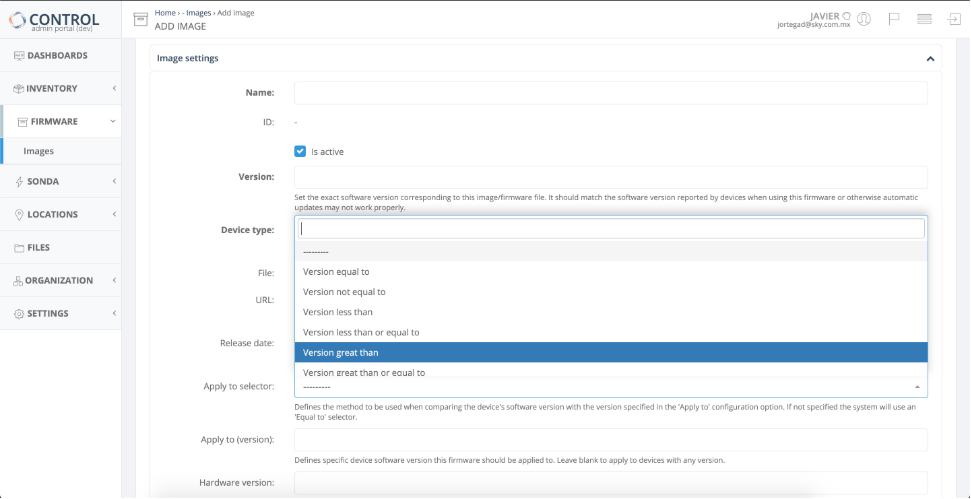
- Configure the image settings on the Add Image page:
Firmware Image Parameters
| Parameter | Description |
|---|---|
| Name | Mnemonic identifier for the firmware image |
| Version | Version number of the firmware image |
| Device Profile | Select the Device Profile this image applies to from the dropdown menu |
| Upgrade Profile | To be confirmed |
| File or URL | Upload the firmware file through the GUI or specify an HTTP/FTP URL where the image is located Note: Using a local Service Provider HTTP/FTP server is STRONGLY recommended for massive firmware updates |
| Release Date | Optional. If specified, automatic updates will only be applied after this date |
| Apply to Selector | Comparison method used when matching the device's software version against the 'Apply to' version Default: 'Equal to' |
| Apply to (version) | Target device software version for this firmware Leave blank to apply to devices with any version |
| Hardware Version | Target device hardware version for this firmware Leave blank to apply to devices with any hardware version |
Version Comparison Algorithm
CONTROL ACS uses a direct character-by-character comparison algorithm to determine version precedence.
Comparison Examples
The algorithm evaluates versions as follows:
-
v1.0.1is a lower version thanv1.0.10 -
v1.0.1ais a lower version thanv1.0.1b -
v1.0.1ais a greater version thanv1.0.1
Important Consideration
The algorithm treats v1.0.1a as a higher version than v1.0.1, which may not be the desired behavior in all scenarios.
Workaround: Add an underscore character to ensure correct version ordering:
-
v1.0.1_is a lower version thanv1.0.1a
This allows you to maintain the expected version hierarchy when alphabetic suffixes are used.
Firmware Selection Logic
To be confirmed
Upgrade Profiles
To be confirmed