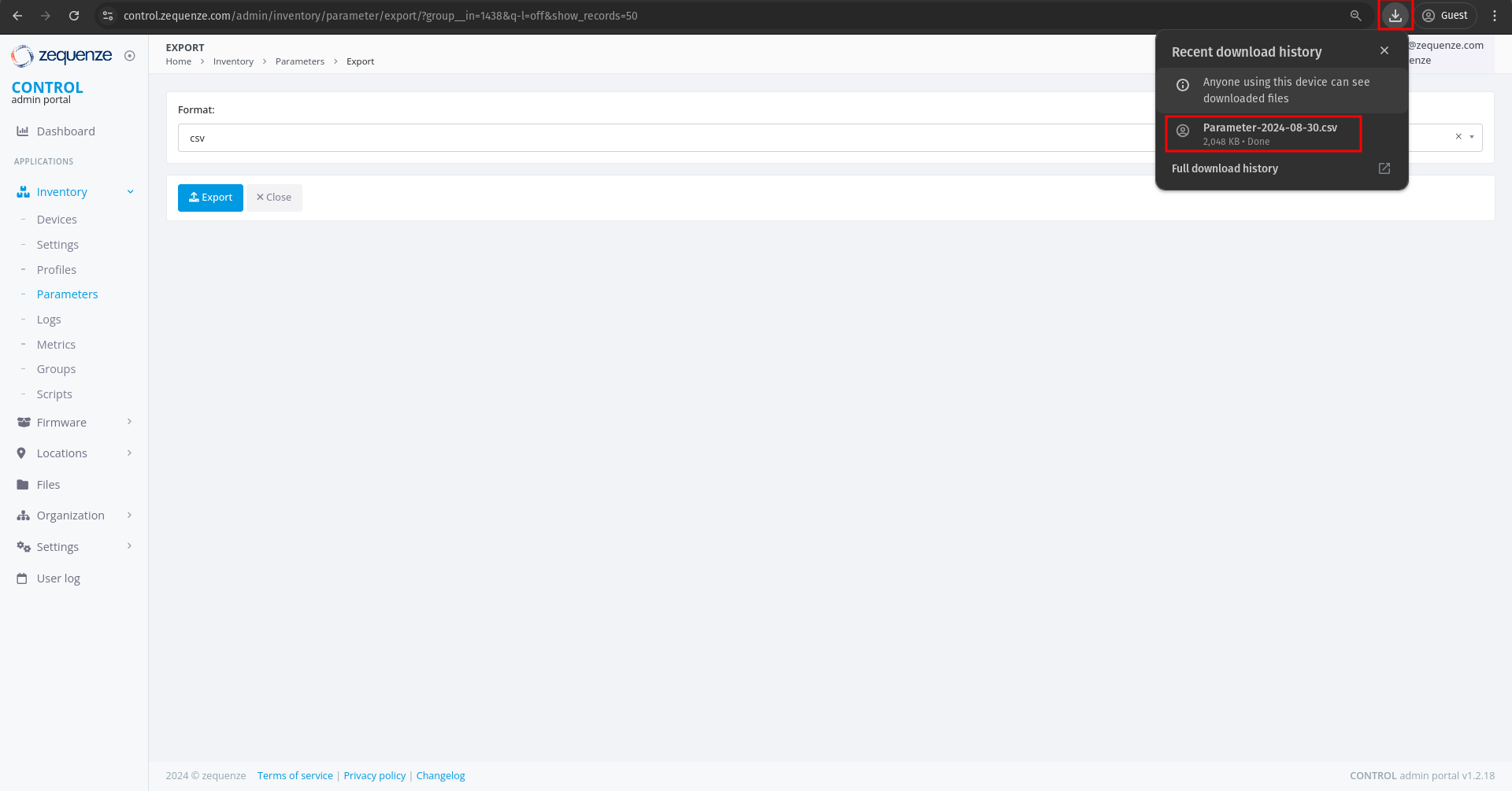
Export the parameters
Overview
This guide explains how to locate, filter, and export parameter groups from the CONTROL portal. You'll learn to navigate to the Parameters section, apply filters to find specific groups, and export the data in your preferred format.
Navigate to the Parameters Section
Begin by accessing the Parameters area within the Inventory module.
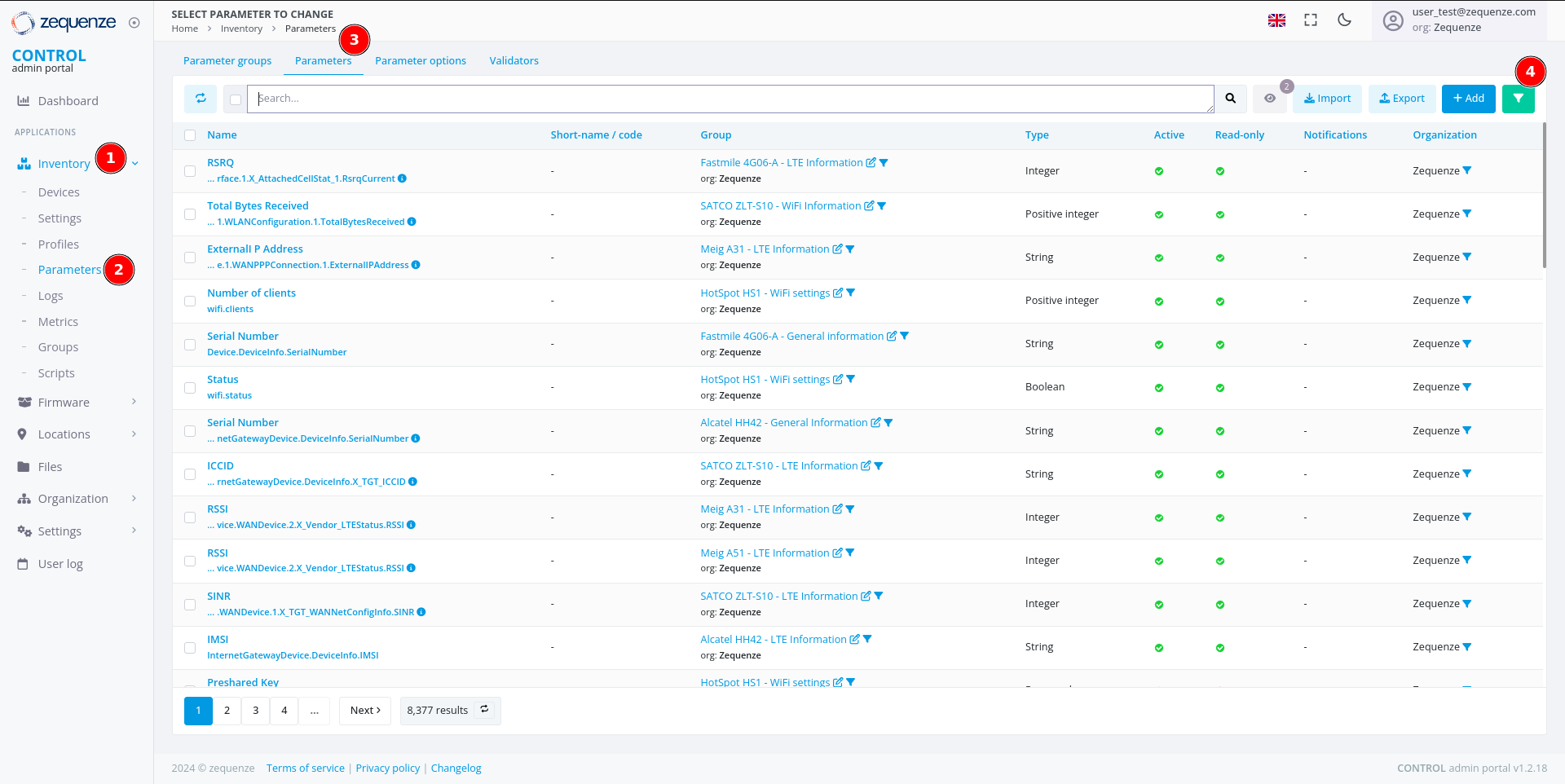
- Click on Inventory
- Click on Parameters
- Click on Parameters again
- Activate the filter by clicking the green funnel icon
Filter Parameters by Group
Once the filter panel is open, you can search for specific parameter groups.
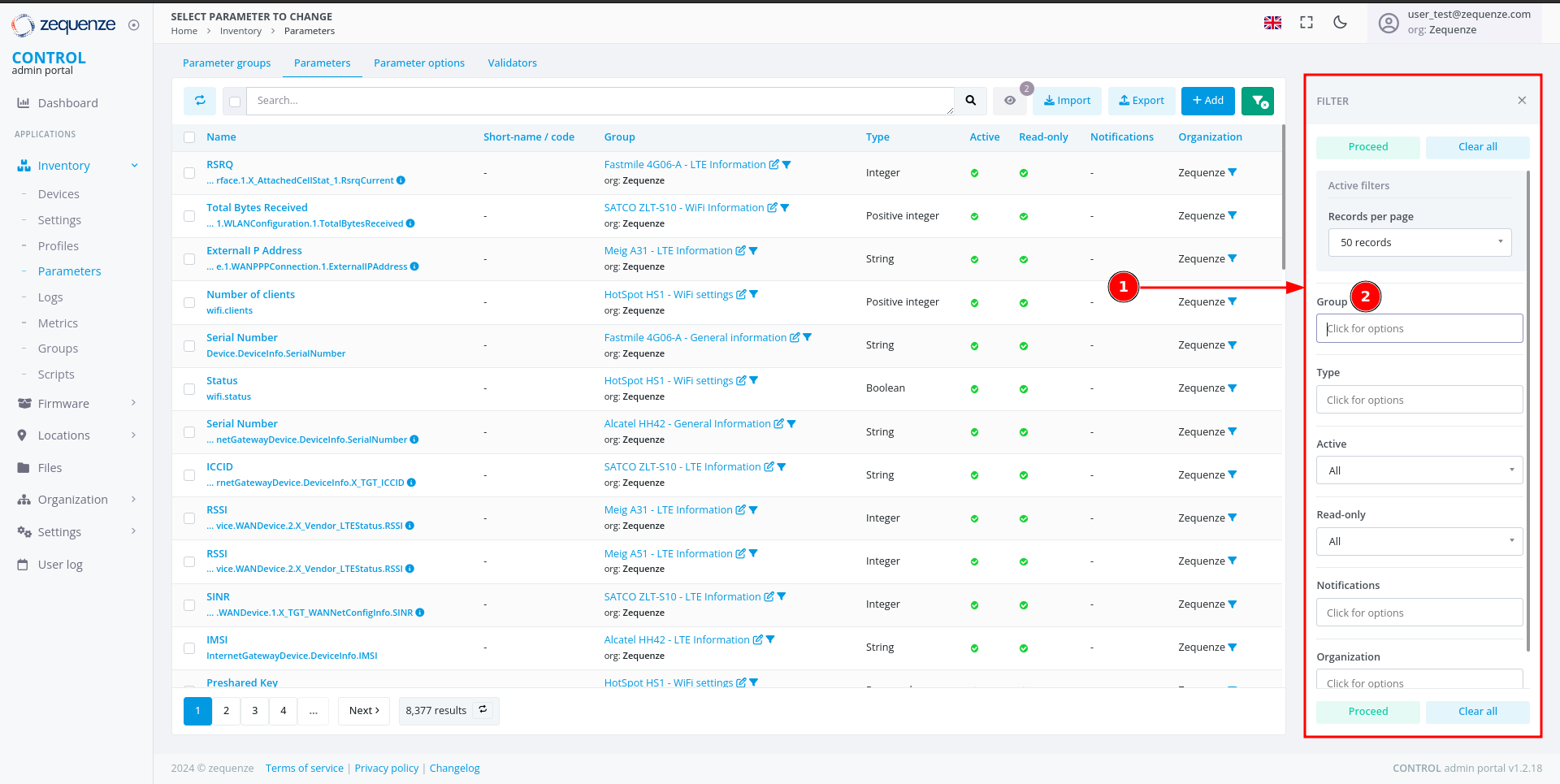
- The filter panel displays available filter options
- Locate the Group field
Search for Your Group
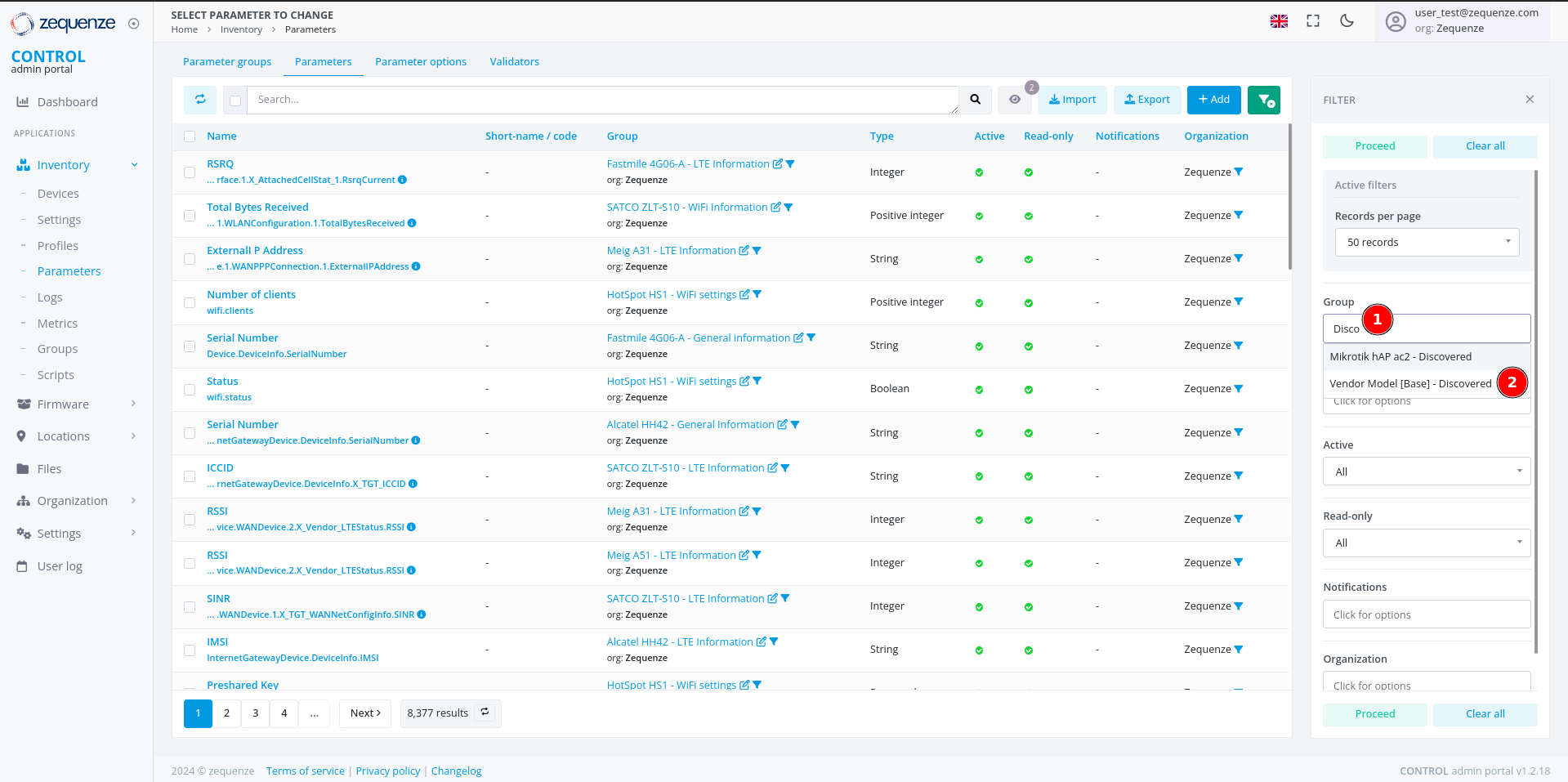
- In the Group field, enter a search term (e.g., type "Disco" to find all groups containing the word "Discovered")
- Select your desired group from the results (e.g., "Vendor Model [Base] - Discovered")
- Click the Proceed button to apply the filter
Verify Filtered Results
After applying the filter, confirm that the correct parameters are displayed.
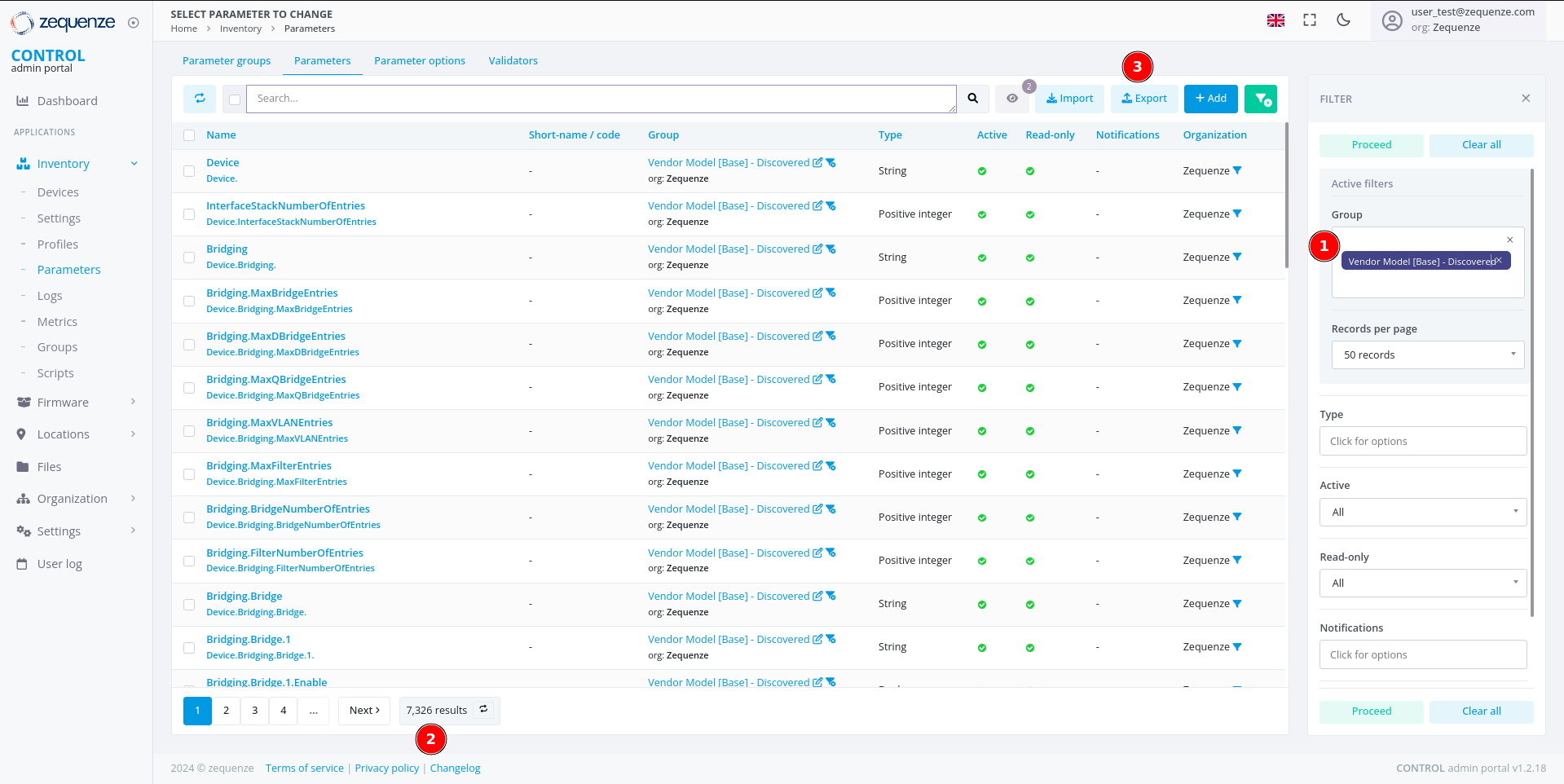
- Review the applied Group filter
- Verify that the parameter count matches the expected number from your Profile
- Proceed to export the parameters
Export the Parameters
Initiate the Export
Click the Export button to open the export dialog.
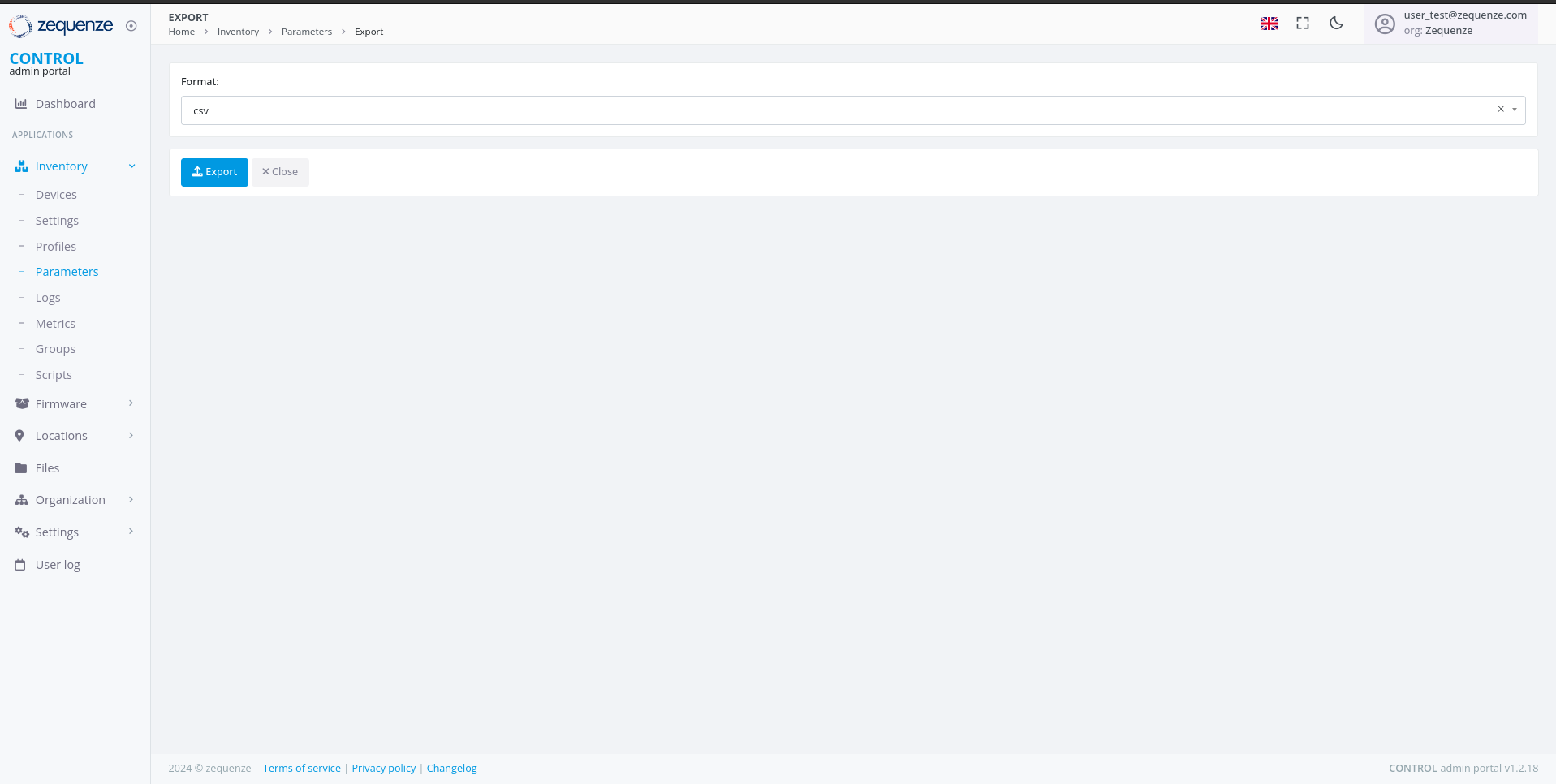
Select Export Format
Choose your preferred file format from the available options.
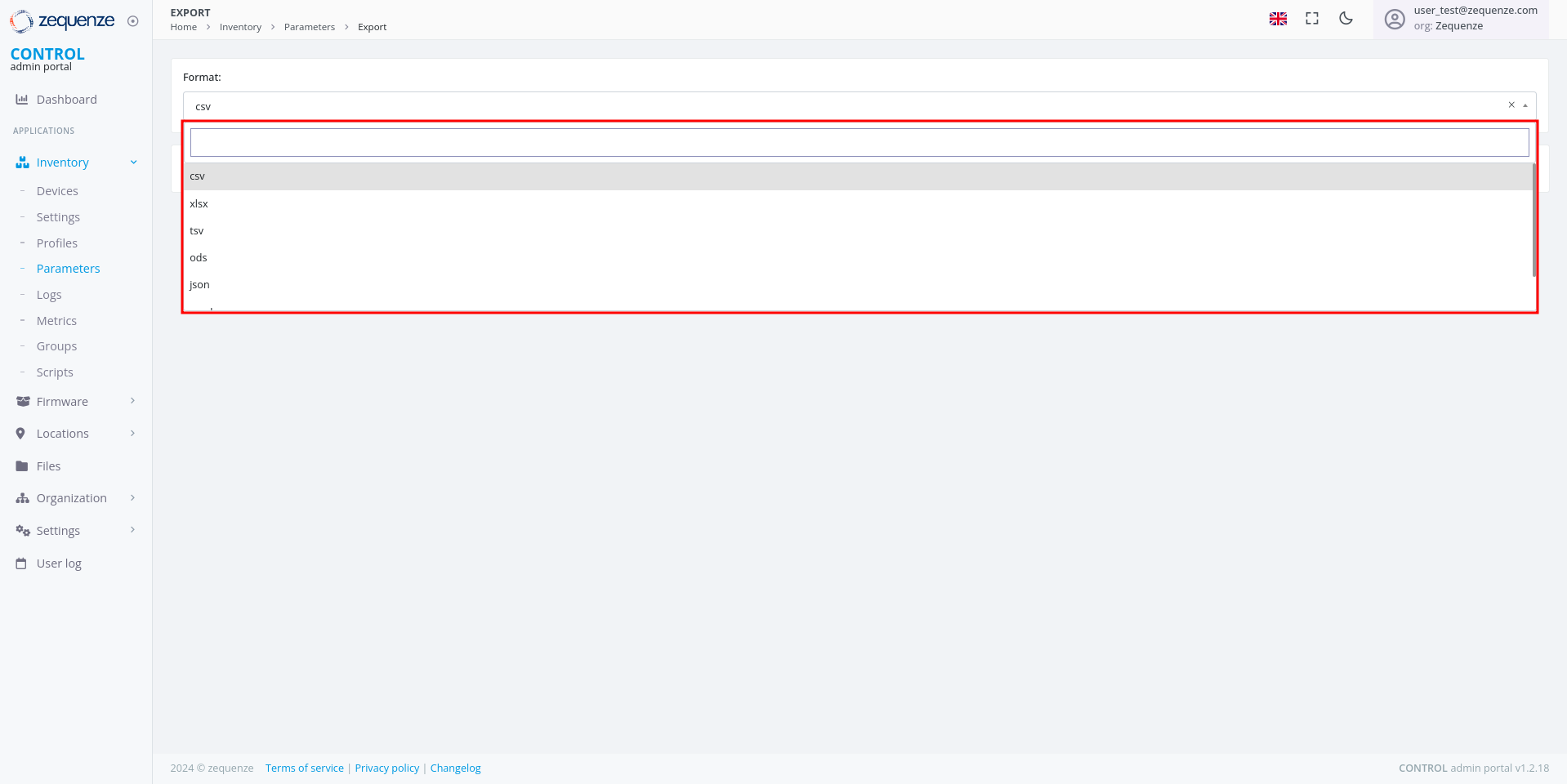
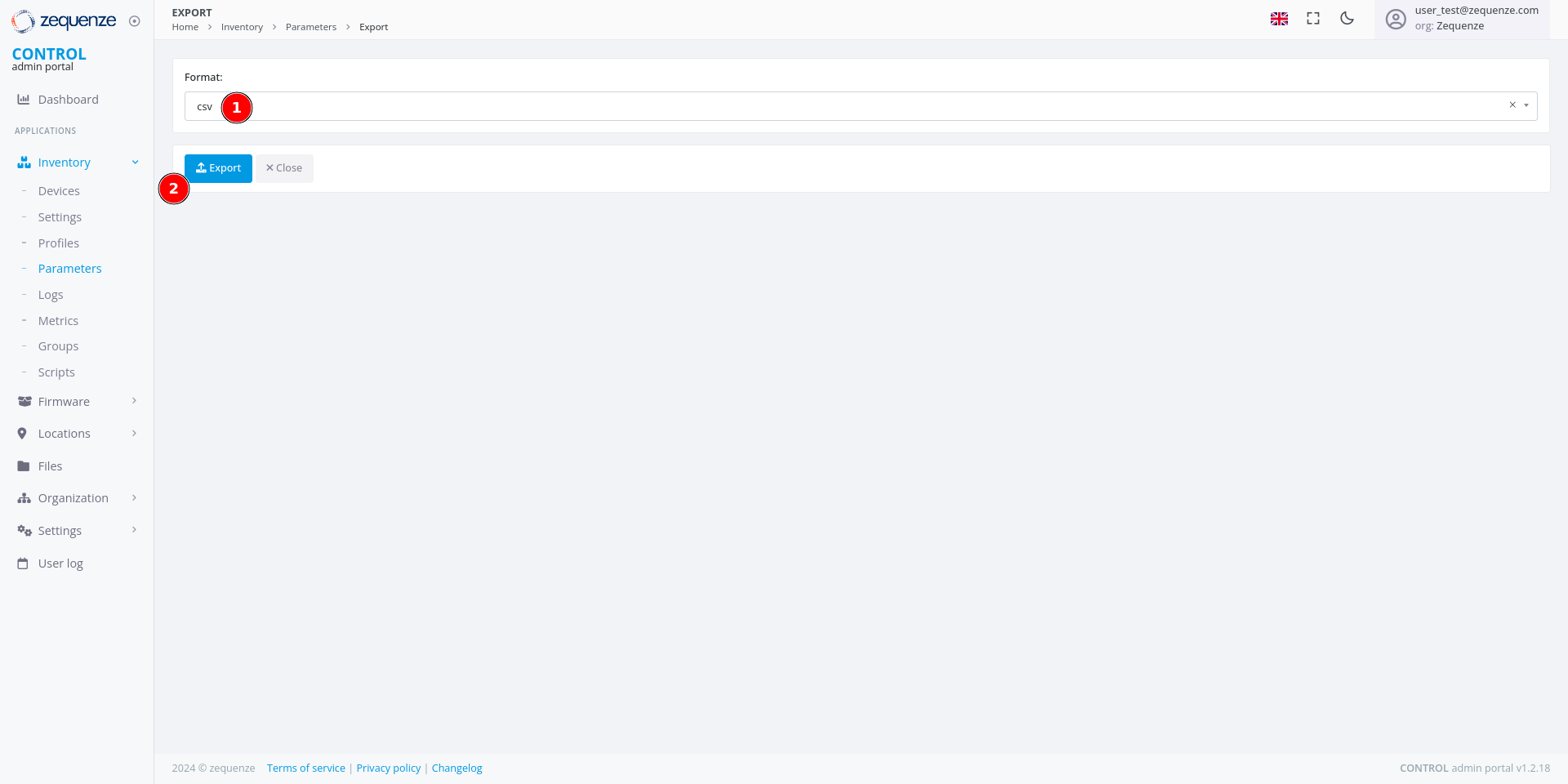
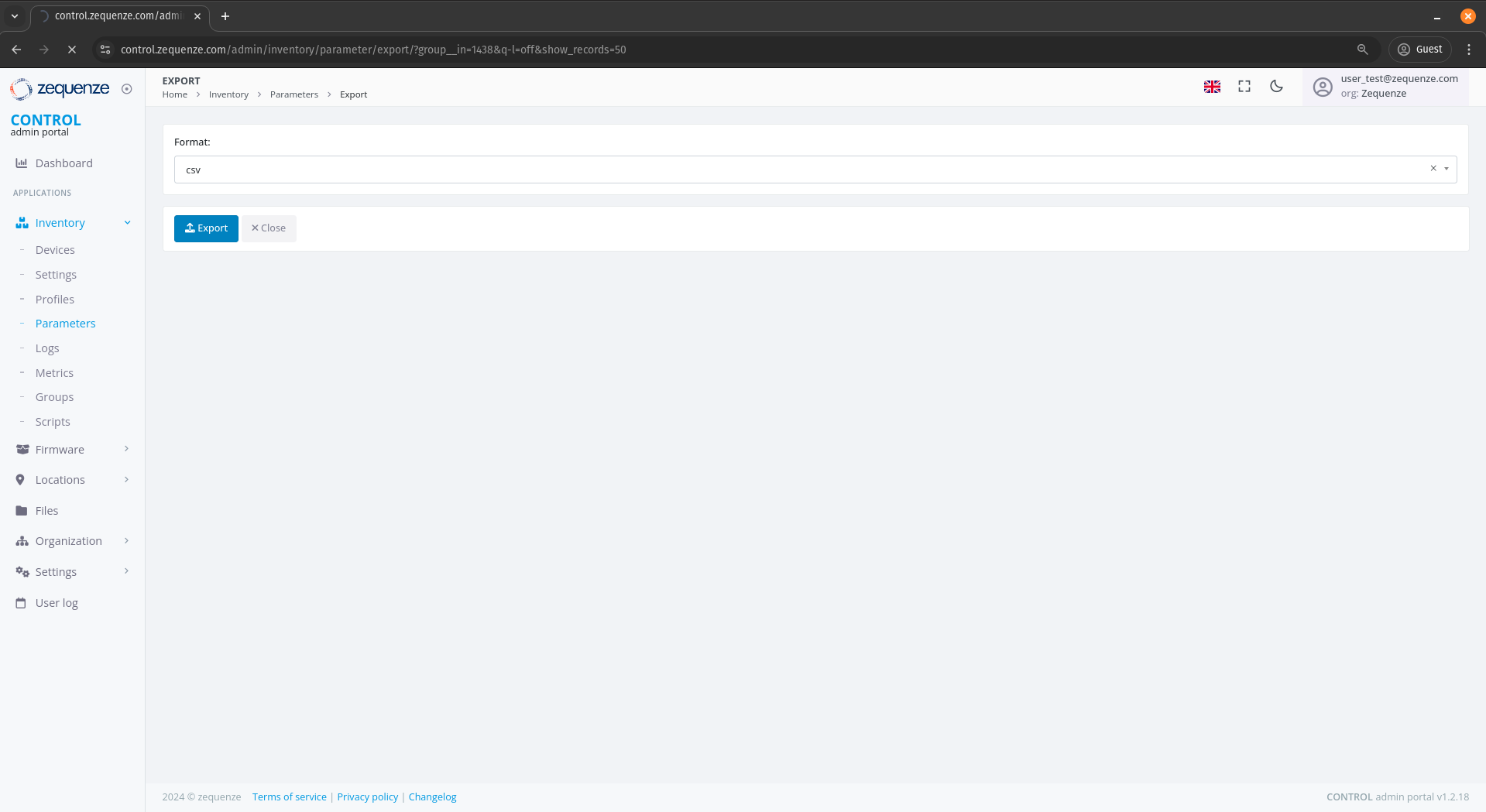
- Select your desired format (e.g., CSV)
- Click the Export button to start the export process
Download the Exported File
Monitor Export Progress
After initiating the export, a progress indicator appears at the top of your browser showing that the report is being generated.
Download Complete
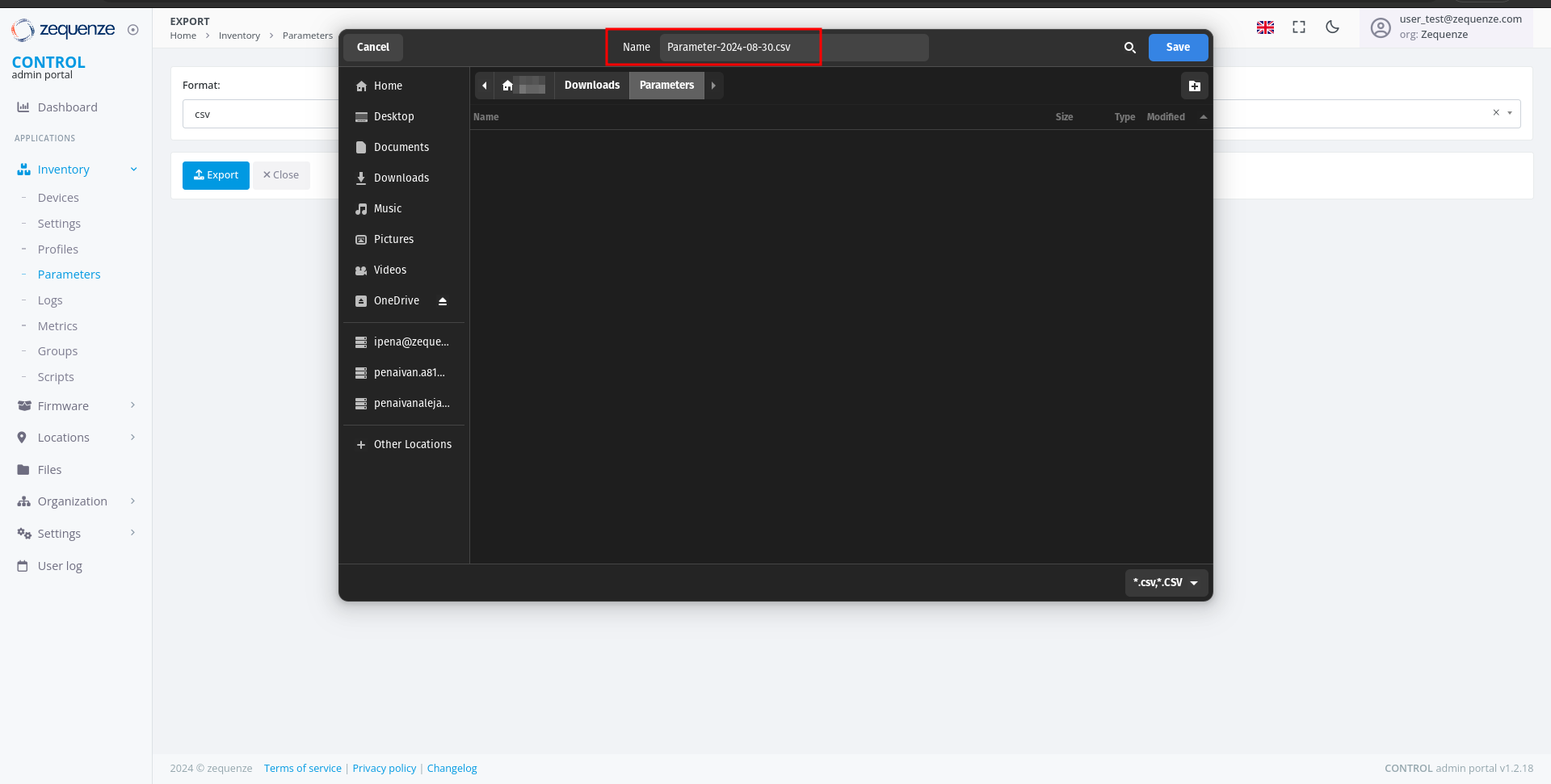
When the export is ready, a download notification will appear.
Open the File
You can now open the exported CSV file to view your parameters.