
Devices
Overview
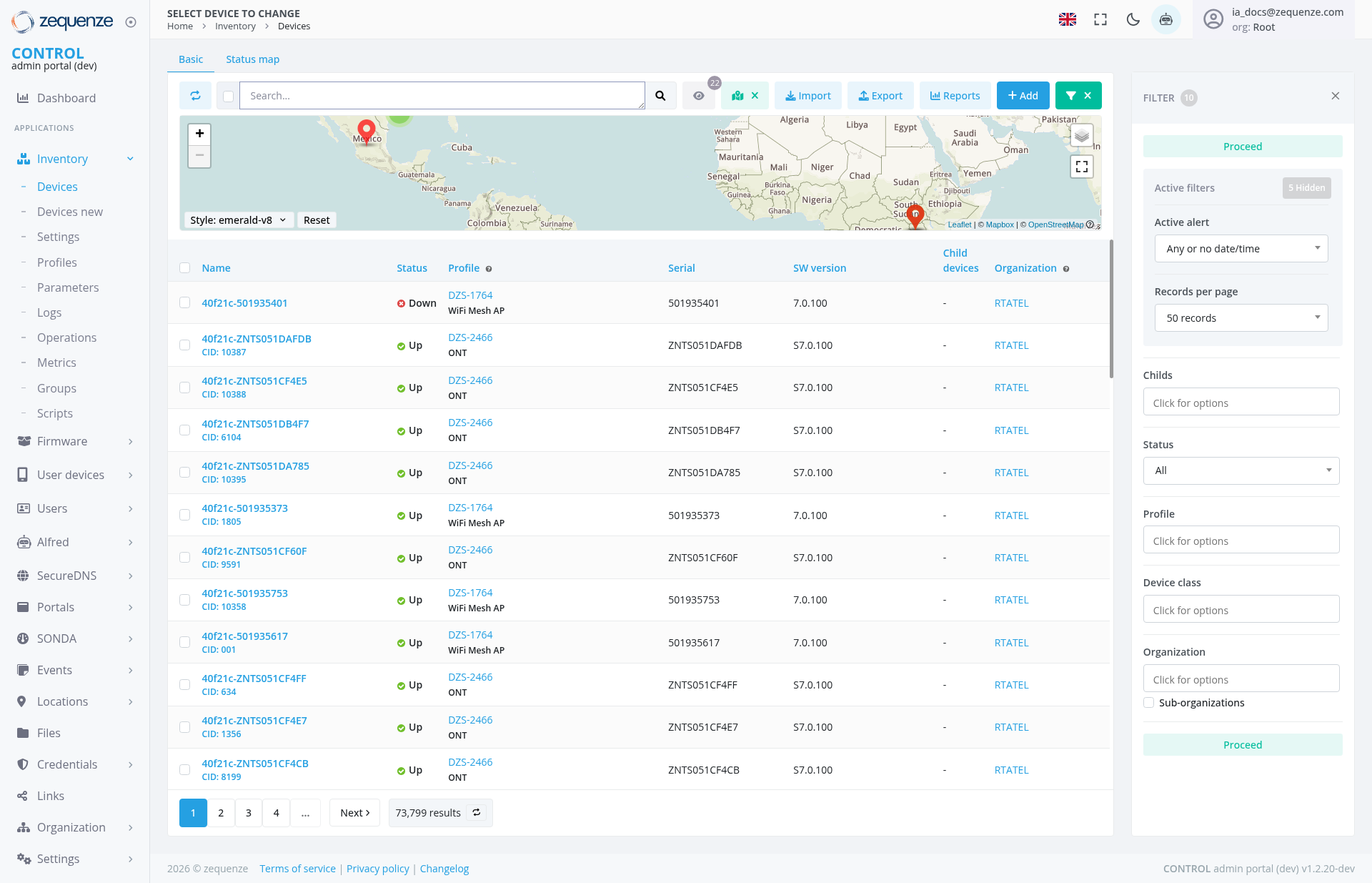
The Device Inventory page in the Zequenze Control Portal provides a comprehensive view of all managed devices across your network infrastructure. This centralized interface displays device status, configuration details, and organizational hierarchy in both tabular and map-based views.
Key Features
- Dual View Options: Toggle between Basic table view and Status map view for different perspectives on device data
- Interactive Map: Geographic visualization showing device locations with status indicators
- Real-time Status Monitoring: Live status updates for all devices with color-coded indicators
- Advanced Filtering: Multi-criteria filtering system for refined device searches
- Bulk Operations: Import/export capabilities and bulk device management
- Hierarchical Organization: View devices organized by sub-organizations and groups
UI Elements
Top Navigation Bar
- Device Selection Dropdown: "SELECT DEVICE TO CHANGE" allows switching between managed devices
- Breadcrumb Navigation: Home > Inventory > Devices path for easy navigation
- User Account: Displays logged-in user (ia_docs@zequenze.com) with Root privileges
Main Content Area
- View Toggle Tabs: Switch between "Basic" (table view) and "Status map" (geographic view)
- Search Bar: Global search functionality across all device attributes
-
Action Buttons:
- Import devices
- Export data
- Reports
- Add new devices
- Bulk delete (X button)
Interactive Map View
- Geographic Display: Shows device locations across multiple continents including North America, Africa, and the Middle East
- Location Markers: Red markers indicating device positions with visible markers in Mexico and Saudi Arabia regions
-
Map Controls:
- Zoom in/out buttons
- Style selector (emerald-v8 theme)
- Reset button for map view
- Fullscreen toggle
Device Data Table
Displays comprehensive device information in columns:
- Name: Device identifier with clickable links and CID (Connection ID) numbers
- Status: Real-time operational status (Up/Down with color indicators)
- Profile: Device configuration profile type (DZS-2466 ONT, DZS-1764 WiFi Mesh AP)
- Serial: Hardware serial numbers
- SW Version: Current software/firmware version
- Child Devices: Count of subordinate devices (showing "-" for no child devices)
- Organization: Organizational assignment (RTATEL)
Right Panel Filters
-
ExpandedCollapsed Filter Panel: The filter panel is displayed inanaexpandedcollapsed state, showingcomprehensiveonly the filter icon button (numbered indicator showing "0") in the top-right area
User Interactions
Primary Actions
- Device Selection: Click on device names to view detailed configuration
- Status Monitoring: Visual status indicators provide immediate operational overview
- Search and Filter: Use search bar and filter panel for targeted device discovery
- Map Navigation: Interact with geographic map to locate devices spatially, with zoom and fullscreen capabilities
- Bulk Operations: Select multiple devices for group actions
Map Interactions
- Zoom Controls: Use + and - buttons to adjust map zoom level
- Style Selection: Change map appearance using the style dropdown
- Reset View: Return to default map positioning
- Fullscreen Mode: Toggle fullscreen display for better map visibility
Filter Interactions
-
ExpandedFilter Toggle: Click the filter button (showing "0" when no filters are active) to expand the filter panel
Secondary Actions
- Data Export: Export filtered device lists for external analysis
- Report Generation: Create custom reports based on current view
- Device Import: Bulk device addition via import functionality
Navigation
Access Path
- Primary: Admin Portal → Inventory → Devices
- Direct URL:
https://control-dev.zequenze.com/admin/inventory/device/
Related Sections
- Dashboard: Return to main overview
- Settings: Device configuration management
- Profiles: Device profile management
- Groups: Device grouping and organization
Data Displayed
Device Information
- Operational Status: Real-time up/down status with visual indicators (all devices showing "Up" status)
- Hardware Details: Serial numbers (ZNT50051 series and 501935 series), device models, firmware versions (57.0.100 and 7.0.100)
- Network Configuration: Profile assignments (DZS-2466 ONT and DZS-1764 WiFi Mesh AP) and network parameters
- Organizational Structure: Parent-child relationships and organizational assignments (RTATEL organization)
Status Indicators
- 🔴 Red Circle: Device is down or unreachable
- 🟢 Green Circle: Device is operational and responsive (all visible devices showing green status)
- Blue Links: Clickable elements for detailed views
Actions Available
Individual Device Actions
- View Details: Click device name for comprehensive device information
- Status Monitoring: Real-time operational status tracking
- Profile Management: View and modify device configuration profiles
Bulk Operations
- Multi-device Selection: Select multiple devices for group operations
- Data Export: Export device lists in various formats
- Import New Devices: Bulk device addition and configuration
- Report Generation: Create custom reports based on filtered data
Administrative Functions
- Add New Device: Manual device addition and configuration
- Delete Devices: Remove devices from management (bulk delete available)
-
Advanced Filtering: Access comprehensive filtering options
throughby clicking theexpandedfilterpaneltoggle button -
Filter Management:
SetExpand filter panel using the numbered filter button (shows "0" when no active filters)
- Access device status filters (All/Up/Down)
- Configure profile-based filtering
- Apply device class filters
- Select organizational scope including sub-organizations
- Control pagination with records per page setting
- Apply filter combinations
usingthrough the"Proceed"expandablebuttoninterface
Notes/Tips
- Status Colors: Red indicators require immediate attention; green indicates normal operation
- Pagination: Navigate through 73,799 total results using pagination controls at the bottom of the table
- Map View: Switch to Status map tab for geographic device distribution visualization with full interactive capabilities across global locations
-
AdvancedFilterFilteringPanel:UseThethe expandedcollapsed filter panel (showing "0") provides a cleaner interface while maintaining easy access toapplyallmultiplefiltering capabilities