149182-WRT1900ACS-18E10604600470
Generating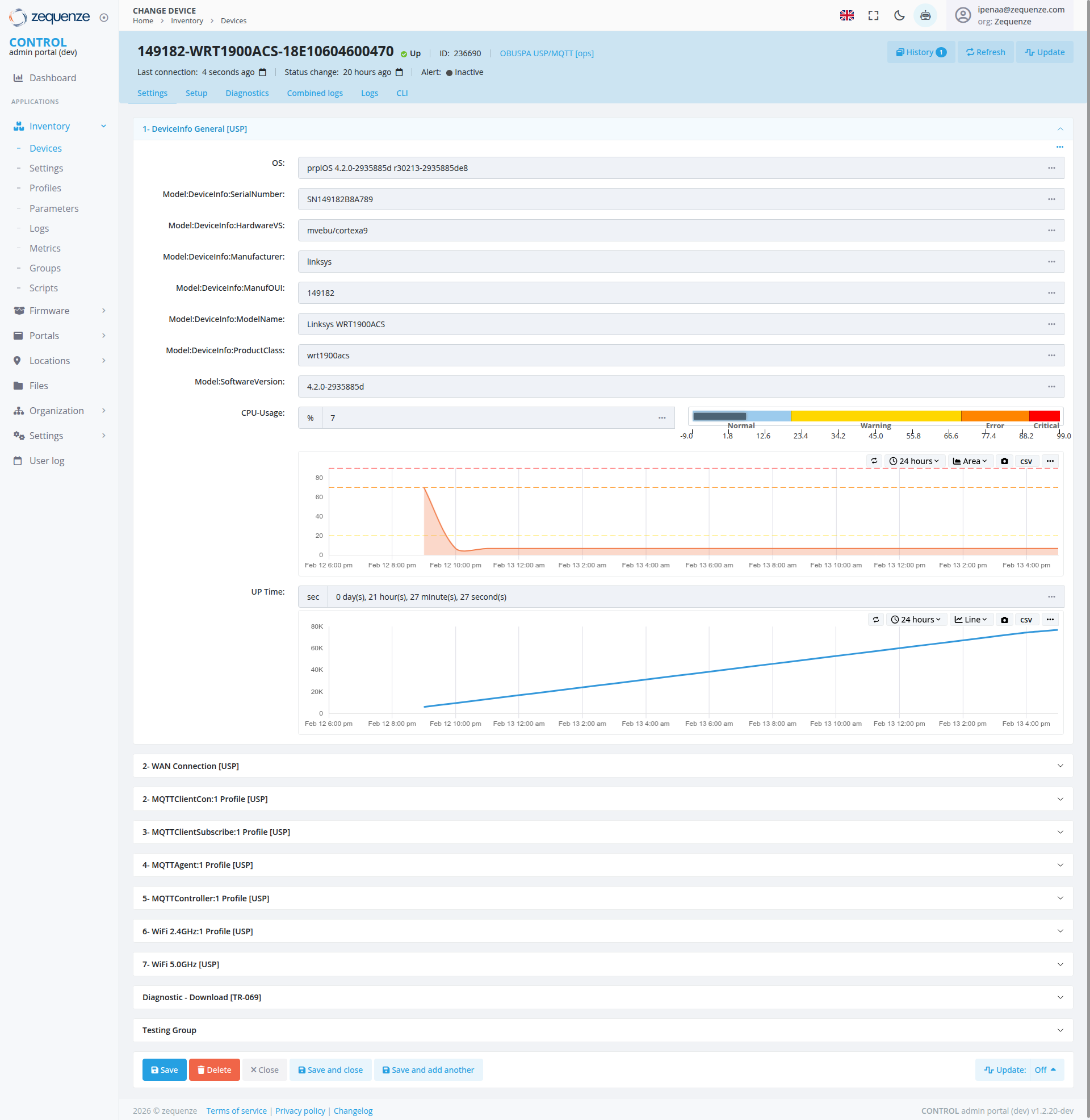
documentation..Overview
The Device Details page in the CONTROL admin portal provides comprehensive information and management capabilities for individual IoT devices. This page displays device identification, hardware specifications, system metrics, and various configuration profiles for the Linksys WRT1900ACS router (Device ID: 149182-WRT1900ACS-18E10604600470).
Key Features
Real-time Device Monitoring: Track device connectivity status, CPU usage, and uptime metrics
Device Information Management: View and edit detailed device specifications including OS version, hardware details, and model information
Multi-Profile Configuration: Access and manage various connection and communication profiles (WAN, MQTT, WiFi)
Historical Data Visualization: Interactive charts displaying CPU usage trends and uptime history over 24-hour periods
Diagnostic Tools: Download diagnostic files and access device logs for troubleshooting
Navigation
Accessing the Device Details Page
Navigate from Home → Inventory → Devices
Select the specific device from the inventory list
The device details page opens with the device identifier in the header
Breadcrumb Navigation
Home > Inventory > Devices > [Device ID]
Device group indicator: OBU/SPA LISD/MQTT (pap)
Device Status Bar
Located at the top of the page, displaying critical status information:
Last connection: 4 seconds ago (with timestamp indicator)
Status change: 20 hours ago (with timestamp indicator)
Alert: Inactive status indicator
Action Buttons:
History (with notification badge)
Refresh: Update device information
Update: Apply configuration changes
Main Navigation Tabs
The page includes six primary tabs for device management:
Settings: Device configuration and parameters
Setup: Initial device setup and onboarding
Diagnostics: Troubleshooting and system analysis
Combined logs: Aggregated log viewing
Logs: Individual log file access
CLI: Command-line interface access
1. DeviceInfo General [USP]
This expandable section displays core device specifications:
Field
Value
Description
OS
prplOS 4.2.0-29358b5d r9021323585b54e8
Operating system version and build
Model:DeviceInfo.SerialNumber
SN14918288A789
Unique device serial number
Model:DeviceInfo.HardwareVersion
mvebu/cortexa9
Hardware platform identifier
Model:DeviceInfo.Manufacturer
linksys
Device manufacturer name
Model:DeviceInfo.ManufacturerOUI
149182
Organizationally Unique Identifier
Model:DeviceInfo.ModelName
Linksys WRT1900ACS
Commercial product name
Model:DeviceInfo.ProductClass
wrt1900acs
Product classification code
Model:SoftwareVersion
4.2.0-29358b5d
Current firmware version
Each field includes an ellipsis menu (⋯) for additional actions.
CPU Usage Monitor
Visual Display:
Real-time CPU usage percentage (currently showing 7%)
Color-coded severity scale:
Normal: 0-17.6% (Green/Blue)
17.6-34.2%: Light monitoring
34.2-51.8%: Elevated usage
Warning: 68.6-85.4% (Yellow)
Error: 77.4% (Orange)
Critical: 86.2-99.0% (Red)
Chart Features:
Time Range: 24-hour view (selectable)
Area Visualization: Line chart with shaded area
Interactive Timeline: Hover for specific data points
Peak Analysis: Shows historical spike around Feb 12 8:00 pm
Export Options: CSV download available
View Controls: Area selector dropdown
Timeline Display:
X-axis: Time stamps from Feb 12 6:00 pm through Feb 14 4:00 pm
Y-axis: Percentage scale (0-100%)
Current state: Low stable usage (~7%) after initial spike
Uptime Tracking
Visual Display:
Current Uptime: 0 day(s), 21 hour(s), 27 minute(s), 27 second(s)
Cumulative uptime graph showing device availability
Chart Features:
Time Range: 24-hour view (selectable)
Line Graph: Steadily increasing line representing continuous uptime
Current Reading: Approximately 60K seconds (displayed on Y-axis)
Timeline: Same period as CPU usage (Feb 12-14)
Export Options: CSV download and additional options menu
View Controls: Line visualization with customizable time range
Scale Information:
Y-axis: Time in seconds (20K, 40K, 60K, 80K increments)
X-axis: Synchronized with CPU usage timeline
Configuration Profiles
The page provides access to multiple expandable profile sections:
2. WAN Connection [USP]
Network connectivity configuration for Wide Area Network settings
2. MQTTClientCon:1 Profile [USP]
MQTT client connection profile for IoT messaging protocols
3. MQTTClientSubscribe:1 Profile [USP]
MQTT subscription topics and message handling configuration
4. MQTTAgent:1 Profile [USP]
MQTT agent settings for message broker communication
5. MQTTController:1 Profile [USP]
MQTT controller configuration for device management
6. WiFi 2.4GHz:1 Profile [USP]
2.4 GHz wireless network configuration settings
7. WiFi 5.0GHz [USP]
5.0 GHz wireless network configuration settings
Each profile section can be expanded by clicking the chevron icon (∨) to reveal detailed configuration parameters.
Diagnostic - Download [TR-069]
Expandable section providing access to TR-069 protocol diagnostic files for advanced troubleshooting and device analysis.
Testing Group
Dedicated section for device testing and validation procedures, accessible through the expandable panel at the bottom of the page.
Actions Available
Primary Actions (Bottom Action Bar)
💾 Save: Commit changes to device configuration
🗑️ Delete: Remove device from inventory
✕ Close: Exit without saving changes
💾 Save and close: Save changes and return to inventory
💾 Save and add another: Save current device and create new device entry
Secondary Actions
🔄 Update: Manual firmware or configuration update (top right)
Off Toggle: Quick enable/disable switch (bottom right)
Update Button: Additional update options (bottom right)
User Interactions
Viewing Device Information
Scroll through the page to view different sections
Click on any field's ellipsis menu (⋯) for field-specific actions
Hover over chart elements to see detailed data points
Editing Device Parameters
Click on editable fields to modify values
Use the ellipsis menus for advanced field options
Click Save or Save and close to commit changes
Review real-time metrics in the status bar
Analyze CPU usage patterns in the graph
Check uptime trends for connectivity issues
Adjust time ranges using the 24-hour selector
Managing Profiles
Click on any profile section to expand its configuration
Modify profile-specific parameters
Save changes using the action buttons
Downloading Diagnostics
Expand the "Diagnostic - Download [TR-069]" section
Select desired diagnostic data
Download files for offline analysis
Navigation Tips
Sidebar Menu: Use the left navigation panel to switch between applications (Dashboard, Inventory, Firmware, Portals, Locations, Files, Organization, Settings, User log)
Top Bar: Access device-specific tools (History, Refresh, Update)
Breadcrumbs: Quick navigation to parent levels
Action Buttons: Persistent at bottom of page for easy access
Notes & Best Practices
Device Status Monitoring
Green indicators: Device is healthy and connected
Last connection timestamp: Should update regularly (every few seconds)
Alert status: Monitor for "Active" alerts requiring attention
CPU Usage Interpretation
Normal operation typically shows usage below 20%
Spikes may indicate firmware updates, configuration changes, or processing intensive tasks
Sustained high usage (>70%) requires investigation
Uptime Considerations
Recent uptime of 21+ hours indicates a device restart approximately one day ago
Check Combined Logs if uptime resets unexpectedly
Normal maintenance may require periodic restarts
Configuration Management
Always review changes before saving
Use "Save and close" for single device updates
Use "Save and add another" for batch device provisioning
Changes may require device reboot to take effect
Data Export
Use CSV export for creating reports or importing into analysis tools
24-hour time window can be adjusted for longer historical views
Consider downloading diagnostics before major configuration changes
Copyright: 2026 © zequenze
Links: Terms of service | Privacy policy | Changelog
System: CONTROL admin portal (dev) v1.2.20-dev
User: jerinab@zequenze.com (org: Zequenze)
This device details page serves as the central hub for managing and monitoring individual IoT devices within the CONTROL platform, providing administrators with comprehensive visibility and control over device operations, connectivity, and performance.
