
Dashboard: Main
Overview
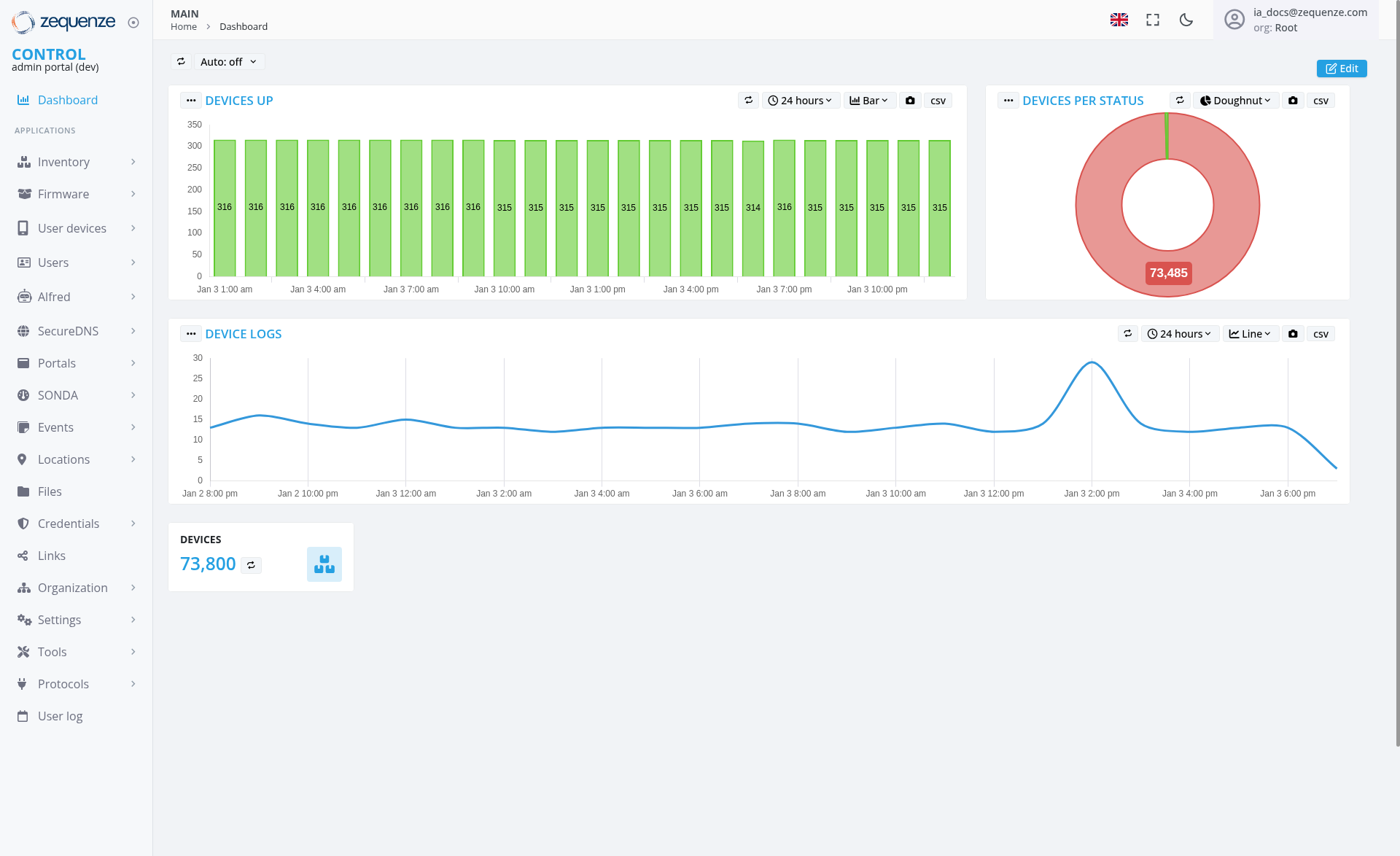
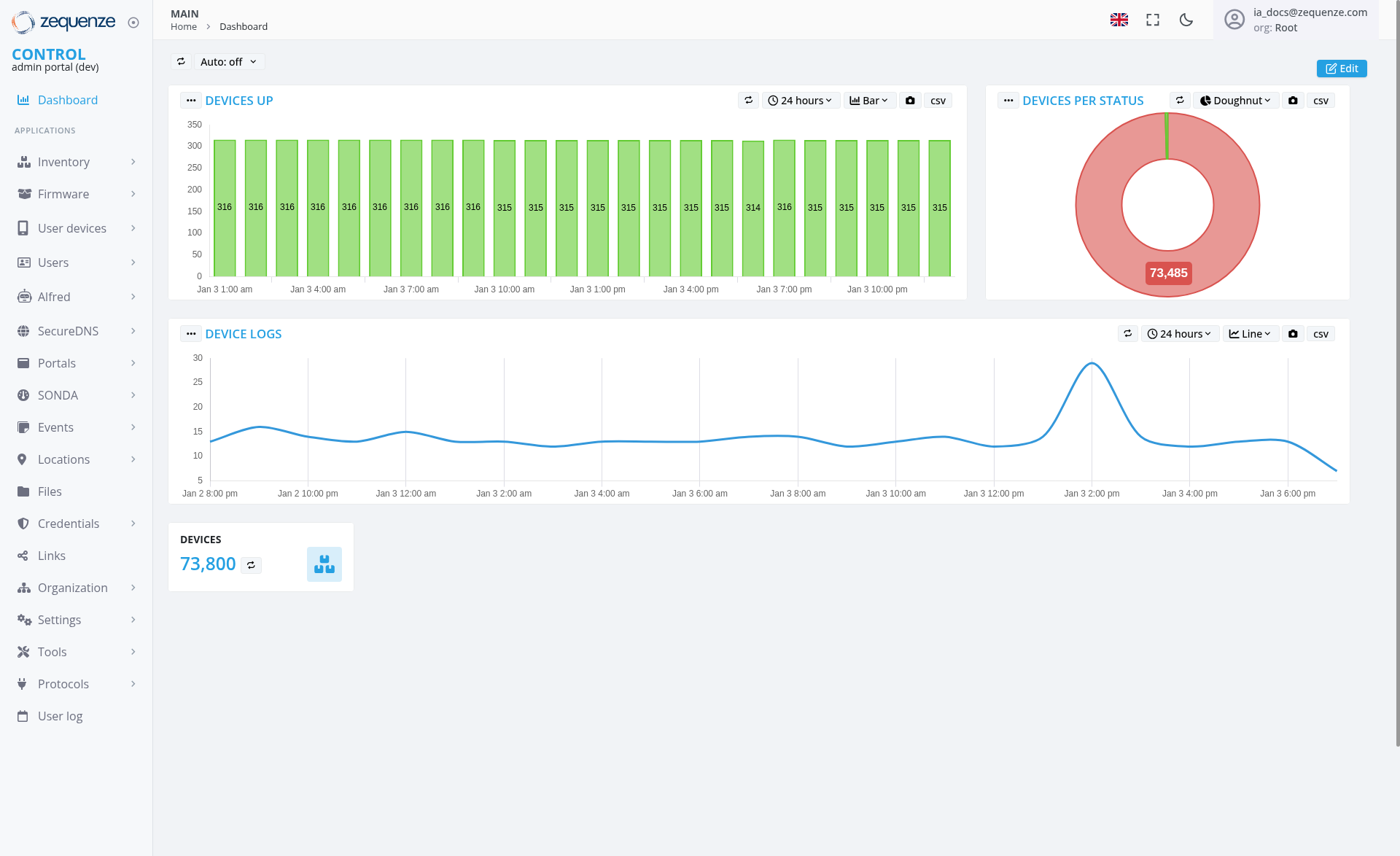
The Zequenze Control Portal Dashboard provides a comprehensive real-time overview of device management and monitoring capabilities. This main dashboard serves as the central hub for administrators to monitor device status, track performance metrics, and access various system management tools.
Key Features
Real-Time Device Monitoring
- Devices Up Chart: Visual bar chart showing device availability over a 24-hour period
- Device Logs Graph: Line chart displaying device activity and log patterns over time
- Devices Per Status: Pie chart visualization showing the distribution of device statuses
- Live Device Count: Real-time counter showing total devices (73,800)
Navigation & Access Control
UI Elements
Dashboard Widgets
- Devices Up Widget: Green bar chart with consistent values around 314-316 devices, displaying hourly data points from Jan 3 1:00 am through Jan 3 10:00 pm
- Device Logs Widget: Blue line graph showing cyclical activity patterns spanning from Jan 1 8:00 pm through Jan 4 6:00 pm, with notable peaks approximately every 24 hours reaching around 30 events, followed by declining periods to baseline levels around 10-15 events
- Devices Per Status Widget: Donut chart with prominent red section showing 73,485 devices
- Device Counter: Large numeric display (73,800) with refresh icon
Navigation Sidebar
- Control Section: Dashboard (currently active)
-
Applications Menu:
- Inventory
- Firmware
- User devices
- Users
- Alfred
- SecureDNS
- Portals
- SONDA
- Events
- Locations
- Files
- Credentials
- Links
- Organization
- Settings
- Tools
- Protocols
- User log
Top Navigation
- Home and Dashboard breadcrumb navigation
- Auto-refresh toggle (currently set to "Auto: off")
EditUserbuttonaccountfor dashboard customization (locateddisplay in top-rightcorner)corner showing "ia_docs@zequenze.com" with organization "Root"
User Interactions
Widget Controls
- Time Range Selection: 24-hour view with dropdown options
- Data Export: CSV export functionality available for all widgets
- Chart Type Toggle: Line view option available for Device Logs widget
- Chart View Options: Doughnut view selection available for Devices Per Status widget
- Refresh Controls: Manual refresh and auto-refresh settings
Navigation
Navigation
Access Path
-
URL:
https://control-dev.zequenze.com/admin/ - Primary Navigation: MAIN > Home > Dashboard
- User Level: Root organization access required
Related Sections
- Device management via Inventory and User devices
- System configuration through Settings and Organization
- Monitoring and logging via Events and User log sections
Data Displayed
Performance Metrics
- Device Uptime: Consistent high availability (314-316 devices up)
- Activity Patterns: Device logs show cyclical patterns with regular 24-hour peaks reaching approximately 30 events, demonstrating predictable daily activity cycles across multiple days
- Status Distribution: Large-scale device deployment (73,800 total devices)
- Time Series Data: Extended time window showing multi-day patterns with hourly granularity
System Information
- Total Devices: 73,800 managed devices
- Active Monitoring: Real-time status tracking
- Historical Data: Time-based trend analysis showing multi-day patterns
- Status Categories: Multiple device states tracked in pie chart with 73,485 devices in the primary status category
Actions Available
Dashboard Management
-
Edit Dashboard: Customize widget layout and configuration via Edit button in top-right
System Navigation
- Quick Access: Direct links to all major system functions
- User Management: Access to user and device administration
- Configuration: System settings and organizational controls
- Monitoring: Real-time and historical data analysis
Notes/Tips
Best Practices
- Monitor the "Devices Up" chart for consistent availability patterns
- Use the Device Logs graph to identify unusual activity spikes or deviations from the normal 24-hour cycle
- Export data regularly for compliance and reporting purposes
- Enable auto-refresh for real-time monitoring scenarios
- Utilize chart view options (Line view toggle, Doughnut view) for optimal data visualization
Performance Considerations
- The dashboard displays data for 73,800 devices, indicating enterprise-scale deployment
- Time-series data updates hourly for optimal performance
- CSV export functionality available for detailed analysis
- Dashboard widgets are optimized for real-time updates
Access Requirements
- Root organization privileges required for full dashboard access
- Development environment URL suggests testing/staging deployment
- User authentication via email-based accounts (ia_docs@zequenze.com shown)