# GATE Users Guide

Documentation for GATE Users Guide

# Overview

# What is GATE?

## Overview

GATE is a carrier-grade Access Control platform designed specifically for telecommunications service providers. It delivers enterprise-level authentication, authorization, and user management capabilities through an integrated suite of components.

The platform has been created to address key specifications and requirements from Telecom Service Providers in terms of features, scalability and flexibility, consequently, it allows Service Providers to implement carrier-grade services at scale.

## Core Components

### Authentication, Authorization & Accounting (AAA)
A fully functional AAA server providing comprehensive user authentication, access authorization, and transaction accounting services.

### Captive Portal
Complete captive portal solution for service providers implementing portal-based access control, featuring:
- **Ad-Server**: Configure and manage advertisement campaigns within the user journey through the captive portal login process

### User Database
Highly scalable user database system that seamlessly integrates with AAA functionality to store:
- User profiles and account information
- AAA transaction records and logs

### Analytics & Reporting
Comprehensive analytics platform delivering extensive reports and insights through:
- Intuitive graphical user interface (GUI)
- RESTful API for programmatic access

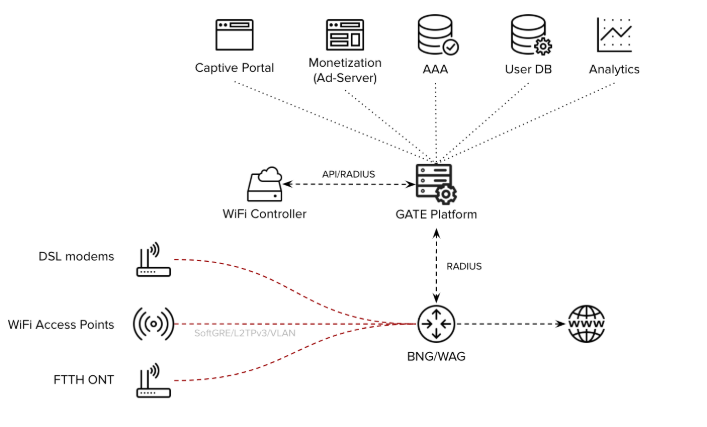
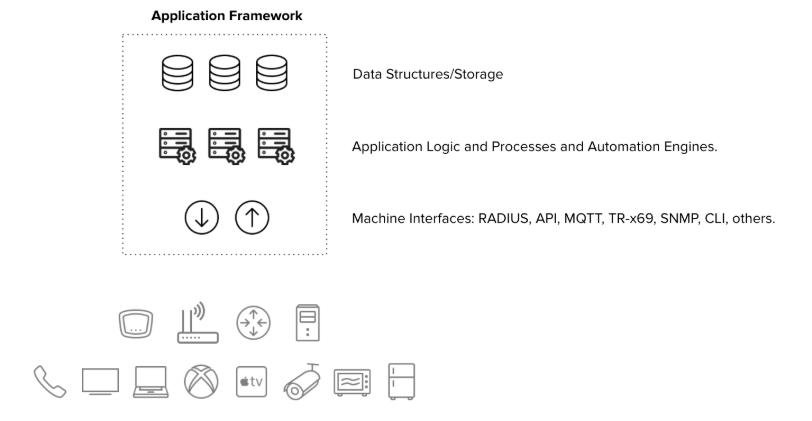
<div drawio-diagram="85"><img src="https://docs.zequenze.com/uploads/images/gallery/2026-02/vCHfQj4Tl3Fh2DV8-tmpgowk96u9.png"></div>

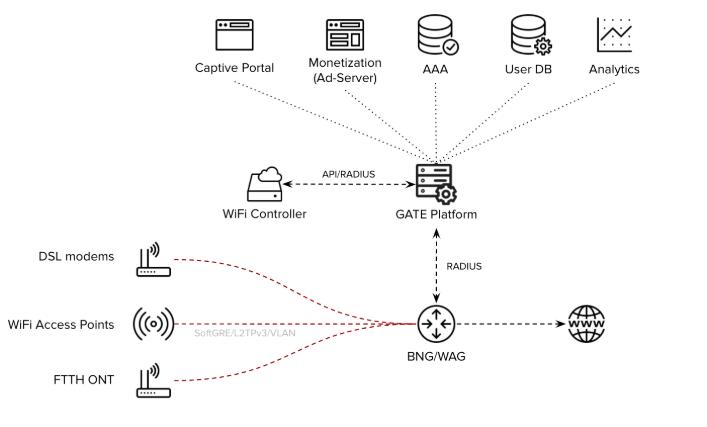
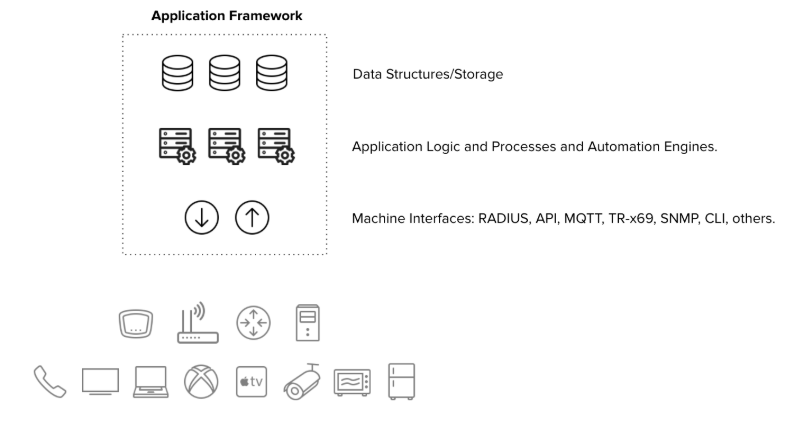
<div drawio-diagram="85"><img src="https://docs.zequenze.com/uploads/images/gallery/2026-02/mLoecbHv7My8xnva-tmph8la7fbw.png"></div>

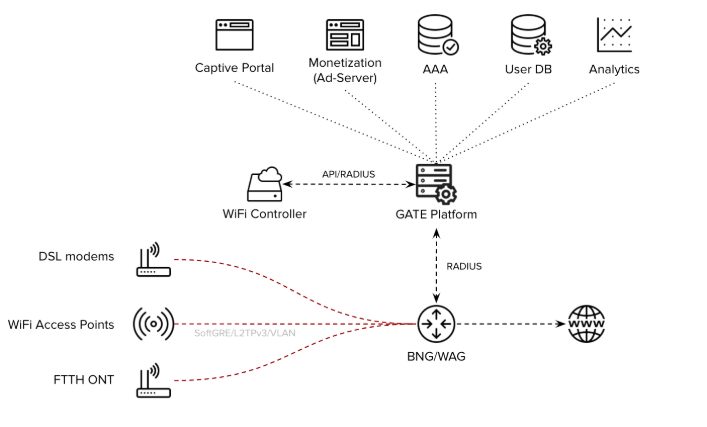
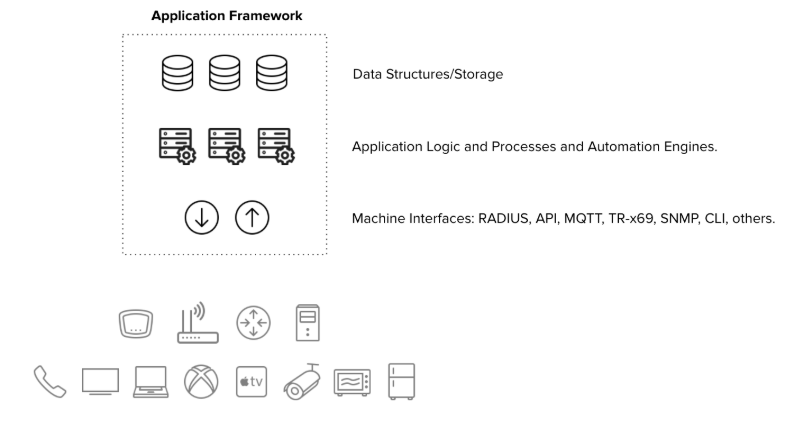
<div drawio-diagram="85"><img src="https://docs.zequenze.com/uploads/images/gallery/2026-02/gsKLCi4T4tXdU0cC-tmp2hkqd-bv.png"></div>

<div drawio-diagram="85"><img src="https://docs.zequenze.com/uploads/images/gallery/2026-02/OgxkZ2emPzZE6LnI-tmpmp5uhztk.png"></div>

## Use Cases

The GATE platform addresses critical telecommunications requirements for features, scalability, and flexibility, enabling service providers to deploy carrier-grade services:

### Broadband Internet Access
- AAA services for BNG-based broadband access networks
- Captive portal integration when required
- Support for FTTH, DSL, and wireless technologies

### Public WiFi
- Captive portal and AAA services for large-scale public WiFi deployments
- Integration with WiFi controllers and/or WAG platforms
- Carrier WiFi-based architecture support

### Mobile Offload
- AAA services for mobile-to-WiFi offload scenarios
- Direct integration with Mobile Network Operator core systems
- HSS/SIM-based EAP-AKA authentication support

### Community WiFi
- Captive portal and AAA services for massive community WiFi networks
- Seamless WAG platform integration

## Deployment Options

GATE offers flexible deployment models to meet diverse infrastructure requirements:

- **Platform as a Service (PaaS)**: Cloud-hosted service model
- **On-Premises**: Self-hosted deployment option

## Industry Integration

GATE has been extensively tested and integrated with industry-leading solutions:
- BNG (Broadband Network Gateway) platforms
- WAG (Wireless Access Gateway) systems  
- Carrier-grade WiFi solutions

## Further Reading

- [Architecture](https://docs.zequenze.com/books/gate/page/architecture)
- [Specifications](https://docs.zequenze.com/books/gate/page/specifications)

# Architecture

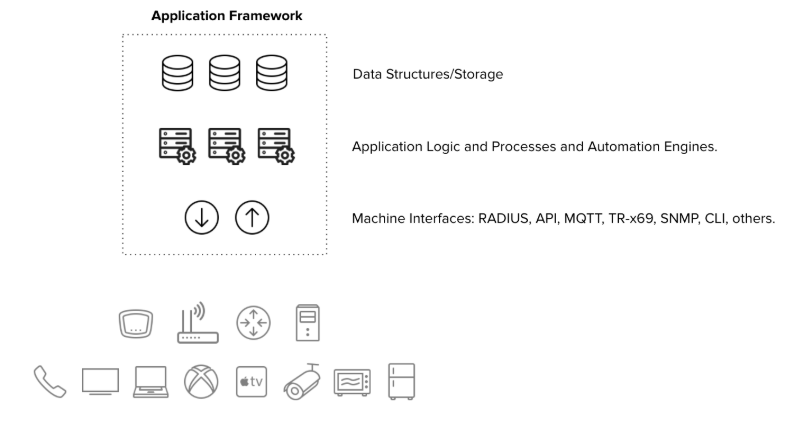
The GATE platform shares Zequenze's robust framework architecture, providing a scalable and reliable foundation for portal management and authentication services.

## Core Components

The GATE architecture consists of three primary layers:

### Machine Interfaces
- **RADIUS**: Remote Authentication Dial-In User Service protocol support
- **DIAMETER**: Next-generation AAA protocol implementation
- **Web Server**: HTTP/HTTPS interface for web-based interactions

### Application Layer
- **AAA Server**: Authentication, Authorization, and Accounting services
- **Captive Portal**: User authentication and access control interface
- **Ad Server**: Advertising content management and delivery
- Additional service applications

### Database Layer
- **User Records Database**: Storage for user accounts and profiles
- **Transaction Records Database**: Logging of authentication and access events
- **Metrics Database**: Performance and usage analytics storage
- Additional specialized databases for various operational data

## Architecture Diagram

<div drawio-diagram="26"><img src="https://docs.zequenze.com/uploads/images/gallery/2026-02/SaNkaNrw4hv6bsi6-tmp57ryl6y2.png"></div>

<div drawio-diagram="26"><img src="https://docs.zequenze.com/uploads/images/gallery/2026-02/sOhG52HVwW1wI6MH-tmpcqx8jaf0.png"></div>

<div drawio-diagram="26"><img src="https://docs.zequenze.com/uploads/images/gallery/2026-02/gDfrOYV66fLcvfOY-tmpl4jxi4cn.png"></div>

<div drawio-diagram="26"><img src="https://docs.zequenze.com/uploads/images/gallery/2026-02/JuHdFddgXJHT48qo-tmpzxd44386.png"></div>

## Scalability

Each architectural layer supports horizontal scaling to accommodate varying operational requirements and can be easily scaled depending on specific needs:

- **Traffic-based scaling**: Scale components based on network traffic volume
- **Activity-based scaling**: Adjust resources according to user activity levels  
- **Size-based scaling**: Expand capacity based on database size and storage requirements

This flexible architecture ensures optimal performance across different deployment scenarios and growth patterns.

## Further Reading

- [Overview](https://docs.zequenze.com/books/gate/chapter/overview)
- [Specifications](https://docs.zequenze.com/books/gate/page/specifications)

# Specifications

## GATE Captive Portal

### Key Characteristics

**Carrier-Grade Platform**
- High-availability 1+1 architecture with carrier-grade scalability
- Seamless integration with WAG/BNG for large-scale architectures

**User Experience**
- Fully customizable end-user experience and customer journey
- Responsive design optimized for mobile, tablet, and desktop devices
- Integrated advertising server capabilities

### Access Control Features

**Authentication Methods**
The captive portal supports multiple authentication options through a customizable landing/splash window:

- **Credential-based login** — Username/password validation against Service Provider database
- **Email/Mobile verification** — Real-time validation with email or mobile number
- **Social network integration** — Login through social media platforms
- **Soft-token authentication** — Token-based access control

**Quality of Service (QoS) Profiling**
End-user QoS profiling with signaling to WiFi Controller or WAG/BNG systems:

- **Free access** — Time-limited with reduced speed/QoS parameters
- **Premium access** — Unlimited usage with higher speed/QoS allocation
- **Sponsored access** — Advertisement-supported connectivity

**Additional Capabilities**
- Payment gateway integration (Braintree and other providers)
- Self-managed and customizable HTML code for complete control over end-user experience

### Integrated Ad Server

**Campaign Management**
- Complete ad server functionality with banner, video, and campaign inventory management
- Advanced campaign programming and enforcement tools

**Targeting and Segmentation**
Rich segmentation capabilities based on login-generated metadata:
- Location, time, and date information
- Device specifications (type, brand, operating system)
- User demographics (gender, age, and other attributes)

**Reporting and Analytics**
Comprehensive and customizable reporting for advertising campaigns:
- Activity tracking per campaign, banner, and video content
- Detailed breakdowns by location, time, date, device specifications, and user demographics

### Reports and Analytics

**Data Visualization**
- Location and group-based reporting capabilities
- Interactive heatmaps for spatial analysis
- Historical data tracking for all captive portal and ad server metrics

**Data Export Options**
- One-click data export functionality
- Multiple formats: live reports, CSV files, API integration, and other standard formats

---

## GATE AAA Server

### Key Characteristics

**Enterprise-Grade Infrastructure**
- Carrier-grade platform with high-availability 1+1 architecture
- Horizontal scalability through cloud-based architecture
- Integration capabilities with WAG/BNG for large-scale deployments

**Protocol Compliance**
- Full RADIUS RFC compliance ensuring industry standard compatibility
- Flexible VSA (Vendor-Specific Attributes) integration
- Service Provider database integration via RADIUS/LDAP or API

### Database Integration

**Scalable Database Architecture**
- Database-driven configuration and subscriber record management
- Fully integrated database solution with optional external database support
- Multiple user provisioning methods: GUI interface, bulk provisioning, or external API

### Advanced AAA Features

**Proxy Capabilities**
- Comprehensive proxy AAA support
- RADSec support (RFC 6614) enabling direct peering with third-party AAA systems

**Configuration Management**
Easy and flexible configuration through graphical user interface:
- Scriptable Option 82 support
- Extensive manipulation capabilities for any RADIUS/VSA attributes

### Reports and Analytics

**Comprehensive Reporting**
- Location and group-based analytical reports
- Interactive heatmaps for network usage visualization
- Historical data retention and analysis for all AAA metrics

**Export Capabilities**
- One-click data export functionality
- Multiple output formats: live reports, CSV files, API integration, and additional standard formats

---

## Further Reading

- [Overview](https://docs.zequenze.com/books/gate/chapter/overview)
- [Architecture](https://docs.zequenze.com/books/gate/page/architecture)

# User Groups & Permissions Guide

## Overview

GATE implements a **role-based access control (RBAC)** model that ensures secure and organized user management. Permissions are never assigned directly to individual users. Instead, users inherit their permissions from one or more **groups**, allowing you to tailor user experiences while maintaining platform security.

Every group provides access to a specific **functional area** (such as AAA, payments, or advertising) at a defined **privilege level** (full admin, read-only admin, or reports-only). You can assign multiple groups to a single user to grant cross-functional responsibilities.

```mermaid
flowchart LR
    U[User] -->|member of| G1[Group A<br/>e.g. AAA admins]
    U -->|member of| G2[Group B<br/>e.g. Payment reports]
    G1 -->|grants| P1[Permissions on AAA]
    G2 -->|grants| P2[Permissions on Payment reports]
    P1 --> UI[GATE admin UI]
    P2 --> UI
```

> ✅ **Key Concept:** Groups are additive. A user belonging to multiple groups receives the **union** of all their permissions. This allows you to compose roles rather than creating new groups for every possible combination.

## Permission Levels

Most functional areas provide three standard permission levels. Always select the lowest level that enables users to complete their tasks effectively — this follows the **principle of least privilege**.

### Standard Permission Levels

| Level | Indicator | Access Granted | Typical Use Cases |
|-------|-----------|----------------|-------------------|
| **Admin** | 🟢 | Full CRUD operations (create, view, update, delete) on area resources | Day-to-day feature configuration and management |
| **Read-only Admin** | 🟡 | Browse all objects in the area without modification or deletion capabilities | Auditors, trainees, support staff conducting investigations |
| **Reports** | 🔵 | Access to dashboards, charts, and transaction listings without configuration access | Business analysts, finance teams, marketing personnel |

### Special Cross-Cutting Roles

Beyond the standard levels, GATE includes two important cross-cutting roles:

| Role | Indicator | Access Granted |
|------|-----------|----------------|
| **End User** | ⚫ | Personal profile access, password changes, and preference settings (non-administrative) |
| **Expert Mode** | 🟣 | Unlocks hidden "Expert Mode" toggle revealing advanced menus and **destructive operations** (bulk deletes, internal settings) |

> ⚠️ **Expert Mode Warning:** Only grant Expert Mode access to senior operators who understand the consequences of destructive operations.

## Functional Areas

GATE organizes functionality into distinct areas, each with its own group hierarchy using the three standard permission levels where applicable.

| Area | Scope |
|------|-------|
| 🌐 **Global Administration** | Cross-cutting operations, organization-wide configuration, and platform health monitoring |
| 🛡 **AAA** | Authentication, Authorization, and Accounting — profiles, realms, clients, home servers, session logs |
| 📇 **Account** | Tenant/account configuration including plans, services, lists, parameters, and site settings |
| 📣 **Advertisement** | Campaign management, banner configuration, segmentation rules, and advertising transaction logs |
| 📝 **API Logs** | Platform API request history inspection for debugging and auditing purposes |
| 📱 **Devices & Applications** | Mobile/desktop app registrations, device metadata, connection logs, and app subscriptions |
| 📡 **Hotspot Monitoring** | Real-time access point health monitoring including reachability, uptime, coverage, and availability reports |
| 💳 **Payments** | Payment plan management, gateway configuration, transaction processing, and refund handling |
| 👥 **Users** | End-user account management, social login configuration, and user-level activity logs |
| 📊 **Reports & Dashboards** | Cross-area analytics, KPI tracking, and exportable report generation |
| 🔎 **SONDA / User Experience** | Real-world user experience monitoring including latency, throughput, and client-side reachability measurements |

## Group Catalog

The following tables detail every built-in group shipped with GATE, organized by functional area. Group names are stable identifiers that you can search for in the group administration interface.

### Global Administration

| Group | Level | Description |
|-------|-------|-------------|
| `GATE admins` | 🟢 Admin | Comprehensive platform administration access for day-to-day operations across most areas |
| `GATE read-only admins` | 🟡 Read-only | Platform-wide browsing access without modification capabilities |
| `GATE reports` | 🔵 Reports | Access to dashboards, KPIs, and transaction listings across the platform |

> 💡 **Usage Recommendation:** These general-purpose roles serve as excellent starting points for most operators. Combine them with area-specific groups when users require deeper access to particular modules.

### AAA (Authentication, Authorization, Accounting)

| Group | Level | Description |
|-------|-------|-------------|
| `GATE AAA admins` | 🟢 Admin | Complete AAA administration including profiles, realms, clients, home servers, and accounting |
| `GATE AAA admins w/o Portals` | 🟢 Admin | Full AAA administration **excluding** captive portal builder access |
| `GATE AAA admins w/o Portals RO` | 🟡 Read-only | Read-only AAA administration without captive portal builder access |
| `GATE AAA read-only admins` | 🟡 Read-only | Read-only access to the complete AAA functional area |
| `GATE AAA reports` | 🔵 Reports | AAA accounting reports, session analytics, and traffic dashboard access |
| `GATE AAA user admins` | 🟢 Admin | Specialized role for managing AAA **end-users only** (profiles, attributes, credentials) without infrastructure access |

> 🎯 **Selection Guidelines:**
> - Use `AAA admins` for complete AAA stack ownership
> - Use `AAA admins w/o Portals` when captive portal design is managed separately
> - Use `AAA user admins` for support desk personnel who only reset credentials or adjust user attributes
> - Use `AAA reports` for analytics roles that must not access configuration

### Account Management

| Group | Level | Description |
|-------|-------|-------------|
| `GATE account admins` | 🟢 Admin | Complete account administration including plans, services, lists, parameters, and site settings |
| `GATE account read-only admins` | 🟡 Read-only | Read-only account administration access for audit and review purposes |

> 🎯 **Selection Guidelines:** `account admins` represents the closest equivalent to a tenant "owner" role — grant sparingly. `account read-only admins` is ideal for auditors and onboarding verification.

### Advertisement Management

| Group | Level | Description |
|-------|-------|-------------|
| `GATE advertisement admins` | 🟢 Admin | Complete advertisement administration including campaigns, banners, and segmentation rules |
| `GATE advertisement read-only admins` | 🟡 Read-only | Read-only advertisement administration for audit purposes |
| `GATE advertisement reports` | 🔵 Reports | Advertisement reporting and transaction access including impressions, clicks, and conversions |

> 💡 **Team Separation:** Assign `advertisement admins` to marketing teams, `advertisement reports` to analytics teams, and `advertisement read-only admins` to finance auditors.

### API Logs

| Group | Level | Description |
|-------|-------|-------------|
| `GATE API Logs read-only` | 🟡 Read-only | API request log browser access for debugging and auditing |

> 💡 **Usage Recommendation:** Ideal for integration teams and third-party partners who need API call troubleshooting capabilities without broader platform access.

### Devices & Applications

| Group | Level | Description |
|-------|-------|-------------|
| `GATE device admins` | 🟢 Admin | Device and application administration including registrations, subscriptions, and configuration |

> 💡 **Usage Recommendation:** Designed for mobile/desktop application operations teams responsible for registered device lifecycle management.

### Hotspot Monitoring

| Group | Level | Description |
|-------|-------|-------------|
| `GATE hotspots monitoring` | 🟢 Admin | Hotspot monitoring administration including monitoring profiles, thresholds, and alert configuration |
| `GATE hotspots monitoring read-only` | 🟡 Read-only | Read-only access to hotspot monitoring dashboards and availability reports |

> 💡 **Usage Recommendation:** Essential for network operations center (NOC) teams monitoring access point health and coverage.

### Payment Management

| Group | Level | Description |
|-------|-------|-------------|
| `GATE payment admins` | 🟢 Admin | Complete payments and plans administration including pricing, gateways, and plan lifecycle |
| `GATE payment read-only admins` | 🟡 Read-only | Read-only payment area access for audit and compliance |
| `GATE payment reports` | 🔵 Reports | Payment reporting and transaction access including revenue dashboards and reconciliation exports |

> 🎯 **Selection Guidelines:** Finance teams typically need `payment reports` for reconciliation **plus** `payment read-only admins` for transaction investigation. Reserve `payment admins` for billing operations personnel only.

### User Management

| Group | Level | Description |
|-------|-------|-------------|
| `GATE users admins` | 🟢 Admin | User account and user log administration |
| `GATE users RO` | 🟡 Read-only | Read-only access to user lists and user activity logs |
| `Users` | ⚫ End user | Standard end-user role providing profile access and password change capabilities |
| `Users: Expert mode` | 🟣 Expert | Enables **Expert Mode** toggle in admin UI, unlocking advanced menus and destructive operations |

> ⚠️ **Expert Mode Security Notice:** Expert Mode reveals advanced and destructive operation menus (bulk accounting record deletion, low-level configuration, internal tooling). Grant `Users: Expert mode` exclusively to trained senior operators who understand operational consequences.

### Reports & Dashboards

| Group | Level | Description |
|-------|-------|-------------|
| `Report admins` | 🟢 Admin | Report and dashboard administration including creation, editing, and sharing of custom reports |

> 💡 **Usage Recommendation:** Designed for business intelligence teams responsible for building and maintaining organizational dashboards.

### SONDA / User Experience

| Group | Level | Description |
|-------|-------|-------------|
| `SONDA admins` | 🟢 Admin | SONDA probing and user experience measurement system administration |
| `SONDA reports` | 🔵 Reports | SONDA reporting and transaction access including latency, throughput, and reachability metrics |

> 💡 **Usage Recommendation:** Essential for quality-of-experience (QoE) teams monitoring real user service perception.

## Access Matrix

This visual summary shows available group combinations for each functional area and permission level. Empty cells indicate no pre-built group exists for that combination — use the closest available level or combine multiple groups.

| Area | 🟢 Admin | 🟡 Read-only | 🔵 Reports | Notes |
|------|:----------:|:------------:|:----------:|-------|
| **Global** | `GATE admins` | `GATE read-only admins` | `GATE reports` | Starting point for most operators |
| **AAA** | `GATE AAA admins` | `GATE AAA read-only admins` | `GATE AAA reports` | `w/o Portals` variants available |
| **AAA (user-level)** | `GATE AAA user admins` | — | — | Support/helpdesk focused |
| **Account** | `GATE account admins` | `GATE account read-only admins` | — | Tenant configuration |
| **Advertisement** | `GATE advertisement admins` | `GATE advertisement read-only admins` | `GATE advertisement reports` | Complete coverage |
| **API logs** | — | `GATE API Logs read-only` | — | Integration/debug role |
| **Devices & apps** | `GATE device admins` | — | — | Limited coverage |
| **Hotspot monitoring** | `GATE hotspots monitoring` | `GATE hotspots monitoring read-only` | — | NOC teams |
| **Payments** | `GATE payment admins` | `GATE payment read-only admins` | `GATE payment reports` | Complete coverage |
| **Users** | `GATE users admins` | `GATE users RO` | — | See also `Users` and `Users: Expert mode` |
| **Reports & dashboards** | `Report admins` | — | — | BI team role |
| **SONDA / UX** | `SONDA admins` | — | `SONDA reports` | QoE role |

## Common User Profiles

These ready-to-apply group combinations cover most real-world operational requirements.

### 🧑‍💼 Platform Operator (Day-to-Day Admin)

**Group Assignment:**
- `GATE admins`
- `GATE AAA admins`
- `GATE account admins`
- `GATE device admins`

**Role Description:** Handles platform configuration, service onboarding, and operational issue resolution across all areas. Expert Mode is **not** included by default.

### 🛠 Helpdesk / Tier-1 Support

**Group Assignment:**
- `GATE read-only admins`
- `GATE AAA user admins`
- `GATE users RO`
- `GATE API Logs read-only`

**Role Description:** Platform browsing, user credential resets, and API log inspection without configuration modification or data deletion capabilities.

### 📊 Business Analyst / BI

**Group Assignment:**
- `GATE reports`
- `GATE AAA reports`
- `GATE advertisement reports`
- `GATE payment reports`
- `SONDA reports`
- `Report admins` *(optional, for dashboard creation)*

**Role Description:** Dashboard-focused access without configuration capabilities, eliminating accidental change risks.

### 💰 Finance / Billing

**Group Assignment:**
- `GATE payment read-only admins`
- `GATE payment reports`
- `GATE read-only admins` *(optional, for context)*

**Role Description:** Transaction reconciliation and payment configuration auditing without modification capabilities.

### 📣 Marketing Operator

**Group Assignment:**
- `GATE advertisement admins`
- `GATE advertisement reports`

**Role Description:** Campaign creation and measurement with isolated functional scope.

### 🌐 Network Operations (NOC)

**Group Assignment:**
- `GATE hotspots monitoring`
- `GATE AAA reports`
- `SONDA reports`

**Role Description:** Real-time access point health monitoring with session analytics and user experience correlation capabilities.

### 🎛 Senior Operator (with Destructive Tooling)

**Group Assignment:**
- `GATE admins`
- `GATE AAA admins`
- `Users: Expert mode`

**Role Description:** Standard operator capabilities enhanced with Expert Mode access. Reserve for trusted operators exclusively.

### 👤 End User (Self-Service)

**Group Assignment:**
- `Users`

**Role Description:** Personal profile and password management without administrative area access.

## Best Practices

### 🛡 Principle of Least Privilege

Always assign the **minimum permission level** required for job function completion. Prefer `read-only admins` over `admins` for investigation or audit roles. Choose `reports` over `read-only admins` when users only need dashboard access.

### 🔀 Compose Rather Than Customize

Resist creating specialized groups for individual users. Combining two or three built-in groups typically addresses requirements while maintaining audit simplicity.

### 🧪 Test in Staging Environment

Before production deployment, apply new user profiles (group combinations) to test users in non-production environments. Verify exact menu, button, and action visibility before real user rollout.

### 📆 Periodic Review Schedule

Implement quarterly group membership reviews. Revoke `admins` and Expert Mode capabilities from users who no longer require them. Former employee accounts with lingering admin access represent the most common security incident cause.

### 🚨 Separation of Duties

When possible, distribute **configuration** and **audit** responsibilities among different personnel:

- Payment configuration (`payment admins`) and payment auditing (`payment read-only admins` + `payment reports`) should involve different individuals
- Campaign creation (`advertisement admins`) and advertising budget approval (via `payment reports`) should involve different individuals

### 🔒 Expert Mode Access Control

Treat `Users: Expert mode` as break-glass permission due to irreversible operation access:

- Grant exclusively to named senior operators
- Document justification for each recipient
- Implement quarterly Expert Mode group membership reviews
- Remove temporary Expert Mode access immediately upon task completion

## Frequently Asked Questions

### Can I modify built-in groups to add or remove permissions?

While technically possible, modification is **not recommended**. Built-in groups may receive updates in future GATE releases, overwriting manual changes. Instead, create **additional** groups with required deltas and assign both to users.

### Can a user belong to multiple groups simultaneously?

Yes. Group memberships are **additive** — users inherit the union of all permissions from assigned groups. This represents the recommended approach for role composition.

### Which groups should new support agents receive?

Start with `GATE read-only admins` + `GATE users RO` + `GATE API Logs read-only`. Add area-specific groups as responsibilities expand.

### A user sees unauthorized menus. How do I remove access?

Remove the group granting menu access. If the menu persists, verify the user is not a **superuser** — superusers bypass the group system entirely and see all menus. Downgrade to regular user status and assign appropriate groups instead.

### How do I identify which group grants specific menu access?

Each admin section corresponds to a functional area (AAA, payments, advertising, etc.). Match the menu to the area using **Section 3: Functional Areas**, then select the appropriate level from **Section 5: Access Matrix**.

### Can I grant access to organization subsets only?

Yes — group-granted permissions are automatically scoped to the user's organization and its sub-organizations. A user with `GATE admins` in organization "Acme" will only see and administer Acme and its children, never sibling organizations.

---

> 📬 **Documentation Feedback:** If you believe a group is missing, misnamed, or if use cases in this guide don't match your requirements, please submit a documentation request for review in the next release.

# Reports & Analytics

# AAA Services Reports

## Overview

This section provides detailed information about all available AAA Services reports in GATE. Reports are organized into two main categories: Authentication reports for login activity analysis, and Accounting reports for session and bandwidth tracking.

## Report Categories

### Authentication Reports
Authentication reports focus on subscriber login requests, tracking accept/reject patterns, and access point activity analysis.

### Accounting Reports
Accounting reports provide insights into active sessions, bandwidth usage, session duration, and traffic patterns across your network infrastructure.

## Available Reports

| Report Name | Description | Category |
|-------------|-------------|----------|
| **AAA Access Point MAC distribution by organization (Accounting table)** | Subscriber activity, by organization over time | Accounting |
| **AAA Access Point MAC distribution by organization and type** | Subscriber requests, by accept/reject over time | Authentication |
| **AAA accounting sessions** | Sessions trend | Accounting |
| **AAA accounting sessions by Access Point** | Sessions trend, by AP | Accounting |
| **AAA accounting sessions by Location** | Sessions trend, by location | Accounting |
| **AAA accounting sessions by NAS Client** | Sessions trend, by NAS client | Accounting |
| **AAA accounting sessions by Realm** | Sessions trend, by realm | Accounting |
| **AAA accounting sessions by organization** | Sessions trend, by organization | Accounting |
| **AAA accounting traffic per Location and Organization (GBytes)** | Bandwidth by location and organization over time, GBytes | Accounting |
| **AAA accounting traffic per location (GBytes)** | Bandwidth by location over time, GBytes | Accounting |
| **AAA accounting traffic per user (GBytes)** | Bandwidth detail by subscribers over time, GBytes | Accounting |
| **AAA active Access Point MAC addresses (Accounting table)** | Sessions trend, by AP address | Accounting |
| **AAA active Access Point MAC addresses per NAS client (Accounting table)** | Sessions trend, by AP address and NAS client | Accounting |
| **AAA active Access Point MAC addresses per Organization (Accounting table)** | Sessions trend, by AP address and organization | Accounting |
| **AAA active Access Point MAC addresses per organization** | Accepted Sessions trend, by AP address and organization | Authentication |
| **AAA active sessions** | Active sessions trend | Accounting |
| **AAA active sessions per NAS Client** | Active sessions trend, by NAS client | Accounting |
| **AAA active sessions per Organization** | Active sessions trend, by organization | Accounting |
| **AAA active sessions per Realm** | Active sessions trend, by realm | Accounting |
| **AAA active sessions per called station** | Active sessions detail, by called station | Accounting |
| **AAA active sessions per user and realm** | Active sessions detail, by user and realm | Accounting |
| **AAA maximum sessions** | Max sessions trend | Accounting |
| **AAA multi-session time average (in minutes)** | Average minutes, by session | Accounting |
| **AAA number of active Access Point MAC addresses** | Active AP address trend | Authentication |
| **AAA requests by Access Point MAC address and type** | Subscriber requests accept/reject trend, by AP address | Authentication |
| **AAA requests by access point and type** | Subscriber requests accept/reject trend, by AP address and location | Authentication |
| **AAA requests by calledstation and type** | Subscriber requests accept/reject trend, by calledstation and type | Authentication |
| **AAA requests by calledstation, access point, and type** | Subscriber requests accept/reject trend, by calledstation, AP and location | Authentication |
| **AAA requests by type** | Subscriber requests accept/reject trend | Authentication |
| **AAA requests distribution by organization and type** | Subscriber requests accept/reject trend by organization | Authentication |
| **AAA session time average (in minutes)** | Average minutes trend, by sessions | Accounting |
| **AAA session time average (in seconds)** | Average seconds trend, by sessions | Accounting |
| **AAA session time average by Location (in minutes)** | Average minutes trend, by location and sessions | Accounting |
| **AAA session time average by Location and Organization (in minutes)** | Average minutes trend, by location, organization and sessions | Accounting |
| **AAA session time average by organization (in minutes)** | Average minutes trend, by organization and sessions | Accounting |
| **AAA session time average by terminate cause** | Average minutes trend, by terminate cause | Accounting |
| **AAA sessions by terminate cause** | Sessions trend, by terminate cause | Accounting |
| **Bottom AAA Access Point MAC address by number of requests and type** | Bottom-ranked subscriber requests, by AP address and accept/reject over time | Authentication |
| **Bottom AAA Access Points by number of requests and type** | Bottom-ranked subscriber requests, by AP, location and accept/reject over time | Authentication |
| **Bottom AAA Access Points by number of sessions (Accounting table)** | Bottom-ranked sessions, by AP and location over time | Accounting |
| **Bottom AAA Locations by number of requests and type** | Bottom-ranked subscriber requests, by location and accept/reject over time | Authentication |
| **Bottom AAA Locations by number of sessions (Accounting table)** | Bottom-ranked sessions, by location over time | Accounting |
| **List of active AAA Access Point MAC address** | Total logins, by AP address over time | Authentication |
| **List of active AAA Access Point MAC address (no transaction count)** | Active AP address over time | Authentication |
| **List of active AAA Access Point MAC addresses (Accounting table)** | Total sessions, by AP address over time | Accounting |
| **List of active AAA Access Point MAC addresses (Accounting table, no count)** | Active AP address over time | Accounting |
| **Number of accounting requests from unidentified Access Points by MAC address** | Sessions trend for unidentified AP, by AP address | Accounting |
| **Number of accounting requests from unidentified Access Points by MAC address and NAS client** | Sessions trend for unidentified AP, by AP address and NAS client | Accounting |
| **Number of accounting requests from unidentified Access Points by MAC address and NAS-ID** | Sessions trend for unidentified AP, by AP address and NAS-ID | Accounting |
| **Number of accounting requests with and without matching Access Point** | Sessions trend for identified/unidentified AP | Accounting |
| **Number of distinct user devices (Called-Station-Id) by organization (Accounting table)** | Called Station Id trend, by organization | Accounting |
| **Top AAA Access Point MAC address by number of requests and type** | Top-ranked subscriber requests, by AP address and accept/reject over time | Authentication |
| **Top AAA Access Point MAC address without matching Access Point** | Top-ranked subscriber requests without AP, by AP address and accept/reject over time | Authentication |
| **Top AAA Access Point MAC address without matching Access Point (Accounting table)** | Top-ranked sessions without AP, by AP address and NAS client over time | Accounting |
| **Top AAA Access Point MAC address without matching Location** | Top-ranked subscriber requests without location, by AP address, accept/reject and NAS client over time | Authentication |
| **Top AAA Access Point MAC address without matching Location (Accounting table)** | Top-ranked sessions without location, by AP address and NAS client over time | Accounting |
| **Top AAA Access Points by number of requests and type** | Top-ranked subscriber requests, by AP, location and accept/reject over time | Authentication |
| **Top AAA Access Points by number of sessions (Accounting table)** | Top-ranked sessions, by AP and location over time | Accounting |
| **Top AAA Locations by number of requests and type** | Top-ranked subscriber requests, by location and accept/reject over time | Authentication |
| **Top AAA Locations by number of sessions (Accounting table)** | Top-ranked sessions, by location over time | Accounting |

## Report Usage Notes

- **Authentication Reports**: Use these reports to analyze login patterns, identify authentication issues, and monitor access point performance
- **Accounting Reports**: These reports are essential for bandwidth monitoring, session analysis, and capacity planning
- **Time-based Analysis**: Most reports support time range selection for historical trend analysis
- **Organization Filtering**: Reports can be filtered by organization for multi-tenant environments

# Advertising reports

## Overview

The advertising reports provide comprehensive analytics for banner campaigns, user interactions, and performance metrics within GATE. These reports are categorized under the AD Events group and offer detailed insights into views, clicks, and user engagement patterns.

## Report Categories

### Campaign Performance Reports

These reports focus on campaign-level analytics and overall performance metrics:

| Report Name | Description |
|-------------|-------------|
| **Transactions by campaign** | Views/Clicks trend analysis by campaign |
| **Transactions by campaign and banner** | Views/Clicks trend analysis by campaign and banner |
| **Transactions by campaign, type and action** | Views/Clicks trend analysis by campaign and action |
| **Transactions by campaign, type and page** | Views/Clicks trend analysis by campaign and page |
| **Transactions by campaign, type and user's device brand** | Views/Clicks trend analysis by campaign and device brand |
| **Transactions by campaign, banner, type and location** | Views/Clicks trend analysis by campaign, banner and location |
| **Transactions by campaign, type, action and location** | Views/Clicks trend analysis by campaign, action and location |
| **Transactions by campaign, type, action and location group** | Views/Clicks trend analysis by campaign, action and location group |
| **Transactions by campaign, type, location and user's device brand** | Views/Clicks trend analysis by campaign, location and device brand |

### Banner Performance Reports

These reports provide detailed analytics at the individual banner level:

| Report Name | Description |
|-------------|-------------|
| **Active banners** | Active banner tracking by campaign, page and organization over time |
| **Active banners with Views and Clicks** | Active banner Views/Clicks by campaign, page and organization over time |
| **Transactions by banner** | Views/Clicks trend analysis by banner |
| **Transactions by banner, type and action** | Views/Clicks trend analysis by banner and action |
| **Transactions by banner, type and hour of day** | Views/Clicks analysis by banner over time |
| **Transactions by banner, type and page** | Views/Clicks trend analysis by banner and page |
| **Transactions by banner, type, action and location** | Views/Clicks trend analysis by banner, action and location |
| **Transactions by banner, type, action and location group** | Views/Clicks trend analysis by banner, action and location group |
| **Transactions by banner, type, location and user's device brand** | Views/Clicks trend analysis by banner, location and device brand |

### User Demographics and Device Reports

These reports analyze user behavior based on demographics and device characteristics:

| Report Name | Description |
|-------------|-------------|
| **Transactions by banner, type and user's age (from birthday)** | Views/Clicks analysis by banner and age (from birthday) over time |
| **Transactions by banner, type and user's device brand** | Views/Clicks trend analysis by banner and device brand |
| **Transactions by banner, type and user's device type** | Views/Clicks trend analysis by banner and device type |
| **Transactions by banner, type and user's gender** | Views/Clicks trend analysis by banner and user gender |
| **Transactions by banner, type and user's telephone country code** | Views/Clicks trend analysis by banner and telephone country code |

### General Transaction Reports

These reports provide broad transaction analytics and detailed breakdowns:

| Report Name | Description |
|-------------|-------------|
| **Detailed transactions report** | Comprehensive Views/Clicks analysis over time |
| **Transactions by type** | General Views/Clicks trend analysis |
| **Transactions by type and action** | Views/Clicks trend analysis by action |
| **Transactions by type, action and location** | Views/Clicks trend analysis by action and location |
| **Transactions by type, action and location group** | Views/Clicks trend analysis by action and location group |
| **Transactions by page, type and action** | Views/Clicks trend analysis by page and action |

### Heatmap Reports

These reports provide visual representations of user interaction patterns:

| Report Name | Description |
|-------------|-------------|
| **Heatmap - Transactions by Banner and Access Point** | Total Views/Clicks visualization by banner and AP |
| **Heatmap - Transactions by Banner and Location** | Total Views/Clicks visualization by banner and location |
| **Heatmap - Transactions by Campaign and Access Point** | Total Views/Clicks visualization by campaign and AP |
| **Heatmap - Transactions by Campaign and Location** | Total Views/Clicks visualization by campaign and location |
| **Heatmap - Transactions by Location** | Total Views/Clicks visualization by location |

## Key Metrics

All advertising reports track the following primary metrics:

- **Views**: Number of times banners are displayed to users
- **Clicks**: Number of user interactions with banners
- **Trends**: Performance patterns over specified time periods

## Report Group Classification

All advertising reports are classified under the **AD Events** group for easy identification and organization within the GATE reporting system.

# Glosary

## Report Glossary

This glossary defines key concepts and terminology used throughout GATE reporting features.

### Network Infrastructure

| Term | Definition |
|------|------------|
| **AP** | Access Point |
| **AP address** | Access Point MAC address |
| **AP address ID** | Access Point address identifier |
| **AP locations** | Name of the location where an Access Point is deployed |
| **Hotspots** | Menu for Hotspot management and configuration |
| **Location** | Name of the hotspot's physical location |
| **Location group** | Name of the location group registered by an organization |
| **Unidentified AP** | Unidentified Access Point |

### User Management & Authentication

| Term | Definition |
|------|------------|
| **AAA services** | Menu for Authentication, Authorization and Accounting |
| **Session** | Period between login and logout. In reports, refers to repeated subscriber sessions with username |
| **Session classes** | Subscriber email in the Klass field |
| **Transaction** | Exchange of messages between AAA server and subscriber device |
| **User** | User with access to network service. In reports, refers to unique user with User ID |
| **User capture** | User with captured information |
| **User connections** | User connections with status u200 and type ui,ai |
| **User ID** | Unique user identifier |
| **User request** | User authentication request (Accept/Reject) |
| **Users** | Menu for user profiles and AAA transactions |

### Device & Network Analytics

| Term | Definition |
|------|------------|
| **Bandwidth** | Consumed bandwidth by download, upload and total |
| **Device** | Type of subscriber device connected to the network (PC, Mobile, Tablet) |
| **Group** | Division of reports by source: Accounting, Authentication, Hotspots, Portal Events, AD Events |

### Advertising & Marketing

| Term | Definition |
|------|------------|
| **Advertising** | Menu for advertising management |
| **Banner** | Graphic advertising image displayed, also known as an ad |
| **Campaign** | A set of ads from an organization |
| **Views/Clicks** | Views (count of ads served to a user) and Clicks (count of user interactions with an ad) |

### Data Analysis & Statistics

| Term | Definition |
|------|------------|
| **Average** | Calculated by dividing the sum of the values in a set by their number |
| **Trend** | General movement over time of a statistically detectable change |

### System & Localization

| Term | Definition |
|------|------------|
| **ES** | Spanish translation |

# Hotspots Reports

## Overview

The Hotspots Reports section provides comprehensive analytics for Access Points (AP) and their locations across different geographical hierarchies. These reports enable you to monitor and analyze hotspot distribution and performance metrics over time.

## Available Reports

### Access Points Reports

Track Access Point distribution and trends across various geographical levels:

| Report Name | Description | Group |
|-------------|-------------|-------|
| Access Points by country and state | AP by country and state over time | Hotspot |
| Access Points by country and city | AP by country and city over time | Hotspot |
| Access Points by country and municipality | AP by country and municipality over time | Hotspot |
| Access Points by country and region | AP by country and region over time | Hotspot |

### Location Reports

Analyze Access Point locations and their geographical distribution:

| Report Name | Description | Group |
|-------------|-------------|-------|
| Locations by country and state | AP locations by country and state over time | Hotspot |
| Locations by country and city | AP locations by country and city over time | Hotspot |
| Locations by country and municipality | AP locations by country and municipality over time | Hotspot |
| Locations by country and region | AP locations by country and region over time | Hotspot |

## Report Categories

All hotspot reports are organized within the **Hotspot** group for easy navigation and management within the GATE portal interface.

# Records, Transactions and Logs

## User Records

Each user registered on the platform is stored in a database table with the following fields:

| Field | Description |
|-------|-------------|
| ID | Incremental and unique ID (platform-wide) for the user |
| Username | Unique username registered, selected, or assigned by the user |
| First-name | First name of the user |
| Last-name | Last name of the user |
| Email | Email address of the user |
| Valid Email | Boolean field indicating if the email address was validated |
| Email Class | Regular, Catch-all, Disposable, or Unknown |
| Active | Boolean flag indicating if the user is active |
| Class | Class of service or class of user |
| Date-joined | Date and time when the user was registered or entered in the database |
| Organization | Used in multi-tier or multi-tenant applications to group requests for a specific organization or sub-organization |
| Source | Authorization service used to register and authenticate this user |
| Avatar | Binary field with an image used as an avatar |
| Avatar-URL | URL for an external avatar |
| Expiration | User's expiration date and time |
| Gender | Male, Female, or Other |
| Age range | Indication of the user's age range |
| Birthday | Birth date of the user |
| Locale | Detected locale for the user |
| Address | Address of the user |
| City | City of the user |
| State | State of the user |
| Country | Country of the user |
| Hometown | Hometown/birthplace of the user |
| Location | Current/last location of the user |
| Telephone | Telephone number of the user |
| Valid Telephone | Boolean field indicating if the telephone number was validated |
| Telephone Class | Landline, Mobile, or Unknown |
| Telephone Network Code | MCC-MNC telephone carrier code |
| Telephone Carrier Name | Name of the carrier that corresponds to the obtained telephone network code |
| Telephone Country | Country of origin for the telephone number |
| Company | Name of the user's company |
| Title | Job title of the user |
| Event | Name of the event during which the user information was captured |
| Optional fields | Optional fields that can be used to capture customized information |

## Location Records

Each location registered on the platform is stored in a database table with the following fields:

| Field | Description |
|-------|-------------|
| ID | Incremental and unique ID (platform-wide) for the location |
| Name | Name of the location as assigned by the administrator |
| Is Active | Boolean indication if the location is active |
| Short Name | Short name or code assigned to the location by the administrator |
| UUID | UUID identifier for the location (generated by the platform) |
| Timezone | Timezone for the location |
| Organization | Used in multi-tier or multi-tenant applications to group requests for a specific organization or sub-organization |
| Description | Description of the object or record |
| Address | Address of the location |
| Reference | Geographical reference for the location |
| City | City of the location |
| Postal Code | Postal code of the location |
| State | State of the location |
| Region | Region of the location |
| Country Code | ISO country code of the location |
| Latitude | Latitude coordinates of the location |
| Longitude | Longitude coordinates of the location |
| Last change | Date and time of the last change to the location's information |
| Created | Date and time when the location was created |

## Access Point Records

Each access point registered on the platform is stored in a database table with the following fields:

| Field | Description |
|-------|-------------|
| ID | Incremental and unique ID (platform-wide) for the access point |
| Name | Name of the access point as assigned by the administrator |
| Short Name | Short name or code assigned to the access point by the administrator |
| Is Active | Boolean indication if the access point is active |
| Organization | Used in multi-tier or multi-tenant applications to group requests for a specific organization or sub-organization |
| Description | Description of the object or record |
| Location ID | ID of the location that this access point belongs to |
| Zone | Zone reference of the access point within the location |
| IP Address | IP address of the access point |
| MAC address | MAC address of the access point |
| MAC address (secondary) | Secondary MAC address of the access point |
| Serial | Serial number of the access point |
| Version | Software version of the access point |
| Latitude | Latitude coordinates of the access point |
| Longitude | Longitude coordinates of the access point |
| Last change | Date and time of the last change to the access point's information |
| Created | Date and time when the access point was created |

## Log Types

### User Portal Event Logs
*To be completed*

### AAA Logs
*To be completed*

### Advertisement Logs
*To be completed*

# Report Name Reference

## Overview

The GATE portal has implemented a comprehensive report naming update to improve clarity and organization. All reports are now grouped by function and feature standardized naming conventions for better usability.

This reference list provides the equivalent name for each report and includes a glossary of terms to help you understand the new naming structure.

## Report Categories

Reports are organized into the following functional groups:

- **Portal Events** - User authentication, transactions, and portal activity
- **Hotspot** - Access Point location and geographic data
- **Authentication** - AAA authentication requests and responses
- **Accounting** - AAA session tracking and bandwidth usage
- **AD Events** - Advertising campaign performance and user interactions

---

## USERS Reports

All user-related reports are categorized under **Portal Events**.

| Previous Report Name | New Report Name | Group |
|---------------------|-----------------|-------|
| Active Access Point MAC addresses | **Active AP address trend** | Portal Events |
| Active Access Point MAC addresses from successful login transactions | **AP address trend with Log in** | Portal Events |
| Active Access Point MAC addresses per Organization | **Active AP address trend, by organization** | Portal Events |
| Active Access Point MAC addresses without matching Access Point | **Active AP address trend without AP** | Portal Events |
| Detailed user login transactions report<br>ES: Reporte detallado de transacciones de login de usuario | **User Log in detail over time** | Portal Events |
| Detailed user transactions report<br>ES: Reporte detallado de transacciones de usuario | **User transactions detail over time** | Portal Events |
| Error user transactions by status and error message<br>ES: Transacciones de usuario con error por estado y mensaje de error | **Transaction error message trend, by status** | Portal Events |
| Error user transactions by status, error message and page<br>ES: Transacciones de usuario con error por estado, mensaje de error y página | **Transaction error message trend, by status and page** | Portal Events |
| Error user transactions by type<br>ES: Transacciones de usuario con error por tipo | **Transaction error type trend** | Portal Events |
| Error user transactions by type and location<br>ES: Transacciones de usuario con error por tipo y localidad | **Transaction error type trend, by location** | Portal Events |
| Error user transactions by type and location group<br>ES: Transacciones de usuario con error por tipo y grupo de localidades | **Transaction error type trend, by location group** | Portal Events |
| Error user transactions by type and page<br>ES: Transacciones de usuario con error por tipo y página | **Transaction error type trend, by page** | Portal Events |
| Error user transactions by type and service<br>ES: Transacciones de usuario con error por tipo y servicio | **Transaction error type trend, by service** | Portal Events |
| Error user transactions by type, service and page<br>ES: Transacciones de usuario con error por tipo, servicio y página | **Transaction error type trend, by service and page** | Portal Events |
| List of active Access Point MAC addresses | **Transactions by AP address over time** | Portal Events |
| Number of distinct MAC addresses with connections<br>ES: Usuario Top con conexiones | **AP address ID connections trend** | Portal Events |
| Number of distinct MAC addresses with connections average by organization | **AP address ID connections, by organization over time** | Portal Events |
| Number of distinct MAC addresses with connections by organization | **AP address ID connections trend, by organization** | Portal Events |
| Number of distinct user classes with connections | **User classes with connections trend** | Portal Events |
| Number of distinct user external IDs with connections | **External user ID with connections trend** | Portal Events |
| Number of distinct usernames with connections<br>ES: Número de usuarios distintos con conexiones | **User connections trend** | Portal Events |
| Number of distinct usernames with connections by page<br>ES: Número de usuarios distintos con conexiones por página | **User connections trend, by page** | Portal Events |
| Number of distinct usernames with connections per device type | **User device trend** | Portal Events |
| Number of new, existing and total users with connections<br>ES: Número de usuarios nuevos, existentes y totales con conexiones | **User trend, by new/existing** | Portal Events |
| Number of new, existing and total users with connections by AAA profile<br>ES: Número de usuarios nuevos, existentes y totales con con conexiones por perfil AAA | **User trend, by new/existing and AAA profile** | Portal Events |
| Number of new, existing and total users with connections by Access Point group | **User trend, by new/existing and AP group** | Portal Events |
| Number of new, existing and total users with connections by Location<br>ES: Número de usuarios nuevos, existentes y totales con conexiones por localidad | **User trend, by new/existing and Location** | Portal Events |
| Number of new, existing and total users with connections by Location group<br>ES: Número de usuarios nuevos, existentes y totales con conexiones por grupo de localidades | **User trend, by new/existing and Location group** | Portal Events |
| Number of users with connections<br>ES: Número de usuarios con conexiones | **Session trend** | Portal Events |
| Number of users with connections by AAA profile<br>ES: Número de usuarios con conexiones por perfil AAA | **Session trend, by AAA profile** | Portal Events |
| Number of users with connections by Location<br>ES: Número de usuarios con conexiones por localidad | **Session trend, by Location** | Portal Events |
| Number of users with connections by Location group<br>ES: Número de usuarios con conexiones por grupo de localidades | **Session trend, by Location group** | Portal Events |
| Number of users with connections per device type | **Session trend, by device type** | Portal Events |
| Successful user captures by service<br>ES: Capturas de usuario exitosas por servicio | **User capture trend, by service** | Portal Events |
| Successful user login transaction rate per Access Point group and number of Access Points | **Average log in trend, by Access Point group** | Portal Events |
| Successful user login transactions<br>ES: Inicio de sesión de usuario exitosa | **Log in trend** | Portal Events |
| Successful user login transactions average by organization | **Average log in by organization over time** | Portal Events |
| Successful user login transactions by Access Point<br>ES: Inicio de sesión de usuario exitoso por access point | **Log in trend, by Access Point** | Portal Events |
| Successful user login transactions by Access Point installation type | **Log in trend, by Indoor/Outdoor AP** | Portal Events |
| Successful user login transactions by Access Point installation type and page | **Log in trend, by Indoor/Outdoor AP and page** | Portal Events |
| Successful user login transactions by Location<br>ES: Inicio de sesión de usuario exitoso por localidad | **Log in trend, by location** | Portal Events |
| Successful user login transactions by Location group<br>ES: Inicio de sesión de usuario exitoso por grupo de localidades | **Log in trend, by location group** | Portal Events |
| Successful user login transactions by Location group and state | **Log in trend, by location group and state** | Portal Events |
| Successful user login transactions by device type | **Log in trend, by device type** | Portal Events |
| Successful user login transactions by organization<br>ES: Inicio de sesión de usuario exitoso por organization | **Log in trend, by organization** | Portal Events |
| Successful user login transactions by page<br>ES: Inicio de sesión de usuario exitoso por página | **Log in trend, by page** | Portal Events |
| Successful user login transactions by service<br>ES: Inicio sesión de usuario exitoso por servicio | **Log in trend, by service** | Portal Events |
| Successful user login transactions by service and page<br>ES: Inicio de sesión de usuario exitoso por servicio y página | **Log in trend, by service and page** | Portal Events |
| Successful user login transactions by service, page and location<br>ES: Inicio de sesión de usuario exitoso por servicio, página y localidad | **Log in trend, by service, page and location** | Portal Events |
| Successful user login transactions by service, page and location group<br>ES: Inicio de sesión de usuario exitoso por servicio, página y grupo de localidades | **Log in trend, by service, page and location group** | Portal Events |
| Successful user logins by OS family<br>ES: Cantidad de inicios de sesión de usuario por familia del SO | **Log in by OS family over time** | Portal Events |
| Successful user transactions by Access Point group | **Log in trend, by AP group** | Portal Events |
| Successful user transactions by Access Point with Location | **Log in trend, by AP and Location** | Portal Events |
| Successful user transactions by Access Point with No Location | **Log in with no location trend, by AP** | Portal Events |
| Successful user transactions by Location<br>ES: Transacciones de usuario exitosas por localidad | **User transactions trend, by location** | Portal Events |
| Successful user transactions by Location group<br>ES: Transacciones de usuario exitosas por grupo de localidades | **User transactions trend, by location group** | Portal Events |
| Successful user transactions by organization<br>ES: Transacciones exitosas de usuario exitosas por organization | **User transactions trend, by organization** | Portal Events |
| Successful user transactions by organization and type<br>ES: Transacciones exitosas de usuario por oranization y tipo | **User transactions trend, by organization and type** | Portal Events |
| Successful user transactions by type | **User transactions trend, by type** | Portal Events |
| Successful user transactions by type and location<br>ES: Transacciones de usuario exitosas por tipo y localidad | **User transactions trend, by type and location** | Portal Events |
| Successful user transactions by type and location group<br>ES: Transacciones de usuario exitosas por tipo y grupo de localidades | **User transactions trend, by type and location group** | Portal Events |
| Successful user transactions by type and page<br>ES:Transacciones de usuario exitosas por tipo y página | **User transactions trend, by type and page** | Portal Events |
| Successful user transactions by type and service<br>ES: Transacciones de usuario exitosas por tipo y servicio | **User transactions trend, by type and service** | Portal Events |
| Successful user transactions by type, service and page<br>ES: Transacciones de usuario exitosas por tipo, servicio y página | **User transactions trend, by type, service and page** | Portal Events |
| Successful user transactions by type, service, page and location<br>ES: Transacciones de usuario exitosas por tipo, servicio, página y localidad | **User transactions trend, by type, service, page and location** | Portal Events |
| Successful user transactions by type, service, page and location group<br>ES: Transacciones de usuario exitosas por tipo, servicio, página y grupo de localidades | **User transactions trend, by type, service, page and location group** | Portal Events |
| Top users with connections<br>ES: Usuario Top con conexiones | **Top-ranked users Log in over time** | Portal Events |
| User transactions by OS family<br>ES: Transacciones de usuario por familia de SO | **User OS family over time** | Portal Events |
| User transactions by browser family<br>ES: Transacciones de usuario por familia del navegador | **User browser family over time** | Portal Events |
| User transactions by device brand<br>ES: Transacciones de usuario por marca del dispositivo | **User device brand over time** | Portal Events |
| User transactions by device brand and location | **User device brand by location over time** | Portal Events |
| User transactions by service<br>ES: Transacciones de usuario por service | **User transactions trend, by service** | Portal Events |
| User transactions by status<br>ES: Transacciones de usuario por estado | **User transactions trend, by status** | Portal Events |
| User transactions by type and user's age<br>ES: Transacciones de usuario por tipo y edad del usuario | **User transactions by type and age over time** | Portal Events |
| User transactions by type and user's age (from birthday)<br>ES: Transacciones por tipo y edad del usuario (fecha de cumpleaños) | **User transactions by type and age (from birthday) over time** | Portal Events |
| User transactions by type and user's age range<br>ES: Transacciones de usuario por tipo y rango de edad del usuario | **User transactions by type and age range over time** | Portal Events |
| User transactions by type and user's country<br>ES: Transacciones de usuario por tipo y pais del usuario | **User transactions by type and country over time** | Portal Events |
| User transactions by type and user's country and state<br>ES: Transacciones de usuario por tipo, país y estado del usuario | **User transactions by type, country and state over time** | Portal Events |
| User transactions by type and user's gender<br>ES: Transacciones de usuario por tipo y género del usuario | **User transactions by type and gender over time** | Portal Events |
| User transactions by type and user's telephone country<br>ES: Transacciones de usuario por tipo y país del teléfono del usuario | **User transactions by type and phone country code over time** | Portal Events |
| User transactions by type, service, page and status<br>ES: Transacciones de usuario por tipo, servicio, página y estado | **User trend, by type, service, page and status** | Portal Events |
| Heatmap - Successful user transactions by Access Point | **Total successful user transactions by Access Point** | Portal Events |
| Heatmap - Successful user transactions by Location | **Total successful user transactions by Location** | Portal Events |

---

## HOTSPOTS Reports

Geographic and location-based Access Point reports are categorized under **Hotspot**.

| Previous Report Name | New Report Name | Group |
|---------------------|-----------------|-------|
| Access Points by country and state | **AP by country and state over time** | Hotspot |
| Access Points by country and city | **AP by country and city over time** | Hotspot |
| Access Points by country and municipality | **AP by country and municipality over time** | Hotspot |
| Access Points by country and region | **AP by country and region over time** | Hotspot |
| Locations by country and state | **AP locations by country and state over time** | Hotspot |
| Locations by country and city | **AP locations by country and city over time** | Hotspot |
| Locations by country and municipality | **AP locations by country and municipality over time** | Hotspot |
| Locations by country and region | **AP locations by country and region over time** | Hotspot |

---

## AAA SERVICES Reports

Authentication, Authorization, and Accounting reports are split into **Authentication** and **Accounting** groups.

| Previous Report Name | New Report Name | Group |
|---------------------|-----------------|-------|
| AAA Access Point MAC distribution by organization (Accounting table) | **User activity, by organization over time** | Accounting |
| AAA Access Point MAC distribution by organization and type | **User requests, by accept/reject over time** | Authentication |
| AAA accounting sessions | **Sessions trend** | Accounting |
| AAA accounting sessions by Access Point | **Sessions trend, by AP** | Accounting |
| AAA accounting sessions by Location | **Sessions trend, by location** | Accounting |
| AAA accounting sessions by NAS Client | **Sessions trend, by NAS client** | Accounting |
| AAA accounting sessions by Realm | **Sessions trend, by realm** | Accounting |
| AAA accounting sessions by organization | **Sessions trend, by organization** | Accounting |
| AAA accounting traffic per Location and Organization (GBytes) | **Bandwidth by location and organization over time, GBytes** | Accounting |
| AAA accounting traffic per location (GBytes) | **Bandwidth by location over time, GBytes** | Accounting |
| AAA accounting traffic per user (GBytes)<br>ES: Trafico (accounting AAA) de por usuario (Gbytes) | **Bandwidth detail by users over time, GBytes** | Accounting |
| AAA active Access Point MAC addresses (Accounting table) | **Sessions trend, by AP address** | Accounting |
| AAA active Access Point MAC addresses per NAS client (Accounting table) | **Sessions trend, by AP address and NAS client** | Accounting |
| AAA active Access Point MAC addresses per Organization (Accounting table) | **Sessions trend, by AP address and organization** | Accounting |
| AAA active Access Point MAC addresses per organization | **Accepted Sessions trend, by AP address and organization** | Authentication |
| AAA active sessions | **Active sessions trend** | Accounting |
| AAA active sessions per NAS Client<br>ES: Número de sesiones AAA activas por NAS Client | **Active sessions trend, by NAS client** | Accounting |
| AAA active sessions per Organization | **Active sessions trend, by organization** | Accounting |
| AAA active sessions per Realm<br>ES: Número de sesiones AAA activas por realm | **Active sessions trend, by realm** | Accounting |

# Reports Page Reference

[![report-search-new.png](https://docs.zequenze.com/uploads/images/gallery/2026-02/XfjbxuzDSa1hzIT1-tmp54vewzxi.png)](https://docs.zequenze.com/uploads/images/gallery/2020-10/1XJf5PDrnFLWYzBQ-report-search-new.png)
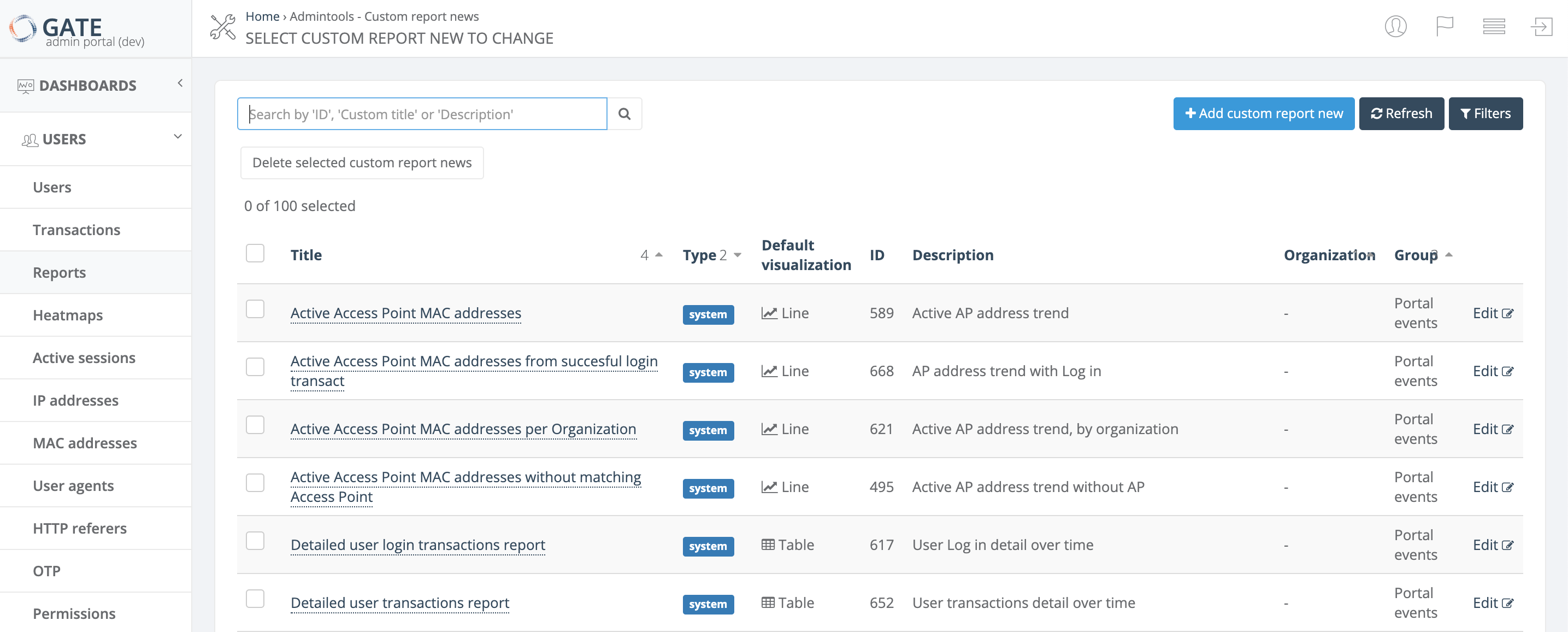
The Reports page in GATE provides a comprehensive view of all available reports with powerful search, filtering, and management capabilities. This page serves as your central hub for accessing both system reports and custom reports.

## Report List Columns

The reports list displays the following information for each report:

| Column | Description |
|--------|-------------|
| **Title** | The report name. See [detailed reference](https://docs.zequenze.com/books/gate/page/report-name-reference) for naming conventions |
| **Type** | Indicates whether the report is a system report or custom report |
| **Default visualization** | The default chart type used when displaying the report: Table, Line, Bar, Pie, or Heatmap |
| **ID** | Unique report identifier |
| **Description** | Brief description of the report's purpose and content. See [detailed reference](https://docs.zequenze.com/books/gate/page/report-name-reference) |
| **Organization** | The organization associated with the report |
| **Group** | Report category grouping. See [detailed reference](https://docs.zequenze.com/books/gate/page/report-name-reference) |

## Available Actions

### Search and Navigation
- **Search** - Find reports by Title, Description, Group, or ID. You can search using partial text matches or by a single word included in any of these fields
- **Refresh** - Update the current list to display the latest reports
- **Filters** - Narrow down the report list using multiple criteria:
  - Group
  - Report type (system or custom)
  - Default visualization type
  - Organization

### Report Management
- **Add new custom report** - Create a new custom report from scratch
- **Edit** - Modify an existing custom report (only available for custom reports)
- **Delete selected custom report** - Remove a custom report by selecting it using the checkbox on the left side of the row

> **Note**: System reports cannot be edited or deleted, only custom reports can be modified or removed.

# Users Reports

## Overview

This section provides a comprehensive list of user-related reports available in GATE. These reports help administrators monitor user activity, track login patterns, analyze connection trends, and troubleshoot authentication issues across the portal system.

All reports are categorized under the **Portal Events** group and provide various filtering and segmentation options to help you analyze user behavior and system performance.

## Available Reports

### Access Point Monitoring

| Report Name | Description | Group |
|-------------|-------------|-------|
| Active Access Point MAC addresses | Active AP address trend | Portal Events |
| Active Access Point MAC addresses from successful login transactions | AP address trend with login | Portal Events |
| Active Access Point MAC addresses per Organization | Active AP address trend, by organization | Portal Events |
| Active Access Point MAC addresses without matching Access Point | Active AP address trend without AP | Portal Events |
| List of active Access Point MAC addresses | Transactions by AP address over time | Portal Events |

### User Login Analytics

| Report Name | Description | Group |
|-------------|-------------|-------|
| Detailed user login transactions report | Subscriber login detail over time | Portal Events |
| Successful user login transactions | Login trend | Portal Events |
| Successful user login transactions average by organization | Average login by organization over time | Portal Events |
| Successful user login transactions by Access Point | Login trend, by Access Point | Portal Events |
| Successful user login transactions by Access Point installation type | Login trend, by Indoor/Outdoor AP | Portal Events |
| Successful user login transactions by Access Point installation type and page | Login trend, by Indoor/Outdoor AP and page | Portal Events |
| Successful user login transactions by Location | Login trend, by location | Portal Events |
| Successful user login transactions by Location group | Login trend, by location group | Portal Events |
| Successful user login transactions by Location group and state | Login trend, by location group and state | Portal Events |
| Successful user login transactions by device type | Login trend, by device type | Portal Events |
| Successful user login transactions by organization | Login trend, by organization | Portal Events |
| Successful user login transactions by page | Login trend, by page | Portal Events |
| Successful user login transactions by service | Login trend, by service | Portal Events |
| Successful user login transactions by service and page | Login trend, by service and page | Portal Events |
| Successful user login transactions by service, page and location | Login trend, by service, page and location | Portal Events |
| Successful user login transactions by service, page and location group | Login trend, by service, page and location group | Portal Events |
| Successful user login transaction rate per Access Point group and number of Access Points | Average login trend, by Access Point group | Portal Events |
| Successful user logins by OS family | Login by OS family over time | Portal Events |

### Connection Statistics

| Report Name | Description | Group |
|-------------|-------------|-------|
| Number of distinct MAC addresses with connections | AP address ID connections trend | Portal Events |
| Number of distinct MAC addresses with connections average by organization | AP address ID connections, by organization over time | Portal Events |
| Number of distinct MAC addresses with connections by organization | AP address ID connections trend, by organization | Portal Events |
| Number of distinct user classes with connections | Subscriber classes with connections trend | Portal Events |
| Number of distinct user external IDs with connections | External subscriber ID with connections trend | Portal Events |
| Number of distinct usernames with connections | Subscriber connections trend | Portal Events |
| Number of distinct usernames with connections by page | Subscriber connections trend, by page | Portal Events |
| Number of distinct usernames with connections per device type | Subscriber device trend | Portal Events |
| Number of users with connections | Session trend | Portal Events |
| Number of users with connections by AAA profile | Session trend, by AAA profile | Portal Events |
| Number of users with connections by Location | Session trend, by Location | Portal Events |
| Number of users with connections by Location group | Session trend, by Location group | Portal Events |
| Number of users with connections per device type | Session trend, by device type | Portal Events |

### User Segmentation

| Report Name | Description | Group |
|-------------|-------------|-------|
| Number of new, existing and total users with connections | Subscriber trend, by new/existing | Portal Events |
| Number of new, existing and total users with connections by AAA profile | Subscriber trend, by new/existing and AAA profile | Portal Events |
| Number of new, existing and total users with connections by Access Point group | Subscriber trend, by new/existing and AP group | Portal Events |
| Number of new, existing and total users with connections by Location | Subscriber trend, by new/existing and Location | Portal Events |
| Number of new, existing and total users with connections by Location group | Subscriber trend, by new/existing and Location group | Portal Events |
| Top users with connections | Top-ranked subscribers login over time | Portal Events |

### Transaction Analysis

| Report Name | Description | Group |
|-------------|-------------|-------|
| Detailed user transactions report | Subscriber transactions detail over time | Portal Events |
| Successful user captures by service | Subscriber capture trend, by service | Portal Events |
| Successful user transactions by Access Point group | Login trend, by AP group | Portal Events |
| Successful user transactions by Access Point with Location | Login trend, by AP and Location | Portal Events |
| Successful user transactions by Access Point with No Location | Login with no location trend, by AP | Portal Events |
| Successful user transactions by Location | Subscriber transactions trend, by location | Portal Events |
| Successful user transactions by Location group | Subscriber transactions trend, by location group | Portal Events |
| Successful user transactions by organization | Subscriber transactions trend, by organization | Portal Events |
| Successful user transactions by organization and type | Subscriber transactions trend, by organization and type | Portal Events |
| Successful user transactions by type | Subscriber transactions trend, by type | Portal Events |
| Successful user transactions by type and location | Subscriber transactions trend, by type and location | Portal Events |
| Successful user transactions by type and location group | Subscriber transactions trend, by type and location group | Portal Events |
| Successful user transactions by type and page | Subscriber transactions trend, by type and page | Portal Events |
| Successful user transactions by type and service | Subscriber transactions trend, by type and service | Portal Events |
| Successful user transactions by type, service and page | Subscriber transactions trend, by type, service and page | Portal Events |
| Successful user transactions by type, service, page and location | Subscriber transactions trend, by type, service, page and location | Portal Events |
| Successful user transactions by type, service, page and location group | Subscriber transactions trend, by type, service, page and location group | Portal Events |
| User transactions by service | Subscriber transactions trend, by service | Portal Events |
| User transactions by status | Subscriber transactions trend, by status | Portal Events |
| User transactions by type, service, page and status | Subscriber trend, by type, service, page and status | Portal Events |

### Error Reporting

| Report Name | Description | Group |
|-------------|-------------|-------|
| Error user transactions by status and error message | Transaction error message trend, by status | Portal Events |
| Error user transactions by status, error message and page | Transaction error message trend, by status and page | Portal Events |
| Error user transactions by type | Transaction error type trend | Portal Events |
| Error user transactions by type and location | Transaction error type trend, by location | Portal Events |
| Error user transactions by type and location group | Transaction error type trend, by location group | Portal Events |
| Error user transactions by type and page | Transaction error type trend, by page | Portal Events |
| Error user transactions by type and service | Transaction error type trend, by service | Portal Events |
| Error user transactions by type, service and page | Transaction error type trend, by service and page | Portal Events |

### Device and Browser Analytics

| Report Name | Description | Group |
|-------------|-------------|-------|
| User transactions by OS family | Subscriber OS family over time | Portal Events |
| User transactions by browser family | Subscriber browser family over time | Portal Events |
| User transactions by device brand | Subscriber device brand over time | Portal Events |
| User transactions by device brand and location | Subscriber device brand by location over time | Portal Events |

### Demographic Analysis

| Report Name | Description | Group |
|-------------|-------------|-------|
| User transactions by type and user's age | Subscriber transactions by type and age over time | Portal Events |
| User transactions by type and user's age (from birthday) | Subscriber transactions by type and age (from birthday) over time | Portal Events |
| User transactions by type and user's age range | Subscriber transactions by type and age range over time | Portal Events |
| User transactions by type and user's country | Subscriber transactions by type and country over time | Portal Events |
| User transactions by type and user's country and state | Subscriber transactions by type, country and state over time | Portal Events |
| User transactions by type and user's gender | Subscriber transactions by type and gender over time | Portal Events |
| User transactions by type and user's telephone country | Subscriber transactions by type and phone country code over time | Portal Events |

## Usage Notes

- All reports are real-time and can be filtered by date range
- Reports support multiple export formats for further analysis
- Demographic data is only available when users provide this information during registration
- Error reports help identify common authentication and connectivity issues
- Location-based reports require proper Access Point configuration with location assignments

# Configuración izzi

# Introducción - Accesos izzi

## Descripción General

Este capítulo contiene la documentación específica para el cliente **izzi** sobre el uso de la plataforma GATE de Zequenze. La plataforma GATE proporciona servicios AAA (Authentication, Authorization, Accounting) para la gestión de accesos, autenticación de usuarios y administración de servicios RADIUS.

## Tipos de Usuario

Para el cliente izzi se han configurado **dos tipos de acceso** con diferentes niveles de permisos:

### Usuario Admin izzi

**Permisos:** Completos (Crear, Modificar, Eliminar)

**Funcionalidades:**
- Gestión completa de clientes AAA/RADIUS (BNGs)
- Administración de usuarios autenticados
- Configuración de perfiles de velocidad con parámetros AVP/VSA
- Configuración de CoA (Change of Authorization) y DM (Disconnect Message)
- Acceso a reportes y análisis avanzados
- Configuración multi-vendor (Huawei, Nokia, Cisco)

### Usuario Read-Only izzi

**Permisos:** Solo lectura

**Funcionalidades:**
- Visualización de clientes AAA/RADIUS sin capacidad de modificación
- Consulta de usuarios autenticados y sus perfiles asignados
- Acceso a información para troubleshooting y diagnóstico
- Monitoreo de métricas y estadísticas
- Exportación de reportes (solo consulta)

## Información Técnica Específica para izzi

### Formato de Usuarios

- **Username estándar**: `NoCliente-SerieONT|Shelf/Slot/PON`
- **Ejemplo**: `25072102-ZTEGCF5FEB42|0/1/0`

### Organizaciones Configuradas

- **izzi FTTH**: Para servicios de fibra óptica y ONTs
- **izzi WiFi**: Para servicios Community WiFi/Offloading  
- **izzi**: Para servicios que requieren ambas funciones

### Vendors Soportados

- **Huawei**
- **Nokia**
- **Cisco**

## Estructura de la Documentación

Este capítulo está organizado en las siguientes secciones:

1. **Introducción - Accesos izzi** (Esta página)
2. **Usuario Admin izzi** - Guía completa para usuarios administradores
3. **Usuario Read-Only izzi** - Guía para usuarios de consulta
4. **Guía de Uso izzi** - Casos prácticos y ejemplos específicos

## Requisitos Previos

Antes de utilizar la plataforma GATE, asegúrese de contar con:

- Credenciales específicas proporcionadas por Zequenze
- Acceso a internet para conectar con **https://GATE.zequenze.com**
- Navegador web actualizado (Chrome, Firefox, Safari, Edge)
- Conocimientos básicos de protocolos RADIUS y AAA

## Soporte Técnico

Para cualquier duda o problema técnico, contactar al equipo de soporte de Zequenze:

- **Email:** support@zequenze.com
- **Portal:** https://GATE.zequenze.com
- **Documentación técnica:** Disponible en cada sección de este capítulo

---

*Documentación actualizada: Julio 2025*

# Usuario Admin izzi

## Descripción General

El usuario Admin para izzi cuenta con permisos completos en la plataforma GATE, permitiendo crear, modificar y eliminar tanto clientes AAA para servicios RADIUS como usuarios autenticados en el sistema.

## Acceso a la Plataforma

### Inicio de Sesión

Para acceder al portal GATE:

1. **URL de acceso:** https://gate.zequenze.com
2. **Credenciales:** Utilizar las credenciales proporcionadas por Zequenze

[![Pantalla de login](https://docs.zequenze.com/uploads/images/gallery/2026-02/MYpWQUUeZ9pZcspn-tmpihz9hsd0.png)](https://docs.zequenze.com/uploads/images/gallery/2025-07/HHTaFEna7DNlgtfI-imagen1.png)
### Panel Principal (Dashboard)

Una vez ingresadas las credenciales correctas, se mostrará el panel principal con las siguientes secciones:

[![Dashboard principal](https://docs.zequenze.com/uploads/images/gallery/2026-02/vb4OhkfyisyMR1ON-tmpc97g9lcc.png)](https://docs.zequenze.com/uploads/images/gallery/2025-07/sWDMzTQsqp1turyg-imagen2.png)
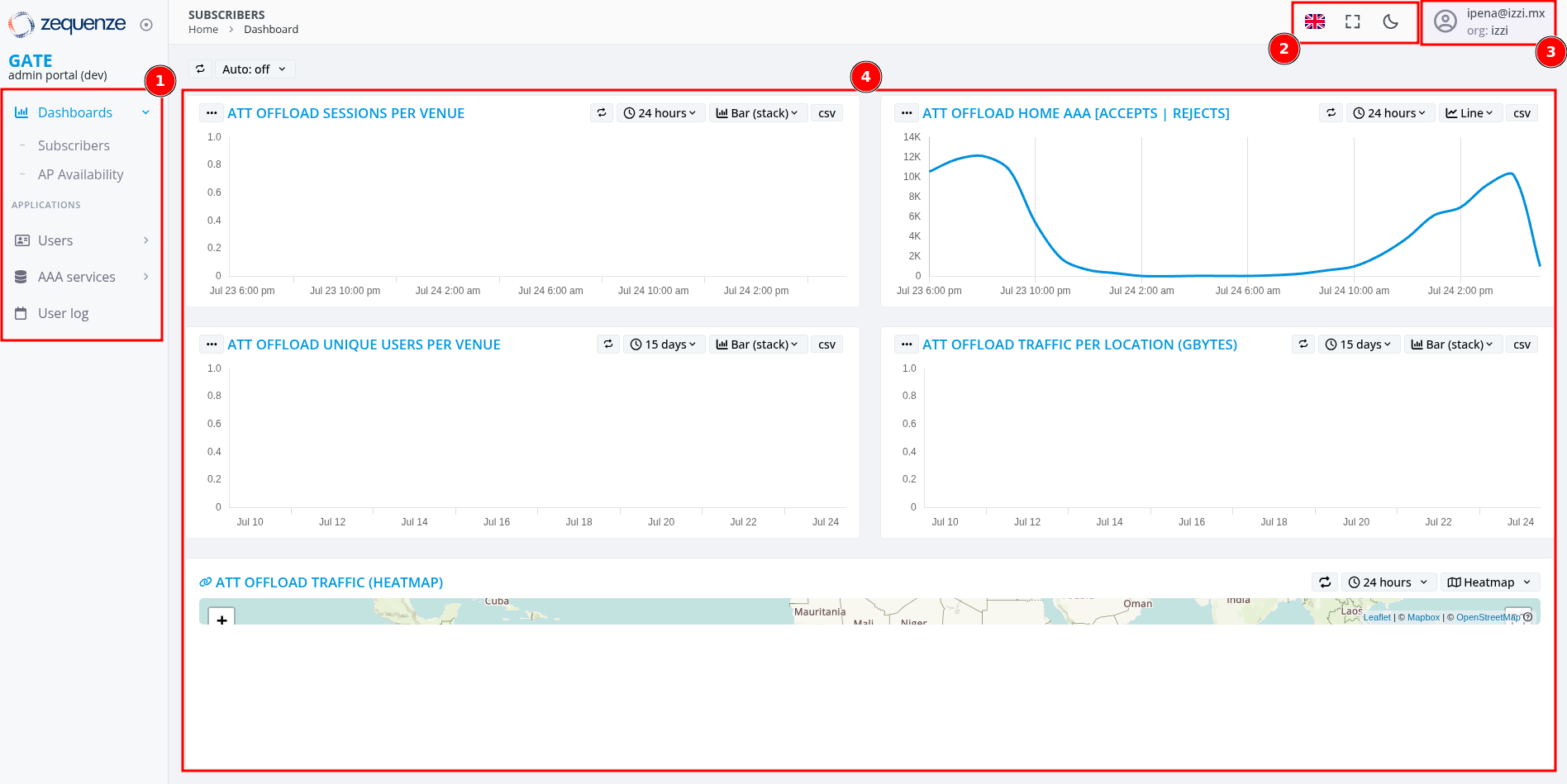
#### Elementos del Dashboard

**1. Menú Lateral Izquierdo**
- Acceso a Dashboards
- Gestión de usuarios autenticados
- Configuración de perfiles de velocidad y servicios RADIUS
- Log de usuarios o movimientos

**2. Barra Superior de Herramientas**
- **Idioma:** Cambio entre Inglés, Español o Portugués
- **Pantalla completa:** Activar/desactivar modo Full Screen
- **Tema:** Alternar entre tema Dark o Light

**3. Menú de Usuario**
- Opciones de perfil y configuración
- Configuración de zona horaria
- Activación de opciones avanzadas

**4. Dashboard Personalizable**
- Gráficas de métricas en tiempo real
- Widgets configurables según necesidades
- Visualización de datos de tráfico y usuarios

## Opciones de Usuario Admin

### Opciones de Perfil

Al hacer clic en el nombre de usuario (esquina superior derecha), se despliegan las siguientes opciones:

[![Menú desplegable de usuario](https://docs.zequenze.com/uploads/images/gallery/2026-02/nXQWGllMTJI7ghoh-tmp2gz22n69.png)](https://docs.zequenze.com/uploads/images/gallery/2025-07/rQHm9o9TL3qYMFiQ-imagen3.png)
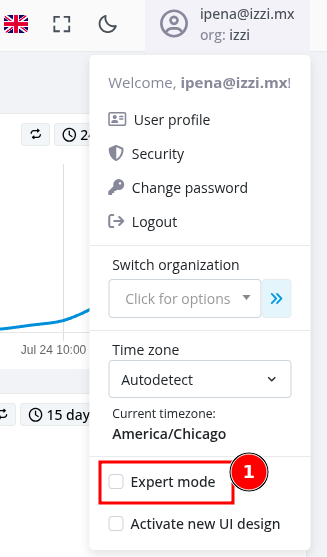
#### Opciones Disponibles

- **User Profile:** Modificar nombre para mostrar y información personal
- **Security:** Configurar autenticación de dos factores (2FA)
- **Change Password:** Cambiar contraseña actual
- **Logout:** Cerrar sesión en la plataforma
- **Switch Organization:** Seleccionar organización específica (usuarios y clientes asociados)
- **Time Zone:** Configurar zona horaria preferida
- **Expert Mode:** Habilitar opciones avanzadas en el menú lateral

> **Nota:** La opción "Activate new UI design" solo aparece en ambiente de desarrollo (DEV) y no está disponible en producción.

### Activación del Modo Experto

**Es recomendable activar el "Expert Mode"** para acceder a todas las funcionalidades avanzadas disponibles para usuarios Admin. Esta configuración habilitará opciones adicionales en el menú lateral izquierdo.

## Gestión de Clientes AAA/RADIUS

### Acceso a la Sección de Clientes

Para gestionar clientes RADIUS en la plataforma:

1. En el **menú lateral izquierdo**, seleccionar **"AAA services"**
2. Hacer clic en **"Clients"** o **"Clientes"**
3. Presionar el botón **"Add"** o **"Agregar"** para crear un nuevo cliente

[![Pantalla de clientes RADIUS](https://docs.zequenze.com/uploads/images/gallery/2026-02/KD6WsPuIpkfz0mMp-tmp21ht0bny.png)](https://docs.zequenze.com/uploads/images/gallery/2025-07/nFd842OQMxrO0OrT-2-aaa-services.png)
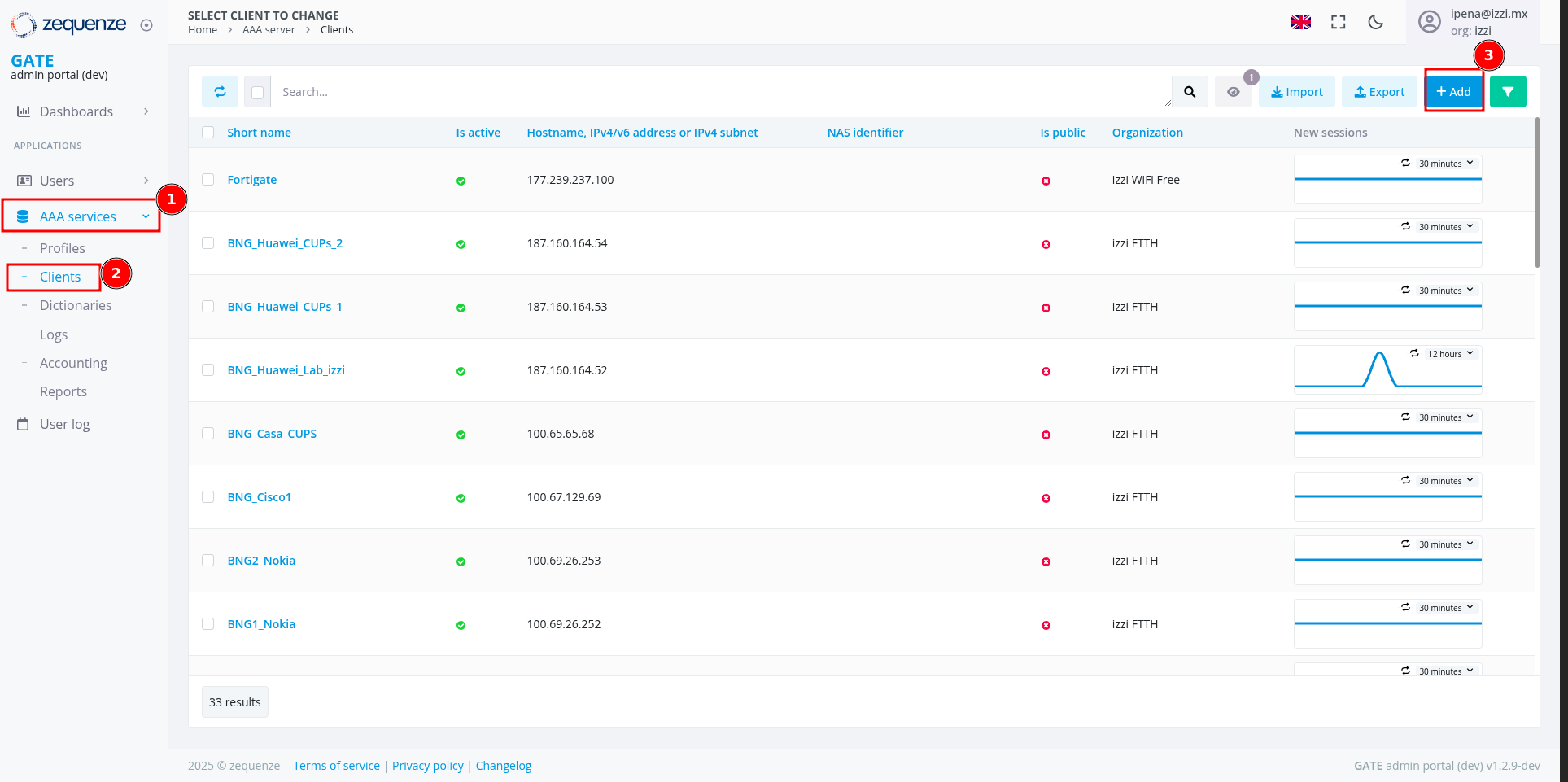
Esta funcionalidad permite dar de alta equipos BNGs (Broadband Network Gateway) que enviarán mensajes RADIUS al servidor AAA de GATE.

### Configuración de Nuevo Cliente RADIUS

Al crear un nuevo cliente RADIUS, se debe completar el siguiente formulario:

[![Formulario nuevo cliente](https://docs.zequenze.com/uploads/images/gallery/2026-02/2dvVzMJFUm1RQrN4-tmpahcb9rao.png)](https://docs.zequenze.com/uploads/images/gallery/2025-07/R65RN7bCkgvSToyH-2-1-aaa-services-add.png)
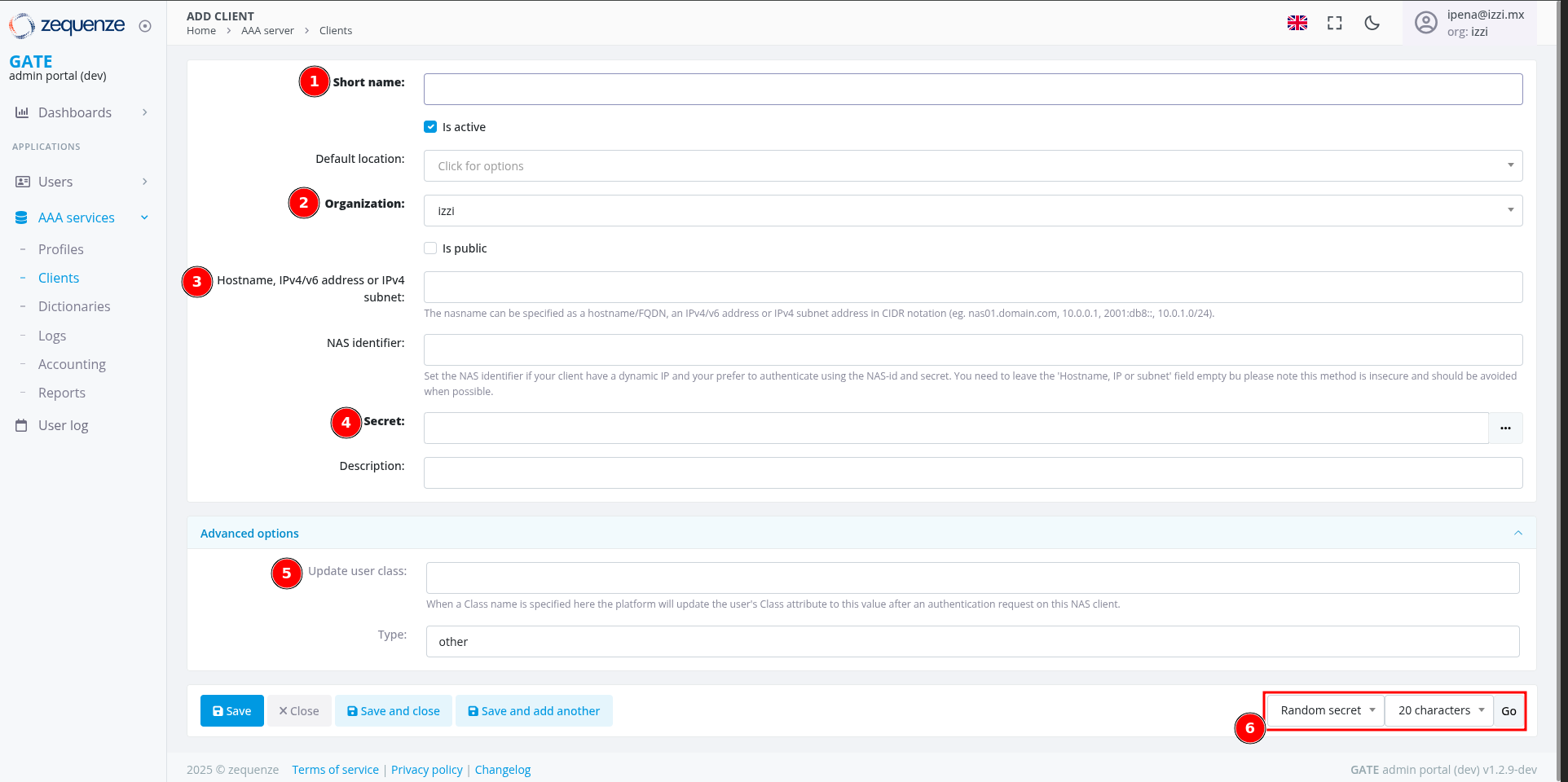
#### Campos Obligatorios

**1. Short name**
- Nombre identificativo del cliente RADIUS
- Sin espacios, máximo 32 caracteres
- Ejemplo: `BNG_Huawei_Lab_izzi`

**2. Organization**
- Organización a la que pertenece el equipo:
  - **"izzi FTTH"**: Para BNGs que autentican ONTs
  - **"izzi WiFi"**: Para WAGs o Community WiFi/Offloading
  - **"izzi"**: Para equipos que requieren ambas funciones

**3. Hostname, IPv4/v6 address or IPv4 subnet**
- Dirección IP (IPv4 o IPv6) desde donde el equipo enviará mensajes RADIUS
- Puede ser una IP específica o un rango de red
- Ejemplo: `10.10.20.20`

**4. Secret**
- Contraseña compartida entre el cliente y el servidor AAA
- Utilizada para autenticar la comunicación RADIUS
- Se puede generar automáticamente usando la opción en el punto 6

**5. Update user class (Opciones Avanzadas)**
- Campo para identificador único del BNG
- Utilizado para enviar parámetros AVP o VSA RADIUS específicos
- Ejemplo: `ClassUnique`

### Ejemplo de Configuración

[![Ejemplo configuración completa](https://docs.zequenze.com/uploads/images/gallery/2026-02/4OxLPyEXycWaKjod-tmp9es905wm.png)](https://docs.zequenze.com/uploads/images/gallery/2025-07/8h0qntxlqmppdJc0-2-2-aaa-services-add.png)
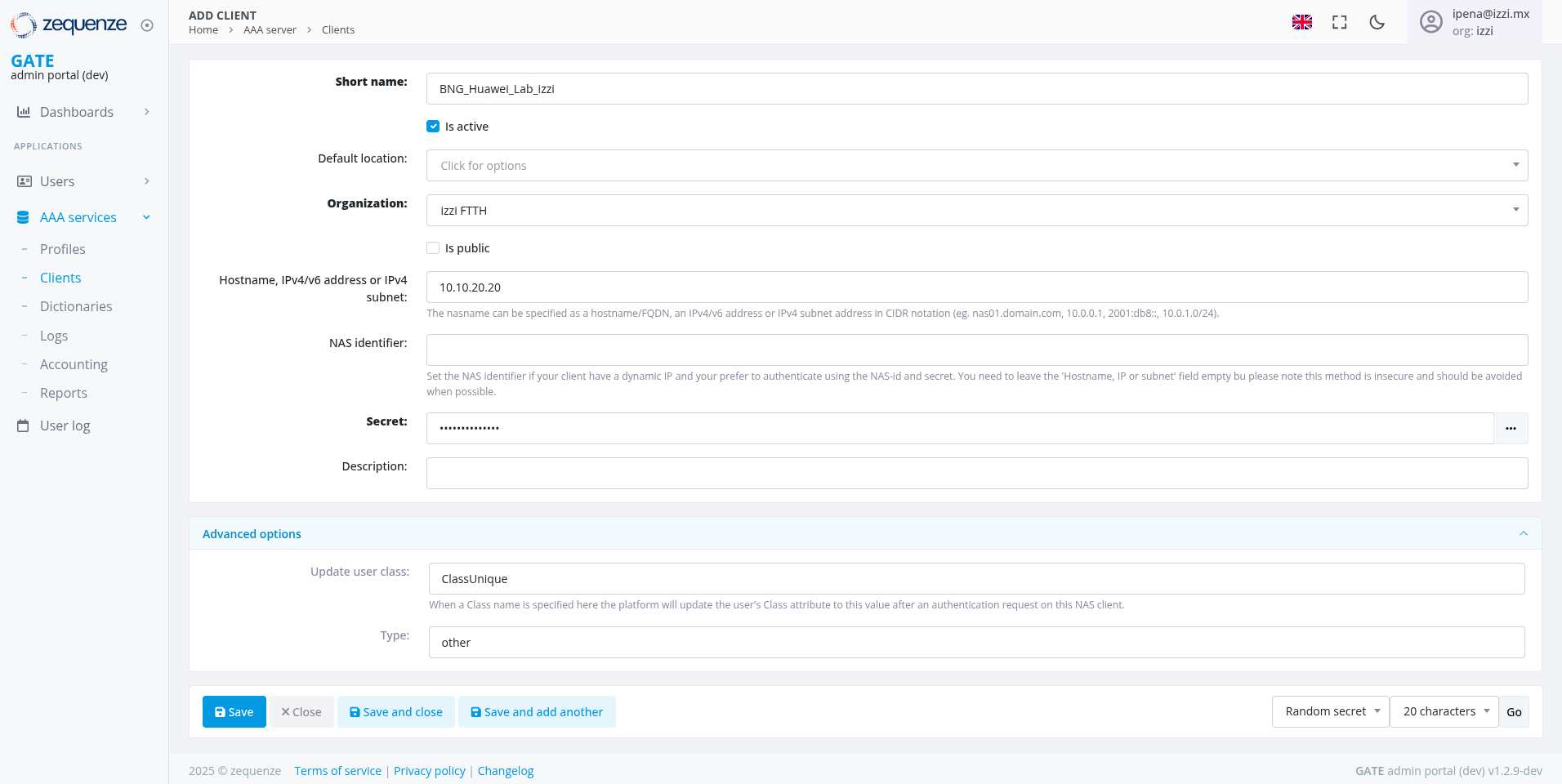
Una vez completados todos los campos con los valores apropiados, hacer clic en **"Save"** o **"Guardar"** para crear el cliente RADIUS.

#### Opciones Adicionales

**Generación Automática de Secret:**
- En la parte inferior del formulario se encuentra la opción para generar contraseñas automáticamente
- Se puede seleccionar el tipo y longitud de la contraseña generada
- Recomendado para mayor seguridad

**Botones de Acción:**
- **Save**: Guardar cliente y regresar a la lista
- **Save and close**: Guardar y cerrar formulario
- **Save and add another**: Guardar y crear otro cliente inmediatamente

## Gestión de Perfiles de Usuario

### Acceso a la Configuración de Perfiles

Para gestionar perfiles de velocidad y atributos RADIUS:

1. En el **menú lateral izquierdo**, seleccionar **"AAA services"**
2. Hacer clic en **"Profiles"** o **"Perfiles"**

[![Pantalla de perfiles](https://docs.zequenze.com/uploads/images/gallery/2026-02/7UnZIAUigQNHZ7ax-tmpt7qklaly.png)](https://docs.zequenze.com/uploads/images/gallery/2025-07/XNMsjj2aXlvWjoD2-3-aaa-profiles.png)
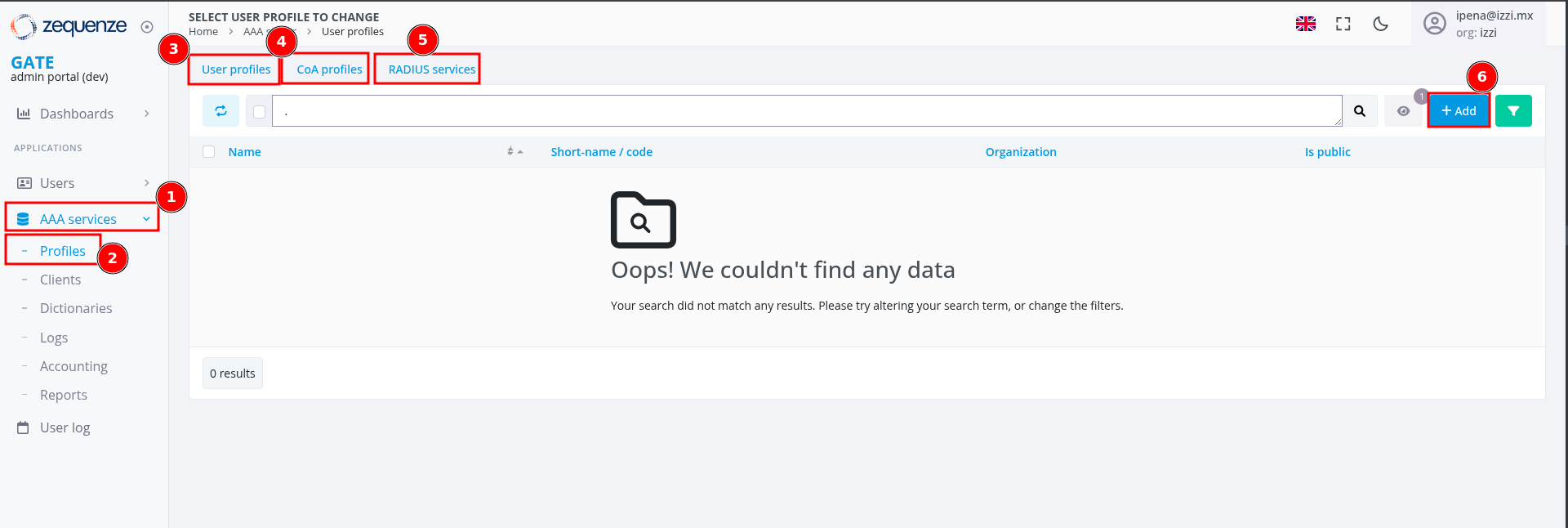
#### Tipos de Perfiles Disponibles

- **User profiles**: Creación de perfiles con parámetros AVP o VSA RADIUS
- **CoA profiles**: Configuración de mensajes CoA (Change of Authorization) o DM (Disconnect Message)
- **RADIUS services**: *Función legacy sin uso actual*
- **Botón "Add"**: Para crear nuevos perfiles de velocidad

### Crear Nuevo Perfil de Usuario

Al hacer clic en **"Add"** se abrirá el formulario de configuración:

[![Formulario nuevo perfil](https://docs.zequenze.com/uploads/images/gallery/2026-02/E7K0wooD1qtlkhvC-tmpzcso4keo.png)](https://docs.zequenze.com/uploads/images/gallery/2025-07/NhndBfpzVBoGUQBi-3-1-aaa-profiles.png)
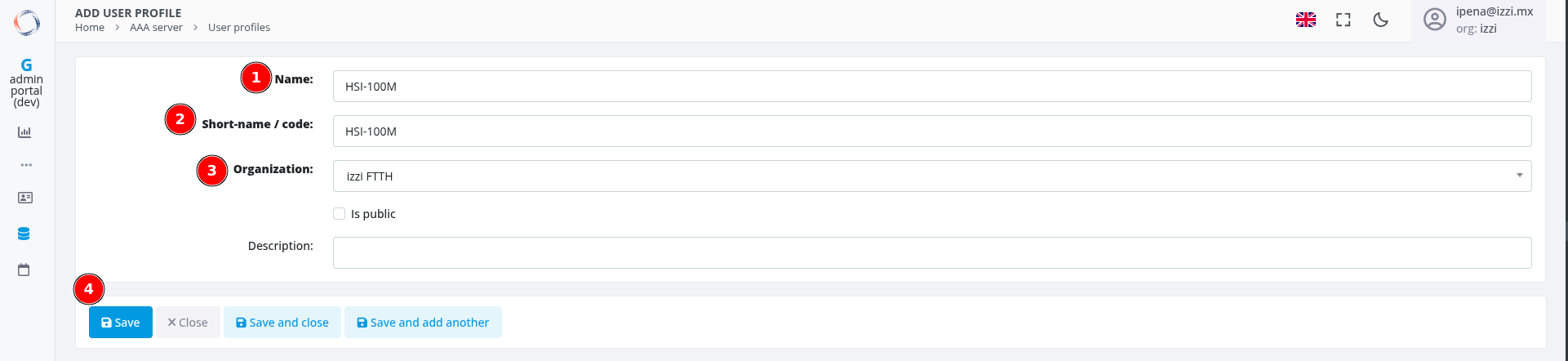
#### Configuración Básica

**1. Name**
- Nombre descriptivo del perfil
- Generalmente definido por el cliente al asignar usuarios
- Ejemplo: `HSI-100M`

**2. Short-name / code**
- Código corto identificativo
- Usar el mismo valor que el campo "Name"
- Ejemplo: `HSI-100M`

**3. Organization**
- Seleccionar la organización correspondiente
- Para servicios FTTH usar: **"izzi FTTH"**

**4. Botón "Save"**
- Guardar configuración básica para acceder a opciones avanzadas

### Configuración de Atributos del Perfil

Una vez guardado el perfil básico, aparecerán las opciones avanzadas:

[![Opciones de atributos](https://docs.zequenze.com/uploads/images/gallery/2026-02/N8QxhwJW4yBsglnI-tmp3gsjx4vj.png)](https://docs.zequenze.com/uploads/images/gallery/2025-07/cJQL2w3I5Ppyn1Rk-3-2-aaa-profiles.png)
#### Secciones de Configuración

**1. Profile attributes**
- Hacer clic en **"Add"** para agregar líneas de atributos AVP/VSA
- Estos atributos se envían en mensajes **"Access-Accept"**

**2. Profile check attributes**
- Hacer clic en **"Add"** para agregar criterios de validación
- Define condiciones para aplicar el perfil

### Configuración Detallada de Atributos

[![Configuración de atributos](https://docs.zequenze.com/uploads/images/gallery/2026-02/MCQ7rd6mo8DbFeoj-tmpdkrpn4i1.png)](https://docs.zequenze.com/uploads/images/gallery/2025-07/tsUMFbPBO7CdcAOQ-3-3-aaa-profiles.png)
#### Profile Attributes (Respuesta Access-Accept)

**1. Attribute**
- Seleccionar atributo RADIUS (estándar o vendor-specific)
- Ejemplo: `User-Name (1)`, `Huawei-Qos-Profile (31)`

**2. User class**
- **Valor crítico**: Debe coincidir con el campo "Class" del cliente RADIUS
- Garantiza que solo se envíen atributos compatibles con el vendor específico
- Ejemplo: `Huawei`, `Nokia`, `Cisco`

**3. Operation**
- **Append (+=)**: Agregar el atributo a la respuesta
- **Replace or add (:=)**: Establecer valor específico
- **Append if not exist (=)**: Reemplazar valor existente

**4. Value**
- Valor a enviar en el Access-Accept
- Variables entre doble llaves: `{{User-Name}}`
- Valores fijos: `hsi-internet`, `sub-qos-policy-in-HSI-115M`, `HSI-100M`

#### Profile Check Attributes (Validación de Acceso)

**5. Attribute**
- Atributo a validar en la solicitud de acceso
- Ejemplo: `Auth-Type (1000)`

**6. Operation**
- **Always match, replace or add (:=)**: Condición de validación
- **Match if attribute value is equal to (==)**: Debe ser igual al valor especificado
- **Match if attribute value is different to (!=)**: Debe ser diferente al valor

**7. Value**
- Valor esperado para la validación
- Ejemplo: `Accept`, `Reject`

**8. Botón "Save"**
- Guardar toda la configuración del perfil

### Ejemplo de Perfil Multi-Vendor

[![Perfil multi-vendor](https://docs.zequenze.com/uploads/images/gallery/2026-02/4jYFw5PgkGt9jqMn-tmpohbw9gu5.png)](https://docs.zequenze.com/uploads/images/gallery/2025-07/vI1xsqcs4IBeRXXO-3-4-aaa-profiles.png)
Este ejemplo muestra un perfil configurado para múltiples vendors (Huawei, Nokia, Cisco) donde cada conjunto de atributos se aplica únicamente al equipo que coincida con el valor **"User class"** correspondiente, garantizando la interoperabilidad nativa de la plataforma.

## Administración de Usuarios

### Acceso a la Gestión de Usuarios

Para administrar usuarios autenticados o con acceso:

1. En el **menú lateral izquierdo**, seleccionar **"Users"**
2. Confirmar que se encuentra en la sub-opción **"Users"**
3. Hacer clic en el botón **"Add"** o **"Agregar"** para crear un nuevo usuario

[![Lista de usuarios autenticados](https://docs.zequenze.com/uploads/images/gallery/2026-02/FIWXAKe6fb9J8dGn-tmpkan4lfhm.png)](https://docs.zequenze.com/uploads/images/gallery/2025-07/v4Y8R9y9FNy4hji6-4-0-users-users.png)
Esta sección muestra todos los usuarios dados de alta con sus respectivos perfiles de velocidad asignados, incluyendo información como fecha de registro, estado activo y organización.

### Crear Nuevo Usuario

Al hacer clic en **"Add"** se abrirá el formulario de configuración:

[![Formulario nuevo usuario](https://docs.zequenze.com/uploads/images/gallery/2026-02/ieauwW07YST7wDCQ-tmph-37turf.png)](https://docs.zequenze.com/uploads/images/gallery/2025-07/BT0gMoLylPJIzFy4-4-1-users-users-add.png)
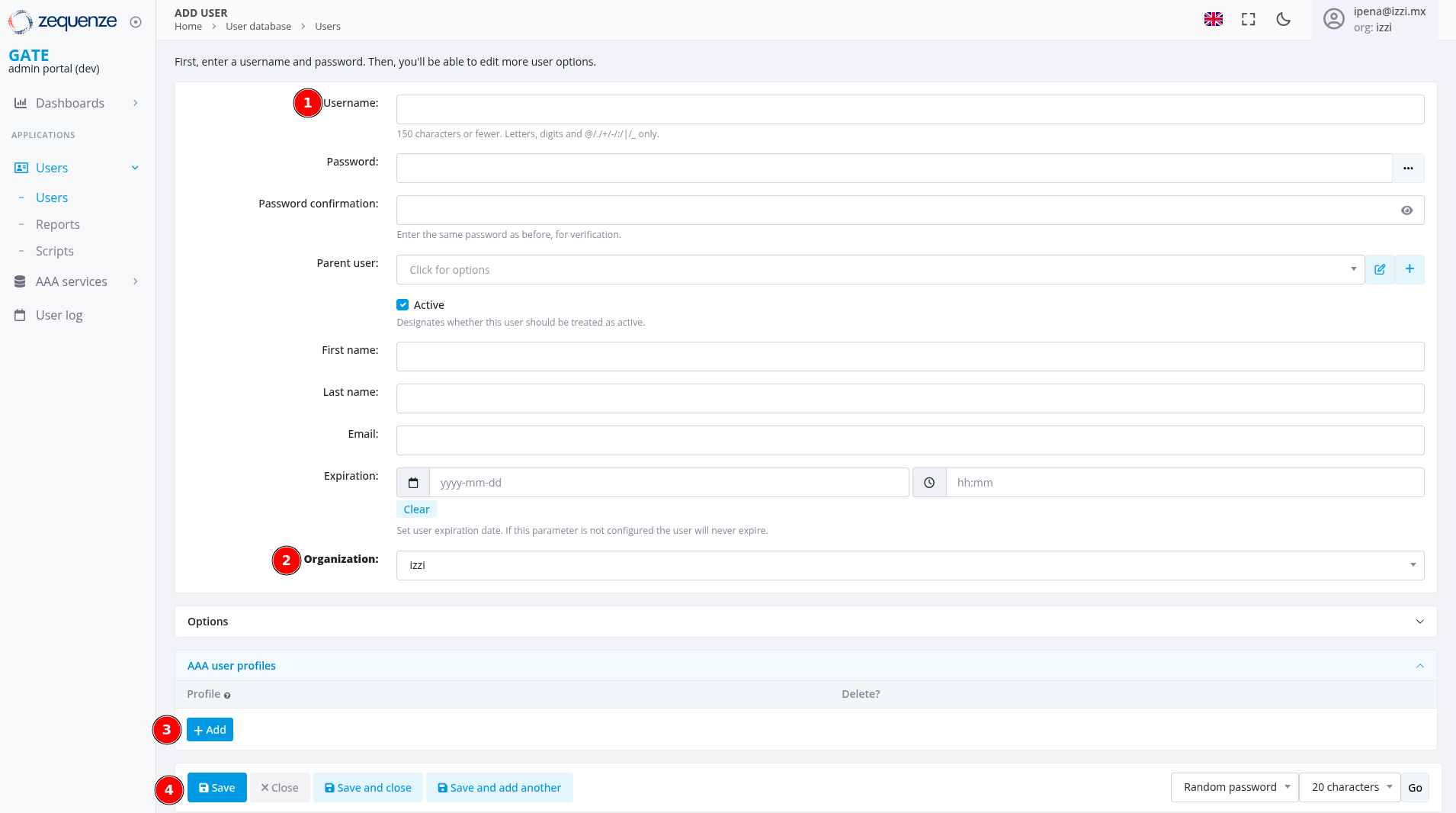
#### Configuración de Usuario

**1. Username**
- Campo principal para autenticación RADIUS
- **Formato para izzi**: `NoCliente-SerieONT|Shelf/Slot/PON`
- **Ejemplo**: `25072102-ZTEGCF5FEB42|0/1/0`
- Máximo 150 caracteres (letras, dígitos y caracteres especiales: @/+/-/|/_)

**2. Organization**
- Para servicios ONT/FTTH: Seleccionar **"izzi FTTH"**
- Para otros servicios: Usar organización correspondiente

**3. AAA user profiles**
- Hacer clic en **"Add"** para asignar perfil de velocidad
- Seleccionar el perfil creado previamente (ej: HSI-100M)

**4. Botón "Save"**
-

# Usuario Read-Only izzi

## Descripción General

El usuario Read-Only para izzi cuenta con permisos de **solo lectura** en la plataforma GATE, permitiendo visualizar y consultar información de clientes AAA/RADIUS y usuarios autenticados, pero **sin capacidad de modificar, crear o eliminar** elementos del sistema.

## Propósito del Acceso Read-Only

Este tipo de acceso está diseñado específicamente para:

- **Troubleshooting**: Diagnóstico de problemas de conectividad sin riesgo de modificaciones
- **Monitoreo**: Supervisión del estado de usuarios y equipos en tiempo real
- **Consulta**: Verificación de configuraciones de manera segura
- **Auditoría**: Revisión de configuraciones y estados actuales del sistema

## Acceso a la Plataforma

### Proceso de Inicio de Sesión

El proceso de autenticación es idéntico al usuario administrador:

1. **URL de acceso**: `https://gate.zequenze.com`
2. **Credenciales**: Utilizar las credenciales específicas para usuario Read-Only proporcionadas por Zequenze

> **Nota**: Una vez autenticado, el usuario tendrá acceso al mismo dashboard pero con funcionalidades limitadas a consulta únicamente.

## Consulta de Clientes RADIUS

### Acceso a la Lista de Clientes BNG

Para consultar los clientes RADIUS configurados:

1. En el **menú lateral izquierdo**, seleccionar **"AAA services"**
2. Hacer clic en **"Clients"** o **"Clientes"**

[![**[IMAGEN 24: Colocar aquí "1.0_Client_Radius.png" - Lista de clientes con acceso Read-Only]**](https://docs.zequenze.com/uploads/images/gallery/2025-07/scaled-1680-/53JiyJRXZ95GKckj-1-0-client-radius.png)](https://docs.zequenze.com/uploads/images/gallery/2025-07/53JiyJRXZ95GKckj-1-0-client-radius.png)

### Características del Acceso Read-Only

La interfaz presenta las siguientes limitaciones para usuarios de solo lectura:

- **Icono de candado**: Visible en la interfaz indicando permisos restringidos
- **Sin botón "Add"**: La opción para agregar nuevos clientes no está disponible
- **Solo visualización**: Acceso a información básica de todos los clientes existentes

### Información Visible de Clientes

La lista de clientes muestra los siguientes datos:

- Short name del cliente
- Estado (activo/inactivo)
- Dirección IP o subnet
- NAS identifier
- Organización asignada

### Vista Detallada de Cliente

Al hacer clic en un cliente específico para ver su configuración completa:

[![**[IMAGEN 25: Colocar aquí "1.1_Client_Radius.png" - Vista detallada de cliente Read-Only]**](https://docs.zequenze.com/uploads/images/gallery/2025-07/scaled-1680-/cW8om43OraATMUHN-1-1-client-radius.png)](https://docs.zequenze.com/uploads/images/gallery/2025-07/cW8om43OraATMUHN-1-1-client-radius.png)

#### Información Disponible para Consulta

**Configuración Básica**:
- Nombre del cliente
- Estado operativo
- Ubicación física

**Parámetros de Red**:
- Hostname
- Dirección IP/subnet
- Configuración de conectividad

**Configuración RADIUS**:
- NAS identifier
- Secret (oculto por seguridad)
- Parámetros de autenticación

**Configuración Organizacional**:
- Asignación a organización
- Update user class
- Configuraciones técnicas avanzadas

#### Limitaciones en Vista Detallada

- **Sin controles de edición**: No aparecen botones para modificar información
- **Solo lectura**: Toda la información es consultable únicamente
- **Sin opciones de guardado**: No hay botones "Save", "Delete" o similares

## Consulta de Usuarios Autenticados

### Acceso a la Lista de Usuarios

Para consultar usuarios autenticados en el sistema:

1. En el **menú lateral izquierdo**, seleccionar **"Users"**
2. Confirmar que se encuentra en la sección **"Users"**

[![**[IMAGEN 26: Colocar aquí "2.0_Users.png" - Lista de usuarios Read-Only]**](https://docs.zequenze.com/uploads/images/gallery/2025-07/scaled-1680-/lFphqlpARekTiuKO-2-0-users.png)](https://docs.zequenze.com/uploads/images/gallery/2025-07/lFphqlpARekTiuKO-2-0-users.png)

### Información de Usuarios Disponible

La lista de usuarios muestra:

- **Username**: Con formato izzi (`NoCliente-SerieONT|Shelf/Slot/PON`)
- **ID interno**: Identificador único del sistema
- **AAA profile**: Perfil de velocidad asignado (HSI-100M, HSI-1G, etc.)
- **Date joined**: Fecha de registro del usuario
- **Active**: Estado activo del usuario
- **Class**: Tipo de equipo (Huawei, Nokia, etc.)

### Herramientas de Consulta Disponibles

- **Search**: Búsqueda de usuarios específicos por diferentes criterios
- **Filter**: Filtrado por organización, perfil AAA, estado activo
- **Export**: Exportación de lista de usuarios (solo lectura)
- **Pagination**: Navegación entre páginas de resultados

### Vista Detallada de Usuario

Al seleccionar un usuario específico:

[![**[IMAGEN 27: Colocar aquí "2.1_Users.png" - Vista detallada de usuario Read-Only]**](https://docs.zequenze.com/uploads/images/gallery/2025-07/scaled-1680-/iLr3k1oHZ1LYvC8F-2-1-users.png)](https://docs.zequenze.com/uploads/images/gallery/2025-07/iLr3k1oHZ1LYvC8F-2-1-users.png)

#### Secciones de Información Detallada

**Account Information**:
- **Username**: Usuario configurado para autenticación RADIUS
- **Password**: Estado de configuración (configurado/no configurado, sin mostrar valor)
- **Parent user**: Usuario padre si aplica jerarquía
- **External ID**: Identificador externo del sistema
- **Class**: Tipo de equipo/vendor
- **Active**: Estado operativo del usuario
- **Organization**: Organización asignada

**AAA User Profiles**:
- **Perfiles asignados**: Visualización completa de perfiles de velocidad
- **Configuración detallada**: Parámetros técnicos de cada perfil

#### Restricciones en Vista Detallada

- **Sin capacidad de modificación**: No se pueden cambiar datos del usuario
- **Sin opciones de creación**: No aparece funcionalidad para crear nuevos usuarios
- **Sin eliminación**: No hay controles para eliminar usuarios existentes
- **Acceso de solo consulta**: Funcionalidad limitada a visualización y diagnóstico

## Capacidades de Diagnóstico

### Información Útil para Troubleshooting

El usuario Read-Only puede acceder a información crítica para diagnóstico:

**Estados de Conexión**:
- Verificación de usuarios activos en el sistema
- Consulta de perfiles de velocidad asignados
- Revisión de fechas de último acceso y actividad

**Configuraciones de Red**:
- Direcciones IP de clientes RADIUS
- Estados operativos de BNGs
- Asignaciones organizacionales y jerarquías

**Información Histórica**:
- Fechas de creación y última modificación
- Histórico de actualizaciones de configuración
- Trazabilidad de cambios realizados

### Limitaciones Importantes del Usuario Read-Only

Las siguientes funcionalidades **NO están disponibles** para usuarios de solo lectura:

- Creación de nuevos elementos (usuarios, clientes, perfiles)
- Modificación de configuraciones existentes
- Eliminación de usuarios o clientes RADIUS
- Acceso a configuraciones avanzadas (CoA, DM)
- Gestión completa de perfiles de usuario
- Modificación de parámetros RADIUS

## Comparación de Funcionalidades

| Funcionalidad | Usuario Admin | Usuario Read-Only |
|---------------|:-------------:|:-----------------:|
| **Visualizar clientes RADIUS** | ✅ | ✅ |
| **Crear/modificar clientes** | ✅ | ❌ |
| **Ver usuarios autenticados** | ✅ | ✅ |
| **Gestionar usuarios** | ✅ | ❌ |
| **Configurar perfiles AAA** | ✅ | ❌ |
| **Configurar CoA/DM** | ✅ | ❌ |
| **Exportar datos** | ✅ | ✅ |
| **Troubleshooting y consulta** | ✅ | ✅ |

## Casos de Uso Recomendados

### Diagnóstico de Conectividad

1. **Verificación de usuario**: Búsqueda de usuario específico por username
2. **Revisión de perfil**: Confirmación de perfil de velocidad asignado
3. **Validación de estado**: Verificación de que el usuario esté activo
4. **Consulta de BNG**: Revisión de configuración del cliente RADIUS correspondiente

### Monitoreo de Servicios

1. **Estado de equipos**: Verificación de BNGs activos/inactivos
2. **Usuarios conectados**: Monitoreo en tiempo real de usuarios activos
3. **Distribución de perfiles**: Verificación de asignación de velocidades

### Auditoría y Reportes

1. **Generación de reportes**: Exportación de listas de usuarios para análisis
2. **Verificación de configuraciones**: Revisión de parámetros sin riesgo de modificación
3. **Consulta de históricos**: Revisión de fechas de cambios y creación de elementos

---

**Conclusión**: El usuario Read-Only proporciona un acceso seguro y controlado para tareas de consulta, diagnóstico y monitoreo, eliminando completamente el riesgo de modificaciones accidentales en la plataforma GATE mientras mantiene acceso completo a toda la información necesaria para troubleshooting y auditoría.

# Guía de Uso izzi

## Descripción General

Esta guía presenta casos de uso prácticos y escenarios comunes para el manejo de la plataforma GATE por parte del cliente izzi. Los ejemplos están diseñados para ser útiles tanto para usuarios Admin como Read-Only, con indicaciones específicas sobre qué acciones están disponibles para cada tipo de usuario.

---

## Casos de Uso de Consulta

### Caso 1: Consulta de Logs de Autenticación

**Escenario:** Revisar el historial de intentos de autenticación de un BNG específico para identificar problemas de conectividad.

**Disponible para:** Usuario Admin ✅ y Read-Only 👁️

#### Acceso desde Cliente RADIUS

[![**[IMAGEN 28: Colocar aquí "1.0_CasoUso.png" - Selección de cliente RADIUS]**](https://docs.zequenze.com/uploads/images/gallery/2025-07/scaled-1680-/oh1DUda2dmb3HlAX-1-0-casouso.png)](https://docs.zequenze.com/uploads/images/gallery/2025-07/oh1DUda2dmb3HlAX-1-0-casouso.png)

1. **Acceder a Clientes**
   - Menú lateral → AAA services → Clients
   - Seleccionar cliente específico (ej: BNG_Huawei_CUPs_2)

2. **Consultar Logs AAA**

[![**[IMAGEN 29: Colocar aquí "1.1_CasoUso.png" - Pestaña AAA logs]**](https://docs.zequenze.com/uploads/images/gallery/2025-07/scaled-1680-/IUcMCN5NcQI7eXeg-1-1-casouso.png)](https://docs.zequenze.com/uploads/images/gallery/2025-07/IUcMCN5NcQI7eXeg-1-1-casouso.png)

   - Hacer clic en pestaña **"AAA logs"**
   - Ver registros de autenticación:
     - **Date/time**: Momento del intento
     - **User**: Username que intentó autenticar
     - **Type**: Access-Accept ✅ o Access-Reject ❌
     - **Client**: BNG de origen

3. **Detalles de Autenticación**

[![**[IMAGEN 30: Colocar aquí "1.2_CasoUso.png" - Detalles de log]**](https://docs.zequenze.com/uploads/images/gallery/2025-07/scaled-1680-/yBCTLgb5ZMQ7j4L2-1-2-casouso.png)](https://docs.zequenze.com/uploads/images/gallery/2025-07/yBCTLgb5ZMQ7j4L2-1-2-casouso.png)

   - Hacer clic en fecha/hora específica
   - **Información visible**:
     - Username completo
     - Tipo de respuesta (Access-Accept/Reject)
     - Calling station (identificador del equipo)
     - Cliente y NAS IP
     - Organización asignada

[![**[IMAGEN 31: Colocar aquí "1.3_CasoUso.png" - Detalles técnicos RADIUS]**](https://docs.zequenze.com/uploads/images/gallery/2025-07/scaled-1680-/0Vu152X8wVRwqzHR-1-3-casouso.png)](https://docs.zequenze.com/uploads/images/gallery/2025-07/0Vu152X8wVRwqzHR-1-3-casouso.png)

4. **Detalles Técnicos RADIUS**
   - **Sección "Log details"**: Información técnica detallada
   - **Request**: Parámetros enviados por el BNG
   - **Reply**: Respuesta enviada por GATE
   - **Atributos RADIUS**: Class, User-Name, parámetros VSA

---

### Caso 2: Consulta de Accounting Records

**Escenario:** Revisar el consumo de datos y tiempo de conexión de usuarios desde un BNG específico.

**Disponible para:** Usuario Admin ✅ y Read-Only 👁️

[![**[IMAGEN 32: Colocar aquí "1.4_CasoUso.png" - Pestaña AAA accounting]**](https://docs.zequenze.com/uploads/images/gallery/2025-07/scaled-1680-/zfajgFrzor57ckK9-1-4-casouso.png)](https://docs.zequenze.com/uploads/images/gallery/2025-07/zfajgFrzor57ckK9-1-4-casouso.png)

1. **Acceder a Accounting**
   - Desde la vista del cliente RADIUS
   - Seleccionar pestaña **"AAA accounting"**

2. **Información de Accounting**
   - **Date/time**: Momento del registro
   - **Time**: Duración de la sesión
   - **Status**: Estado de la sesión
   - **User**: Usuario conectado
   - **Input/Output bytes**: Tráfico consumido

[![**[IMAGEN 33: Colocar aquí "1.5_CasoUso.png" - Detalles de accounting]**](https://docs.zequenze.com/uploads/images/gallery/2025-07/scaled-1680-/DogmEtR7H8dtT2Uc-1-5-casouso.png)](https://docs.zequenze.com/uploads/images/gallery/2025-07/DogmEtR7H8dtT2Uc-1-5-casouso.png)

3. **Detalles de Sesión**
   - Hacer clic en fecha/hora específica
   - **Información detallada**:
     - Session ID único
     - Fechas de inicio y fin
     - Tiempo total de conexión
     - Bytes transferidos (entrada/salida)
     - Información de calling station

---

### Caso 3: Búsqueda Global de Logs

**Escenario:** Buscar logs específicos en toda la plataforma usando filtros avanzados.

**Disponible para:** Usuario Admin ✅ y Read-Only 👁️

#### Logs de Autenticación

[![**[IMAGEN 34: Colocar aquí "2.0_CasosLogs.png" - Sección Logs global]**](https://docs.zequenze.com/uploads/images/gallery/2025-07/scaled-1680-/FWMSbUMMt7No2LkY-2-0-casoslogs.png)](https://docs.zequenze.com/uploads/images/gallery/2025-07/FWMSbUMMt7No2LkY-2-0-casoslogs.png)

1. **Acceder a Logs Globales**
   - Menú lateral → AAA services → Logs

2. **Opciones de Búsqueda**
   - **Barra de búsqueda (4)**: Buscar por username, IP, etc.
   - **Filtros avanzados (3)**: Filtrar por:
     - Date/time: Rango de fechas
     - Type: Access-Accept, Access-Reject
     - NAS Client: Cliente RADIUS específico
     - User: Usuario particular

**Mejores Prácticas para Búsqueda Eficiente:**
- Usar filtros específicos antes de realizar búsquedas amplias
- Limitar rangos de tiempo para mejorar performance
- Combinar múltiples filtros para resultados precisos
- Exportar resultados para análisis offline

#### Accounting Records

[![**[IMAGEN 35: Colocar aquí "2.1_CasosAccounting.png" - Sección Accounting global]**](https://docs.zequenze.com/uploads/images/gallery/2025-07/scaled-1680-/l1uI032VGfjXiftx-2-1-casosaccounting.png)](https://docs.zequenze.com/uploads/images/gallery/2025-07/l1uI032VGfjXiftx-2-1-casosaccounting.png)

1. **Acceder a Accounting Global**
   - Menú lateral → AAA services → Accounting

2. **Filtros Disponibles**
   - **Búsqueda (4)**: Por usuario, cliente, etc.
   - **Filtros avanzados (3)**:
     - Start date/time: Rango temporal
     - Session status: Estado de sesiones
     - User: Usuario específico
     - Parent user: Usuario padre

---

### Caso 4: Generación de Reportes de Tráfico

**Escenario:** Generar reporte de consumo de datos por organización y cliente RADIUS.

**Disponible para:** Usuario Admin ✅ y Read-Only 👁️

[![**[IMAGEN 36: Colocar aquí "3.0_Reports.png" - Sección Reports]**](https://docs.zequenze.com/uploads/images/gallery/2025-07/scaled-1680-/Ni9dOnsnn8iLOzrG-3-0-reports.png)](https://docs.zequenze.com/uploads/images/gallery/2025-07/Ni9dOnsnn8iLOzrG-3-0-reports.png)

1. **Acceder a Reports**
   - Menú lateral → AAA services → Reports
   - Explorar reportes predefinidos

2. **Seleccionar Reporte Específico**

[![**[IMAGEN 37: Colocar aquí "3.1_Reports.png" - Reporte de tráfico]**](https://docs.zequenze.com/uploads/images/gallery/2025-07/scaled-1680-/zODwRDH2yzZNwwA5-3-1-reports.png)](https://docs.zequenze.com/uploads/images/gallery/2025-07/zODwRDH2yzZNwwA5-3-1-reports.png)

   - Ejemplo: **"Traffic per class, NAS-ID and Organization (GBytes)"**
   - **Configurar filtros**:
     - **Class**: Huawei (filtro aplicado)
     - **Interval**: Período de tiempo (168 hours)
     - **NAS Client**: BNG específico
     - **Organization**: izzi FTTH

3. **Interpretar Resultados**
   - **Gráfica temporal**: Picos de tráfico por horario
   - **Tabla de datos**:
     - Date/time: Período analizado
     - Client: BNG origen
     - Class: Tipo de equipo
     - Organization: Organización
     - In/Out/Total GBytes: Consumo de datos

**Información Disponible para Análisis:**
- Username con formato izzi
- Perfil de velocidad asignado
- Fecha de registro
- Estado actual
- Organización
- Tipo de equipo (Huawei, Nokia, etc.)

---

### Caso 5: Troubleshooting por Usuario Específico

**Escenario:** Diagnosticar problemas de un usuario particular revisando su historial completo.

**Disponible para:** Usuario Admin ✅ y Read-Only 👁️

[![**[IMAGEN 38: Colocar aquí "4.0_Users.png" - Búsqueda de usuario]**](https://docs.zequenze.com/uploads/images/gallery/2025-07/scaled-1680-/AK0ZKqPAhVwLrgVU-4-0-users.png)](https://docs.zequenze.com/uploads/images/gallery/2025-07/AK0ZKqPAhVwLrgVU-4-0-users.png)

1. **Localizar Usuario**
   - Menú lateral → Users → Users
   - **Buscar usuario**: `25072102-ZTEGCF5FEB42|0/1/0`
   - Hacer clic en el usuario encontrado

#### Logs de Autenticación del Usuario

[![**[IMAGEN 39: Colocar aquí "4.1_Users_logs.png" - Logs por usuario]**](https://docs.zequenze.com/uploads/images/gallery/2025-07/scaled-1680-/7NvQYdb0t5Bi9vd7-4-1-users-logs.png)](https://docs.zequenze.com/uploads/images/gallery/2025-07/7NvQYdb0t5Bi9vd7-4-1-users-logs.png)

2. **Revisar AAA Logs**
   - Pestaña **"AAA logs"** en la vista del usuario
   - **Información visible**:
     - Historial de autenticaciones
     - Resultados (Access-Accept/Reject)
     - BNG de origen por cada intento
     - Calling station utilizada

#### Accounting del Usuario

[![**[IMAGEN 40: Colocar aquí "4.2_Users_acc.png" - Accounting por usuario]**](https://docs.zequenze.com/uploads/images/gallery/2025-07/scaled-1680-/BLcSn6FsnBDYznP5-4-2-users-acc.png)](https://docs.zequenze.com/uploads/images/gallery/2025-07/BLcSn6FsnBDYznP5-4-2-users-acc.png)

3. **Revisar AAA Accounting**
   - Pestaña **"AAA accounting"**
   - **Información de sesiones**:
     - Duración de conexiones
     - Consumo de datos por sesión
     - Fechas de inicio/fin
     - Estado de las sesiones

#### Análisis Completo del Usuario

**Información Consolidada:**
- **Patrón de conexiones**: Frecuencia y horarios
- **Problemas recurrentes**: Access-Reject repetidos
- **Consumo de datos**: Tendencias de uso
- **BNGs utilizados**: Equipos de origen
- **Perfil asignado**: Velocidad configurada

#### Proceso de Diagnóstico para Read-Only 👁️

**Verificar Usuario:**
- ✅ Buscar usuario: `25072102-ZTEGCF5FEB42|0/1/0`
- ✅ Confirmar estado: Activo/Inactivo
- ✅ Validar perfil: HSI-100M asignado
- ✅ Verificar organización: izzi FTTH

**Revisar Cliente RADIUS:**
- ✅ Buscar BNG con IP: 187.160.164.52
- ✅ Confirmar estado del cliente
- ✅ Validar organización correcta

**Información para Escalación:**
- ✅ Recopilar datos del usuario
- ✅ Identificar BNG origen
- ✅ Documentar configuraciones actuales
- ✅ Proporcionar información a usuario Admin

---

## Casos de Uso de Configuración

### Caso 1: Alta de Nuevo Cliente RADIUS (BNG)

**Escenario:** Se requiere dar de alta un nuevo BNG Huawei en la red de izzi para autenticación de ONTs.

**Disponible para:** Usuario Admin ✅ únicamente

#### Datos del Ejemplo:
- **Equipo**: BNG Huawei modelo MA5800
- **IP Address**: 192.168.100.50
- **Ubicación**: Nodo Guadalajara Norte
- **Servicio**: Autenticación ONTs FTTH

#### Proceso Paso a Paso:

1. **Acceder a Clientes RADIUS**
   - Menú lateral → AAA services → Clients
   - Clic en

# Advanced topics

# Captive Portal HTML/CCS code example

## Overview

Captive Portal templates in GATE can be customized in two ways:
- Through the GATE GUI interface
- By directly modifying the HTML/CSS code of the template

This page demonstrates the HTML/CSS implementation of the Hotel Template for captive portals.

## Hotel Template Preview

**Live Template:** [Captive Portal Hotel Template](https://gate-dev.zequenze.com/page/template-transparent_column-hotel1/)

[![Hotel Template Screenshot](https://docs.zequenze.com/uploads/images/gallery/2026-02/0XR9ZyLvZwLW8yuO-tmpjrbb2if0.jpg)](https://docs.zequenze.com/uploads/images/gallery/2020-05/lffsAOJ5v3X0Thki-hotel1-little.jpg)
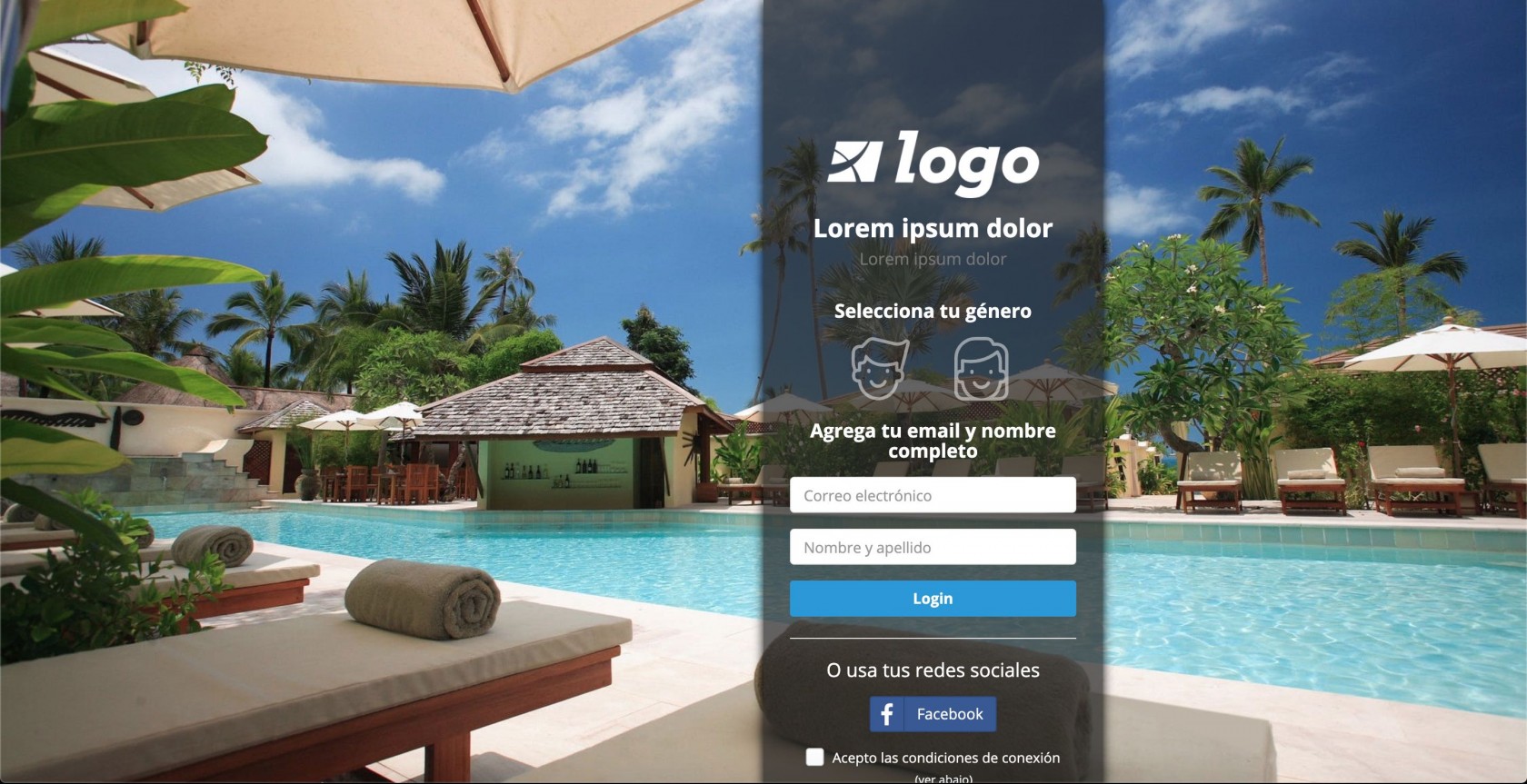
[![hotel1-little.jpg](https://docs.zequenze.com/uploads/images/gallery/2026-02/Kcmw7m6jCGFXLuu0-tmp7326e37u.jpg)](https://docs.zequenze.com/uploads/images/gallery/2020-05/lffsAOJ5v3X0Thki-hotel1-little.jpg)
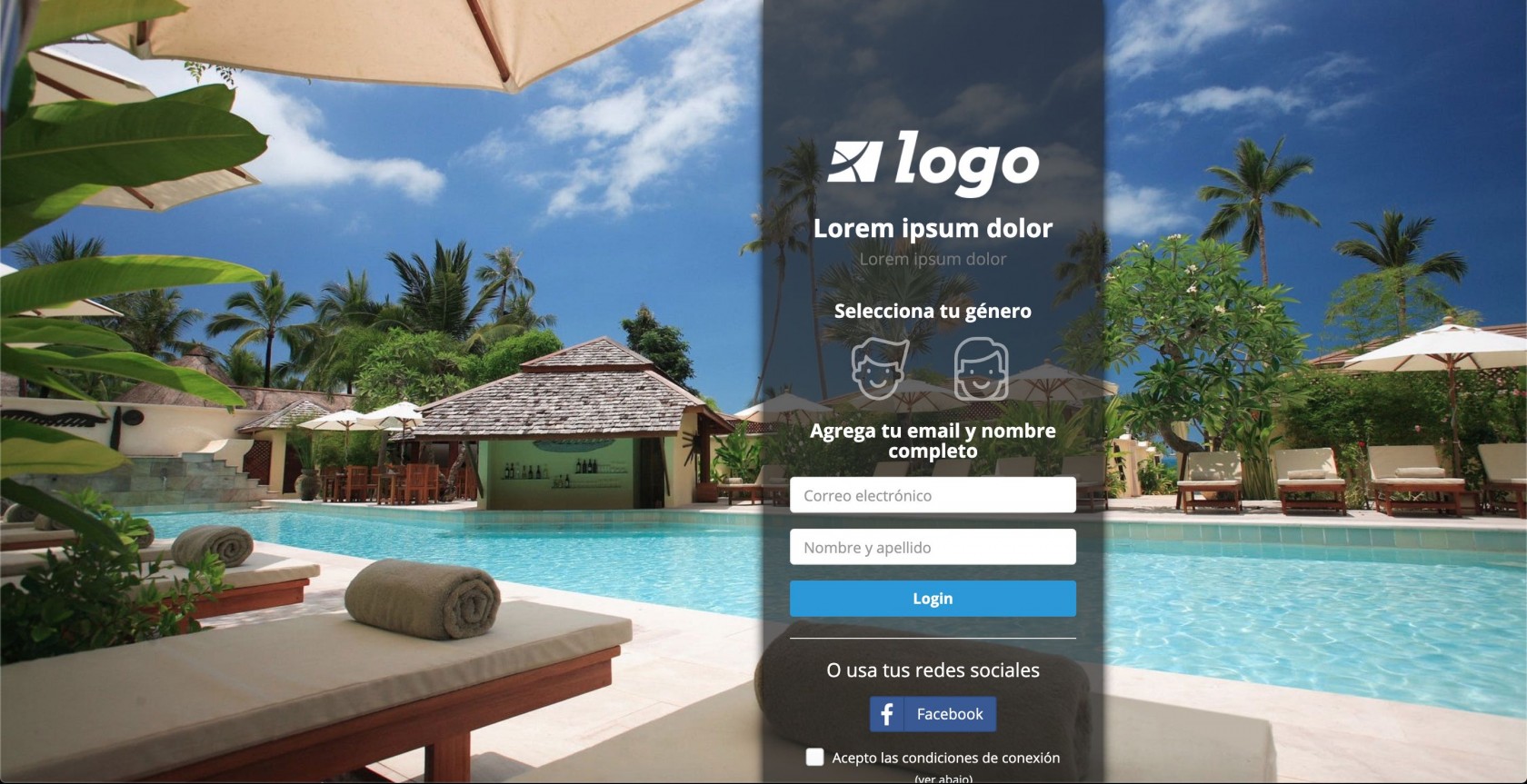
[![hotel1-little.jpg](https://docs.zequenze.com/uploads/images/gallery/2026-02/234BOMKZWSempwAJ-tmpxphxwfg1.jpg)](https://docs.zequenze.com/uploads/images/gallery/2020-05/lffsAOJ5v3X0Thki-hotel1-little.jpg)
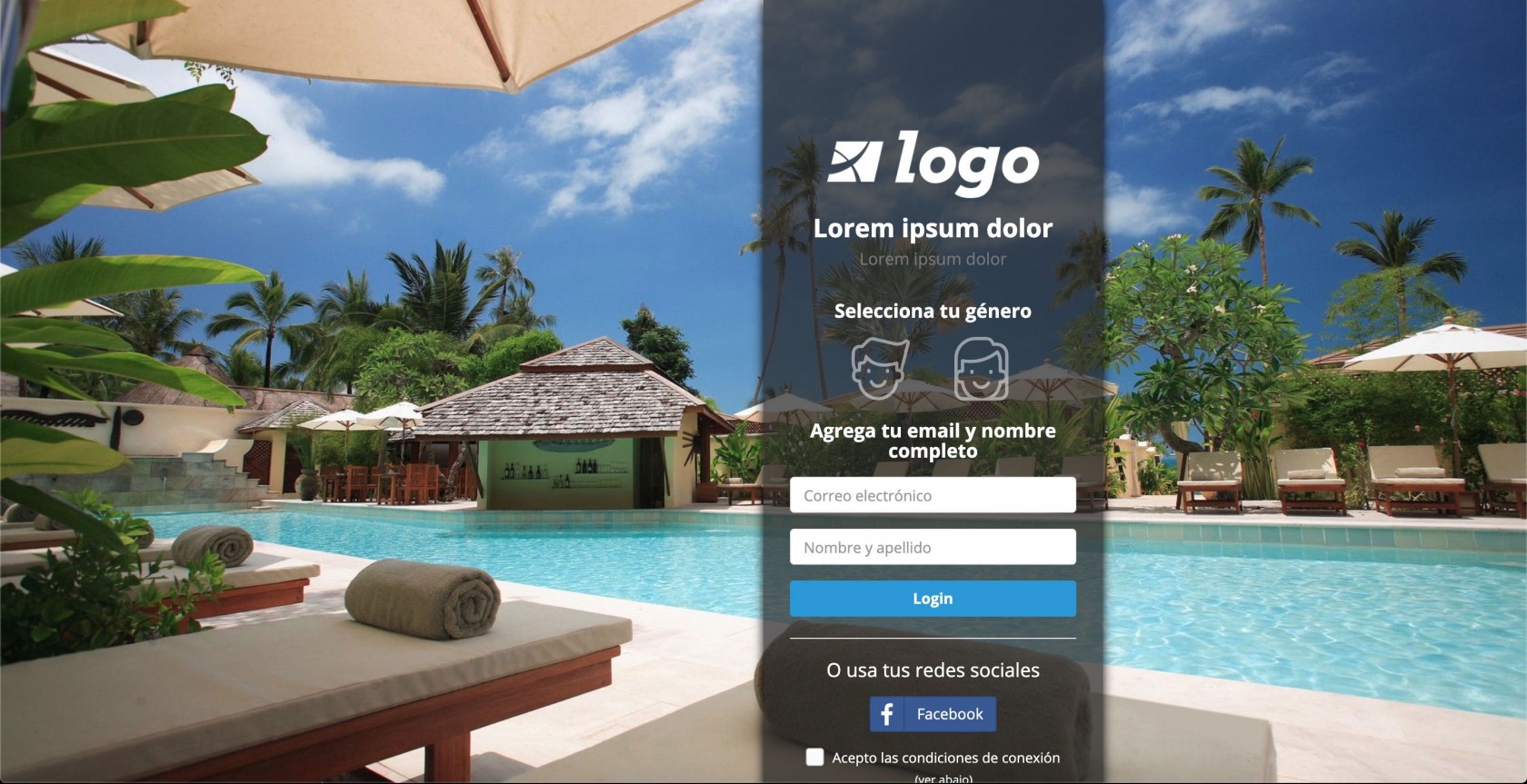
[![hotel1-little.jpg](https://docs.zequenze.com/uploads/images/gallery/2026-02/H67r1TkBIBaXlnCQ-tmpmuddgw0l.jpg)](https://docs.zequenze.com/uploads/images/gallery/2020-05/lffsAOJ5v3X0Thki-hotel1-little.jpg)
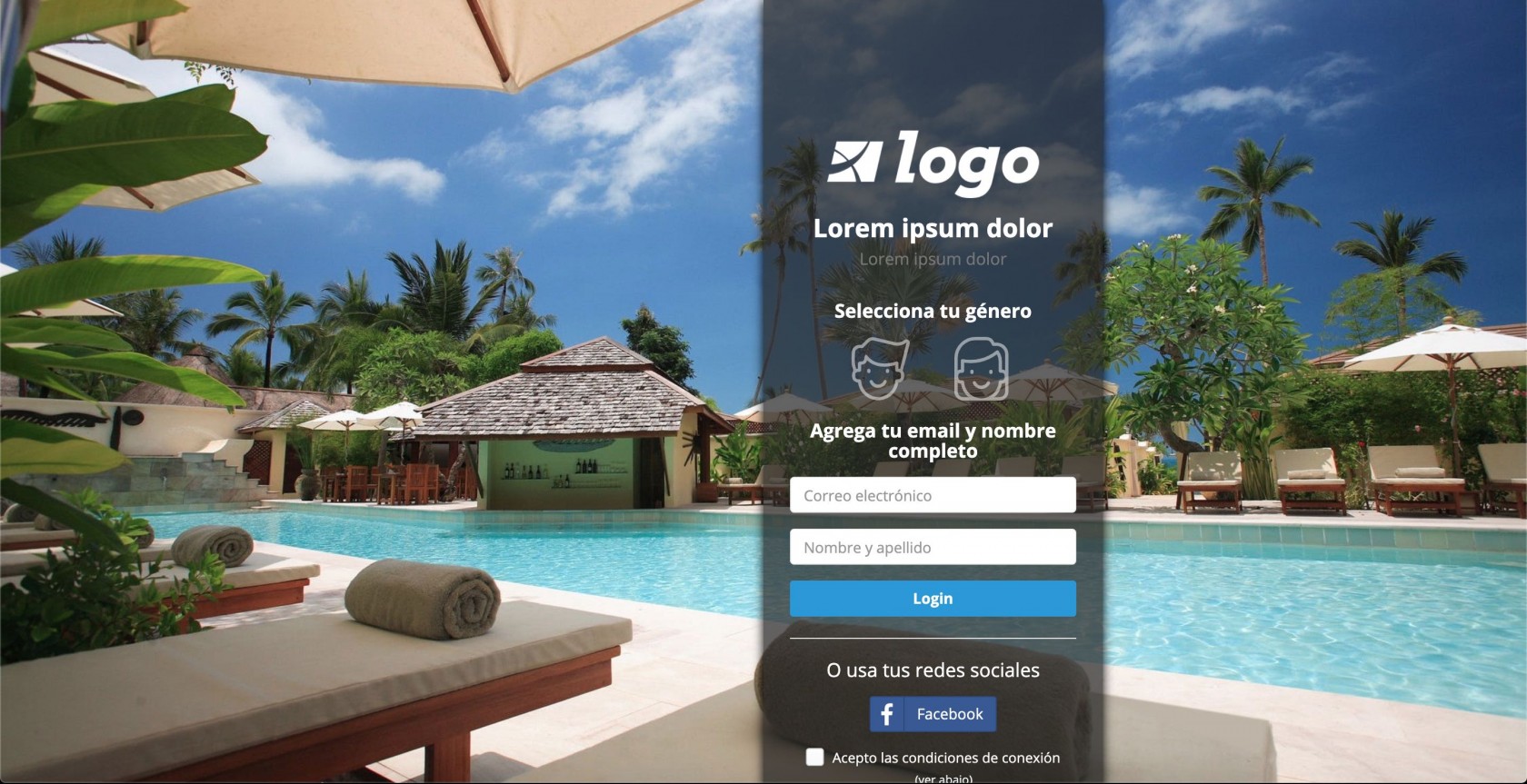
## Complete HTML/CSS Code

Below is the complete HTML template code for the Hotel captive portal:

```html
{% extends "page/base.html" %}

{% load admin_static media i18n %}

{% block extrastyle %}
	{% if page.variables.favicon %}
	<link rel="shortcut icon" type="image/ico" href="{% portal_files '' %}{{ page.variables.favicon }}" />
    {% endif %}

	<style>
        .cc-selector input{
            margin:0;padding:0;
            -webkit-appearance:none;
            -moz-appearance:none;
            appearance:none;
        }

        .cc-selector-2 input{
            position:absolute;
            z-index:999;
        }

        .hombre{background-image:url({% portal_files 'templates/img/hombre.svg' %});}
        .mujer{background-image:url({% portal_files 'templates/img/mujer.svg' %});}

        .cc-selector-2 input:active +.drinkcard-cc, .cc-selector input:active +.drinkcard-cc{opacity: .9;}
        .cc-selector-2 input:checked +.drinkcard-cc, .cc-selector input:checked +.drinkcard-cc{
            -webkit-filter: none;
            -moz-filter: none;
            filter: none;
        }
        .drinkcard-cc{
            cursor:pointer;
            background-size:contain;
            background-repeat:no-repeat;
            display:inline-block;
            width:60px; height: 60px;
            -webkit-transition: all 100ms ease-in;
            -moz-transition: all 100ms ease-in;
            transition: all 100ms ease-in;
            -webkit-filter: brightness(1.8) grayscale(1) opacity(.5);
            -moz-filter: brightness(1.8) grayscale(1) opacity(.5);
            filter: brightness(1.8) grayscale(1) opacity(.5);
        }
        .drinkcard-cc:hover{
            -webkit-filter: brightness(1.2) grayscale(.5) opacity(1);
            -moz-filter: brightness(1.2) grayscale(.5) opacity(1);
            filter: brightness(1.2) grayscale(.5) opacity(1);
        }
	</style>

{% endblock %}

{% block body_tag %}
    <body class="blank {% if is_popup %}popup {% endif %}{% block bodyclass %}{% endblock %}"
          {% if page.variables.background %}style="background: url('{% portal_files '' %}{{ page.variables.background }}') no-repeat center center fixed; -webkit-background-size: cover; -moz-background-size: cover; -o-background-size: cover; background-size: cover;"{% endif %}
          {% if page.variables.background_color %}style="background-color: {{ page.variables.background_color }};"{% endif %}>
{% endblock %}

{% block main %}
    {% include "includes/social_detect.html" %}
	
	<div class="row">
        <div class="col-md-2 col-md-offset-{{ page.variables.offset|default:'2' }}" style="background-color: {{ page.variables.login_form_color|default:'rgba( 34, 34, 34, .7)' }}; min-height: 100vh; min-width: 320px; box-shadow: 0 0 10px 0px black;">
            <div class="row text-{{ page.variables.font_color|default:'white' }}">
                <div class="col-md-12">
                    <div class="hpanel m-l-sm m-r-sm" style="margin-top: 8%">
                        <div class="hidden-xs hidden-sm" style="min-height: 100px; background: unset; border: 0px;">
                            &nbsp;
                        </div>
                        <div class="text-center m-b-sm" style="background: unset; border: 0px;">
                            <img class="m-b-xs" style="max-width: {{ page.variables.logo_max_width|default:'200' }}px;" 
                                 src="{% if page.variables.logo %}{% portal_files page.variables.logo %}{% else %}{% portal_files 'templates/img/logo1-white.png' %}{% endif %}">
                            <h3>
                                <strong>{{ page.variables.title|default:'Lorem ipsum dolor'|safe }}</strong><br>
                            	<small>{{ page.variables.sub_title|default:'Lorem ipsum dolor'|safe }}</small>    
                            </h3>
                        </div>
                        <div style="background: unset; border: 0px; padding-top: 0px;">
                            <form method="post" id="register" action="#" class="m-t-lg">
                                {% csrf_token %}
                                {% if next %}
                                <input type="hidden" name="next" value="{{ next }}" />
                                {% endif %}
                                <input type="hidden" id="tzoffset" name="tzoffset" value="" />
                                {% if page.variables.register_form_template %}
                            	{% include page.variables.register_form_template %}
                            	{% else %}
                                <div class="form-group text-center">
                                    <h4 class="m-b font-extra-bold">Selecciona tu género</h4>
                                    <div class="cc-selector text-center">
                                        <input id="hombre" type="radio" name="gender" value="m"/>
                                        <label class="drinkcard-cc hombre m-r" for="hombre"></label>
                                        <input id="mujer" type="radio" name="gender" value="f"/>
                                        <label class="drinkcard-cc mujer m-l"for="mujer"></label>
                                    </div>
                                    <h4 class="m-b font-extra-bold">Agrega tu email y nombre completo</h4>
                                    <input type="text" id="email" name="email" placeholder="Correo electrónico" class="form-control m-b" value="" autocorrect="off" autocapitalize="none">
                                    <input type="text" id="full_name" name="full_name" placeholder="Nombre y apellido" class="form-control m-b">
                                    <button type="submit" class="btn btn-block btn-{{ page.variables.btncolor|default:'info' }} registerButton"><strong>{% trans 'login'|capfirst %}</strong></button>
                                </div>
                                {% endif %}
                                {% if social_auth %}
                                <hr/>
                                <div class="text-center">
                                    <h4 class="m-b">O usa tus redes sociales</h4>
                                    {% if facebook == True %}
                                    <a href="#" class="btn btn-social btn-facebook loginFacebook m-b-xs">
                                        <span class="fa fa-facebook"></span>Facebook
                                    </a>
                                    {% endif %}
                                    {% if google == True %}
                                    <a href="#" class="btn btn-social btn-google loginGoogle m-b-xs">
                                        <span class="fa fa-google"></span>Google
                                    </a>
                                    {% endif %}
                                    {% if twitter == True %}
                                    <a href="#" class="btn btn-social btn-twitter loginTwitter m-b-xs">
                                        <span class="fa fa-twitter"></span>Twitter
                                    </a>
                                    {% endif %}
                                    {% if linkedin == True %}
                                    <a href="#" class="btn btn-social btn-linkedin loginLinkedin m-b-xs">
                                        <span class="fa fa-linkedin"></span>LinkedIn
                                    </a>
                                    {% endif %}
                                    {% if instagram == True %}
                                    <a href="#" class="btn btn-social btn-instagram loginInstagram m-b-xs">
                                        <span class="fa fa-instagram"></span>Instagram
                                    </a>
                                    {% endif %}
                                    {% if yahoo == True %}
                                    <a href="#" class="btn btn-social btn-yahoo loginYahoo m-b-xs">
                                        <span class="fa fa-yahoo"></span>Yahoo
                                    </a>
                                    {% endif %}
                                    <div class="checkbox checkbox-info">
                                        <input type="checkbox" class="socialAcceptCheck" name="accept">
                                        <label>Acepto las condiciones de conexión </label><br>
                                        <small>(ver abajo)</small>
                                    </div>
                                    <div class="hpanel collapsed" style="margin-bottom: 0px; margin-top: 10px;">
                                        <div class="panel-heading hbuilt text-left" style="padding: 5px 10px;">
                                            <a class="showhide">
                                                <div class="panel-tools">
                                                    <i class="fa fa-chevron-up"></i>
                                                </div>
                                                <h6><i class="pe-7s-info text-info"></i> Condiciones de social media</h6>
                                            </a>
                                        </div>
                                        <div class="panel-body text-left" style="color: black">
                                            <small>
                                                Al hacer login con tu cuenta de redes sociales aceptas compartir la información pública de tu perfil con Zequenze y sus socios de conectividad
                                            </small>
                                        </div>
                                    </div>
                                </div>
                                {% endif %}
                            </form>
                        </div>
                        {% if page.variables.footer_text %}
                        <div class="m-l-sm m-t-xxl">
                            {% if page.variables.footer_logo %}
                            <img class="m-b-xs" style="max-width: {{ page.variables.footer_logo_max_width|default:'50' }}px;" src="{% if page.variables.logo %}{% portal_files '' %}{{ page.variables.footer_logo }}{% else %}{% portal_files 'templates/img/logo1-white.png' %}{% endif %}">
                            {% endif %}
                            <p>{{ page.variables.footer_text|default:'Lorem ipsum dolor sit amet, consectetur adipiscing elit sed do eiusmod tempor.'|safe }}</p>
                        </div>
                        {% endif %}
                    </div>
                    <div class="hpanel" style="margin-top: 10%"></div>
                </div>
            </div>
        </div>
	</div>
        
    {{ page.content|safe }}

{% endblock %}
        
{% block bottom_scripts %}
    {% if page.variables.welcome_url %}
    <script>
        {% if page.variables.welcome_url and request.path|slice:":6" == '/page/' %}
        facebook_querystring = '?{{ request.query_string }}&next={{ page.variables.welcome_url | urlencode }}%3F{{ request.query_string | urlencode }}';
        {% else %}
        facebook_querystring = '?{{ request.query_string }}&next={{ page.variables.welcome_url | urlencode }}';
        {% endif %}
        twitter_querystring = facebook_querystring;
        google_querystring = facebook_querystring;
        twitter_querysstring = facebook_querystring;
        linkedin_querystring = facebook_querystring;
        instagram_querystring = facebook_querystring;
        yahoo_querystring = facebook_querystring;
    </script>
    {% endif %}

    {% if social_auth %}{% include "includes/social_auth.html" %}{% endif %}
        
    {% if uam_api %}
        {% include "includes/uam_default.html" %}
    {% endif %}
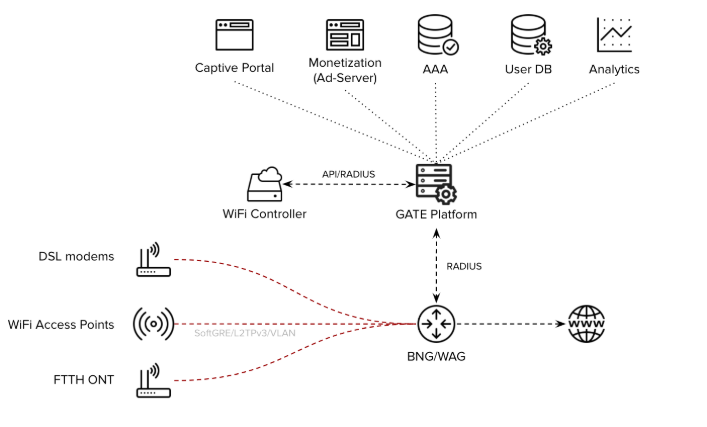
    <script>
			$(function() {
                {% get_current_language  as LANGUAGE_CODE %}
                $('#datepicker').datepicker({
                    format: 'yyyy-mm-dd',
                    autoclose: true,
                    clearBtn: true,
                    disableTouchKeyboard: true,
                    startView: 2,
                    maxViewMode: 2,
                    language: '{{ LANGUAGE_CODE }}',
                    templates: {
                        leftArrow: '<b style="font-size: 22px;">&laquo;</b>',
                        rightArrow: '<b style="font-size: 22px;">&raquo;</b>'
                    }
                });
                $('.loginButton').click(function() {
                    $('.splash').addClass('dim').css('display', 'block');
                    $('#tzoffset').val((new Date()).getTimezoneOffset());
                    {% if uam_api and uam_api.address %}
                    var username = document.getElementById('username').value;
                    var password = document.getElementById('password').value;
                    uam_login(username, password);
                    {% else %}
                    $("#register").submit();
                    {% endif %}
                }); 
                 
                $('.registerButton').click(function() {
                    $('.splash').addClass('dim').css('display', 'block');
                    $.ajax({
                        url : "{{ request.main_path }}/register/?{{ request.query_string }}",
                        type : "POST",
                        data: $('#' + this.id).serialize(),
                        context: $('#' + this.id),
                        error: function (xhr, textStatus, errorThrown) {
                            $('.splash').css('display', 'none');
                            title = xhr.status + " - " + errorThrown;
                            msg = xhr.status + " - " + errorThrown + " - error received from the backend. Please try again later.";
                            swal(title, msg, "error");
                        },
                        success : function(json) {
                            $('.splash').css('display', 'none');
                            if(json.status) {
                                swal({
                                    title: "",
                                    {% if page.variables.welcome_logo and page.variables.welcome_logo != '' %}
                                    text: "<img class='m-b

# Dynamic variables for integration services

## Overview

Dynamic variable substitution allows you to insert contextual values into integration service configurations. Variables are referenced using double curly braces syntax: `{{ variable_name }}`.

## Available Variables

The following variables are available for use in integration service configurations:

| Variable Name | Description |
|---------------|-------------|
| `username` | Username entered or assigned to the user |
| `password` | Password entered or assigned to the user |
| `email` | Email address entered or configured for the user |
| `user__first_name` | First name of the user. If the user has both a first and middle name, both will be included |
| `user__last_name` | Last name of the user. If the user has two last names, both will be included |
| `user__first_first_name` | First name of the user only |
| `user__second_first_name` | Middle name of the user |
| `user__first_last_name` | First last name of the user |
| `user__second_last_name` | Second last name of the user |
| `user__external_id` | External ID field for the user |
| `user__date_joined` | User's join date |
| `user__aaa_profile` | Name of the first AAA profile configured for the user |
| `org_short_name` | Short name of the portal page organization |
| `location` | Name of the current location of the user |
| `now_formatted` | Current date/time in ISO format: `YYYY-MM-DDTHH:MM:SSZ` |

## Usage Examples

To use a variable in your integration service configuration, enclose the variable name in double curly braces:

```
User: {{ username }}
Email: {{ email }}
Location: {{ location }}
Timestamp: {{ now_formatted }}
```

## Dynamic Variables in Redirection URLs

TBC

# Mobile WiFi Offload

## Overview

Mobile WiFi Offload enables UE devices (smartphones) to utilize WiFi-based connectivity instead of cellular mobile connections. This technology serves as a strategic tool for Mobile Network Operators (MNOs) and Mobile Virtual Network Operators (MVNOs) to optimize their network operations and service offerings.

## Key Benefits

### Lower Cost-per-Bit
Particularly advantageous for MVNOs, this technology dramatically reduces variable costs associated with subscriber mobile data usage by routing traffic through proprietary WiFi networks. This approach is especially effective in low-mobility locations where most data consumption occurs, such as offices and homes.

### Enhanced Indoor Coverage
WiFi Offload provides MNOs and MVNOs with a cost-effective solution to improve indoor coverage without the complexity and expense of small-cell deployments.

### Service Differentiation
Operators worldwide leverage WiFi Offload to distinguish their service offerings from traditional MNO services by providing innovative features when users connect via WiFi, including:
- Unlimited data usage
- Free Voice over WiFi (VoWiFi)
- Premium content access
- Enhanced streaming capabilities

## Architecture Options

There are several ways to implement Mobile WiFi Offload, depending on the level of integration desired with the mobile network infrastructure.

### SIM-based WiFi Offload

This architecture leverages SIM card credentials for WiFi network authentication. The UE authenticates using quintuplets stored on the SIM card, which are validated against the mobile network's HSS database.

<div drawio-diagram="81"><img src="https://docs.zequenze.com/uploads/images/gallery/2026-02/byEG7sk4YW5CUlcE-tmpqh4bmzwn.png"></div>

<div drawio-diagram="81"><img src="https://docs.zequenze.com/uploads/images/gallery/2026-02/GVhfidIBFSNkKDJi-tmpvt1vsa7z.png"></div>

<div drawio-diagram="81"><img src="https://docs.zequenze.com/uploads/images/gallery/2026-02/BfUS5hxVztzAJVlA-tmprozte5ge.png"></div>

<div drawio-diagram="81"><img src="https://docs.zequenze.com/uploads/images/gallery/2026-02/bECGqKiNlbXMccwj-tmp95ko5dpb.png"></div>

> **Note**: The diagram above presents a simplified architecture (excluding WAG and WAG integration to mobile network PGW) for clarity.

#### Implementation Challenges
- **UE Configuration Complexity**: Requires sophisticated WiFi settings configuration on the device (EAP-AKA, EAP-SIM, and other protocols), typically necessitating a dedicated application or [Mobile Device Management (MDM)](https://en.wikipedia.org/wiki/Mobile_device_management) system
- **SIM Credential Management**: Demands coordination and setup with both the mobile network HSS and SIM card manufacturer to properly configure quintuplets

#### Advantages
Once properly configured on the UE, WiFi offload operates seamlessly without requiring additional subscriber intervention.

### EAP-based Authentication (UserID/Password)

This alternative approach proves particularly attractive for MVNO light deployments, implementing WiFi Offload through traditional UserID/Password authentication mechanisms.

<div drawio-diagram="84"><img src="https://docs.zequenze.com/uploads/images/gallery/2026-02/fqzzdFYitJGIBxQS-tmp99ce2-bw.png"></div>

<div drawio-diagram="84"><img src="https://docs.zequenze.com/uploads/images/gallery/2026-02/DoO484rmGhxssKNy-tmp8h71bqr1.png"></div>

<div drawio-diagram="84"><img src="https://docs.zequenze.com/uploads/images/gallery/2026-02/TxGifek6KCAwTG2R-tmpf89scghr.png"></div>

<div drawio-diagram="84"><img src="https://docs.zequenze.com/uploads/images/gallery/2026-02/PHUXziTVe4FqrFp8-tmpn4aetp-4.png"></div>

This architecture replaces SIM-based authentication with conventional UserID/Password validation against MVNO databases (CRM, AAA systems, etc.).

#### Implementation Challenges
- **Manual UE Configuration**: Subscribers must manually input UserID/Password credentials from the MVNO database, or rely on application-based or [MDM](https://en.wikipedia.org/wiki/Mobile_device_management) configuration
- **Credential Management**: Password changes require subscribers to manually update their credentials on their devices

#### Advantages
- **Simplified Setup**: Streamlined integration process, particularly beneficial for MVNO light architectures
- **Independent Control**: Provides MVNOs with complete control over WiFi Offload implementation without requiring MNO coordination
- **Flexible Management**: Enables direct management of authentication credentials through existing MVNO systems

# Testing FCM Push Notification service

## Overview

To test Firebase Cloud Messaging (FCM) push notifications in GATE, you'll need two essential components:
- **Firebase API Key** (obtainable from the FCM console)
- **Device registration IDs** where notifications will be sent

This guide walks you through the complete testing process within GATE's interface.

## Prerequisites

Before beginning, ensure you have:
- Valid Firebase API key from your FCM console
- Target device registration IDs for testing
- Administrative access to GATE's Settings menu

## Step-by-Step Testing Process

### Step 1: Access Push Notification Service

1. Navigate to the **Settings** main menu
2. Select the **Services** sub-menu

[![service-submenu.png](https://docs.zequenze.com/uploads/images/gallery/2026-02/MmWN0qz7o2aqzkhS-tmp1ypy9vq.png)](https://docs.zequenze.com/uploads/images/gallery/2020-04/DBpZA63perJh4vJJ-service-submenu.png)

[![service-submenu.png](https://docs.zequenze.com/uploads/images/gallery/2026-02/XFEQ0fENzoxTbTDv-tmp96p9xfx3.png)](https://docs.zequenze.com/uploads/images/gallery/2020-04/DBpZA63perJh4vJJ-service-submenu.png)

[![service-submenu.png](https://docs.zequenze.com/uploads/images/gallery/2026-02/XE1WsHZUWCoSJJ5P-tmpby87l28x.png)](https://docs.zequenze.com/uploads/images/gallery/2020-04/DBpZA63perJh4vJJ-service-submenu.png)

[![service-submenu.png](https://docs.zequenze.com/uploads/images/gallery/2026-02/5GOkZ81FZ6uRUmI5-tmpxxrd0ij3.png)](https://docs.zequenze.com/uploads/images/gallery/2020-04/DBpZA63perJh4vJJ-service-submenu.png)

3. Search for `push` in the services list
4. Click on **Push notification**

[![push-notification.png](https://docs.zequenze.com/uploads/images/gallery/2026-02/VRqk64WHGhzvEvZF-tmpezzgsqkw.png)](https://docs.zequenze.com/uploads/images/gallery/2020-04/EhxfPohI6wgSFa9E-push-notification.png)

[![push-notification.png](https://docs.zequenze.com/uploads/images/gallery/2026-02/X9xU9HVT2dVTxCy0-tmpjwrmmnku.png)](https://docs.zequenze.com/uploads/images/gallery/2020-04/EhxfPohI6wgSFa9E-push-notification.png)

[![push-notification.png](https://docs.zequenze.com/uploads/images/gallery/2026-02/ZdoTXxn8CTQe9H54-tmpcc66xoim.png)](https://docs.zequenze.com/uploads/images/gallery/2020-04/EhxfPohI6wgSFa9E-push-notification.png)

[![push-notification.png](https://docs.zequenze.com/uploads/images/gallery/2026-02/6QsWA8kzJ39Il89P-tmpb179g-nv.png)](https://docs.zequenze.com/uploads/images/gallery/2020-04/EhxfPohI6wgSFa9E-push-notification.png)

### Step 2: Configure API Key

1. On the Push Notification Service screen, enter your Firebase **API key**
2. Click the **Save and continue editing** button to save your configuration

[![api-key.png](https://docs.zequenze.com/uploads/images/gallery/2026-02/3bZoiZ9hloW4YDoL-tmp8ww1tiy5.png)](https://docs.zequenze.com/uploads/images/gallery/2020-04/QcyOgS38AItLNsXG-api-key.png)

[![api-key.png](https://docs.zequenze.com/uploads/images/gallery/2026-02/hrmTTlbqhS89UBR0-tmp1k6r2mvw.png)](https://docs.zequenze.com/uploads/images/gallery/2020-04/QcyOgS38AItLNsXG-api-key.png)

[![api-key.png](https://docs.zequenze.com/uploads/images/gallery/2026-02/PcwAH45bsYlC3yx2-tmpm6fe121i.png)](https://docs.zequenze.com/uploads/images/gallery/2020-04/QcyOgS38AItLNsXG-api-key.png)

[![api-key.png](https://docs.zequenze.com/uploads/images/gallery/2026-02/jZNdG9ltrz7pF9nM-tmpevrbq3tx.png)](https://docs.zequenze.com/uploads/images/gallery/2020-04/QcyOgS38AItLNsXG-api-key.png)

### Step 3: Access Service Test Interface

Click on the **Service test** tab at the top of the Push Notification Service screen to access the testing interface.

[![Screenshot-from-2020-04-03-15-02-17.png](https://docs.zequenze.com/uploads/images/gallery/2026-02/0fRxvhaDoY8IshR8-tmpbpd7uqic.png)](https://docs.zequenze.com/uploads/images/gallery/2020-04/THDWB0OLJqIB9yED-Screenshot-from-2020-04-03-15-02-17.png)

[![Screenshot-from-2020-04-03-15-02-17.png](https://docs.zequenze.com/uploads/images/gallery/2026-02/P9KQ19jMx91XxEji-tmpz4kx6sqv.png)](https://docs.zequenze.com/uploads/images/gallery/2020-04/THDWB0OLJqIB9yED-Screenshot-from-2020-04-03-15-02-17.png)

[![Screenshot-from-2020-04-03-15-02-17.png](https://docs.zequenze.com/uploads/images/gallery/2026-02/UOIX8dIZ3uy158WC-tmpna-jfi7.png)](https://docs.zequenze.com/uploads/images/gallery/2020-04/THDWB0OLJqIB9yED-Screenshot-from-2020-04-03-15-02-17.png)

[![Screenshot-from-2020-04-03-15-02-17.png](https://docs.zequenze.com/uploads/images/gallery/2026-02/HBvL4k2fJcfvDN5l-tmpozu45stn.png)](https://docs.zequenze.com/uploads/images/gallery/2020-04/THDWB0OLJqIB9yED-Screenshot-from-2020-04-03-15-02-17.png)

### Step 4: Configure Test Notification

Fill in the following required fields:
- **Title**: The notification headline
- **Body**: The main notification message
- **Click action**: Action to perform when notification is tapped
- **Registration IDs**: Target device registration IDs

Once all fields are completed, click the **Proceed** button to send the test notification.

[![Screenshot-from-2020-04-03-14-58-15.png](https://docs.zequenze.com/uploads/images/gallery/2026-02/cSUdtePyPS48enxr-tmpy-z4c4ns.png)](https://docs.zequenze.com/uploads/images/gallery/2020-04/RHZFi3FphsGHPBKc-Screenshot-from-2020-04-03-14-58-15.png)

[![Screenshot-from-2020-04-03-14-58-15.png](https://docs.zequenze.com/uploads/images/gallery/2026-02/zhjcQBlKKV0UckGn-tmpmai3cz6k.png)](https://docs.zequenze.com/uploads/images/gallery/2020-04/RHZFi3FphsGHPBKc-Screenshot-from-2020-04-03-14-58-15.png)

[![Screenshot-from-2020-04-03-14-58-15.png](https://docs.zequenze.com/uploads/images/gallery/2026-02/PWemLW9LI0uQkIKj-tmpb9ymccwh.png)](https://docs.zequenze.com/uploads/images/gallery/2020-04/RHZFi3FphsGHPBKc-Screenshot-from-2020-04-03-14-58-15.png)

[![Screenshot-from-2020-04-03-14-58-15.png](https://docs.zequenze.com/uploads/images/gallery/2026-02/i2JyLeThuqeuUaaJ-tmpu473ldp7.png)](https://docs.zequenze.com/uploads/images/gallery/2020-04/RHZFi3FphsGHPBKc-Screenshot-from-2020-04-03-14-58-15.png)

### Step 5: Verify Results

If everything went ok and the test is successful:
- Results will be shown on the lower right corner of the interface
- The notification should be delivered to the specified device(s)

[![success.png](https://docs.zequenze.com/uploads/images/gallery/2026-02/2qffQIP2wD15goJr-tmpikkz8b8v.png)](https://docs.zequenze.com/uploads/images/gallery/2020-04/KoSwepooGnq4KAQt-success.png)

[![success.png](https://docs.zequenze.com/uploads/images/gallery/2026-02/QUEGZ7zrH8ApsxDP-tmpelch52es.png)](https://docs.zequenze.com/uploads/images/gallery/2020-04/KoSwepooGnq4KAQt-success.png)

[![success.png](https://docs.zequenze.com/uploads/images/gallery/2026-02/jLUDWwYFtVJzTZLF-tmp2jaoqe3i.png)](https://docs.zequenze.com/uploads/images/gallery/2020-04/KoSwepooGnq4KAQt-success.png)

[![success.png](https://docs.zequenze.com/uploads/images/gallery/2026-02/yMWiyD0lKsPWJwrk-tmp8fynk6et.png)](https://docs.zequenze.com/uploads/images/gallery/2020-04/KoSwepooGnq4KAQt-success.png)

## Troubleshooting

If notifications fail to deliver, verify:
- API key is correctly entered and valid
- Registration IDs are current and properly formatted
- Device connectivity and FCM service availability

# User Scripts

## Overview

**User Scripts** are Python-based automation tools that execute operations on a predetermined list of users. Users can be selected either through custom filters configured by the administrator or by importing rows from a CSV file. These scripts enable you to:

- Retrieve information about users in bulk
- Perform batch operations on selected users
- Automate repetitive user management tasks

**Note:** User Scripts must be executed manually by the administrator.

## Accessing User Scripts

To access the User Scripts configuration screen:

1. Navigate to the **Users** main menu
2. Select **Scripts** from the sub-menu

The **Users scripts** configuration screen can be found under the Scripts sub-menu on the Users main menu:

<a href="https://docs.zequenze.com/uploads/images/gallery/2024-05/5dx9vdGT54SWdTBP-screenshot-2024-05-06-at-12-04-55.png"><img class="align-center" src="https://docs.zequenze.com/uploads/images/gallery/2026-04/k5hoOWFlQ9NYoTHx-tmpy4i22rlw.png" alt="Screenshot 2024-05-06 at 12.04.55.png"></a>

<a href="https://docs.zequenze.com/uploads/images/gallery/2024-05/5dx9vdGT54SWdTBP-screenshot-2024-05-06-at-12-04-55.png"><img class="align-center" src="https://docs.zequenze.com/uploads/images/gallery/2026-04/om59mbuhAve4HY2y-tmp5pmrue08.png" alt="Screenshot 2024-05-06 at 12.04.55.png"></a>

<a href="https://docs.zequenze.com/uploads/images/gallery/2024-05/5dx9vdGT54SWdTBP-screenshot-2024-05-06-at-12-04-55.png"><img class="align-center" src="https://docs.zequenze.com/uploads/images/gallery/2026-04/cYN76pjoyngPSQuA-tmpk8q7ekox.png" alt="Screenshot 2024-05-06 at 12.04.55.png"></a>

## User Object Reference

### Overview

The script execution context provides access to a special **User** object, referenced as either `user` or `obj`. This object allows you to:

- Read and modify user attributes
- Perform operations on the managed user
- Execute special actions related to the user

### Attributes

The `user` object exposes the following attributes:

| Name | Type | Description |
|------|------|-------------|
| `obj_id` | integer | Numeric unique identification of the current `user` |
| `username` | string | Used to read or change the `username` field of the current `user` (read/write) |
| `username_length` | integer | Used to read or change the `username_length` field of the current `user` (read/write) |
| `first_name` | string | Used to read or change the `first_name` field of the current `user` (read/write) |
| `last_name` | string | Used to read or change the `last_name` field of the current `user` (read/write) |
| `email` | string | Used to read or change the `email` field of the current `user` (read/write) |
| `external_id` | string | Used to read or change the `external_id` field of the current `user` (read/write) |
| `klass` | string | Used to read or change the `klass` field of the current `user` (read/write) |
| `is_active` | boolean | Used to activate or deactivate the current `user` (read/write) |
| `date_joined` | datetime | Date/time of `user` joined (read-only) |
| `first_login` | datetime | Date/time of `user` first login (read-only) |
| `last_login` | datetime | Date/time of `user` last login (read-only) |
| `expiration` | datetime | Date/time of `user` expiration (read/write) |
| `last_update` | datetime | Date/time of `user` last update (read/write) |
| `organization_id` | integer | Numeric identification of the `user` organization |
| `avatar_url` | string | Used to read or change the `avatar_url` field of the current `user` (read/write) |
| `description` | string | Used to read or change the `description` field of the current `user` (read/write) |

### Methods

The `user` object provides the following methods for managing profiles and attributes:

#### profile_add()

Adds a specific profile to the user. You can add using the id or the short name of the profile.

**Parameters:**
- `id` (integer) - Profile ID to add
- `short_name` (string) - Profile short name to add

**Note:** Use either `id` OR `short_name`, not both.

**Returns:**
- `updated` (boolean) - Whether the operation succeeded
- `message` (string) - Status or error message

**Examples:**
```python
# Add profile by ID
updated, message = user.profile_add(id=12)

# Add profile by short name
updated, message = user.profile_add(short_name="aaa-01")
```

#### profile_remove()

Removes a specific profile from the user. You can remove using the id or the short name of the profile.

**Parameters:**
- `id` (integer) - Profile ID to remove
- `short_name` (string) - Profile short name to remove

**Note:** Use either `id` OR `short_name`, not both.

**Returns:**
- `updated` (boolean) - Whether the operation succeeded
- `message` (string) - Status or error message

**Examples:**
```python
# Remove profile by ID
updated, message = user.profile_remove(id=12)

# Remove profile by short name
updated, message = user.profile_remove(short_name="aaa-01")
```

#### attribute_add()

Adds a specific attribute to the user. You must provide the attribute name, value, and optionally an operation.

**Parameters:**
- `attr` (string, required) - Attribute name to add
- `value` (string, required) - Value to assign to the attribute
- `operation` (string, optional) - Operator to use (default: `=`)
  - Available options: `=`, `+=`, `:=`

**Returns:**
- `updated` (boolean) - Whether the operation succeeded
- `message` (string) - Status or error message

**Example:**
```python
updated, message = user.attribute_add(
    attr='Username',
    value="zequenze",
    operation='+='
)
```

#### attribute_remove()

Removes a specific attribute from the user. You must provide the attribute name, value, and optionally an operation.

**Parameters:**
- `attr` (string, required) - Attribute name to remove
- `value` (string, required) - Value to remove from the attribute
- `operation` (string, optional) - Operator to use (default: `=`)
  - Available options: `=`, `+=`, `:=`

**Returns:**
- `updated` (boolean) - Whether the operation succeeded
- `message` (string) - Status or error message

**Example:**
```python
updated, message = user.attribute_remove(
    attr='Username',
    value="zequenze",
    operation='+='
)
```

#### check_attribute_add()

Adds a specific check attribute to the user. You must provide the attribute name, value, and optionally an operation.

**Parameters:**
- `attr` (string, required) - Check attribute name to add
- `value` (string, required) - Value to assign to the check attribute
- `operation` (string, optional) - Operator to use (default: `=`)
  - Available options: `=`, `+=`, `:=`

**Returns:**
- `updated` (boolean) - Whether the operation succeeded
- `message` (string) - Status or error message

**Example:**
```python
updated, message = user.check_attribute_add(
    attr='Max-Daily-Session',
    value=4,
    operation='=='
)
```

#### check_attribute_remove()

Removes a specific check attribute from the user. You must provide the attribute name, value, and optionally an operation.

**Parameters:**
- `attr` (string, required) - Check attribute name to remove
- `value` (string, required) - Value to remove from the check attribute
- `operation` (string, optional) - Operator to use (default: `:=`)
  - Available options: `:=`, `+=`, `==`, `!=`, `>`, `>=`, `<`, `<=`, `=*`

**Returns:**
- `updated` (boolean) - Whether the operation succeeded
- `message` (string) - Status or error message

**Example:**
```python
updated, message = user.check_attribute_remove(
    attr='Max-Daily-Session',
    value=4,
    operation='=='
)
```

# Platform integration

# Platform integration settings

## Development Environment (GATE-dev)

The GATE development environment is used for development, demonstrations, and testing purposes.

### AAA Server Configuration

| Parameter | Value |
|-----------|-------|
| **IP Address** | `104.196.33.109` |
| **Hostname** | `aaa01.dev.zequenze.com` |
| **Authentication Protocol/Port** | `UDP/1812` |
| **Accounting Protocol/Port** | `UDP/1813` |
| **Accounting Interim Updates** | Supported |
| **RADIUS Secret** | TBC |

> **Note:** IP addresses may change over time. Use the AAA server hostname whenever possible for better reliability.

> **Note:** RADIUS secrets will be configured for each Access Platform or Device through the GATE management platform UI.

### Captive Portal Configuration

| Parameter | Value |
|-----------|-------|
| **URL** | `https://gate-dev.zequenze.com/page/<page URL>/` |
| **Hostname** | `gate-dev.zequenze.com` |
| **IP Address** | `104.196.122.141` |

> **Note:** The `<page URL>` parameter will be defined in the GATE management platform UI.

> **Note:** HTTP URLs are also supported. When HTTP is used, the platform automatically redirects to the HTTPS URL.

> **Note:** IP addresses may change over time. Use URLs and/or hostnames for walled garden configuration.

### Origin Server Configuration

| Parameter | Value |
|-----------|-------|
| **Hostname** | `gate01.dev.zequenze.com` |
| **IP Address** | `104.196.122.141` |

> **Note:** The hostname is used for API calls and CoA messages. IP addresses may change over time. Use hostnames for opening firewall connections, configuring NATs, and similar network configurations.

### Administrative Interface

- **Administrative UI URL:** [https://gate-dev.zequenze.com/admin/](https://gate-dev.zequenze.com/admin/)

---

## Production Environment (GATE-prd)

The GATE production environment provides high availability with primary and secondary server configurations.

### AAA Server Configuration

#### Primary Server
| Parameter | Value |
|-----------|-------|
| **IP Address** | `52.21.251.112` |
| **Hostname** | `aaa01.prd.zequenze.com` |

#### Secondary Server
| Parameter | Value |
|-----------|-------|
| **IP Address** | `52.23.132.106` |
| **Hostname** | `aaa02.prd.zequenze.com` |

#### Common Settings
| Parameter | Value |
|-----------|-------|
| **Authentication Protocol/Port** | `UDP/1812` |
| **Accounting Protocol/Port** | `UDP/1813` |
| **Accounting Interim Updates** | Supported |
| **RADIUS Secret** | TBC |

> **Note:** IP addresses may change over time. Use the AAA server hostnames whenever possible for better reliability.

> **Note:** RADIUS secrets will be configured for each Access Platform or Device through the GATE management platform UI.

### Captive Portal Configuration

| Parameter | Value |
|-----------|-------|
| **URL** | `https://gate.zequenze.com/page/<page URL>/` |
| **Hostname** | `gate.zequenze.com` |

> **Note:** The `<page URL>` parameter will be defined in the GATE management platform UI.

> **Important:** The FQDN for the captive portal (gate.zequenze.com) is configured with an HTTP load balancer using dynamic IPs. Configure any walled-garden or ACL settings using the FQDN rather than specific IP addresses.

> **Note:** HTTP URLs are also supported. When HTTP is used, the platform automatically redirects to the HTTPS URL.

### Origin Server Configuration

#### Hostnames
- `gate01.prd.zequenze.com`
- `gate02.prd.zequenze.com`
- `gate03.prd.zequenze.com`
- `gate04.prd.zequenze.com`

#### IP Addresses
- `34.234.117.40`
- `52.4.69.196`
- `34.231.188.8`
- `3.210.207.254`

> **Note:** The hostnames are used for API calls and CoA messages. IP addresses may change over time. Use hostnames for opening firewall connections, configuring NATs, and similar network configurations.

### Administrative Interface

- **Administrative UI URL:** [https://gate.zequenze.com/admin/](https://gate.zequenze.com/admin/)

# Diseño y Personalización Portales Cautivos

## Secciones en este documento

- [Introducción](#introducción)
- [Personalización vía plantillas predefinidas](#personalización-vía-plantillas-predefinidas)
- [Plantillas disponibles](#plantillas-disponibles)
- [Recomendaciones generales](#recomendaciones-generales)
- [Requerimientos para personalización](#requerimientos-para-personalización)
- [Formatos técnicos](#formatos-técnicos)
- [Login vía redes sociales](#login-vía-redes-sociales)

## Introducción

La plataforma de Portales Cautivos y Analíticos (GATE) permite personalizar la experiencia de los usuarios finales del servicio WiFi acorde a los requerimientos del cliente (venue-owner) que ofrece dicho servicio.

Los Portales Cautivos en la plataforma se basan en plantillas (templates) predefinidas que son personalizables por el cliente mediante la interfaz gráfica de la plataforma (logos, esquemas de colores, demográficos solicitados, etc.). Para personalizaciones más especializadas, la plataforma también permite la modificación directa del código HTML/CSS del Portal Cautivo.

[![gate-01.png](https://docs.zequenze.com/uploads/images/gallery/2026-02/4CmI8fg1BTPh0Yac-tmp48gzealy.png)](https://docs.zequenze.com/uploads/images/gallery/2020-06/euHFphSGWX8GwgIB-gate-01.png)

***<p style="text-align:center">Figura 1. Plataforma de Portal Cautivo y Analíticos - zequenze GATE</p>***

## Personalización vía plantillas predefinidas

La plataforma GATE incluye plantillas predefinidas que pueden ser personalizadas fácilmente por el cliente mediante:

- Personalización de logos
- Modificación de esquemas de colores
- Configuración de datos demográficos solicitados
- Personalización de imágenes de fondo

[![gate-02.png](https://docs.zequenze.com/uploads/images/gallery/2026-02/lzFbtyZ4wWXMkdRW-tmpslm70u3e.png)](https://docs.zequenze.com/uploads/images/gallery/2020-06/XnsSzoNOsTzzT8jc-gate-02.png)

***<p style="text-align:center">Figura 2. Ejemplo Portal Cautivo - Campos personalizables</p>***

Como se observa en la Figura 2, cada plantilla predefinida permite la personalización de campos y datos demográficos. Adicionalmente, se pueden personalizar esquemas de colores e imágenes de fondo para adaptarse a los requerimientos específicos del cliente.

[![gate-03.png](https://docs.zequenze.com/uploads/images/gallery/2026-02/g1Yksu3p8pSbzfjJ-tmpfa1lz1gm.png)](https://docs.zequenze.com/uploads/images/gallery/2020-06/o5t9cc61AVcrFehR-gate-03.png)

***<p style="text-align:center">Figura 3. Ejemplo personalización de plantilla de Portal Cautivo vía GUI de la plataforma</p>***

## Plantillas disponibles

A continuación se presenta la lista de plantillas predefinidas en el sistema. Algunas son sencillas (solo página de registro), mientras que otras incluyen múltiples pantallas para el despliegue de publicidad.

### Plantillas básicas
1. [Plantilla mínima "Ad Corporate" - solo registro](https://gate-dev.zequenze.com/page/template-minimal_ad-coporate1/)
2. [Plantilla de múltiples opciones de conexión "Ad Corporate"](https://gate-dev.zequenze.com/page/template-minimal_ad-coporate1/)

### Plantillas con pop-up
3. [Plantilla 2-Ads + registro en pop-up "popup-light1-ad"](https://gate-dev.zequenze.com/page/template-popup-light1-ad/)
4. [Plantilla Ad + registro en pop-up "popup-light1"](https://gate-dev.zequenze.com/page/template-popup-light1/)
5. [Plantilla Ad + registro en pop-up "popup-shopping1"](https://gate-dev.zequenze.com/page/template-popup-shopping1/)
6. [Plantilla Ad + registro en pop-up "popup-shopping2"](https://gate-dev.zequenze.com/page/template-popup-shopping2/)

### Plantillas temáticas
7. [Plantilla registro simple "ice-cream1"](https://gate-dev.zequenze.com/page/template-stripes-icecream1/)
8. [Plantilla Ad + registro "stripes-shopping2"](https://gate-dev.zequenze.com/page/template-stripes-shopping2-ad/)
9. [Plantilla Ad + registro "coffe1"](https://gate-dev.zequenze.com/page/template-transparent_block-coffe1-ad/)
10. [Plantilla registro simple "urban1"](https://gate-dev.zequenze.com/page/template-transparent_block-urban1/)
11. [Plantilla Ad + registro "hotel1"](https://gate-dev.zequenze.com/page/template-transparent_column-hotel1-ad/)
12. [Plantilla registro simple "park1"](https://gate-dev.zequenze.com/page/template-transparent_column-park1/)
13. [Plantilla Ad + registro "shopping1"](https://gate-dev.zequenze.com/page/template-transparent_column-shopping1/)

> **Nota:** Todas las plantillas pueden personalizarse de manera sencilla (logos, imágenes) mediante la interfaz gráfica de la plataforma. Para personalizaciones avanzadas, se permite la edición directa del código HTML/CSS.

## Recomendaciones generales

Para maximizar la adopción y utilización del servicio por parte de los usuarios finales, se recomienda seguir estas mejores prácticas:

### 1. Simplicidad de registro
Si bien es tentador solicitar muchos datos al momento del registro para enriquecer la información disponible sobre el usuario final, la experiencia evidencia que **a mayor número de datos solicitados es menor el uso del servicio** (mayores tasas de abandono al momento de hacer el registro).

Consecuentemente:
- **Se recomienda solicitar dos o tres datos máximo** durante el registro
- Los datos más útiles típicamente son: **nombre, email y género**
- A mayor cantidad de datos solicitados, mayor tasa de abandono del servicio

### 2. Evitar registro vía redes sociales
**No se recomienda** implementar registro vía redes sociales por las siguientes razones:

- **Información drásticamente reducida:** Desde 2018 la información disponible al hacer registro vía redes sociales se ha reducido drásticamente debido a las nuevas políticas de privacidad
- **Proceso de registro complejo** que incluye:
  - Solicitud de usuario y contraseña (no siempre recordada por el usuario)
  - Validación secundaria vía SMS
  - Nuevas medidas de seguridad y anonimidad en dispositivos móviles/PC
  - Navegadores en modo incógnito limitan funcionalidad
- **Alta tasa de abandono:** Proceso muy largo, típicamente fallido, con la consecuente frustración y abandono del servicio por parte del usuario final

### 3. Portal Cautivo ligero
Tanto en lo relacionado a imágenes y banners así como el fondo de pantalla:
- Utilizar **imágenes y videos lo más ligeros posible**
- Optimizar banners y fondos de pantalla
- Priorizar velocidad y agilidad en el proceso de conexión para una experiencia ágil y rápida

## Requerimientos para personalización

Para personalizar un Portal Cautivo, siga estos pasos:

### Paso 1: Selección de plantilla
Revisar y seleccionar la plantilla más adecuada de la [lista disponible](#plantillas-disponibles).

### Paso 2: Preparar contenido
Reunir los siguientes elementos:
- Textos personalizados
- Imágenes y logos
- Definir esquema de colores

### Paso 3: Configurar campos demográficos
Determinar qué información solicitar durante el registro:
- Email
- Número de teléfono
- Género
- Edad/fecha de nacimiento
- Nombre y apellido
- Opción de login vía redes sociales (si aplicable)

> **Importante:** Revisar las [recomendaciones generales](#recomendaciones-generales) antes de finalizar la configuración para tener recomendaciones prácticas sobre la personalización de los Portales Cautivos.

## Formatos técnicos

### Logos
- **Formato:** PNG, GIF o WebP
- **Fondo:** Transparente
- **Tamaño recomendado:** 530×170 pixels (relación 3:1 o similar)
- **Peso máximo:** <250 KBytes

### Imágenes de fondo
- **Formato:** JPG o WebP
- **Tamaño recomendado:** 2200×1400 pixels (relación 1.6:1 o similar)
- **Peso máximo:** <500 KBytes

### Textos personalizables
- Texto de título en el Portal Cautivo
- Texto de bienvenida en el formulario de ingreso
- Texto de mensaje en el pop-up de bienvenida

### Banners publicitarios

#### Para páginas de bienvenida
Incluye imágenes publicitarias con tiempos de espera (acceso patrocinado).

**Imágenes:**
- **Formato:** JPG, GIF o WebP
- **Tamaño recomendado:** 500×600 pixels (relación 1:1.2 o similar)
- **Peso máximo:** <300 KBytes

**Videos:**
- **Formato:** H264/MP4
- **Tamaño recomendado:** 720×480 pixels (relación 1.5:1 o similar)
- **Frame rate:** 20 FPS (calidad media)
- **Peso máximo:** <5 MBytes

#### Para formularios de registro
**Imágenes:**
- **Formato:** JPG, GIF o WebP
- **Tamaño recomendado:** 640×240 pixels (relación 1.6:1 o similar)
- **Peso máximo:** <300 KBytes

## Login vía redes sociales

En caso que se requiera habilitar el login vía redes sociales, el cliente debe contar con:
- Aplicación/credenciales propias en la plataforma de red social
- Configuración específica para integración con Portal Cautivo

### Documentación de referencia:
- **Facebook:** [Facebook Login Documentation](https://developers.facebook.com/docs/facebook-login/web/?target=_blank)
- **Instagram:** [Instagram Authentication](https://www.instagram.com/developer/authentication/)
- **Twitter:** [Twitter Authentication Overview](https://developer.twitter.com/en/docs/authentication/overview)

> **Advertencia:** Revisar la sección de [recomendaciones generales](#recomendaciones-generales) antes de implementar login vía redes sociales, ya que no se recomienda su uso en la mayoría de casos.

# Formatos de Assets para Publicidad WiFi

## Recomendaciones para Assets de Publicidad WiFi

### Imágenes para Banner

**Especificaciones técnicas:**
- **Tamaño recomendado:** 500x600 píxeles
- **Relación de aspecto:** 1:1.2 o similar
- **Formatos compatibles:** JPG, GIF, WebP
- **Tamaño de archivo:** Menor a 300 KB

### Videos para Banner

**Especificaciones técnicas:**
- **Resolución recomendada:** 720x480 píxeles
- **Relación de aspecto:** 1.5:1 o similar
- **Formato:** H264/MP4
- **Frame rate:** 20 FPS (calidad media)
- **Tamaño de archivo:** Menor a 5 MB

## Consideraciones Adicionales

Para obtener el mejor rendimiento en GATE, asegúrese de que todos los assets cumplan con las especificaciones recomendadas antes de cargarlos al portal.

# Meraki Cloud Controller Integration

## Overview

Zequenze's Subscribers Management Platform (SMP) enhances WiFi subscriber experiences when using Meraki's WiFi Solutions. The platform provides comprehensive subscriber management capabilities through seamless integration with Meraki's Cloud Controller.

[![meraki-architecture.png](https://docs.zequenze.com/uploads/images/gallery/2026-02/CBZ0XWpfb2jTzYAI-tmpil3ovwcr.png)](https://docs.zequenze.com/uploads/images/gallery/2022-03/K1sBXbk7OaGjdzGr-meraki-architecture.png)

## Key Features

Zequenze's SMP delivers the following functionalities:

### Fully Customizable Captive Portal
- **Public WiFi**: Collect subscriber information (name, email, phone, etc.)
- **Private WiFi**: Username/password authentication

### Integrated Ad-Server
- Advertisement campaigns delivered through captive portals
- Customizable targeting by date/time, location (AP), and other parameters

### NAC | 802.1x/EAP AAA Server
- Seamless device onboarding
- Integration with user databases and directories

### WiFi Offload (EAP-AKA/SIM)
- Seamless authentication using SIM credentials
- Integration with Mobile Core (RADIUS/DIAMETER)

### Comprehensive Analytics
- **Login Activity**: Track location, device type, OS, and other metadata
- **Advertisement Campaigns**: Monitor visualization, location, and engagement metrics
- **Traffic Analysis**: Per subscriber, location, and group reporting

## Integration Process

Zequenze's SMP is pre-integrated with Meraki's Cloud WiFi Controller using the Captive Portal API. Configuration requires only updating your Meraki WiFi network settings to use Zequenze's SMP Captive Portal.

The following example demonstrates the configuration steps to configure an Open SSID in your Meraki WiFi network to use Zequenze's SMP for Captive Portal:

[![meraki-integration.png](https://docs.zequenze.com/uploads/images/gallery/2026-02/uxO1e8xF1Nq0gnRj-tmpnxk-z9bv.png)](https://docs.zequenze.com/uploads/images/gallery/2022-03/OO9SjbTwr0SYaTRW-meraki-integration.png)

## Configuration Steps

### Configuring the SSID

1. **Access Controller**: Log in to your Meraki Cloud Controller

2. **Navigate to SSID Settings**: Select **Wireless > SSID** from the menu

3. **Select SSID**: Choose an available **Unconfigured SSID**

4. **Configure SSID Name**: Use **Rename** to set your desired SSID name

5. **Configure SSID Settings**: Click **Edit Settings** and apply the following configuration:

   **Basic Settings:**
   - **Association requirements**: Open
   - **Splash page**: Sign-on with my RADIUS server

   **RADIUS Configuration:**
   - **RADIUS for splash page**: Add a server
     - Host: `aaa01.dev.zequenze.com`
     - Port: `1812`
     - Secret: `ultrasecure`
   
   - **RADIUS accounting**: RADIUS accounting is enabled
   - **RADIUS accounting servers**: Add a server
     - Host: `aaa01.dev.zequenze.com`
     - Port: `1813`
     - Secret: `ultrasecure`

   **Access Controls:**
   - **Enable data-carrier detect**: DCD is disabled
   - **Network access controls**: Disabled
   - **Assign group policies by device type**: Disabled

   **Captive Portal Settings:**
   - **Captive portal strength**: Block all access until sign-on is complete
   - **Walled garden**: Walled garden is enabled
   - **Walled garden ranges**: `104.196.122.141/32`
   - **Simultaneous logins**: Allow simultaneous devices per user

6. **Save Configuration**: Leave all remaining options at default settings and click **Save Changes**

### Configuring the Splash Page

1. **Navigate to Splash Page Settings**: Select **Wireless > Splash page** from the menu

2. **Set Redirect URL**: 
   - Select **Or provide a URL where users will be redirected**
   - Enter your Zequenze Captive Portal URL: `https://gate-dev.zequenze.com/page/YourPageSTRING/`

## Verification

After completing this configuration, users connecting to the configured SSID will be automatically redirected to the captive portal (e.g., `https://gate-dev.zequenze.com/page/YourPageSTRING/`) for registration, validation, and network access.

The integration enables seamless subscriber management while maintaining the familiar Meraki WiFi infrastructure.

# Formatos de Textos, Imágenes y Logos para personalización de la plantilla

Esta página describe los requisitos técnicos y recomendaciones para personalizar elementos visuales y textuales en el portal GATE.

## Logos

### Requisitos del Logo Principal
- **Formato**: PNG, GIF o WebP
- **Fondo**: Transparente
- **Dimensiones recomendadas**: 530×170 píxeles (relación de aspecto 3:1 o similar)
- **Tamaño de archivo**: Menor a 250 KB

## Imágenes de Fondo

### Imagen de Fondo Principal
- **Formato**: JPG o WebP
- **Dimensiones recomendadas**: 2200×1400 píxeles (relación de aspecto 1.6:1 o similar)
- **Tamaño de archivo**: Menor a 500 KB

## Contenido de Texto

El sistema permite personalizar los siguientes elementos textuales:

- **Texto de título**: Se muestra en el Portal Cautivo principal
- **Texto de bienvenida**: Aparece en el formato de ingreso de usuarios
- **Texto de mensaje**: Se presenta en el pop-up de bienvenida

## Banners Publicitarios

### Banners para Páginas de Bienvenida
Incluye contenido publicitario con imágenes publicitarias que incorporan tiempos de espera para acceso patrocinado.

#### Imágenes de Banner
- **Formato**: JPG, GIF o WebP
- **Dimensiones recomendadas**: 500×600 píxeles (relación de aspecto 1:1.2 o similar)
- **Tamaño de archivo**: Menor a 300 KB

#### Videos de Banner
- **Formato**: H264/MP4
- **Dimensiones recomendadas**: 720×480 píxeles (relación de aspecto 1.5:1 o similar)
- **Frame rate**: 20 FPS (calidad media)
- **Tamaño de archivo**: Menor a 5 MB

### Banners para Formularios
Diseñados específicamente para formularios de registro o ingreso de información.

#### Imágenes para Banner en Formulario
- **Formato**: JPG, GIF o WebP
- **Dimensiones recomendadas**: 640×240 píxeles (relación de aspecto 1.6:1 o similar)
- **Tamaño de archivo**: Menor a 300 KB

# Customer Engineering

# AT&T Mobile WiFi Offload Documentation

## Background

izzi provides WiFi Offload Service to AT&T's User Equipment (UE) through its nationwide WiFi network infrastructure.

[![att-wifi-offload.png](https://docs.zequenze.com/uploads/images/gallery/2026-02/IeMCIU6Z8wfMuM6p-tmpnwqp76gh.png)](https://docs.zequenze.com/uploads/images/gallery/2022-08/0DrHDWpJNas7U9OF-att-wifi-offload.png)

## Solution Architecture

Service analytics are delivered through the Zequenze Subscriber Management Platform, currently deployed for izzi WiFi Service operations.

[![att-wifi-offload2.png](https://docs.zequenze.com/uploads/images/gallery/2026-02/r8mwVKji1ztVPl6f-tmpz3j889ws.png)](https://docs.zequenze.com/uploads/images/gallery/2022-08/O7oO8DM85cBzXKjB-att-wifi-offload2.png)

### Analytics Categories

The platform provides two major groups of analytics across network-wide, per-location, and per-access point views:

#### Session-Related Analytics
- Session histograms
- Traffic per session
- Session distribution (per location, per AP)

#### WiFi-Related Analytics
- Access Point availability
- Connection quality (RSSI and other metrics)
- Connection specifications
- Per frequency-band distribution (2.4 GHz, 5 GHz)
- Upload/Download data rates
- WiFi Authentication and Failure rates
- Quality of Service (QoS) and User Experience metrics
- Network performance metrics: Delay, Jitter, Packet Loss

### Data Collection and Hosting

For detailed WiFi transaction analysis, a copy of the RADIUS accounting data is generated and hosted on a Secure HTTP Server for AT&T data collection.

## Session-Related Analytics

During the WiFi Offload Proof of Concept (PoC) beginning August 22nd, the following reports are available:

### Main Dashboard
- [AT&T WiFi Offload Main Dashboard](https://GATE-dev.zequenze.com/tools/dashboard/7ed95a1bc94e46239df6ba02534a5743/)

### Detailed Reports
- [ATT Offload Sessions](https://GATE-dev.zequenze.com/admin/aaaserver/aaaserver_reportacctsessionorgnasssid/?client_id__in=85,86&interval=24h&organization__in=14&ssid=WiFi%20Movil&custom_id=1207)
- [ATT Offload Unique Users](https://GATE-dev.zequenze.com/admin/aaaserver/aaaserver_reportacctusercssidsorg/?interval=24h&organization__in=14&custom_id=1212)
- [ATT Offload Traffic (GBytes)](https://GATE-dev.zequenze.com/admin/aaaserver/aaaserver_reporttrafficssidorg/?interval=24h&organization__in=14&ssid=WiFi%20Movil&custom_id=1208)
- [ATT Offload Traffic (Heat Map)](https://GATE-dev.zequenze.com/admin/aaaserver/aaaserver_heatmaptrafficap/?interval=24h&organization__in=14&custom_id=1210)

[![att-offload8.png](https://docs.zequenze.com/uploads/images/gallery/2026-02/doj6WXfvJE61arSM-tmpr864-x39.png)](https://docs.zequenze.com/uploads/images/gallery/2022-08/1dhvg7J3Okqq8dtq-att-offload8.png)

## AAA Logs and Records

In addition to the AT&T WiFi Offload Main Dashboard and associated reports, detailed AAA (Authentication, Authorization, and Accounting) logs are available:

### Authentication Logs
[View Authentication Logs](https://GATE-dev.zequenze.com/admin/aaaserver/log/?q-l=off&drosf__datetime=today&show_records=50&type__in=Access-Accept,Access-Reject&ssid=WiFi%20Movil&organization__in=14)

[![att-wifi-offload6.png](https://docs.zequenze.com/uploads/images/gallery/2026-02/vMiZClgDXgbzvSNk-tmpvornwgrj.png)](https://docs.zequenze.com/uploads/images/gallery/2022-08/iHH4IP34n3UXC1TK-att-wifi-offload6.png)

### Accounting Records
[View Accounting Records](https://GATE-dev.zequenze.com/admin/aaaserver/accounting/?q-l=off&drosf__acctstarttime=today&show_records=50&ssid=WiFi%20Movil&organization__in=14)

[![att-wifi-offload7.png](https://docs.zequenze.com/uploads/images/gallery/2026-02/8xZJ6aqry6a7VK4j-tmp3780xxbe.png)](https://docs.zequenze.com/uploads/images/gallery/2022-08/0kGqO161eU95DLhk-att-wifi-offload7.png)

## Data Export

All reports and logs can be exported as CSV files through the WebGUI for further analysis and processing. Use the **Export** button located in the upper right corner of any report or log screen.

[![art-09.png](https://docs.zequenze.com/uploads/images/gallery/2026-02/ypCls1ZFevr4EPr6-tmp39fmfpe5.png)](https://docs.zequenze.com/uploads/images/gallery/2022-08/7nPWmaHH0u9dvx4i-art-09.png)

## Support

For any issues or questions related to these reports, contact [support@zequenze.com](mailto:support@zequenze.com).

# Como exportar base de datos de usuarios que se conectan a la red WiFi vía Portal Cautivo

## Descripción general

La plataforma GATE registra automáticamente todos los usuarios que realizan login a través del Portal Cautivo para acceder a las redes WiFi. Esta base de datos se almacena en la plataforma y puede ser consultada y exportada para fines de análisis de mercado, reportes o auditorías.

## Requisitos previos

- Acceso administrativo a la plataforma GATE
- FQDN o dirección IP del servidor GATE
- Permisos de exportación de datos

## Procedimiento de exportación

### Paso 1: Acceder a la plataforma

Inicie sesión en la plataforma GATE utilizando sus credenciales administrativas.

**Ejemplo de URL de acceso:** https://10.0.81.53/admin/

> **Nota:** Consulte con su administrador el FQDN o dirección IP apropiada para su instalación.

### Paso 2: Navegar a la sección de usuarios

Diríjase al menú **Usuario > Usuario**

<a href="https://docs.zequenze.com/uploads/images/gallery/2024-07/j7K4j3KfHnZcOkUK-image-01.png" target="_blank" rel="noopener"><img src="https://docs.zequenze.com/uploads/images/gallery/2026-04/jQXr2lZf9QgJLPXq-tmp4vjbdn0o.png" alt="image-01.png"></a>

<a href="https://docs.zequenze.com/uploads/images/gallery/2024-07/j7K4j3KfHnZcOkUK-image-01.png" target="_blank"><img src="https://docs.zequenze.com/uploads/images/gallery/2026-04/JkdK6pe63QdiI7D8-tmpnuc25xbx.png" alt="image-01.png"></a>

### Paso 3: Seleccionar el rango de tiempo

1. Seleccione el rango de tiempo deseado para la exportación
2. Haga clic en el botón **Proceder**

> **⚠️ Importante:** Se recomienda seleccionar "Mes actual" o "Dos últimos meses". Rangos de tiempo más amplios pueden resultar en procesos de exportación muy prolongados y archivos de gran tamaño.

<a href="https://docs.zequenze.com/uploads/images/gallery/2024-07/F1XbP8QiSortYTOr-image-02.png" target="_blank" rel="noopener"><img src="https://docs.zequenze.com/uploads/images/gallery/2026-04/COD4cPgmf30oLP56-tmpjo-ii1tv.png" alt="image-02.png"></a>

<a href="https://docs.zequenze.com/uploads/images/gallery/2024-07/F1XbP8QiSortYTOr-image-02.png" target="_blank"><img src="https://docs.zequenze.com/uploads/images/gallery/2026-04/evTt0r6vCT1EtdKv-tmphpon63st.png" alt="image-02.png"></a>

### Paso 4: Exportar los resultados

Una vez que se muestren los resultados de la consulta, haga clic en el botón **Exportar**. Esto lo llevará a una pantalla de confirmación final.

<a href="https://docs.zequenze.com/uploads/images/gallery/2024-07/ZcvDQBw1jL2d4iDn-screenshot-2024-07-11-at-8-42-23-pm.png" target="_blank" rel="noopener"><img src="https://docs.zequenze.com/uploads/images/gallery/2026-04/tjkAtu6OLheNJss2-tmp6atgwwan.png" alt="Screenshot 2024-07-11 at 8.42.23 PM.png"></a>

<a href="https://docs.zequenze.com/uploads/images/gallery/2024-07/ZcvDQBw1jL2d4iDn-screenshot-2024-07-11-at-8-42-23-pm.png" target="_blank"><img src="https://docs.zequenze.com/uploads/images/gallery/2026-04/MWJupqioc5pmOBZD-tmp-66bcfa7.png" alt="Screenshot 2024-07-11 at 8.42.23 PM.png"></a>

### Paso 5: Descargar el archivo

El sistema mostrará una pantalla de confirmación y comenzará automáticamente la descarga del archivo CSV en su navegador.

<a href="https://docs.zequenze.com/uploads/images/gallery/2024-07/7egqZ24ICvpgbONT-image-03.png" target="_blank" rel="noopener"><img src="https://docs.zequenze.com/uploads/images/gallery/2026-04/m38gazxajrFfF1TP-tmpybhlgtht.png" alt="image-03.png"></a>

<a href="https://docs.zequenze.com/uploads/images/gallery/2024-07/7egqZ24ICvpgbONT-image-03.png" target="_blank"><img src="https://docs.zequenze.com/uploads/images/gallery/2026-04/tBJOrTYRImJLCeIY-tmpvzgep647.png" alt="image-03.png"></a>

## Formato del archivo exportado

El archivo descargado estará en formato CSV (valores separados por comas), el cual puede ser abierto y procesado con herramientas como:

- Microsoft Excel
- Google Sheets
- LibreOffice Calc
- Herramientas de análisis de datos

## Solución de problemas

**Si la exportación tarda demasiado tiempo:**
- Reduzca el rango de fechas seleccionado
- Intente exportar los datos en períodos más pequeños

**Si la descarga no inicia automáticamente:**
- Verifique que su navegador no esté bloqueando las descargas
- Compruebe los permisos de su usuario en la plataforma GATE

# Replica Process

## Overview

The Replica Process enables you to move data from your models to various data destinations. GATE supports two distinct replication types, each designed for specific use cases.

---

## Replication Types

### Regular Replication

Regular replicas perform a complete data extraction and load operation:

- Extracts all information from the source table or model
- Clears all existing data in the destination table
- Inserts the complete dataset into the destination

This type is ideal for full data refreshes where the destination should mirror the source exactly.

![](https://docs.zequenze.com/uploads/images/gallery/2026-02/xI1nA0ufwkapDilt-tmplrp6dofn.png)

### Transactional Replication

Transactional replicas perform incremental data synchronization:

- Extracts data from a specific time period
- Replicates only records corresponding to that period
- Validates and prevents duplicate records
- Preserves existing data in the destination table (unless a cleanup policy is configured)

**Scheduling and Time Intervals:**

You can configure a crontab schedule that serves two purposes:
1. Defines when the replica executes
2. Determines the time interval for record selection

**Custom Time Ranges:**

To extract records from a previous interval regardless of the current time, specify a relative time period such as "Last day". This configuration ensures the replica always searches for data from the day before the current execution date.

![](https://docs.zequenze.com/uploads/images/gallery/2026-02/v1vjvMyHPUPzhNaS-tmpec5f1si4.png)

---

## Configuration Steps

Follow these steps to configure a replication process:

1. **Create the data destination** – Define where your replicated data will be stored
2. **Configure the main process** – Specify replica type, intervals, crontab schedule, and other parameters
3. **Create tables** – Select which tables you want to migrate in the process
4. **Define fields** – Choose fields to migrate from each table and apply any necessary transformations

---

## Data Destinations

GATE currently supports three destination types for replication processes:

### PostgreSQL

Requires complete connection information to establish a database connection. Provide all necessary credentials and connection parameters.

### Amazon S3

- Currently available for Zequenze's S3 only
- Specify file delimiters for the output files
- Data is exported in CSV format

### Amazon Redshift

- Requires complete connection information to establish a database connection
- Uses the PostgreSQL connector for basic operations
- Leverages Redshift-specific operations including COPY commands and S3 integrations for optimal performance

---

## Creating Tables

### Standard Model Tables

When creating a table from an existing model, specify the following:

- **Source model** – The model to replicate from
- **Destination table name** – The target table name in the destination
- **Filter condition** (optional) – Condition to filter which records to include
- **Fields and transformations** – Select fields and define any transformation scripts

![](https://docs.zequenze.com/uploads/images/gallery/2026-02/EOM4fVtjVQXTL08R-tmp5ky14hcu.png)

### Custom Tables

If your desired table doesn't exist in your models, you can create a custom table:

- Select the custom table option
- Provide the SQL queries to be executed

![](https://docs.zequenze.com/uploads/images/gallery/2026-02/kuqHqwXvnpFdti5q-tmpsqai0w91.png)

---

## Configuring Fields

### Field Selection and Transformation

Fields can be selected from a dropdown list containing all available fields from the source table. Apply transformations by referencing the field name as a variable in your transformation script.

### Accessing Related Model Fields

To include fields from related models connected via foreign keys:

1. Select the **"Select related"** option
2. Specify the path to access the related field
3. Define the destination field name

---

## Transformation Scripts

Transformation scripts allow you to modify field values using Python code before replication.

### Standard Model Fields

For fields from the model being migrated:

- Use the model's field name as the variable name
- Apply transformations using Python code

**Example:**

![](https://docs.zequenze.com/uploads/images/gallery/2026-02/rZp757dx9dh1HfoG-tmp5k6yqmot.png)

### Related Model Fields

For fields from related models using "Select related":

![](https://docs.zequenze.com/uploads/images/gallery/2026-02/gy1Hhj7RJCq9vvLy-tmph8-leuqz.png)

---

## Advanced Features

### Execute on Custom Time

[![](https://docs.zequenze.com/uploads/images/gallery/2026-02/j2q2ECqpb0Hh0UXU-tmp61xxdfr4.png)](https://docs.zequenze.com/uploads/images/gallery/2023-08/VBTM8cRwOl5gDR5N-image-1691429919653.png)

You can override the execution time by adding a second parameter to the task's "args" setting. This parameter should contain the desired date and time of execution, which will replace the current date during processing.

# User's manual

# Alta de Cliente AAA

This guide walks you through the process of adding a new AAA client in the GATE portal (BNG, WAG, etc.).

## Step 1: Access AAA Services

From the left navigation menu, locate and click on **"AAA Services"**.

![](https://docs.zequenze.com/uploads/images/gallery/2026-02/MZxBddVwT62POtRN-tmp8vq0sykm.png)

![](https://docs.zequenze.com/uploads/images/gallery/2026-02/XWSBMtfmwUi9b4Zk-tmpw7q425f0.png)

![](https://docs.zequenze.com/uploads/images/gallery/2026-02/GaSzyAf8I3dEiZZJ-tmpn6ariie3.png)

![](https://docs.zequenze.com/uploads/images/gallery/2026-02/Moz2NFESP2pN24KO-tmpium4lodt.png)

## Step 2: Navigate to Clients

When the AAA Services menu expands, select **"Clients"** from the dropdown options.

![](https://docs.zequenze.com/uploads/images/gallery/2026-02/EkkreXCbvIvvWf9A-tmpvo5vnlvv.png)

![](https://docs.zequenze.com/uploads/images/gallery/2026-02/x2xgbRD2Tpe1fAlW-tmpcz3kyy7f.png)

![](https://docs.zequenze.com/uploads/images/gallery/2026-02/TwvBKQyzqdbaJBz1-tmpghp5trmz.png)

![](https://docs.zequenze.com/uploads/images/gallery/2026-02/nXsJFSAPPfbo23Wx-tmph2ch6pfa.png)

## Step 3: Add New Client

On the main screen, click the **"+Add"** button located in the upper section.

![](https://docs.zequenze.com/uploads/images/gallery/2026-02/Db2sgNc5sLyrLfWG-tmp6kswkh9l.png)

![](https://docs.zequenze.com/uploads/images/gallery/2026-02/iRxrMUlzAdOXIXm9-tmpuet6ak88.png)

![](https://docs.zequenze.com/uploads/images/gallery/2026-02/TwLtdFPyJOa6T500-tmpwoon92nt.png)

![](https://docs.zequenze.com/uploads/images/gallery/2026-02/hLCwROuqAzuQY3VS-tmphmly6n-q.png)

## Step 4: Configure Client Information

Complete the client connection information using the form fields shown below:

![](https://docs.zequenze.com/uploads/images/gallery/2026-02/ulbGZVPGJfcAubvy-tmpge8yax-5.png)

![](https://docs.zequenze.com/uploads/images/gallery/2026-02/eZA3HtJyKncsLNsa-tmpb0suknm7.png)

![](https://docs.zequenze.com/uploads/images/gallery/2026-02/tL60tNJx50w9QiqC-tmps31r2-ep.png)

![](https://docs.zequenze.com/uploads/images/gallery/2026-02/2MABP5J00W4cvEaO-tmpl477tzrv.png)

## Field Descriptions

| ID | Field | Description |
|:--:|-------|-------------|
| 1  | **Short name** | Descriptive field to quickly identify the client. |
| 2  | **Organization** | Select the organization to assign the equipment to (BNG, WAG, etc.). |
| 3  | **Hostname, IP or subnet** | The IP address that will be used to establish the connection to GATE. |
| 4  | **NAS Identifier** | *(Optional)* Identifier for the configured client. |
| 5  | **Secret** | Key used to decode the communication between both systems. |
| 6  | **Description** | *(Optional)* Additional information to help identify the client. |

## Required vs Optional Fields

- **Required fields:** Short name, Organization, Hostname/IP/subnet, Secret
- **Optional fields:** NAS Identifier, Description

> **Note:** Ensure all required fields are completed before saving the client configuration.

# Alta usuario o dispositivo

## Procedimiento paso a paso

### 1. Acceder al menú de usuarios

Seleccione la opción **"Users"** desde el menú lateral izquierdo.

![](https://docs.zequenze.com/uploads/images/gallery/2026-02/H1vSZj4ddZnaodn0-tmpnpax3usg.png)

![](https://docs.zequenze.com/uploads/images/gallery/2026-02/NcnMqHrn42k4bSs8-tmpq9v55dkw.png)

![](https://docs.zequenze.com/uploads/images/gallery/2026-02/KFOn5EGii2Ej4daN-tmp8ai-yp6j.png)

![](https://docs.zequenze.com/uploads/images/gallery/2026-02/R5IjgKtnkQaRdxEN-tmp4bcqg3qp.png)

### 2. Navegar a la sección de usuarios

Al abrir el menú, seleccione nuevamente **"Users"**.

![](https://docs.zequenze.com/uploads/images/gallery/2026-02/NgxUlYkIn4AR3q15-tmpp37h4ss3.png)

![](https://docs.zequenze.com/uploads/images/gallery/2026-02/sBGmMXiXtZ5gO5Le-tmp9z20vu0q.png)

![](https://docs.zequenze.com/uploads/images/gallery/2026-02/8QUIlRvTOjXvtaSl-tmpa-y927h.png)

![](https://docs.zequenze.com/uploads/images/gallery/2026-02/AA3pTg6nze6aehju-tmpxd-llo5j.png)

### 3. Crear nuevo usuario o dispositivo

Dentro de esta sección podrá crear el usuario o dar de alta el dispositivo que requiere autenticación.

![](https://docs.zequenze.com/uploads/images/gallery/2026-02/nK7fgDVilbvje42R-tmpmqx8m4da.png)

![](https://docs.zequenze.com/uploads/images/gallery/2026-02/pkOzIjTXrhSe1Tmm-tmppurdkl6t.png)

![](https://docs.zequenze.com/uploads/images/gallery/2026-02/gR2WriFXaSqQzpVk-tmpyi9xq6yl.png)

![](https://docs.zequenze.com/uploads/images/gallery/2026-02/EchsCxcHs1qobGJx-tmpxcg3-8f0.png)

## Campos de configuración

La siguiente tabla describe cada campo que debe completar durante el proceso de alta:

| ID | Campo | Descripción |
|----|-------|-------------|
| 1 | **Username** | En este campo se da de alta el nombre de usuario. Ejemplo: `1234321-ZTEGC8A1234\|1/02/02` |
| 2 | **Organization** | La organización debe ser la misma que se dio de alta en el BNG o WAG para que haga match en la autenticación del dispositivo |
| 3 | **Profile** | Seleccione el perfil de velocidad que se asignará al usuario cuando se autentique. Este perfil debe estar previamente creado en el BNG o WAG |

## Integración con API

Para realizar el alta de usuarios mediante API, consulte la documentación técnica: [API de creación de usuarios](https://gate-dev.zequenze.com/api#/user/user_create)

# MikroTik Captive Portal Integration Guide

# Hotspot using MikroTik

This guide walks you through configuring a MikroTik router to work with GATE as an external captive portal. Users register by entering their email and name through the web portal, with information stored in GATE's database (AAA server) and sent back to the MikroTik device. The MikroTik then sends an Access-Request to the server, which responds with an Access-Accept, granting internet access.

## Hardware & Software Requirements

- **Model**: RB952Ui-5ac2nD
- **Architecture**: mipsbe  
- **Firmware**: 7.18.2

## Configuration Overview

This configuration involves several key components:

1. **Bridge Setup** - Creates a unified network interface
2. **Network Configuration** - IP addressing, DHCP, and firewall rules
3. **RADIUS Integration** - Connects to GATE's authentication server
4. **Hotspot Configuration** - Portal pages, user profiles, and server setup

## Bridge for Hotspot

The first step is creating a bridge interface to connect WiFi and Ethernet interfaces into a single network.

### Creating a Bridge Interface

1. Navigate to **Bridge** in the left menu and click **New**

   [![Select Bridge option](https://docs.zequenze.com/uploads/images/gallery/2026-02/Q2beXuVOmuxhaP24-tmpyz22tmzj.png)](https://docs.zequenze.com/uploads/images/gallery/2025-04/wbvw6GiAxT9SCWhZ-image1.png)

2. In the new interface form:
   - Set **Name** to "bridge-for-hotspot"
   - Leave other settings at default values
   - Click **Apply** then **OK**

   [![Configure bridge interface](https://docs.zequenze.com/uploads/images/gallery/2026-02/2FfdQc2YLRZi3dAn-tmpk6fcrn-z.png)](https://docs.zequenze.com/uploads/images/gallery/2025-04/FuWZajeD5f3KShvY-image2.png)

The bridge will connect your interfaces for hotspot functionality, allowing traffic to flow between interfaces and creating a unified network.

## Assign WiFi Interfaces

Next, assign WiFi interfaces to the bridge to allow wireless clients to connect.

### Adding WiFi Interfaces to the Bridge

1. Go to **Bridge** then click the **Ports** tab

2. For each wireless interface (wlan2GHz and wlan5GHz):
   - Click on the interface
   - From the **Bridge** dropdown, select "bridge-for-hotspot"
   - Click **Apply** then **OK**

   [![Configure WiFi interface](https://docs.zequenze.com/uploads/images/gallery/2026-02/s4R4tR76PqFbPoLR-tmp90dhzupe.png)](https://docs.zequenze.com/uploads/images/gallery/2025-04/xmJbuYm0vpeU8wvL-select-wifi-interfaces.png)

This creates a unified network for hotspot traffic, with all wireless clients connecting through these interfaces.

## Network Configuration

Configure network settings to establish the foundation for your hotspot and ensure proper communication.

### IP Address Assignment

First, assign an IP address to the bridge interface:

1. Go to **IP** → **Addresses**
2. Click **New**
3. Configure the following:
   - **Address**: `10.5.50.1/24`
   - **Network**: `10.5.50.0`
   - **Interface**: "bridge-for-hotspot"
   - Click **Apply** then **OK**

   [![Configure IP address](https://docs.zequenze.com/uploads/images/gallery/2026-02/kDDiPbx0PtEpV5Wu-tmp8c14qv08.png)](https://docs.zequenze.com/uploads/images/gallery/2025-04/meK7OuAYqnoJLJFl-ip-address-2.png)

This IP address (10.5.50.1) will serve as the gateway for all devices connecting to your hotspot.

### IP Pool Configuration

Create an address pool for the hotspot:

1. Go to **IP** → **Pool**
2. Click **New**
3. Configure:
   - **Name**: `pool-hotspot`
   - **Addresses**: `10.5.50.10-10.5.50.254`
   - Click **Apply** then **OK**

[![Pool_Addresses.png](https://docs.zequenze.com/uploads/images/gallery/2026-02/NTyFSV26uRHb2KI9-tmpacfe2dd2.png)](https://docs.zequenze.com/uploads/images/gallery/2025-09/SQQToSCgw42j29ne-pool-addresses.png)

### DHCP Server Setup

Configure the DHCP server to automatically assign IP addresses to clients.

#### DHCP Networks

1. Go to **IP** → **DHCP Server** → **Networks** tab
2. Click **New**
3. Configure the network:
   - **Address**: `10.5.50.0/24`
   - **Gateway**: `10.5.50.1`
   - **DNS Servers**: `8.8.8.8,8.8.4.4` (Google DNS)
   - Click **Apply** then **OK**

   [![Configure DHCP network](https://docs.zequenze.com/uploads/images/gallery/2026-02/0uPXTSqjcBs1yB7V-tmpb7c7bivc.png)](https://docs.zequenze.com/uploads/images/gallery/2025-04/eR3fs4g7DT8pjHCI-ip-dhcpserver-network2.png)

#### DHCP Server

1. Go to **IP** → **DHCP Server** → **DHCP** tab
2. Click **New**
3. Configure:
   - **Name**: "hotspot-dhcp"
   - **Interface**: "bridge-for-hotspot"
   - **Address Pool**: "pool-hotspot"
   - Leave other settings at defaults
   - Click **Apply** then **OK**

   [![Configure DHCP server](https://docs.zequenze.com/uploads/images/gallery/2026-02/htbTHF1SptpNmuy5-tmpf-wbfkik.png)](https://docs.zequenze.com/uploads/images/gallery/2025-04/E7SpTQUQdrCtvT12-ip-dhcpserver-dhcp2.png)

The DHCP server will now assign IP addresses to clients from the specified pool.

### Firewall Configuration

Create a firewall rule to allow RADIUS authentication traffic:

1. Go to **IP** → **Firewall** → **Filter Rules** tab
2. Click **New**
3. Under **General** tab:
   - **Chain**: `input`
   - **Protocol**: `udp`
   - **Dst. Port**: `1812,1813,3799`
4. Under **Action** tab:
   - **Action**: `accept`
5. Click **Apply** then **OK**

   [![Set Action to accept](https://docs.zequenze.com/uploads/images/gallery/2026-02/rGJfNaChiDh8Cyhz-tmpumaeinh1.png)](https://docs.zequenze.com/uploads/images/gallery/2025-04/8OGxpLTojcZDiRaA-firewall-4.png)

This rule allows communication between your MikroTik router and GATE's RADIUS server.

## RADIUS Configuration

Configure RADIUS settings to connect to GATE's authentication server.

### RADIUS Server Setup

1. Go to **RADIUS** and click **New**
2. Configure:
   - Under **Service**, enable only **hotspot**
   - **Address**: Enter your GATE server IP address
   - **Secret**: Enter the shared secret password
   - **Authentication Port**: `1812`
   - **Accounting Port**: `1813`
   - Click **Apply** then **OK**

   [![Configure RADIUS server](https://docs.zequenze.com/uploads/images/gallery/2026-02/tbfdqAK9pExpYENY-tmpmakyleey.png)](https://docs.zequenze.com/uploads/images/gallery/2025-04/FIWTcSqhQExxv1YB-radius-2.png)

### RADIUS Incoming Configuration

1. Go to **RADIUS** and click **Incoming**
2. Configure:
   - Enable **Accept** toggle
   - **Port**: `3799`
   - **VRF**: Select "main"
   - Click **Apply** then **OK**

   [![Configure RADIUS incoming](https://docs.zequenze.com/uploads/images/gallery/2026-02/T2NN5rnIuOsgmpgW-tmpkpe0rajo.png)](https://docs.zequenze.com/uploads/images/gallery/2025-04/WY7A75OcIhrrRCQN-radius-4.png)

### Understanding RADIUS Ports

- **Port 1812** (Authentication): Validates user credentials
- **Port 1813** (Accounting): Sends session data (connection time, data usage)
- **Port 3799** (CoA): Allows dynamic session modification

## Hotspot Configuration

The Hotspot feature provides controlled internet access through a captive portal system integrated with GATE.

### Custom Portal Files

Create custom HTML files for the external captive portal integration:

#### Required Files

Create these three files locally with the content below:

**login.html**
```html
<!DOCTYPE html>
<html>
<head>
  <title>Redirecting to Registration Portal</title>
  <meta http-equiv="refresh" content="0;url=https://gate-dev.zequenze.com/page/demo-mikrotik/?mac=$(mac)&ip=$(ip)">
  <meta charset="utf-8">
  <meta name="viewport" content="width=device-width, initial-scale=1">
</head>
<body>
  <div style="text-align: center; margin-top: 100px; font-family: Arial, sans-serif;">
    <h2>Redirecting to registration portal...</h2>
    <p>If you are not redirected automatically, please click <a href="https://gate-dev.zequenze.com/page/demo-mikrotik/?mac=$(mac)&ip=$(ip)">here</a>.</p>
  </div>
</body>
</html>
```

**logout.html**
```html
<!DOCTYPE html>
<html>
<head>
  <title>Logged Out</title>
  <meta charset="utf-8">
  <meta name="viewport" content="width=device-width, initial-scale=1">
  <style>
    body { font-family: Arial, sans-serif; margin: 0; padding: 20px; }
    .container { max-width: 600px; margin: 0 auto; background-color: #f9f9f9; padding: 20px; border-radius: 5px; text-align: center; }
    .btn { display: inline-block; padding: 10px 20px; background-color: #0078d4; color: white; text-decoration: none; border-radius: 4px; margin-top: 20px; }
  </style>
</head>
<body>
  <div class="container">
    <h2>You have been logged out</h2>
    <p>Thank you for using our service.</p>
    <p>Session duration: $(uptime)</p>
    <p>Downloaded: $(bytes-in-nice) / Uploaded: $(bytes-out-nice)</p>
    <a href="$(link-login)" class="btn">Login Again</a>
  </div>
</body>
</html>
```

**redirect.html**
```html
<!DOCTYPE html>
<html>
<head>
  <title>Redirecting</title>
  <meta http-equiv="refresh" content="0;url=https://gate-dev.zequenze.com/page/demo-mikrotik/?mac=$(mac)&ip=$(ip)">
  <meta charset="utf-8">
  <meta name="viewport" content="width=device-width, initial-scale=1">
</head>
<body>
  <div style="text-align: center; margin-top: 100px; font-family: Arial, sans-serif;">
    <h2>Redirecting to registration portal...</h2>
    <p>If you are not redirected automatically, please click <a href="https://gate-dev.zequenze.com/page/demo-mikrotik/?mac=$(mac)&ip=$(ip)">here</a>.</p>
  </div>
</body>
</html>
```

#### File Upload Process

1. Connect to your MikroTik router using an FTP client
2. Navigate to the `/flash` directory
3. Create a new folder (e.g., `myhotspot`)
4. Upload all three HTML files to this folder

> **Important**: Use FTP to preserve MikroTik variables like `$(mac)` and `$(ip)`. These variables are automatically replaced with actual values when users access the portal.

### Walled Garden Configuration

Configure the Walled Garden to allow access to GATE's servers without authentication:

1. Go to **IP** → **Hotspot** → **Walled Garden** tab
2. Click **New**
3. Configure:
   - **Comment**: "Wildcard zequenze"
   - **Action**: `allow`
   - **Dst. Host**: `*.zequenze.com`
   - Click **Apply** then **OK**

   [![Configure Walled Garden entry](https://docs.zequenze.com/uploads/images/gallery/2026-02/rlLpGFcWLzbaNHBL-tmp4eu4agc.png)](https://docs.zequenze.com/uploads/images/gallery/2025-04/mkf9ojM1hk7rXenh-hotspot-wallgarden2.png)

This ensures users can reach GATE's registration page before authentication.

### User Profiles

Create a user profile to define connection parameters:

1. Go to **IP** → **Hotspot** → **User Profiles** tab
2. Click **New**
3. Configure:
   - **Name**: "profile-mikrotik"
   - **Address Pool**: "pool-hotspot"
   - **MAC Cookie Timeout**: "00:30:00" (30 minutes)
   - Click **Apply** then **OK**

   [![Configure User Profile](https://docs.zequenze.com/uploads/images/gallery/2026-02/X9FEgGN3d61xwdCV-tmpbqp4pzgj.png)](https://docs.zequenze.com/uploads/images/gallery/2025-04/N2nB2q4mR5s5XoA3-hotspot-user-profiles-2.png)

### Server Profiles

Configure how the hotspot server operates:

1. Go to **IP** → **Hotspot** → **Server Profiles** tab
2. Click **New**
3. Configure the following sections:

   **General Settings:**
   - **Name**: "Gate-html"
   - **DNS Name**: "hotspot.gateway"
   - **HTML Directory**: "flash/myhotspot" (path to your uploaded files)

   **Login Settings:**
   - Enable **HTTP CHAP**
   - Enable **HTTP PAP**

   **RADIUS Settings:**
   - Enable **Use RADIUS**
   - **MAC Format**: "XX:XX:XX:XX:XX:XX"
   - Enable **Accounting**
   - **Interim Update**: "00:05:00" (5 minutes)

4. Click **Apply** then **OK**

   [![Configure RADIUS Settings](https://docs.zequenze.com/uploads/images/gallery/2026-02/Ifj7HpXJS48QtBhW-tmpce3b3ysc.png)](https://docs.zequenze.com/uploads/images/gallery/2025-04/Jss9T5dRYKB3zf5C-hotspot-server-profiles-4.png)

### Hotspot Server Creation

Create the actual hotspot server:

1. Go to **IP** → **Hotspot** → **Servers** tab
2. Click **New**
3. Configure:
   - Enable the **Enabled** toggle
   - **Name**: "hotspot1"

# Zequenze Web Portal Setup

## Introduction

This guide walks you through the complete process of setting up a dynamic web portal for your MikroTik hotspot using Zequenze GATE. The MikroTik device will redirect users to this external web portal, where they can register or log in to access your network services.

## Table of Contents
- [Prerequisites](#bkmrk-prerequisites)
- [Creating a Dynamic Form](#bkmrk-creating-a-dynamic-form)
- [Creating AAA User Profiles](#bkmrk-creating-aaa-user-profiles)
- [Adding RADIUS Clients](#bkmrk-adding-radius-clients)
- [Creating Portal Pages](#bkmrk-creating-portal-pages)

## Prerequisites

Before beginning this setup, ensure you have:

- Access to Zequenze GATE admin portal
- Admin credentials with appropriate permissions
- A MikroTik device configured for external portal redirection

## Creating a Dynamic Form

Dynamic forms collect user information during the registration process. This form will capture essential user data before granting network access.

### Step 1: Access the Forms Section

1. Navigate to **Portals** in the left sidebar menu
2. Select **Templates** from the submenu
3. Click on the **Forms** tab in the center of the screen
4. Click the blue **+ Add** button to create a new form

[![![Image: 1.1_form_1.png]](https://docs.zequenze.com/uploads/images/gallery/2025-05/scaled-1680-/9vstZOAQYpXIC2ec-1-1-form-1.png)](https://docs.zequenze.com/uploads/images/gallery/2025-05/9vstZOAQYpXIC2ec-1-1-form-1.png)
*Navigation path: Click (1) Portals in the sidebar, (2) Templates, (3) Forms tab, and (4) the Add button.*

### Step 2: Configure Basic Form Information

1. Enter a descriptive name for your dynamic form (e.g., "hotspot-mikrotik-form-v1")
2. Review the JSON data section where form components will be added
3. Select your organization from the dropdown menu

[![1.1_form_2.png](https://docs.zequenze.com/uploads/images/gallery/2026-02/GG4iz5nF5oU5X2EC-tmpgh805ob1.png)](https://docs.zequenze.com/uploads/images/gallery/2025-05/38EZwjpoKwY6QuBp-1-1-form-2.png)
*Form creation screen showing (1) Name field, (2) JSON data section, and (3) Organization selection.*

### Step 3: Add User Input Fields

#### Access User Fields Menu

1. Click on **User Fields** in the left panel

[![![Image: 1.1_form_3.png]](https://docs.zequenze.com/uploads/images/gallery/2025-05/scaled-1680-/bDyGAAPeym1hhk8X-1-1-form-3.png)](https://docs.zequenze.com/uploads/images/gallery/2025-05/bDyGAAPeym1hhk8X-1-1-form-3.png)
*User Fields menu option highlighted.*

#### Add Required Fields

2. From the available user fields list, locate fields such as **Email**, **First name**, and **Last name**
3. Drag and drop each desired field to the "Drag and Drop a form component" area

[![1.1_form_4.png](https://docs.zequenze.com/uploads/images/gallery/2026-02/chlwsh3PdDW7ZVpS-tmp0hk9672v.png)](https://docs.zequenze.com/uploads/images/gallery/2025-05/26rx3y9cbwv6uy28-1-1-form-4.png)
*Available User Fields options list.*

#### Configure Email Field

4. Drag the **Email** field from the list to the form area

[![1.1_form_4_1.png](https://docs.zequenze.com/uploads/images/gallery/2026-02/TZr7gO4wJHT8Heaa-tmpp8e7wuxq.png)](https://docs.zequenze.com/uploads/images/gallery/2025-05/KdhtWbw10AGtKH7e-1-1-form-4-1.png)
*Dragging the Email field to the drop area.*

5. In the field properties popup:
   - Click the **API** tab
   - Verify or customize the Property Name (e.g., "email")
   - Click **Save**

[![1.1_form_5.png](https://docs.zequenze.com/uploads/images/gallery/2026-02/pUyUFzSCrFimIrwY-tmpzidr3pcp.png)](https://docs.zequenze.com/uploads/images/gallery/2025-05/FOCFCvrRmrrpCGvs-1-1-form-5.png)
*Selecting the API tab in field configuration.*

[![1.1_form_6.png](https://docs.zequenze.com/uploads/images/gallery/2026-02/pgelHwiZDP2GrXYP-tmp0tack6h.png)](https://docs.zequenze.com/uploads/images/gallery/2025-05/Y983QrNrihXmAIkX-1-1-form-6.png)
*API configuration showing (1) Property Name field and (2) Save button.*

6. Repeat this process for **First name** and **Last name** fields

### Step 4: Add Submit Button

1. Click on **Submit buttons** in the left panel

[![1.1_form_7.png](https://docs.zequenze.com/uploads/images/gallery/2026-02/ymhgXPFY1txVsDkQ-tmptz9rh2b9.png)](https://docs.zequenze.com/uploads/images/gallery/2025-05/nA27PHUJxAZovWeu-1-1-form-7.png)
*Submit buttons menu option.*

2. Drag and drop the **Register button** to the form area

[![1.1_form_8.png](https://docs.zequenze.com/uploads/images/gallery/2026-02/aqzMIkJcZat7De7Y-tmpyqqn2cs3.png)](https://docs.zequenze.com/uploads/images/gallery/2025-05/9UnzRGM8b7GfluZf-1-1-form-8.png)
*Selecting and dragging the Register button.*

3. Configure the register button:
   - Click the **API** tab in the popup window
   - Set the Property Name (e.g., "register_trigger")
   - Click **Save**

[![1.1_form_9.png](https://docs.zequenze.com/uploads/images/gallery/2026-02/WJPJ2sOyTRJp0lIm-tmp3d3aecqb.png)](https://docs.zequenze.com/uploads/images/gallery/2025-05/QJuFWUIwaUQQliXI-1-1-form-9.png)
*Button API configuration showing (1) API tab, (2) Property Name field, and (3) Save button.*

### Step 5: Save Your Dynamic Form

1. Click the blue **Save** button at the bottom left of the screen

[![1.1_form_10.png](https://docs.zequenze.com/uploads/images/gallery/2026-02/K4d7rknjUSEjy79y-tmpso8owivl.png)](https://docs.zequenze.com/uploads/images/gallery/2025-05/EvRe8WwDRddovyr0-1-1-form-10.png)
*Save button highlighted at the bottom of the form creation screen.*

2. Verify successful creation - the form name and ID should appear at the top of the screen

[![1.1_form_11.png](https://docs.zequenze.com/uploads/images/gallery/2026-02/2DvrSDC5k2nq2xov-tmpvdruwd-v.png)](https://docs.zequenze.com/uploads/images/gallery/2025-05/lyM1nREd32bgIu1J-1-1-form-11.png)
*Saved form displaying (1) Form name and (2) Form ID at the top.*

### Form Verification Checklist

After saving, your dynamic form should include:

- ✅ Email field for user identification
- ✅ First name and Last name fields for personalization
- ✅ Register button for form submission
- ✅ Auto-generated form ID for system reference

### Advanced Customization Options

You can enhance your form with additional features:

- **Custom fields** for collecting specific business information
- **Multiple submit button types** (Login, Update, etc.)
- **Layout adjustments** for improved user experience
- **Validation rules** for data quality control

---

## Creating AAA User Profiles

AAA (Authentication, Authorization, and Accounting) user profiles define the network access parameters and bandwidth limitations that will be applied to users through RADIUS communication with your MikroTik device. These profiles use AVP (Attribute-Value Pair) attributes that will be sent to the MikroTik device.

### Step 1: Access AAA User Profiles

1. Click on **AAA Services** in the left sidebar menu
2. Select **Profiles** from the submenu
3. Click on the **User profiles** tab at the top
4. Click the blue **+ Add** button to create a new profile

[![2.1_AAA_Profiles_1.png](https://docs.zequenze.com/uploads/images/gallery/2026-02/u9O4load72zlwlZI-tmpl8bao0br.png)](https://docs.zequenze.com/uploads/images/gallery/2025-05/02zndzSipggPDUYY-2-1-aaa-profiles-1.png)
*Navigation path: (1) AAA Services in sidebar, (2) Profiles, (3) User profiles tab, and (4) Add button.*

### Step 2: Configure Basic Profile Information

1. Enter a descriptive name for your profile (e.g., "MikroTik 1Mbps Profile" - typically referencing the speed or specific AVP attributes)
2. Set a **Short-name / code** for system reference (e.g., "mktk-1m")
3. Select your organization from the dropdown menu
4. Click the **Save** button

[![2.1_AAA_Profiles_2.png](https://docs.zequenze.com/uploads/images/gallery/2026-02/Wb541p1E4OoLsUMP-tmph0m4q7oe.png)](https://docs.zequenze.com/uploads/images/gallery/2025-05/EnmhIL5NCfK77TyZ-2-1-aaa-profiles-2.png)
*Profile creation screen showing (1) Name field, (2) Short-name/code field, and (3) Organization selection.*

### Step 3: Add MikroTik RADIUS Attributes

After saving the basic profile information, configure the specific MikroTik attributes:

#### Required Attributes Configuration

1. **Mikrotik: Rate-Limit (8)**
   - Set value to bandwidth limitation (e.g., "1M/1M" for 1 Mbps download/upload)

2. **Mikrotik: Mikrotik-Group (3)**
   - Set value to "profile-mikrotik" (must match your MikroTik user profile name)

3. **Auth-Type (1000)**
   - Set value to "Accept" for authentication verification

4. Click **Save** to apply all changes

[![2.1_AAA_Profiles_3.png](https://docs.zequenze.com/uploads/images/gallery/2026-02/RLos1dMjfhybweRG-tmpo7mvnr9q.png)](https://docs.zequenze.com/uploads/images/gallery/2025-05/Q4w869010wf9q7C8-2-1-aaa-profiles-3.png)
*Attributes configuration showing (1) Rate-Limit attribute, (2) Mikrotik-Group attribute, (3) Rate-Limit value, (4) Mikrotik-Group value, (5) Auth-Type attribute, (6) Auth-Type value, and (7) Save button.*

### Important Configuration Notes

> **Critical:** The "profile-mikrotik" value must match exactly with the user profile name created in your MikroTik device configuration.

> **Reference:** For detailed MikroTik device configuration, see the [official Zequenze documentation](https://docs.zequenze.com/books/gate/page/hotspot-using-mikrotik#bkmrk-user-profiles).

### Bandwidth Configuration Examples

| Profile Type | Rate-Limit Value | Description |
|--------------|------------------|-------------|
| Basic | 1M/1M | 1 Mbps download/upload |
| Standard | 5M/5M | 5 Mbps download/upload |
| Premium | 10M/10M | 10 Mbps download/upload |
| Unlimited | 100M/100M | High-speed access |

### Verification Checklist

After saving, verify your AAA user profile contains:

- ✅ Descriptive name and short-name code
- ✅ Rate-Limit attribute with bandwidth values
- ✅ Mikrotik-Group attribute linking to MikroTik profile
- ✅ Auth-Type attribute set to Accept
- ✅ Profile ID displayed at the top

---

## Adding RADIUS Clients

RADIUS clients represent your MikroTik devices in the GATE platform, enabling secure authentication and authorization communication between GATE and your network infrastructure.

### Step 1: Access AAA Clients Section

1. Click on **AAA Services** in the left sidebar menu
2. Select **Clients** from the submenu
3. Click the blue **+ Add** button to create a new RADIUS client

[![3.1_AAA_Clients_1.png](https://docs.zequenze.com/uploads/images/gallery/2026-02/849ablVPvySDfKe3-tmpx2firwq.png)](https://docs.zequenze.com/uploads/images/gallery/2025-05/0VgHechi1vTtR8SJ-3-1-aaa-clients-1.png)
*Navigation path: (1) AAA Services in sidebar, (2) Clients submenu, and (3) Add button.*

### Step 2: Configure RADIUS Client Parameters

1. **Short name**: Enter an identifier for your MikroTik device (e.g., "mikrotik-hotspot-01")
2. **Organization**: Select the appropriate organization from dropdown
3. **Hostname/IP Address**: Enter your MikroTik device's IP address or hostname
4. **Secret**: Create a strong shared secret for secure communication
5. **Enable debug**: Check this option for development environments (disable in production)
6. Click **Save** to create the RADIUS client

[![3.1_AAA_Clients_2.png](https://docs.zequenze.com/uploads/images/gallery/2026-02/Ztf2ViFxOtom4hMY-tmpghhj6r3x.png)](https://docs.zequenze.com/uploads/images/gallery/2025-05/cbNBWqD7jYy6BbV2-3-1-aaa-clients-2.png)
*RADIUS client configuration showing (1) Short name, (2) Organization selection, (3) IP address field, (4) Secret field, (5) Enable debug checkbox, and (6) Save button.*

### Network Connectivity Requirements

> **Critical Network Note:** The IP address must have direct connectivity with GATE for bidirectional communication. NAT configurations can block return traffic from GATE to MikroTik, causing authentication failures.

### Security Best Practices

| Security Aspect | Recommendation |
|------------------|----------------|
| **Secret Strength** | Use minimum 16 characters with mixed case, numbers, and symbols |
| **Secret Uniqueness** | Use a unique secret for each RADIUS client to maintain security |
| **Secret Matching** | The secret used here must match exactly with the secret configured in your MikroTik RADIUS settings |
| **Production Settings** | Disable debug mode in production to reduce unnecessary logging |
| **Firewall

# Dashboard: Main

![Screenshot - Dashboard: Main](https://docs.zequenze.com/uploads/images/gallery/2026-02/IXImUFWODqFE6dLc-gate-dev-zequenze-com-admin-20260213-174646.png)

## Overview

The Zequenze Control Portal Dashboard provides a comprehensive real-time analytics interface for monitoring user authentication and system activity. This main dashboard displays key performance metrics through interactive charts and summary statistics, enabling administrators to track successful transactions, user activity patterns, and system usage across different time periods.

## Key Features

### Real-time Analytics Charts
- **Successful Transactions Per Type**: Line chart showing transaction activity over time
- **New and Existing Users**: Line chart tracking the volume of new versus existing user activity over time

### Summary Statistics Cards
- **Users**: 361 total users with trend indicator
- **Pages**: 83 total pages accessed
- **Access Points**: 19 total access points
- **Locations**: 17 unique locations

## UI Elements

### Navigation Sidebar
- **GATE** section with Dashboard link highlighted
- **APPLICATIONS** menu including:
  - Portals
  - Users
  - Hotspots
  - AAA services
  - Files
  - User log

### Chart Controls
- **Time Range Selector**: "24 hours" dropdown for filtering data periods
- **View Options**: Line chart and CSV export functionality positioned in the top-right corner of each chart
- **Auto-refresh**: "Auto: off" toggle for real-time updates

## User Interactions

### Chart Interaction
- Hover over chart lines to view specific data points and timestamps
- Toggle between different time ranges using the dropdown selectors
- Export data to CSV format for external analysis using the CSV button in the chart header
- Switch between line and other chart view formats

### Navigation
- Click on sidebar menu items to access different portal sections
- Use the breadcrumb navigation (Home > Dashboard) to track current location
- Access user account settings through the profile menu (ipenaa@zequenze.com)

## Navigation

### Access Path
- **Current Location**: MAIN > Home > Dashboard
- **Portal Environment**: GATE admin portal (dev)
- **User Context**: Administrative access with Zequenze organization privileges

### Quick Actions
- Language toggle (EN flag icon)
- Full-screen mode toggle
- Dark/light theme switcher
- User profile and settings access

## Data Displayed

### Transaction Metrics
The "Successful Transactions Per Type" chart shows:
- **Time Range**: February 12 6:00 pm through February 14 4:00 pm
- **Activity Pattern**: Flat line at approximately 0.2 level throughout the time period with a single data point spike near February 13 4:00 am
- **Volume Range**: Minimal activity with scale from -1.0 to 1.0

### User Activity Patterns
The "New and Existing Users" chart displays:
- **Time Range**: February 12 6:00 pm through February 14 4:00 pm
- **Activity Pattern**: Flat line at approximately 0 level throughout the time period with a single data point near February 13 4:00 am
- **Volume Range**: Minimal activity with scale from -1.0 to 1.0

## Actions Available

### Data Management
- **Export Data**: Download chart data in CSV format using the CSV button in each chart's header
- **Refresh Controls**: Toggle auto-refresh for real-time monitoring
- **Time Range Adjustment**: Modify viewing period to 24 hours or other intervals

### Administrative Functions
- **Access Sub-modules**: Navigate to detailed sections (Portals, Users, Hotspots, AAA services, Files, User log)

## Notes/Tips

### Performance Monitoring
- Monitor transaction activity for system usage patterns
- Track user activity for engagement analysis
- Use CSV exports for detailed offline analysis and reporting

### Best Practices
- Enable auto-refresh during active monitoring sessions
- Regularly check different time ranges to identify trends
- Cross-reference summary statistics with chart data for validation

### System Status
- The dashboard shows data for a development environment (gate-dev.zequenze.com)
- All metrics represent real-time or near-real-time data
- Current data shows minimal activity during the displayed time period, indicating low system usage or a quiet operational period

# Access points

![Screenshot - Access points](https://docs.zequenze.com/uploads/images/gallery/2026-02/rmo4CiR6HHun5H9Y-gate-dev-zequenze-com-admin-hotspot-accesspoint-20260213-174710.png)

## Overview

The Access Points page in the Zequenze GATE Portal provides a comprehensive view and management interface for all wireless access points in your network infrastructure. This page displays real-time information about access point status, locations, configurations, and performance metrics across multiple monitoring locations and organizations.

## Key Features

- **Real-time Access Point Monitoring**: View live status of all access points with active/inactive indicators
- **Geographic Visualization**: Interactive map showing physical locations of access points
- **Multi-site Management**: Support for various monitoring locations and organizational setups
- **Advanced Filtering**: Comprehensive filter options for location, groups, activity status, and monitoring state
- **Bulk Operations**: Import/export functionality for access point configurations
- **Detailed Device Information**: MAC addresses, device types, and organizational assignments for each device

## UI Elements

### Navigation Bar
- **Home** button for returning to main dashboard
- **Hotspot** section with Access points subsection currently selected
- User account information (ipenae@zequenze.com) in top right
- Language selector and settings icons

### Main Interface
- **Search Bar**: Global search functionality across all access points
- **Action Buttons**:
  - **Import**: Upload access point configurations
  - **Export**: Download current access point data
  - **Add**: Create new access point entries
  - **Green Filter Button**: Filter toggle with dropdown functionality using "X" icon
- **Interactive Map**: Geographic visualization with location markers showing style controls (emerald-v8) and reset option
- **Data Table**: Detailed listing of all access points with sortable columns

### Filter Panel (Right Side)
- **Filter Toggle**: "FILTER" button with counter badge showing "0", with "X" close button in top-right corner
- **Proceed Button**: Green "Proceed" button at the top and bottom of the filter panel
- **Active filters section**: Shows "7 Hidden" items
- **Last Activity (AAA requests)**: Filter by AAA request timestamps with "Any or no date/time" dropdown selection
- **Records Per Page**: Pagination controls with "50 records" dropdown selection
- **Location Filter**: Single location dropdown menu with "Click for options" functionality
- **Groups**: Filter by access point groups with "Click for options" functionality
- **Active Status**: Filter with "All" dropdown for active/inactive state filtering
- **Type Filter**: Device type selection with "Click for options" functionality
- **Is monitored**: Filter for monitoring status with "All" dropdown selection
- **Status Filter**: Additional status filtering with "Click for options" functionality
- **Organization Filter**: Filter by organizational assignment

## Data Displayed

The main table shows critical access point information:

- **Name**: Device identifier (including monitoring devices and test equipment)
- **ID**: Unique numerical identifier for each access point
- **Active Status**: Green dots indicate operational devices, red dots indicate inactive devices
- **Status**: Operational status with "Up" badges for active connections
- **Location**: Monitoring locations with standardized naming
- **Group Assignment**: Organizational categories (Monitoring, Zequenze)
- **MAC Address**: Hardware identification for network management
- **Type**: Device classification (Indoor generic, brand specifications like Ruckus)
- **Public Access**: Configuration status indicators
- **Organization**: Organizational assignment (Monitoring, Zequenze)

## User Interactions

### Primary Actions
1. **Search and Filter**: Use the search bar and filter panel to locate specific access points
2. **Filter Management**: 
   - Click the "FILTER" button (showing "0" active filters) to show or hide the filter panel
   - View "7 Hidden" items in the filter summary
   - Click "Proceed" button to apply filter changes
   - Use the green filter dropdown button in the main toolbar for quick filter access
3. **Map Navigation**: Click map markers to view access points by geographic location with style customization (emerald-v8) and reset options
4. **Data Management**: Import/export access point configurations using action buttons
5. **Device Management**: Add new access points or manage configurations
6. **Status Monitoring**: Monitor real-time operational status and performance
7. **Filter Application**: Apply filter combinations using the available dropdown selections and confirm with "Proceed" button

### Table Operations
- **Sorting**: Click column headers to sort data
- **Pagination**: Navigate through results using page controls (showing 19 results)
- **Selection**: Choose specific access points for bulk operations

## Navigation

- **Access Path**: Dashboard → Hotspots → Access points
- **Breadcrumb Navigation**: Visible in left sidebar menu
- **Related Sections**: Quick access to Locations, Groups, Monitoring, and AP types

## Actions Available

### Management Actions
- **Add New Access Point**: Configure new devices for network deployment
- **Import Configuration**: Bulk upload access point settings from external files
- **Export Data**: Download current access point inventory and configurations
- **Quick Filter Access**: Use the green filter dropdown button in the toolbar for rapid filter application
- **Filter Management**: 
  - Apply and manage filters using the comprehensive filter panel
  - View active filter status (currently "0") and hidden items count ("7 Hidden")
  - Confirm filter changes with the "Proceed" button
- **Status Monitoring**: Track operational status and connectivity

### Configuration Options
- **Group Assignment**: Organize access points by operational groups
- **Location Mapping**: Assign geographic and venue-specific locations using the location filter dropdown
- **Monitoring Setup**: Configure performance tracking and alerting with "Is monitored" filter option
- **Network Settings**: Manage IP addressing and MAC address assignments
- **Status Filtering**: Filter access points by operational status using the Status filter option

## Notes/Tips

- **Performance Optimization**: Use filters to reduce data load when managing networks
- **Location Accuracy**: The map view provides visual context for troubleshooting connectivity issues in specific areas with customizable map styles (emerald-v8)
- **Status Indicators**: Green dots in the Active column indicate properly functioning devices, red dots indicate devices requiring attention
- **Group Organization**: Access points are logically grouped by organization and monitoring requirements for easier management
- **Real-time Updates**: The interface provides live status information for immediate network health assessment
- **Filter Management**: 
  - Monitor active filters (badge shows "0") and hidden items count ("7 Hidden") for better filter awareness
  - Use the green filter dropdown button in the toolbar for quick access to filtering options
  - Always click "Proceed" after making filter changes to apply them
- **Filter Panel Control**: Toggle the filter panel visibility using the "FILTER" button and use the "X" button to close it
- **Map Customization**: Utilize the map style selector (emerald-v8) and reset function for optimal geographic visualization
- **Monitoring Status**: Use the "Is monitored" filter to distinguish between monitored and unmonitored access points
- **Advanced Filtering**: Additional Status and Organization filters provide more granular control over displayed access points

# Pages

![Screenshot - Pages](https://docs.zequenze.com/uploads/images/gallery/2026-02/oFKIeECNIzkQk3yc-gate-dev-zequenze-com-admin-portal-page-20260213-174742.png)

## Overview

The Pages Management interface in the Zequenze CONTROL Portal provides administrators with a comprehensive view and management system for all portal pages. This interface displays a detailed table of pages with their connection profiles, templates, campaigns, and operational status, allowing for efficient page administration and monitoring.

## Key Features

- **Real-time Page Status Monitoring**: Visual indicators showing active/inactive status for each page
- **Advanced Filtering System**: Multi-criteria filtering by active status, connection profile, template, campaign, and organization
- **Bulk Operations**: Import and add functionality for managing multiple pages simultaneously
- **Comprehensive Page Information**: Detailed view of URLs, connection profiles, templates, and associated campaigns
- **Pagination Controls**: Navigate through large datasets with numbered page controls
- **Search Functionality**: Quick search across page entries
- **Simple View Toggle**: Switch between standard and simplified views with dedicated interface controls

## UI Elements

### Header Section
- **Breadcrumb Navigation**: Home > Portal > Pages path for easy navigation
- **Page Title**: "Pages" with admin portal (dev) environment indicator
- **View Controls**: "Simple" toggle button with icon for switching between view modes
- **Action Buttons**:
  - Import button for bulk page imports
  - Add button (+) for creating new pages
  - X button for additional operations

### Filter Panel (Right Side)
- **FILTER Header**: Clear "FILTER" label at the top of the panel with an X close button
- **Proceed Button**: Green "Proceed" button at the top of the filter panel for applying selected filters
- **Active Status Filter**: Dropdown to filter by "Active" status with "All" as the default selection
- **Connection Profile**: Dropdown to filter by specific connection profiles with "All" default selection
- **Main Template**: Dropdown filter by template type with "All" default selection
- **Default Campaign**: Standard dropdown selection for campaign filtering with "Click for options" placeholder text
- **Organization**: Standard dropdown selection for organization filtering with "Click for options" placeholder text
- **Sub-organizations**: Checkbox option for including sub-organizations in the filter criteria
- **Proceed Button**: Second green "Proceed" button at the bottom of the filter panel for applying filters

### Main Data Table
The table displays the following columns:
- **URL**: Direct page URLs (e.g., /arkadia/, /audi_expo/, /cemaco/)
- **Is Active**: Green status indicators showing active pages
- **Title**: Descriptive names for each page (e.g., Arkadia Shopping Mall WiFi, Internet Gratis - Audi, CEMACO WiFi)
- **Connection Profile**: Associated connection configurations
- **Main Template**: Template type assignments
- **Default Campaign**: Campaign associations
- **Organization**: All entries showing "Zequenze" organization

## Data Displayed

The interface shows various types of pages including:
- **Shopping Mall WiFi**: Arkadia Shopping Mall WiFi with Template-Popup
- **Automotive Pages**: Internet Gratis - Audi with Template-Carousel for Audi Expo
- **Retail WiFi**: CEMACO WiFi with cemaco-main template
- **Hotel WiFi**: WiFi Chablé - MAROMA and WiFi Chablé - YUCATAN with specialized templates
- **Testing Portals**: Portal test configurations for Claro Guatemala with Template-Popup_Simple
- **Sponsored WiFi**: Claro WiFi sponsored and standard configurations (concepto-movil configurations)
- **Banking WiFi**: Banco Cuscatlan - Demo configuration with Template-Popup
- **CREO WiFi**: WiFi partido CREO with CREO connection profile
- **Template Configurations**: Including Popup, Carousel, and Simple template variations
- **Connection Profiles**: Including Arkadia, Audi CR, Cemaco, Chable Maroma, Chable Yucatan, Unicef Testing, Banco_Cuscatlan, and CREO connection profile
- **Campaign Associations**: Arkadia, Audi Expo, cemaco, Clarion_Test, concepto-movil-taco-bell, concepto-movil-coca-cola, CREO, and Banco_Cuscatlan campaigns

## User Interactions

### Filtering and Search
1. Use the search bar to find specific pages by URL or title
2. Access the filter panel using the FILTER section with clear header labeling
3. Close the filter panel using the X button in the filter header
4. Apply filters using the right-side panel to narrow down results
5. Select "Active" status filter from the dropdown menu with "All" as default
6. Select specific criteria like connection profiles or templates using dropdown menus with "All" default
7. Access campaign or organization filtering options through standard dropdown menus with "Click for options" prompts
8. Toggle sub-organization inclusion using the checkbox option
9. Click the green "Proceed" button at the top or bottom of the filter panel to apply the selected filters

### Page Management
1. **View Details**: Click on any page entry to view detailed information
2. **Status Management**: Monitor active/inactive status through visual indicators
3. **Bulk Operations**: Use Import for adding multiple pages simultaneously
4. **Individual Actions**: Add new pages using the + button
5. **View Mode Toggle**: Switch between standard and simplified views using the "Simple" button with icon in the header

### Navigation
- **Pagination**: Use numbered controls (1, 2, etc.) at the bottom to navigate through pages
- **Results Counter**: View "83 results" indicator for total page count
- **Show All**: Option to display all results on a single page
- **Page Size**: Navigate through the complete dataset efficiently

## Actions Available

- **Import Pages**: Bulk import functionality for multiple page configurations
- **Add New Page**: Create individual new pages with custom configurations
- **Filter Management**: Apply multiple filter criteria simultaneously with dropdown selectors
- **Apply Filters**: Use the green "Proceed" buttons to apply selected filter criteria
- **Filter Panel Control**: Open and close the filter panel using the header controls
- **Toggle View Mode**: Switch between standard and simplified page views using the "Simple" control
- **Search Operations**: Quick search across all page attributes
- **Status Monitoring**: Real-time monitoring of page operational status
- **Template Assignment**: View and manage template associations
- **Campaign Management**: Monitor and manage campaign assignments

## Navigation

**To Access**: Home > Portal > Pages
**From This Page**: Users can navigate to:
- Individual page detail views
- Template management sections
- Campaign configuration areas
- Connection profile settings
- Organization management

## Notes/Tips

- **Status Indicators**: Green circles indicate active pages, red indicates inactive
- **Environment**: Currently viewing the development environment (dev)
- **Filter Panel**: The filter panel has a clear header with "FILTER" label and close button for better user experience
- **Filter Application**: Use the green "Proceed" buttons to apply the selected filter criteria after making selections
- **Real-time Updates**: The interface provides live status updates for all pages
- **Active Status Filter**: The "Active" filter has a dedicated dropdown with "All" as the default selection
- **Filter Combinations**: Multiple filters can be applied simultaneously for precise results using dropdown menus
- **Performance**: The pagination system ensures smooth performance even with large datasets (83+ pages shown)
- **Template Types**: Various template options available including Popup, Carousel, and Simple layouts
- **Standard Filtering**: Campaign and organization filters use standard dropdown menus with "Click for options" placeholder text for user-friendly filtering
- **Default Filter States**: Active status, connection profile, and main template filters default to "All" for comprehensive viewing
- **Sub-organization Support**: Checkbox option available for including sub-organizations in filter results
- **Show All Feature**: Users can view all results on a single page using the "Show all" option for comprehensive overview
- **View Modes**: The "Simple" toggle allows users to switch between different view layouts for enhanced usability

# Results: Traffic per AP (GBytes)

![Screenshot - Results: Traffic per AP (GBytes)](https://docs.zequenze.com/uploads/images/gallery/2026-02/acoJ8Whx8yjI66RK-gate-dev-zequenze-com-admin-aaaserver-aaaserver-heatmaptrafficap-20260212-124403.png)

## Overview

The **Traffic per AP (GBytes)** report provides a comprehensive view of data traffic usage across Access Points (APs) in your network infrastructure. This report displays both incoming and outgoing traffic data measured in gigabytes, with an interactive map visualization and detailed tabular data for network traffic analysis.

## Key Features

- **Interactive Map Visualization**: Geographic representation of access points with traffic intensity overlays
- **Real-time Traffic Monitoring**: Displays current traffic data with configurable refresh intervals
- **Customizable Time Periods**: Filter data by specific date ranges (currently set to 90 days)
- **Traffic Analysis**: Separate columns for incoming, outgoing, and total traffic measurements
- **Export Capabilities**: Options to export data and generate reports
- **Advanced Filtering**: Multiple filter options for detailed data analysis

## UI Elements

### Map Controls
- **Zoom Controls**: Plus (+) and minus (-) buttons for map navigation
- **Fullscreen Toggle**: Expand map to full screen view
- **Style Selector**: Change map visualization styles
- **Reset Button**: Return to default map view
- **Locations Toggle**: Show/hide location markers

### Top Control Bar
- **Off Toggle**: Option to disable certain display features (currently shown as "Off")
- **Analysis AI Button**: AI-powered analytics functionality
- **Reports Button**: Access to report generation
- **Export Button**: Data export functionality
- **Share Button**: Blue share functionality button
- **Filter Toggle Buttons**: Green button with white downward arrow for opening/closing the filter panel

### Filter Panel (Right Side)
- **Filter Header**: "FILTER" heading with X close button in top-right corner
- **Proceed Button**: Blue "Proceed" button located at the top of the filter panel for applying changes
- **Active Filters Section**: Shows currently active filters with "Active filters" heading
- **Interval Selector**: Currently set to "Days" with 90-day period
- **Complete Intervals**: Checkbox option for complete data intervals (currently enabled)
- **Use from date**: Additional date filtering option (currently enabled)
- **Organization Section**: Shows "Click for options" placeholder text
- **Sub-organizations**: Checkbox option for including sub-organizations (currently enabled)
- **Time Zone**: Set to America/Mexico_City
- **Access Point Field**: Shows "Click for options" placeholder text
- **Location Field**: Shows "Click for options" placeholder text
- **NAS Client Field**: Shows "Click for options" placeholder text
- **Class Field**: Empty field for class-based filtering
- **Bottom Proceed Button**: Blue "Proceed" button at the bottom of the filter panel

### Data Status
- **Error Message**: The system displays "Requested report has organization out of reach of current user organization" indicating a permissions or access issue with the selected organization scope

## User Interactions

### Map Visualization Controls
1. Use **Off toggle** to disable specific display elements
2. Access **Analysis AI** functionality for intelligent traffic pattern insights
3. Use **Reports** and **Export** functions from the top control bar
4. Click the **Share button** (blue) to share report data or views
5. Click the **green filter toggle button** (with white downward arrow) to open or close the filter panel

### Filtering Data
1. Click either **Proceed** button (top or bottom of filter panel) to apply filter changes
2. Use the **X close button** in the filter panel header to close the filter panel
3. Use the **green filter toggle button** in the top control bar to open or close the filter panel
4. View **Active filters** section to see currently applied filters
5. Use the **Interval** dropdown to select time periods (Days, Weeks, Months)
6. Adjust the **date range** using the period selector (currently 90 days)
7. Toggle **Complete intervals** checkbox for comprehensive data sets (currently enabled)
8. Enable **Use from date** for specific start date filtering (currently enabled)
9. Click **Organization** field to select specific organizations from the dropdown options
10. Toggle **Sub-organizations** checkbox to include or exclude sub-organization data (currently enabled)
11. Click **Access point** field to select specific access points from the dropdown options
12. Click **Location** field to filter by specific location from the dropdown options
13. Click **NAS Client** field to filter by specific NAS clients from the dropdown options
14. Use **Class** field for class-based filtering options

### Map Navigation
1. Use **zoom controls** to focus on specific geographic areas
2. Click **locations** on the map to view detailed AP information
3. Toggle between different **map styles** for better visualization
4. Use **fullscreen mode** for detailed geographic analysis

### Data Export and Sharing
1. Click the **Export** button in the top control bar to download current data set
2. Use the **Share** button (blue) to share reports or data views with team members
3. Use **Reports** option to generate formatted reports
4. Use **Analysis AI** for automated insights and pattern recognition
5. Use the **green filter toggle button** to manage filter panel visibility

## Navigation

- **Breadcrumb Path**: Home > AAA server > Results
- **Left Sidebar**: Access through AAA services > Reports section
- **Main Menu**: Located under Applications > AAA services in the admin portal

## Current Data Status

The report currently shows an **"Error"** with the message **"Requested report has organization out of reach of current user organization"** indicating that there is a permissions or access issue preventing the display of traffic data for the selected organizational scope.

### Data Access Status
- An access permission error is preventing data retrieval
- The current user organization may not have sufficient privileges to view the requested report data
- Organization filter settings may need to be adjusted to match user permissions

## Actions Available

### Data Management
- **Filter Results**: Apply various filters to refine data display using either Proceed button (top or bottom of filter panel)
- **Toggle Filter Panel**: Use the **green filter toggle button** in the top control bar to open or close the filter panel
- **Export Data**: Download traffic data using the Export button in top control bar
- **Share Data**: Use the Share button (blue) to collaborate and share report views
- **Generate Reports**: Create formatted reports using the Reports button
- **AI Analysis**: Leverage artificial intelligence for traffic pattern analysis using the Analysis AI button
- **Refresh Data**: Update display with latest traffic information
- **Manage Filters**: Close filter panel using the X button in the filter header, use the **green filter toggle button** in the top control bar to open or close the panel
- **Select Organizations**: Use the Organization dropdown field to select appropriate organizations within user permissions
- **Select Access Points**: Use the Access point dropdown field to filter specific access points
- **Select Locations**: Use the Location dropdown field to filter by specific locations
- **Select NAS Clients**: Use the NAS Client dropdown field to filter by specific network access servers
- **Class Filtering**: Use the Class field for additional filtering options

### Visualization Options
- **Display Controls**: Use Off toggle to disable specific visual elements
- **Style Changes**: Modify map appearance and data representation
- **Time Range Adjustment**: Change reporting periods for trend analysis

## Notes/Tips

- **Permission Issues**: If you see "organization out of reach" error, contact your administrator to verify organization access permissions or adjust organization filter to match your user privileges
- **AI-Powered Insights**: Use the **Analysis AI** button for automated traffic pattern analysis and recommendations
- **Filter Panel Management**: Use the **green filter toggle button** in the top control bar to open or close the filter panel, or the **X close button** in the filter header for closing
- **Filter Application**: Use either **Proceed** button (available at both top and bottom of filter panel) to apply filter changes after making selections
- **Active Filters**: Monitor the **Active filters** section to see which filters are currently applied
- **Sub-organization Control**: Toggle the **Sub-organizations** checkbox to include or exclude data from child organizations (currently enabled)
- **Collaboration**: Utilize the **Share button** for team collaboration and report distribution
- **Organization Selection**: Use the **Organization** dropdown to select organizations within your access permissions
- **Access Point Selection**: Use the **Access point** dropdown to filter data for specific access points
- **Location Filtering**: Use the **Location** dropdown to focus on traffic data from specific geographic locations
- **NAS Client Filtering**: Use the **NAS Client** dropdown to filter by specific network access server clients
- **Class-based Filtering**: Utilize the **Class** field for additional filtering criteria
- **Data Completeness**: Enable "Complete intervals" and "Use from date" for more accurate reporting (both currently enabled)
- **Time Zone Awareness**: Ensure correct time zone setting for accurate temporal analysis

### Best Practices
- Use either Proceed button to ensure filter changes are properly applied
- Leverage the Analysis AI functionality for automated insights and anomaly detection
- Use the Share functionality to collaborate with team members on traffic analysis
- Use the **green filter toggle button** for efficient filter panel management while preserving workspace
- If encountering permission errors, verify organization selection matches your user access level
- Contact system administrator if persistent access issues occur with organizational data
- Export data for historical trend analysis and reporting
- Apply appropriate filters using the dropdown options to focus on specific network segments or time periods
- Utilize the filter panel's toggle and close buttons for efficient filter management
- Toggle sub-organization inclusion based on reporting scope requirements and permissions
- Use the **green filter toggle button** to open or close the filter panel when you need to maximize map viewing area for detailed geographic analysis
- Monitor the Active filters section to stay aware of currently applied filters
- Use the Organization, Access point, Location, NAS Client, and Class dropdown fields to narrow down results to specific network components or criteria within your permitted scope
- Ensure selected organization scope aligns with your user permissions to avoid access errors

# /login/

![Screenshot - /login/](https://docs.zequenze.com/uploads/images/gallery/2026-02/SI0IjJIPK68ZvnhG-gate-dev-zequenze-com-admin-portal-page-1-variable-20260213-174917.png)

## Overview

The Page Design interface in the Zequenze CONTROL Portal allows administrators to customize the visual appearance and functionality of portal pages. This specific view shows the configuration page for a login page (`/login/`) where administrators can modify design elements, system variables, and page behavior through an intuitive interface with real-time preview capabilities.

## Key Features

- **Real-time Preview**: Live preview of page changes displayed on the right side of the interface
- **Variable Management**: Configure both generic and system variables that control page behavior
- **Visual Customization**: Modify background images, colors, and other visual elements
- **Responsive Design**: Preview shows how the page appears to end users
- **Template Integration**: Support for sponsored templates and custom branding

## UI Elements

### Left Panel - Configuration Area
- **Generic Variables Section**:
  - Background image selector with dropdown menu and upload button
  - Background color picker with color selection field
  - Banner UUID field for custom banner configuration

- **System Variables Section**:
  - Welcome URL configuration field with expansion button for additional options
  - Download App URL specification field with expansion button for detailed configuration

### Right Panel - Live Preview
- **Page Preview**: Real-time display of the configured login page
- **Hotspot Interface**: Shows "WELCOME TO OUR HOTSPOT" header with "Login for Internet access!" subtitle
- **User Notification**: Red error message stating "User was disconnected after the login"
- **Login Form**: Username and password fields with blue "Login" button
- **Registration Option**: "Use your credentials if you're registered" text above login fields
- **Background**: Urban street scene with cars and European architecture featuring historic buildings and pedestrians
- **Branding**: "Powered by Zequenze" footer attribution
- **Template Toggle**: Blue "Toggle sponsored template" button prominently displayed in the top-left corner of the preview
- **Preview Controls**: Three icon buttons positioned in the top-right corner of the preview area:
  - Comment/message icon button
  - Display/monitor icon button
  - Bookmark/save icon button

### Navigation Tabs
- **Settings**: Available for general page configuration
- **Page Design**: Current active tab highlighted in blue for page configuration
- **Transactions**: Transaction-related settings

## User Interactions

1. **Customize Background**: Click the background dropdown to select from available images or use the upload button to add custom backgrounds
2. **Color Selection**: Use the color picker interface to modify background colors and theme elements
3. **URL Configuration**: Enter custom URLs for welcome pages and app downloads in the system variables section, with expansion buttons available for additional options
4. **Real-time Preview**: Changes made in the left panel immediately reflect in the right preview panel
5. **Template Toggle**: Use the "Toggle sponsored template" button visible in the top-left corner of the preview area to switch between template modes
6. **Preview Controls**: Use the three icon buttons in the top-right corner of the preview area to access comments, display options, or bookmarking features

## Navigation

- **Breadcrumb Path**: Home → Portal → Pages → /login/
- **Tab Navigation**: Switch between different configuration aspects using the horizontal tab menu
- **Portal Structure**: Access through GATE admin portal → Portals → Pages → Templates/Profiles
- **Organization Level**: Configure at the Zequenze organization level

## Data Displayed

- **Page Information**: Shows page ID (1) and current view mode
- **Profile**: Displays "Basic" profile configuration
- **URL Structure**: Shows the page path (`/login/`)
- **Variable Values**: Current settings for background, colors, and system URLs
- **Preview State**: Live representation of how the page appears to end users including error messages and user notifications

## Actions Available

### Primary Actions (Bottom Bar)
- **Save**: Apply changes without closing the editor (blue button)
- **Delete**: Remove the current page configuration (red button)  
- **Close**: Exit the editor without saving changes (gray X button)
- **Save and close**: Apply changes and return to the previous view (blue button)
- **Save and add another**: Save current changes and create a new page (blue button)

### Secondary Actions (Top Bar)
- **Export**: Download page configuration
- **History**: View change history and version control (with notification badge showing "2")
- **Refresh**: Reload the current configuration

## Notes/Tips

- **Background Images**: Ensure uploaded images are web-optimized for faster loading times. Use the upload button next to the background selector for custom images
- **Color Customization**: Use the color picker interface for selecting theme colors and visual elements
- **URL Configuration**: Use the expansion buttons next to URL fields to access additional configuration options and detailed settings
- **URL Validation**: System validates URLs entered in the Welcome URL and Download App URL fields
- **Auto-save**: The system may automatically save changes, but manual saving is recommended
- **Preview Accuracy**: The preview panel provides an accurate representation of the end-user experience including error states and notifications
- **Template Compatibility**: Some customizations may be limited when using sponsored templates
- **Mobile Responsiveness**: Consider how design changes will appear on different device sizes
- **Error Messages**: The preview shows real-time status messages that users will see, including disconnection notifications
- **Template Testing**: Use the toggle sponsored template feature in the top-left corner to preview how the page appears with and without sponsored content
- **Preview Controls**: Utilize the preview control icon buttons in the top-right corner for accessing comments, display options, and bookmarking functionality

# Forbidden

![Screenshot - Forbidden](https://docs.zequenze.com/uploads/images/gallery/2026-02/nYQNJwMHfk5Idqk7-gate-dev-zequenze-com-admin-portal-page-1-variable-20260203-234216.png)

## Overview

This page displays a **403 Forbidden** error in the Zequenze Control Portal, specifically when attempting to access the page variable resource. The error indicates that the current user session does not have sufficient permissions to access the requested administrative resource for viewing page variable data.

## Key Features

- **Error Status Display**: Shows HTTP 403 Forbidden error code prominently
- **User Session Detection**: Identifies active user sessions and provides session management options
- **Permission Context**: Explains the specific permission limitation encountered
- **Navigation Recovery**: Provides options to return to accessible areas of the portal

## UI Elements

### Error Display
- **Large "403" Number**: Prominently displayed error code with blue styling
- **"Forbidden" Heading**: Clear error type identification
- **Error Description**: Explanatory text stating insufficient permissions

### Action Buttons
- **"Back to home" Button**: Blue button allowing users to return to the main portal dashboard
- **"Close this user session" Link**: Option to terminate the current user session

### Session Information Panel
- **User Session Notice**: Gray informational box showing current session details
- **Username Display**: Shows the logged-in user as "ipenaa@zequenze.com" (administrative user)
- **Alternative Access Suggestions**: Recommendations for accessing the resource with different credentials

## User Interactions

### Primary Actions
- **Return to Dashboard**: Click "Back to home" to navigate to the main portal area
- **Session Management**: Click "close this user session" to log out the current user
- **Browser Options**: Open URL in incognito/private browsing mode for different user access

### Alternative Access Methods
- Use incognito or private browsing window
- Access from a different browser
- Log in with different user credentials that have appropriate permissions

## Navigation

### Current Location
- **URL Path**: `/admin/portal/page/1/variable/`
- **Section**: Page Variable Management
- **Access Level**: Requires elevated administrative privileges for page variable configuration

### Available Navigation
- **Back to Home**: Returns to main portal dashboard
- **Session Reset**: Allows re-authentication with different credentials

## Data Displayed

### Error Information
- **HTTP Status**: 403 Forbidden
- **Resource**: Page Variable Management interface
- **Permission Level**: Administrative access required for page variable configuration and management features

### Session Data
- **Current User**: ipenaa@zequenze.com
- **User Type**: Administrative user (insufficient privileges for this specific resource)
- **Session Status**: Active but restricted

## Actions Available

### Immediate Actions
- **Navigate Away**: Use "Back to home" to access permitted areas
- **Session Management**: Close current session to allow different user login
- **Browser Alternatives**: Try accessing via private/incognito mode

### Resolution Steps
1. Contact system administrator for elevated permissions to page variable management
2. Verify user role assignments for portal configuration features
3. Use alternative browser session with appropriate credentials
4. Request access to page variable configuration and management capabilities

## Notes/Tips

### Important Considerations
- **Permission Hierarchy**: Even administrative users may have role-based restrictions for specific portal management features
- **Security Design**: The 403 error indicates proper access control implementation for page variable management
- **Session Persistence**: Current session remains active; closing it allows fresh authentication

### Best Practices
- **Access Management**: Verify required permissions before attempting to access page variable configuration
- **Session Security**: Use private browsing when testing different user credentials
- **Error Resolution**: Contact system administrators for permission escalation requests for portal management tools

### Technical Context
- **Resource Protection**: Page variable management requires specific administrative privileges
- **User Role Validation**: System properly validates user permissions before granting access to portal configuration data
- **Secure Access Control**: Error page provides helpful guidance while maintaining security protocols for page variable management features

# Results: New accounting sessions

![Screenshot - Results: New accounting sessions](https://docs.zequenze.com/uploads/images/gallery/2026-04/BHOtCWV9fE629wCV-gate-dev-zequenze-com-admin-aaaserver-aaaserver-reportacctsession-20260416-000424.png)

## Overview

The **NEW ACCOUNTING SESSIONS** report in the GATE admin portal provides comprehensive monitoring and anomaly detection for AAA (Authentication, Authorization, and Accounting) server sessions. This page displays time-series data with advanced analytics capabilities, allowing administrators to track session counts, identify anomalies, and analyze patterns over time.

## Key Features

- **Real-time Session Monitoring**: Visualizes accounting session data with interactive line graphs showing session counts over time
- **Anomaly Detection**: Automated detection system that identifies unusual session patterns and flags them with distance metrics
- **Time-series Analysis**: Displays historical session data with customizable time intervals
- **Multi-organization Support**: Includes sub-organization filtering capabilities
- **Export Functionality**: Allows data export for external analysis and reporting
- **Configurable Sensitivity**: Adjustable anomaly detection parameters for fine-tuned monitoring

## UI Elements

### Top Action Bar
- **Refresh Button** (circular arrows): Reloads the report data
- **Off Toggle**: Controls report auto-refresh status
- **Análisis AI**: Accesses AI-powered analysis features
- **Reports**: Navigation to other report types
- **Export**: Exports data in various formats
- **Save Button** (bookmark icon): Saves current report configuration
- **Share Button**: Shares report with other users
- **Filter Toggle** (green checkmark): Opens/closes the filter panel
- **Display Options**:
  - Line chart view
  - CSV export
  - Legend toggle

### Filter Panel (Right Sidebar)

#### Anomaly Detection Settings
- **Active**: Checkbox to enable/disable anomaly detection (currently checked)
- **Data sample (%)**: Dropdown set to "10%" - controls the percentage of data used for analysis
- **Sensitivity**: Dropdown set to "Very high" - adjusts the threshold for anomaly detection

#### Time Configuration
- **Interval**: Set to "Hours" with "24 hours" selected - defines the time window for data aggregation
- **Complete intervals**: Checkbox option for interval boundary alignment
- **Use from date**: Checkbox for custom date range selection

#### Organization Filters
- **Organization**: Shows "Zequenze" tag with an "X" for removal
- **Sub-organizations**: Checkbox (checked) to include data from sub-organizations

#### Time Zone
- **Time zone**: Dropdown showing "America/Mexico_City" - sets the timezone for all timestamps

#### Report Cache Management
- **Clear report cache**: Button to refresh cached report data for updated results

### Main Chart Area

The line graph displays:
- **X-axis**: Date/time stamps (Apr 14 10:00 pm through Apr 15 7:00 pm)
- **Y-axis**: Session count (scale from 10 to 70)
- **Orange data points**: Mark specific time intervals on the timeline
- **Trend line**: Shows session count progression over time with a stable pattern around 60-61 sessions, followed by a dramatic drop to approximately 10 sessions at the end of the period

### Data Table

Columns include:
- **Date/time**: Timestamp with clickable link icon for drill-down
- **Count**: Session count value (ranging from 4.0 to 61.0)
- **Anomaly distance**: Numeric value showing deviation from normal (-11.03 to 0.2)
- **Anomaly detected**: Visual indicator (green checkmark or red dot)

## User Interactions

### Viewing Session Data
1. The chart automatically displays session trends based on active filters
2. Hover over data points on the line graph to see detailed values
3. Click on timestamps in the table to view session details
4. Scroll through the table to review all 24 results

### Applying Filters
1. Click the **FILTER** button in the top-right to open the filter panel
2. Adjust anomaly detection parameters:
   - Toggle "Active" to enable/disable detection
   - Modify "Data sample (%)" for analysis depth
   - Change "Sensitivity" level (Very high, High, Medium, Low)
3. Set time interval preferences (hours, days, weeks, months)
4. Select organization and include/exclude sub-organizations
5. Choose appropriate timezone for data display
6. Use **Clear report cache** to refresh cached data when needed
7. Click **Proceed** to apply changes

### Analyzing Anomalies
- Review rows marked with red dots in the "Anomaly detected" column
- Check "Anomaly distance" values - higher absolute numbers indicate greater deviation
- Orange data points on the chart mark time intervals for analysis
- The chart shows a significant dramatic drop at the end of the monitoring period

### Exporting Data
1. Click the **Export** button in the top toolbar
2. Choose between:
   - **Line** chart view for visual export
   - **CSV** format for raw data export
3. Click **Legend** to include/exclude legend in exports

## Navigation

### Accessing This Page
From the left sidebar:
1. Navigate to **APPLICATIONS** section
2. Expand **AAA services**
3. Select **Accounting**
4. Click on **Reports**

### Breadcrumb Navigation
Located at the top: **Home** > **AAA server** > **Results**

### Related Sections
- **Profiles**: User profile management
- **Clients**: AAA client configuration
- **Dictionaries**: Attribute definitions
- **Logs**: Detailed logging information
- **Files**: File management for configurations

## Data Displayed

### Session Metrics
- **Count**: Total number of accounting sessions in each time interval
- **Date/time**: Precise timestamp for each data point
- **Anomaly distance**: Statistical measure of deviation from expected values (negative values indicate below-normal activity, positive values indicate above-normal)

### Anomaly Indicators
- **Green checkmark**: Normal session activity within expected parameters
- **Red dot**: Anomaly detected based on configured sensitivity and window size
- **Orange markers**: Visual data points on the timeline chart

### Current Data Set
The report shows 24 results spanning from **15 Apr 2026 21:00** to **14 Apr 2026 22:00**, with:
- Session counts ranging from 4.0 to 61.0
- One major anomaly at 21:00 with -11.03 distance and 4.0 count
- Multiple sessions showing normal activity with 0.0 anomaly distance
- Several additional minor anomalies detected with -0.2 distance values

## Actions Available

### Primary Actions
- **Proceed**: Applies current filter configuration and refreshes data
- **Análisis AI**: Launches AI-powered analysis tools for deeper insights
- **Export**: Downloads report data in selected format
- **Share**: Distributes report to team members or stakeholders
- **Save**: Preserves current view configuration for future use

### Data Management
- **Refresh**: Manually updates the report with latest data
- **Toggle Auto-refresh**: Enables/disables automatic data updates
- **Clear report cache**: Refreshes cached report data for updated results
- **Clear Filters**: Removes active filters by clicking "X" on filter tags

### Drill-down Capabilities
- Click on any timestamp link (blue link with arrow icon) to view detailed session information
- Access individual session records for troubleshooting and analysis

## Notes/Tips

### Best Practices
- **Sensitivity Settings**: Start with "Very high" sensitivity to catch all potential anomalies, then adjust based on false positive rates
- **Data Sampling**: 10% sample size is suitable for large datasets; increase for more precise anomaly detection on smaller datasets
- **Time Intervals**: 24-hour intervals provide good balance between detail and overview for most monitoring scenarios
- **Cache Management**: Use "Clear report cache" when data appears outdated or after configuration changes

### Interpreting Anomalies
- **Negative anomaly distance**: Indicates unusually low session counts (potential service issues)
- **Positive anomaly distance**: Indicates unusually high session counts (potential security events or legitimate traffic spikes)
- **Zero distance**: Sessions within normal expected range

### Performance Considerations
- Enable "Sub-organizations" only when cross-organizational analysis is required
- Use appropriate time intervals to balance detail vs. system performance
- Export to CSV for complex analysis in external tools like Excel or data analysis platforms
- Clear report cache periodically for optimal performance

### Troubleshooting
- If no anomalies appear but issues are suspected, lower the sensitivity setting
- Verify timezone settings match your operational requirements
- Check that the "Active" checkbox is enabled for anomaly detection to function
- Ensure "Zequenze" organization filter is correctly applied for relevant data
- Use "Clear report cache" if data appears stale or inconsistent

### URL Parameters
The page URL contains several parameters that define the current view:
- `visualization_type=line`: Display mode
- `organization__in=2`: Organization ID filter
- `suborgs=1`: Sub-organizations included
- `interval=24h`: 24-hour time intervals
- `anomaly=1`: Anomaly detection enabled
- `window=10`: Detection window size
- `sigma=1`: Statistical sensitivity parameter