# Flow
## Overview
Flows enable you to coordinate the execution of multiple steps across several elements. A step can be:
- A task execution
- A common tool (such as sleep)
- Another flow execution (referred to as a child flow)
## Schedule
You can configure a specific schedule for your flow. When scheduled, the flow executes automatically on the specified days at the specified time.
## Execution Mode
### Serial
In Serial mode, the flow executes all steps for a single element before moving to the next element. This ensures that each element completes its entire workflow sequentially.
### Parallel
In Parallel mode, the flow executes one step across all elements before proceeding to the next step. This allows for simultaneous execution across multiple elements.
## Processing Script
The Processing Script allows you to sort and filter the elements that will be used in the flow execution as you wish.
### Example
```python
sort_function = lambda x: 1 if x['context']['patroni_leader'] == 'master' else 0
order_flow_elements(elements, sort_function, reverse=False)
```
This code sorts elements from DESC to ASC based on whether they are "master" or not.
### Available Variables and Functions
1. **elements**: Contains all elements that match the profile, groups, and filters
2. **order_flow_elements**: Sorts elements based on specified criteria (you can use element context)
3. **filter_flow_elements**: Filters elements based on specified criteria (you can use element context)
## Execution Script
The Execution Script defines which steps will be executed when the flow runs. See [Visual Script Editing](https://docs.zequenze.com/books/flux/chapter/scripts-with-visualization-feature) to learn how to use the visual view.
### Special Variables
- **elements**: The list of elements after the processing script has been applied
- **current**: The number of the element currently being executed
- **first**: The number of the element that will be executed first
- **last**: The number of the element that will be executed last
### Custom Steps
- **Filter elements** (filter_flow_elements): Filters elements and returns a list containing only the elements that match the filter criteria
## Execution Examples
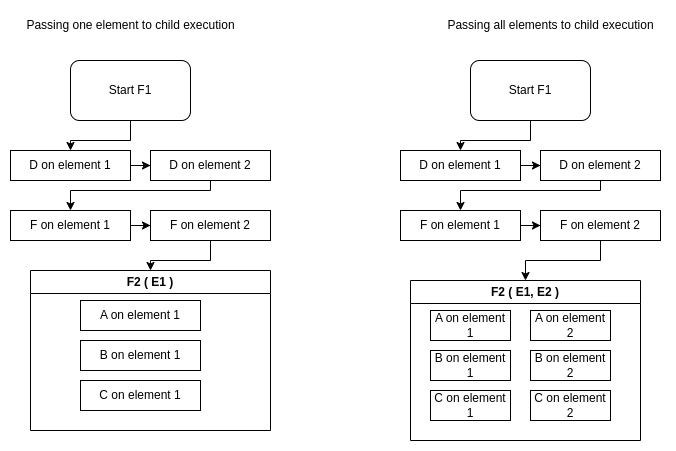
You can combine multiple flows of different execution modes (Serial and Parallel) to achieve more complex logic. When defining a flow execution script, you can pass specific elements to each child flow execution.
### Example Scenario
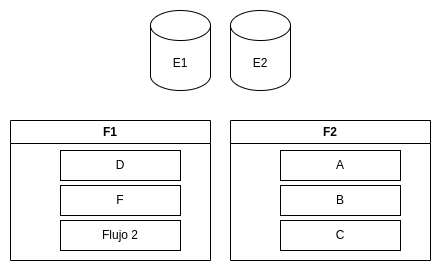
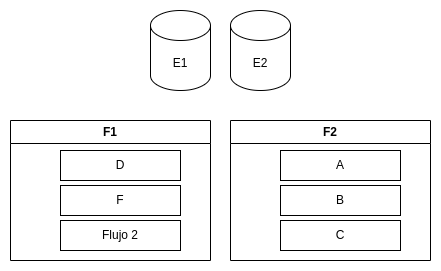
Given 2 elements (E1, E2), 2 flows (F1 & F2), and 5 tasks (A, B, C, D, F):
 ### Parent Serial - Child Serial
What happens when F1 is Serial and F2 is Serial?
### Parent Serial - Child Serial
What happens when F1 is Serial and F2 is Serial?
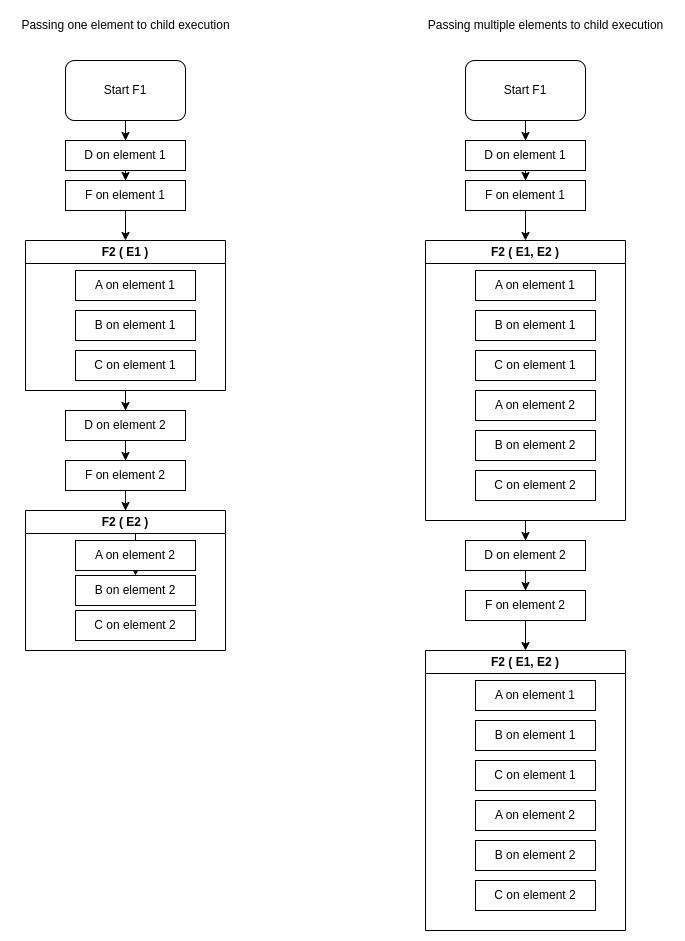 ### Parent Serial - Child Parallel
What happens when F1 is Serial and F2 is Parallel?
### Parent Serial - Child Parallel
What happens when F1 is Serial and F2 is Parallel?
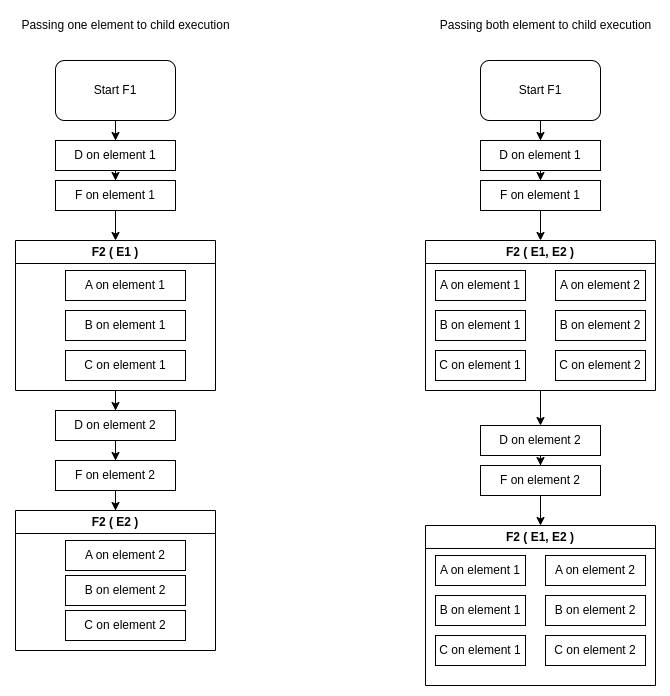 ### Parent Parallel - Child Serial
What happens when F1 is Parallel and F2 is Serial?
### Parent Parallel - Child Serial
What happens when F1 is Parallel and F2 is Serial?
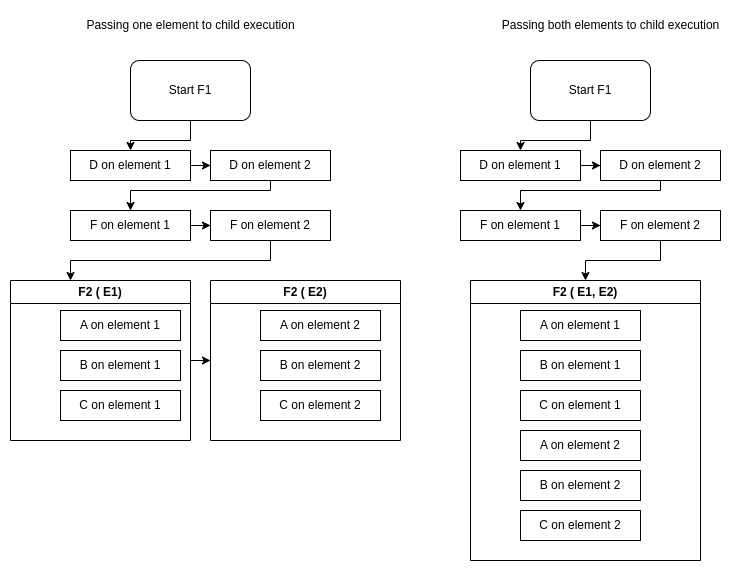 ### Parent Parallel - Child Parallel
What happens when F1 is Parallel and F2 is Parallel?
### Parent Parallel - Child Parallel
What happens when F1 is Parallel and F2 is Parallel?
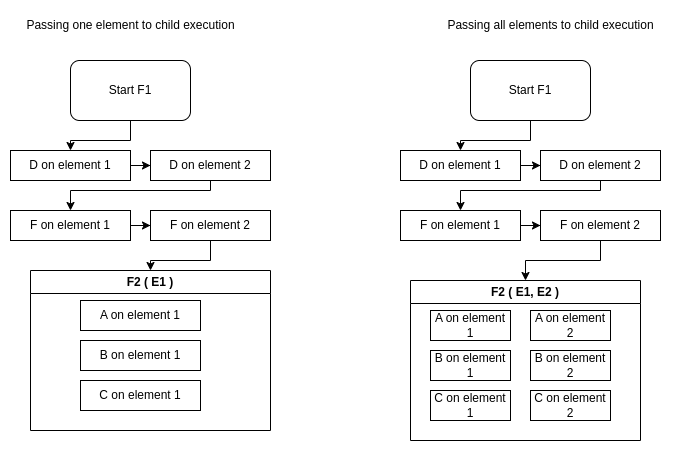
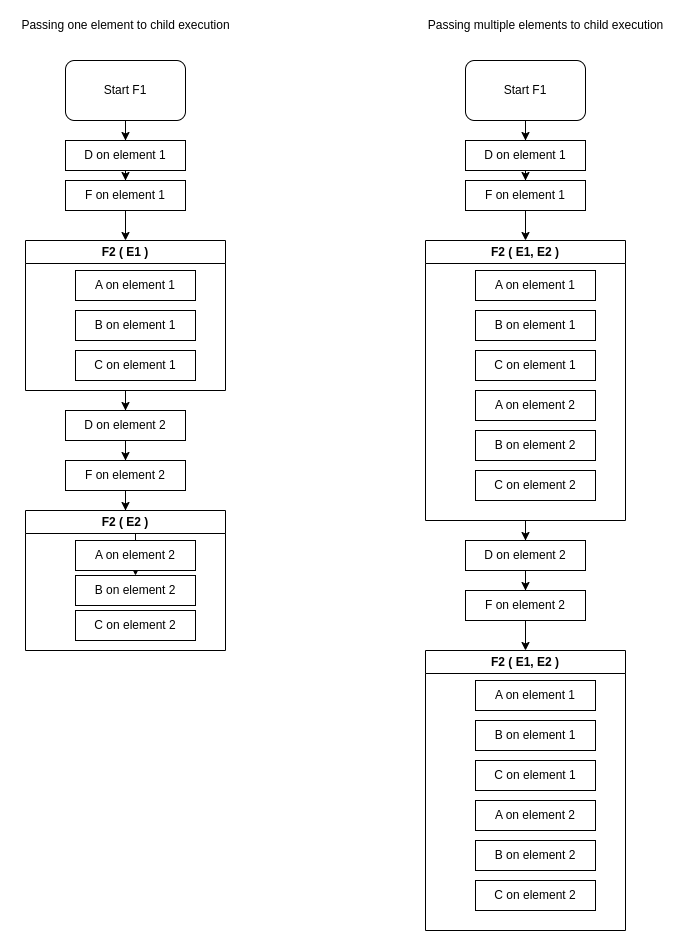 ### Parent Serial - Child Parallel
What happens when F1 is Serial and F2 is Parallel?
### Parent Serial - Child Parallel
What happens when F1 is Serial and F2 is Parallel?
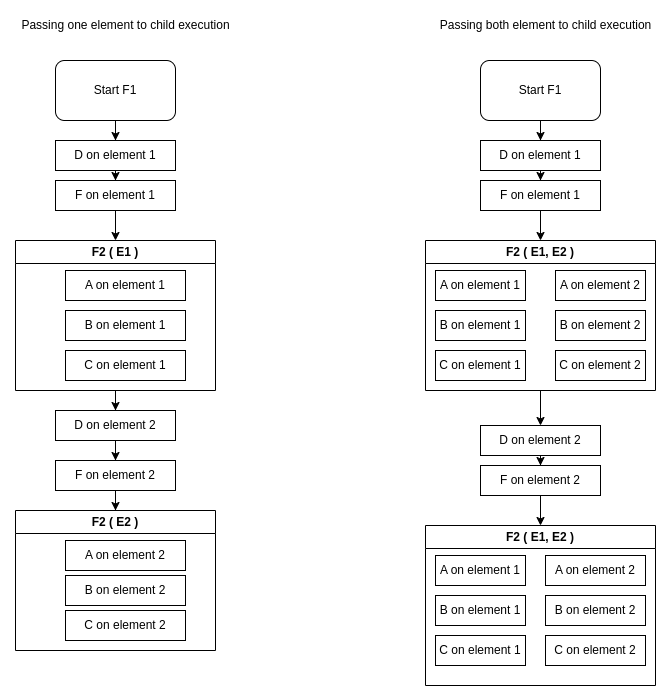 ### Parent Parallel - Child Serial
What happens when F1 is Parallel and F2 is Serial?
### Parent Parallel - Child Serial
What happens when F1 is Parallel and F2 is Serial?
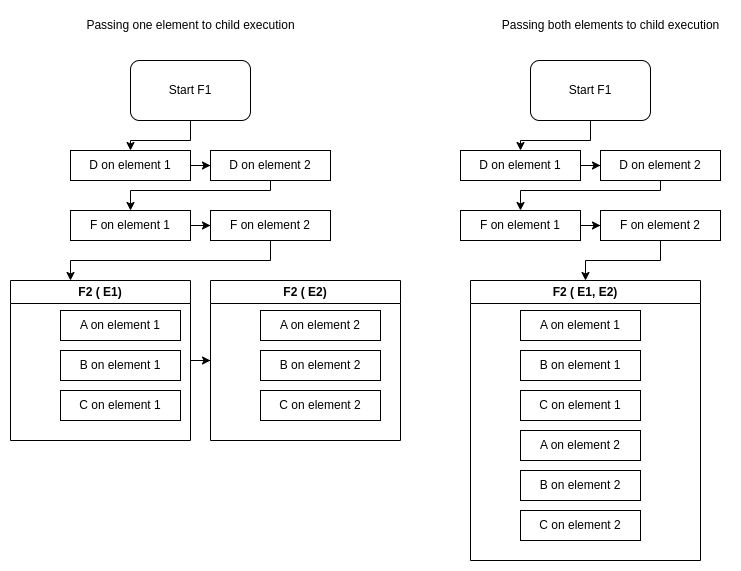 ### Parent Parallel - Child Parallel
What happens when F1 is Parallel and F2 is Parallel?
### Parent Parallel - Child Parallel
What happens when F1 is Parallel and F2 is Parallel?