Advanced topics
- CONTROL High Availability Architecture
- Conversion and units for parameters
- Dynamic value substitution
- Grouped management
- Interconnection Gateway architecture
- Inventory scripts
- Metric collection for Parameters
- Processing scripts for Parameters
- Special objects for scripts
- Alfred Assitants
- Service Status Cards
CONTROL High Availability Architecture
Overview
To achieve a robust high-availability (HA) architecture for CONTROL Device Management, Service Providers must comprehensively address both application implementation and operational requirements within their network infrastructure. This includes identifying critical points of failure and implementing appropriate HA strategies to mitigate them.
High-Availability Architecture Overview
The primary objective of an HA architecture is to guarantee uninterrupted application service in the event of component failure within the solution.
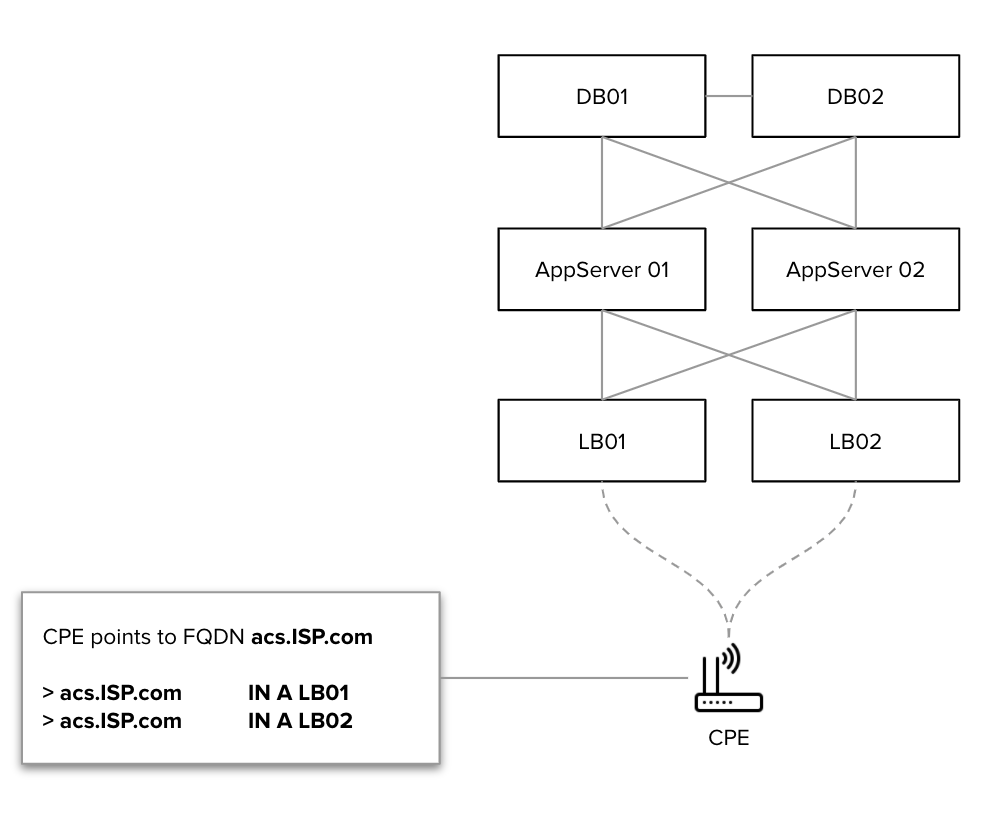
The standard CONTROL Device Management application architecture is illustrated below:
Architecture Prerequisites
The CONTROL HA architecture is designed with the following key requirements:
- Active-Active Configuration: Ensures predictable HA operation and optimal resource utilization
- Cluster Capacity: Each individual cluster must be capable of handling 100% of the average load
- Deployment Flexibility: HA clusters can be deployed either co-located or geographically distributed (typically requires site-to-site latency below 250 ms)
Principles of Operation
The HA architecture operates based on the following mechanisms:
- DNS Resolution: Customer Premises Equipment (CPE) points to a Fully Qualified Domain Name (FQDN) that resolves to the load balancer array
- DNS Health Checks: DNS periodically verifies load balancer array availability using HTTP health checks
- Load Balancer Health Checks: Load balancers periodically verify Auto Configuration Server (ACS) service availability through HTTP/API methods
Failure Scenarios
The following failure scenarios describe system behavior in a geographically-distributed HA deployment:
Complete Site or Load Balancer Failure
When DNS detects a failure, it automatically removes the failing load balancer from the DNS group, redirecting traffic to healthy sites.
Application Server Failure
When the load balancer detects an application server failure, it automatically removes the failing application server from the load balancer group, distributing traffic among remaining healthy servers.
Database Failure
In the event of a database failure, both application servers automatically fail over to the surviving database instance, ensuring continuous operation.
Conversion and units for parameters
Overview
Units of measurement and value conversions can be configured for any parameter in CONTROL. This allows you to standardize how data is displayed and automatically convert values between compatible units (e.g., Bytes to Megabytes).
Configuring Parameter Units
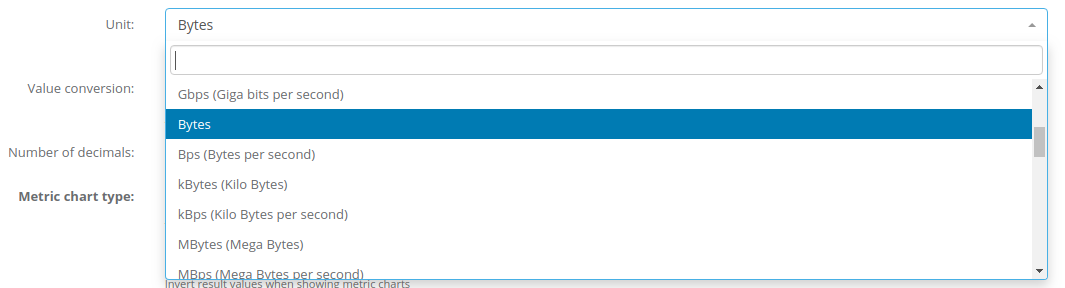
You can assign a unit of measurement to any parameter (such as Bits, Bytes, Megabytes, etc.) through the Parameter configuration screen.
How to Set a Unit
Display Location
Once a unit is configured, it will be displayed on the device's main screen at the beginning of the corresponding parameter value.

Value Conversions
In addition to displaying units, CONTROL can automatically convert values from one unit to another. This is useful when the device reports data in one unit but you need to display it in another.
How to Configure Conversions
To enable automatic conversion between compatible units:
- Set the source unit in the
Unitfield - Set the target unit in the
Value conversionfield
Example: Converting Bytes to Megabytes
The following configuration will convert values received from the device in Bytes to Megabytes:

Important Notes
-
Compatible units required: The
UnitandValue conversionfields must contain compatible unit types for automatic conversion to work (e.g., both must be data size units like Bytes, Kilobytes, Megabytes). -
Custom conversions: For custom conversion logic or conversions between incompatible unit types, use the processing script option instead.
Dynamic value substitution
Overview
Dynamic value substitution allows you to use variables as placeholders in CONTROL configuration settings. Variables are enclosed in double curly braces (e.g., {{ variable_name }}) and are automatically replaced with their actual values when applied to devices.
You can use dynamic value substitution in the following contexts:
- Default values for Parameters in Device Profile/Type configurations
- Device Settings values in Device Profile/Type configurations
- Integration service configurations for event handlers and other integrations
How Variables Work
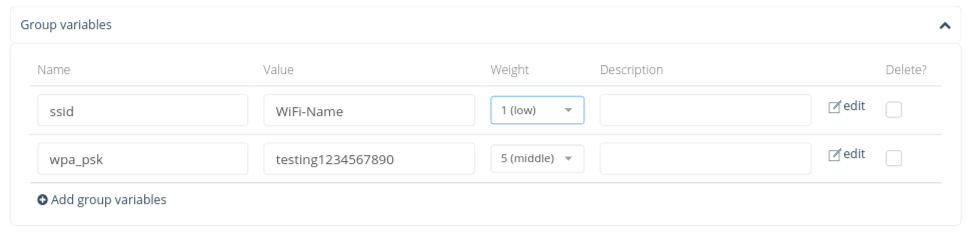
Variables and their values are defined under the Groups menu. They can be:
- Custom variables: Manually defined within Groups
- System variables: Dynamically generated from Device object information and settings
For detailed information about configuring Groups and their variables, see the Inventory Groups section.
Using Variables in Configuration
When a Device belongs to a Group that includes a defined variable, CONTROL automatically substitutes any matching variable placeholder with its actual value.
Example:
If a Device belongs to a Group with a variable named network_name set to Zequenze, then:
- Any setting configured as
{{ network_name }}will be replaced withZequenze - If a Parameter's default value in a Device Profile/Type is set to
{{ network_name }}, the platform will useZequenzewhen generating the device's default configuration
Variable Precedence and Weight
When multiple Groups define the same variable name, CONTROL uses the Weight value to determine precedence:
- Variables configured with higher weights take precedence over those with lower weights
- If a Device belongs to multiple Groups that define the same variable, the value from the variable with the highest weight will be used
System-Generated Device Variables
The following variables are automatically generated from Device object properties and are available for use in dynamic value substitution:
| Variable Name | Description |
|---|---|
device.name |
Name of the device |
device.description |
1st description of the device |
device.description2 |
2nd description of the device |
device.description3 |
3rd description of the device |
device.description4 |
4th description of the device |
device.serial_number |
Serial number of the device |
device.serial_number_alt |
Alternate serial number of the device |
device.organization |
Name of the Device's assigned Organization |
device.organization_id |
ID of the Device's assigned Organization |
device.type_id |
ID of the Device's Type/Profile |
device.type.name |
Name of the Device's Type/Profile |
device.type.short_name |
Short name configured on the Type/Profile |
device.type.klass |
Class of device configured on the Type/Profile |
device.manufacturer |
Manufacturer of the device |
device.unique_identifier |
Manufacturer Unique ID |
device.product_class |
Product class |
device.software_version |
Software version of the device |
device.hardware_version |
Hardware version of the device |
device.location_name |
Location name configured for the device (not normalized) |
device.location_id |
ID of the Location assigned to the device (normalized) |
device.location.name |
Name of the Location assigned to the device (normalized) |
device.location.short_name |
Short-name of the Location assigned to the device (normalized) |
device.longitude |
Longitude of the device |
device.latitude |
Latitude of the device |
device.username |
Device's management agent username |
device.password |
Device's management agent password |
device.update_frequency |
Update frequency interval configured on the device |
device.mac |
MAC address of the device |
device.address |
Management address of the device |
device.gateway_address |
Management gateway address or hostname |
Examples
Example 1: Device Settings Substitution
If a device is configured with the following settings:
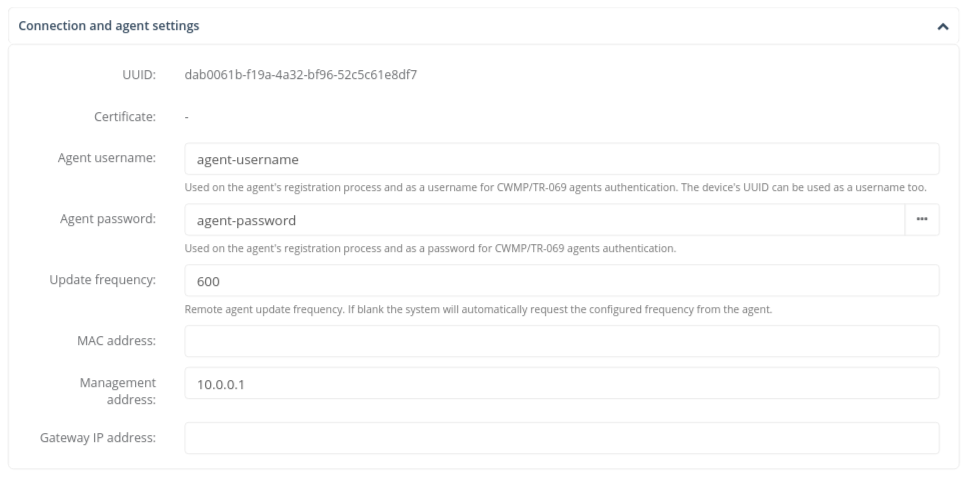
The following variable substitutions will be performed:
-
{{ device.username }}→agent-username -
{{ device.password }}→agent-password -
{{ device.update_frequency }}→600 -
{{ device.address }}→10.0.0.1
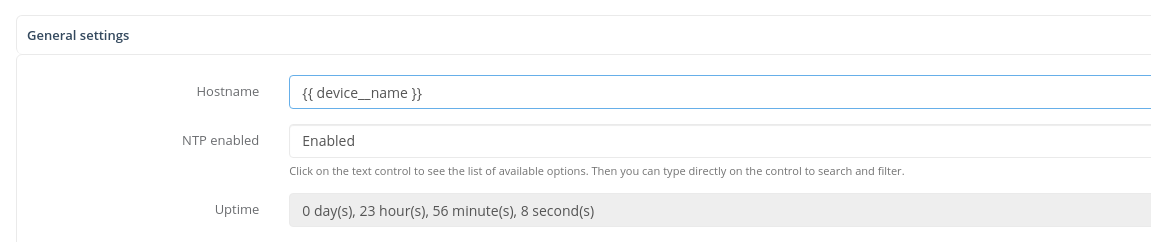
Example 2: Parameter Default Value
The following example shows dynamic value substitution configured as the default value of a Parameter:
Grouped management
Overview
Grouped management is a feature that controls how CONTROL retrieves and sets parameter values from managed devices.
By default, CONTROL optimizes communication by retrieving and setting parameter values using the smallest number of operations possible. This approach minimizes communication overhead and reduces processing utilization between the platform and managed devices.
However, certain management flows and conditions require operations to be grouped into logical blocks rather than executed as a single batch. CONTROL uses Parameter groups as these logical blocks, which are configured in the Device Profile / Type configuration screens.
When Grouped management is enabled, the system performs get operations separated into blocks of Parameters as defined by each Parameter group.
How Grouped Management Works
Behavior for Get Operations
When Grouped management is active, CONTROL executes get operations in the following sequence:
- First phase: The system retrieves Parameter values from managed devices for all Parameter groups that do NOT have the Grouped management setting enabled
-
Second phase: The platform retrieves Parameter values using one separate
getoperation for each Parameter group that HAS the Grouped management setting enabled
This two-phase approach ensures that parameters requiring grouped retrieval are processed separately while maintaining efficiency for standard parameter groups.
Configuration
Configuration instructions to be completed.
Interconnection Gateway architecture
Architecture Overview
Connectivity between the Service Provider's network and Zequenze's cloud-based platforms is established through a fully redundant VPN connection architecture.
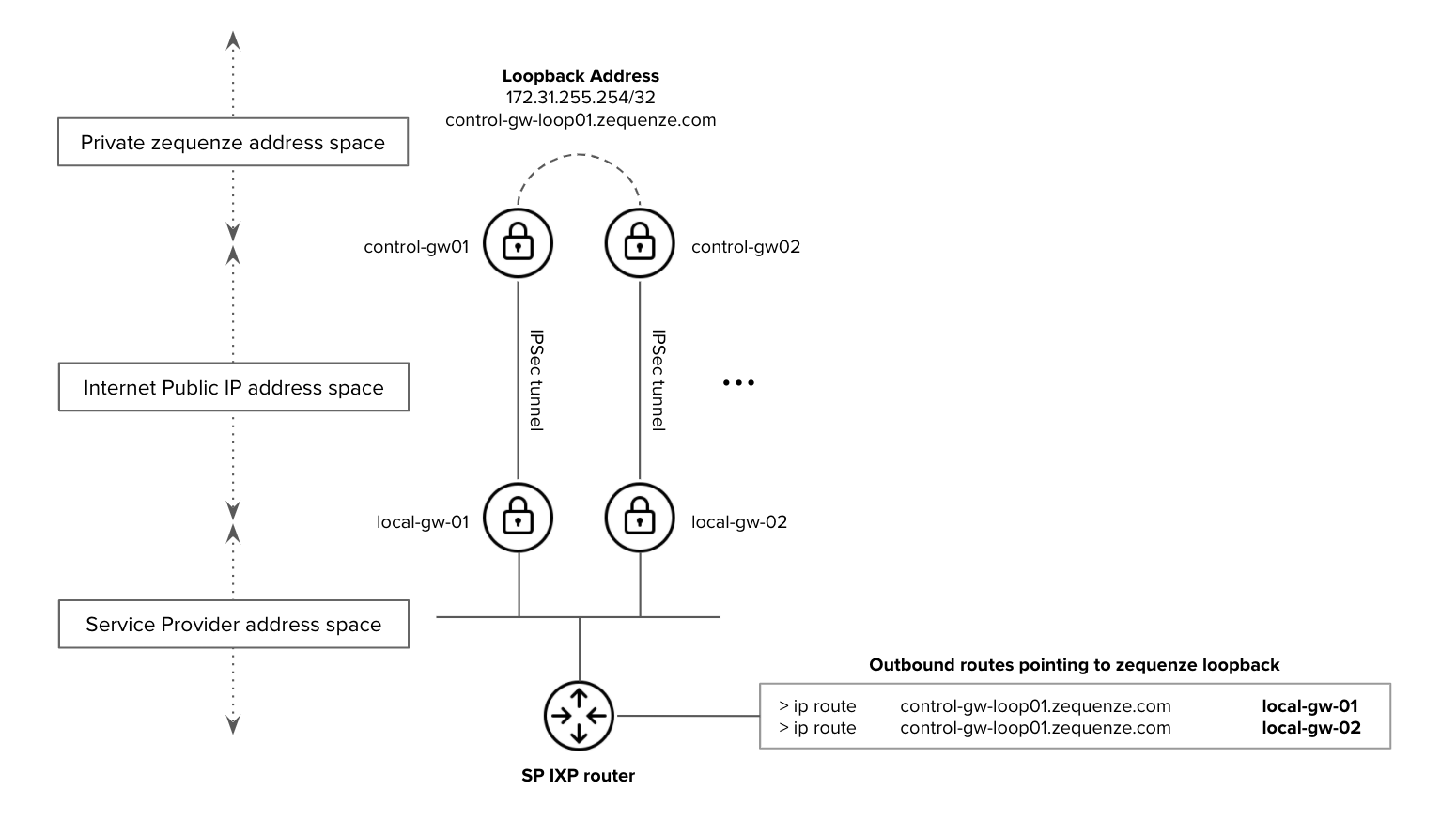
Figure 1. Zequenze Application-VPN architecture - interconnection with the Service Provider network
Distributed Gateway Architecture
Zequenze's cloud architecture implements a distributed application model that integrates both VPN and edge-application functionalities within the same gateway infrastructure. This design eliminates the need to propagate Service Provider IP prefixes throughout Zequenze's cloud infrastructure.
Device Configuration
Service Providers need to configure their customer premises equipment (CPE) to communicate with the edge-application gateways. Supported device types include:
- WiFi Access Points
- DSL modems
- FTTH ONT (Optical Network Terminals)
- eMTA (embedded Multimedia Terminal Adapters)
- LTE/5G routers
Once devices are pointed to the edge-application gateways, all internal communications within Zequenze's cloud architecture are handled automatically.
Simplified Routing Configuration
To maximize simplicity and resiliency, Service Provider devices only need to be configured with a single loopback FQDN/IP address. This loopback address remains active across all edge-application gateways in the array.
Example: control-gw-loop01.zequenze.com (as shown in Figure 1)
Service Provider Requirements
From a routing perspective, the Service Provider must ensure:
- IP reachability to the loopback FQDN/IP address from their border/IXP peering router
- Proper route advertisement as detailed in Figure 1
Resiliency and High Availability
Active-Active Gateway Operation
All edge-application gateways operate in always-active mode (1:1 or 1:N configurations). This allows traffic to be routed to any edge-application gateway in the array at any time without service interruption.
Traffic Flow Management
All responses from Zequenze to the Service Provider are sent through the same edge-application gateway that received the initial request. This approach ensures:
- Compatibility with active-standby scenarios within the Service Provider's network
- Prevention of asymmetric traffic routing issues
Failure Handling
Service Providers must implement proper failure detection mechanisms to prevent traffic black-holes in their VPN gateways when connectivity issues occur with Zequenze edge-application gateways.
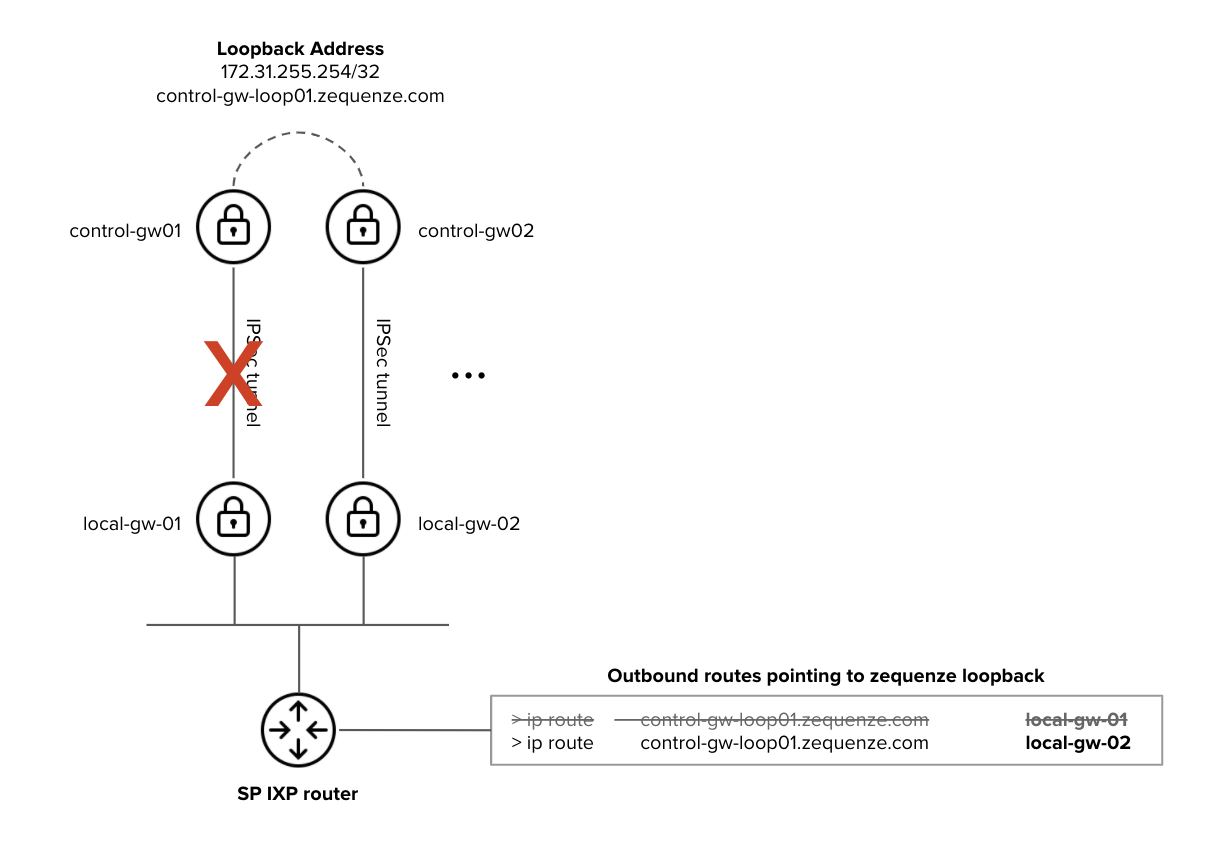
Figure 2. Zequenze Application-VPN architecture - High Availability considerations
Failure Scenario Example
In the failure scenario illustrated in Figure 2:
- The SP IXP router must be notified that the Zequenze edge-application gateway (
control-gw-loop01.zequenze.com) is no longer reachable vialocal-gw-01 - Traffic must be automatically redirected to
local-gw-02to maintain service continuity
This requires proper routing protocol configuration or health-check mechanisms on the Service Provider's infrastructure to detect and respond to gateway failures.
Inventory scripts
Overview
Inventory scripts are Python-based automation tools that execute operations on managed Devices in CONTROL. These scripts can target devices through user-configured filters or process data from CSV files. Use inventory scripts to gather device information or perform batch operations across multiple devices.
Scripts can be executed:
- Manually by users through the CONTROL interface
- Automatically via triggers configured in Device Profiles
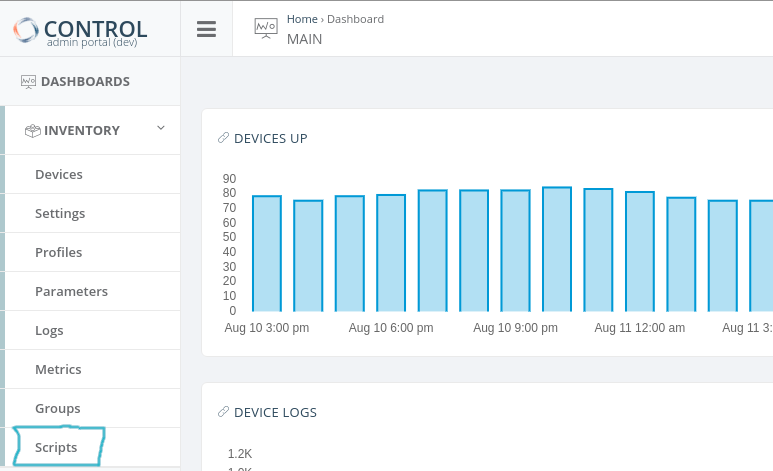
Accessing Inventory Scripts
Inventory → Scripts
Configuration Methods
There are two ways to configure inventory scripts:
Method 1: Script with Device Filter
This method executes a script across multiple devices based on filter criteria.
Step 1: Create a New Script
Click Add New in the Inventory scripts configuration screen:
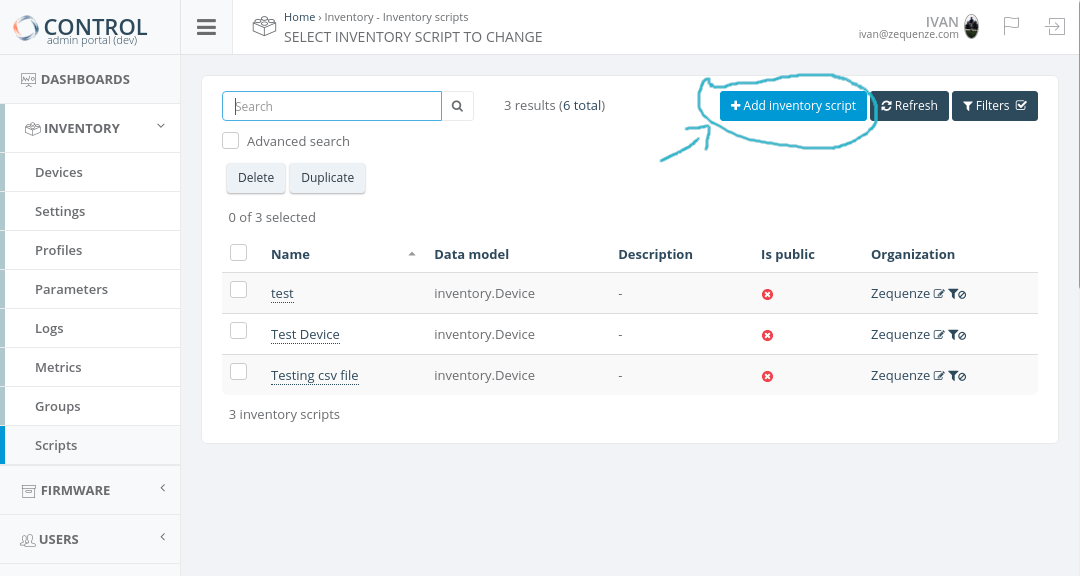
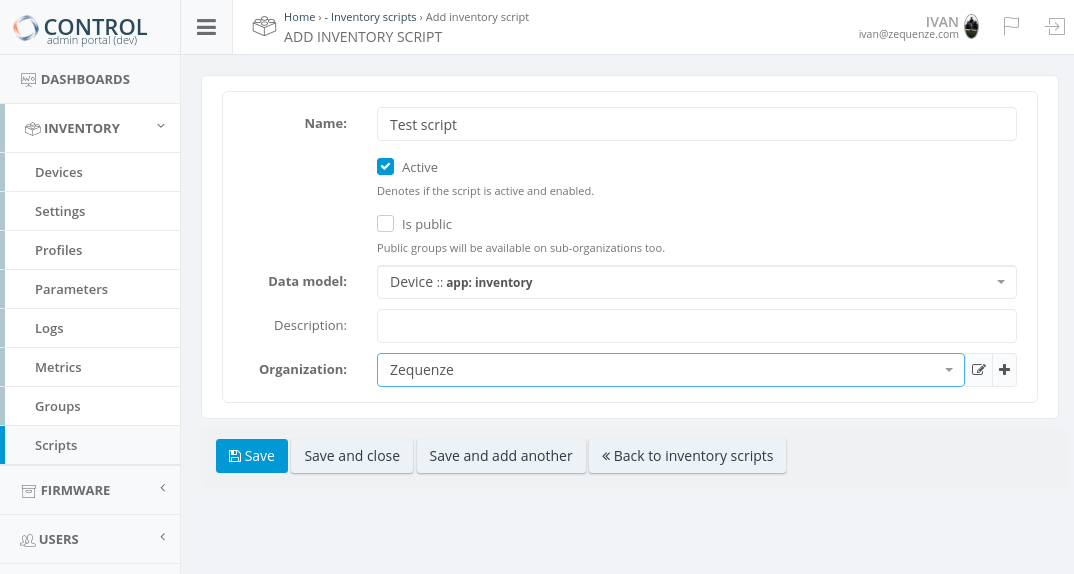
Step 2: Configure Required Fields
Complete the following required fields:
- Name: Unique identifier for the script
- Data model: Select "Device"
- Organization: Select the organization (devices will be filtered by this organization)
Click Save to continue.
Step 3: Define Script Logic and Filters
The script editor will appear:
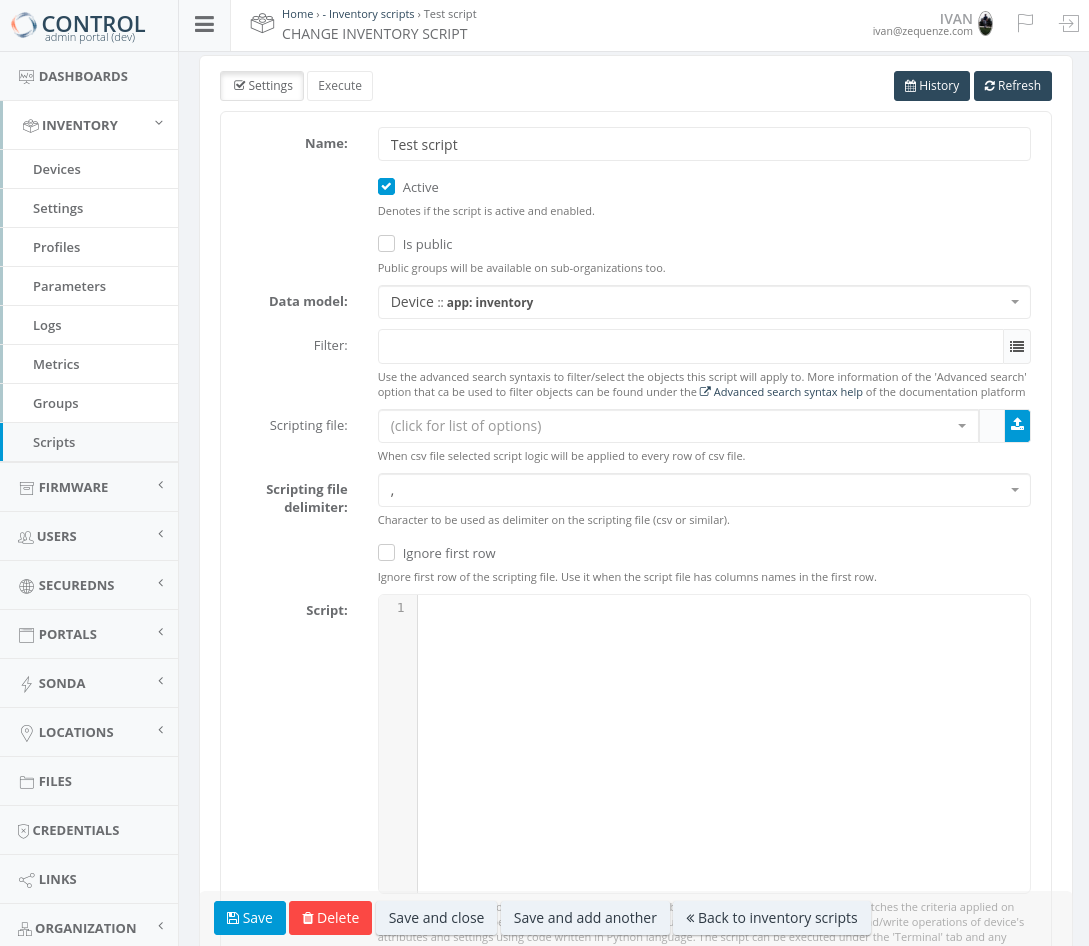
- Script field: Define your Python code. See Special Objects for Scripts for examples and available objects.
- Filter field: Apply device filters using advanced search syntax. See Advanced Search Syntax Help for filter configuration details.
Method 2: Script with CSV File
This method processes devices using data from a CSV file.
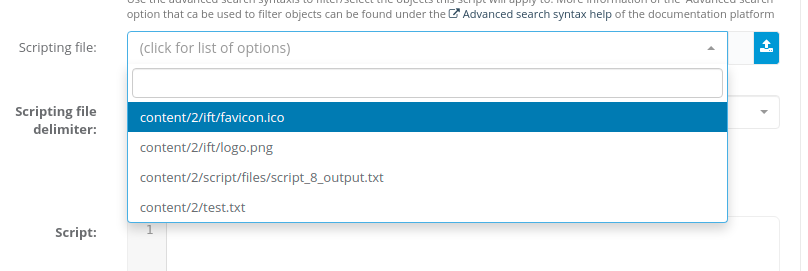
Step 1: Upload or Select CSV File
In the script configuration screen, locate the Scripting file field. Click the blue icon to upload a new CSV file or select an existing one:
Step 2: Configure CSV Settings
- Scripting file delimiter: Specify the delimiter used in your CSV file (comma, semicolon, tab, etc.):
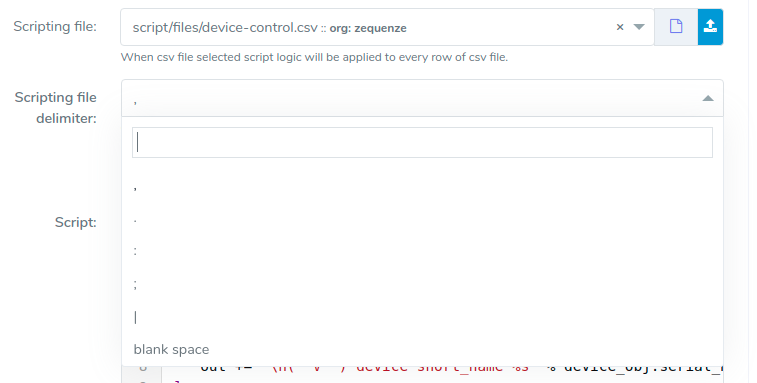
- Ignore first row: Enable this option if your CSV file contains column headers in the first row:

Step 3: Write CSV Processing Code
For information on coding scripts with CSV files, refer to the csv_row objects section in Special Objects for Scripts.
Selecting Devices to Process
TBC
Script Execution
Step 1: Access Execution Screen
Open or create a script, then navigate to the Execution screen:
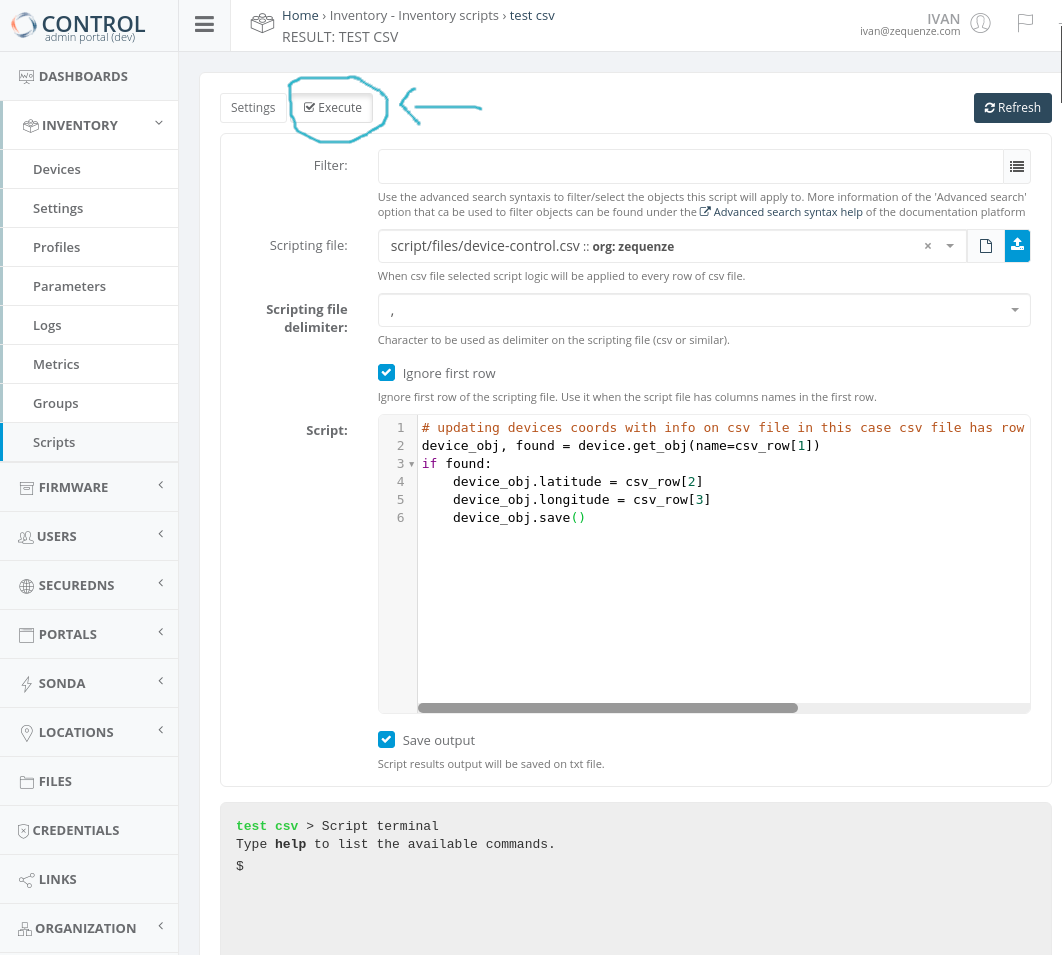
Step 2: Execute or Manage Script
At the bottom of the execution screen, use the available buttons:
- Run: Execute the script
- Stop: Halt script execution
- Save: Save changes to the script code
- Back: Return to the previous screen
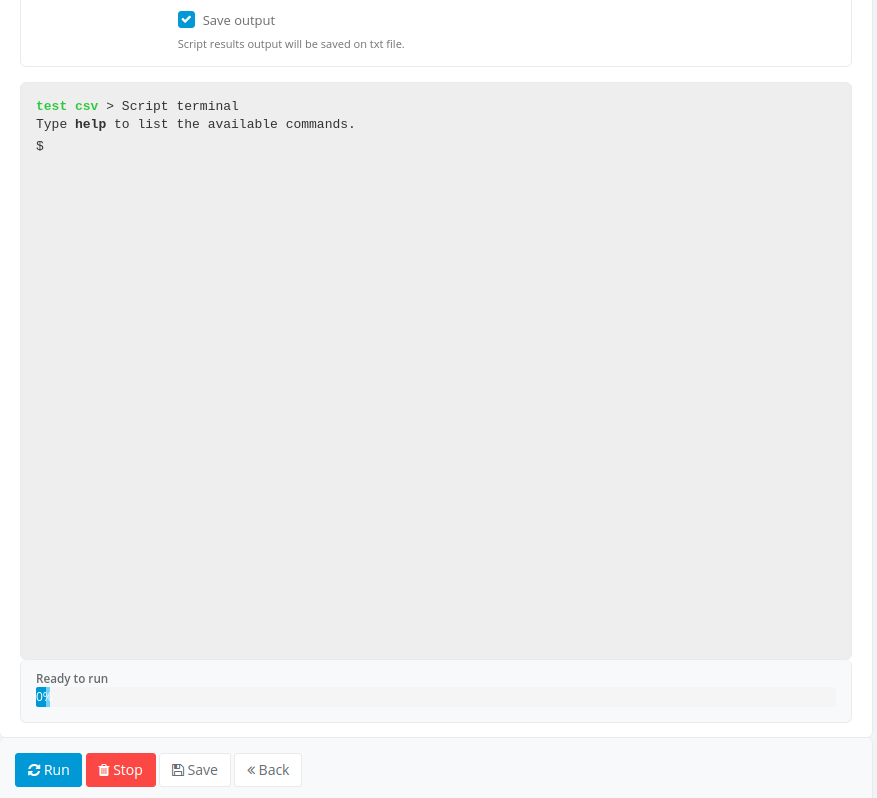
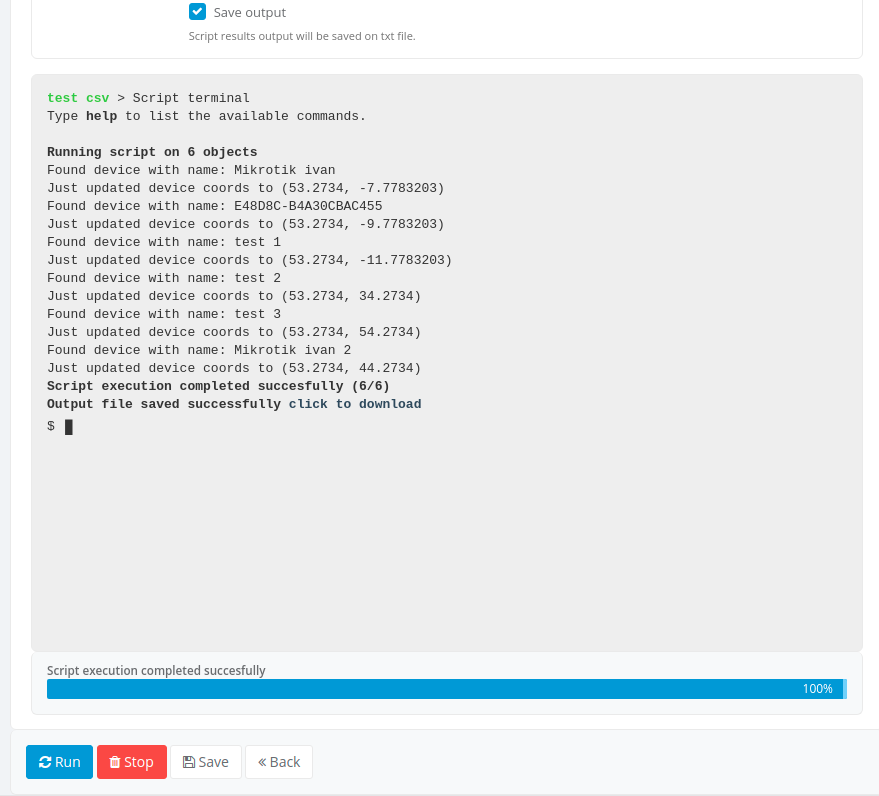
Step 3: Save Output (Optional)
Enable the Save output option to download execution results as a .txt file after the script completes:
Python Modules Included
The script execution environment includes the following Python modules by default:
math
Mathematical functions for advanced calculations.
result = math.log10(value)  # Calculate base-10 logarithm of 'value'
result = math.sqrt(value)   # Calculate the square root of 'value'
result = math.acos(value)   # Calculate the arc cosine of 'value', in radians
result = value * math.pi    # Multiply 'value' by the mathematical pi constant
More information: https://docs.python.org/3/library/math.html
random
Pseudo-random number generation.
result = value + random.randint(1, 10) # Add a random number between 1 and 10 to 'value'
More information: https://docs.python.org/3/library/random.html
json
JSON encoder and decoder for working with JSON data structures.
result = json.loads(value)['bytes'] # Convert a JSON string to a dictionary and extract the 'bytes' element
More information: https://docs.python.org/3/library/json.html
version_parser
Software version comparison and validation utilities.
old_version = version_parser('v10.0.0p2')
new_version = version_parser('v10.0.1p1')
if new_version > old_version:
    print('Firmware upgrade is necessary')
Special Objects and Actions
The script execution context includes special objects that allow you to:
- Modify Device attributes and Settings
- Perform device-related operations and actions
For detailed information about available special objects, usage examples, and script processing capabilities, see Special Objects for Scripts.
Visual Workflow Designer
In some environments, a visual workflow designer is available to build scripts using a graphical interface.
Disabling Visual Workflow Designer Transformation
To prevent the visual workflow designer from transforming a script, add the following comment on the first line:
# _NO_VWD_
Available Functions and Methods
The following table lists special functions and methods available within inventory scripts:
| Name | Parameters | Description | Example |
|---|---|---|---|
| detect_network_entity_info | extend (bool)device_headers (dict)current_val (dict)old_val (dict)recreate (bool)assistant_id (int) |
Retrieves network entity information for a device and extends or returns the current parameter value. In device_headers, specify keys: "mac_address", "dhcp_vendor_class", and "hostname". Defaults to 'MACAddress', 'HostName', and 'VendorClass' if not specified. |
python<br>previous_table_value, found = device.get(variable_name='beauty_hosts_table')<br>headers = {"mac_address": "MACAddress", "hostname": "HostName", "dhcp_vendor_class": "VendorClassID"}<br>beautify_table = detect_network_entity_info(extend=False, device_headers=headers, current_val=value, old_val=previous_table_value)<br>device.set(variable_name='beauty_hosts_table', value=beautify_table)<br> |
| device.activate_logs | None | Enables logging for the device. | device.activate_logs() |
| create_log | title (string)message (string) |
Creates a script log entry with the specified title and message. | create_log("Title", "Long description") |
| set_result | value (any) |
Sets the context parameter value. Equivalent to result = value. |
set_result("testvalue") |
| set_output_message | value (string) |
Sets the output message of the script. | set_output_message("testvalue") |
| extend_output_message | value (string) |
Appends the given string to the end of the current output message. | extend_output_message("testvalue") |
Metric collection for Parameters
Overview
Metric collection allows you to store historical information for Parameter values received from managed devices. When enabled, CONTROL automatically captures and stores data points over time, enabling trend analysis and historical reporting.
Enabling Metric Collection
To activate metric collection for a Parameter:
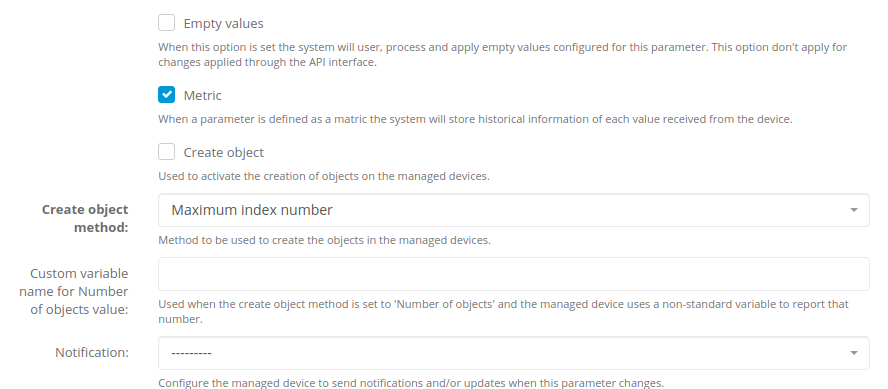
Note: Metric collection is primarily designed for Parameters that return numeric values. For non-numeric Parameters, see the Non-numeric Parameter Metrics section below.
Metric Types
CONTROL supports three types of metrics for Parameters: Absolute (default), Counter, and Delta. Each type determines how received values are processed and stored.
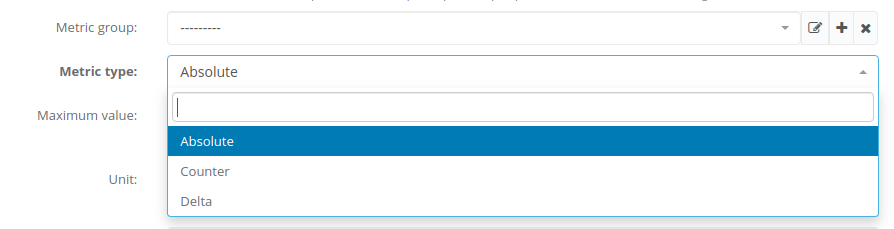
Absolute Metrics
This metric type stores the exact value received from the device after applying:
- Unit conversions (when configured)
- Processing scripts (when configured)
Use this type when you need to track the actual reported values over time (e.g., temperature, voltage, signal strength).
Counter Metrics
This metric type stores the rate of change between consecutive values. The calculation is:
stored_value = (current_value - previous_value) / time_elapsed
The calculation is performed after applying:
- Unit conversions (when configured)
- Processing scripts (when configured)
Use this type for continuously incrementing counters where you want to track the rate (e.g., bytes per second, requests per minute).
Delta Metrics
This metric type stores the difference between consecutive values. The calculation is:
stored_value = current_value - previous_value
The calculation is performed after applying:
- Unit conversions (when configured)
- Processing scripts (when configured)
Use this type when you need to track the absolute change between readings (e.g., change in disk usage, change in user count).
Visualization of Parameter Metrics
TBC
Non-numeric Parameter Metrics
TBC
Processing scripts for Parameters
Overview
Processing scripts enable advanced logic integration within communication flows between managed devices and the CONTROL platform. These Python-based scripts implement business logic to transform parameter values before they are processed and stored by the platform.
Processing scripts execute primarily when the CONTROL platform receives a value from the configured parameter. However, they may also run during other operations and actions as detailed below.
Available Variables
When a processing script executes, the CONTROL platform automatically populates several variables with contextual information:
| Variable | Description |
|---|---|
value |
The value of the parameter being received or processed |
parameter_name |
The name of the parameter being received or processed |
parameter_id |
The unique ID of the parameter being received or processed |
variable_name |
The variable name of the parameter being received or processed |
operation |
The name of the current operation: add_object, del_object, or get_value |
index |
The instance number or index of the object being added |
The platform expects the transformed value to be assigned to a variable named result.
Basic Example
This example applies a mathematical formula to transform the received value:
result = (value - 10) / 10000
This script subtracts 10 from the received parameter value, then divides the result by 10,000. The CONTROL platform will use the value stored in result instead of the original received value.
Execution Context
Processing scripts execute in multiple scenarios:
- When the CONTROL platform receives a parameter value from a managed device
- After creating or deleting objects on managed devices
- During operations that modify other parameters and settings
In these contexts, scripts can modify additional parameters, adjust device settings, and trigger management operations as described in the Special Objects for Scripts section.
Python Operators
Processing scripts support standard Python arithmetic operators:
| Operator | Name | Description | Example |
|---|---|---|---|
+ |
Addition | Adds values on either side of the operator | a + b = 30 |
- |
Subtraction | Subtracts right-hand operand from left-hand operand | a - b = -10 |
* |
Multiplication | Multiplies values on either side of the operator | a * b = 200 |
/ |
Division | Divides left-hand operand by right-hand operand | b / a = 2 |
% |
Modulus | Divides left-hand operand by right-hand operand and returns remainder | b % a = 0 |
** |
Exponent | Performs exponential (power) calculation | a**2 = 100 |
// |
Floor Division | Division where the result is the quotient with digits after the decimal point removed. If one operand is negative, the result is floored (rounded toward negative infinity) | 9//2 = 4, 9.0//2.0 = 4.0, -11//3 = -4, -11.0//3 = -4.0 |
Example variable assignments:
a = 10
b = 20
Configuration
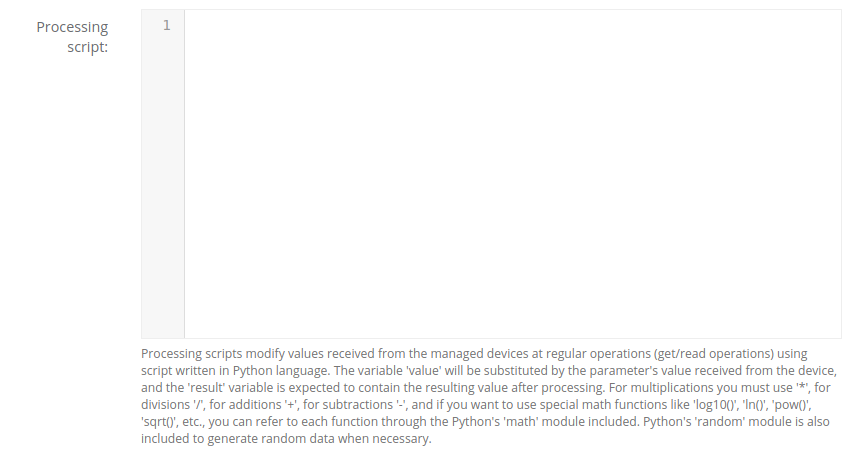
Processing scripts are configured within the Parameter configuration screen. Access this screen by following these simple steps.
Script Configuration Location
On the Parameter configuration screen, locate the script configuration section under Advanced settings:
Included Python Modules
The script processing environment includes the following Python modules by default:
math Module
Provides mathematical functions for advanced calculations.
Examples:
result = math.log10(value)  # Calculate base-10 logarithm of 'value'

result = math.sqrt(value)   # Calculate the square root of 'value'

result = math.acos(value)   # Calculate the arc cosine of 'value' in radians

result = value * math.pi    # Multiply 'value' by the mathematical pi constant
Reference: https://docs.python.org/3/library/math.html
random Module
Generates pseudo-random numbers.
Example:
result = value + random.randint(1, 10) # Add a random number between 1 and 10 to 'value'
Reference: https://docs.python.org/3/library/random.html
json Module
Provides JSON encoding and decoding capabilities.
Example:
result = json.loads(value)['bytes'] # Parse JSON string and extract the 'bytes' element
Reference: https://docs.python.org/3/library/json.html
Advanced Capabilities
Special Objects and Operations
The script execution context includes special objects that allow you to:
- Modify attributes of managed devices
- Update device settings
- Perform related management actions and operations
For detailed information about special objects and usage examples, see the Special Objects for Scripts section.
Special Functions
| Function | Description | Parameters |
|---|---|---|
detect_network_entity_info |
Retrieves network entity information for a device and optionally extends the current parameter value | context: dict, extend: bool = False, device_headers: dict or None = None, current_val: str = None, old_val: str = None |
Visual Workflow Designer
In certain environments, a visual workflow designer is available to build scripts using a graphical interface.
Disabling Visual Designer Transformation
To prevent the visual workflow designer from transforming a script, add this comment as the first line:
# _NO_VWD_
Special objects for scripts
Overview
Special objects are available within processing scripts to provide enhanced management capabilities for Devices and their Settings. These objects can be referenced directly in your scripts to perform various operations and modify device attributes.
The device Object
The script execution context includes a special device object that allows you to modify attributes of the managed Device and perform related actions and operations.
Attributes
The device object provides the following attributes:
| Name | Type/Access | Description |
|---|---|---|
obj_id |
integer (read-only) |
Numeric unique identifier of the current device |
name |
string (read-write) |
Device name field |
customer_id |
string (read-write) |
Customer ID field of the current device |
type_id |
integer (read-only) |
Numeric identifier of the device's profile |
organization_id |
integer (read-only) |
Numeric identifier of the device's organization |
serial_number |
string (read-write) |
Serial number field of the current device |
serial_number_alt |
string (read-write) |
Alternate serial number field of the current device |
status |
boolean (read-only) |
Operational status of the device |
status_change |
datetime (read-only) |
Date/time of the last status change |
last_connection |
datetime (read-only) |
Date/time of the last connection from the device to the platform |
update_frequency |
integer (read-write) |
Device's update frequency or periodic report interval (in seconds). Changes to this attribute will trigger a connection request |
software_version |
string (read-only) |
Software version information as reported by the device |
hardware_version |
string (read-only) |
Hardware version information as reported by the device |
address |
string (read-only) |
Management address used by the device to connect to the platform |
description |
string (read-write) |
Description field of the current device |
description2 |
string (read-write) |
Second description field of the current device |
description3 |
string (read-write) |
Third description field of the current device |
description4 |
string (read-write) |
Fourth description field of the current device |
reboot |
boolean (read-write) |
Activate the 'Reboot' action on the device or detect if a 'Reboot' action is pending |
factory |
boolean (read-write) |
Activate the 'Factory reset' action on the device or detect if a 'Factory reset' action is pending |
device_factory |
boolean (read-write) |
Activate the 'Remote (device only) factory reset' action or detect if the action is pending |
factory_remote |
boolean (read-write) |
Alias for device_factory. Activate the 'Remote (device only) factory reset' action or detect if the action is pending |
sync |
boolean (read-write) |
Activate the configuration 'Synchronization' action with the device or detect if the action is pending |
reconf |
boolean (read-write) |
Activate the device 'Reconfiguration' action or detect if the action is pending |
location_id |
integer (read-write) |
Normalized location ID assigned to the device |
location_name |
string (read-write) |
Non-normalized location name assigned to the device |
latitude |
float (read-write) |
Latitude geographical coordinate of the device |
longitude |
float (read-write) |
Longitude geographical coordinate of the device |
firmware_image_id |
integer (read-write) |
Numeric identifier of the firmware image that can be applied to the device |
firmware_image_is_pending |
boolean (read-write) |
Indicates whether the configured firmware image will be applied to the managed device |
Methods
The device object provides the following methods:
save()
Save changes made to the device's read-write attributes.
Returns:
status(boolean)message(string)
Example:
status, message = device.save()
set()
Change the value of a specified Parameter by its parameter_name, variable_name, or parameter_id.
Parameters:
parameter_name(string) – Parameter name identifiervariable_name(string) – Variable name identifierparameter_id(integer) – Numeric parameter identifiervalue(string) – New value to set
Returns:
status(boolean) – Operation statusmessage(string) – Operation messagecreated(boolean) – Whether a new parameter was createdchanged(boolean) – Whether the value was changedold_value(string) – Previous value
Examples:
status, message, created, changed, old_value = device.set(parameter_id=100, value='test')

device.set(parameter_name='Device Name', value='test')

device.set(variable_name='Device.SystemID', value='test')
get()
Retrieve the value of a specified Parameter by its parameter_name, variable_name, or parameter_id.
Parameters:
parameter_name(string) – Parameter name identifiervariable_name(string) – Variable name identifierparameter_id(integer) – Numeric parameter identifier
Returns:
value(string) – Parameter valuefound(boolean) – Whether the parameter was found
Examples:
value, found = device.get(parameter_id=100)

value, _ = device.get(parameter_name="Uptime")

value, _ = device.get(variable_name='Device.SystemID')
delete()
Delete a setting from the device database specified by its parameter's parameter_name, variable_name, or parameter_id.
Parameters:
parameter_name(string) – Parameter name identifiervariable_name(string) – Variable name identifierparameter_id(integer) – Numeric parameter identifier
Returns:
deleted(boolean) – Whether the parameter was deletedmessage(string) – Operation message
Examples:
deleted, message = device.delete(parameter_id=100)

device.delete(parameter_name='Uptime')

device.delete(variable_name='Device.SystemID')
cwmp_set()
Perform a CWMP SetParameterValues operation on devices managed by CWMP/TR-069.
Parameters:
variable_name(string, required) – Variable name to setvalue(string, required) – Value to assignvariable_type(string, optional) – Type of parameter (default:'string'). Options:'string','boolean','integer','positive'log(boolean, optional) – Enable operation logging (default:False)disable_connreq(boolean, optional) – Disable CWMP connection request after the operation (default:False)
Examples:
device.cwmp_set(variable_name='Device.SystemID', value='test')

device.cwmp_set(variable_name='Device.SystemID', value='test', variable_type='string', log=True, disable_connreq=True)
connection_request()
Perform a connection request to the managed device.
Parameters:
wait(boolean, optional) – Wait for connection request response or timeout (default:False)sleep_time(float, optional) – Wait time between operations in seconds (default:0.05)type(string, optional) – Connection request type:'regular'or'light'(default:'regular')
Example:
device.connection_request(wait=False, type='light')
alert_clear()
Clear any active alert on the managed device.
Example:
device.alert_clear()
ping()
Perform an ICMP ping from the platform to the device's management address.
Parameters:
count(integer, optional) – Number of packets to send (default:2, maximum:10)timeout(integer, optional) – Timeout in seconds (default:1, maximum:10)
Returns:
status(boolean) – Ping operation statusmessage(string) – Operation messagepacket_loss(integer) – Packet loss percentage
Example:
status, message, packet_loss = device.ping()
get_or_create()
Get or create a device with the specified parameters. Commonly used with the csv_row variable.
Parameters:
name(string, optional) – Device nameserial_number(string, optional) – Serial numberserial_number_alt(string, optional) – Alternate serial numberusername(string, optional) – Usernamelocation_id(integer, optional) – Location ID
Returns:
device_obj(device object) – Device object on which you can perform operations
Examples:
device_obj = device.get_or_create(name=csv_row[0])

device_obj = device.get_or_create(name="device_name", username="username")
get_obj()
Retrieve a device with the specified parameters. Commonly used with the csv_row variable.
Parameters:
name(string, optional) – Device nameserial_number(string, optional) – Serial numberserial_number_alt(string, optional) – Alternate serial numberusername(string, optional) – Usernamelocation_id(integer, optional) – Location IDorganization_id(integer, optional) – Organization ID
Returns:
found(boolean) – Whether the device was found
Note: When a device is found, the device variable is converted to the corresponding device object.
Examples:
found = device.get_obj(name=csv_row[0])

found = device.get_obj(name="device_name", username="username")
delete_obj()
Delete the current device object.
Returns:
deleted(boolean) – Whether the device was deleted
Example:
deleted = device.delete_obj()
update_location()
Update or clear the device location.
Parameters:
id(integer, optional) – Location IDname(string, optional) – Location nameshort_name(string, optional) – Location short name
Returns:
updated(boolean) – Whether the location was updatedmessage(string) – Operation message
Examples:
updated, message = device.update_location(name="Location name")

updated, message = device.update_location(short_name="loc-short-name")

# Clear the current location
updated, message = device.update_location()
group_list()
List the groups the device belongs to.
Parameters:
short_name(boolean, optional) – Return short names instead of IDs (default:False)
Returns:
group_list(list) – List of group IDs or short names
Examples:
group_list = device.group_list()

group_list = device.group_list(short_name=True)
group_add()
Add the device to a specified group.
Parameters:
id(integer, optional) – Group IDshort_name(string, optional) – Group short name
Returns:
updated(boolean) – Whether the device was added to the groupmessage(string) – Operation message
Examples:
updated, message = device.group_add(id=45)

updated, message = device.group_add(short_name="group-short-name")
group_remove()
Remove the device from a specified group.
Parameters:
id(integer, optional) – Group IDshort_name(string, optional) – Group short name
Returns:
updated(boolean) – Whether the device was removed from the groupmessage(string) – Operation message
Examples:
updated, message = device.group_remove(id=45)

updated, message = device.group_remove(short_name="group-short-name")
Script Examples
Example 1: Update device description and set parameter
result = value
device.description = value
device.save()
status, message, created, changed, old_value = device.set(variable_name='Device.SystemID', value=value)
if changed:
    device.connection_request()
Example 2: Update alternate serial number based on variable name
result = value
if variable_name == 'Device.X_LTE_INFO.imei':
    device.serial_alt = value
    device.save()
Example 3: Build description from multiple parameters
result = value
if variable_name == 'Device.SystemInfo.Manufacturer':
    imsi = device.get(variable_name='Device.X_LTE_INFO.imsi')
    if imsi:
        device.description2 = '%s - imsi: %s' % (value, imsi)
    else:
        device.description2 = value
    device.save()
Example 4: Conditional connection request based on ping results
if device.status is False:
    ping_status, ping_message, ping_packet_loss = device.ping()
    if ping_status is True and ping_packet_loss < 50:
        # Send connection request if the device is reachable and packet loss is less than 50%
        device.connection_request()
The csv_row Object
When a script is executed over a CSV file, the code defined in the script field is applied to every row of the CSV file. The csv_row object (array) is available within the script context, containing the values from the current row.
CSV Processing Example
The following example demonstrates updating device coordinates from a CSV file with the format: [device_name, latitude, longitude]
# Updating device coordinates with info from CSV file
# CSV format: [device_name, latitude, longitude]

# Look up the device using the serial number (or "name")
found = device.get_obj(serial_number=csv_row[0])
latitude = csv_row[1]
longitude = csv_row[2]

if found:
    # Set latitude and longitude
    device.latitude = latitude
    device.longitude = longitude
    # Save changes
    device.save()
    # Show success message
    out = "Updated the coordinates on Device: %s" % csv_row[0]
else:
    # Device not found
    out = "Not found serial_number: %s" % csv_row[0]
Alfred Assitants
Introduction
An Assistant is an advanced AI-based entity capable of performing specific tasks autonomously based on the rules and instructions provided during its configuration. Assistants in CONTROL allow you to define and customize behavior, capabilities, and data interpretation logic, including unique identity, functionalities, and structured response formats.
OpenAI Integration: Alfred assistants that use an OpenAI model are synchronized with OpenAI Assistants, automatically creating and updating each instance when required.
Assistant Configuration Fields
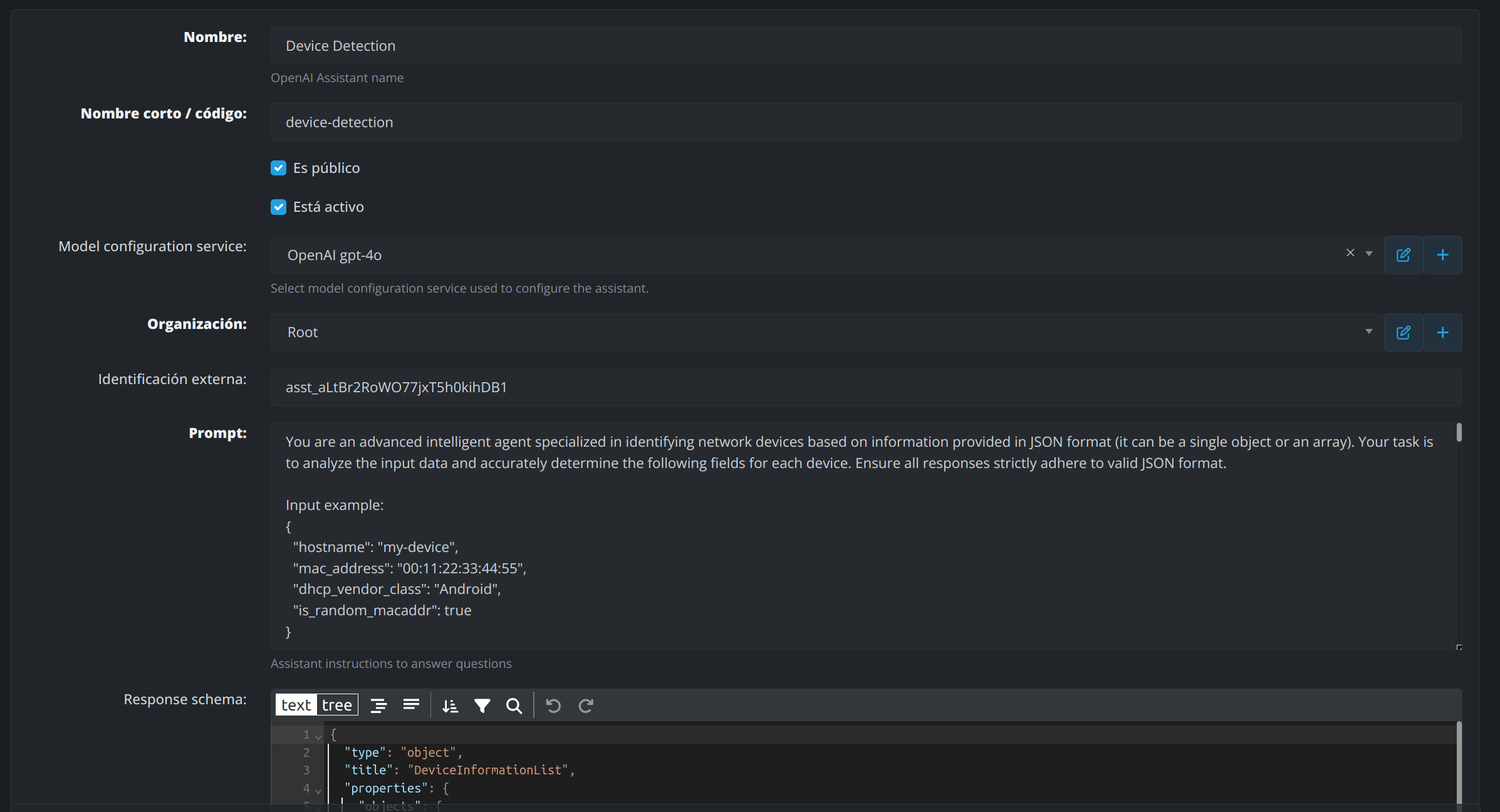
1. Name
The display name of the assistant, representing its purpose or functionality.
-
Example:
Device Detection
2. Short Name / Code
A concise identifier or code for the assistant, used for easy reference in systems and API calls.
-
Example:
device-detection
3. Model Configuration Service
Defines the AI model or engine the assistant utilizes for processing tasks. These are configured as Alfred services.
-
Example:
OpenAI GPT-4
4. Organization
Specifies the organization or team responsible for the assistant.
-
Example:
Root
5. External Identification
A unique identifier assigned to the assistant for external integration or tracking purposes.
-
Example:
asst_altBr2RoWO77jxT5h0kihDB1(OpenAI Assistant ID)
6. Prompt
Instructions provided to the assistant that define its core behavior and task scope. This ensures the assistant interprets and processes data accurately according to your requirements.
-
Example:
You are an intelligent assistant that provides answers about Sports in JSON format
7. Response Schema
Defines the structure and format of the assistant's output to ensure responses conform to valid JSON or other required formats.
-
Example:
{
  "type": "object",
  "title": "DeviceInformationList",
  "properties": {
    "hostname": {
      "type": "string"
    },
    "mac_address": {
      "type": "string"
    },
    "dhcp_vendor_class": {
      "type": "string"
    },
    "is_random_macaddr": {
      "type": "boolean"
    }
  }
}
Integration Guide: ask_to_assistant Function
The ask_to_assistant function enables communication with AI-powered assistants, allowing developers to query assistants and receive intelligent responses programmatically.
Function Signature
def ask_to_assistant(
    question: str,
    id: int = None,
    short_name: str = None,
    organization_id: int = None,
    related_object = None,
    related_object_name = None,
    related_object_id = None,
    check_answers = False
)
Parameters
Required Parameter
-
question(str)
The query or prompt to send to the assistant.
Optional Parameters
-
id(int)
The unique ID of the assistant to query. -
short_name(str)
The short name/code of the assistant to query. -
organization_id(int)
The ID of the organization to which the assistant belongs. -
related_object(Any)
An optional object associated with the query (e.g., related to a specific feature or module). -
related_object_name(str)
The name of the related object. -
related_object_id(int)
The ID of the related object. -
check_answers(bool)
IfTrue, checks for previously stored answers to avoid duplicate queries and improve performance.
Return Value
-
strorNone
Returns the assistant's response based on the given query. ReturnsNoneif no assistant is found.
How It Works
-
Retrieve the Assistant
The function usesAssistant.objects.get_default_assistantto fetch the desired assistant based on the providedid,short_name, ororganization_id. -
Check for Previous Answers (Optional)
Ifcheck_answersis set toTrue, the function checks if there is a previously saved answer for the same question. If found, it returns that cached answer. -
Log the Request
A log entry is created usingupsert_logto track the request details and status. -
Call the Appropriate Model Service
Based on the assistant's configuration:-
OpenAI models (
openai-model-config): Callsask_to_openai_assistantwith the assistant'sexternal_idand API key. -
Groq models (
groq-model-config): Callsask_to_groq_assistantwith the assistant's model settings and API key.
-
OpenAI models (
-
Update the Log
The log is updated with the assistant's response, tokens used, and execution delay. -
Return the Response
The final answer is returned to the caller.
Example Usage
Querying an Assistant by Short Name
response = ask_to_assistant(
    question="What is the weather forecast today?",
    short_name="forecast-assistant"
)
Querying with Related Object Context
response = ask_to_assistant(
    question="Analyze this device configuration",
    short_name="device-detection",
    related_object_name="NetworkDevice",
    related_object_id=12345,
    check_answers=True
)
Alfred Assistant Logs
Each question performed to a specific assistant generates detailed execution logs. These logs allow you to monitor assistant performance, track token usage, and troubleshoot issues.
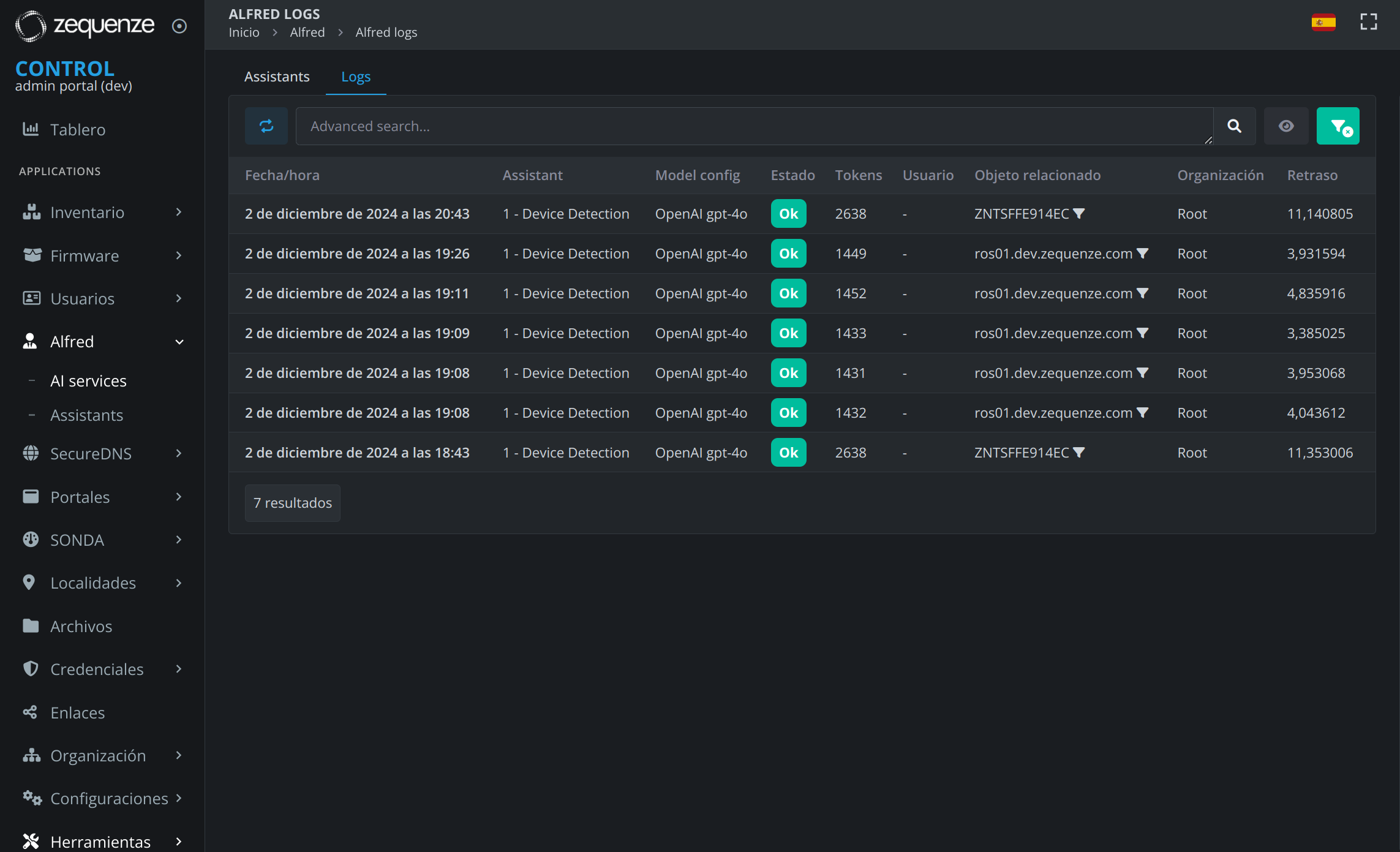
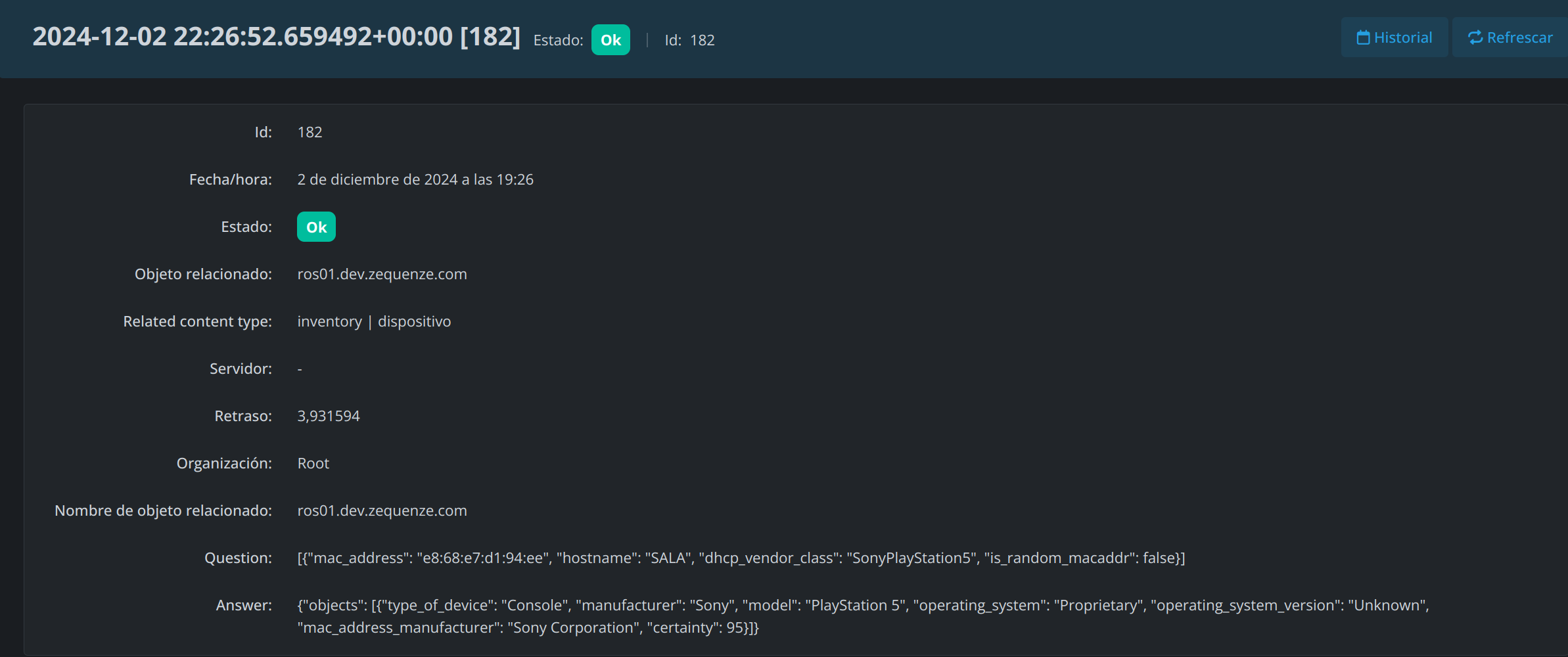
Log Information
Assistant logs provide visibility into:
- Request details: Question asked, assistant used, and timestamp
- Response data: Answer provided by the assistant
- Performance metrics: Token usage and execution time
- Related objects: Associated entities or context for the query
- Status: Success or error information
Service Status Cards
Service Status Cards
Overview
The Service Status Cards feature in CONTROL enables real-time monitoring of device services and WAN interface status through customizable dashboard cards. These cards display operational data retrieved from TR-181 or TR-098 parameters, providing instant visibility into your network infrastructure.
 Figure: Services in healthy state
 Figure: Services in disabled state
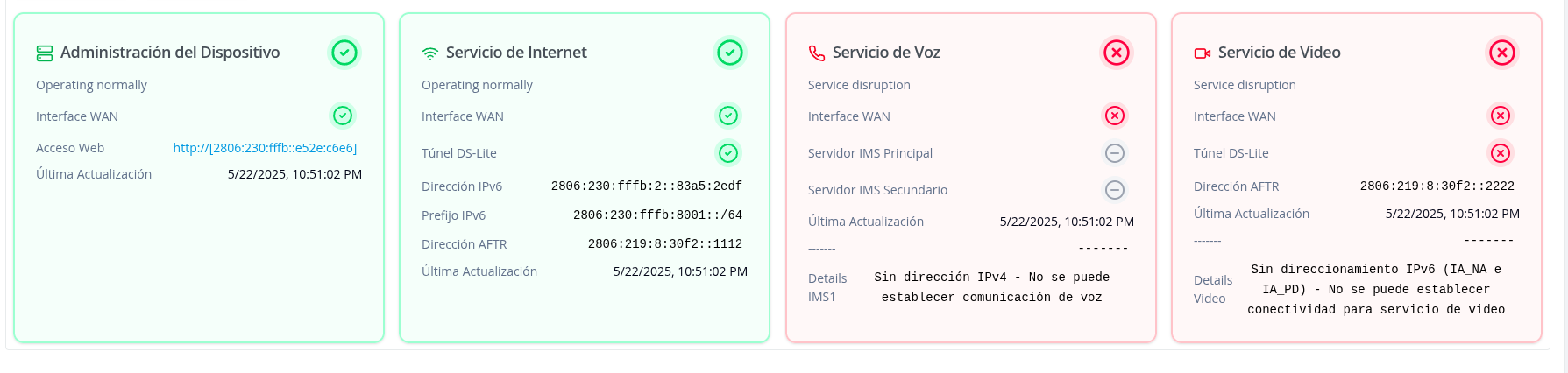 Figure: Services showing disruption or failure
Available Service Cards
The platform provides four types of service status cards:
-
Device Management — Displays device operational status and WAN interface connectivity. Shows IPv6 addressing for ACS communication and provides direct web access to the device interface.
-
Internet Service — Monitors internet connectivity status with detailed IPv6 addressing (IA_NA and IA_PD) and DS-Lite tunnel configuration for IPv4 connectivity.
-
Voice Service — Tracks VoIP service status including IMS server configuration (primary and secondary), telephony line registration, and SIP parameters.
-
Video Service — Monitors video streaming service status with dedicated DS-Lite tunnel and IPv6 configuration separate from internet service.
Configuration Guide
Step 1: Navigate to Device Profiles
Access the profiles section where you'll configure the monitoring script:
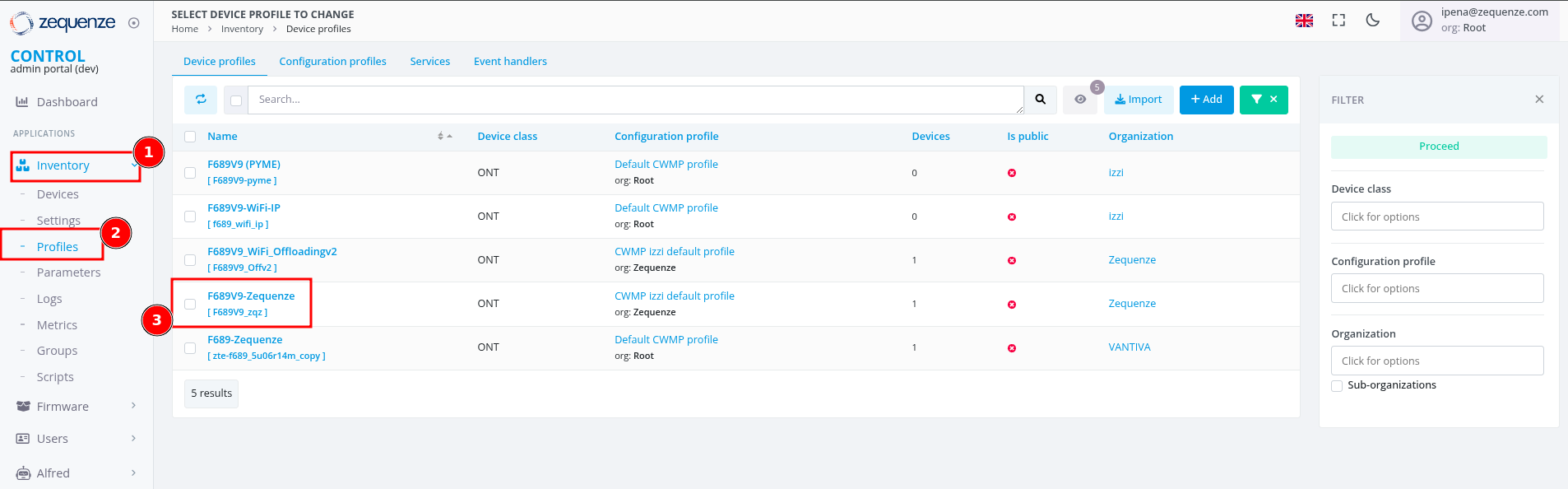 Figure 1: Device profile selection interface
Step 2: Access Profile Scripts
Locate the script configuration area within the profile:
- Scroll to the bottom of the profile configuration page
- Find the Profile scripts section
- Click the +Add button to create a new script entry
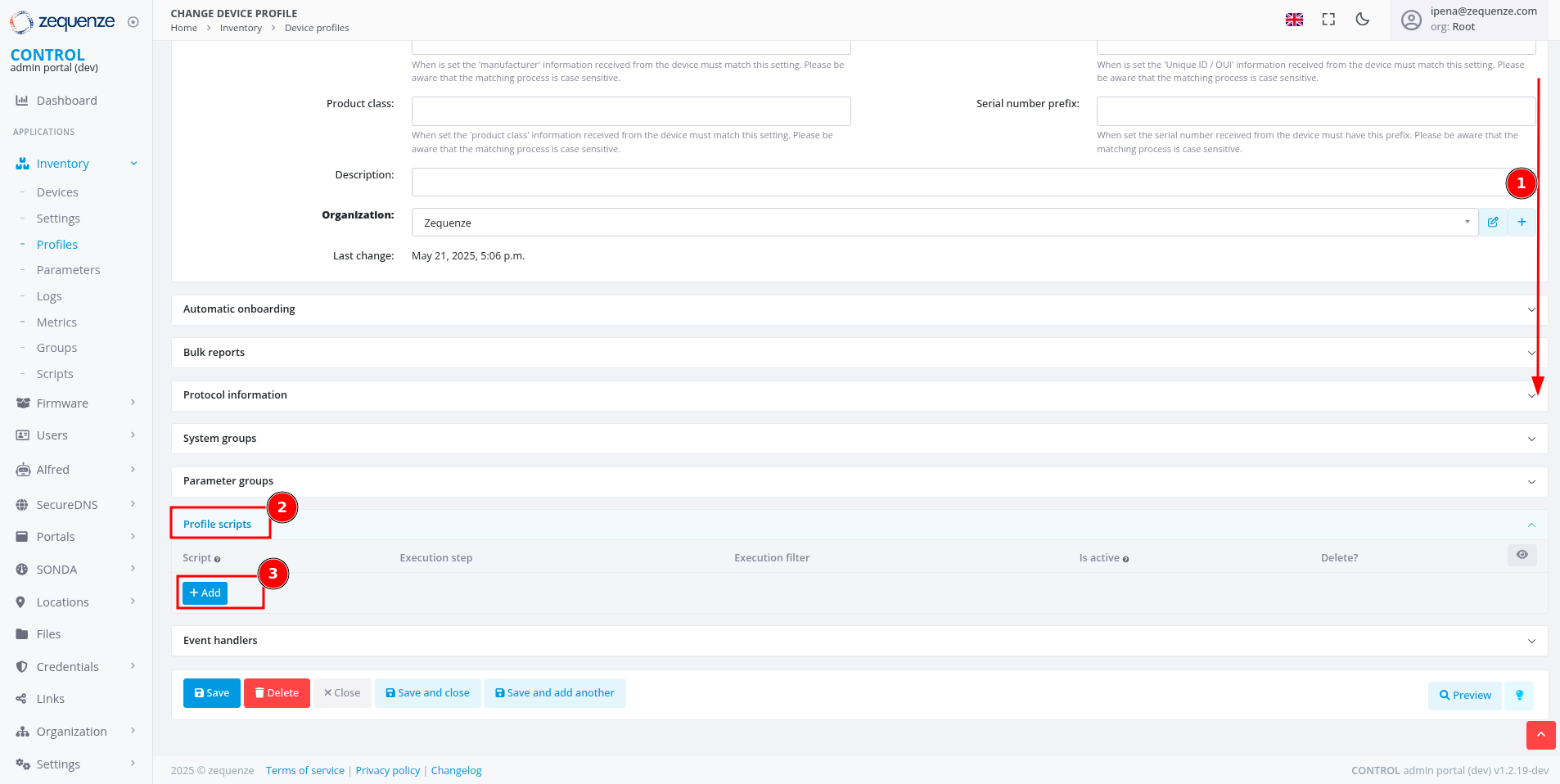 Figure 2: Profile scripts configuration section
Step 3: Create New Script Entry
Initialize a new script for service monitoring:
- In the new script line that appears, click the + icon
- The script creation dialog will open
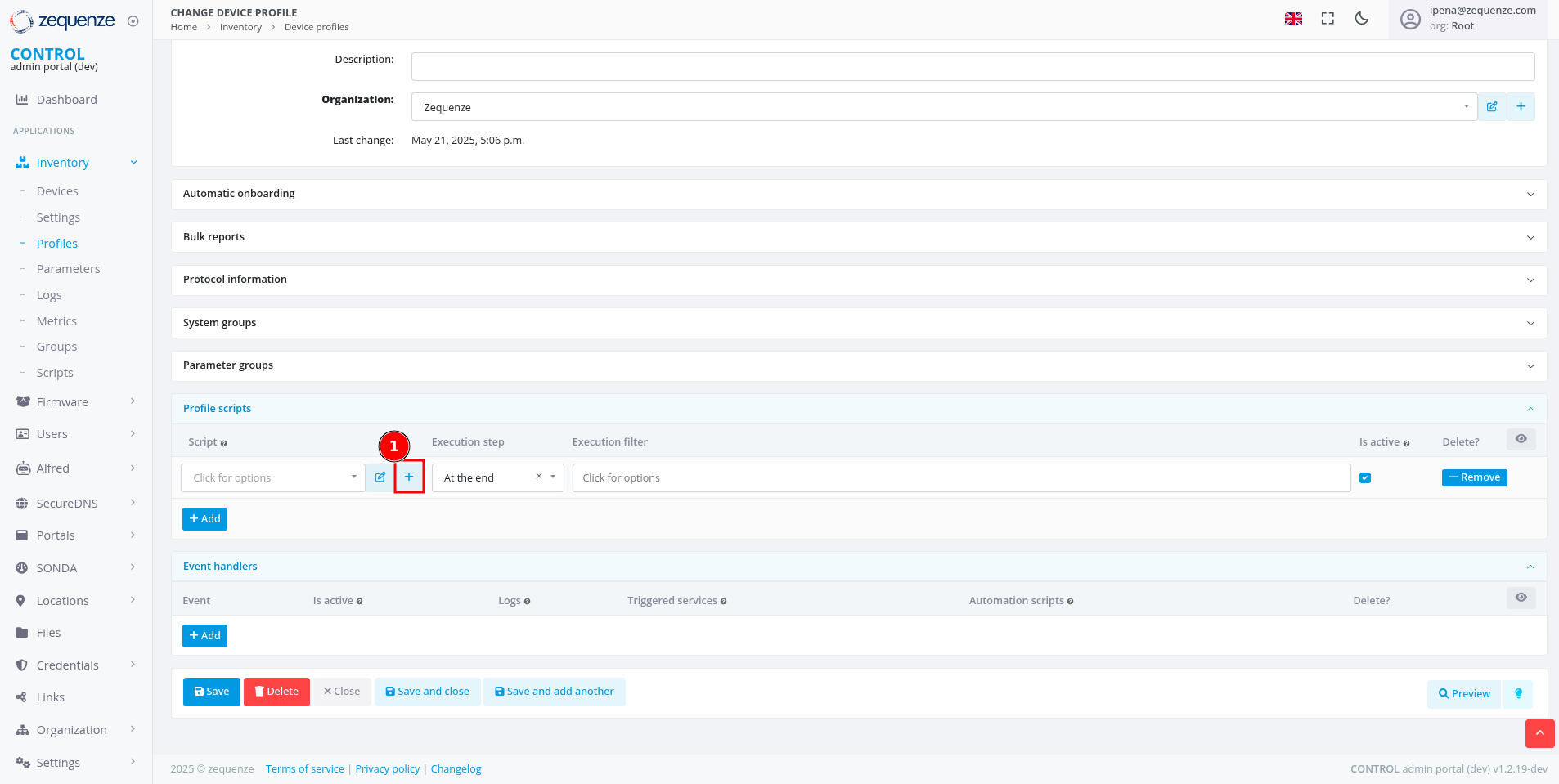 Figure 3: Creating a new script entry
Step 4: Configure Script Properties
Define the basic script parameters:
- Name: Enter a descriptive name (e.g., "Script_Global")
- Script type: Select Profile from the dropdown
- Organization: Verify the organization matches your profile
- Click Save and close
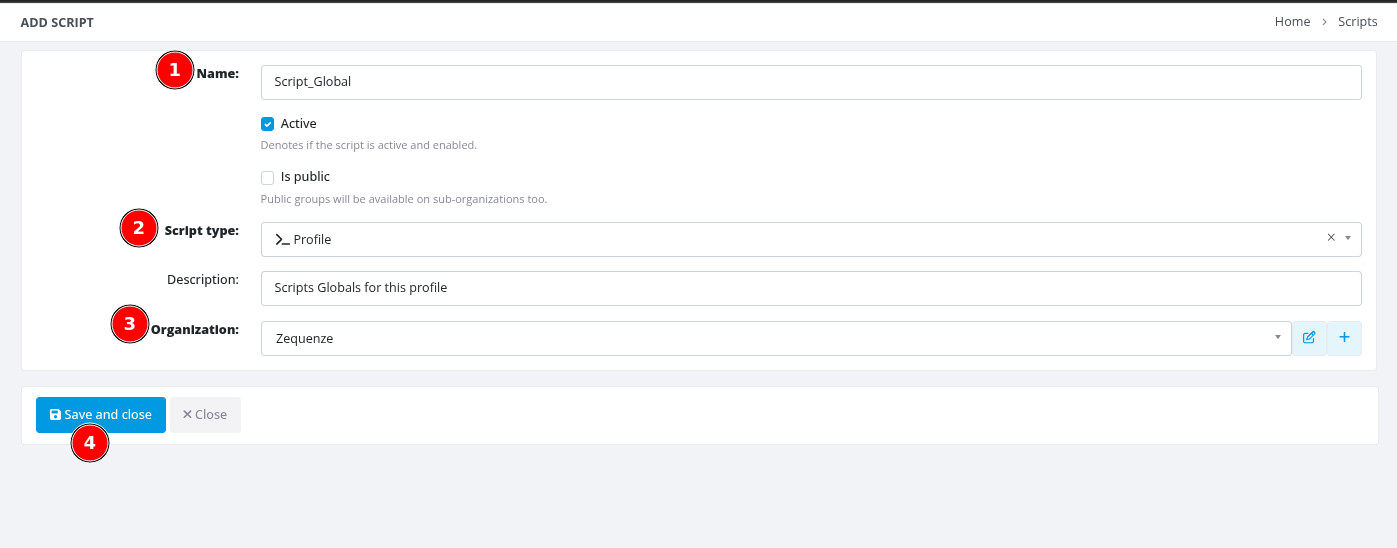 Figure 4: Script properties configuration dialog
Step 5: Save Profile Configuration
Apply the script association to the profile:
- Return to the main profile configuration page
- Click Save to apply the changes
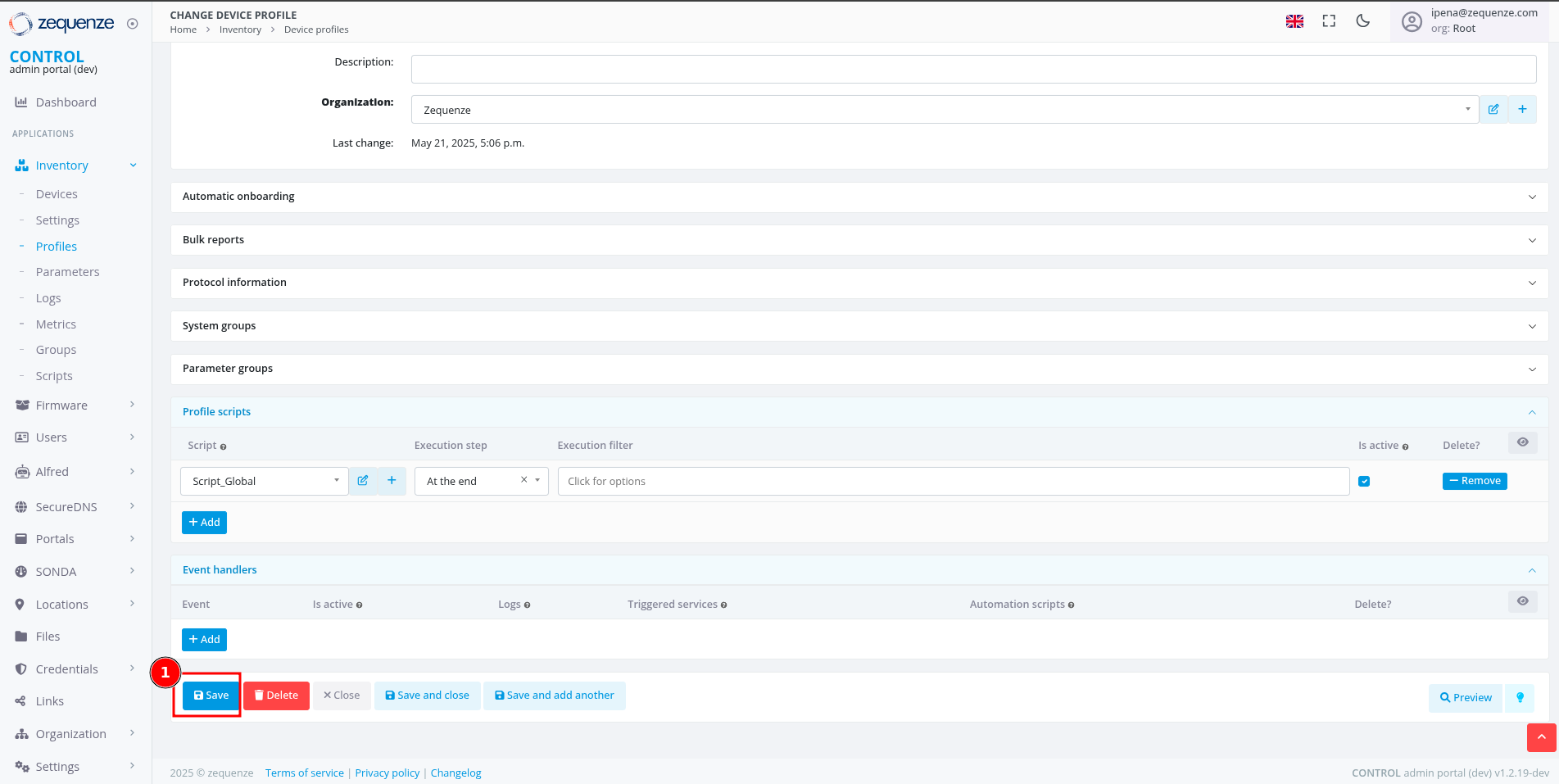 Figure 5: Saving profile configuration
Step 6: Access Script Editor
Open the script editor to implement the monitoring logic:
- Click the Edit button (pencil icon) next to your script
- The script editor interface will open
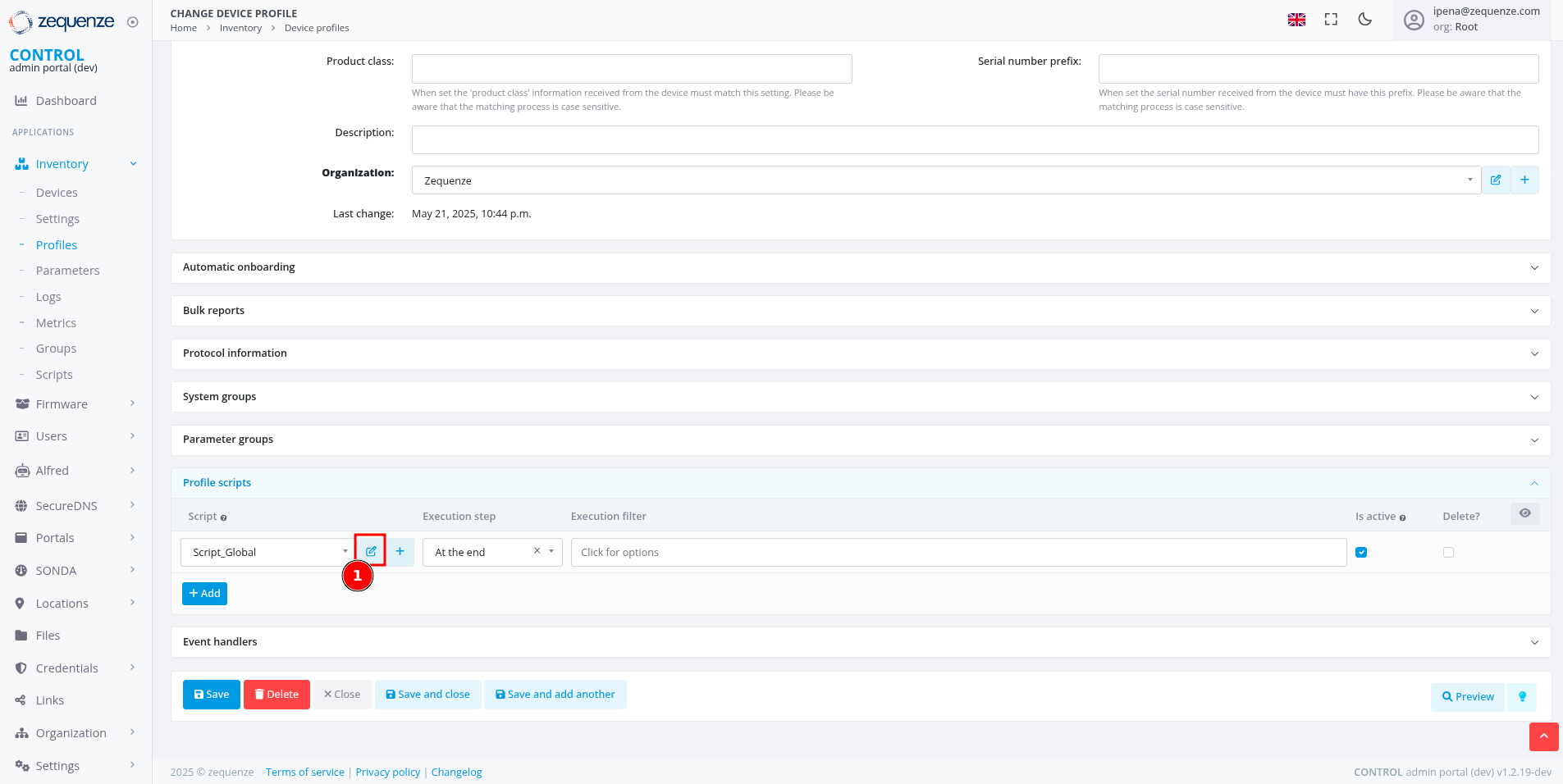 Figure 6: Accessing the script editor
Step 7: Implement Service Monitoring Script
Add the monitoring logic to the script editor:
- In the script editor text area, paste or write your service monitoring code
- The script should query TR-181/TR-098 parameters for service status
- Format output as JSON to display service cards with appropriate status indicators
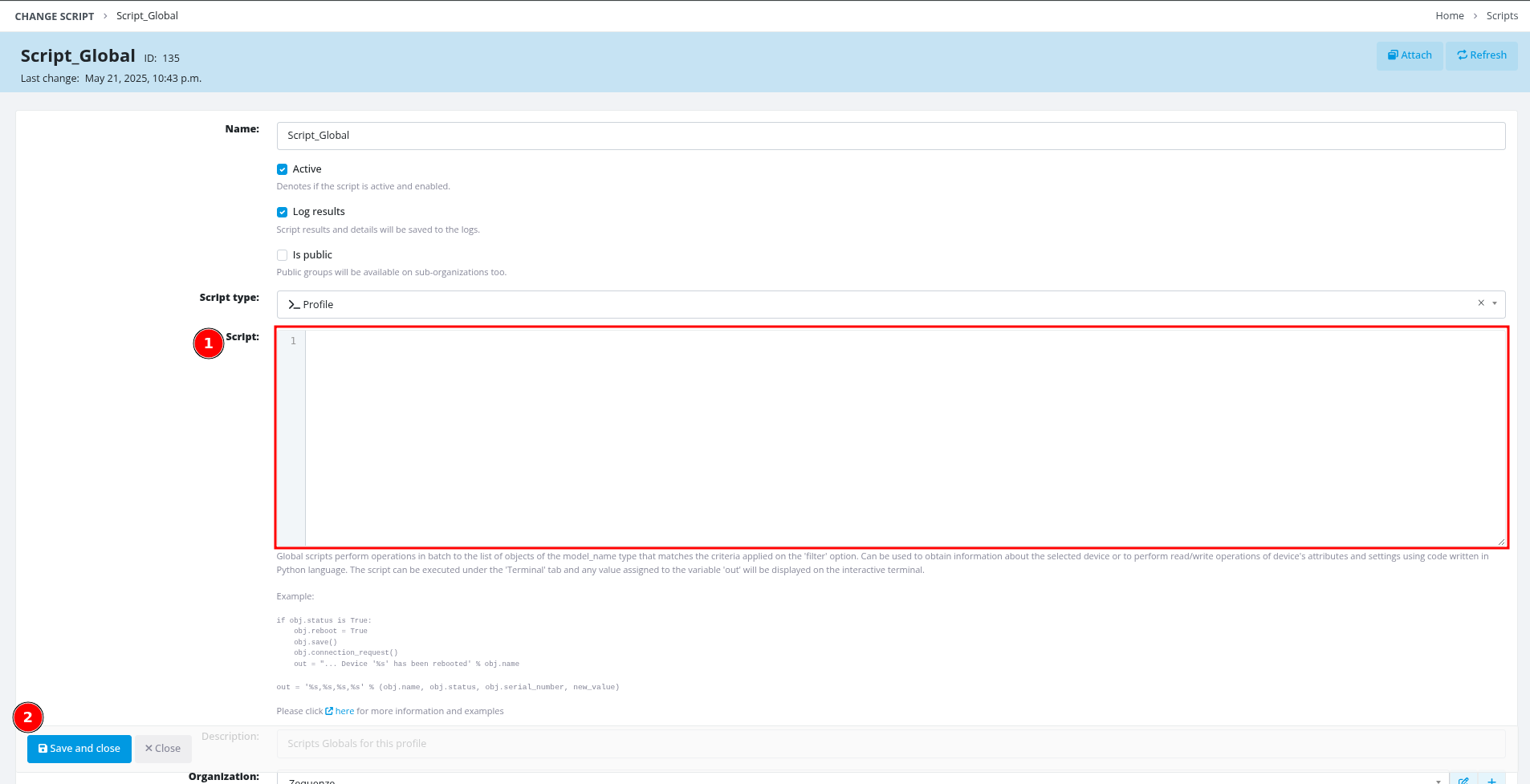 Figure 7: Script editor interface
Script Implementation
Core Helper Functions
The script uses utility functions to process device parameters safely and efficiently.
Parameter Processing Function
import json

def process_device_get(value, as_json=False):
    """
    Process device parameter values from TR-181 queries.

    Args:
        value: Tuple containing (value, success) from device.get()
        as_json: Boolean flag to parse value as JSON array

    Returns:
        Processed value as string, JSON object, or default value
    """
    if not isinstance(value, tuple) or len(value) != 2:
        return [] if as_json else "0"

    val, success = value
    if not success or val is None or val == "":
        return [] if as_json else "0"

    if as_json:
        try:
            return json.loads(val)
        except json.JSONDecodeError:
            return []

    return str(val)
TR-181 Parameter Query Methods
The platform supports two types of parameter queries with different return formats:
Single Value Parameters (ending with parameter name):
# Returns direct value as string
hsi_enable = process_device_get(
    device.get(variable_name='Device.IP.Interface.4.Enable')
)

dslite1_status = process_device_get(
    device.get(variable_name='Device.DSLite.InterfaceSetting.1.Status')
)
Array Parameters (ending with dot):
# Returns JSON array with multiple parameter objects
hsi_iana = process_device_get(
    device.get(variable_name='Device.IP.Interface.4.IPv6Address.'),
    as_json=True
)

voice_ipv4 = process_device_get(
    device.get(variable_name='Device.IP.Interface.5.IPv4Address.'),
    as_json=True
)
Service-Specific Implementation
1. Device Management Service
Monitors the management interface for ACS connectivity and device access.
Input Parameters
# Management interface IPv6 addressing
mgmt_iana = process_device_get(
    device.get(variable_name='Device.IP.Interface.3.IPv6Address.'),
    as_json=True
)
Analysis Function
def analyze_management_interface():
    """
    Analyze device management service status.
    Evaluates IPv6 connectivity for ACS communication.
    """
    iana = safe_json_loads(iana)
    has_iana = False
    iana_address = None
    iana_expired = False

    # Parse IPv6 address information
    if iana and isinstance(iana, list):
        for item in iana:
            if item.get('Origin') == 'DHCPv6' and item.get('IPAddress'):
                has_iana = True
                iana_address = item.get('IPAddress')
                valid_lifetime = item.get('ValidLifetime')
                if valid_lifetime:
                    iana_expired = is_lifetime_expired(valid_lifetime)
                break

    # Determine service status
    if not has_iana:
        service_status = "disabled"
        wan_status = "disabled"
    elif iana_expired:
        service_status = "warning"
        wan_status = "warning"
    else:
        service_status = "healthy"
        wan_status = "healthy"

    # Build metrics array
    metrics = [{
        "id": "wan_status",
        "label": "Interface WAN",
        "type": "status",
        "value": wan_status,
        "tooltip": "Interface WAN: Connected (you have device access)" if has_iana
                   else "Interface WAN: Disconnected"
    }]

    # Add web access link if IPv6 available
    if iana_address:
        metrics.append({
            "id": "ipv6_link",
            "label": "Web Access",
            "type": "link",
            "value": {
                "text": f"http://[{iana_address}]",
                "href": f"http://[{iana_address}]"
            },
            "linkTarget": "_blank",
            "tooltip": "Access device web interface"
        })

    return {
        "id": "management-service",
        "name": "Device Management",
        "type": "management",
        "status": service_status,
        "category": "management",
        "metrics": metrics,
        "iconSize": "tw-w-7 tw-h-7"
    }
Example Output
{
  "id": "management-service",
  "name": "Device Management",
  "type": "management",
  "status": "healthy",
  "category": "management",
  "metrics": [
    {
      "id": "wan_status",
      "label": "Interface WAN",
      "type": "status",
      "value": "healthy",
      "tooltip": "Interface WAN: Connected (you have device access)"
    },
    {
      "id": "ipv6_link",
      "label": "Web Access",
      "type": "link",
      "value": {
        "text": "http://[2806:230:fffb::16e2:6357]",
        "href": "http://[2806:230:fffb::16e2:6357]"
      },
      "linkTarget": "_blank",
      "tooltip": "Access device web interface"
    }
  ],
  "iconSize": "tw-w-7 tw-h-7"
}
2. Internet Service
Monitors internet connectivity including IPv6 addressing and DS-Lite tunneling for IPv4 support.
Input Parameters
# High-Speed Internet (HSI) interface parameters
hsi_enable = process_device_get(
    device.get(variable_name='Device.IP.Interface.4.Enable')
)
hsi_iana = process_device_get(
    device.get(variable_name='Device.IP.Interface.4.IPv6Address.'),
    as_json=True
)
hsi_iapd = process_device_get(
    device.get(variable_name='Device.IP.Interface.4.IPv6Prefix.'),
    as_json=True
)

# DS-Lite tunnel parameters for IPv4 connectivity
dslite1_enable = process_device_get(
    device.get(variable_name='Device.DSLite.InterfaceSetting.1.Enable')
)
dslite1_address = process_device_get(
    device.get(variable_name='Device.DSLite.InterfaceSetting.1.EndpointAddress')
)
dslite1_status = process_device_get(
    device.get(variable_name='Device.DSLite.InterfaceSetting.1.Status')
)
Analysis Function
def analyze_data_interface():
    """
    Analyze internet service status including IPv6 and DS-Lite configuration.
    Evaluates WAN connectivity, IPv6 addressing, and IPv4 tunneling.
    """
    # Parse IPv6 addressing information
    iana = safe_json_loads(iana)  # IPv6 addresses
    iapd = safe_json_loads(iapd)  # IPv6 prefixes

    has_iana = False
    has_iapd = False
    iana_address = None
    iapd_prefix = None

    # Check for valid IPv6 address (IA_NA)
    if iana and isinstance(iana, list):
        for item in iana:
            if item.get('Origin') == 'DHCPv6' and item.get('IPAddress'):
                has_iana = True
                iana_address = item.get('IPAddress')
                break

    # Check for valid IPv6 prefix delegation (IA_PD)
    if iapd and isinstance(iapd, list):
        for item in iapd:
            if item.get('Origin') == 'PrefixDelegation' and item.get('Prefix'):
                has_iapd = True
                iapd_prefix = item.get('Prefix')
                break

    # Analyze DS-Lite tunnel configuration
    default_dslite_addresses = {'INTERNET': 'fc00::1', 'VIDEO': 'fc00::2'}
    is_default_dslite = dslite_address == default_dslite_addresses.get(service)
    has_invalid_dslite = dslite_address and ("@" in dslite_address)

    # Determine service status based on all parameters
    service_status = "disabled"
    if not enable:
        service_status = "disabled"
    elif not (has_iana and has_iapd):
        service_status = "error"
    elif not dslite_enable:
        service_status = "error"
    elif is_default_dslite:
        service_status = "warning"
    elif has_invalid_dslite:
        service_status = "error"
    elif dslite_